Minecraft Java Multiplayer: Everything You Need to Know
Learning how to play multiplayer on Minecraft Java is easier than most players think — and there are several ways to do it depending on your setup.
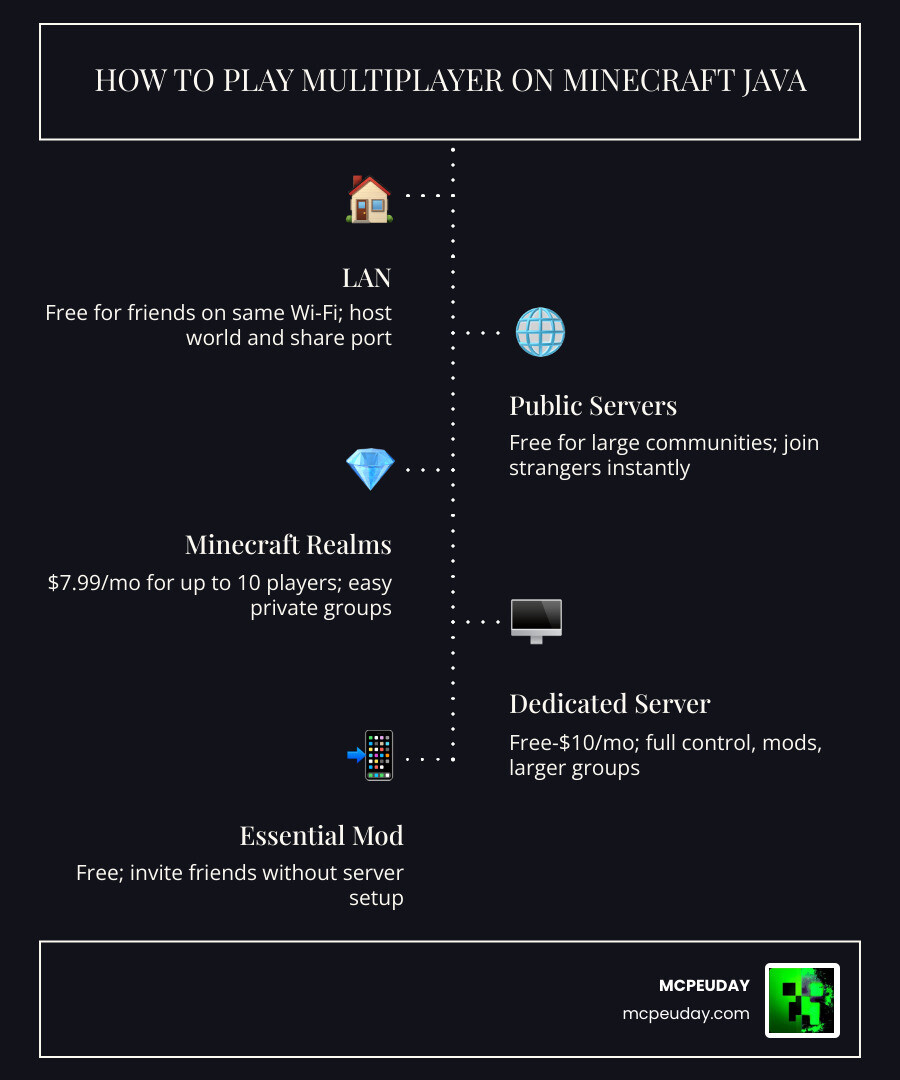
Here’s a quick overview of your options:
| Method | Cost | Best For |
|---|---|---|
| LAN | Free | Friends on the same Wi-Fi |
| Public Servers | Free | Playing with strangers or large communities |
| Minecraft Realms | $7.99/month | Small private groups (up to 10 players) |
| Dedicated Server | Free–$10/month | Full control, mods, larger groups |
| Essential Mod | Free | Inviting friends without a server |
Minecraft Java Edition is the original PC version of the game, and its multiplayer scene is massive. With over 300 million copies sold worldwide, it’s one of the most played games ever — and a huge part of that is the community experience.
Whether you want to jump into a quick session with friends down the street or build a modded server for your whole crew, there’s a setup that fits.
This guide walks you through every method, step by step — including how to set up your own dedicated server in just 7 steps.
4 Ways to Play Multiplayer on Minecraft Java
When we talk about how to play multiplayer on Minecraft Java, we aren’t just talking about one single button. Java Edition is famous for its flexibility, allowing us to connect in several distinct ways. Each method has its own pros and cons regarding cost, technical difficulty, and player limits.
| Method | Player Limit | Technical Difficulty | Customization |
|---|---|---|---|
| LAN | 4–10 players | Very Low | Limited to host’s mods |
| Realms | 10 players | Low | No gameplay mods |
| Public Servers | 100+ players | Very Low (to join) | Server-dependent |
| Dedicated Hosting | Unlimited* | High | Full (Mods & Plugins) |
If you are looking for the simplest route, joining a public server or using 5 Easy Ways to Play Minecraft Multiplayer on Java Edition will get you started quickly. However, if you want a private world that stays online 24/7, you’ll likely want to look into Realms or a dedicated server.
At MCPEUDAY, we often see players who want the best of both worlds: high-quality graphics through shaders and complex gameplay through mods. For those players, a dedicated server or the Essential Mod is usually the best path forward.
How to Play Multiplayer on Minecraft Java via LAN
LAN (Local Area Network) is the “old school” way of playing together. It is perfect if you and your friends are in the same house, sitting on the same couch, or connected to the same Wi-Fi network.
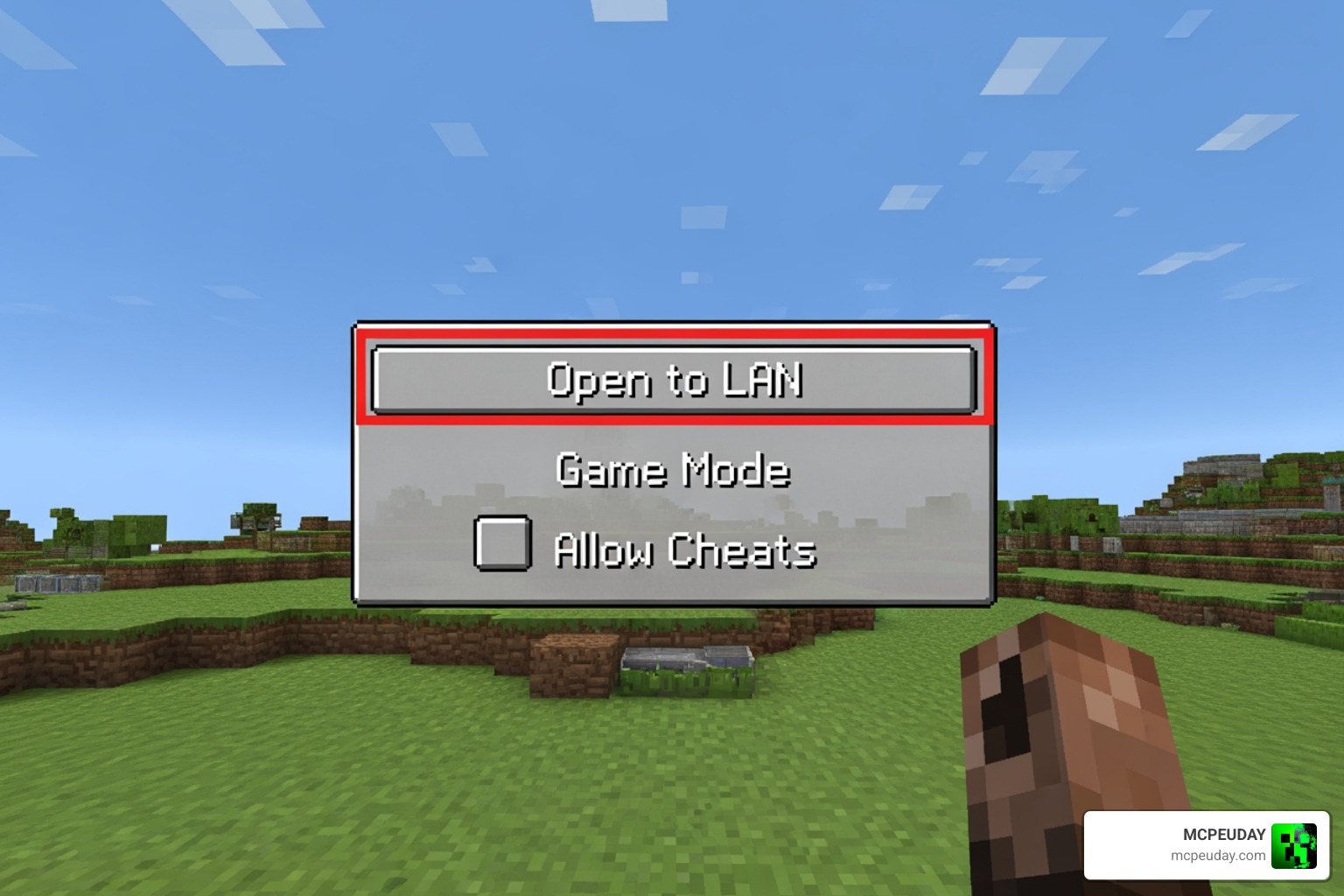
Steps to Host a LAN World:
- Launch Minecraft: Open your single-player world that you want to share.
- Open the Menu: Press the Esc key to bring up the pause menu.
- Open to LAN: Click the Open to LAN button.
- Configure Settings: Choose the game mode for your guests (Survival, Creative, etc.) and decide if you want to allow cheats.
- Start the World: Click Start LAN World. In your chat box, you will see a message saying “Local game hosted on port XXXXX.” Note this number down!
Steps to Join a LAN World:
- Go to Multiplayer: The joining player should click Multiplayer from the main menu.
- Scan for Games: Minecraft will automatically scan the local network. The LAN world should appear at the bottom of the list.
- Direct Connection (If it doesn’t appear): If the world isn’t showing up, click Direct Connection. You will need the host’s local IP address followed by the port number (e.g.,
192.168.1.25:54321).
For more detailed networking tips, check out the official guide on how to Play Minecraft: Java Edition on a Local Area Network (LAN).
Setting Up a Dedicated Server in 7 Easy Steps
If you want a world that is always available, even when your main computer is off, you need a dedicated server. This is the gold standard for how to play multiplayer on Minecraft Java.
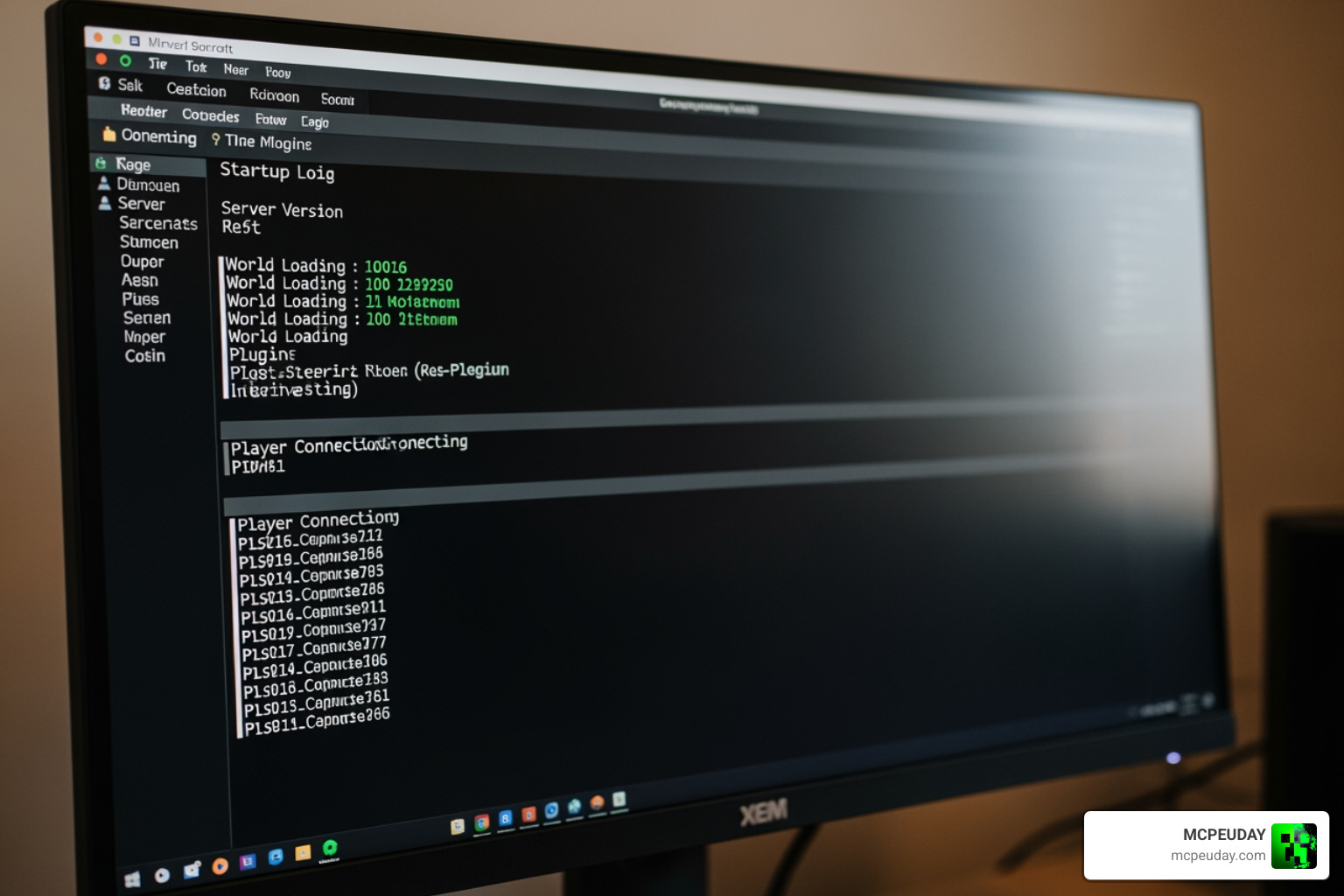
Step 1: Download the Server Software
Go to the official Minecraft website and download the server.jar file for the version you want to play. As of May 2026, ensure you have the latest version (likely using Java 25 for the newest releases).
Step 2: Create a Server Folder
Create a new folder on your desktop or drive named “Minecraft Server.” Move the server.jar file into this folder.
Step 3: Run the Initial Launch
Open your command prompt or terminal. Navigate to your folder and run the command: java -Xmx2G -Xms2G -jar server.jar nogui The server will start and then immediately close. This is normal!
Step 4: Accept the EULA
In your server folder, you will now see a file named eula.txt. Open it and change eula=false to eula=true. Save the file.
Step 5: Create a Start Script
To make launching easier, create a new text file in the folder. Paste the launch command from Step 3 into it. Save the file as start.bat (Windows). Now, you can just double-click this file to start your server.
Step 6: Configure Port Forwarding
This is the “technical” part. To let friends join from outside your house, you must log into your router settings and forward port 25565 to your computer’s local IP address. This tells your router to send Minecraft traffic directly to your server.
Step 7: Share Your Public IP
Find your public IP address (search “What is my IP” on Google). Give this address to your friends. They will enter it into their “Add Server” menu in Minecraft.
For a deeper dive into self-hosting, How to play multiplayer in ‘Minecraft: Java Edition,’ using either a public server or one you create yourself offers excellent additional context.
How to play multiplayer on Minecraft Java with the Essential Mod
If the 7 steps above seem too technical, we highly recommend the Essential Mod. It’s a game-changer for the Java community. Once installed via CurseForge or as a standalone mod, it adds a “Social” tab to your main menu.
You can add friends by their Minecraft username, and then simply invite them directly into your single-player world. No port forwarding or server hosting is required! It effectively turns Java Edition into a more “console-like” experience where joining is as simple as clicking an invite.
Troubleshooting and Security Best Practices
Even when you know how to play multiplayer on Minecraft Java, things can go wrong. Connection issues are the most common headache for players.
Common Fixes:
- Version Mismatch: Ensure every player is using the exact same version of Minecraft (e.g., 1.21.1).
- Firewall Blocks: Sometimes Windows Firewall blocks the connection. Ensure “Java(TM) Platform SE binary” is allowed through your firewall.
- Whitelist Your Server: If you are hosting a public-facing server, always use a whitelist (
/whitelist onand/whitelist add username). This prevents “griefers” from joining and destroying your hard work. - RAM Allocation: If the server is lagging, increase the RAM in your
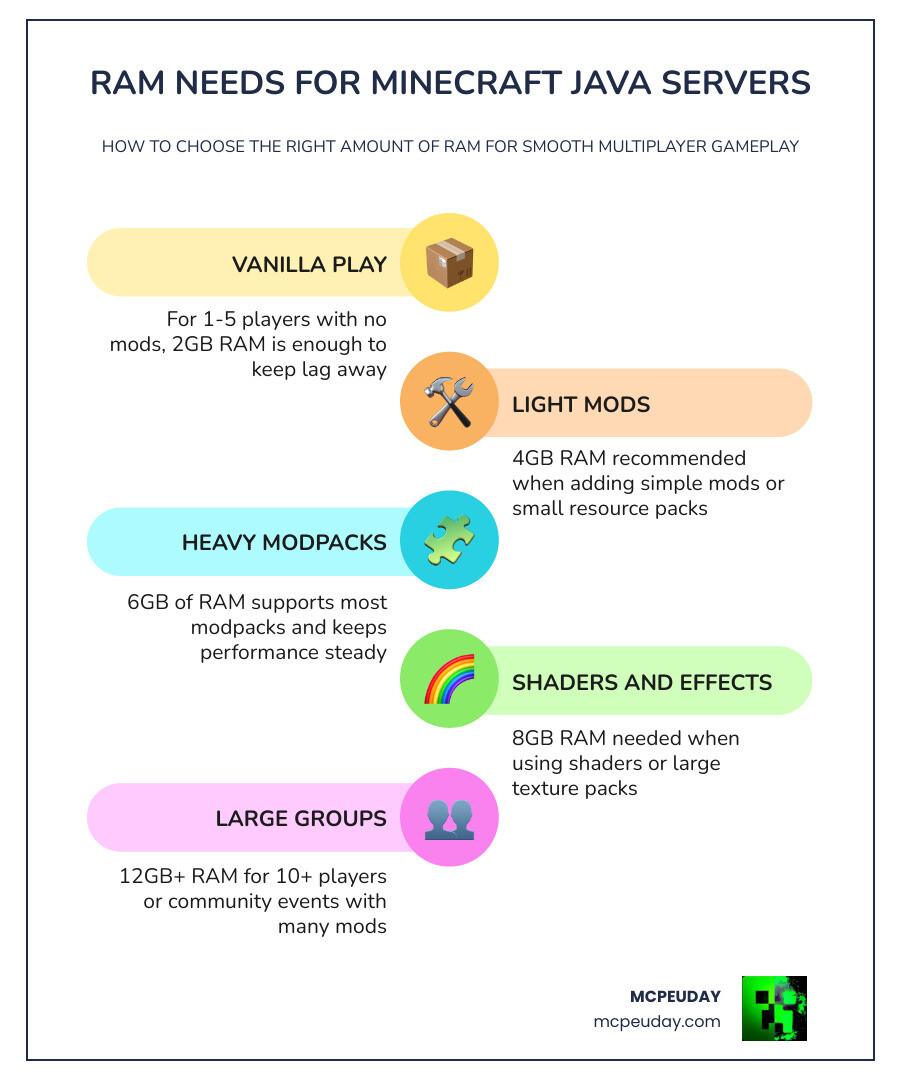
start.batfile. We recommend at least 2GB for a small group.
Why can’t I play multiplayer on Minecraft Java?
If the “Multiplayer” button is greyed out or says it is disabled, the issue is usually related to your Microsoft Account privacy settings. This is especially common for child accounts.
- Log into your Microsoft/Xbox account settings.
- Navigate to Privacy & Online Safety.
- Ensure “You can join multiplayer games” is set to Allow.
- Note: It can take up to 24 hours for these changes to propagate across all services.
Frequently Asked Questions about Java Multiplayer
Is Minecraft Java multiplayer free?
Yes and no. Joining public servers and playing via LAN is completely free. However, if you want a private, 24/7 hosted server, you will either need to host it yourself (free, but uses your electricity and hardware) or pay for a service like Minecraft Realms ($7.99/month).
Can Java and Bedrock play together?
By default, no. They are written in different programming languages (Java vs. C++). However, server owners can use a plugin called GeyserMC to allow Bedrock players to join Java servers. Without this specific technical setup, the two versions cannot interact.
How much RAM do I need for a server?
For a vanilla (unmodded) experience with 1-5 players, 2GB of RAM is the recommended minimum. If you are running heavy modpacks or shaders from MCPEUDAY, you should aim for 4GB to 8GB to ensure a smooth, lag-free experience for everyone.
Conclusion
Whether you choose the simplicity of a LAN world, the convenience of the Essential Mod, or the power of a dedicated server, knowing how to play multiplayer on Minecraft Java opens up a world of collaborative creativity. From building massive cities to surviving horror-themed modpacks, everything is better with friends.
At MCPEUDAY, we are dedicated to helping you make your Minecraft experience as exciting as possible. Once you have your server up and running, be sure to Explore more Minecraft resources to find the latest mods and shaders to share with your community! Happy crafting!
2 thoughts on “How to Play Multiplayer on Minecraft Java (2026 Guide) | LAN, Servers, Realms & Mods”