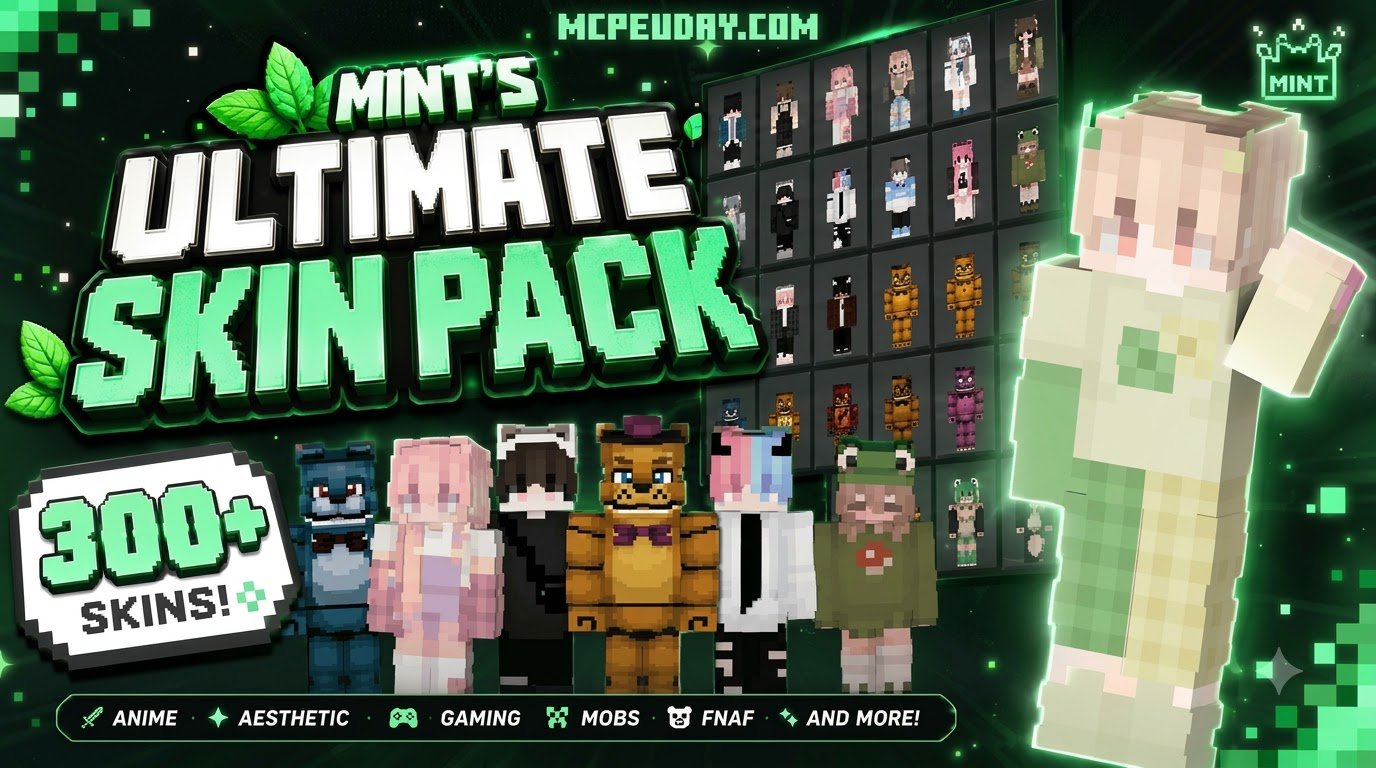
Download and Use Mint’s Ultimate Skin Pack for Minecraft Bedrock
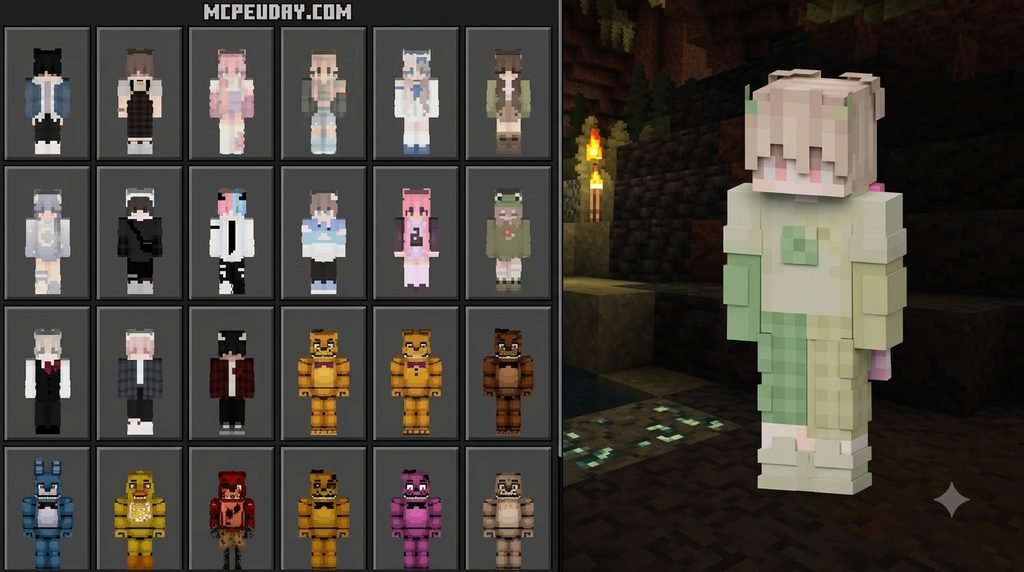
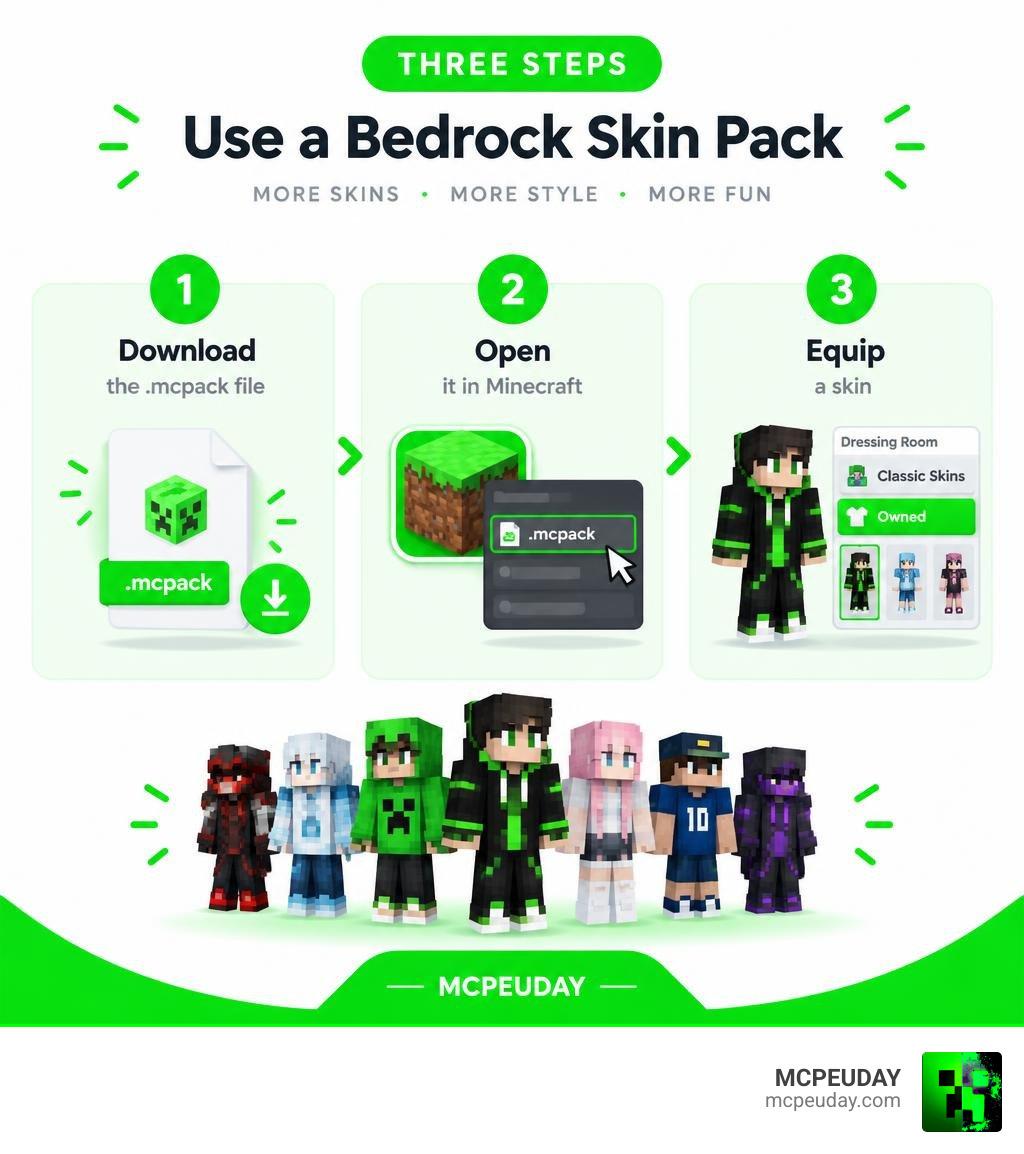
To get started, download Mint’s Ultimate Skin Pack as a .mcpack file from a source you trust. Open the file with Minecraft, then go to Dressing Room > Classic Skins > Owned to choose a skin. The pack brings more than 300 outfits into one download, with horror, sports, PvP, and aesthetic styles for Minecraft PE and Bedrock.
You can choose Classic (Steve) or Slim (Alex) models to match the look you want. I’m UDAY GAMER, and I’ll walk you through the setup on your device. This guide covers the full process, from downloading the pack to equipping your first skin, so you can spend less time managing files and more time enjoying your new wardrobe.
What is Mint’s Ultimate Skin Pack for Minecraft PE/Bedrock (Download)?
Mint’s Ultimate Skin Pack is a cosmetic bundle that solves the wardrobe crisis for Bedrock Edition players. Instead of forcing you to hunt down, download, and manage loose .png files one by one, it packages an entire library of over 300 distinct outfits into a single, clean .mcpack file. Weighing in at approximately 1020 KB (just around 1 MB), this ultra-lightweight collection provides high-resolution variety without bloating your device storage.
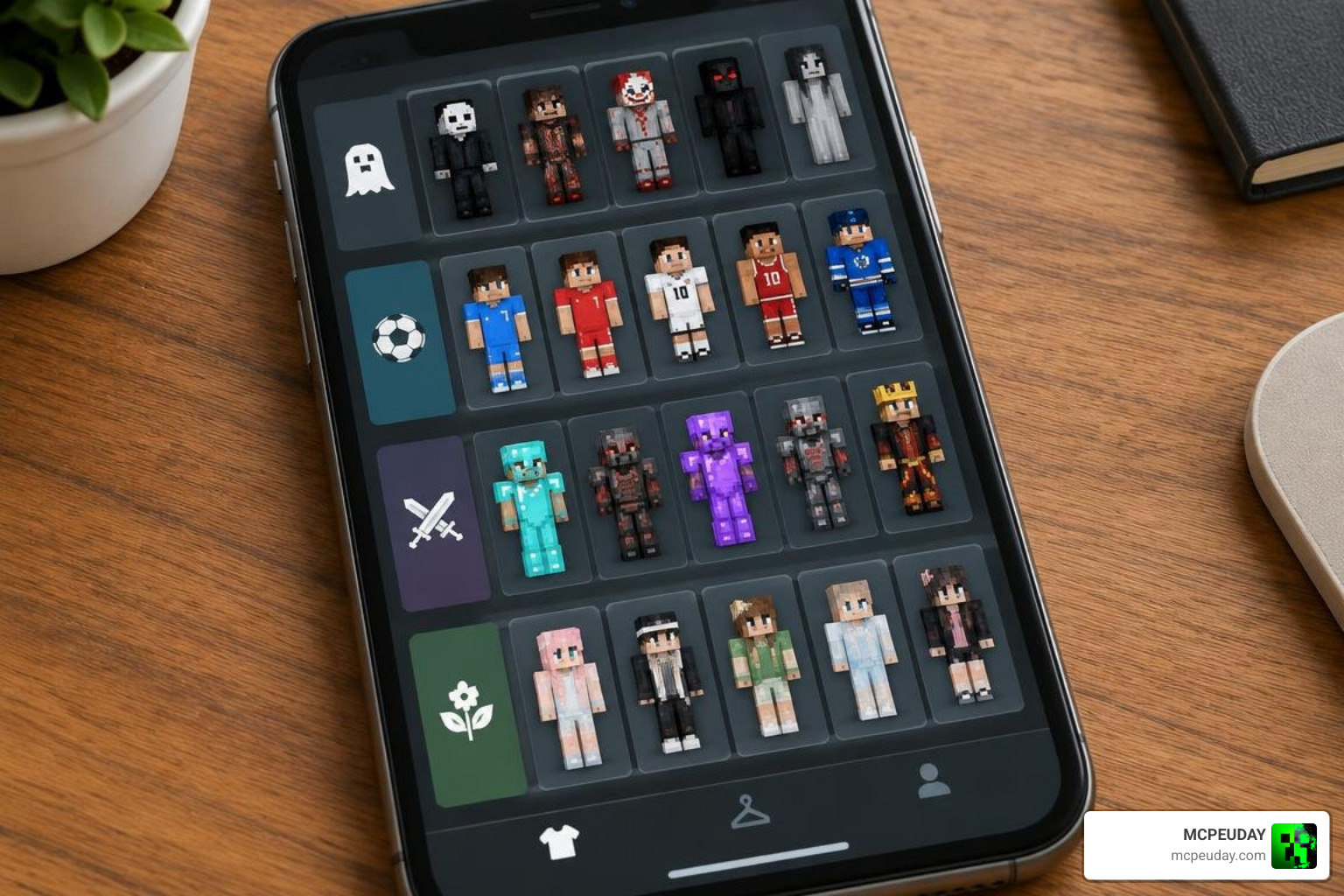
Every single skin inside this pack is structured with proper metadata, ensuring that skin titles and previews appear neatly arranged in the Minecraft UI rather than cluttering your dressing room with generic names. Whether you are looking for terrifying animatronics, sleek competitive gear, or casual modern streetwear, this pack provides an instant wardrobe overhaul that works seamlessly across all Bedrock platforms.
Key Categories in Mint’s Ultimate Skin Pack for Minecraft PE/Bedrock (Download)
The skin roster covers a broad spectrum of popular themes, ensuring you always have the right look for any server or minigame:
- Horror Roster: Jump into spooky custom adventure maps or Survival worlds dressed as characters inspired by Five Nights at Freddy’s (FNAF) and Poppy Playtime.
- Sports Legends: Represent iconic football superstars like Cristiano Ronaldo and Lionel Messi while playing on multiplayer SMP servers.
- PvP & Competitive Styles: Equip high-contrast, clean-lined skins designed for duels, Bedwars, and Treasure Wars, featuring Blue, Dark, Freestyle, Neon, and classic Hacker themes.
- Aesthetic Designs: Choose from dozens of modern boy and girl streetwear looks, casual outfits, hoodies, and pastel aesthetics for everyday building sessions.
- Meme Variants & Ultimate Steve: Bring some humor to your next multiplayer session with humorous “Ultimate Steve” parodies and quirky character twists.
- Dual Geometry Support: Every outfit is natively formatted for both Classic (4-pixel wide Steve arms) and Slim (3-pixel wide Alex arms) models, ensuring zero texture distortion or stretched pixels regardless of your preferred body type.
Because the pack uses the standard .mcpack format, it follows the same import behavior as official Minecraft Marketplace content. This means you get a clean, organized library without needing third-party launchers or modified game clients.
Step-by-Step Installation Guide for All Devices
Installing custom content in Minecraft Bedrock is simple thanks to the .mcpack format, which registers directly with the game’s core engine. The process is nearly identical across platforms, with only minor differences in how each operating system handles file associations.
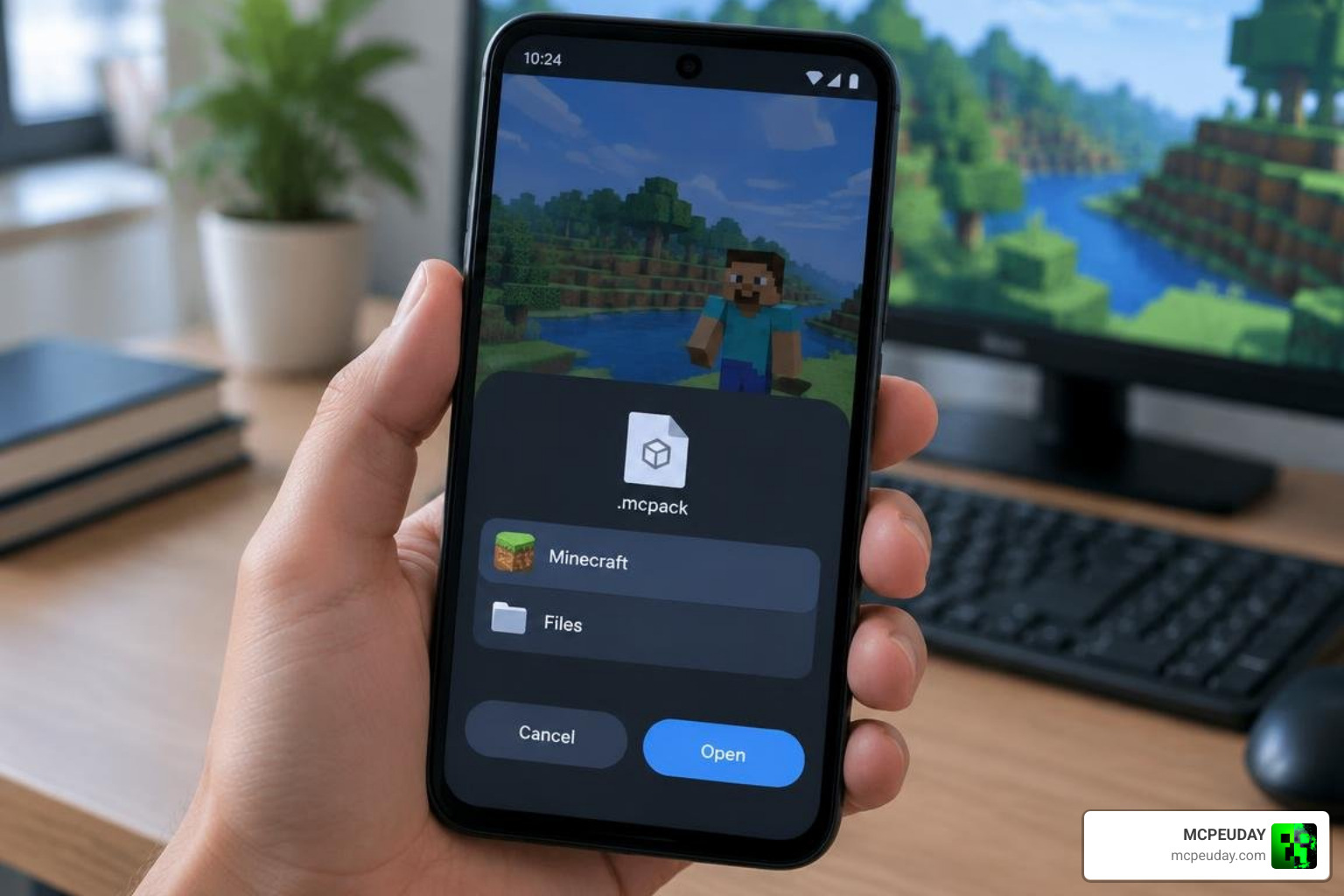
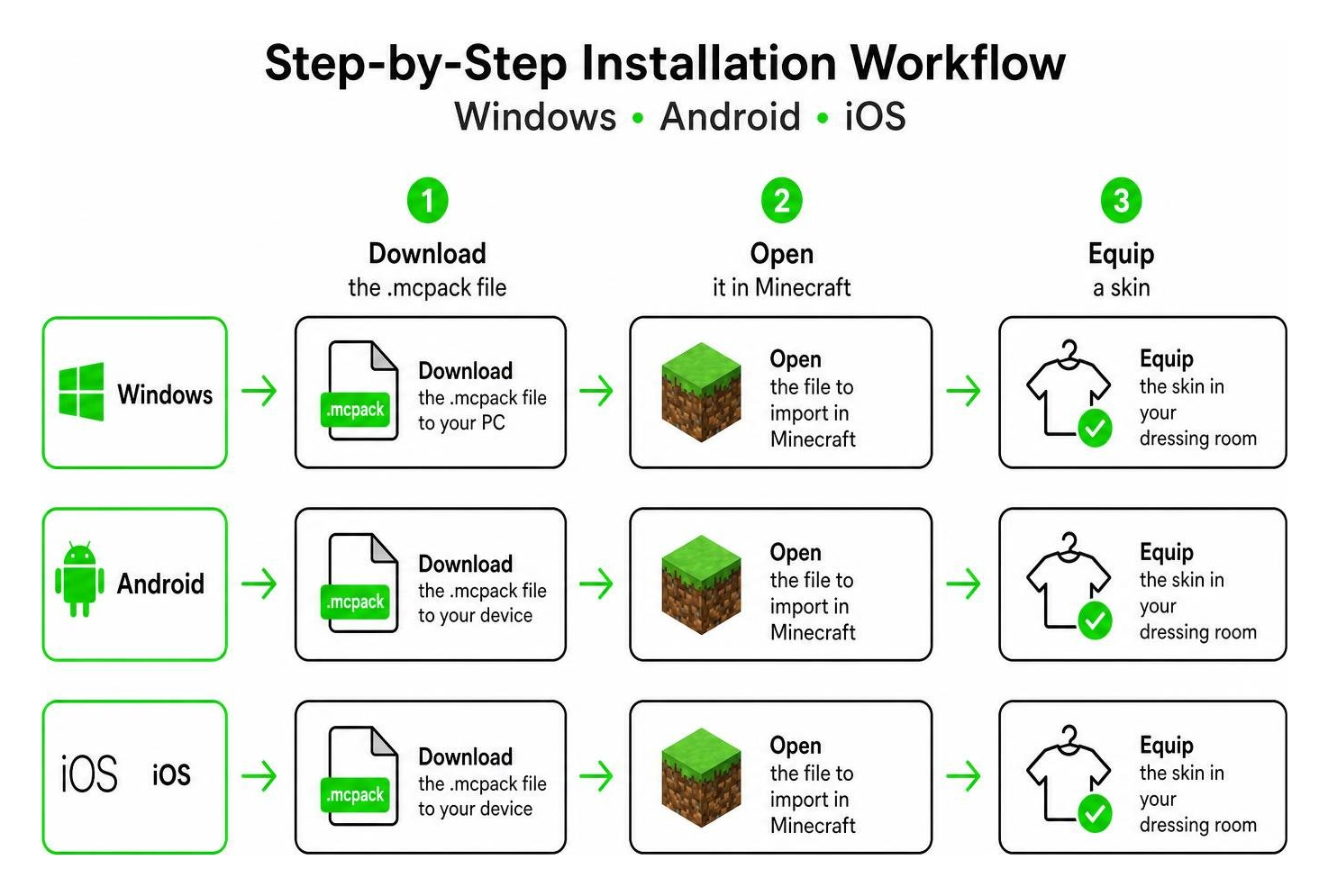
Installing on Android and Windows
On Windows and Android devices, the native operating system automatically handles file associations:
- Download the
Mint's Ultimate Skin Pack.mcpackfile to your device. - Locate the file in your Downloads folder or file manager.
- Tap or double-click the
.mcpackfile. - Your system will launch Minecraft automatically and display an “Import Started…” banner at the top of the main menu, followed by a successful import confirmation message.
If the file does not open automatically on Android, try using a file manager app to navigate to the download location and tap the file again. Some devices may ask you to choose an app to open the file; select Minecraft from the list.
Installing on iOS and iPadOS
Apple devices manage file associations through the native sharing system:
- Download the
.mcpackfile using Safari. - Open the Files app and navigate to your Downloads folder.
- Tap and hold the skin pack file, then select Share.
- In the share sheet, choose Minecraft (or select More and tap Minecraft if it does not appear in your primary app row).
- The game will launch automatically and import the entire 300+ skin collection into your profile storage.
If Minecraft does not appear in the share sheet, make sure the game is installed and updated to the latest version. Restarting your device can also refresh the available app list.
How to Equip Skins from Mint’s Ultimate Skin Pack for Minecraft PE/Bedrock (Download)
Once the pack imports successfully, equip any outfit using these simple steps:
- Launch Minecraft and select the Dressing Room button on the main menu.
- Click on the Classic Skins tab (represented by the hanger or multiple-character icon).
- Select Owned to view all installed cosmetic bundles.
- Scroll down to locate Mint’s Ultimate Skin Pack.
- Browse the categorized list, pick your preferred outfit, choose between Classic or Slim geometry, and click Equip.
Your selected skin will appear immediately in your profile, and you can change it as often as you like without repeating the import process.
Performance, Safety, and Multiplayer Compatibility
One common concern with large cosmetic packs is server compatibility and client-side lag. Mint’s Ultimate Skin Pack uses vanilla-compliant 64×64 texture dimensions, meaning it introduces zero frame drops or memory bloat even on budget mobile devices. The pack’s compact file size also means faster download times and less storage pressure compared to downloading hundreds of individual skins.
Because this pack is a standard cosmetic modification that alters only visual model mapping, it is 100% safe to use on featured public servers like The Hive, Cubecraft, and Lifeboat without triggering anti-cheat or mod-detection rules. Other players will see your skin instantly as long as they have “Allow Only Trusted Skins” turned off in their client settings. This is the same setting that governs visibility for all custom skins in Bedrock Edition, so you do not need any special permissions or server-side mods.
| Feature | Mint’s Ultimate Skin Pack (.mcpack) | Standard Manual Skin Import (.png) |
|---|---|---|
| Skin Capacity | 300+ skins in a single install | 1 skin per manual upload |
| Storage Size | ~1020 KB (~1 MB total) | 2–5 KB per loose file |
| Model Geometry | Native Classic & Slim support | Requires manual model toggle |
| Organization | Categorized with named titles | Unnamed / generic file names |
| Setup Speed | One-click automatic import | Repeat upload for each new look |
| Multiplayer Safety | 100% Vanilla Compliant | 100% Vanilla Compliant |
For players who frequently switch between different server types, the pack’s organized categories make it easy to find a suitable skin without leaving the game. You can go from a horror-themed adventure map to a competitive PvP match with just a few taps in the Dressing Room.
Frequently Asked Questions
Is Mint’s Ultimate Skin Pack safe and free to download?
Yes, the pack is completely free to download and use. It contains clean .mcpack files that require no unusual device permissions, third-party launchers, or modified game clients. The file format is the same one used by official Minecraft Marketplace content, which means it integrates directly with the game’s built-in import system.
Can other players see my skin on multiplayer servers?
Yes! As long as other players have their global video setting “Only Allow Trusted Skins” toggled off, they will see your equipped outfit across all multiplayer servers, Realms, and local LAN worlds. This setting is found in the game’s video options and is disabled by default on most platforms, so the majority of players will see your custom skin without any additional configuration.
Does the skin pack cause game lag or take up excessive storage?
Not at all. With an optimized total file size of roughly 1 MB, the pack takes up minimal storage space and uses standard resolution textures that run smoothly on entry-level Android, iOS, console, and Windows systems. The 64×64 texture dimensions match the vanilla Minecraft skin format exactly, so there is no additional rendering overhead compared to default skins.
What is the difference between Classic and Slim skin models?
Classic models use the original Steve body shape with 4-pixel wide arms, while Slim models use the Alex body shape with 3-pixel wide arms. Mint’s Ultimate Skin Pack includes both geometry versions for every outfit, so you can choose the model that best matches your preferred character appearance without any texture stretching or distortion.
Do I need to reinstall the pack after a Minecraft update?
In most cases, no. The .mcpack file registers directly with your Minecraft profile storage, and the skins remain available after standard game updates. If you ever uninstall and reinstall Minecraft, you may need to re-import the pack, but normal updates do not remove installed cosmetic content.
Conclusion
Finding a complete cosmetic set that eliminates the hassle of constant file swapping makes your Bedrock adventures far more enjoyable. With over 300 organized looks spanning PvP, horror, sports, and casual aesthetics, Mint’s Ultimate Skin Pack is an essential addition to any player’s collection. The one-click .mcpack import process means you can go from download to fully equipped in under a minute, and the compact file size keeps your device storage free for worlds, addons, and other content.
For more ways to customize your game world, explore our top recommendations for Minecraft texture packs and Bedrock cosmetic enhancements to pair with your brand-new look. You can also learn more about the broader world of Minecraft customization through the Minecraft Wiki’s skin guide, which covers the history and technical details of player skins across all editions.