Scroll down to D0vvnl0ad
Understanding the Multi Backpack Addon for Minecraft PE/Bedrock SystemScroll down to D0vvnl0ad
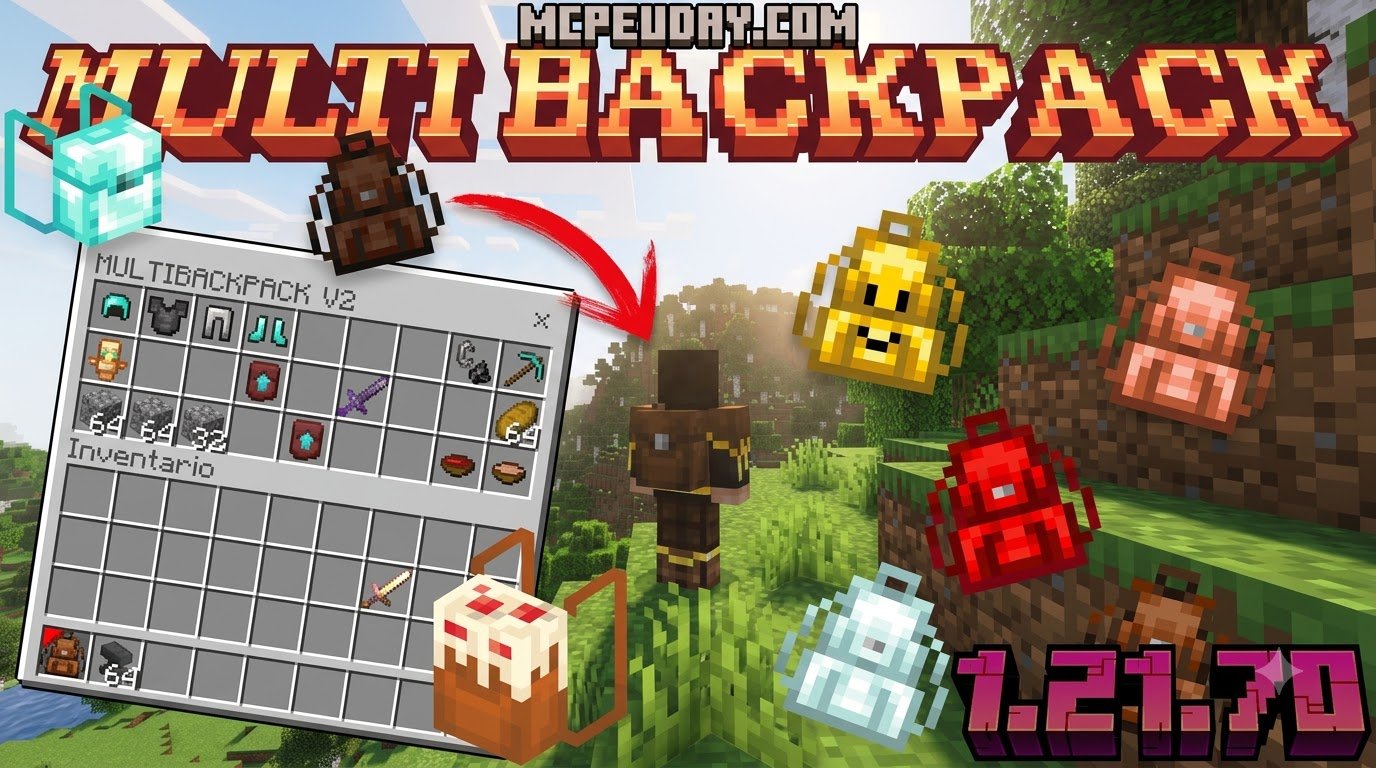
To get and install the Multi Backpack Addon for Minecraft PE/Bedrock, download the verified .mcpack or .mcaddon file, tap or double-click it to auto-import into Minecraft, and activate both the Resource Pack and Behavior Pack in your world settings. Installing this backpack addon instantly expands your portable storage without requiring silk touch tools or chestplate armor sacrifices.
Inventory management in Minecraft Bedrock Edition often cuts exploration short. Between essential tools, building blocks, food, and valuable ores, standard player storage fills up quickly. A well-built backpack addon lets you carry extra gear directly on your character, keeping mining trips, building sessions, and survival adventures moving without constant returns to base.
Choosing the Right Backpack Setup
When choosing the right backpack system, focus on the features that matter most for your world: total storage capacity, survival progression, mobile-friendly controls, multiplayer stability, and whether utility modules are included.
Some backpack systems prioritize high-end automation, fluid management, and massive inventory scaling. Others focus on clean progression, simple upgrade paths, and cosmetic models that make the pack feel like part of your character. The best option is the one that matches how you actually play Minecraft Bedrock.
| Feature | What to Look For |
|---|---|
| Max Storage Capacity | Enough slots for long mining, farming, and exploration sessions |
| Base Capacity | A balanced starting tier that does not remove survival progression |
| Upgrade Progression | Clear tiers using familiar materials such as ingots, gems, and netherite |
| Fluid Support | Optional water or lava storage for advanced utility builds |
| Integrated Smelting | Helpful for mining trips where you want to process ores underground |
| Item Attraction | Magnet-style collection for dropped items during mining or mob farming |
| Death Protection | A recovery or binding feature that helps protect stored loot after death |
| Cosmetic Designs | Visual variants that match your skin, base theme, or favorite mobs |
| UI Configuration | Mobile-friendly layouts that work well across touch controls and larger screens |
Storage Capacity, Upgrades, and Utility Modules
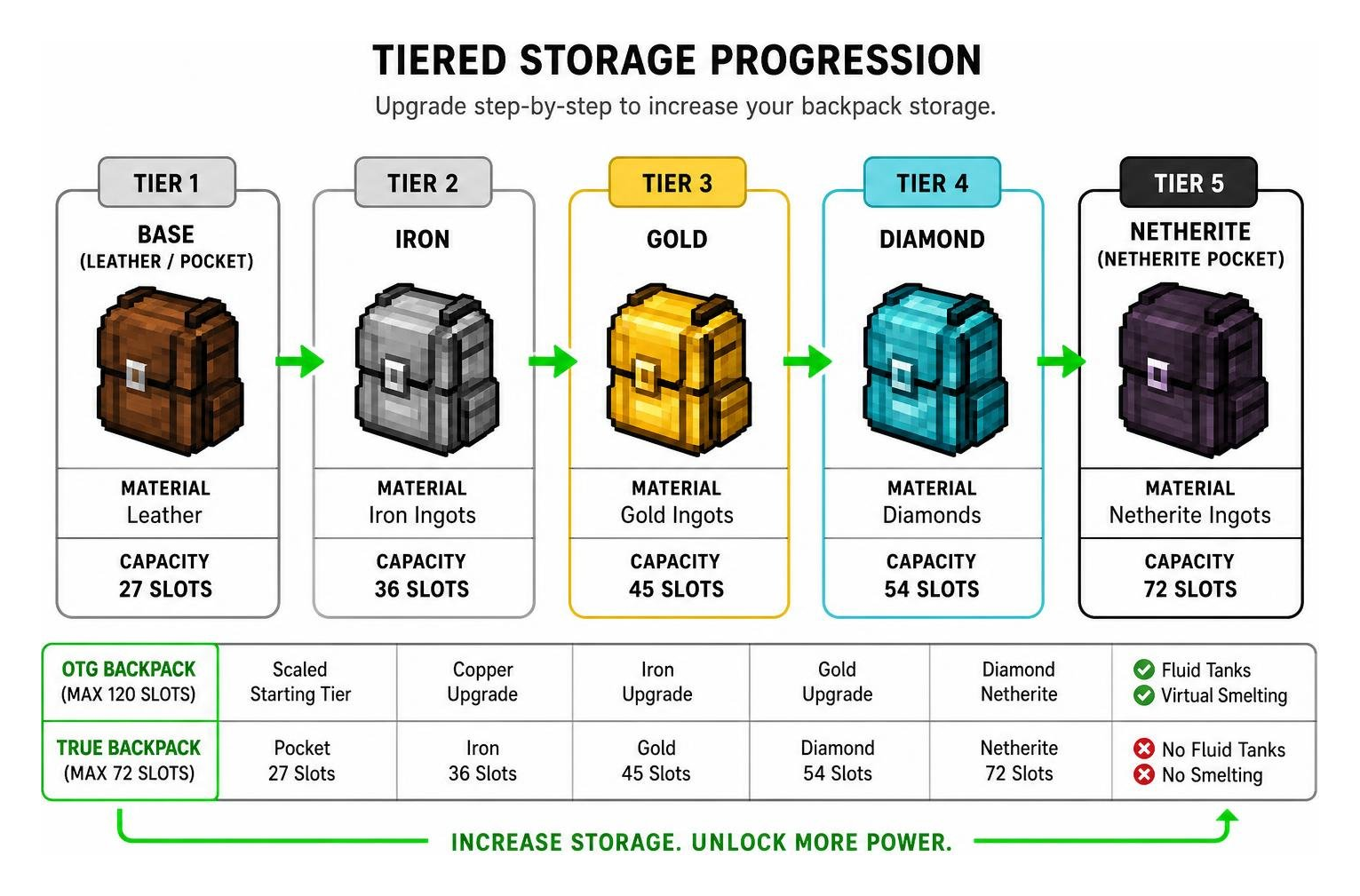
A proper backpack system scales alongside your world progression. Instead of giving you infinite inventory immediately, a balanced addon rewards resource gathering by unlocking greater tiers step by step. This keeps survival mode fair while still solving the biggest storage frustrations.
Starting from simple leather or standard frames, you can progressively reinforce your bag using standard ingots and gems. The goal is to make portable storage feel earned, useful, and easy to manage directly from your inventory or world interaction menu. For best results, keep one backpack dedicated to building blocks, another for food and tools, and a third for ores or rare drops if the addon supports multiple bags per player.
How to Craft and Upgrade Multi Backpack Addon for Minecraft PE/Bedrock Items
Crafting and upgrading items varies slightly depending on the version you install, but most backpack systems remain very straightforward in survival mode.
A common upgrade flow looks like this:
- Craft the base backpack using leather and basic materials on a crafting table.
- Place or equip the backpack according to the addon instructions.
- Sneak and interact, right-click on PC, or tap the interact button on mobile to open the backpack or upgrade menu.
- Insert the required upgrade item to expand the storage tier sequentially.
- Pick the backpack back up or equip it again, then confirm the extra slots are available before heading out.
If the addon uses tier frames instead, craft the next frame level directly and apply it to your backpack in order. Progressing through copper, iron, gold, diamond, and netherite-style tiers is a common way to unlock larger storage interfaces without breaking survival balance.
Before upgrading, empty any important items into a chest or backup storage area. Most backpack addons are safe when used correctly, but testing the upgrade path in a creative copy of your world prevents accidental item loss if a version update changes the menu, recipe, or entity behavior.
Advanced Modules: Fluid Tanks, Auto-Smelt, and Death Protection
Beyond basic item slots, advanced utility modules can turn a backpack from a simple mobile chest into a complete portable workstation. Depending on the version you install, useful modules may include:
- Lava & Water Storage: Integrated tanks can help carry or manage fluids without filling your hotbar with buckets.
- Portable Smelting: Process raw ores underground using stored fuel so you do not need to place furnaces during every mining trip.
- Auto-Sorting & Auto-Compression: Keep inventory pages organized and compress bulk materials like redstone, lapis, and iron nuggets into blocks automatically.
- Void Filters: Filter out junk blocks such as excess dirt, cobblestone, or rotten flesh during intense mining and mob farming sessions.
- Magnet Collection: Pull nearby dropped items directly into your bag within a defined radius.
- Death Recovery: Binding, return, or recovery features can help protect your stored loot after dying, depending on the addon’s supported module system.
These utility modules are especially useful for survival players who mine for long stretches, build large bases, or farm mobs for experience and drops. Instead of interrupting your session to sort items every few minutes, the backpack becomes a portable inventory hub that supports the way you already play.
Step-by-Step Installation and Setup Guide
Installing your chosen addon correctly ensures that custom scripts, user interfaces, and entity components load without issues. Always check the notes on the download page before enabling the pack in an existing world.
- Download the
.mcpackor.mcaddonfiles from official, verified sources. - Tap or double-click the downloaded file to automatically launch Minecraft Bedrock and import the files.
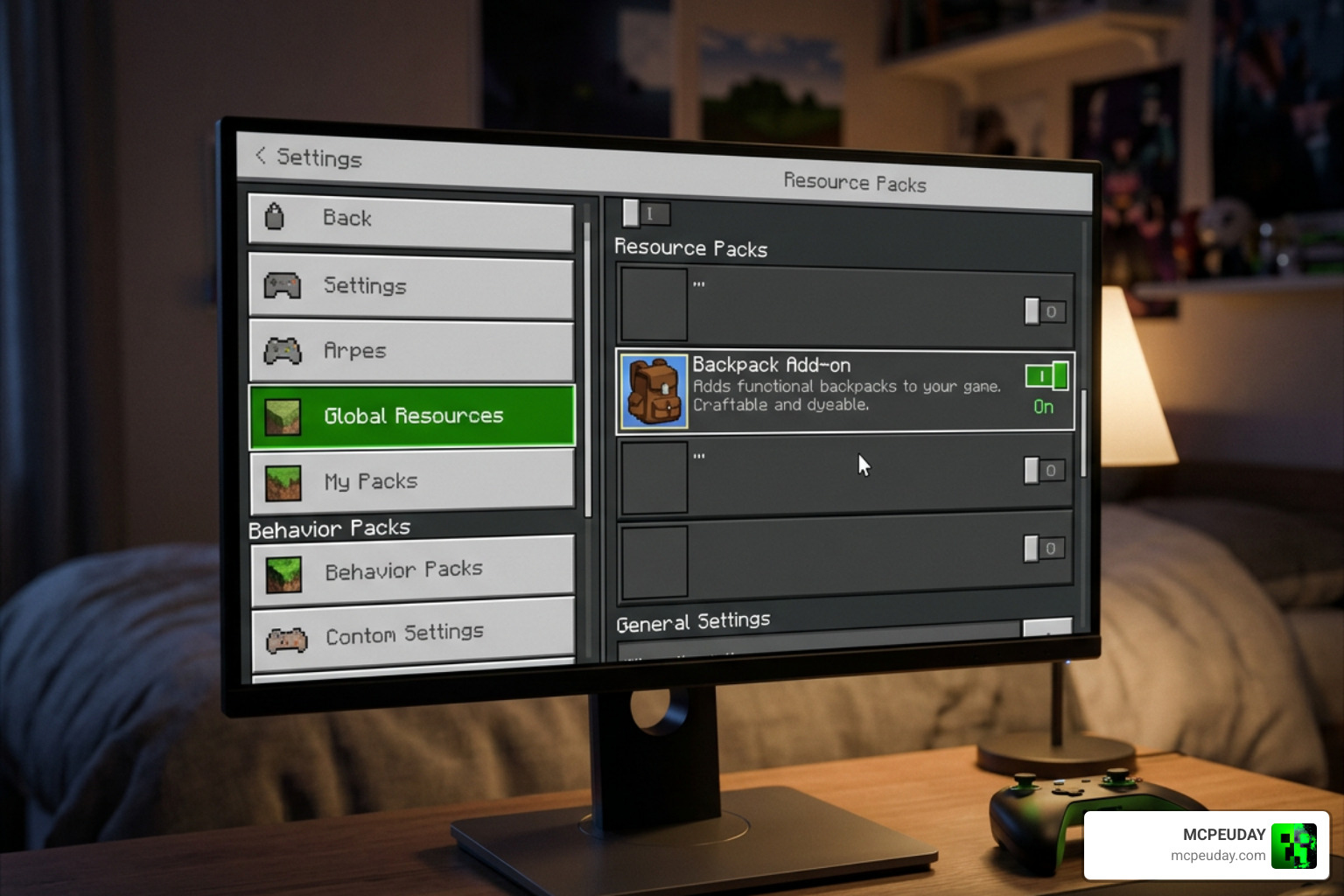
- Open your world settings, navigate to Resource Packs, and activate the addon’s Resource Pack.
- Navigate to Behavior Packs and activate the corresponding Behavior Pack.
- Ensure your resource pack loading order places the backpack pack above any global UI re-skins to avoid interface conflicts.
- Under the Experiments tab in world settings, toggle on any required experimental features listed in the version release notes, then start your world.
If the pack does not import, confirm that the file extension is still .mcpack or .mcaddon and that your device did not unzip the archive automatically. On mobile, you may need to open the file through your downloads folder, file manager, or browser download list and choose Minecraft as the app that handles the import.
Installing Multi Backpack Addon for Minecraft PE/Bedrock on Realms and Multiplayer
Running backpack addons on multiplayer servers or Minecraft Realms requires careful cache management. Follow these practices to keep multiplayer sessions running smoothly:
- Synchronize Exact Pack Versions: All players joining must download matching Behavior Pack (BP) and Resource Pack (RP) versions to prevent entity rendering errors and inventory desyncs.
- Realm Cache Resyncing: If an update causes an addon to glitch on a Realm, download the Realm world locally, deactivate both BP and RP packs, clear your Minecraft download cache, re-apply the packs, and re-upload the world.
- Dimension Stability: When entering the Nether or the End, ensure your bag is properly equipped in your active wear slot to prevent entity desynchronization during inter-dimensional travel.
For shared worlds, ask every player to test the backpack interface near spawn before anyone carries valuable items. This quick check confirms that textures, menus, and behavior scripts are loading correctly for each device.
Customization, Mob Skins, and Cosmetic Variants
Who says utility cannot look stylish? Backpack addons can include cosmetic customizations that personalize your character’s look while keeping the storage benefits practical.
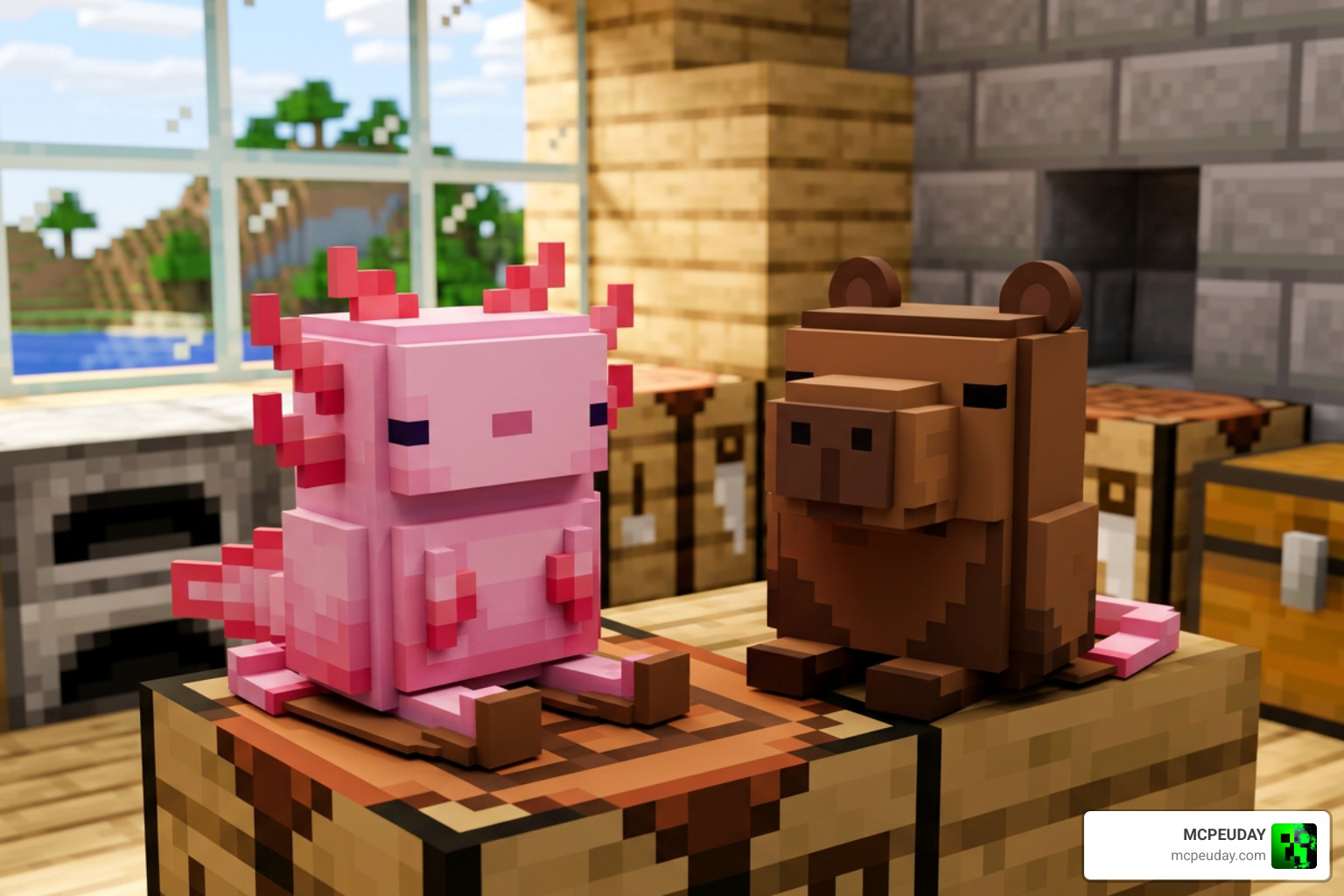
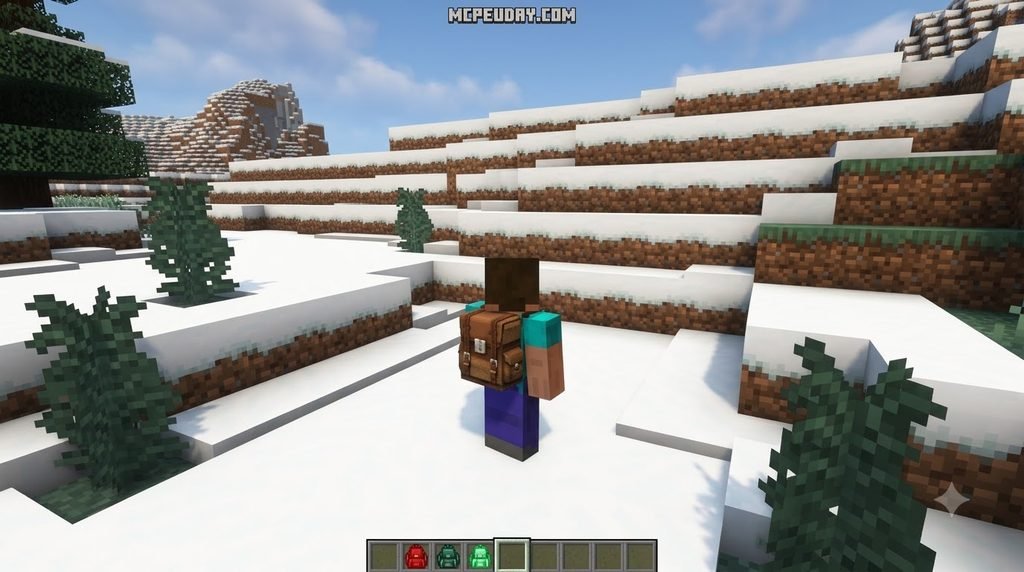
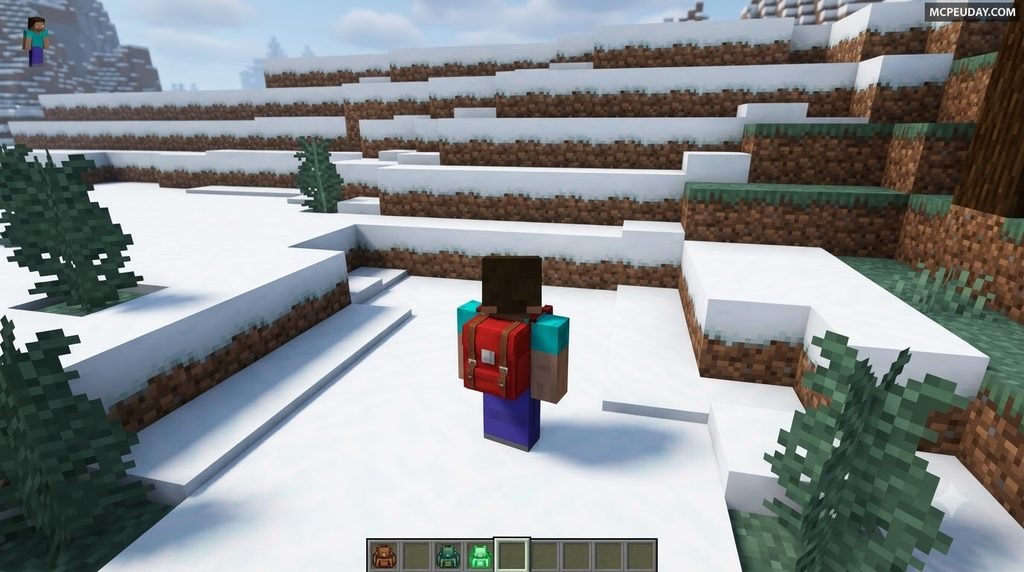
Depending on the installed version, you may be able to dye standard bags using vanilla Minecraft dye colors or unlock animal-themed variants with specific materials. Popular cosmetic directions include:
- Aquatic Designs: Bright, friendly styles inspired by underwater mobs and pastel color palettes.
- Animal Designs: Cozy brown, orange, black, white, or patterned backpacks that match pet-inspired skins.
- Mob-Themed Designs: Creeper, Enderman, Ghast, fox, or other creature-inspired looks for players who want a stronger Minecraft identity.
- Seasonal Skins: Luxury, pumpkin, holiday, or event-themed variations for themed worlds and roleplay builds.
A good cosmetic system should complement functional gear instead of making the backpack hard to recognize. Clear models, readable colors, and simple UI themes help the addon feel natural in both first-person and third-person play.
Frequently Asked Questions About Minecraft Bedrock Backpack Addons
How do I fix a cut-off or broken backpack UI on mobile?
If your backpack interface appears cropped on mobile devices, tablets, or high GUI scale settings, toggle any compact or pocket-style UI option included with the addon. This switches the layout to a smaller screen format without forcing you to change your global video settings.
Do I lose my backpack items when dying in Minecraft Bedrock?
Not necessarily. If the addon includes binding, return, or death-recovery upgrades, install and activate the appropriate protection module before risky mining trips, Nether travel, or boss fights. Always test the recovery feature in a safe world first so you know exactly how it behaves.
Why is the backpack addon not updating properly on my Realm?
Minecraft Realms frequently caches older Behavior and Resource pack files. To fix this, deactivate both packs in your Realm settings, clear your local storage cache in Minecraft’s storage settings, reactivate the updated packs, and restart the Realm.
Conclusion
Carrying your essential gear, ores, and building blocks no longer requires constant trips back to your base. Whether you want a massive storage-focused setup, a lightweight survival-friendly pack, or a stylish cosmetic backpack, installing a multi backpack addon can solve your storage constraints while keeping exploration fun.
To discover more ways to customize and enhance your worlds, explore the latest Bedrock mods and addons available in our curated collection. Equip your new backpack, pack your favorite tools, and head out on your next adventure with all the storage you will ever need!