If you play Minecraft and your PC struggles with heavy shaders, you’ve probably searched for something that:
- Looks good
- Doesn’t kill FPS
- Works on low-end PCs
- Is beginner-friendly
That’s exactly where NEWB X Lowres Shaders come in.
In this guide, I’ll explain in simple terms:
- What NEWB X Lowres Shaders are
- How they work
- How to install them
- Best settings for smooth performance
- Whether they’re worth using
Let’s break it down.
What Are NEWB X Lowres Shaders?
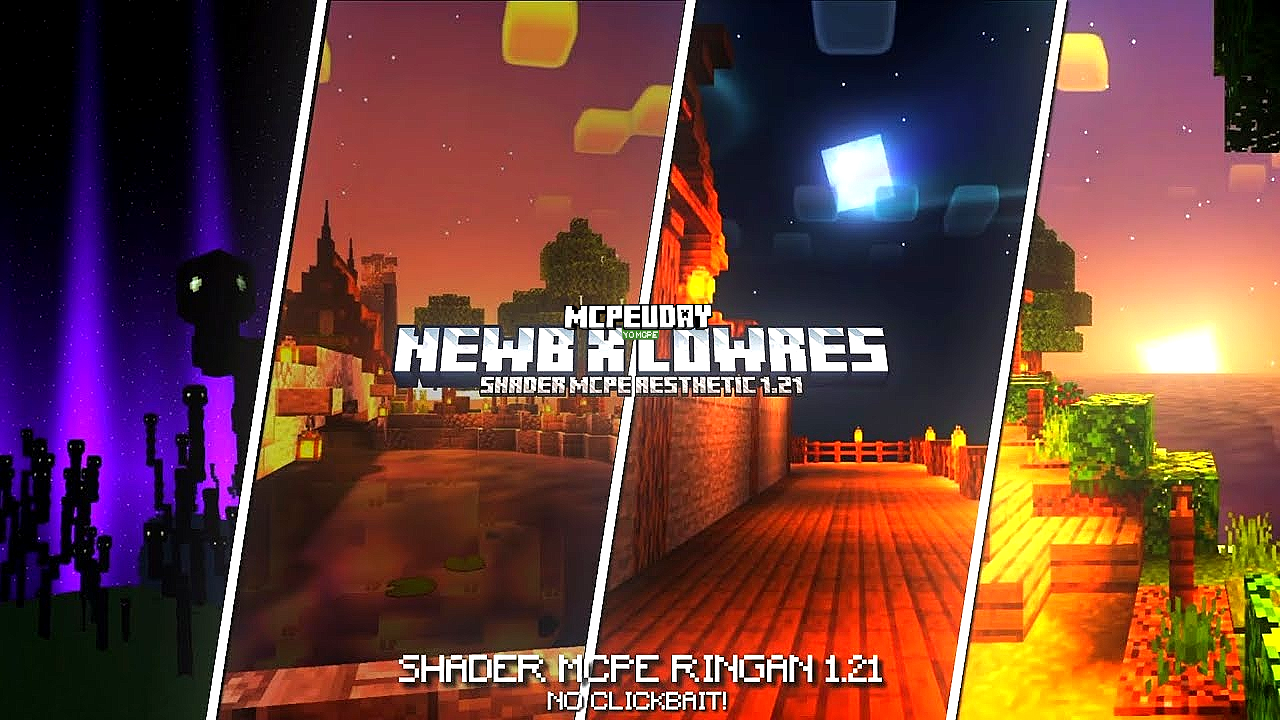
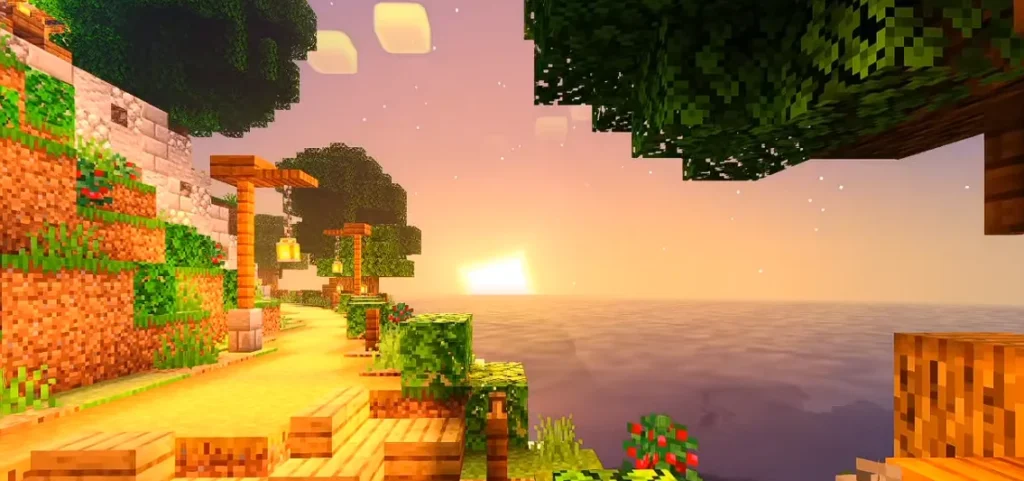
NEWB X Lowres Shaders are a lightweight shader pack designed to improve Minecraft’s graphics without heavy performance impact.

Unlike ultra-realistic shaders that require powerful GPUs, this pack focuses on:
✔ Soft lighting
✔ Better shadows
✔ Subtle reflections
✔ Smooth water
✔ Improved sky effects
All while keeping FPS stable.
Think of it as:
“Vanilla Minecraft… but cleaner, brighter, and more cinematic.”
Why Beginners Love NEWB X Lowres
Here’s why it’s popular among new players:
1️⃣ It Doesn’t Need a High-End PC
If you have:
- 4GB–8GB RAM
- Integrated graphics
- Entry-level GPU
This shader still runs smoothly (with proper settings).
2️⃣ Easy to Install
It works with:
- OptiFine
- Iris Shaders (Fabric users)
No complicated setup.
3️⃣ Balanced Visual Style
It doesn’t try to turn Minecraft into real life.
Instead, it keeps:
- Blocky charm
- Simple shadows
- Clean colors
Which many players prefer.
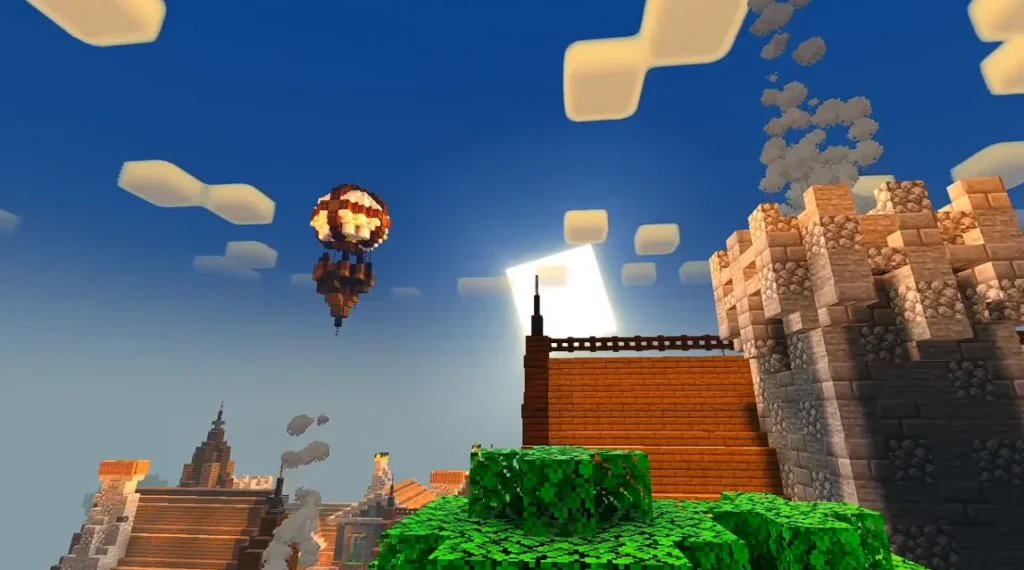
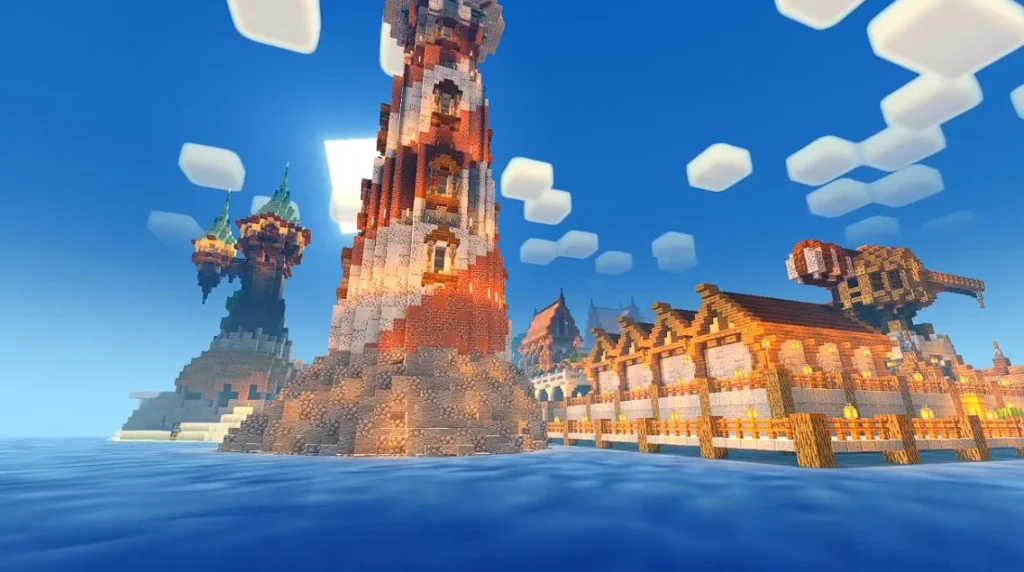
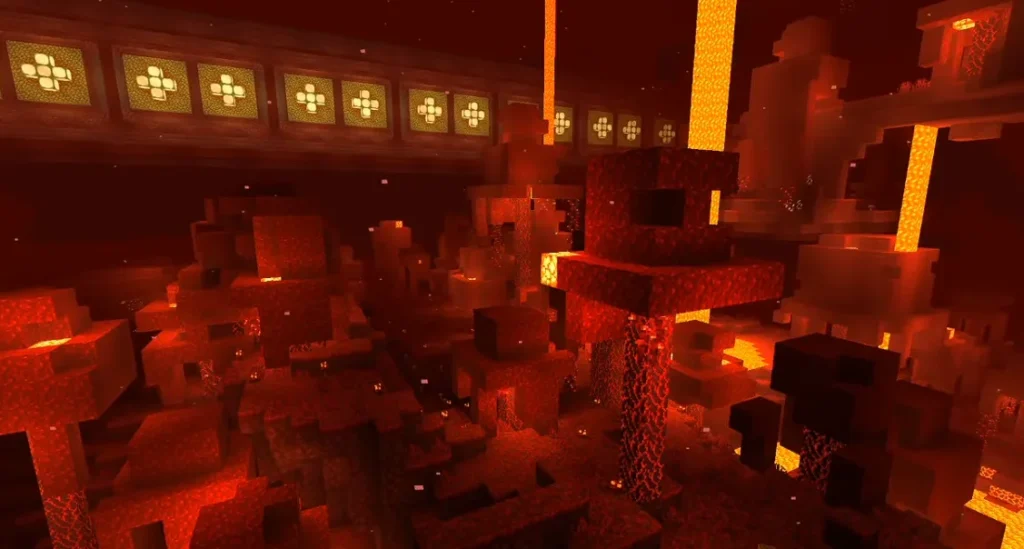
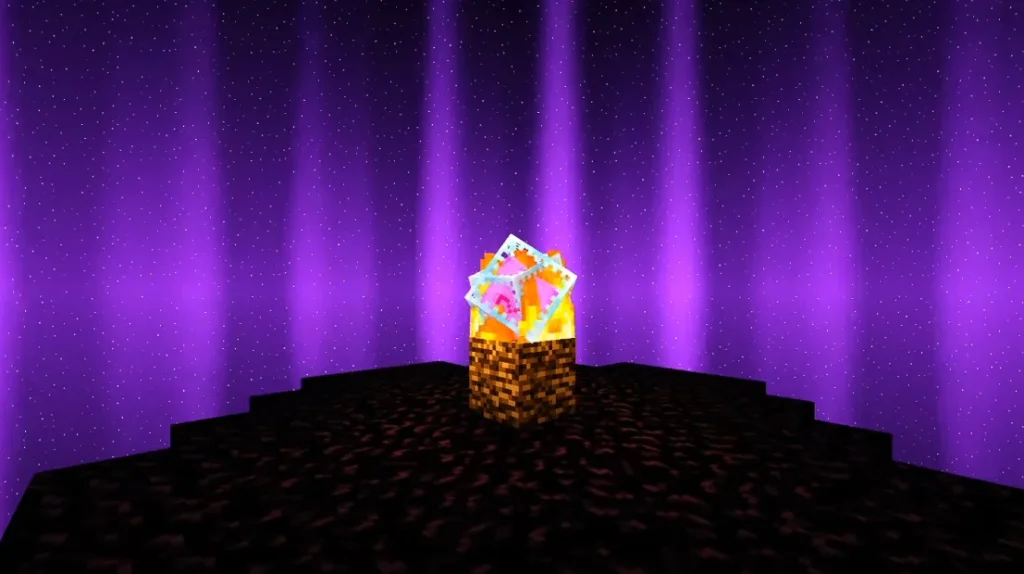
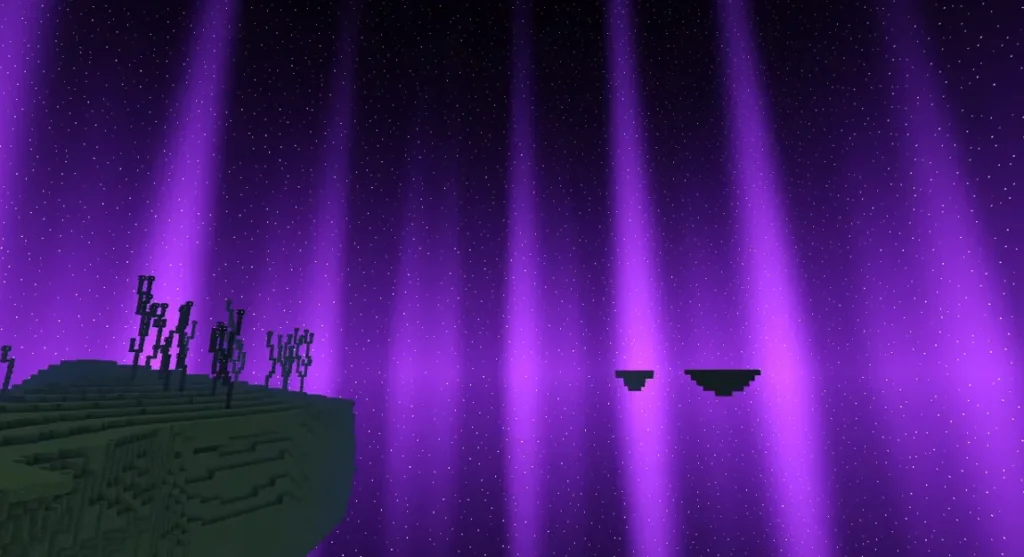
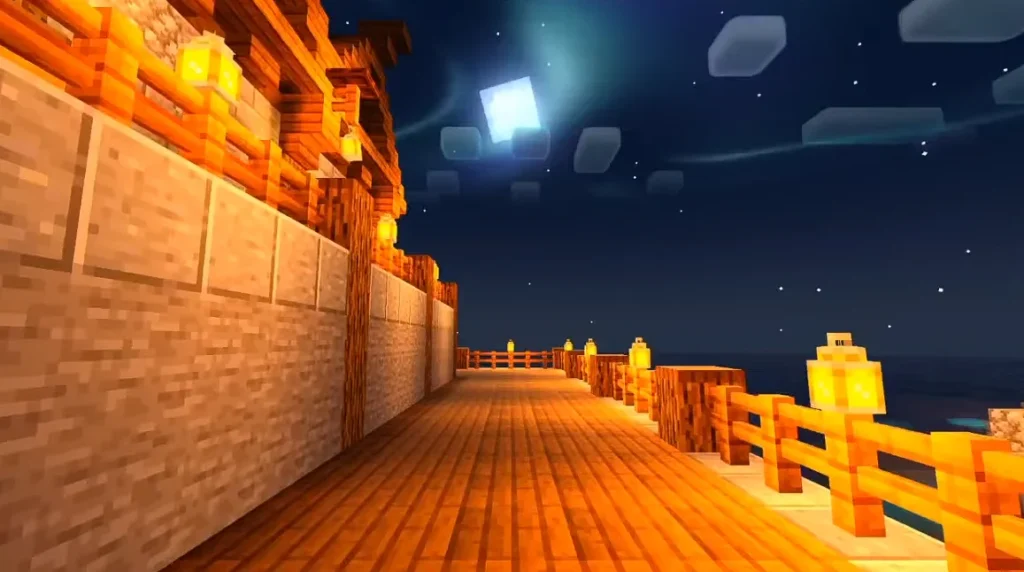
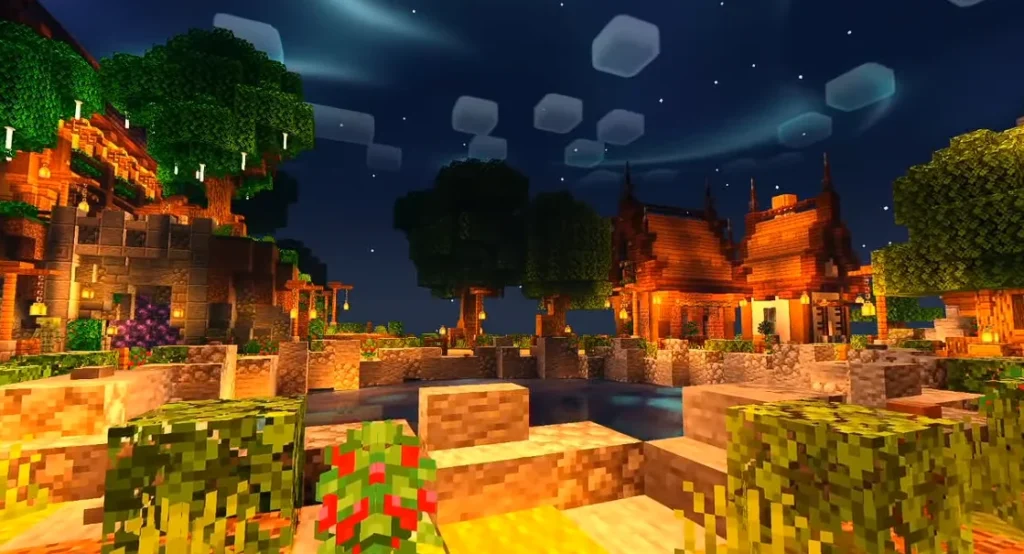
Screenshots:-
How to Install NEWB X Lowres Shaders (Step-by-Step)
Even if you’re completely new, follow this:
Step 1: Install OptiFine or Iris
Download and install either:
- OptiFine (most common)
- Iris (if using Fabric)
Launch Minecraft once after installation.
Step 2: Download NEWB X Lowres Shader Pack
Download the shader file (it will be a .zip file).
⚠️ Do NOT extract it.
Step 3: Open Minecraft → Options → Video Settings → Shaders
Click:
“Shaders Folder”
Move the downloaded .zip file into that folder.
Step 4: Select the Shader
Go back to the Shaders menu and click:
NEWB X Lowres
Wait a few seconds.
Done.
Best Settings for Smooth FPS (Important)
If you’re on a low-end PC, adjust these:
🔧 Recommended Settings:
- Shadow Quality → Medium or Low
- Shadow Resolution → 1024
- Volumetric Lighting → Off
- Motion Blur → Off
- Render Quality → 0.8x
- Clouds → Off (if FPS drops)
These changes can boost FPS by 20–40%.
How Does NEWB X Lowres Affect FPS?
Here’s a rough estimate:
| System Type | Vanilla FPS | With NEWB X Lowres |
|---|---|---|
| Low-end Laptop | 80 FPS | 45–60 FPS |
| Mid-range PC | 150 FPS | 100–120 FPS |
| High-end PC | 300+ FPS | 200+ FPS |
Performance varies, but it’s much lighter than heavy shader packs.
Is NEWB X Lowres Better Than Other Shaders?
It depends on what you want.
If you want:
- Realistic water reflections
- Ultra HD lighting
- RTX-style graphics
Then it’s not for you.
But if you want:
- Smooth gameplay
- Better lighting
- Stable FPS
- Clean visuals
It’s one of the best lightweight options.
Common Problems & Fixes
❌ Game crashes on loading shader
✔ Make sure your Minecraft version matches OptiFine version.
❌ Low FPS
✔ Lower shadow resolution
✔ Reduce render distance
✔ Turn off volumetric effects
❌ Shader not showing
✔ Confirm file is inside the correct shader folder
✔ Don’t unzip the file
Should You Use NEWB X Lowres in 2026?
If you:
- Play survival or multiplayer
- Don’t have a strong GPU
- Want better visuals without lag
Yes — it’s absolutely worth trying.
It gives that “modern Minecraft look” without turning your PC into a heater.
Final Verdict
NEWB X Lowres Shaders are perfect for beginners who want:
✔ Simple installation
✔ Noticeable visual upgrade
✔ Stable performance
✔ No complicated tweaking
It’s one of the safest starting points if you’re new to shaders.