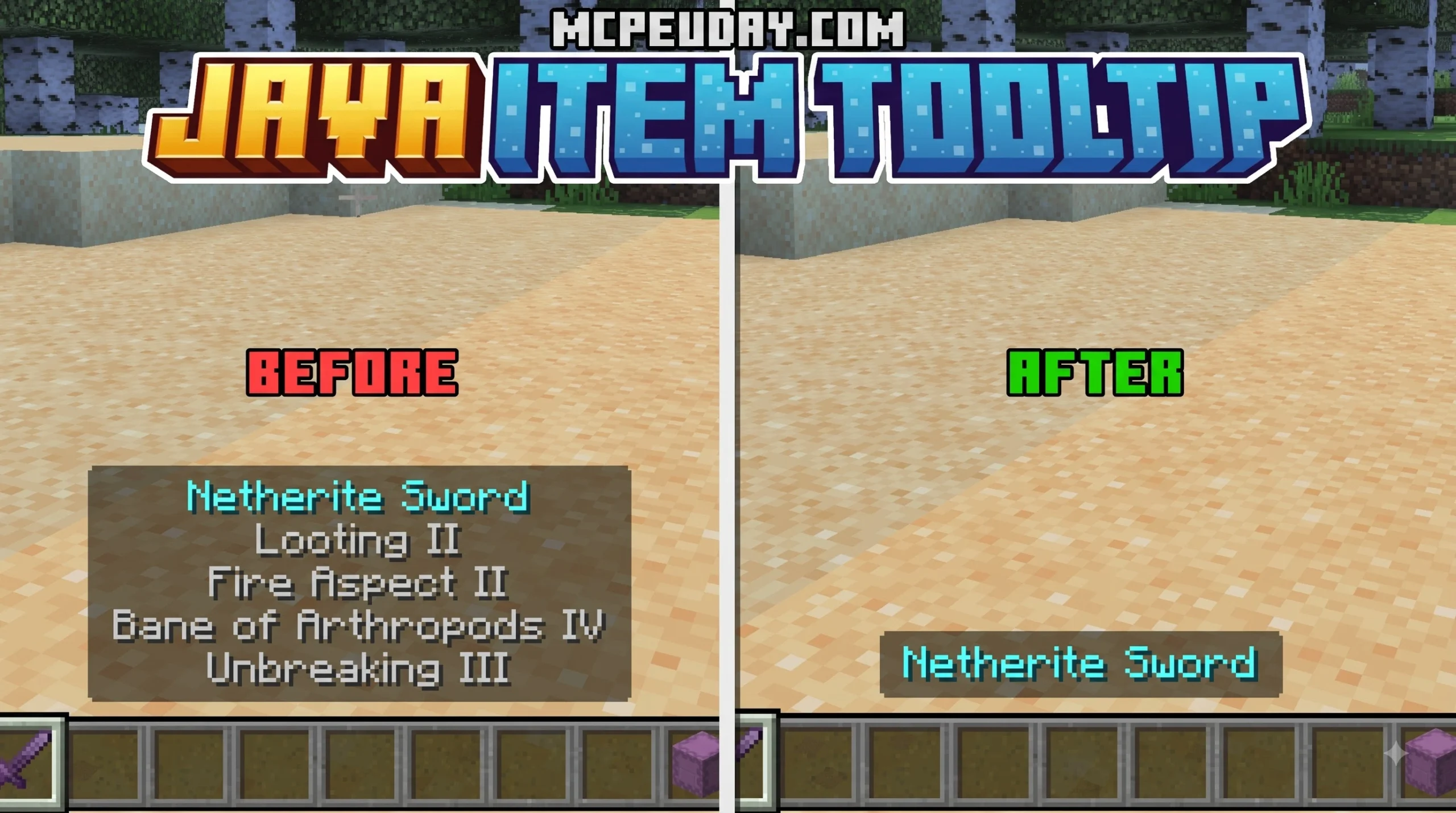
Customize Minecraft Java Tooltips With a Texture Pack
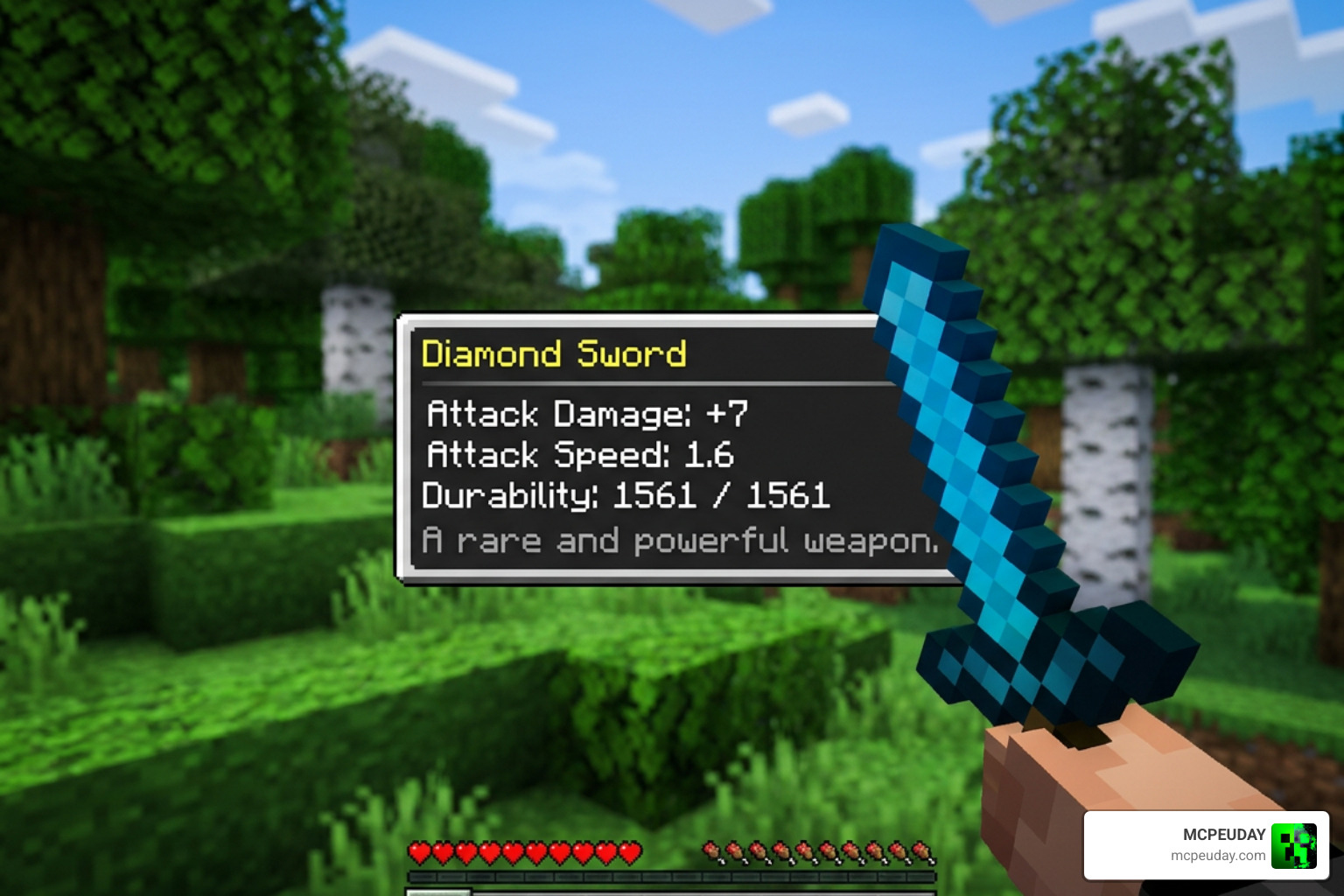
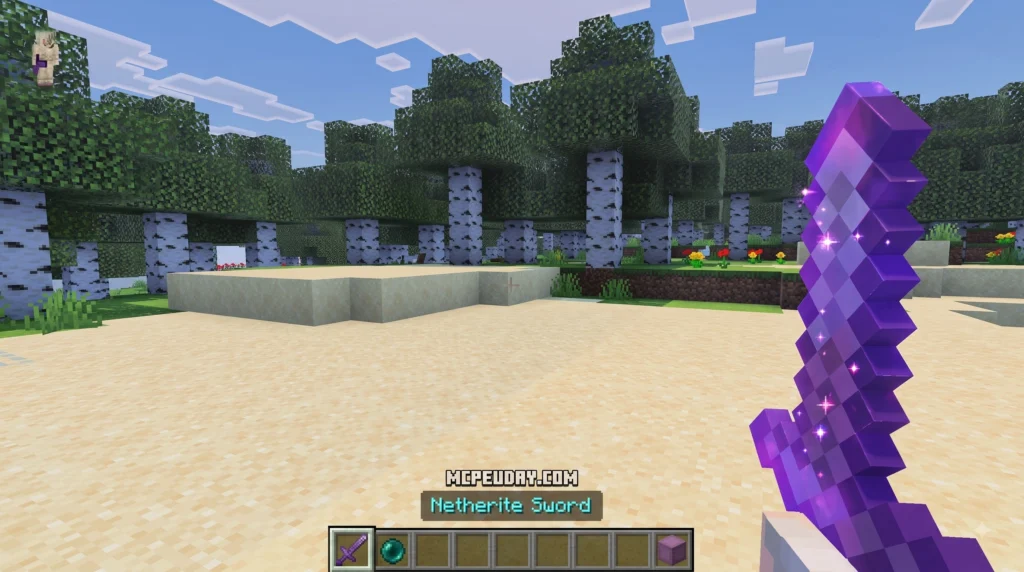
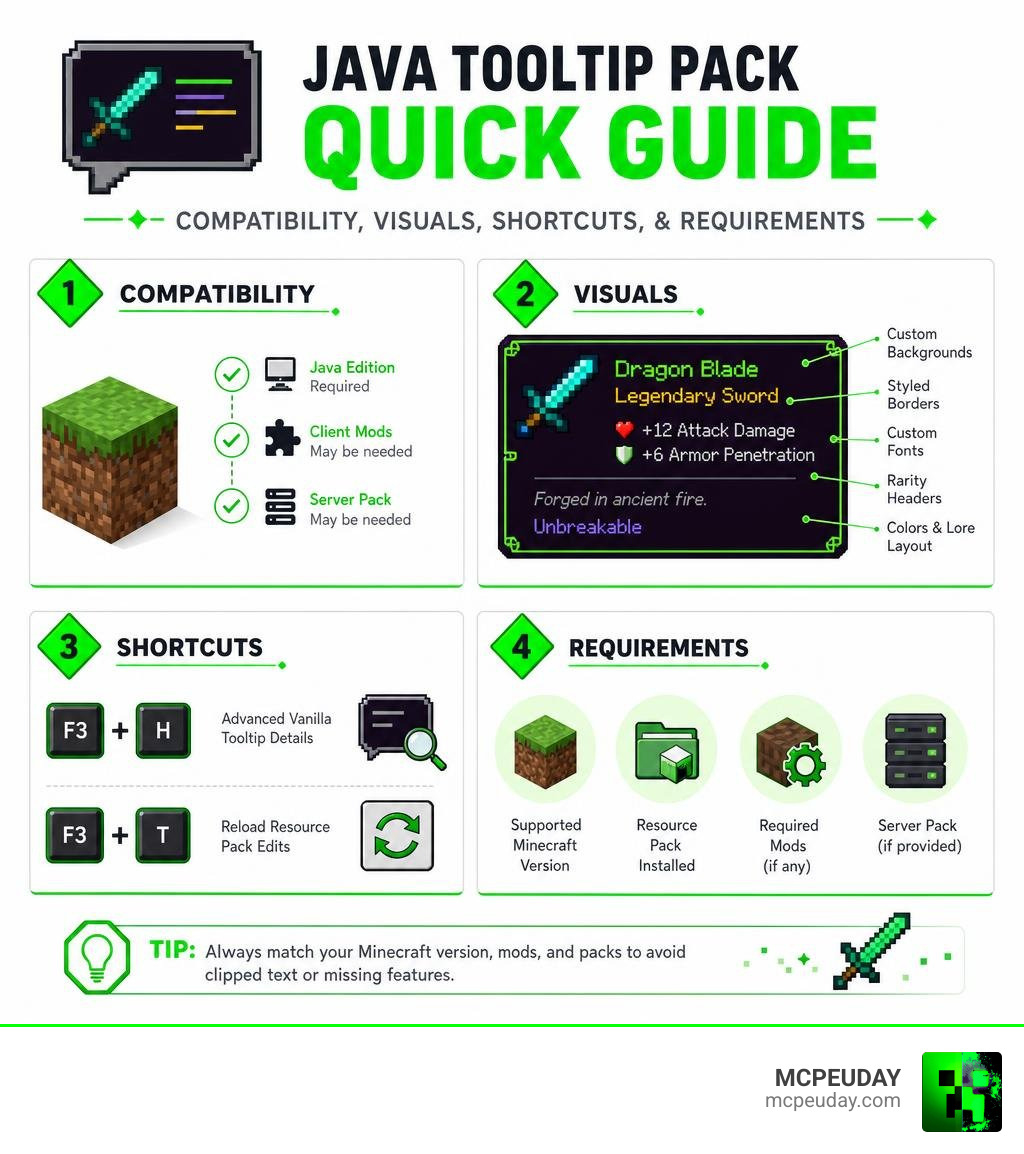
A Java Item Tooltips texture pack changes the look of the item information box shown when you hover over gear, blocks, and custom server items. For a quick download-ready answer: these packs are made for Minecraft Java Edition, usually work through a resource pack, and may need a compatible client mod or server pack when they add animated frames, custom fonts, or item-specific styles.
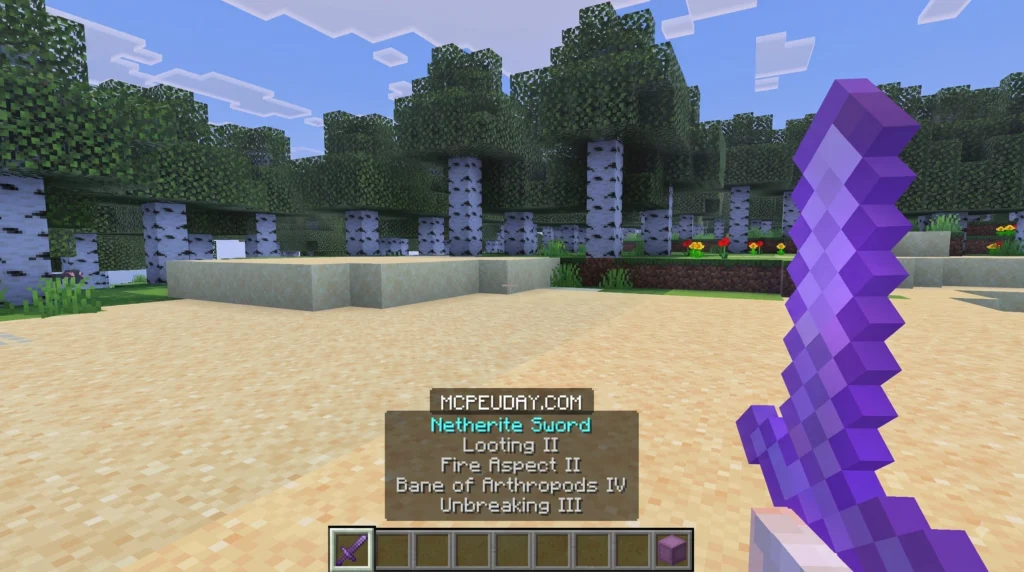
- What it changes: Tooltip backgrounds, borders, fonts, rarity headers, colors, and lore layout.
- Where it works: Java Edition inventories and supported modded or server item menus.
- What to check before installing: Your Minecraft version, required mods, and whether the server sends its own resource pack.
- Helpful shortcuts: Press
F3 + Hfor advanced vanilla tooltip details, andF3 + Tto reload resource-pack edits while testing.
Vanilla tooltips already show useful details such as item names, lore, enchantments, attributes, and durability. But a custom pack can make those plain black boxes feel like RPG gear cards, fantasy scrolls, sci-fi panels, or clean modern menus. Some packs use texture and font tricks, while others rely on Java-only tooltip mods for effects such as gradients, animations, wrapping, and conditional designs.
This guide explains what is possible, what is Java-only, and what you need to avoid common problems like clipped text and mismatched versions. I am UDAY GAMER, and we will start with how Minecraft tooltip systems work before getting into pack setup.
Understanding Minecraft Tooltip Mechanics in Java vs Bedrock
Item tooltips have evolved significantly since their introduction in Java Edition Beta 1.0. While standard tooltips provide basic item names, Java Edition and Bedrock Edition handle background textures, rendering pipelines, and data display in fundamentally different ways.
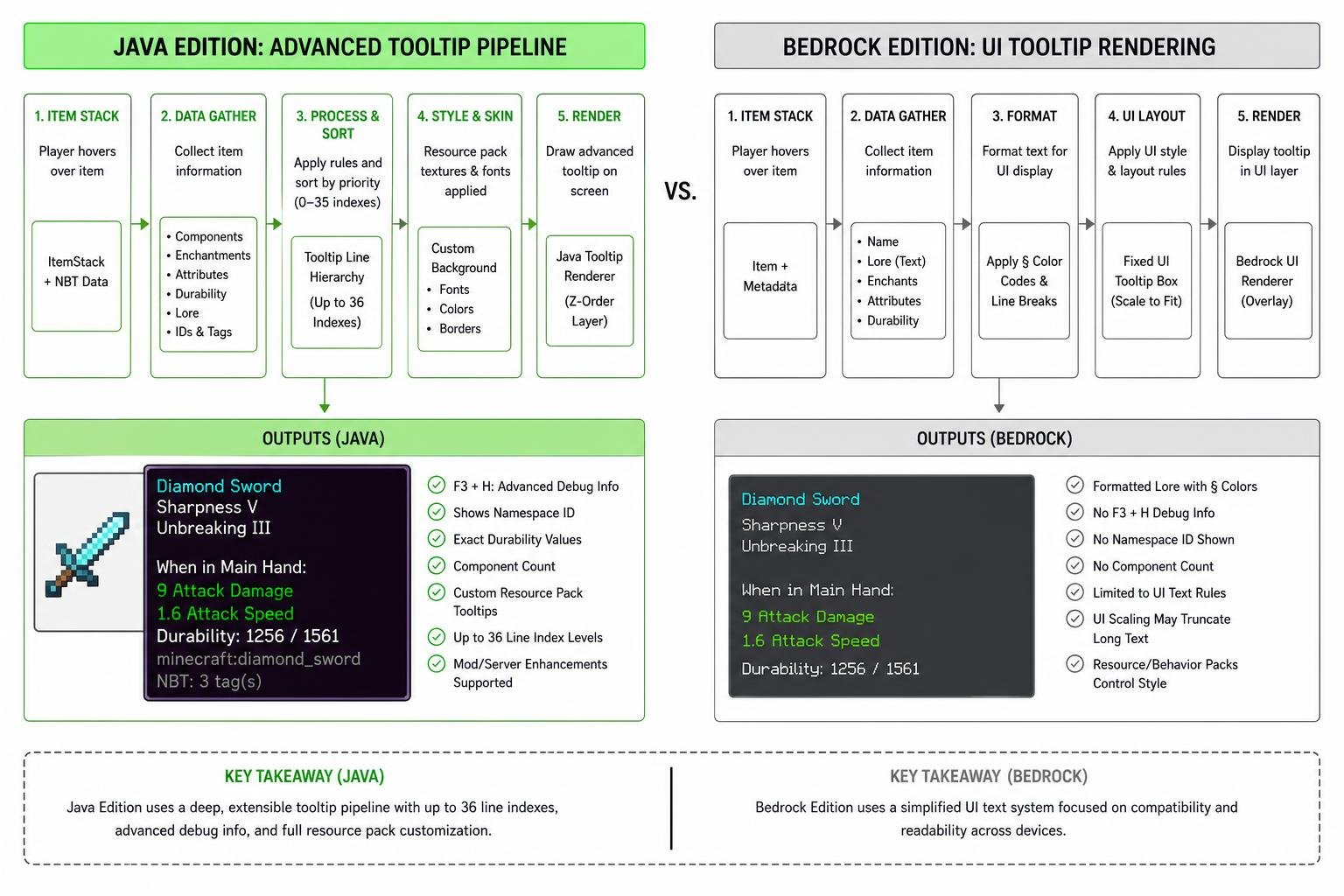
In Java Edition, pressing the debug hotkey combination F3 + H enables advanced tooltips. This reveals internal technical information including exact remaining durability numbers, complete item namespace IDs (such as minecraft:diamond_sword), and data component counts. On Bedrock Edition, item tooltips show formatted lore text using section symbol (§) color codes, but lack native Java debug hotkeys. Players looking for Bedrock UI conversions often turn to custom UI texture packs to mirror Java inventory styling on mobile and console interfaces.
Standard Line Order and Data Component Hierarchy
Java Edition tooltips follow a strict internal display order spanning up to 36 distinct index levels. When you hover over an item stack, the engine renders information from top to bottom according to this hierarchy:
- Custom Name / Default Display Name: Overridden highest-priority component (
minecraft:custom_name). - Item Rarity & Type: Rarity colors (Common, Uncommon, Rare, Epic) affect title text color.
- Enchantment List: Listed sequentially with active level numerals.
- Data Components & Lore Lines: Custom lore text strings defined on the item stack.
- Attribute Modifiers: Equipment slot triggers such as mainhand attack damage and attack speed.
- Durability & Technical Information: Visible when advanced tooltips (
F3 + H) are toggled on.
How to Install and Create a Custom Java Item Tooltips Texture Pack
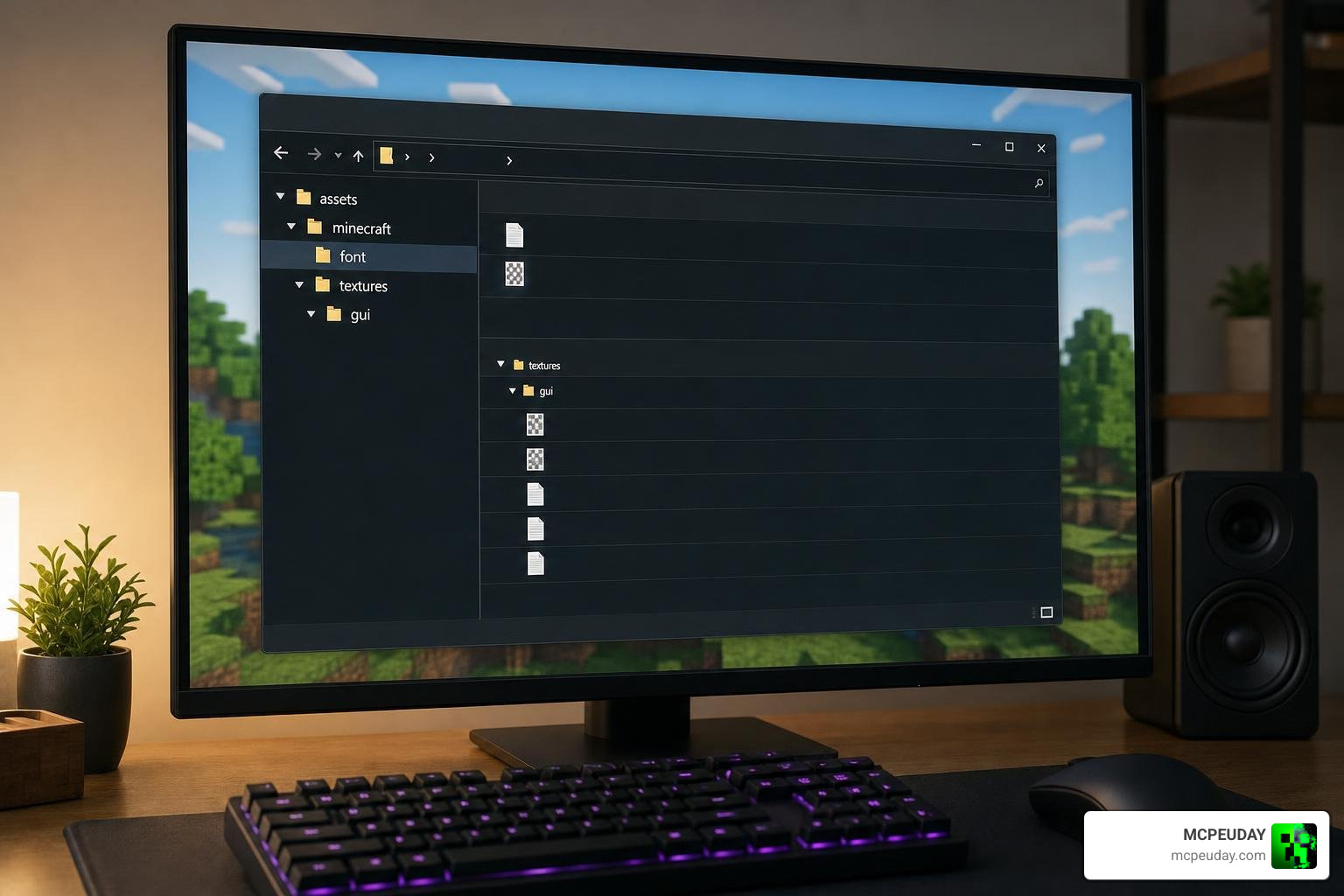
Creating or installing a Java Item Tooltips texture pack involves configuring resource pack asset directories. Standard Java resource packs house tooltip modifications inside assets/minecraft/font/ and assets/minecraft/textures/gui/. When testing active resource packs in-game, you can instantly reload edited textures and JSON configurations without restarting your Minecraft client by pressing F3 + T.
Core Components of a Java Item Tooltips Texture Pack
Traditional vanilla tooltips generate dynamic dark purple boxes with lighter borders that automatically expand around text. However, font-based custom texture packs divide custom background panels into three distinct section textures:
- Top Texture: Attached to the item’s display name header.
- Middle Texture: Repeats vertically behind lore lines and enchantment lists.
- Bottom Texture: Anchored below the final line of description text.
Because bitmap font providers in resource packs map graphic elements to specific glyph spaces, font-based custom backgrounds operate under a static maximum width constraint of 255 pixels. This limits texture stretching and requires item lore to be carefully formatted to prevent text overflowing the graphical border.
Advanced Font Mapping for Your Java Item Tooltips Texture Pack
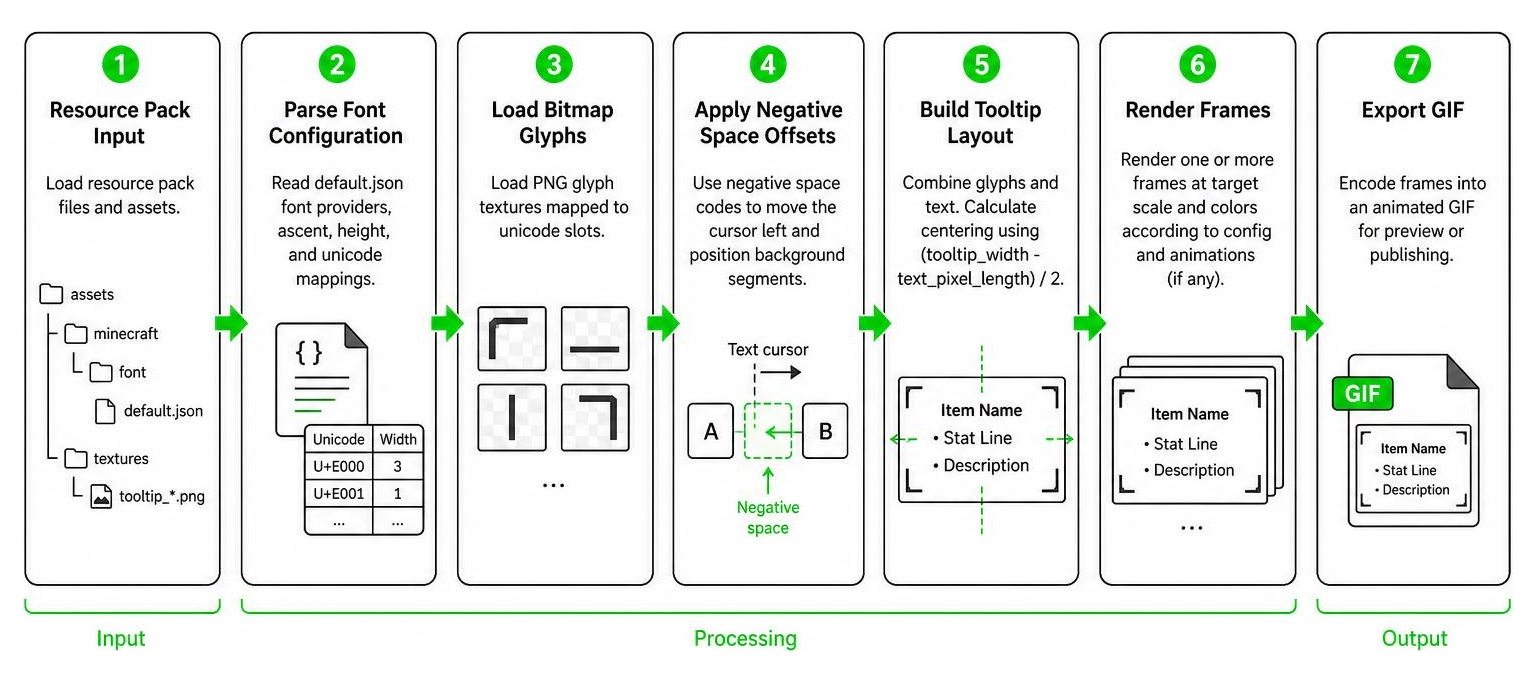
To display background art behind text without displacing the words, resource pack authors use unicode character mapping in assets/minecraft/font/default.json. By mapping custom PNG graphics to unused unicode character slots, pack developers create bitmap font providers.
These unicode graphics are combined with a negative space font pack. Negative space characters move the text cursor backwards on the horizontal axis. Server tools and plugins use MythicLib placeholders to insert these offset characters alongside character pixel width tables. Because space characters measure 3 pixels wide while lowercase i spans 1 pixel, horizontal text centering is calculated mathematically:
(tooltip_width - text_pixel_length) / 2
By offsetting characters using negative space codes, the top, middle, and bottom background textures slide cleanly behind the centered text lines.
Advanced Tooltip Customization Techniques and Styling
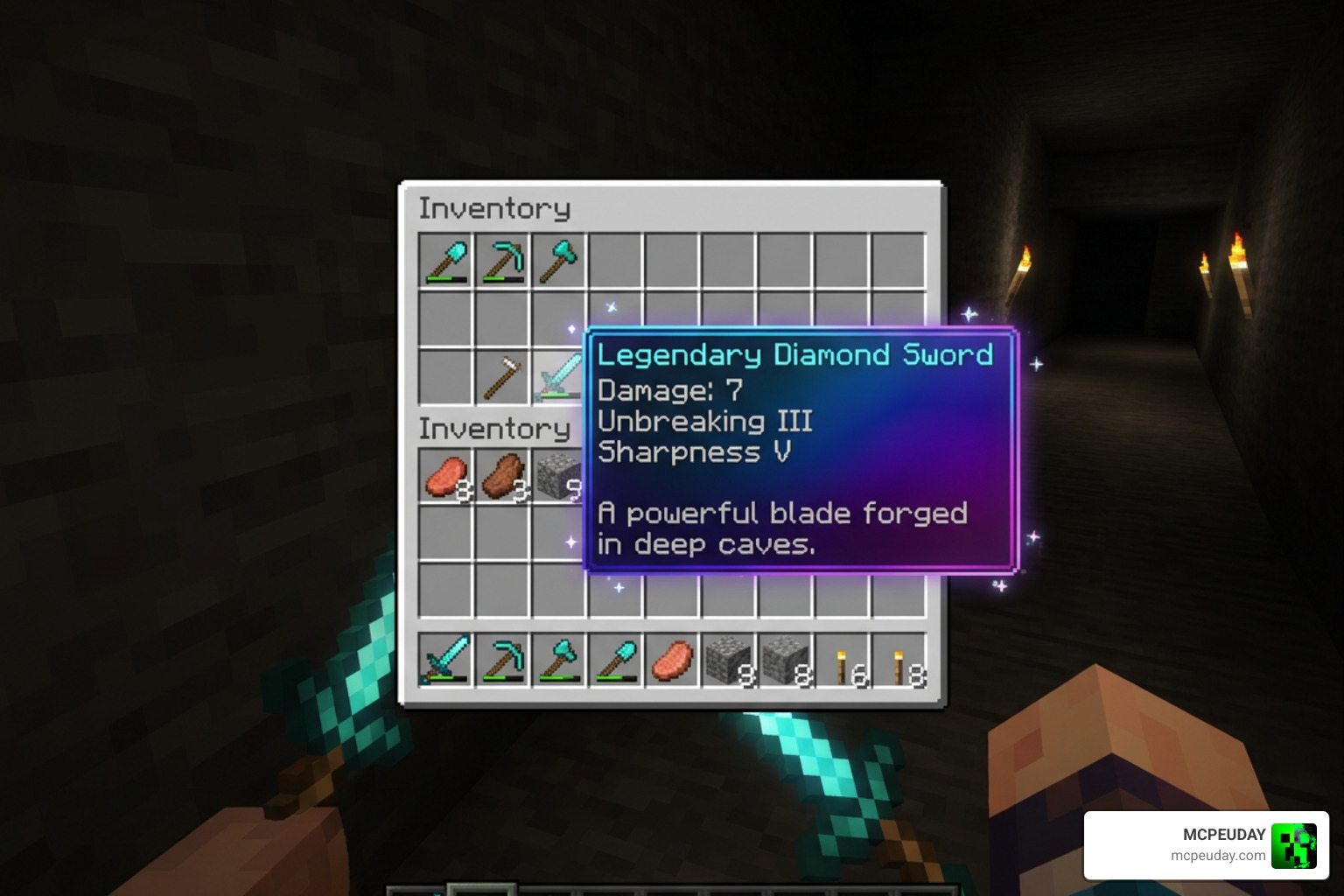
While pure resource packs rely on font provider tricks, client-side mods unlock full control over background Nine-Slice scaling, hex ARGB color gradients, keyframe animations, and custom borders. Refer to the GTNewHorizons ChromaticTooltips documentation to see how declarative JSON files allow resource packs to define custom margins, scale transforms, and dynamic borders.
Similarly, developers can consult the Sweenus SimplyTooltips quick guide for mapping JSON themes with custom item keys and border motifs. Theme files use 0xAARRGGBB hex values to apply inner glint borders, smooth background gradients, and item badges.
Overcoming Texture Pack Limitations and Text Alignment Issues
When engineering a Java Item Tooltips texture pack, content creators face specific technical limitations:
- Ascent Tuning: In
default.json, adjusting theascentparameter shifts bitmap glyphs vertically to align with text baselines. - Height Parameters: Setting the height attribute in font JSON to match exact PNG pixel heights prevents vertical texture warping.
- Clipping Prevention: Text extending beyond the 255-pixel static width limit cuts off at screen borders.
- Regex Filtering: String parsing rules ignore color formatting codes and custom font unicode markers when computing character widths.
Programmatic Tooltip Generation and Client Modifications
For web databases, server wikis, or automated preview bots, Java applications leverage programmatic rendering libraries. For example, the Aerhhh MinecraftImageGenerator Java library enables developers to render item tooltips, player heads, and container inventories as static PNGs or animated GIFs directly from resource pack files.
On the client side, mods like the Xylonity Tooltip-Overhaul mod replace default tooltips entirely. Tooltip-Overhaul introduces automatic text wrapping to stop long descriptions from overflowing off-screen, adds scrollable lore windows, and renders rotating 3D item panels directly inside hovered item frames.
Integrating Custom Tooltips with Server Plugins and Mods
Multiplayer RPG servers rely heavily on server-side plugins to generate custom gear cards. According to the MMOItems custom tooltips wiki, custom tooltips bind background graphics to item tiers (e.g., copper, silver, gold), item types, or specific modifier NBT tags.
When an item generates in MMOItems, the plugin evaluates a strict precedence hierarchy:
- Item Modifiers: Highest precedence; overrides specific item aesthetics.
- Direct Item Bindings: Specific item configurations.
- Item Tiers: Rarity-based background frames (e.g., Legendary, Mythic).
- Item Types: Lowest precedence; default category styles.
Best Practices for Resource Pack Maintenance
To keep custom resource packs clean and compatible across future game updates:
- Namespace Separation: Store custom fonts under your own unique namespace folder rather than cluttering default directories.
- Modular JSON Schemas: Keep theme definitions separated by item category for easier debugging.
- Version Tagging: Ensure
pack_formatinpack.mcmetareflects your target Java Edition release version.
Frequently Asked Questions About Minecraft Item Tooltips
How do I enable advanced tooltips in Minecraft Java Edition?
Press F3 + H simultaneously while in-game. A chat message will confirm that advanced tooltips are toggled on. Hovering over any item will now display its namespace ID, exact remaining durability points, and total data component count.
Why are custom font tooltip backgrounds fixed in width instead of expanding?
Font-based background packs inject custom bitmap characters into item display names. Because font provider glyphs have static pixel dimensions, background textures cannot dynamically stretch to match variable lore lengths without using client-side Nine-Slice scaling mods. Custom texture width is capped at 255 pixels due to font engine constraints.
How do I reload resource packs in-game while testing custom tooltip JSON configs?
Press F3 + T inside Minecraft. The game will pause briefly while reloading all textures, sound files, models, and JSON font configurations, allowing you to test background alignment in real-time.
Conclusion
Customizing your Minecraft inventory with a Java Item Tooltips texture pack elevates standard gameplay into an immersive visual experience. Whether you want subtle color refreshes or elaborate animated gear cards, mastering resource pack font mapping, negative space alignment, and JSON themes gives you total control over item presentation.
- Font-based resource packs use top, middle, and bottom textures mapped to unicode glyphs.
- Press
F3 + Hfor technical durability data andF3 + Tto test active pack edits. - Advanced mods and server plugins expand tooltips with animated frames, text wrapping, and tier headers.
To discover more UI overhauls, custom graphics, and downloadable resource guides, explore our full collection of texture packs and tutorials on MCPEUDAY at https://mcpeuday.com/category/texture-packs/.