Advertisement
What is No Fog Ultra Shader and How Does It Work?
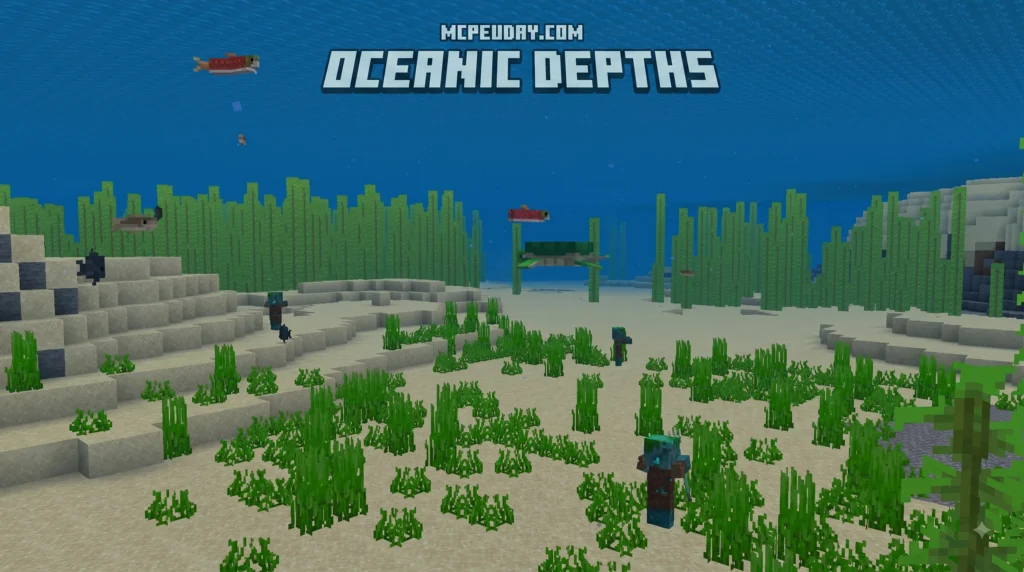
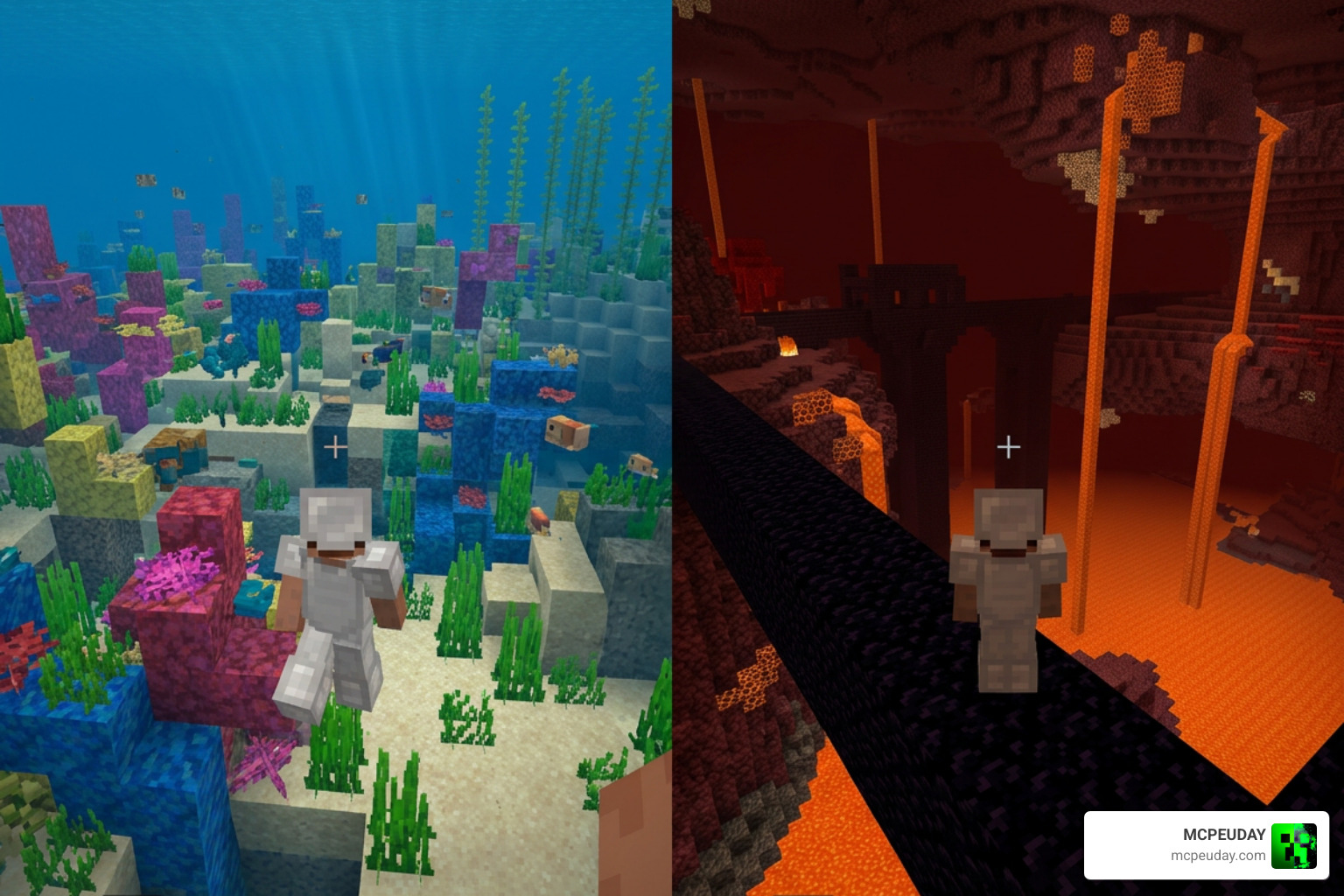
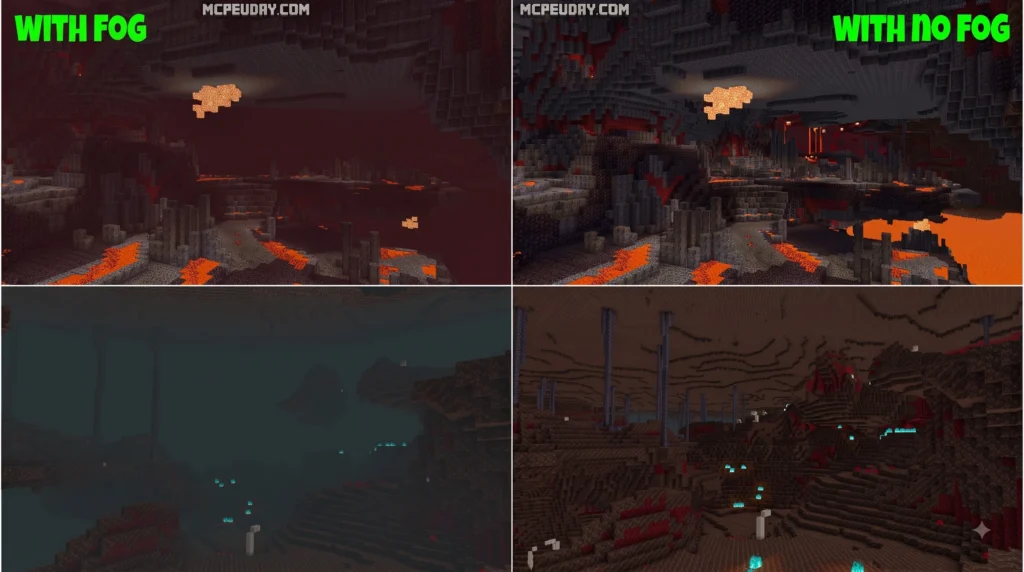
The No Fog Ultra Shader modifies Minecraft’s underlying core rendering files to eliminate atmospheric haze completely. Instead of relying on complex third-party mod engines or heavy code injections, these resource packs alter GLSL core shaders or JSON visual parameters directly inside the native resource pack folder. This lightweight approach allows the engine to render distant terrain, deep underwater depths, and hazardous dimensions without obscuring your view or overloading your graphics card.
By modifying core shader files within the client’s post-processing pipeline, the pack clears up vision across several distinct in-game scenarios:
- Environmental Fog: Horizon fog in the Overworld, dense atmospheric mist in the End dimension, and thick crimson or basalt fog in the Nether are suppressed completely, allowing clear vision across vast distances.
- Status Effects: Screen-blocking fog caused by lethal status effects like Blindness or Darkness (triggered by Sculk Shriekers or approaching a Warden in Ancient Cities) is cleared, giving you complete visual awareness during high-stakes combat encounters.
- Submerged Environments: Water and lava fog are significantly reduced, opening up crystal-clear sightlines when diving into ocean monuments or exploring subterranean fluid caverns.
Core Features of No Fog Ultra Shader
The biggest advantage of utilizing a core shader modification is enhanced gameplay visibility without sacrificing frame rates or system performance.
- Lava Visibility & Mineral Spotting: Combining lava fog removal with a Fire Resistance potion acts almost like a natural visual aid. It opens up wide views under expansive lava lakes in the Nether and Deepslate levels, making it far easier to spot rare submerged ores and ancient debris.
- Cave Exploration: Dense cave fog at deep Y-levels is completely removed, making branch mining, navigation, and locating massive underground lush caves or dripstone caves far safer and more efficient.
- Wide Version Support: Core shader tweaks work across a broad spread of Minecraft updates because they build directly upon the vanilla graphics engine. For example, open-source projects like the TurboJax NoFog Repository support Java versions ranging from 1.17 all the way through 1.21.11, providing reliable performance across historical and modern game builds.
Step-by-Step Installation Guide for Java and Bedrock
Installing the No Fog Ultra Shader varies depending on whether you are playing on Java Edition or Bedrock Edition (MCPE). Follow these straightforward steps to get your game set up quickly and cleanly on your system.
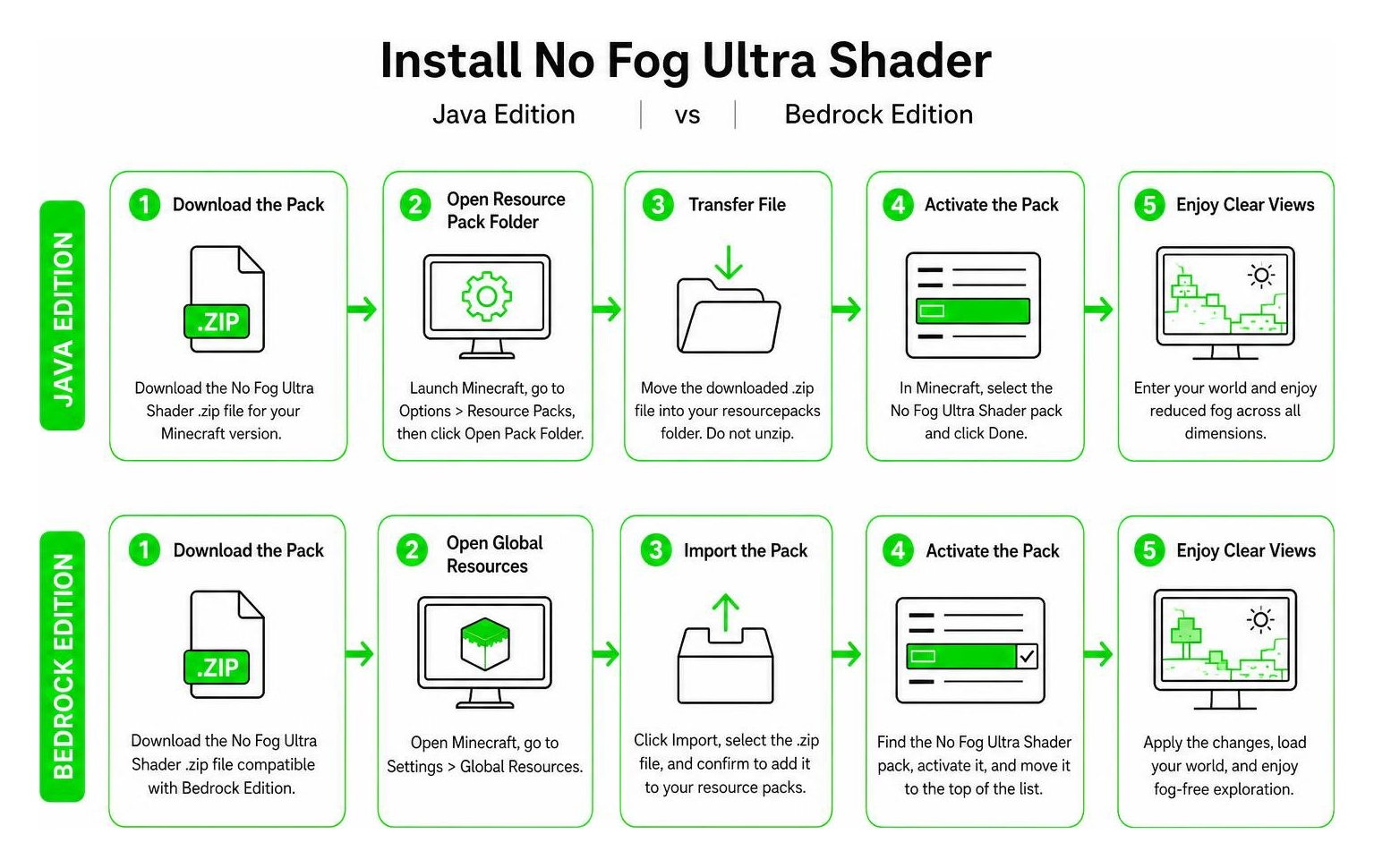
Installing on Minecraft Java Edition
- Download the Pack: Fetch the correct
.zipresource pack file for your target game version. Check reliable sources such as the NovaXIII NoFog Repository or the pack author’s official release page to ensure file safety. - Open Resource Pack Folder: Launch Minecraft, navigate to Options > Resource Packs, and click Open Pack Folder. This opens your OS directory directly where active packs are stored.
- Transfer File: Drop the downloaded
.zipfile directly into yourresourcepacksdirectory. Do not uncompress or extract the archive unless specifically instructed by the pack author. - Activate Pack: Return to Minecraft, move the pack from the left column to the right column, and hit Done. Ensure it sits above default vanilla textures in your load order.
- Version Matching Tip: Always match your resource pack release to your exact game update. Major render pipeline updates like Minecraft 1.21.6 can overhaul core shader structures and may cause game startup crashes if loaded on incompatible client versions.
Installing on Minecraft Bedrock Edition
- Download
.mcpack: Download the specialized.mcpackversion designed for Minecraft Bedrock / MCPE on mobile or desktop platforms. - One-Click Import: Double-click or tap the downloaded
.mcpackfile on your device. Minecraft will launch automatically and import the pack into your global resources directory. - Enable in Settings: Go to Settings > Global Resources > My Packs, locate the No Fog pack, and click Activate to apply it across all world loads.
- Manual Compilation (Optional): If you download raw source code files from GitHub repositories, zip the directory contents manually, rename the file extension from
.zipto.mcpack, and tap or click it to initialize automated installation.
Comparing No Fog Ultra Shader Variations and Licenses
There are several variations of fog removal resource packs available across the Minecraft modding community. Selecting the right one depends on your game platform, graphics rendering engine, and feature requirements.
| Resource Pack / Shader Asset | Platform | Primary Fog Removal Focus | License Type | Downloads / Stats |
|---|---|---|---|---|
| Remove Fog (MistyOrchid) | Java Edition | Overworld, Caves, Underwater, Status Effects | All Rights Reserved | 329,000+ Downloads |
| No Fog without Optifine (Titruc) | Java 1.21.6+ | Environmental, Nether, Lava Visibility | Custom / Community | 214,000+ Downloads |
| NoFog (TurboJax) | Java (1.17–1.21.11) | Core GLSL Vanilla Shader Modifications | GNU GPL v3.0 | GitHub Open Source |
| No Fog Bedrock Pack | Bedrock (MCPE) | Nether Dimension Fog Reduction | Custom / Open Source | 4 Stars / GitHub |
| Ultra Skybox Fog Asset | Unity Engine | Custom Skybox Mie Scattering & Haze Control | Unity EULA | Ultra Skybox Fog Asset |
While Minecraft resource packs focus on suppressing atmospheric fog inside the game engine via core GLSL tweaks and JSON parameters, game developers working with external engines often use dedicated tools like the Ultra Skybox Fog Asset to control horizon blending, volumetric scattering, and solar atmospheric effects in standalone 3D gaming projects. Understanding license distinctions—such as open-source GNU GPL v3.0 versus proprietary restrictive licensing—helps players and creators choose packs that can be customized safely.
Compatibility, Settings, and Performance Optimization
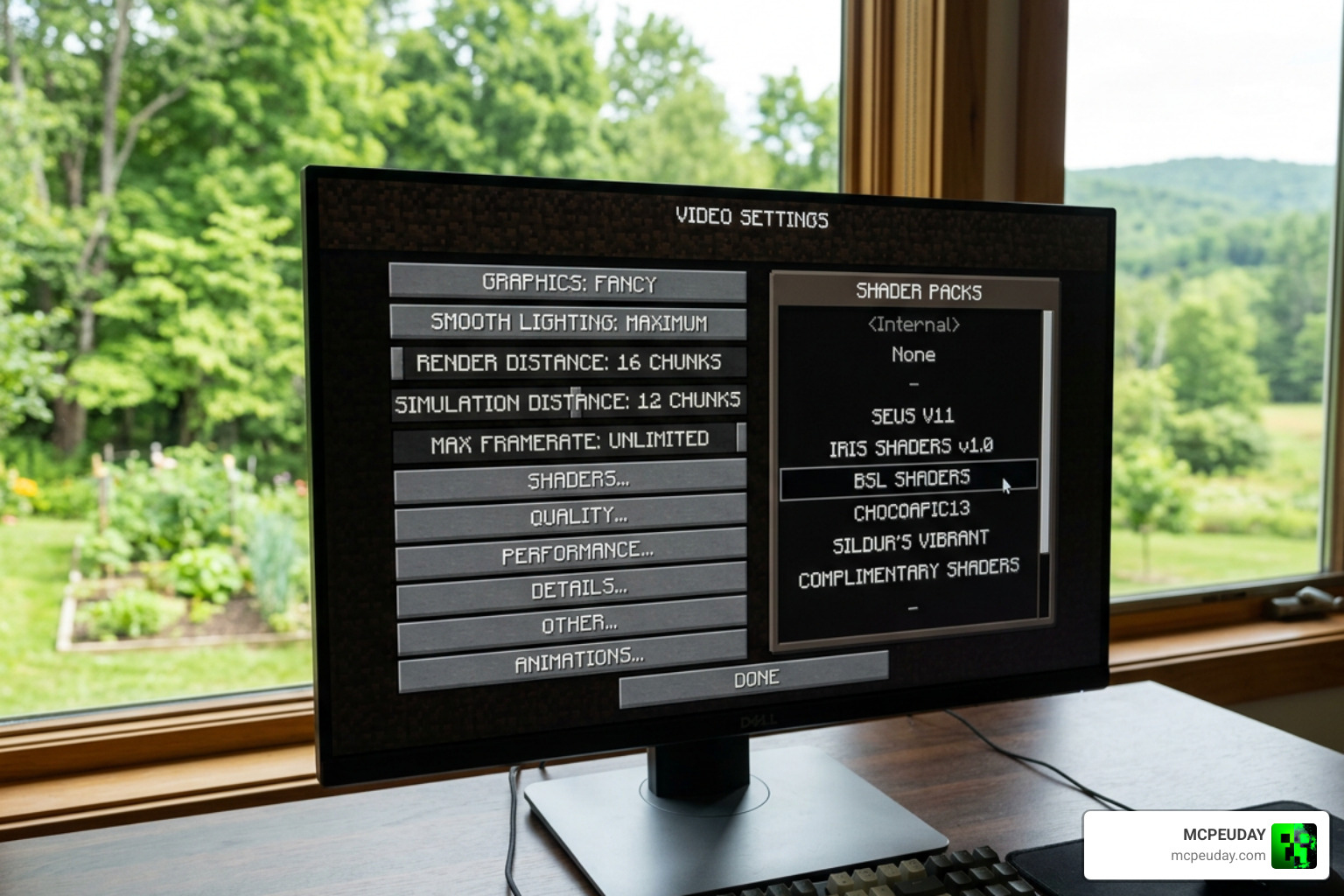
Because the No Fog Ultra Shader modifies core JSON parameters and native GLSL shaders rather than adding complex real-time dynamic lighting or heavy shadow calculations, it has zero impact on FPS. It is a pure visual tweak that runs smoothly on low-end mobile devices, budget laptops, and high-end gaming PCs alike without thermal throttling or performance drops.
However, mod compatibility requires attention depending on your client setup:
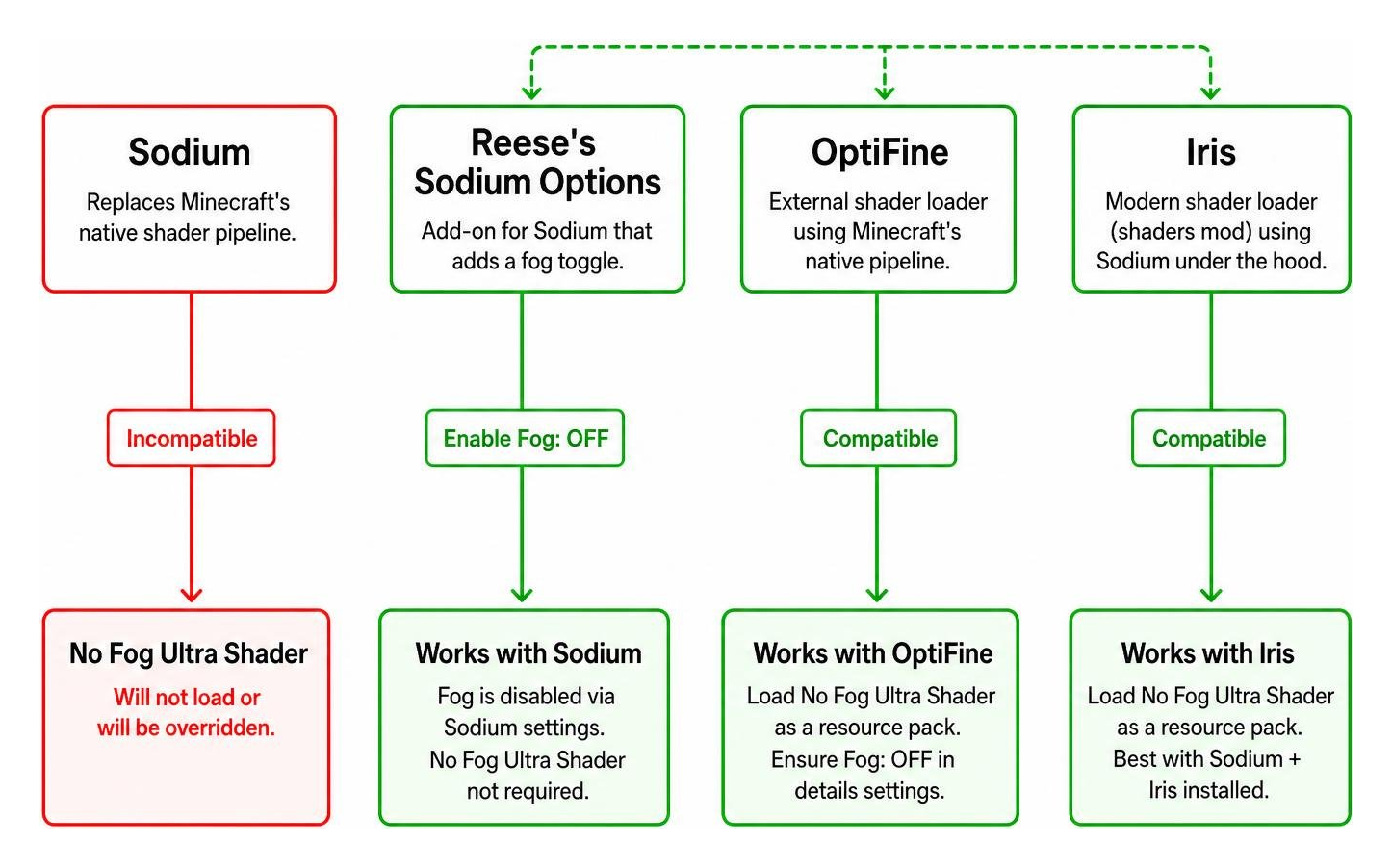
- Sodium Mod Incompatibility: Sodium replaces Minecraft’s native shader pipeline with its own optimized rendering engine. Because of this architectural override, vanilla core shader packs like No Fog will fail to load or get overridden when Sodium is active.
- The Sodium Fix: If you run Sodium for performance optimization, install Reese’s Sodium Options. This dedicated add-on provides a native toggle switch to turn off atmospheric fog within Sodium’s custom video menu without requiring external core shader resource packs.
- Multiplayer Server Safety: Visual fog removal packs operate purely on your local client machine. They alter local visual files on your system without modifying game logic, player coordinates, or network packets, making them completely safe to use on public survival and competitive multiplayer servers.
For comprehensive visual adjustments and setting tweaks, watch this helpful Video Tutorial on Shader Fog Removal.
Configuring No Fog Ultra Shader with OptiFine and Iris
If you use external shader loaders like OptiFine or Iris, adjust your core settings for optimal visual clarity:
- Render Distance: Set your render distance to 16+ chunks to take full advantage of distant, unhidden horizons across all dimensions.
- Graphics Quality: Set Graphics to Fancy or Fabulous to allow proper transparency handling for leaf blocks, cloud structures, and fluid layers.
- Brightness: Crank Brightness up to 100% (Moody to Bright) for optimal cave vision when paired with fog suppression in deep subterranean structures.
- OptiFine Internal Toggle: Navigate to Options > Video Settings > Details and toggle Fog: OFF to ensure OptiFine’s built-in fog engine does not override your active resource pack.
Frequently Asked Questions About No Fog Shader Packs
Why does my game crash on startup when using a fog removal pack?
Startup crashes occur when a resource pack built for an older or newer render pipeline is loaded on an incompatible Minecraft client version. For example, Minecraft update 1.21.6 heavily overhauled internal core shader configurations and rendering code. Loading a 1.21.5 fog pack on 1.21.6 causes shader compilation errors during the splash screen, leading to a quick game crash. Always download the exact pack file built specifically for your current active game version.
Is No Fog Ultra Shader allowed on multiplayer servers?
Yes, client-side resource packs that alter visual JSON files or core shaders are universally allowed on multiplayer survival, anarchy, and mini-game servers. They operate strictly on your local rendering pipeline and do not send illegal packets, alter movement physics, or modify block state checks, meaning they will not trigger automated server anti-cheat software like NoCheatPlus or GrimAC.
How do I fix Sodium conflicts with core shader packs?
Since Sodium disables vanilla core shader resource packs by taking control of the rendering pipeline, the easiest fix is installing Reese’s Sodium Options. Once installed alongside Sodium, navigate to your video settings, open the extra Sodium menu tab, and set the internal Disable Fog setting to True to strip away atmospheric fog seamlessly.
Conclusion
Using the No Fog Ultra Shader is one of the most effective and straightforward ways to strip away unwanted visual clutter, uncover crystal-clear landscapes, and dramatically improve your situational awareness across every dimension in Minecraft. By bypassing complex mod dependencies and making simple client-side visual changes, you gain immediate, wide-open sightlines with zero hit to your framerate or device battery life.
If you are eager to expand your visual setup even further on mobile or desktop, check out our curated selection to Explore Top Realistic Shaders for MCPE and upgrade your world with stunning visuals today!
Download
Download Shader
MORE SHADERS- Shaders – MCPEUDAY
Free with Minecraft Marketplace All Packs – Click and Join