What You Need to Know About Atmos Visuals Shader (Quick Answer)
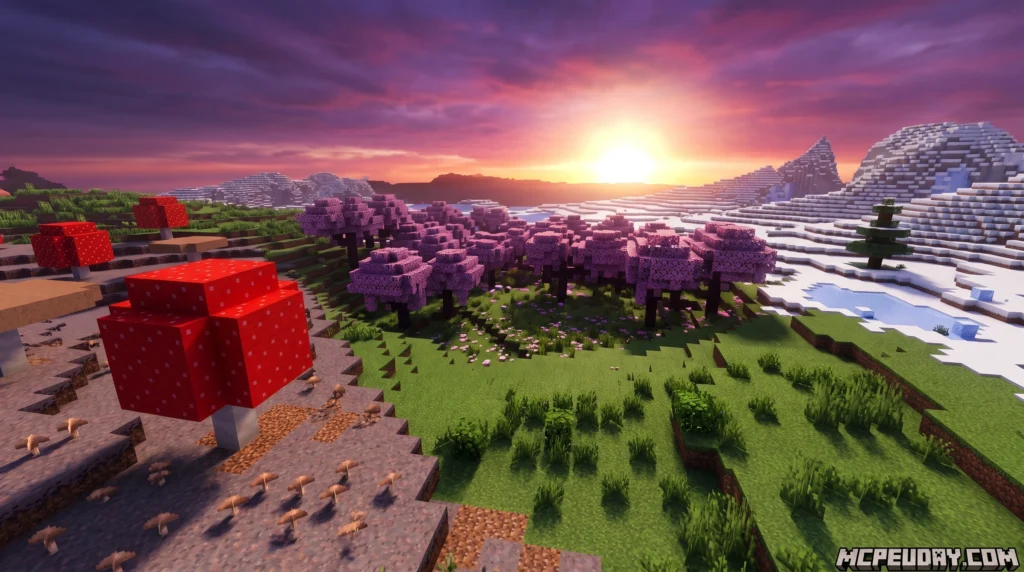
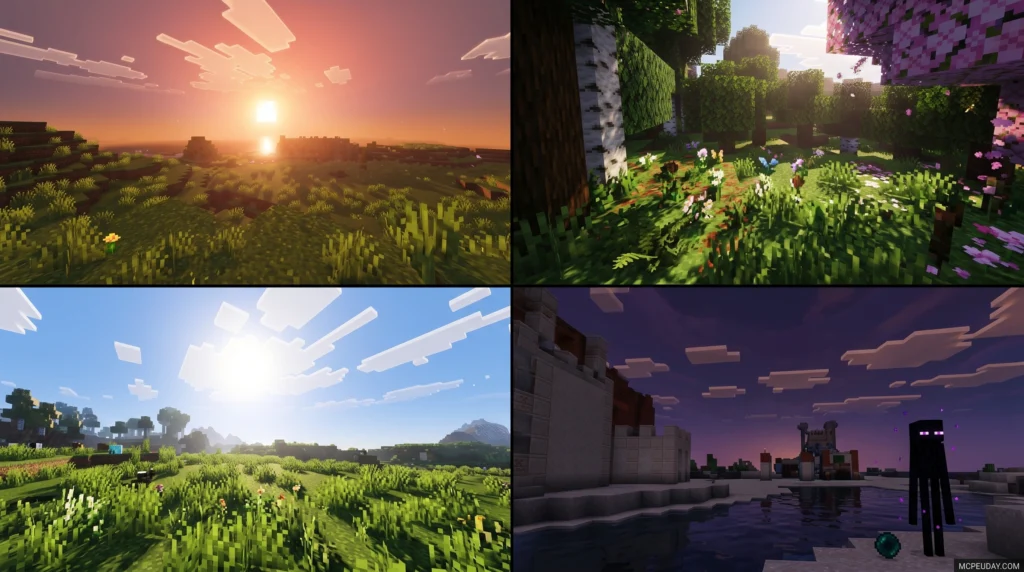
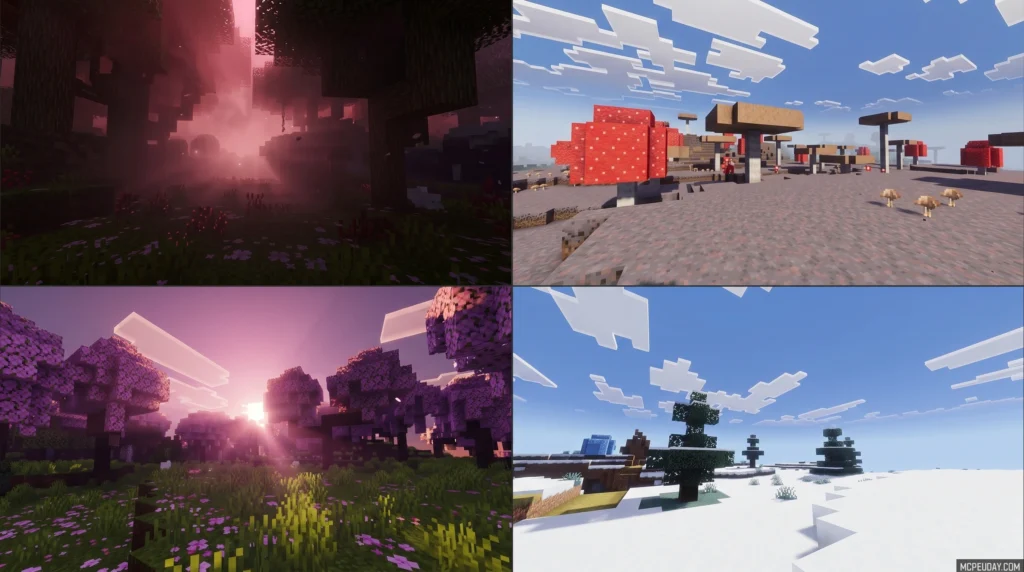
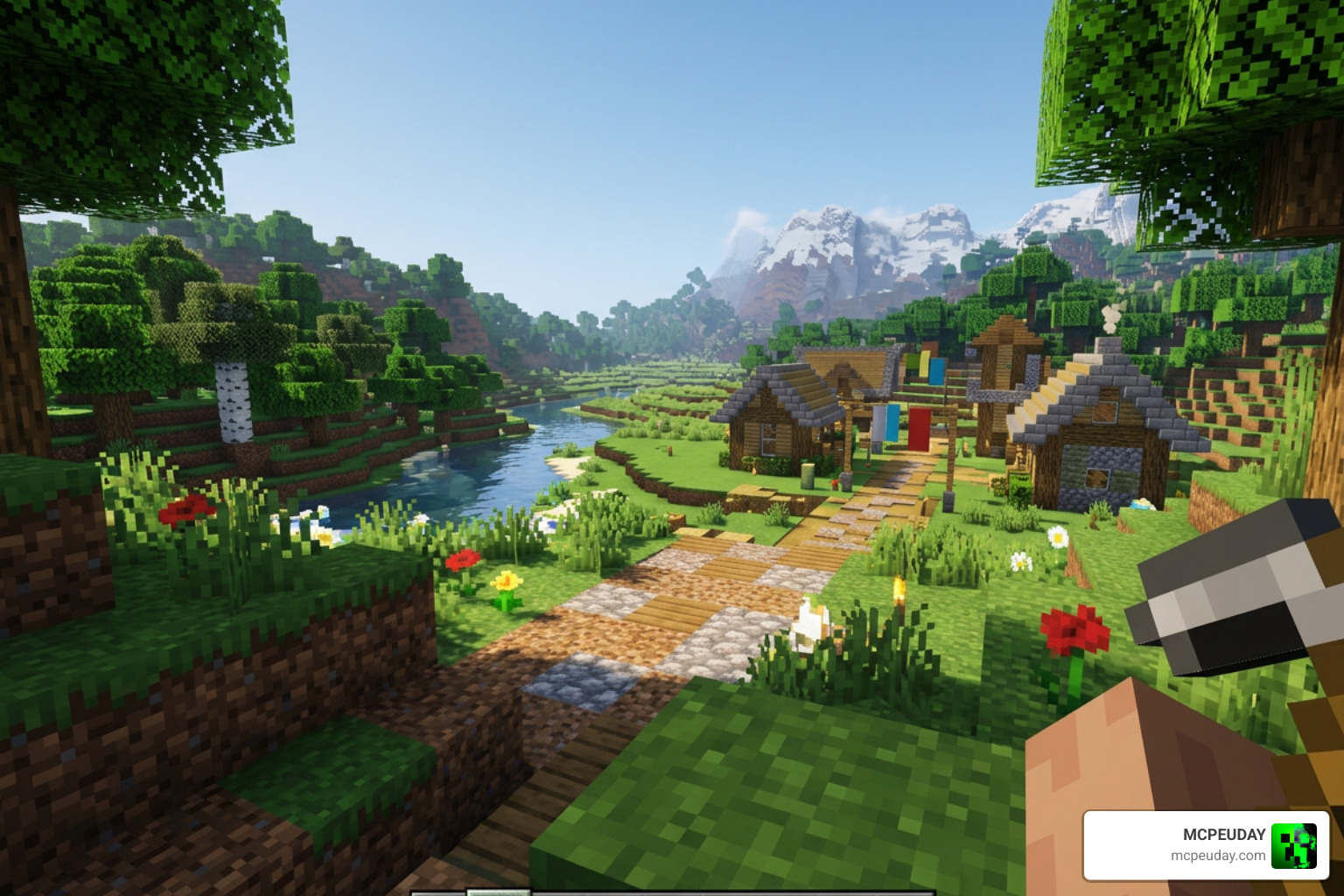
The Atmos Visuals Shader is a visual enhancement pack for Minecraft Pocket Edition 1.21 that removes fog, brightens lighting, and improves color tones for a cleaner, more natural-looking game world.
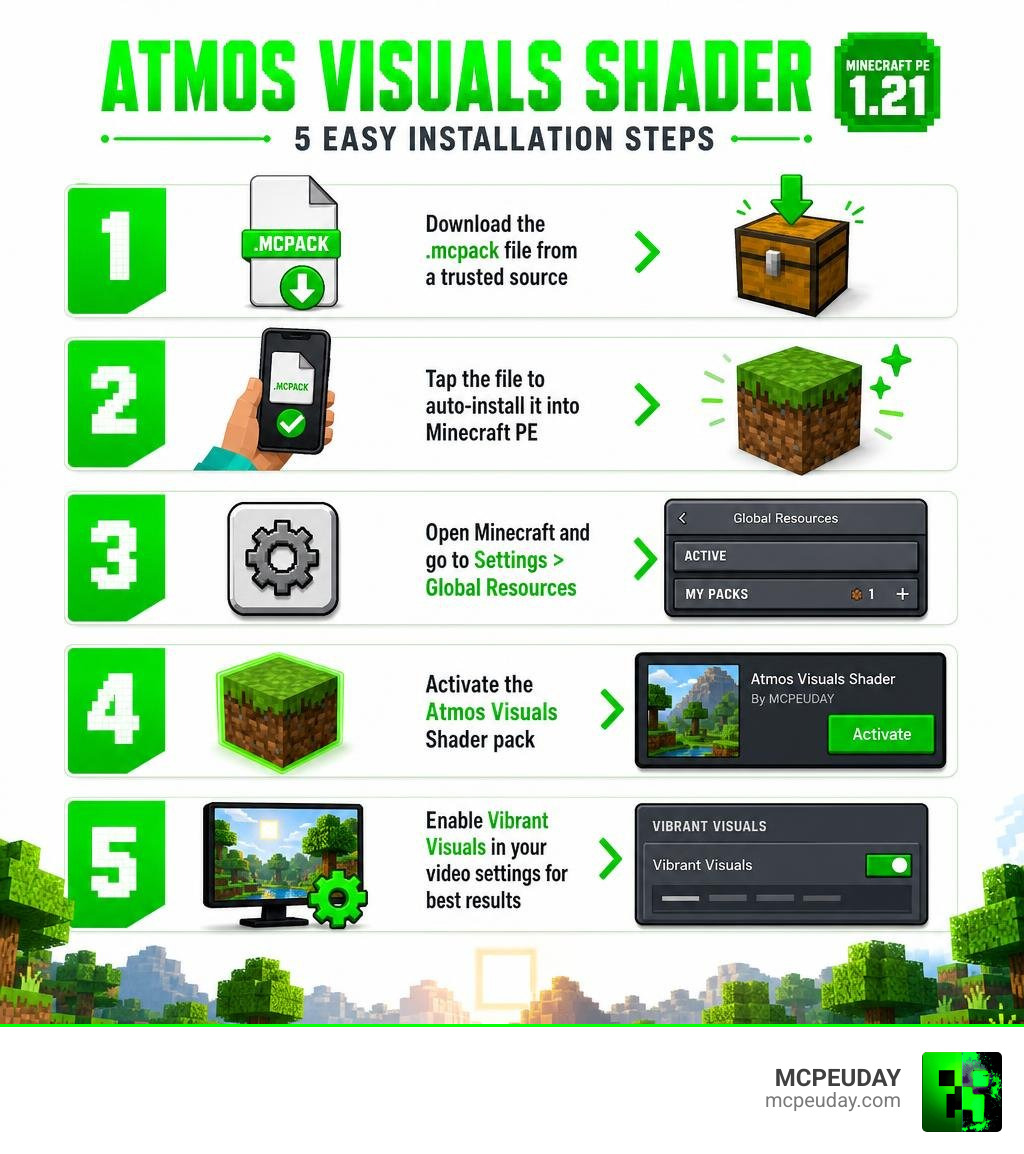
How to download and install it in 5 steps:
- Download the
.mcpackfile from a trusted source - Tap the file to auto-install it into Minecraft PE
- Open Minecraft and go to Settings > Global Resources
- Activate the Atmos Visuals Shader pack
- Enable Vibrant Visuals in your video settings for best results
If you’ve ever felt like Minecraft PE looks a little hazy and washed out, you’re not alone. The default fog and lighting can make the game feel smaller than it really is — blocking distant landscapes and dulling colors that should pop.
That’s exactly what Atmos Visuals Shader is designed to fix.
It’s a lightweight shader pack built for Minecraft Bedrock Edition 1.21, focused on one core idea: clarity. Less fog. Brighter light. Sharper blocks. Farther views.
With over 7,500 downloads and a solid community rating, it’s become a go-to pick for players who want a visual upgrade without heavy performance costs.
In this guide, we’ll walk you through exactly how to get it running on your Android device in five simple steps.
What is the Atmos Visuals Shader for Minecraft PE 1.21?
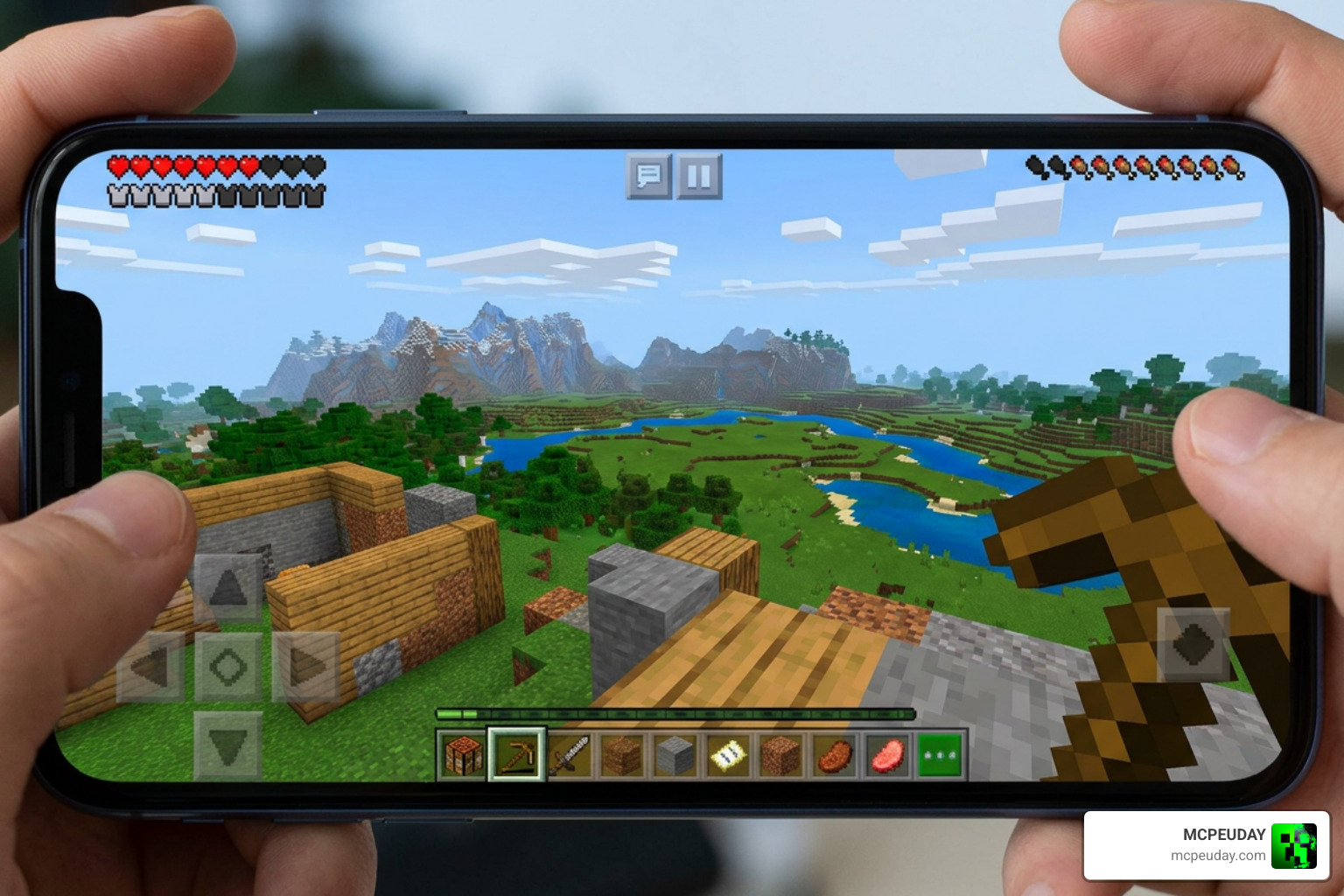
The Atmos Visuals Shader is a modern graphics and texture modification engineered specifically to work within the constraints of Minecraft Bedrock’s rendering environment in June 2026. Unlike traditional shaders that completely rewrite the game’s rendering pipeline (often leading to massive lag spikes on mobile devices), the Atmos pack takes a smarter, cleaner approach.
Its primary design goal is minimal visual obstruction. Here is how it reshapes your game:
- Complete Fog Removal: By lifting the default grey haze, your viewing distance feels dramatically expanded. Landscapes look massive, and distant mountain peaks remain sharp and visible.
- Brighter, Cleaner Lighting: Ambient lighting is boosted to give the world a fresh, sun-drenched aesthetic. Caves are easier to navigate, and daytime looks incredibly vibrant.
- Natural Color Tones: Instead of oversaturating the world with artificial neon colors, Atmos balances the color palette. Grass looks greener, skies look deeper, and block surfaces stay crisp and clean.
This philosophy of clean, natural design ties directly into how modern game engines handle atmosphere. If you look at official documentation like the Atmospheric Effects | Microsoft Learn portal, you will see that customizing sky horizon colors, zenith colors, and scattering coefficients is the key to creating a believable, immersive skybox without melting your graphics card.
Key Features of the Atmos Visuals Shader
To help you understand how this pack changes your standard Minecraft pocket experience, we have broken down the core differences between vanilla Minecraft PE and the Atmos-enhanced world:
| Visual Element | Default Minecraft PE Graphics | Atmos Visuals Shader |
|---|---|---|
| Atmospheric Fog | Thick, greyish, limits render distance | Completely removed for maximum clarity |
| Sunlight & Shadows | Flat, yellowish, lacks depth | Brighter ambient light with sharper block contrast |
| Water Quality | Opaque, hard to see through | Penetrating light rays, high underwater visibility |
| Colors | Slightly washed out, grey undertones | Balanced, natural tones with crisp block surfaces |
| Performance Impact | None (Baseline) | Extremely lightweight, virtually no FPS drops |
One of the coolest aspects of the Atmos pack is how it plays with water. It allows sunlight to penetrate deep below the surface, meaning you can actually see where you are swimming. When you combine this with the Vibrant Visuals setting in Minecraft Bedrock, you get real-time light reflections on the water’s surface that make your beachside bases look absolutely stunning.
Visual Enhancements in Atmos Visuals Shader
If we look under the hood of atmospheric rendering, we find some fascinating science. Real-world atmosphere relies on two types of light scattering: Rayleigh scattering (which makes the sky look blue by scattering shorter wavelengths of light) and Mie scattering (which causes the glare around the sun by scattering larger particles).
While complex game engines use heavy mathematical computations to simulate this—as seen in projects like the Atmospheric Scattering Shader for Unity URP—the Atmos Visuals Shader simplifies these concepts for mobile hardware. It customizes the horizon blend stops and sky zenith colors directly, giving you that high-end, physically-based skybox look without the performance cost of a full ray-marched engine.
How to Download and Install Atmos Visuals Shader on Android
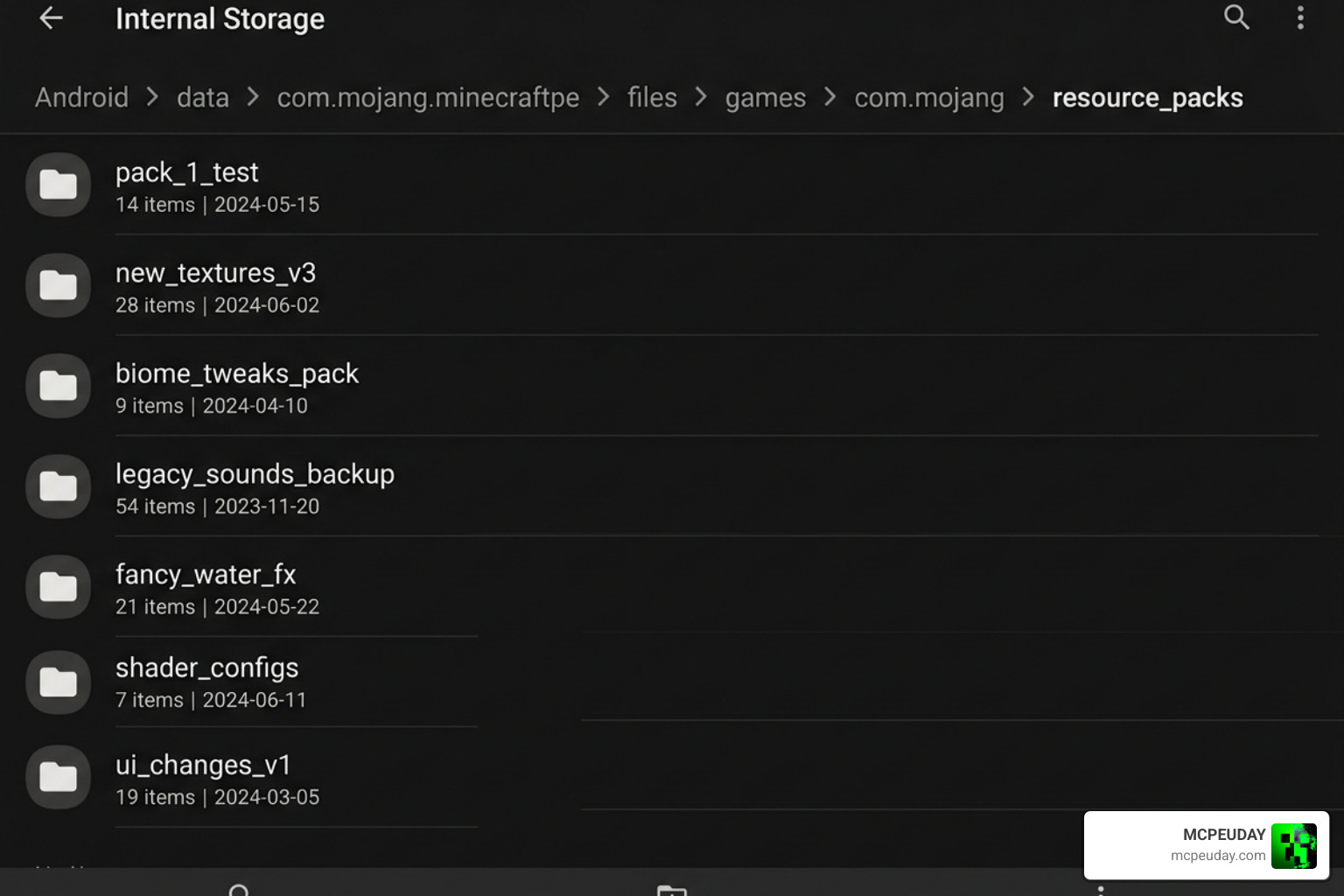
Ready to transform your world? Installing shaders on Android can sometimes feel like trying to solve a Redstone puzzle in the dark, but we have made it incredibly simple.
Because modern Android versions have strict file access permissions, we recommend using a dedicated file manager (like ZArchiver) or simply downloading the auto-installing .mcpack file.
Before we start, make sure you know How to Turn on Shaders in Minecraft 2026 Guide Java Bedrock MCPE Setup Fast Mcpeuday to ensure your game client is ready to receive custom resource packs.
Step-by-Step Guide to Activate Atmos Visuals Shader
Follow these five easy steps to get the shader up and running:
- Step 1: Download the Pack Get the latest version of the Atmos Visuals Shader (specifically updated for version 1.21) from our secure download area or via trusted community mirrors like the Atmos Visuals Shader (26.x, 1.21) – MCPE/Bedrock | 9Minecraft.Net database.
- Step 2: Open the File Locate the downloaded
.mcpackfile in your device’s “Downloads” folder. Tap on it. Your device should ask which app you want to use to open it—select Minecraft. - Step 3: Let Minecraft Import the Pack Minecraft will launch automatically, and you will see a message at the top of the screen saying “Import Started,” followed quickly by “Successfully Imported Atmos Visuals.”
- Step 4: Activate in Global Resources From the main menu, go to Settings > Global Resources > My Packs. Find the Atmos Visuals Shader, tap it, and click Activate.
- Step 5: Load Your World Enter your favorite world. If the changes do not appear immediately, go to your world settings, ensure the pack is active under the world’s resource packs, and verify that Experimental Gameplay (specifically “Render Dragon Features” or “Vibrant Visuals” if available) is toggled on.
System Requirements and Compatibility Notes
Because the Atmos Visuals Shader is optimized for mobile devices, you do not need a high-end gaming phone to run it. It runs beautifully on mid-range and even budget Android devices.
- Minecraft Version: Pocket Edition / Bedrock 1.21.0 through 1.26.22.
- Engine Support: Built to work alongside Mojang’s Render Dragon engine.
- RAM Requirements: At least 3GB of system RAM is recommended for a completely lag-free experience.
- Storage Space: Less than 5MB of free space is required.
If you are looking for other high-performance options to test alongside Atmos, be sure to check out our list of the 3 Best Shaders for Minecraft 1.21 Ultra Realistic Smooth FPS Stunning Graphics to find the perfect match for your specific device.
Frequently Asked Questions about Atmos Visuals Shader
Why don’t shaders work on standard Minecraft Bedrock 1.21?
Mojang introduced the Render Dragon rendering engine in recent updates, which blocked traditional third-party shaders. To get full, realistic lighting, players must use either the official “Deferred Technical Preview” settings, patched game versions, or lightweight visual packs like Atmos that modify textures and fog parameters rather than injecting custom render code.
How do I fix black screen or loading issues with Atmos Visuals?
If you experience a black screen or if the textures fail to load:
- Go to Settings > Storage in Minecraft and clear your active resource cache.
- Ensure that you have enabled Experimental Mode in your world settings.
- Make sure the Atmos pack is placed at the very top of your active resource packs list.
Can I use Atmos Visuals Shader on multiplayer servers?
Yes! Because the Atmos pack is a client-side resource pack, you can safely use it on public multiplayer servers and Realms. It will not trigger anti-cheat systems, and other players do not need to have it installed for it to work on your screen.
Conclusion
Upgrading your pocket-sized adventures doesn’t have to mean sacrificing your frame rate. The Atmos Visuals Shader strikes the perfect balance between beautiful, natural clarity and smooth mobile performance. By sweeping away the heavy vanilla fog and brightening up the blocky world, it breathes fresh life into every biome you explore.
If you are looking to build the ultimate visual setup for your game, don’t stop here. Head over to our curated guide on the Best Shaders for MCPE 1.21 2026 Top 3 Realistic Minecraft PE Shaders to see how Atmos stands up against the absolute best graphic packs of the year!

1 thought on “Atmos Visuals Shader (26.x, 1.21) – MCPE/Bedrock Shader”