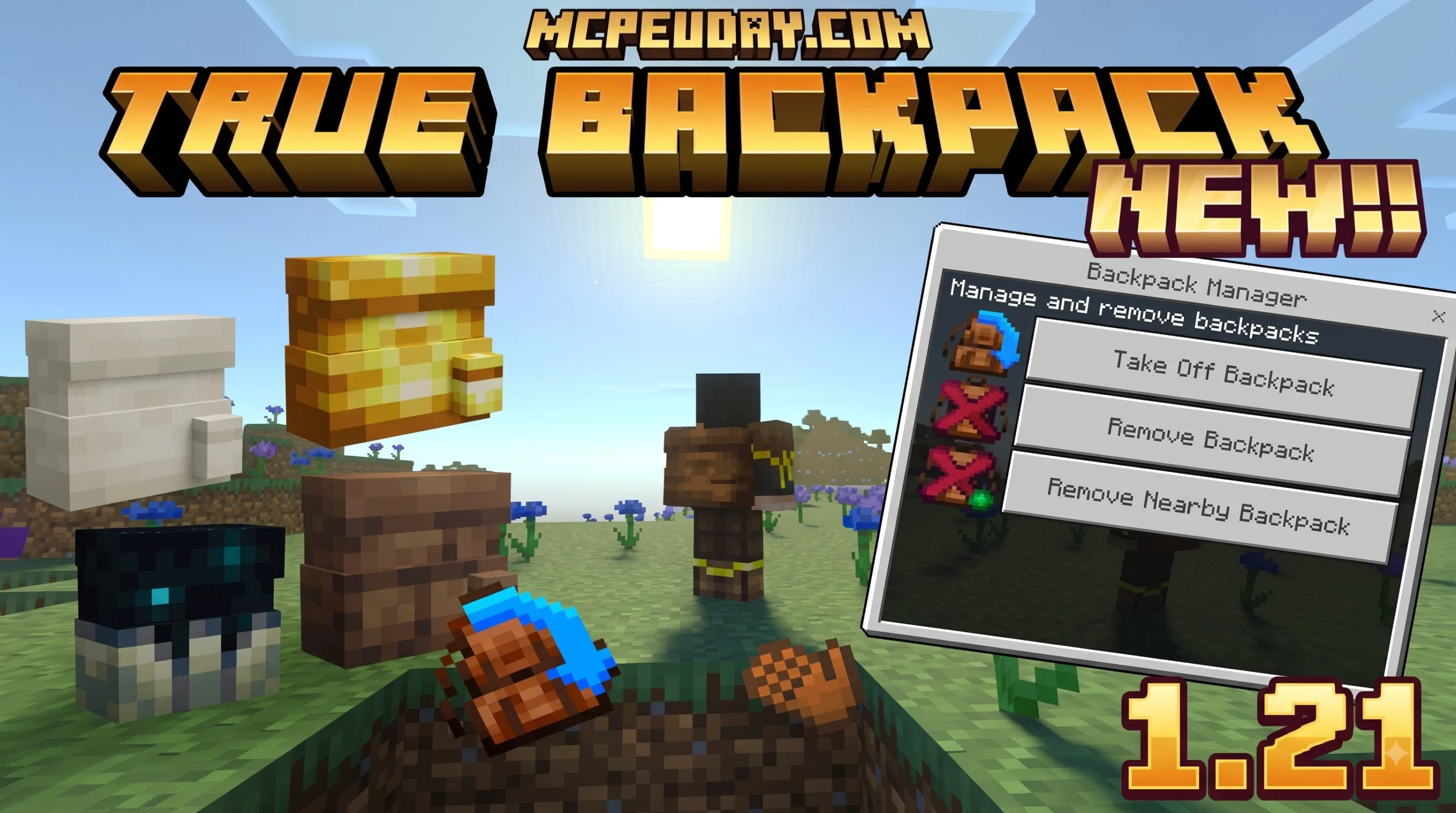
How to Equip and Open Portable Backpacks in Minecraft
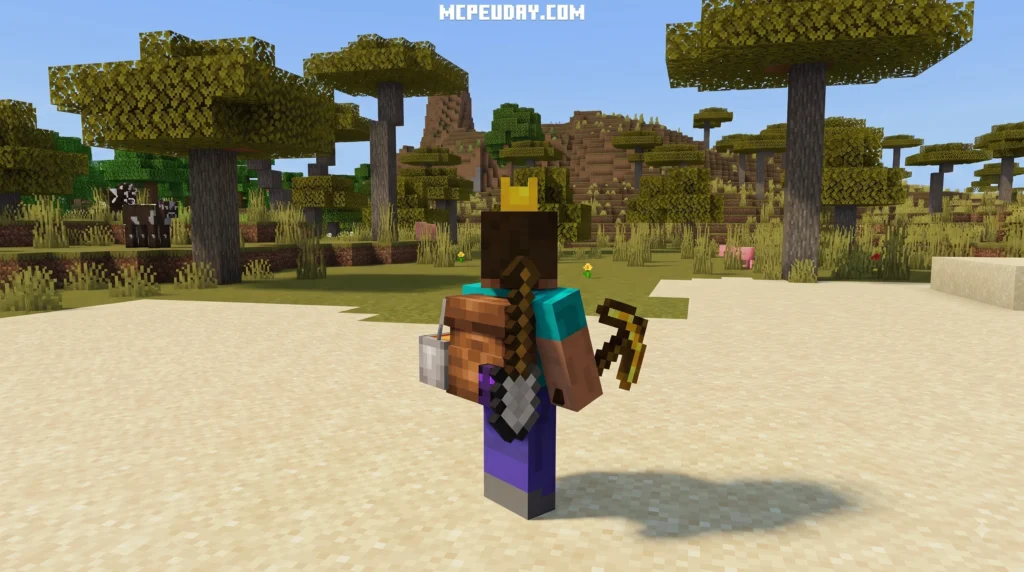
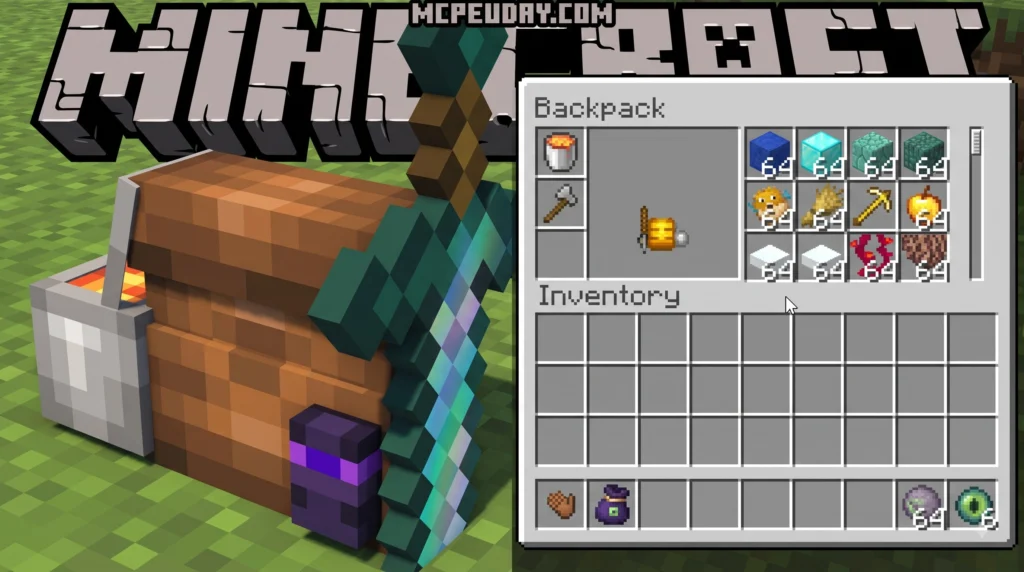
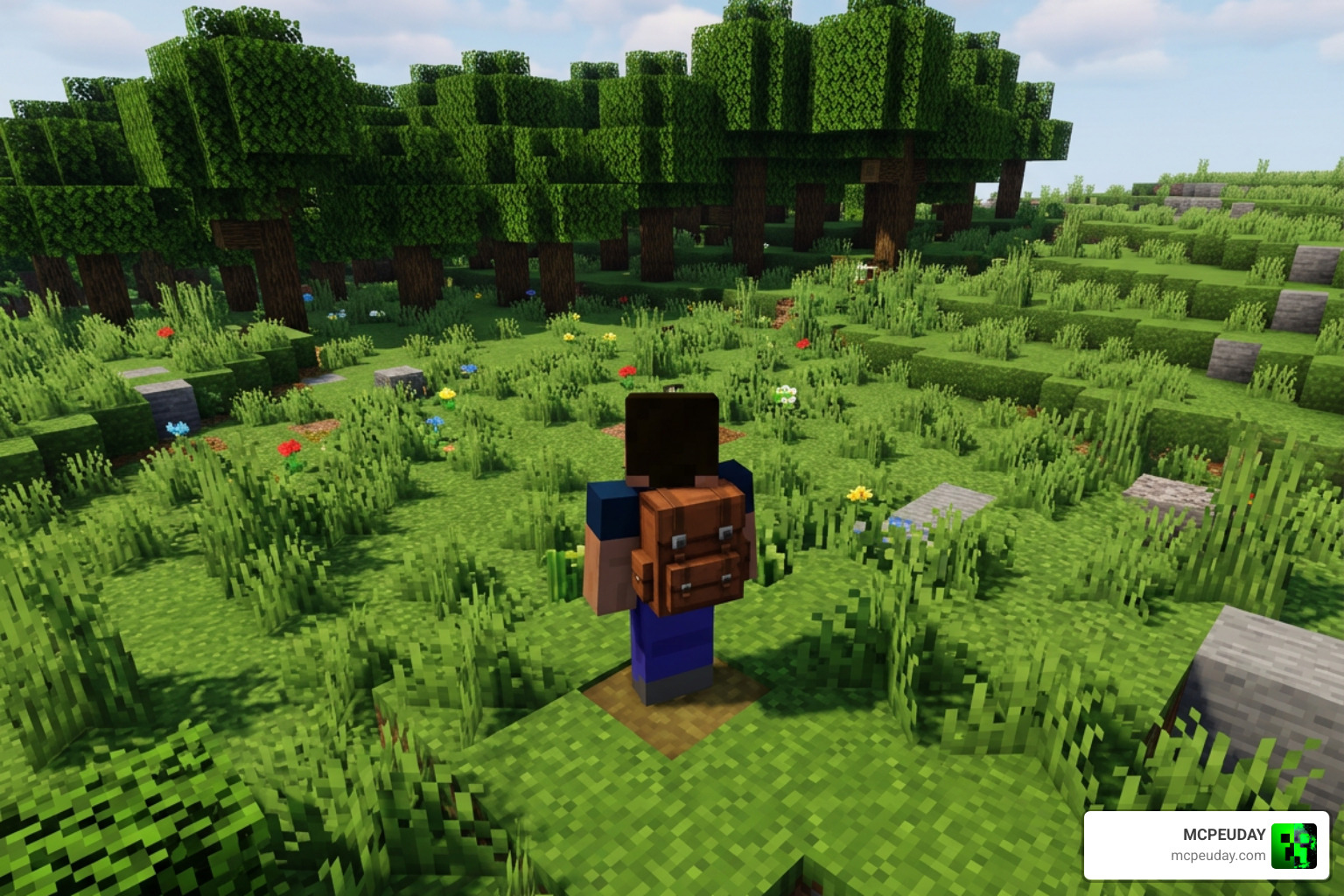
Equipping and managing your portable inventory items can be confusing when you transition from vanilla gameplay to modded setups. Vanilla Minecraft provides limited mobile storage solutions, such as Ender Chests and Shulker Boxes, which require late-game progression in the End dimension. When starting new survival worlds, portable storage addons provide an immediate quality-of-life improvement. However, unlike standard armor pieces like helmets or boots, portable storage addons introduce specialized mechanics for gear assignment and quick access. If you are comparing how controls and addon behavior differ between editions, Mojang’s official Minecraft edition overview is a useful reference for understanding Bedrock and Java platform differences.
When you craft or obtain a backpack, interacting with it directly in your hotbar won’t necessarily place it on your character’s back. In fact, attempting to right-click with a backpack in hand might result in placing it on the ground or doing nothing at all, depending on your current control scheme. Instead, addons utilize keybind shortcuts or custom gear interfaces to make management effortless while keeping armor functionality fully operational.
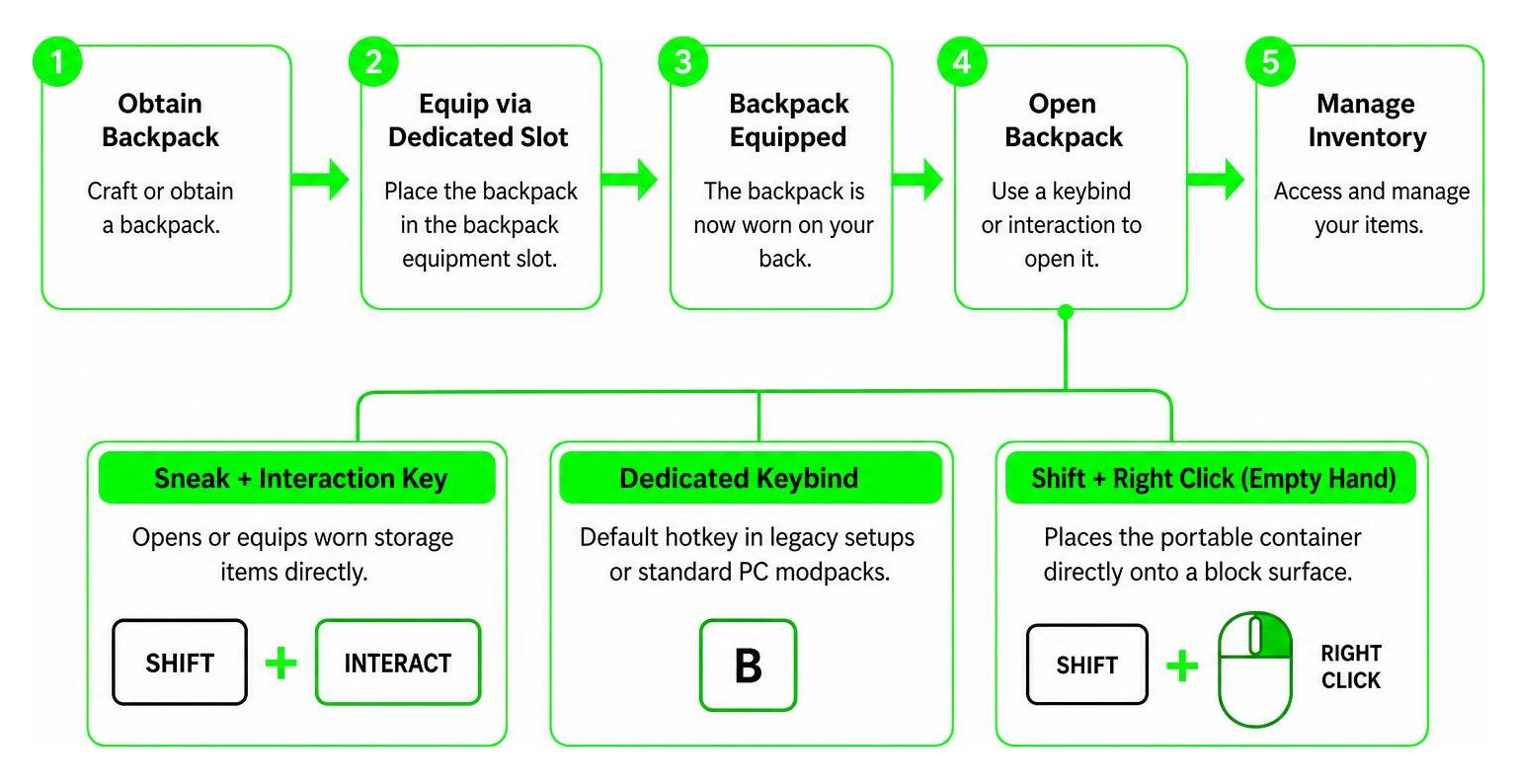
Understanding how default controls work across platforms helps prevent frustrating inventory mishaps during intense gameplay. Here is a comprehensive overview of the standard interactions and controls commonly used across popular backpack addons:
- Sneak + Interaction Key: Opens or equips worn storage items directly without opening standard chest menus or forcing players into complex sub-menus.
- Dedicated Keybind (‘B’): The default hotkey in legacy setups or standard PC modpacks to quickly trigger backpack interfaces instantly during exploration.
- Shift + Right Click (Empty Hand): Places the portable container directly onto the surface of a block so it can be accessed like a conventional chest.
- Custom Equipment Interface: Accessible via character status menus to wear the bag off-slot without interfering with standard chest protection.
Equipping Backpacks via Custom Slots in True Backpack Addon
A major source of confusion among players comes from trying to put backpacks into the standard chestplate slot. In legacy versions of early storage mods, items often forced players to choose between defense and utility by replacing the armor chestplate. This created a significant handicap during combat scenarios, as players had to sacrifice diamond or netherite chest armor defense values just to carry additional mining yield or building supplies.
Modern designs like the True Backpack Addon fix this limitation completely. By leveraging custom equipment slots built directly into Bedrock Edition interfaces, you retain full armor defense values while wearing your portable bag. You get complete chest protection against hostile mobs while simultaneously enjoying vastly expanded carrying capacity. If you want to check out the underlying design parameters, you can review the latest official release details on our mod overview guides.
Key Features of the True Backpack Addon for MCPE
The True Backpack Addon streamlines gameplay through quick, intuitive controls designed specifically for MCPE touchscreen, controller, and keyboard control schemes.
- Seamless Access via Sneak: You can interact with your wearable bag without opening full inventory screens by simply crouching down and tapping the screen or pressing the interact button.
- Custom Keybind Bindings: Bedrock edition controls allow flexible binding mapping, such as Sneak + B, making access instantaneous during quick looting sprees in dangerous dungeons.
- No Armor Compromise: Dedicated slot support means full diamond or netherite armor protection stays active continuously, ensuring survival during intense boss fights and nether raids.
- Customizable Aesthetics: Players can dye and customize their bags to match their skin design or team colors during multiplayer survival server sessions.
Mastering Gameplay with the True Backpack Addon
To maximize efficiency during long survival runs, deep underground mining expeditions, or massive building endeavors, you need to understand configuration options and advanced physical interactions provided by modern storage addons.
Placing Backpacks on Blocks and Ground
Backpacks aren’t just inventory extensions; they can also function as deployable field chests. When you need to clear inventory space, reorganize rare minerals, or share resources with teammates during a multiplayer build session, you can place your bag directly onto any solid block surface.
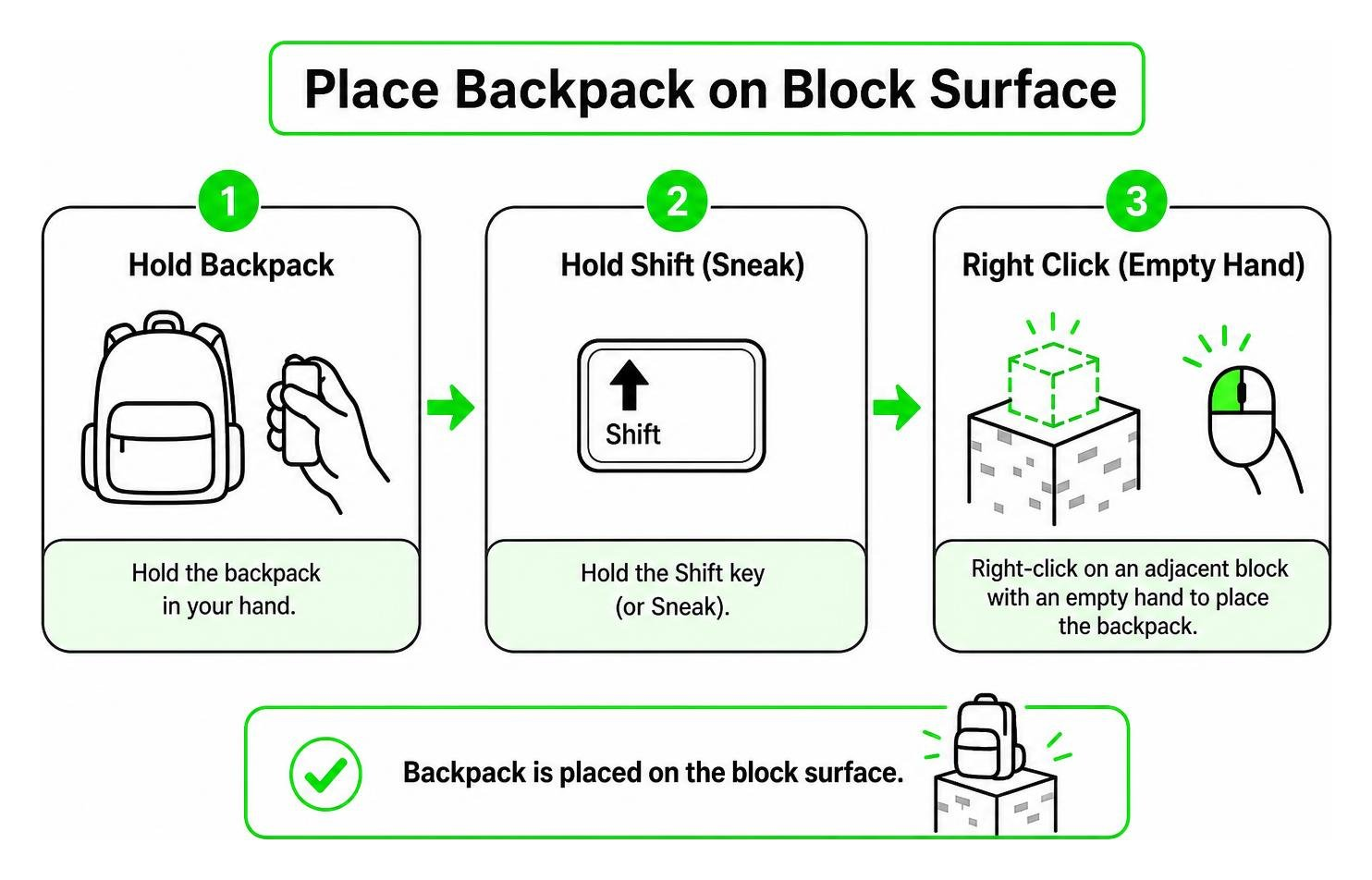
To place a backpack onto the ground efficiently without accidentally triggering your main hand tool or weapon:
- Hold the backpack item in your hand or select it from your equipment setup menu.
- Hold the Shift key on PC keyboards (or tap and hold the Sneak toggle button on mobile devices and gamepads).
- Right-click on an adjacent block using an empty hand (or hold down the interaction tap zone on touchscreen setups).
Once placed, the item behaves as a tile entity world container with fully preserved inventory data. Anyone with access permissions can open it, store items inside, or retrieve necessary gear. To pick it back up, simply break the object using standard tools or use Sneak + Interaction again depending on your specific version rules.
Managing Field Logistics and Storage Expansion
When exploring distant structures like Woodland Mansions or Ocean Monuments, inventory space fills up rapidly with rare items, enchanted books, and valuable metals. Utilizing deployable backpacks creates temporary field staging bases. You can drop off heavy building blocks and stone, keep essential healing potions in your active hotbar, and maintain maximum combat readiness without returning to your primary home base.
Comparing Backpack Mods: True Backpack Addon vs Better Storage
Choosing the right storage solution depends on your preferred playstyle, control setup, performance expectations, and target Minecraft edition. Different mods implement equipment slots and world interactions in distinct ways.
| Feature / Mod | True Backpack Addon | Better Storage Mod | Legacy Backpacks Mod |
|---|---|---|---|
| Primary Platform | Minecraft Bedrock / MCPE | Java Edition | Java Edition (Legacy) |
| Armor Slot Usage | Dedicated Custom Slot (Keeps Chestplate) | Replaces Chestplate or Uses Baubles | Replaces Chestplate Slot (Older Builds) |
| World Placement | Supported (Deployable Tile Entity) | Supported (Block Interaction) | Item-Only Inventory Access |
| Access Control | Sneak + Hotkey / Custom Touch Interface | Shift + Right Click Interaction | Hotkey trigger (‘B’ key) |
| Bedrock Mobile Optimization | Fully Optimized Touch Controls | Not Available for Bedrock | Not Available for Bedrock |
| Inventory Preservation on Death | Configurable via Addon Settings | Kept in World Block | Dropped as Loose Items |
Platform Suitability and Interface Integration
While Java Edition mods often rely on third-party API frameworks like Curios or Baubles to add dedicated gear slots, Bedrock Edition addons must work within the native script engine and resource pack frameworks. The True Backpack Addon excels because it is constructed specifically for Bedrock, offering smooth touch integration, minimal performance impact on mobile hardware, and native support for multiplayer worlds.
Frequently Asked Questions About Backpack Mods
How do you place a backpack on the ground in Minecraft?
To deploy a backpack onto a physical block surface, hold Shift (or toggle crouch/sneak on mobile setups) and Right-Click the targeted block face while keeping your off-hand empty. This converts the wearable gear item into a placed world container that functions like a deployable mini-chest.
Can backpacks be equipped in the chest armor slot?
In modern addons like the True Backpack Addon, backpacks use dedicated custom slots rather than occupying the default chestplate armor slot. Older mod versions on legacy platforms forced players to equip them in the chest armor slot, sacrificing defense. Current Bedrock designs allow you to wear full Netherite chestplates and backpacks simultaneously without losing combat protection.
How does the openOnlyWornBackpacks config setting work?
The openOnlyWornBackpacks configuration parameter determines inventory access rules for player immersion:
true: You must have the bag physically worn in your custom equipment slot to open it using hotkeys, touch controls, or crouch triggers. Trying to open a backpack held loosely in your hand or hotbar will not work.false: You can open any portable bag directly from your active hotbar or main character inventory screen without needing to equip it onto your back first.
Will items inside the backpack disappear if I die?
By default, most Bedrock storage addons drop the backpack as a single compact unit at your death location, preserving all stored items inside the bag entity rather than scattering individual items across the ground. You can simply return to your death coordinates, pick up the filled backpack, and re-equip it without losing your valuable collection.
Conclusion
Finding and mastering the ideal True Backpack Addon completely transforms how you play Minecraft Bedrock. By decoupling extra portable storage from standard armor slots, modern addons allow you to explore deep cave systems longer, erect colossal megastructures faster, and gather rare resources across vast biomes without constant disruptive trips back to your home chest room.
Whether you play on mobile devices, consoles, or Windows PCs, adding custom storage utility brings unmatched convenience to every survival journey. Ready to upgrade your Bedrock survival world with essential utilities, custom features, and high-performance mods? Explore Bedrock Mod Addons on MCPEUDAY to download up-to-date extensions, shaders, and gameplay enhancements today!

1 thought on “True Backpack Addon (26.x, 1.21) – MCPE/Bedrock Mod”