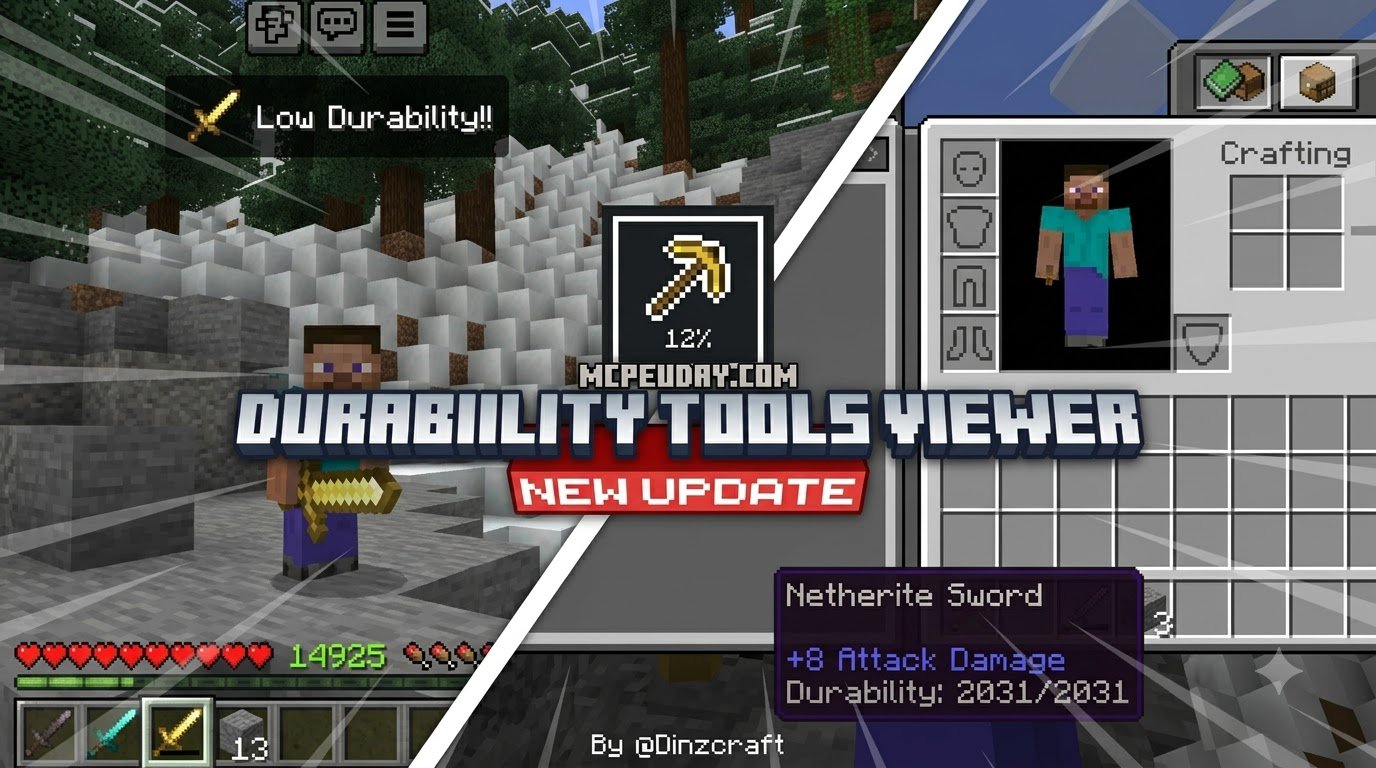
Scroll down to D0vvnl0ad
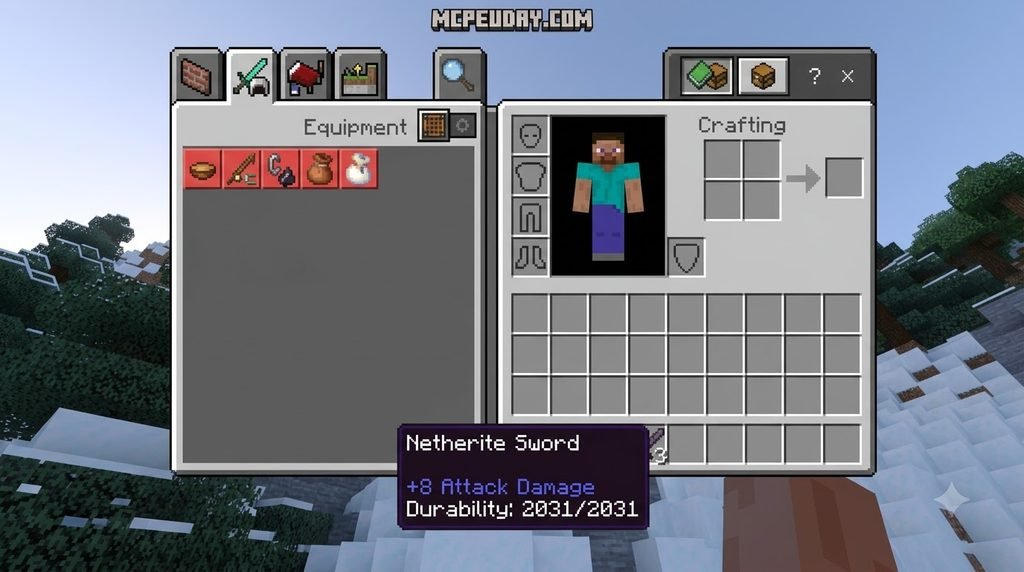
Download Durability Tools Viewer – Minecraft Bedrock Mods – CurseForge
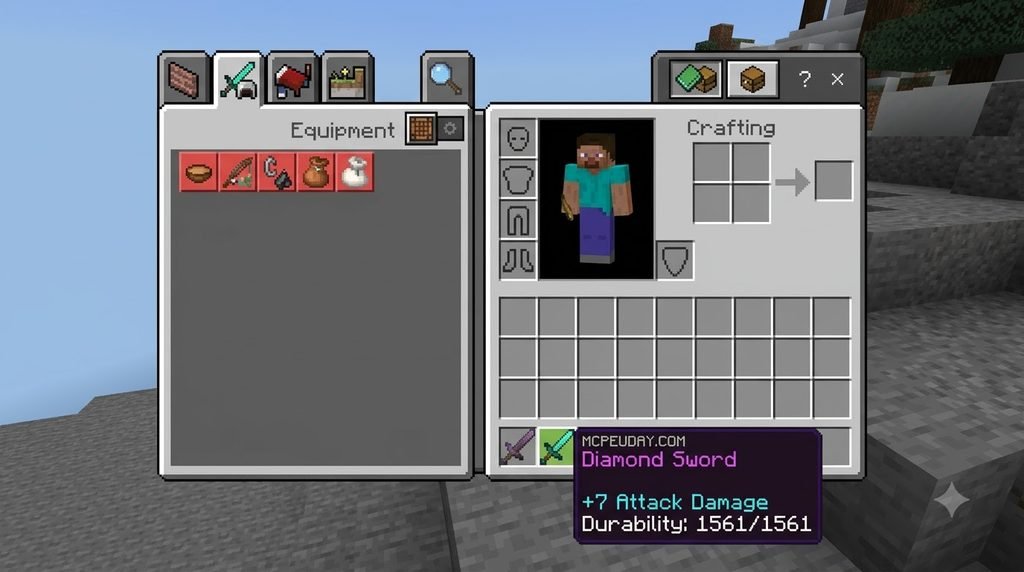
To install the Durability Tools Viewer Addon for Minecraft PE/Bedrock, download the latest .mcaddon or .mcpack file, open it to import it into Minecraft, wait for the “Successfully Imported” message, then activate it in Global Resources or your world’s Resource Packs and choose a subpack layout. Once installed, the addon solves the problem of constantly pausing the game to check your remaining armor points by directly displaying the current health of your armor pieces and your offhand items on your main screen. Instead of navigating through clunky inventory menus mid-battle, you get instantaneous visual data on your equipment status.
Pairing this interface tweak with a damage indicator addon gives you complete tactical awareness in any fight, showing both incoming threats and your current defensive health.
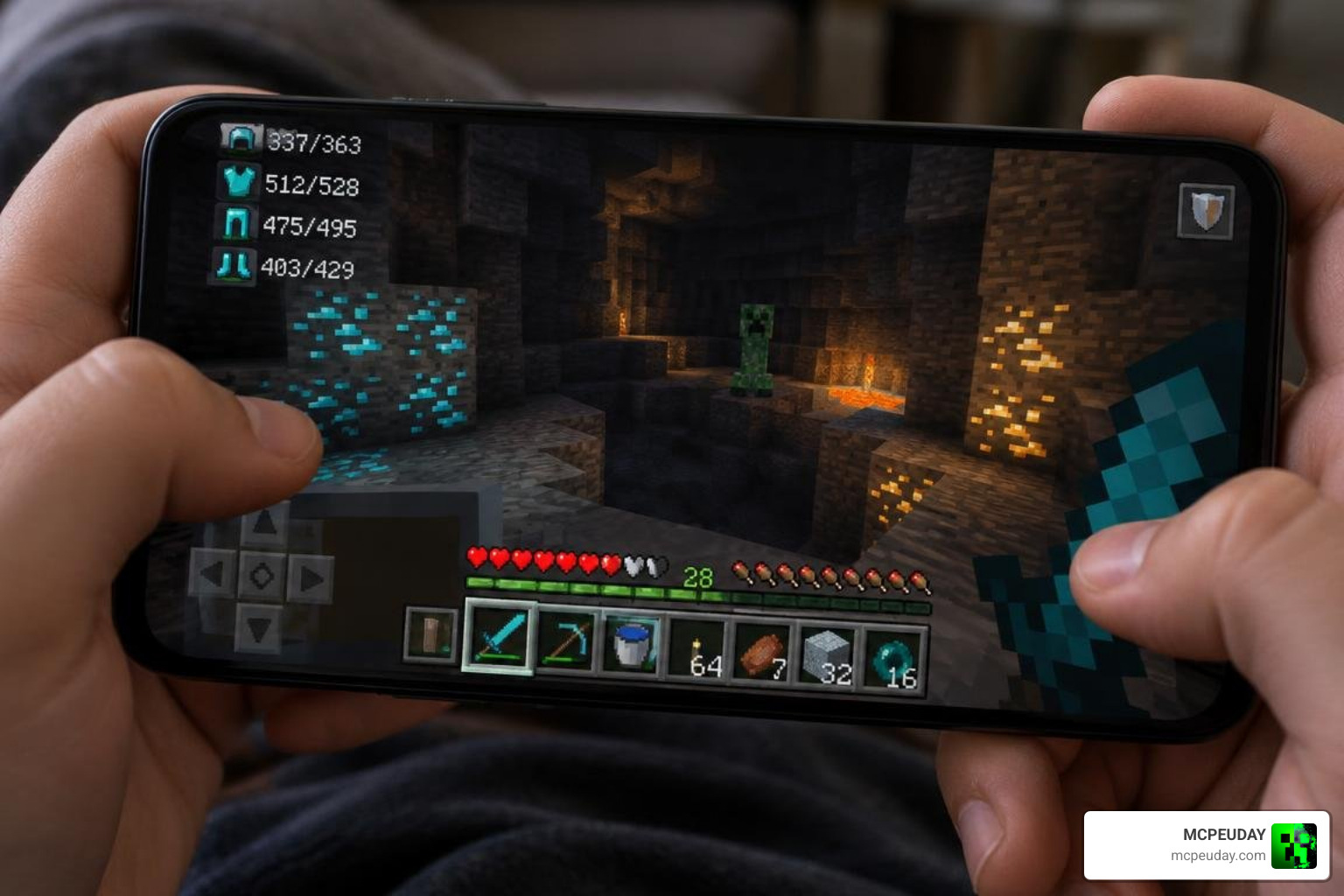
Core HUD Features and Equipment Tracking
The addon attaches clean, unobtrusive visual counters next to your main interface. Here is what it actively monitors:
- Armor Health Values: Real-time visual meters and numerical counters for your helmet, chestplate, leggings, and boots.
- Offhand Slot Status: Clear visibility of your held shield, totem of undying, or secondary item durability.
- Degradation Alerts: Immediate feedback when your equipment reaches critical health levels.
Using a dedicated durability viewer addon for Minecraft PE Bedrock ensures you never accidentally shatter your favorite enchanted Netherite gear while mining or defending your base.
Key Benefits of the Durability Tools Viewer Addon for Minecraft PE/Bedrock in Survival and PvP
In intense PvP skirmishes, every millisecond counts. Looking away from your opponent to open an inventory menu leaves you wide open to critical hits. With this addon, you know the exact moment your shield is about to break or when your chestplate needs replacing.
When paired with a dynamic HUD addon, your screen stays organized while giving you critical survival metrics. It prevents disastrous armor breaks during boss fights like the Ender Dragon or Wither, making your survival gameplay smoother and far more efficient.
Subpack Layout Options and Version Compatibility
Every player has a preferred screen setup, especially when balancing controls on mobile touchscreens versus larger monitors. The addon includes built-in subpack options that allow you to adjust where information sits on your screen, ensuring full visibility regardless of display aspect ratio or touch button scaling.
| Subpack Layout | Best Used For | Screen Placement |
|---|---|---|
| Default | Standard gameplay & tablets | Top-left or floating corner HUD |
| Beside the Hotbar | Touch controls & mobile devices | Direct left/right flanks of your hotbar |
| Same as Hotbar | Clean setups & compact viewports | Directly aligned with active action slots |
If you enjoy keeping your interface clean, combining this setup with a utility inventory pack gives you complete control over your screen layout.
Subpack Layout Variations Explained
- Default Layout: Places the durability meters away from your primary action slots, making it perfect for players who want clear screen real estate without cluttering their main view. It sits cleanly in the peripheral corners of the screen without obscuring status effects or coordinates.
- Beside the Hotbar: Shifts the armor counters directly next to your hotbar. This keeps all vital survival information grouped tightly in your lower peripheral vision, allowing you to monitor equipment health without scanning across wide displays.
- Same as Hotbar: Integrates the durability icons seamlessly into your hotbar row, creating an ultra-compact look designed for smaller mobile displays where screen boundaries are limited.
Supported Minecraft Bedrock Versions and Release Details
The pack has been widely tested and trusted by the community across multiple updates on Minecraft. The latest release is v1.3.2 (updated June 14, 2025), designed to work reliably across modern Bedrock rendering engines.
Supported versions include:
- Minecraft Bedrock 1.21.82
- Minecraft Bedrock 1.21.80
- Minecraft Bedrock 1.21.70
- Minecraft Bedrock 1.21.50
- Minecraft Bedrock 1.21.44
Because Bedrock UI rendering updates frequently between point releases, selecting a stable subpack profile prevents interface overlap across varying screen resolutions.
Step-by-Step Installation Guide for Bedrock and Mobile
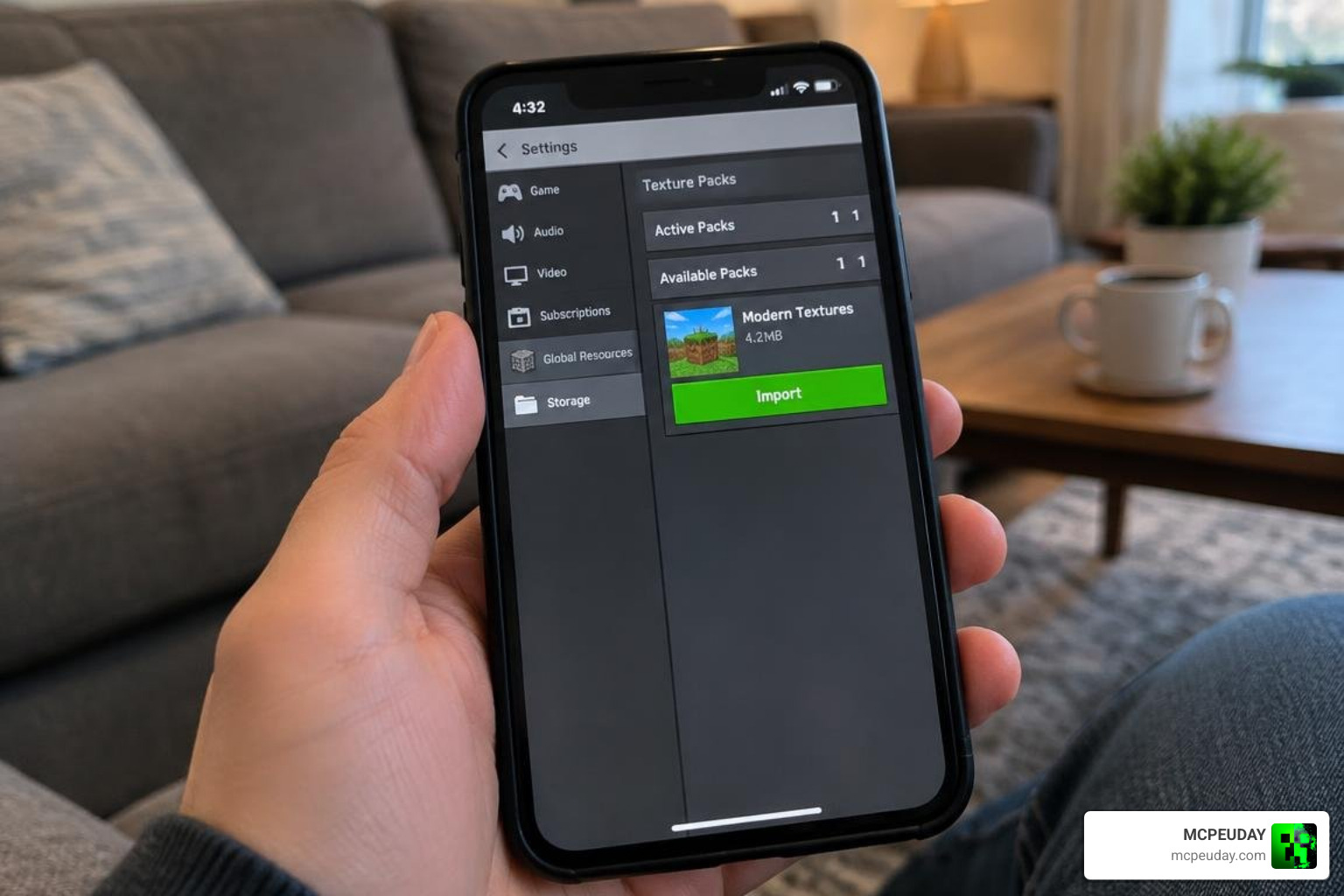
Installing the Durability Tools Viewer Addon for Minecraft PE/Bedrock takes only a couple of minutes on Android, iOS, and Windows. If you also run equipment expansions like the more tools addon, this setup process will feel very familiar.
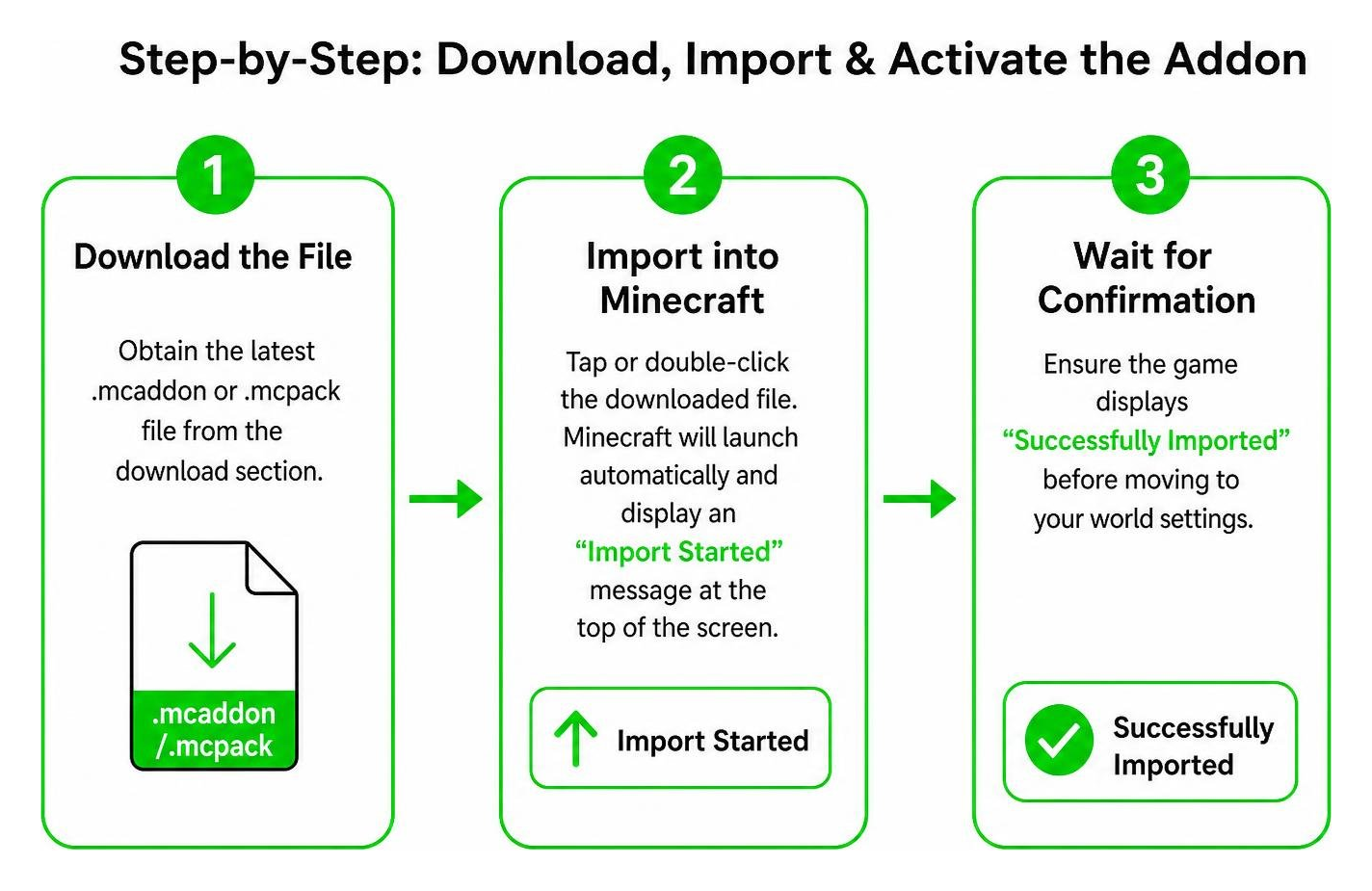
- Download the File: Obtain the latest
.mcaddonor.mcpackfile from the download section. - Import into Minecraft: Tap or double-click the downloaded file. Minecraft will launch automatically and display an “Import Started” message at the top of the screen.
- Wait for Confirmation: Ensure the game displays “Successfully Imported” before moving to your world settings.
How to Configure the Durability Tools Viewer Addon for Minecraft PE/Bedrock in Settings
Once the pack is imported, you need to select your preferred subpack:
- Open Settings from the main menu or your specific world edit screen.
- Navigate to Global Resources (or Resource Packs under world settings).
- Click on the activated durability viewer addon and select the Gear/Wrench icon.
- Move the slider to choose between Default, Beside the hotbar, or Same as hotbar.
- Close settings to let the game reload the interface with your new layout.
Activating the Addon in World Settings and Global Resources
To use the HUD across every world and server you join, activate the pack inside Global Resources. If you only want it running during specific survival adventures, activate it inside that specific world’s Resource Packs tab instead. Make sure the pack sits near the top of your active load order so other UI packs do not override its layout files. On mobile devices, assigning the pack higher priority ensures that custom GUI elements load without texture conflicts.
Known Issues, Troubleshooting, and Custom Armor Setup
While the addon is lightweight, there are a few technical quirks to keep in mind:
- Missing Enchantment Glint: A known visual issue in version 1.3.2 is that the purple enchantment shimmer does not render on the HUD icons. Your items still retain all enchantments in-game; only the overlay texture is affected.
- Custom Armor Addons: Modded armor pieces from third-party addons will not appear on the HUD automatically. To fix this, you must manually copy the custom armor texture and definition files into the addon’s behavior and resource subfolders so the UI engine recognizes the unique item identifiers.
- Performance on Low-End Devices: The addon uses minimal memory, but if you experience any HUD lag on older mobile devices, switch the subpack slider to the Default layout to reduce draw calls and simplify the rendering pass.
- Testing in a Clean World: If the HUD fails to appear, create a brand-new testing world with only this pack enabled to verify that no conflicting UI mods are overriding the interface.
If you need more help with custom armor setup or troubleshooting, check the Minecraft Bedrock addons and tools section for related guides and downloads.
Frequently Asked Questions About Durability Viewers
Does the addon require experimental gameplay settings?
No. Because the addon functions primarily as an interface and client-side resource enhancement, you do not need to toggle any experimental gameplay features in your world settings.
Why is the enchantment glint missing on my gear?
The current rendering pipeline for Bedrock UI overlays bypasses custom item glint passes to keep frame rates stable. The developer has noted this limitation, and your gear maintains all active enchantments.
Can I use this addon in multiplayer servers and realms?
Yes. When installed under your Global Resources, the HUD operates client-side, allowing you to track your equipment status in featured servers, private dedicated servers, and Realms without requiring server-side pack installation.
How do I update the addon when a new version releases?
Download the latest .mcaddon or .mcpack file from the download section, import it into Minecraft, and replace the older pack in your active resources. Your subpack layout choice may need to be reselected after updating.
Conclusion
Keeping track of your gear status shouldn’t require stopping in the middle of a battle or mining expedition. With customizable subpack layouts and broad support across the Bedrock 1.21 update family, this HUD tool is an essential upgrade for any survival kit. To recap, download the .mcaddon or .mcpack file, import it into Minecraft, activate it in Global Resources or your world’s Resource Packs, and choose the subpack layout that fits your screen.
Ready to upgrade your survival gameplay? Explore the latest Minecraft Bedrock addons and tools at MCPEUDAY to find the best enhancements, shaders, and utilities for your worlds.