What is a Green/Blue/Magenta Screen Texture Pack?
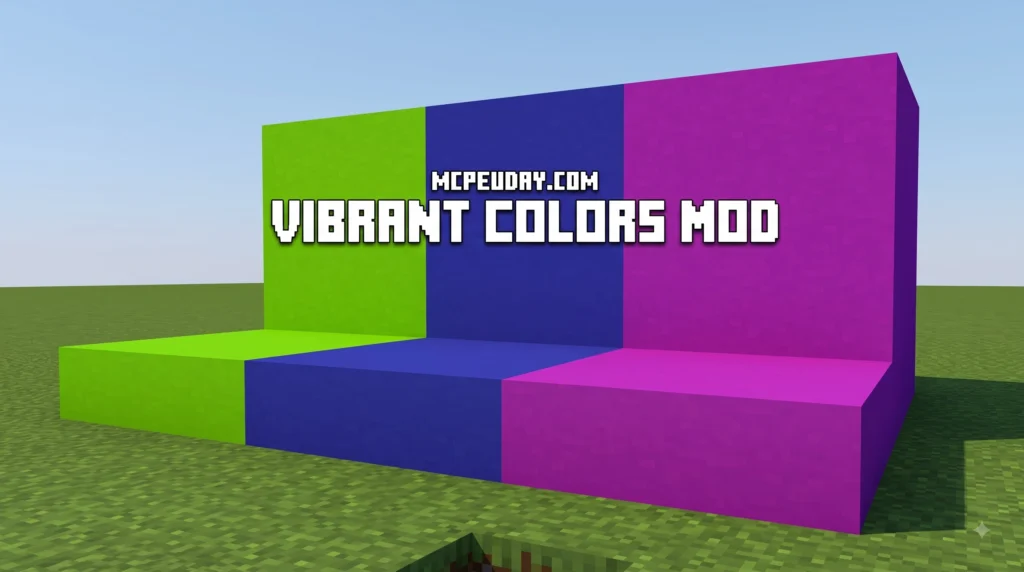
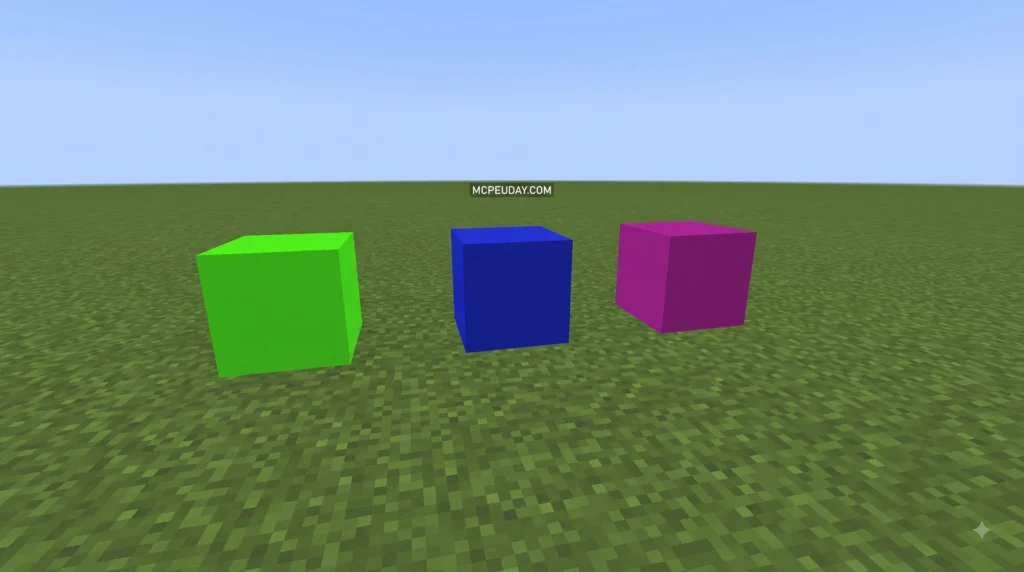
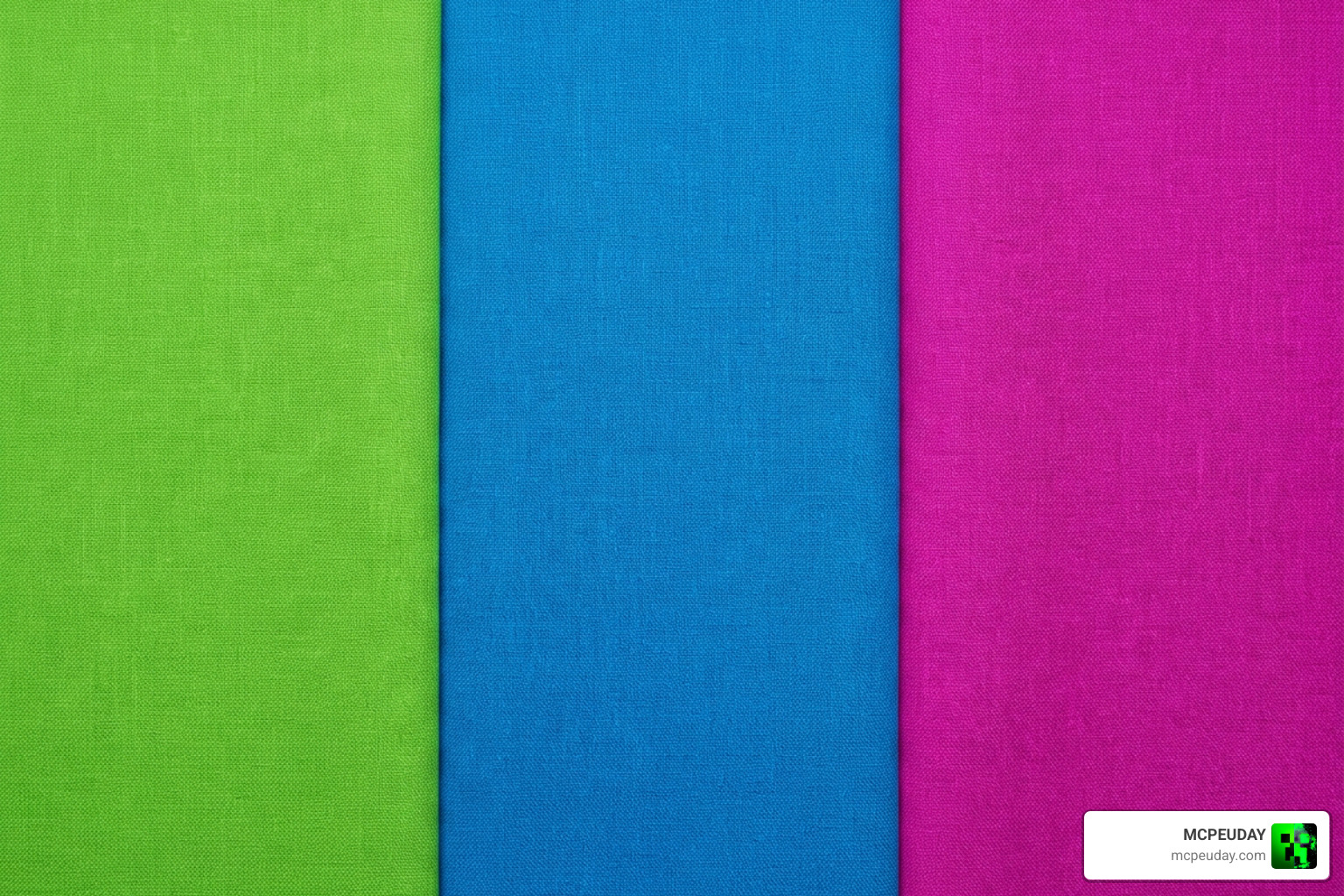
A Green/Blue/Magenta Screen Texture Pack is a practical utility resource pack designed for content creators, animators, map builders, and video editors working within tile-based sandbox games like Minecraft and Terraria. Rather than introducing fancy high-definition block designs, realistic foliage, or detailed stylized textures, these resource packs intentionally replace existing blocks with solid, flat hex colors—most notably standard Chroma Key Green (#00b140), Chroma Key Blue (#0000ff), and Magenta (#ff00ff).
The core technology behind these packs revolves around background removal and chroma keying in digital post-production. When editing gameplay footage, designing custom video thumbnails, or creating visual effects, video software selects a specific narrow color range and turns it completely transparent. However, standard unmodified Minecraft blocks suffer from directional engine lighting, block-to-block ambient occlusion, and subtle texture noise or shading patterns. By converting emissive or light-emitting blocks into completely flat screen textures, these utility packs establish ideal self-illumination. Because the transformed blocks produce their own light internally, environmental shadows do not cast across the backdrop, making post-production editing effortless and clean.
Retextured Light Blocks and Chroma Colors
Resource pack creators strategically select light-emitting blocks so you do not have to worry about hiding auxiliary light sources like torches, sea lanterns, or redstone lamps behind your recording backdrop. When light-emitting blocks are retextured, every single pixel on the block face emits full brightness regardless of the surrounding environment, weather conditions, or time of day.
Here are the most common blocks transformed by screen texture packs across various pack versions:
- Glowstone: Frequently transformed into a solid Red Screen or Green Screen depending on the specific pack configuration and intended use case.
- Shroomlight: Retextured into a vivid Blue Screen, which is perfect for isolating characters or mobs that happen to wear green skins or armor.
- Ochre Froglight: Commonly replaced with a bright, high-contrast Yellow Screen for specialized keying scenarios.
- Pearlescent Froglight: Modified to serve as a high-contrast Magenta Screen, offering an exceptional color contrast against natural foliage and player skins.
- Verdant Froglight: Retextured into the primary Chroma Key Green Screen, delivering full-brightness green background coverage.
- Lime Concrete: Frequently converted into standard Chroma Key Green (
#00b140) for builders who prefer non-glowing building blocks for large studio structures.
In addition, many creators rewrite the in-game item display strings in the language configuration files. This allows you to simply type <color> Screen into your Creative inventory search bar to locate all your background studio blocks immediately without searching through standard block categories.
Choosing the Right Green/Blue/Magenta Screen Texture Pack
When picking a pack, you should evaluate texture resolution, color selection, supported game versions, and the specific block replacements that best fit your editing workflow. For instance, Pingoda’s Colored Screens transforms naturally glowing blocks like Froglights and Shroomlight into vibrant multi-colored options with full emissive properties. On the other hand, traditional green screen packs focus heavily on replacing Lime Concrete or White Concrete with the industry-standard green color code #00b140 at native 16x resolution for lightweight performance. Players on mobile or Bedrock platforms can also choose specialized Bedrock builds optimized specifically for lower memory footprints and mobile render engines.
| Resource Pack Name | Primary Blocks Replaced | Colors Included | Supported Target Versions | Key Features |
|---|---|---|---|---|
| Pingoda’s Colored Screens | Glowstone, Shroomlight, Ochre/Pearlescent/Verdant Froglights | Red, Blue, Yellow, Magenta, Green | Java 1.19+ | Emissive self-lighting, renamed search strings |
| Standard Solid Green Screens | Lime Concrete | Chroma Green (#00b140) | Java 1.19.1+ | Clean 16x solid texture, lightweight performance |
| PE Color Screen Pack | Concrete & Light Blocks | Green, Blue, Magenta | Bedrock / MCPE 1.17+ | Lightweight mobile optimization, quick inventory search |
Recommended Settings and Best Practices for Video Editing
Using a green screen pack gets you halfway to a flawless video keyed output, but tweaking your in-game visual configuration ensures crisp line detection and sharp edge boundaries in your video editing software. Taking a few extra minutes to configure your game graphics will save hours of manual masking and spill suppression during post-production.
Optimizing Smooth Lighting and Shadows
Even when using self-illuminating blocks, internal engine shading can subtly darken block edges where two walls or corners join. To achieve perfectly clean chroma keying in software like Premiere Pro, DaVinci Resolve, After Effects, or OBS Studio, follow these essential optimization steps:
- Turn Off Smooth Lighting: Set your “Smooth Lighting” level to OFF in the Minecraft Video Settings menu. This eliminates gradient shading across adjacent blocks and keeps color values perfectly uniform.
- Disable Ambient Occlusion: Turn off smooth lighting shadows and ambient occlusion in your visual settings to prevent corner darkening where backdrop walls meet floor tiles.
- Configure OptiFine or Shaders: If you run shader packs or client graphics mods, disable ambient occlusion shaders or enable emissive texture rules so the screen block color remains perfectly flat without atmospheric haze or ambient light bounce.
- Maintain Hex Accuracy: Set your editor’s color key eyedropper directly to
#00b140for standard green, or input the exact hex code of your chosen screen color manually to ensure zero color shift during key extraction. - Adjust Field of View (FOV): Set your field of view to a lower or neutral setting when capturing static thumbnails to avoid barrel distortion around the edges of your green screen frame.
Beyond Video Editing: Maps and Thumbnails
Screen packs aren’t limited strictly to video overlays or live streaming backgrounds. Map makers, thumbnail artists, and graphic designers rely heavily on green, blue, and magenta backdrops for quick asset creation:
- Thumbnail Design: Build an in-game photo booth using Magenta or Blue screens to capture character poses, mob models, or custom armor sets with dynamic studio lighting, then instantly isolate and cut out the background in graphics software like Photoshop or GIMP.
- Custom Map Cinematics: Use green screens behind animated armor stands, custom head models, or item frames to compose customized HUD elements, floating text banners, and overlay cinematics for custom adventure maps.
- VFX Compositing: Surround mob spawners, particle emitters, or redstone contraptions with green screens to capture isolated entity animations and particle effects for specialized video compositing projects.
- Render Background Replacement: Content creators recording short-form content for platforms like YouTube Shorts or TikTok can record character reactions directly in front of screen blocks, enabling quick background swaps during editing.
How to Download and Install Screen Texture Packs
Installing green screen packs follows standard resource pack installation procedures across both Java Edition and Bedrock (MCPE) platforms. Because these packs contain simplified flat textures and lightweight language edits, installation is quick and hassle-free.
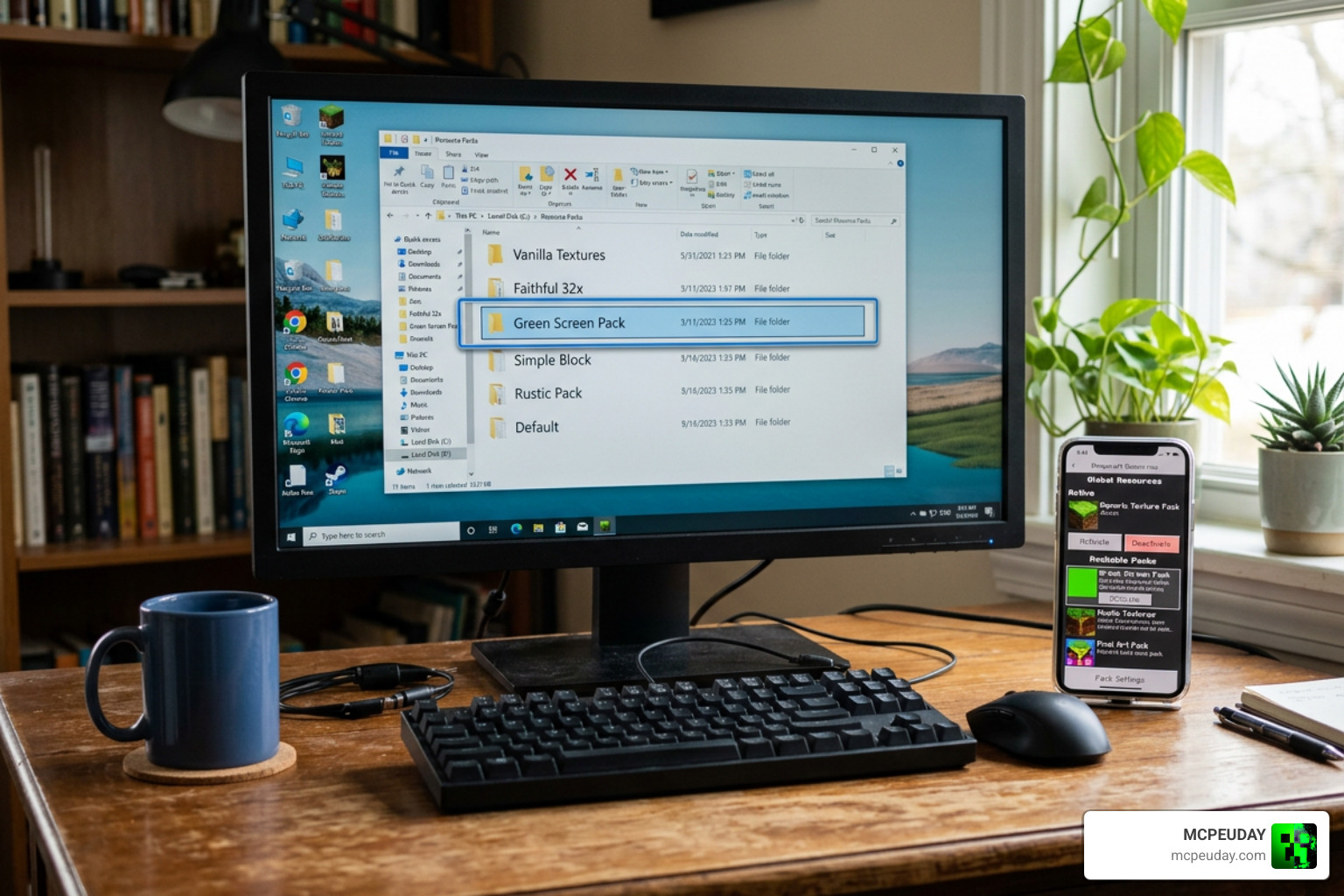
How to Install the Green/Blue/Magenta Screen Texture Pack
For Minecraft Java Edition:
- Download the target screen resource pack
.zipfile from a trusted content source or repository. - Launch Minecraft Java Edition and open Options > Resource Packs from the main menu or pause screen.
- Click Open Pack Folder at the bottom left to launch your operating system’s native file explorer.
- Drag and drop the downloaded
.zipfile directly into the openresourcepacksdirectory. - Return to the in-game menu, locate the pack in the left-hand column, click the arrow to move it to the right-hand column, and click Done to reload resources.
For Minecraft Bedrock / MCPE:
- Download the
.mcpackfile directly to your mobile device, tablet, or Windows PC. - Tap or double-click the
.mcpackfile to automatically launch Minecraft Bedrock Edition and initiate the resource import process. - Wait for the top notification confirming that the pack import was successful.
- Navigate to Settings > Global Resources (for game-wide activation) or open individual World Settings > Resource Packs to activate the screen pack for a specific world build.
Setting Up Chroma Key Packs in Terraria
Terraria content creators and animators also make extensive use of chroma key backdrops for 2D character extraction and sprite animation recording. Via the Steam Workshop, players can download resource packs that replace specific background walls (such as Smooth Granite Walls or Glass Walls) or tile structures with solid green, blue, or magenta studio textures.
To install chroma key packs in Terraria:
- Open the Steam Workshop hub for Terraria on desktop.
- Search for community packs using terms like “Green Screen” or “Chroma Key Wall”.
- Click Subscribe on your chosen backdrop resource pack.
- Launch Terraria, select the Use Resource Packs menu from the main title screen, and move the subscribed pack to the active column before loading your world.
Common Limitations and Troubleshooting Tips
While green screen packs streamline post-production and speed up background removal, a few technical issues can occasionally arise during setup and recording. Understanding how to resolve these common hurdles ensures clean keying results every time.
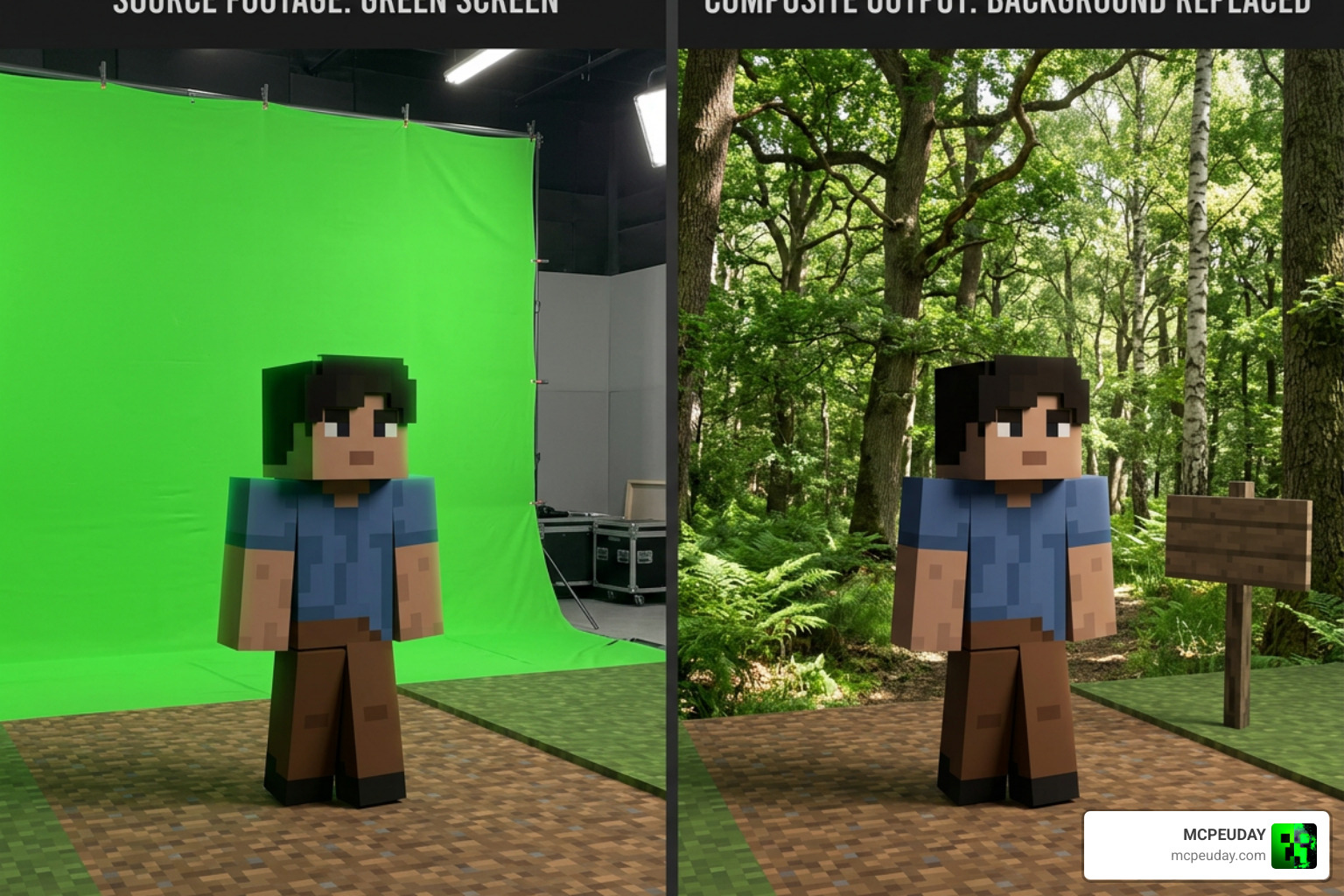
- Shader Interference: Dynamic shader packs often apply custom atmospheric lighting, volumetric fog, god rays, or dramatic color grading over emissive blocks, inadvertently tinting the solid chroma key color away from pure hex values. Disable shaders or turn off custom color grading and post-processing depth of field when filming green screen segments.
- Resource Pack Load Order: If another active resource pack modifies concrete or light block textures, place your screen pack at the very top of your active Resource Pack list in Minecraft so its flat color textures take precedence over other packs.
- Edge Bleed and Spill: If your Minecraft character skin or custom mob model features green highlights, foliage textures, or emerald accessories, standard keying software will accidentally turn those body parts transparent. Switch to a Blue or Magenta screen block immediately to eliminate unwanted keying transparency and prevent green color spill on character edges.
- Anti-Aliasing Fringing: In-game anti-aliasing or video recorder compression can blend pixels along the outer edge of your character model with the green backdrop, creating a thin green halo. To fix this, adjust the “Spill Suppression” or “Chroma Edge Choke” sliders in your editing software’s keyer filter.
Frequently Asked Questions
Which blocks are retextured into colored screens?
Depending on the specific pack installed, resource pack creators usually retexture light-emitting blocks like Glowstone, Shroomlight, and the three Froglight variants (Ochre, Pearlescent, Verdant), or standard building blocks such as Lime Concrete and White Concrete.
How do I eliminate shadows on green screen blocks?
To eliminate all shadows on green screen blocks, set Smooth Lighting to OFF in your Minecraft video settings and turn off ambient occlusion. Alternatively, use packs that retexture naturally glowing light blocks like Glowstone, Shroomlight, or Froglights, as they emit full brightness directly and eliminate ambient shadows automatically.
Can I use screen packs in Minecraft Bedrock Edition?
Yes, screen texture packs are fully supported on Minecraft Bedrock Edition and MCPE. You can download .mcpack files designed specifically for Bedrock to convert concrete or light blocks into solid chroma key screens across mobile devices, Windows PCs, and consoles.
Conclusion
A Green/Blue/Magenta Screen Texture Pack is an essential utility tool in any content creator’s digital workflow. By transforming standard or light-emitting Minecraft blocks into perfectly flat, shadowless chroma key surfaces, these resource packs eliminate lighting artifacts, simplify background removal, and dramatically speed up video editing and thumbnail creation.
Looking for more addons, custom graphics, shaders, and game-enhancing resource packs? Explore Texture Packs on MCPEUDAY to elevate your world builds and content creation setups today!
1 thought on “Green/Blue/Magenta Screen Texture Pack (26.x, 1.21) – MCPE/Bedrock Pack”