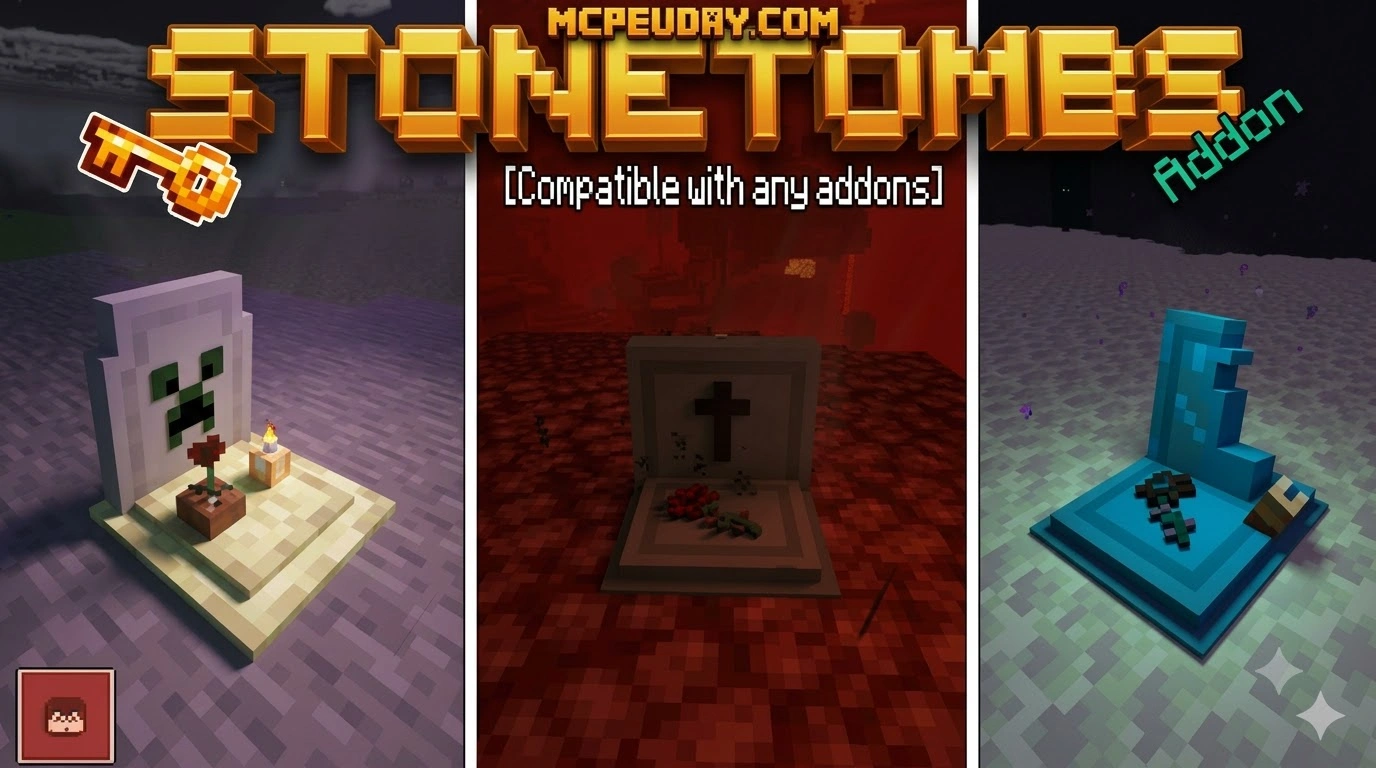
What is the StoneTombs Addon for Minecraft PE/Bedrock?Scroll down to D0vvnl0adScrol
Scroll down to D0vvnl0ad
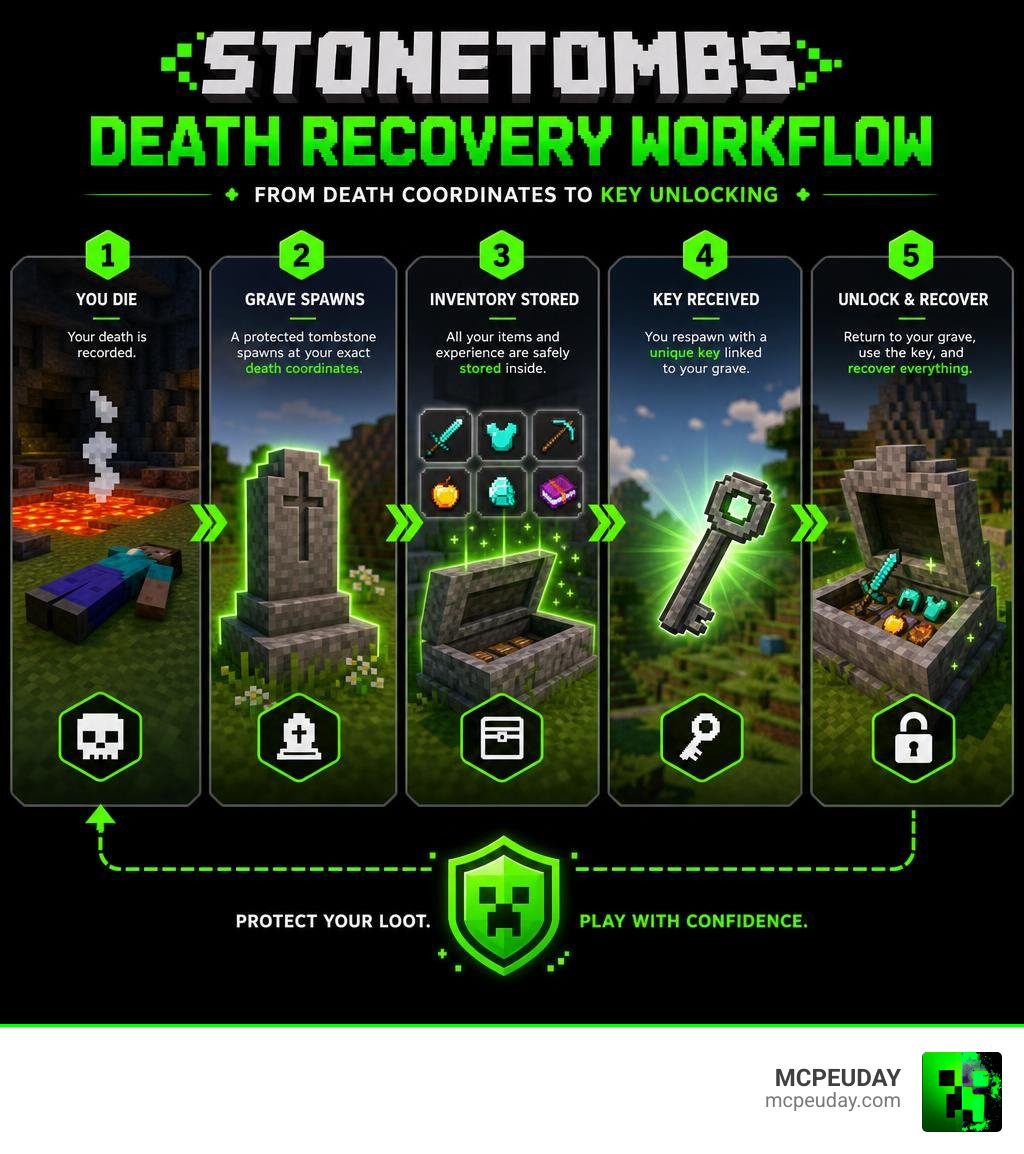
To download and install the StoneTombs Addon for Minecraft PE/Bedrock, download both the Behavior Pack (BP) and Resource Pack (RP) .mcpack files, tap each file to import them automatically into Minecraft Bedrock, and activate both packs in your world settings while turning on Beta APIs under the Experiments tab. Developed by Scodev Studios, the StoneTombs addon is a death-recovery mod that stores your entire inventory inside a secure grave marker whenever you die. Instead of losing your gear to lava, despawn timers, or hostile mobs, the addon creates a protected tombstone at your exact death coordinates and places a unique recovery key in your inventory upon respawning.
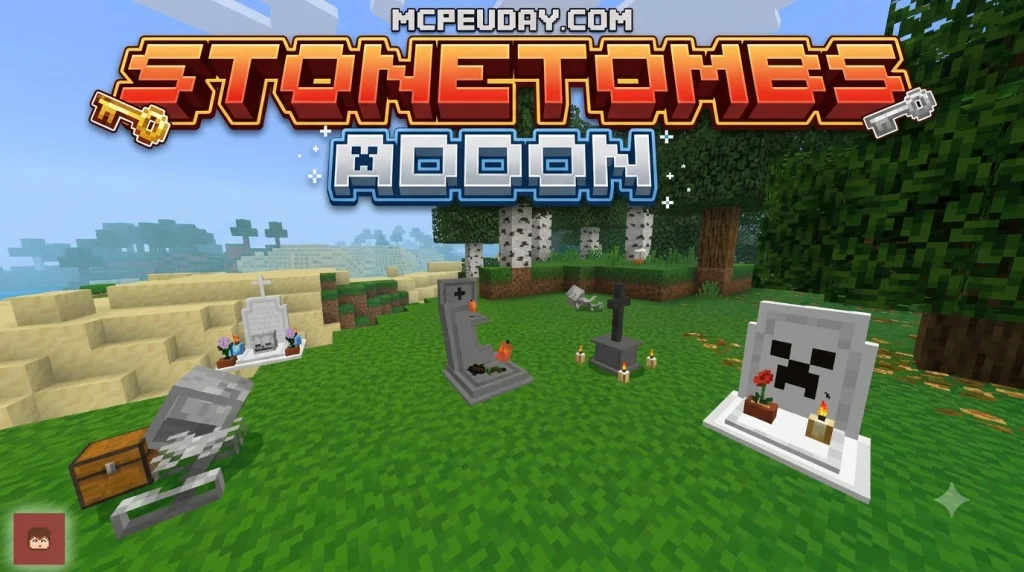
Here is a quick snapshot of how the system works:
- Automatic Grave Spawning: Generates a locked tombstone containing your weapons, armor, and backpack loot the moment you take fatal damage.
- Key-Based Recovery: Gives you a paired key linked exclusively to your grave so other players cannot steal your items.
- Version Compatibility: Built and tested for Minecraft Bedrock version 1.21.50 across single-player worlds, Realms, and dedicated servers like Aternos.
- Mobile-Friendly: Allows touch-screen players on mobile devices to retrieve items easily without needing mouse controls.
I am UDAY GAMER from MCPEUDAY, and in this guide, I will show you how to download, install, and properly configure the StoneTombs addon for your survival worlds.
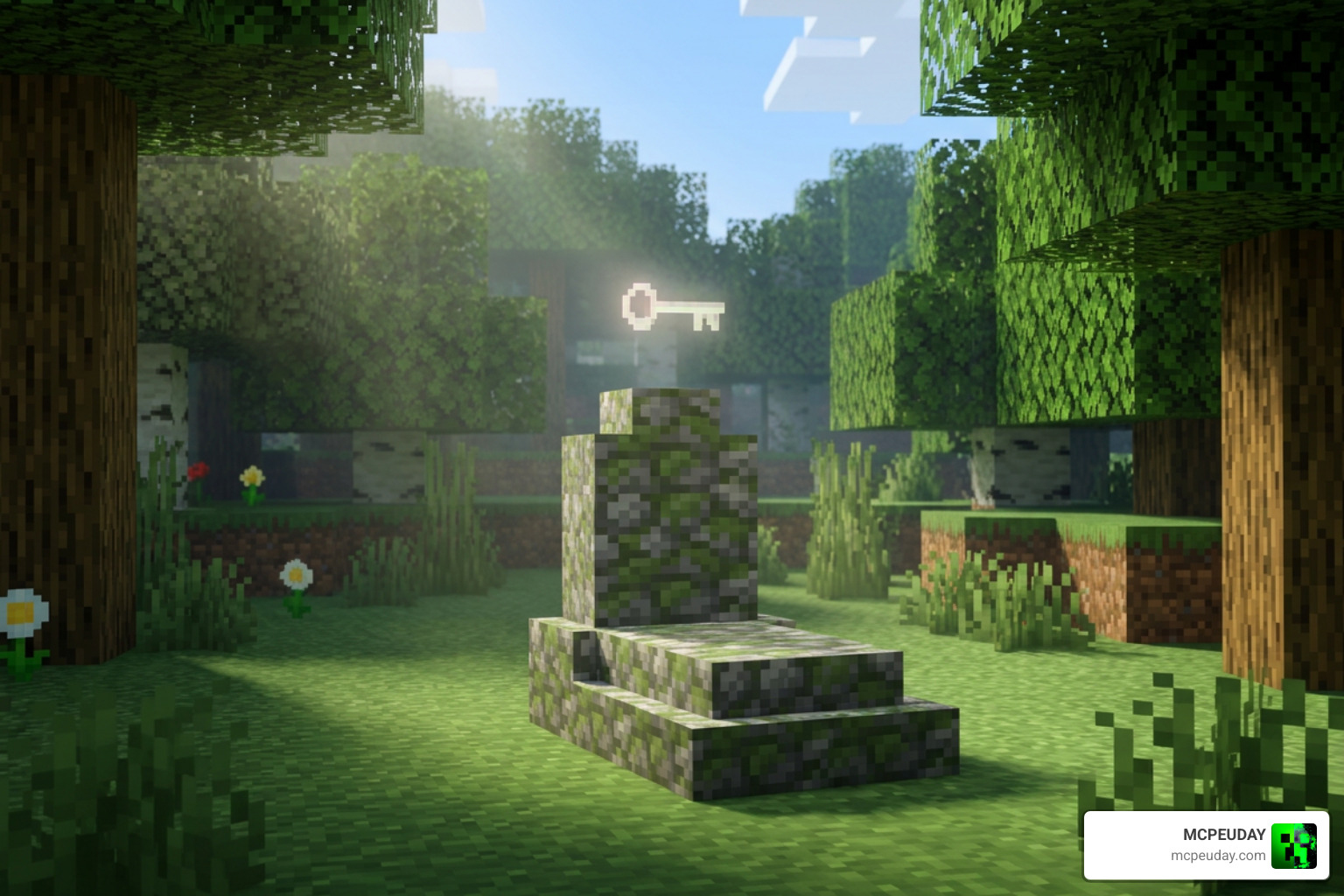
Key Features of the StoneTombs Addon for Minecraft PE/Bedrock
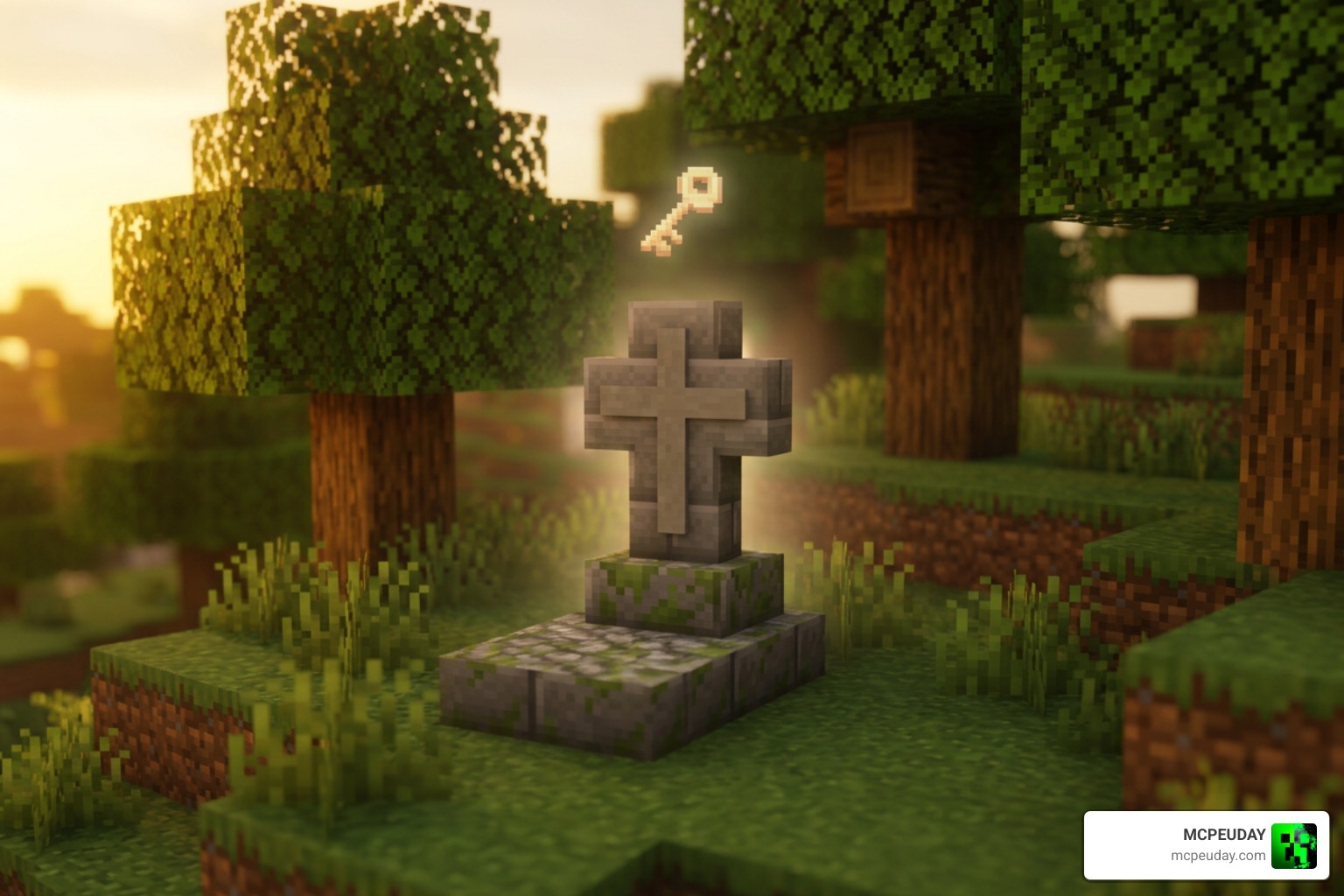
Dying deep inside a cave or falling into a ravine can ruin hours of progress. We have all experienced that dreaded sprint across the world hoping our items have not despawned. This addon removes that anxiety by automating inventory protection with custom grave models and precise coordinate tracking.
When you die, the pack calculates safe ground, generates a solid stone tomb, and stores every single item securely. Pairing this with survival overhauls like the Bedrock Reimagined Addon transforms your standard world into an adventure where mistakes are punishing, yet fair.
How Death Graves Function in StoneTombs Addon for Minecraft PE/Bedrock
The death sequence operates seamlessly behind the scenes. The moment your health reaches zero, the addon logs your exact X, Y, and Z coordinates in the chat log. It then converts your dropped inventory into an entity-bound storage container disguised as a stone grave marker.
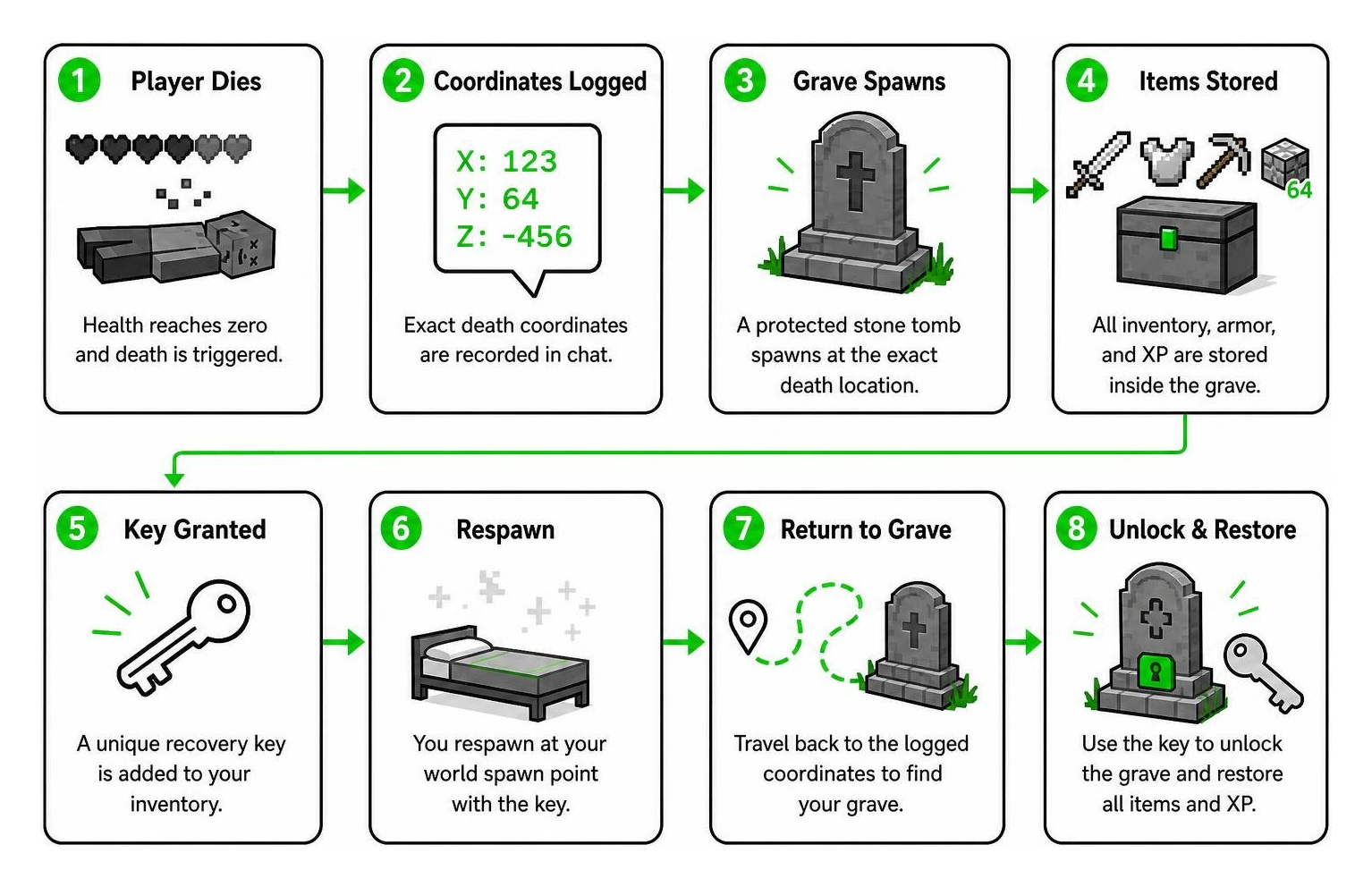
- Inventory and Hotbar Protection: Saves every tool, block, and mineral currently in your main inventory without dropping them on the ground.
- Armor Preservation: Retains worn helmets, chestplates, leggings, and boots without degrading durability.
- Safe Surface Placement: Spawns the tomb on the nearest solid block above lava or void hazards when possible.
- Experience Safeguards: Stores a portion of your hard-earned XP directly inside the grave marker for recovery.
This functionality is especially useful when tackling brutal dungeons or mob arenas found in packs like the Dungeon Raiders Addon, where frequent combat deaths are practically guaranteed.
Version 1.7 Updates, Config Menus, and Commands
The addon has received three major updates since its initial release in May 2024, culminating in the stable v1.7 release in January 2025. This build refines item equipment handling and gives server administrators direct access to configuration settings.
In version 1.7, you can open an in-game configuration menu using specific admin functions or recovery commands. This menu lets you toggle whether graves are public or locked to the keyholder, adjust tomb despawn timers, and enable direct inventory restoration. These flexible settings make it an excellent quality-of-life companion alongside technical packs like the Create Addon.
How to Download & Install StoneTombs on Bedrock Edition
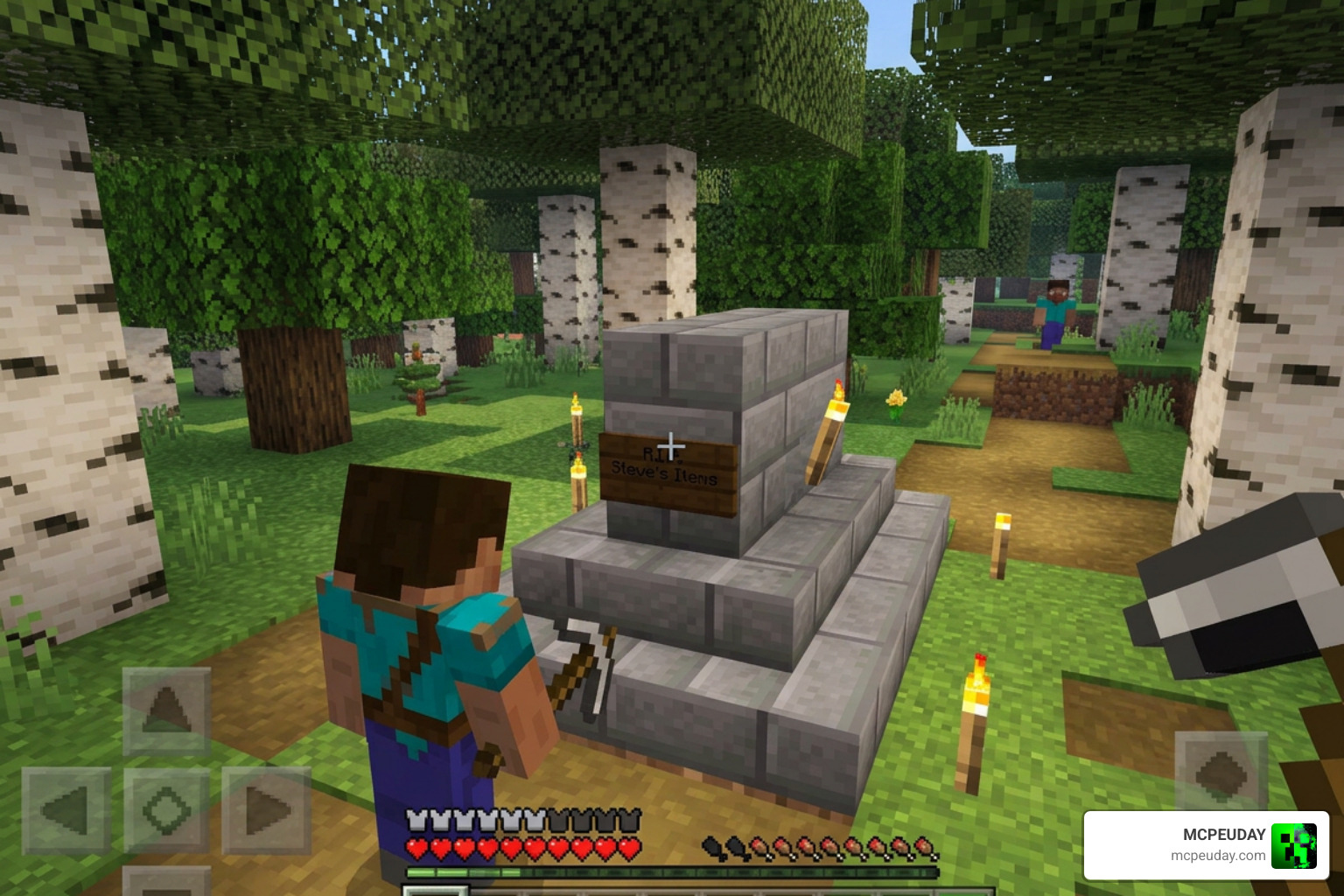
Getting the pack running properly requires installing both the behavior and resource files together. Missing one of these components can lead to broken UI screens or invisible grave blocks.
Behavior Pack and Resource Pack Setup
We recommend downloading both official files for the current v1.7 release:
- Tombs BP v1.7 (Behavior Pack: 318.2 KB)
- Tombs RP v1.7 (Resource Pack: 313.66 KB)
Follow these steps to install the files on your mobile device or PC:
- Download both the
.mcpackor combined.mcaddonfiles to your device storage. - Tap or double-click the downloaded files to launch Minecraft Bedrock automatically and begin importing.
- Open your world settings, navigate to the Resource Packs tab, and activate the Tombs RP.
- Navigate to the Behavior Packs tab and activate the Tombs BP.
- Under the Experiments toggle section, ensure Beta APIs and custom entity toggles are enabled according to the official Minecraft Wiki experimental gameplay guidelines so the script engine functions properly alongside world generation mods like the Better Structures Addon.
Server and Multiplayer Setup on Aternos
Running the StoneTombs addon on dedicated multiplayer environments such as Aternos or custom Bedrock Dedicated Servers (BDS) requires syncing your server files with connecting clients.
Always upload both the behavior and resource packs directly to your server’s root pack directories. If players connect and encounter UI JSON parsing errors, it typically means their local resource pack version does not match the server’s build. Forcing players to accept the server resource pack on join prevents missing texture cubes and keeps grave interactions smooth across sprawling worlds built with the Medieval Structures Addon.
Managing Inventories, Keys, and Addon Compatibility
Once you respawn after dying, a unique key appears in your hotbar. This key carries the coordinates of your grave in its item description. Holding this key and interacting with your grave instantly breaks the tombstone and drops your collected items directly back into your inventory.
Mobile Touch Controls and Key Item Mechanics
On mobile devices, you do not have a traditional right-click button. To unlock your tomb using touch controls:
- Hold the recovery key in your active main hand slot.
- Walk up directly in front of the tombstone block.
- Tap and hold your finger on the tombstone (long-press), or tap the contextual “Interact” button that appears near your crosshair.
- Once registered, the tombstone dissolves into a particle burst and deposits your gear directly into your hotbar and armor slots.
Troubleshooting StoneTombs Addon for Minecraft PE/Bedrock Bugs
While the addon is lightweight and effective, community reports highlight a few specific quirks in Minecraft 1.21.50 that you should keep in mind:
- The Mace Collision Glitch: Attacking or smashing near a tombstone with the new mace weapon can detach the stone model from the underlying container entity. This leaves behind an invisible, unbreakable block. Avoid using heavy smash attacks right beside your grave.
- Bundle Item Loss: Storing items inside bundles before dying can cause the nested bundle inventory to wipe upon recovery due to how Bedrock handles container items inside death entities.
- Backpack Mod Conflicts: Not all third-party inventory mods play nicely with grave entities.
| Addon Name | Compatibility Status | Notes & Workarounds |
|---|---|---|
| Multi Backpack | Fully Compatible | Backpacks remain intact inside the tomb inventory. |
| Sophisticangel Backpack | Known Conflict | Causes display errors and potential item duplication/loss. |
| Vanilla Bundles | Partial / Caution | Empty the bundle before grave recovery to avoid lost nested slots. |
| Custom Armor Mods | Fully Compatible | Armor slots re-equip seamlessly upon unlocking the grave. |
Frequently Asked Questions About StoneTombs Addon
How do mobile players unlock a tomb without a right-click button?
Mobile players simply need to hold the recovery key in their main hand, aim at the grave marker, and perform a long-press on the screen (or tap the on-screen “Interact” button) to safely retrieve their items.
Why are bundle contents disappearing upon player death?
Minecraft Bedrock treats bundles as dynamic nested data. When a grave entity serializes your inventory, the internal bundle tags can fail to write properly. We recommend unpacking high-value items out of bundles when exploring hazardous areas.
What should I do if a mace attack causes the tomb texture to detach?
If a mace smash leaves an invisible grave block, an operator can use server recovery functions or clear the block area using /fill commands around the death coordinates to force the container entity to drop its saved inventory.
Conclusion
Losing hours of mining and rare gear to a sudden death is one of the most frustrating parts of survival mode. By using the StoneTombs addon, you can explore the Nether, raid deep caves, and battle dangerous bosses knowing your loot is safely preserved at your death site.
At MCPEUDAY, we are dedicated to testing and providing the most reliable, up-to-date gameplay modifications for Minecraft Bedrock. If you want to enhance your world even further with new challenges and adventures, browse more gameplay and survival mods in our collection.