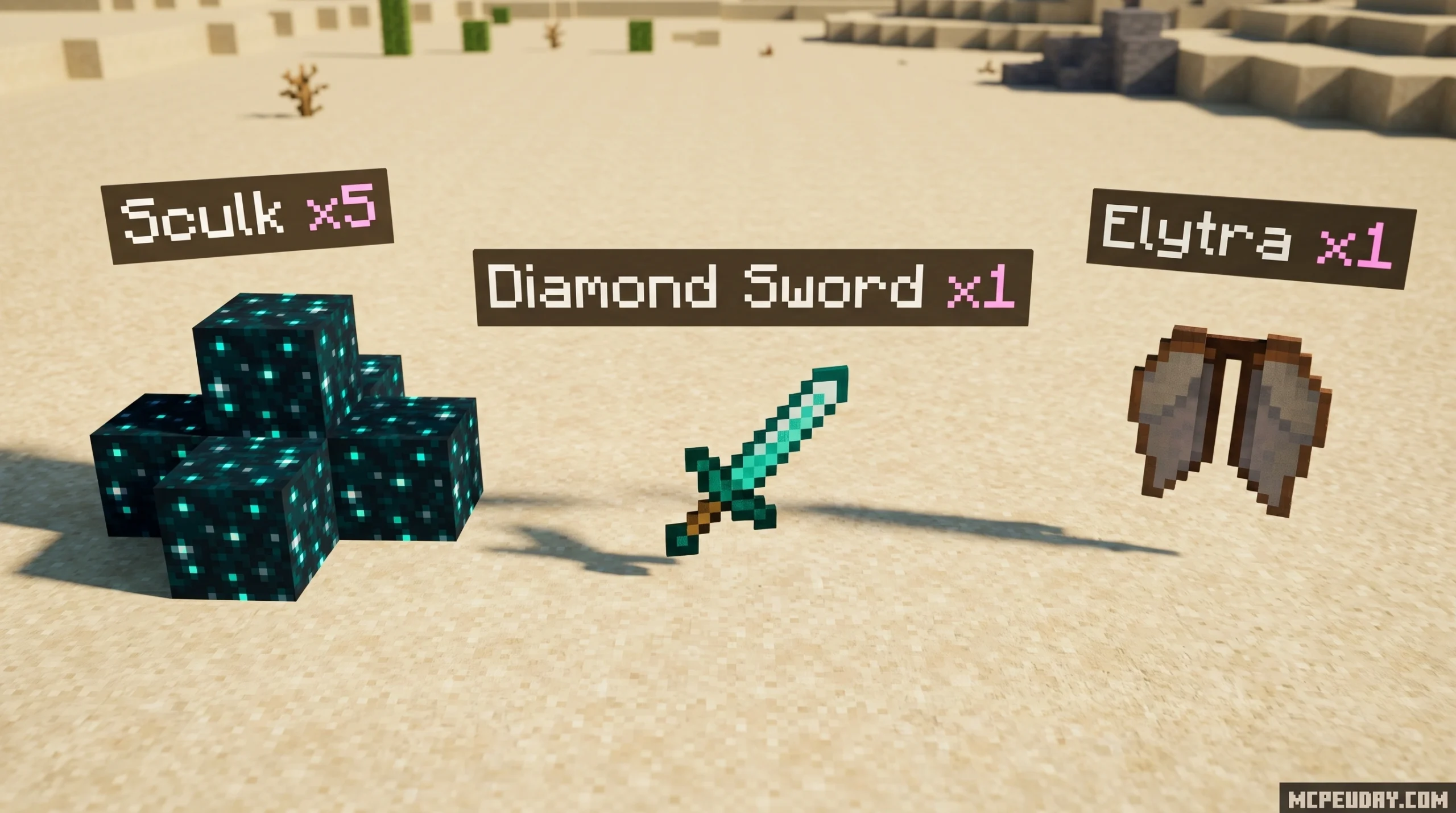
What Is the Holograms on Dropped Items Addon and Where to Find It
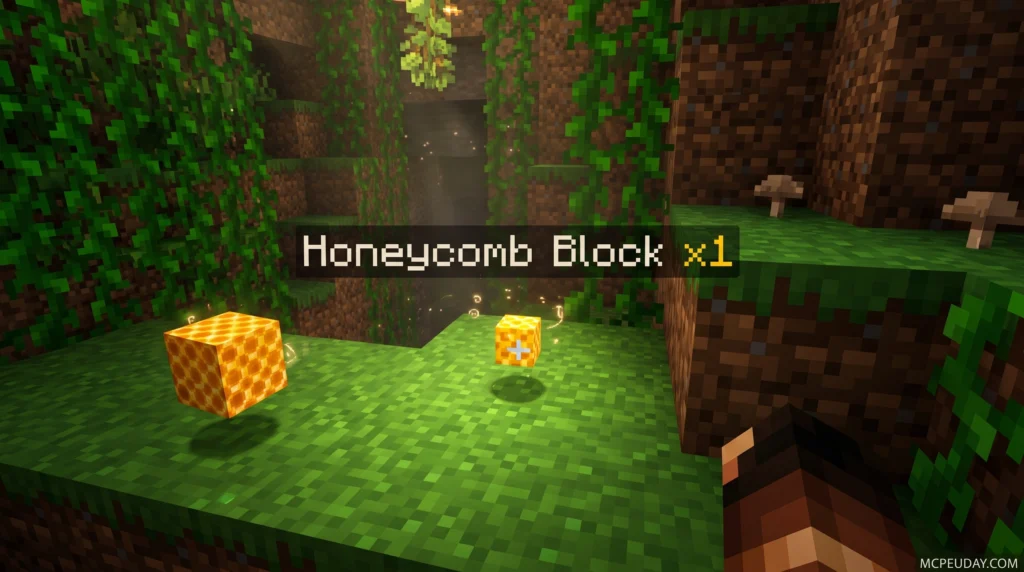
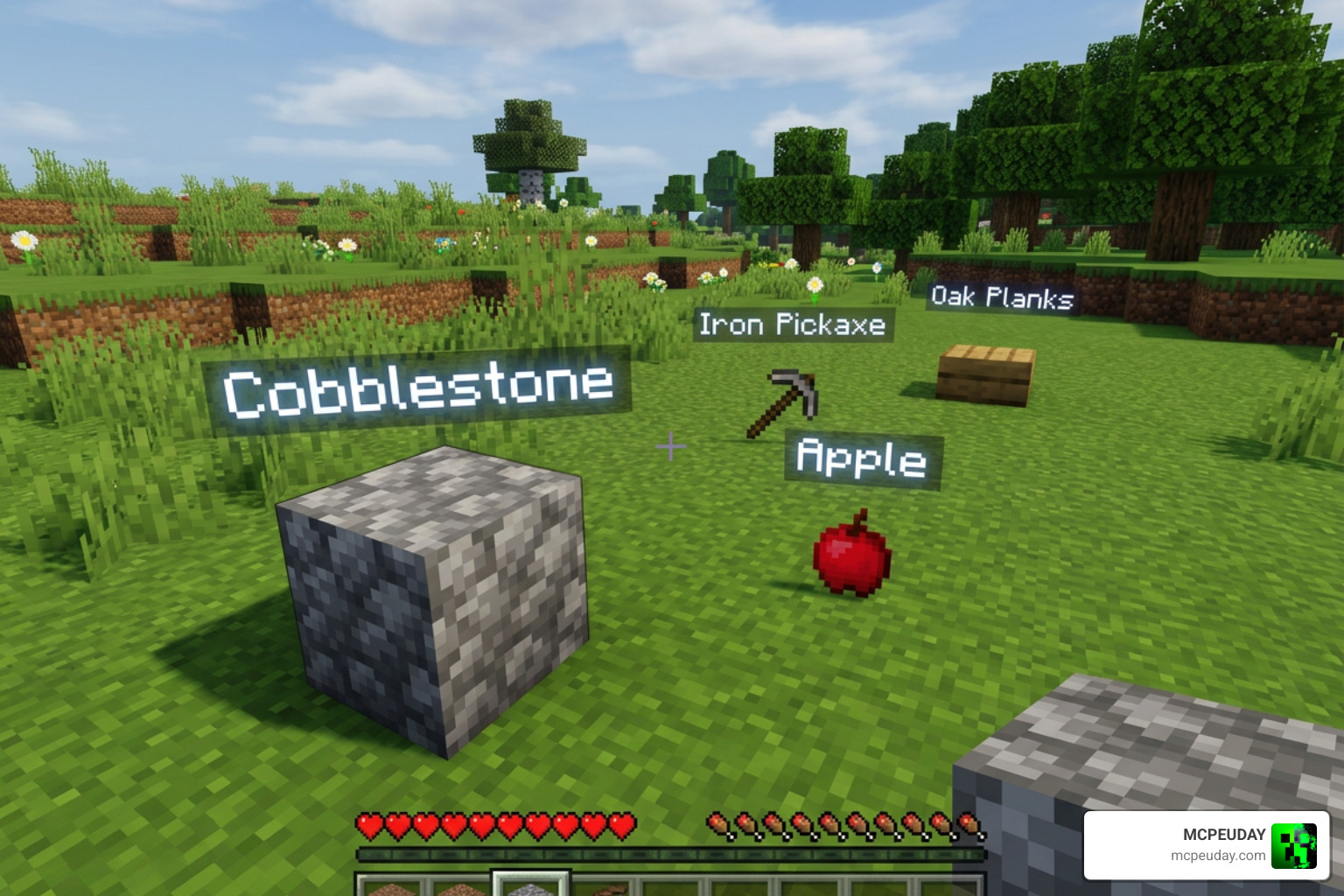
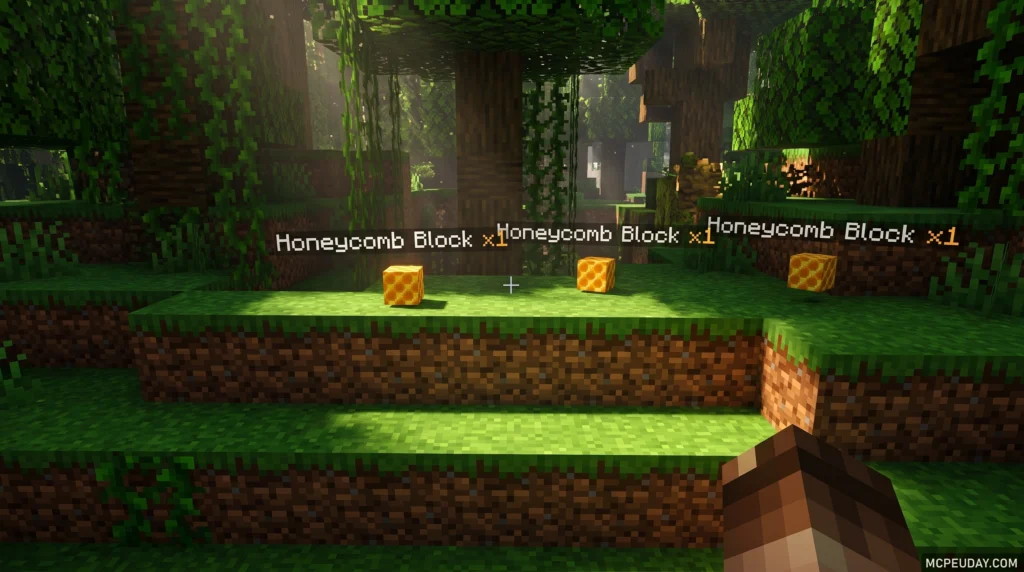
The Holograms on dropped items Addon is a Minecraft Bedrock/PE addon that displays floating text above every dropped item on the ground, showing the item’s name and quantity in real time.
Quick answer — here’s what you need to know:
- What it does: Shows a text hologram above each dropped item with its name and stack count
- Who it’s for: Minecraft Bedrock and PE players on versions 1.20 through 1.21 (and 26.x)
- What you need: Both a Behavior Pack (BP) and a Resource Pack (RP), plus the Beta APIs experiment enabled
- How to configure it: Use the in-game command
/function itemsHolograms_config - Multiplayer: Yes, it works in multiplayer and is compatible with other addons
- Downloads: Over 13,000 downloads across versions
No more squinting at tiny item textures on the ground. No more accidentally walking past a rare drop. This addon makes every item instantly readable from a distance.
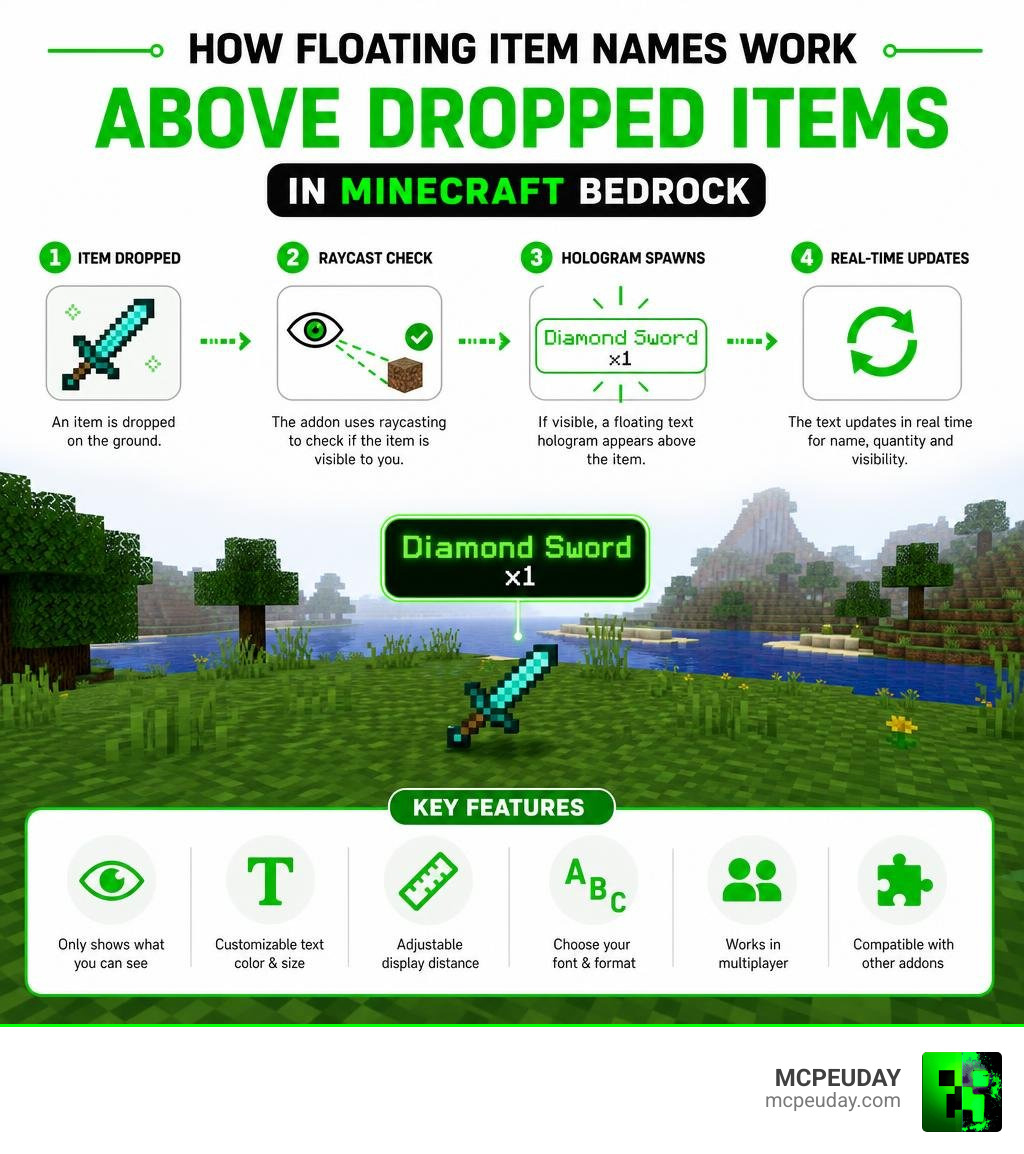
It uses raycasting so holograms only appear on items you can actually see — keeping things clean and your game running smoothly. You can customize text color, font size, display distance, and even the exact text pattern shown above each item.
What is the Holograms on dropped items Addon?
At its core, the Holograms on dropped items Addon is a visual utility designed to solve one of our oldest survival problems: trying to figure out what is lying on the ground from thirty blocks away. Whether we are exploring deep caves or managing massive sorting systems, we have all mistaken a block of raw copper for something far more valuable.
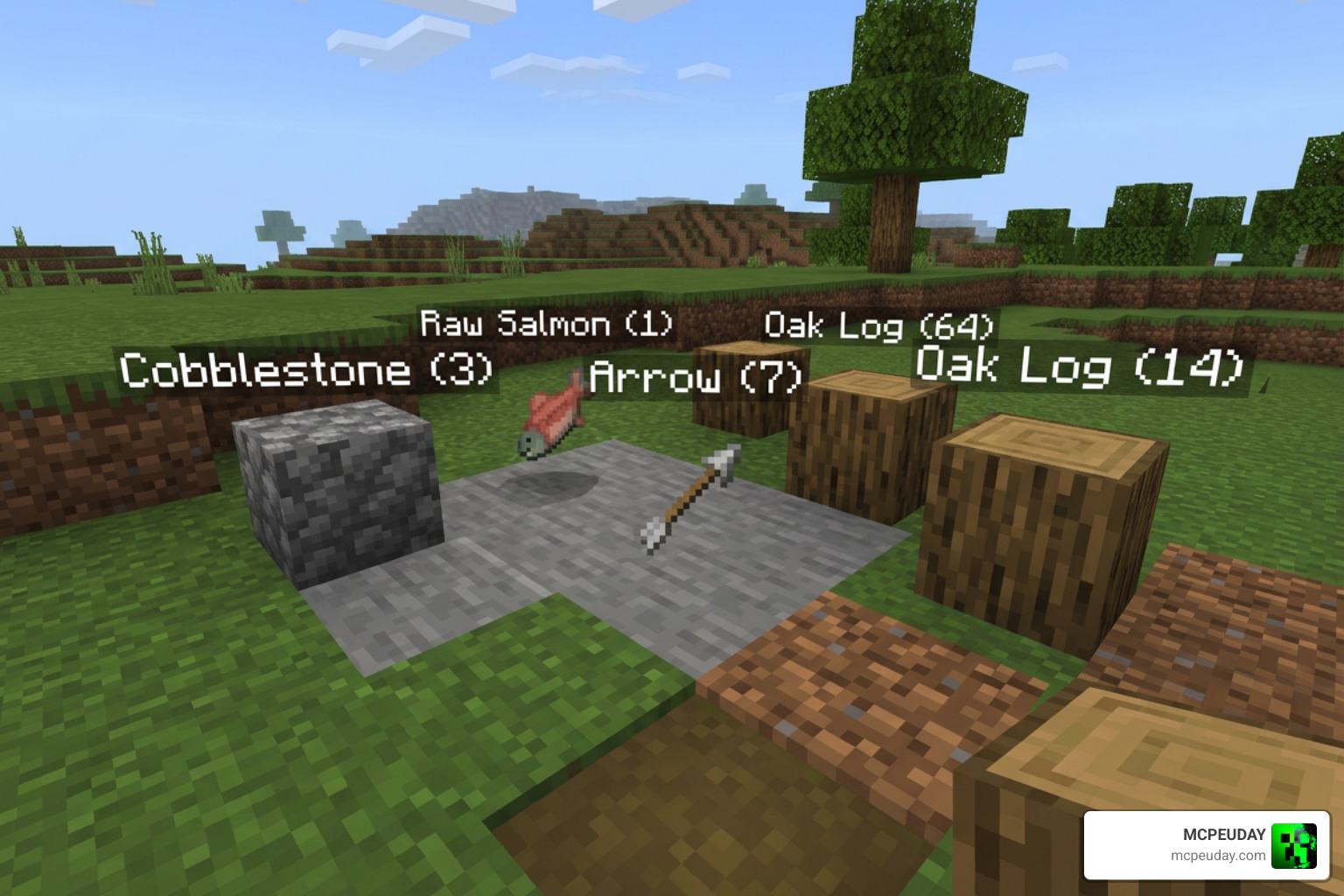
This addon acts like an in-game heads-up display (HUD). When an item is dropped, a sleek, floating text hologram appears directly above it. This hologram displays the exact item name and the current stack size. The addon is built specifically for Minecraft Pe and Bedrock Edition, closing the gap with some of the most popular Java client-side mods.
We can find the latest versions of this addon on popular community hubs. Across different hosting platforms, the addon has gathered impressive popularity, with over 13,257 total downloads reported for the main package and an additional 5,810 downloads for alternative floating item names configurations.
Unlike older methods that used laggy armor stands to display text, this modern addon is highly optimized. It uses lightweight rendering methods and dynamic tracking to keep your frame rates high, even when there are dozens of items scattered across your base.
Key Features and Customization Options
We love options, and this addon does not disappoint. It provides a robust config menu that lets us tailor the holograms to look exactly how we want. We can easily adjust several visual parameters:
- Text Color: Change the color of the floating text to match your UI preferences or to make specific items stand out.
- Font Size: Reduce the font size if you find the default text too large or cluttered in dense item areas.
- Display Distance: The default maximum viewing distance is 12 blocks, but we can safely increase this up to a recommended maximum of 50 blocks.
- Item Limits: To protect your device’s performance, the addon defaults to showing holograms for the 10 nearest items. You can set this limit to 0 for unlimited display if you are playing on a high-end device.
If you are already running other organization mods like the Better Inventory Pack, this addon makes a perfect companion. It ensures that your item management is just as clean on the ground as it is inside your chests.
To give you a better idea of how the addon handles visibility, we can choose between two main display modes:
| Feature / Setting | Nearest Items Mode | Crosshair Mode |
|---|---|---|
| Primary Focus | Displays holograms for all items within a set radius. | Displays a hologram only for the item you are looking at. |
| Default Limit | 10 items (fully customizable). | 1 active item. |
| Visual Clutter | Medium to High (ideal for finding lost items). | Low (keeps your screen completely clean). |
| Performance Impact | Low to Medium (depends on your item limit). | Extremely Low (highly optimized). |
Configuring the Holograms on dropped items Addon
Customizing these settings is incredibly easy and does not require editing raw configuration files. All we have to do is type the config command in our world chat: /function itemsHolograms_config.
Running this command opens an interactive in-game menu. From here, we can toggle the entire addon on or off, adjust the font size, and change the item limit.
The coolest feature in this menu is the ability to change the hologram text pattern. We are limited to a maximum pattern length of 100 characters, but that is more than enough room to get creative. We can use custom colors, add a prefix (like a bracket or an icon), set a postfix, or write custom text. For example, we can format our drops to look like “[Count]x Name” or “-> Name (Count) <-“.
Raycasting and Line of Sight Settings
The secret to this addon’s smooth performance lies in its raycasting and line of sight features. Raycasting is a technical process where the game checks if there is a direct, unobstructed line of sight between our player character and the dropped item.
If raycasting is enabled, the floating text will only appear when we can actually see the item. If an item drops behind a wall, inside a block, or deep in tall grass, the hologram will remain hidden. This prevents your screen from being flooded with text from cave systems below your feet or items hidden inside closed chests.
However, if you are searching for lost gear after a tragic death, you can toggle raycasting off in the config menu. With raycasting disabled, holograms will render through blocks, acting like a beacon to guide you straight to your dropped items! Performance has also been massively improved in recent updates by switching to the Dynamic Properties API instead of using laggy tag commands.
How to Install and Set Up the Addon
Getting the Holograms on dropped items Addon up and running in your world is a straightforward process, but it does require setting up both the Behavior Pack (BP) and the Resource Pack (RP) correctly.
Because this addon utilizes advanced scripting APIs to track items and render text dynamically, we must enable experimental settings in our world options. For technical background on Bedrock scripting, you can review the official Minecraft Bedrock scripting API documentation. If you are looking to build an ultimate survival world alongside other massive expansions like the Better On Bedrock Addon 1 21 Best Survival Expansion For Mcpe, follow our step-by-step installation guide below.
To install the addon, follow these simple steps:
- Download both the Behavior Pack (BP) and Resource Pack (RP) files from a trusted community source or the official developer repository.
- Open both downloaded
.mcpackfiles. Minecraft will launch automatically and import them into your global resources. - Create a new world or go to the settings of an existing world.
- Scroll down to the Experiments tab in the world settings menu.
- Toggle on the Beta APIs experiment. This is absolutely mandatory for the script engine to run.
- Navigate to the Behavior Packs section and activate the Holograms Behavior Pack.
- Navigate to the Resource Packs section and ensure the Holograms Resource Pack is active.
- Launch your world and start dropping items to see the beautiful floating text!
Activating the Holograms on dropped items Addon in Multiplayer
The addon is fully compatible with multiplayer environments, making it a fantastic addition to cooperative survival worlds or local servers. If you want to explore more multiplayer-friendly utilities, you can browse through our dedicated Category/Mod Addons section.
To use this addon on a multiplayer server or a Minecraft Realm, we need to make sure the server hosting provider supports script execution. If you are using a free host like Aternos, you may need to toggle the experimental settings off and back on to force the scripts to register properly.
For Realms, the process is slightly different. Since you cannot easily toggle experiments on an active Realm, you must first download your Realm world to your local device, apply the addon and enable the Beta APIs experiment locally, and then upload the updated world back to your Realm.
Troubleshooting Common Setup Issues
If you have followed the steps but things are not quite working, do not panic! Here are the most common issues and how to fix them:
- Pre-existing drops: The addon’s scripts only apply to items dropped after the addon has been activated. Any items already sitting on the ground before you installed the pack will not show holograms. Try throwing a new item on the ground to test it.
- Duplicate packs: Ensure you only have one version of the Behavior Pack and Resource Pack active in your world settings. Having older duplicate files can cause script conflicts.
- Game versions: Make sure you are using a stable, public release of Minecraft (such as 1.20 or 1.21) rather than a Beta or Preview version, as experimental APIs can frequently break in preview builds.
Frequently Asked Questions about Floating Item Names
We have gathered some of the most common questions from the Minecraft community regarding floating item names and compiled them here to save you some troubleshooting time.
Does this addon work on Minecraft Realms?
Yes, it does! However, because of how Realms handles experimental features, you cannot simply activate the pack from the Realm settings menu. You must download the world file to your local single-player directory, activate the Behavior and Resource packs, turn on the Beta APIs experiment, and then upload the configured world back to your Realm slot.
Why are holograms visible to everyone in crosshair mode?
In multiplayer, you might notice that even if you set your display mode to “crosshair” (which should only show holograms when you personally look at an item), other players can still see the text floating above the item. This is a known limitation within the Bedrock scripting engine. Currently, text rendering elements are shared globally across the server, meaning individual client-side rendering for crosshair targeting is not fully supported yet.
Why are holograms not appearing on my dropped items?
If you drop an item and nothing happens, double-check that you have enabled the Beta APIs option in your world’s experimental settings. Without this toggle active, Minecraft completely blocks the addon’s custom scripts from running. Also, ensure you are testing with a newly dropped item, as items dropped prior to activating the addon will not render holograms.
Conclusion
The Holograms on dropped items Addon is a game-changing quality-of-life upgrade for any Minecraft Bedrock player. By bringing highly customizable, lag-free floating text to our dropped items, it removes the guesswork from survival exploration and inventory management.
At MCPEUDAY, we are dedicated to bringing you the absolute best resources to customize your gameplay. If you are looking to completely transform your Minecraft experience, why stop at item labels? Go ahead and pair this visual upgrade with the terrifying atmospheres found in our curated list of the best Minecraft horror mods for Java and Bedrock in 2026. Download the packs, open your world settings, and enjoy a cleaner, more readable Minecraft experience today!