
Overview of the Lilium Backpacks Addon


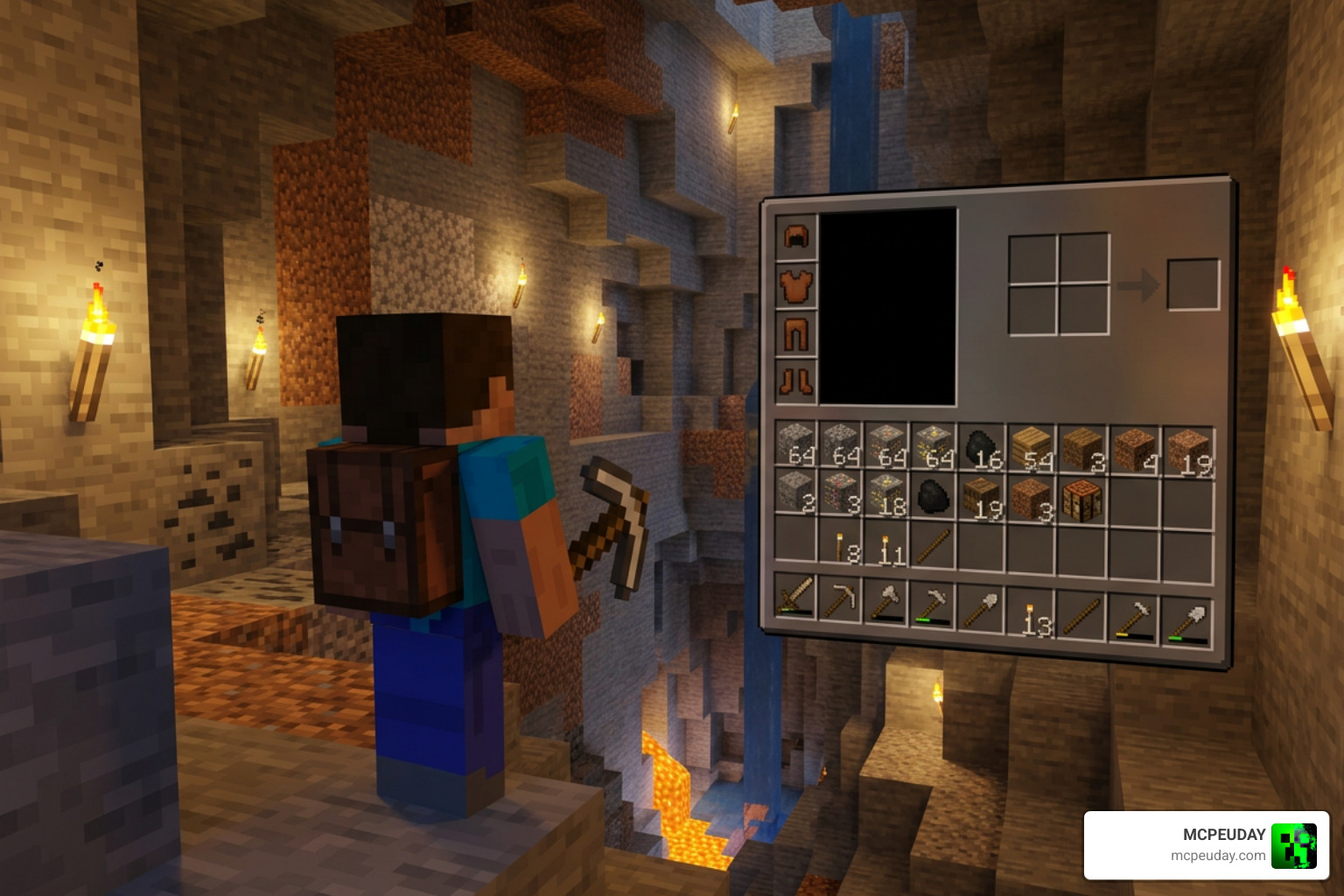
Managing inventory in Minecraft can quickly become a headache, especially during long mining trips, large survival projects, or adventure builds where every slot matters. The Lilium Backpacks Addon (powered by the core LilBackPacks plugin) solves this problem by adding customizable, mobile inventory slots directly into the game. Running natively on Spigot and Paper server software, it bridges the gap between classic survival play and modern server utility.
For server owners, the addon is useful because it improves player convenience without requiring a complete overhaul of the survival experience. Players still gather resources, craft items, and manage inventories, but they gain a practical way to carry more materials while exploring caves, building bases, collecting mob drops, or preparing for long-distance travel. This makes the addon especially helpful for community survival servers, economy servers, roleplay worlds, and private SMP groups that want storage expansion without relying only on placed containers.
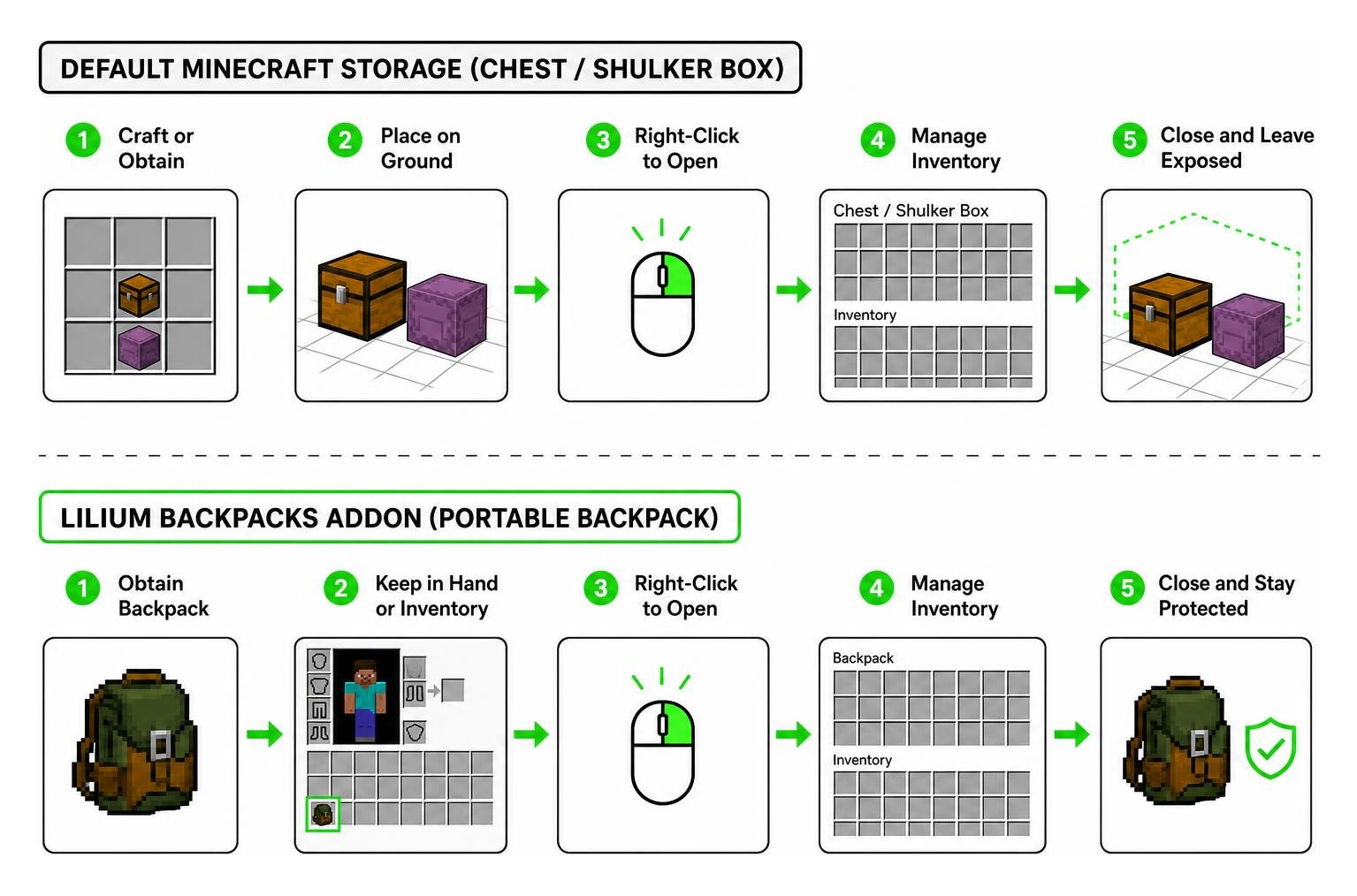
Unlike standard container blocks like chests or shulker boxes, portable backpacks allow players to access extra inventory without placing blocks on the ground.
| Feature | Default Minecraft Storage | Lilium Backpacks Addon |
|---|---|---|
| Max Capacity per Item | 27 slots (Single Chest/Shulker) | Up to 54 slots (Double Chest Equivalent) |
| Access Method | Place block on ground | Right-click item directly in hand/inventory |
| Customization | Fixed texture and name | Custom names, lore, recipes, and custom model data |
| Data Safety | World save dependent | Atomic writes, auto-saves, and 3-backup rotation |
| Gameplay Restrictions | None | Combat locks, world blacklists, and permission nodes |
What is the Lilium Backpacks Addon?
The Lilium Backpacks Addon is a feature-rich inventory expansion system for Java Edition server environments. It gives administrators full control over backpack properties, allowing the creation of multi-tier upgradable items, such as a 45-slot Explorer’s Backpack crafted from leather and wool, or massive 54-slot portable vaults. Underneath its simple user interface, the system utilizes atomic writes and automated data management to help keep player items safe if a server experiences an unexpected crash.
From a gameplay perspective, this means a server can offer different backpack tiers for different progression stages. A basic starter backpack can be made affordable for new players, while larger or more visually customized backpacks can be reserved for advanced crafting, server ranks, quests, shops, or event rewards. This flexibility lets administrators balance convenience, economy value, and survival progression in a way that fits their community.
Addon Storage vs Default Minecraft Storage
Default Minecraft storage relies heavily on physical placement. Shulker boxes improved portability, but opening one still requires placing it down, exposing you to mob attacks, lava hazards, or other players in dangerous areas. The Lilium Backpacks Addon provides instant portable storage. Items remain neatly organized in customizable categories, saving valuable main inventory space and allowing quick access during intense resource gathering.
The biggest practical difference is workflow. With default storage, players often need to stop, place a block, open it, move items, break it, and continue. With a backpack addon, the storage action becomes faster and smoother, which is valuable during mining sessions, Nether travel, End exploration, and large farms where players constantly collect blocks and drops.
Step 1: Downloading the Addon Files
Getting the correct addon files is the essential first step toward expanding your server’s storage options. You should always ensure you are downloading verified releases from trusted sources to maintain server security, preserve data integrity, and guarantee long-term performance stability.

- Visit MCPEUDAY’s Minecraft addon and plugin resources, including the MCPEUDAY Mod Addons Collection, and look for the Lilium Backpacks Addon information or download entry.
- Verify that the plugin release version matches your server software architecture, such as Spigot, Paper, or Purpur, and your target Minecraft version.
- Check the release notes, file name, and version number before downloading. This helps prevent installing an outdated build or a file intended for a different server version.
- Download the compiled
.jarplugin file directly to a secure folder on your local computer, ready for transfer to your server host. - If your hosting panel supports file checks or malware scanning, run those checks before uploading the file to your live server. This is a simple precaution that helps protect your worlds, player data, and plugin environment.
Avoid renaming the .jar file unless your server host specifically requires it. Keeping the original file name can make future updates easier because you can compare version numbers quickly when replacing the old plugin file.
Step 2: Server Installation and Directory Setup
Installing the plugin into your server architecture is straightforward and requires zero complex technical configuration or external library dependencies. Following proper server management protocol ensures your file hierarchy stays organized and prevents startup conflicts.
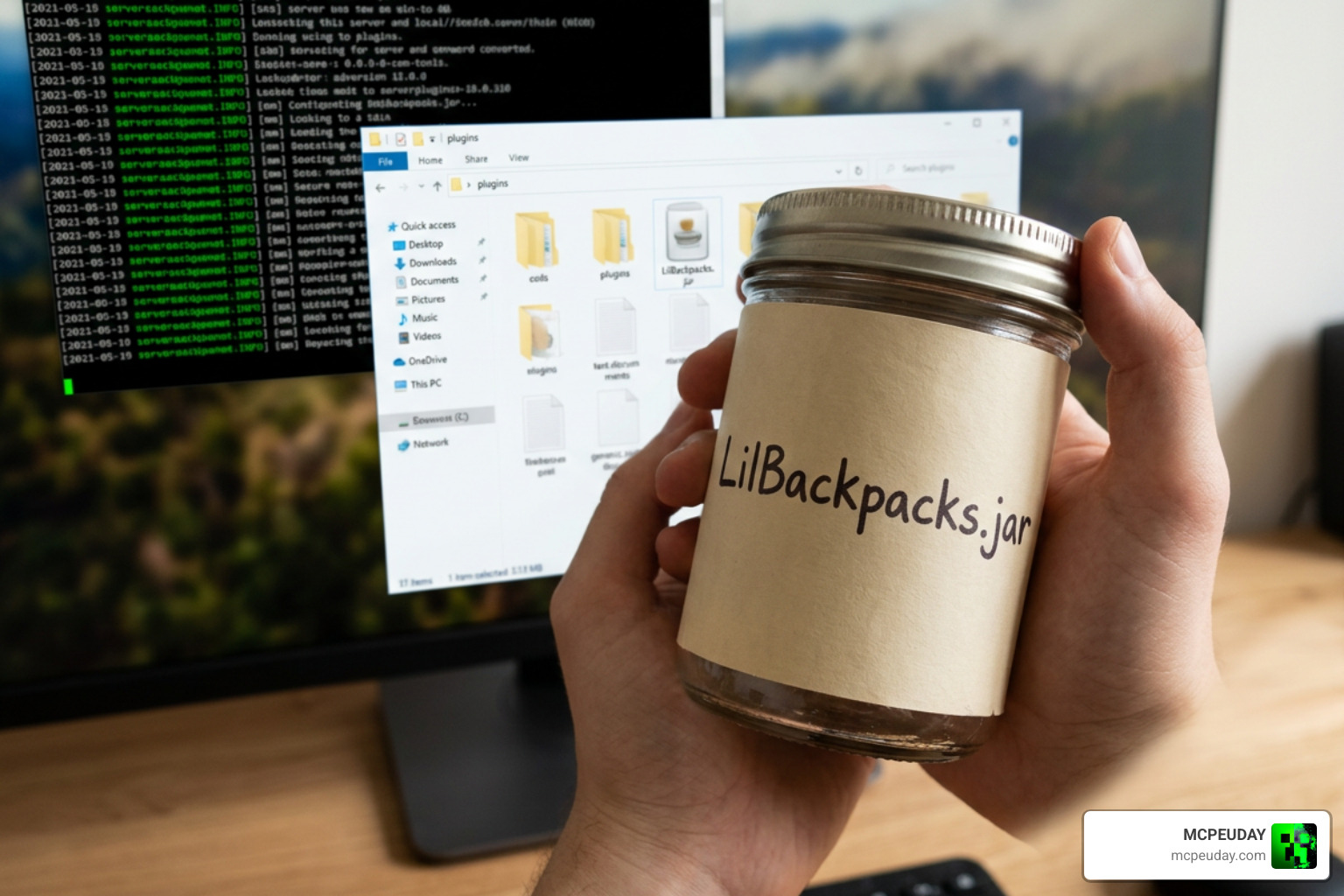
- Stop your Minecraft server safely using the
stopcommand in your server console to ensure all existing world data and plugins save properly. - Open your server control panel file manager or FTP client, navigate to your server root directory, and open the
pluginsfolder. - Drag and drop the downloaded Lilium Backpacks Addon
.jarfile directly into thepluginsdirectory. - Start your server. During the initial bootup sequence, the plugin will automatically generate its configuration directory located at
/plugins/LilBackpacks/containing default configuration files. - Review your server startup logs in the console to confirm that the plugin registered correctly and loaded without version mismatch warnings.
If you are running a Paper or Spigot-based server, the plugin should detect the environment automatically. Before inviting players back online, it is a good idea to perform a quick test with an administrator account. Join the server, confirm that the plugin commands are available, and check that the generated folder contains the expected configuration files. If the server console reports a missing dependency, incompatible server version, or YAML loading error, stop the server again and resolve the issue before allowing normal gameplay to continue.
For production servers, keep a backup of your /plugins/LilBackpacks/ folder after the first successful configuration. This gives you a clean restore point if you later experiment with custom recipes, database settings, permission nodes, or visual model options.
Step 3: Configuration, Commands, and In-Game Setup
Once the server has restarted and generated the default directory, you can tailor every detail of the plugin to fit your server’s exact gameplay balance and economy needs. This step is where the Lilium Backpacks Addon becomes more than a basic storage tool, because administrators can define how backpacks are crafted, who can use them, where they can be opened, and how safely their data is stored.
Advanced Configuration for the Lilium Backpacks Addon
All configuration settings are stored within human-readable YAML files inside the /plugins/LilBackpacks/ directory. Here are the primary operational systems you can adjust:
- Storage Options: Choose your preferred backend storage engine. The plugin supports local flat JSON/YAML files, standalone SQLite databases, or external MySQL databases for multi-server proxy networks (such as BungeeCord or Velocity).
- Data Safety & Auto-Save: To protect player inventories against accidental server shutdowns or crashes, the default auto-save interval is set to 300 seconds (5 minutes). The plugin employs atomic writes to prevent file corruption during active saving and retains the last 3 backup snapshots through an automated backup rotation system.
- Backpack Restrictions: Maintain fair gameplay on competitive servers by defining protection rules. You can set a combat lock timer (defaulted to 5 seconds) to prevent players from opening or hiding items inside backpacks during PvP encounters, or set up a world blacklist to disable backpack access inside minigame arenas or event worlds.
- Nexo & Visual Customization: The plugin features full native compatibility with CustomModelData and the Nexo item framework. Administrators can attach custom 3D models, unique opening and closing sound effects, visual particle trails, and color-coded lore to every distinct backpack tier.
When editing YAML files, keep spacing consistent and avoid using tab characters. After making changes, save the file and use the reload command or restart the server during a quiet period. On public servers, test each backpack tier with a staff account before making it available through crafting, shops, kits, or rewards.
Essential Admin Commands and Permissions
Managing the Lilium Backpacks Addon in-game is fast and efficient using built-in administrative commands:
/lbp– Opens the interactive administrative GUI to inspect player backpacks or modify settings live./lbp give <player> <type>– Grants a specific customized backpack tier directly into a player’s inventory./lbp reload– Instantly reloads all YAML configuration files without needing to restart the server.
To allow regular players to use, craft, or upgrade backpacks, assign the appropriate permission nodes using a permission management plugin such as LuckPerms:
lilbackpacks.use– Allows players to open and use standard backpacks.lilbackpacks.craft.<tier>– Grants permission to craft a specific backpack tier using custom recipes.lilbackpacks.admin– Grants complete access to administrative commands and player inventory management GUI.
A recommended setup is to give all survival players lilbackpacks.use, then unlock larger tiers gradually through crafting permissions, rank progression, or in-game achievements. This keeps backpacks useful without making early-game inventory management completely irrelevant.
Frequently Asked Questions
How do players open backpacks in-game?
Opening a backpack is completely seamless for players. Simply hold the backpack item in your main hand, off-hand, or hotbar slot and right-click. The custom inventory GUI container opens instantly on screen, allowing items to be transferred back and forth just like a regular double chest.
How does atomic saving prevent loss during server crashes?
Atomic writes ensure that data saving operates as an “all-or-nothing” system. Instead of overwriting live player inventory files directly—which can cause permanent file corruption if a power loss or server crash occurs mid-write—the plugin writes inventory data to a temporary file first. Once the system verifies complete file integrity, it performs an instant atomic rename. Combined with the 300-second auto-save interval and 3-stage backup rotation, player items remain fully protected against unexpected crash events.
Can I integrate custom model data and Nexo items?
Yes, absolute custom model support is built directly into the core addon. You can specify CustomModelData numbers or hook directly into Nexo item keys in the configuration YAML file. This allows you to replace standard item icons with fully custom 3D backpack models, custom textures, and unique sound effects on your server.
What permissions are needed for players to craft and upgrade backpacks?
Regular survival players need the standard permission node lilbackpacks.use to open backpacks. If you have configured custom crafting or upgrading tiers in the configuration file, assign lilbackpacks.craft.<tiername> to allow players to construct higher-level storage tiers at crafting tables.
Conclusion
Setting up the Lilium Backpacks Addon takes only a few minutes, but it provides significant quality-of-life benefits for your server’s community. By combining crash-safe storage engines, full Nexo and CustomModelData compatibility, and flexible YAML configuration, server owners can offer a reliable, polished portable storage system without risking server performance or item safety.
Looking for more high-quality addons, custom items, shaders, and server tools? Explore our full MCPEUDAY Mod Addons Collection for the latest updates, tutorials, and community guides!