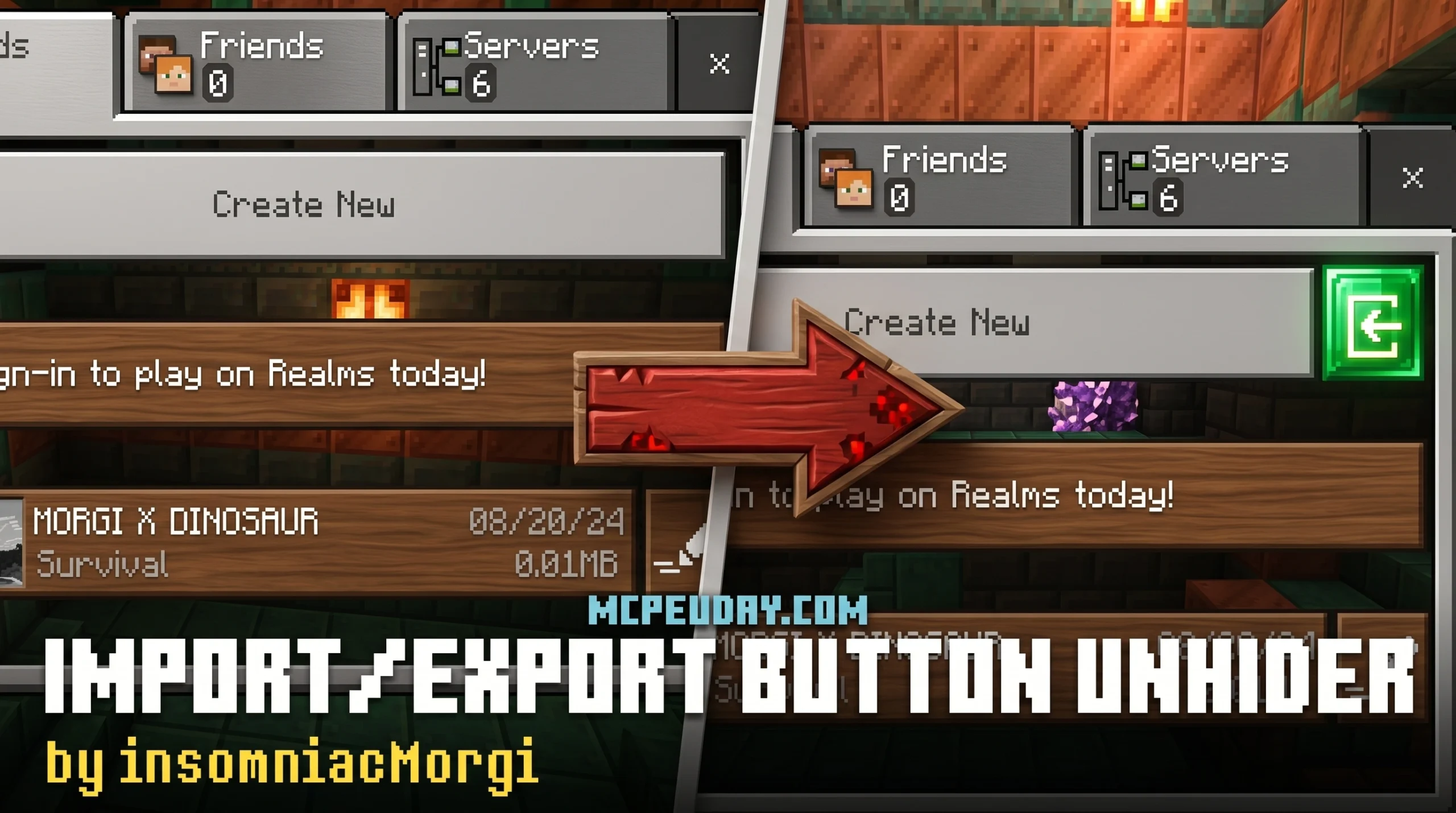
Why the Import/Export Button Unhider Resource Pack Is a Must-Have for Bedrock Players
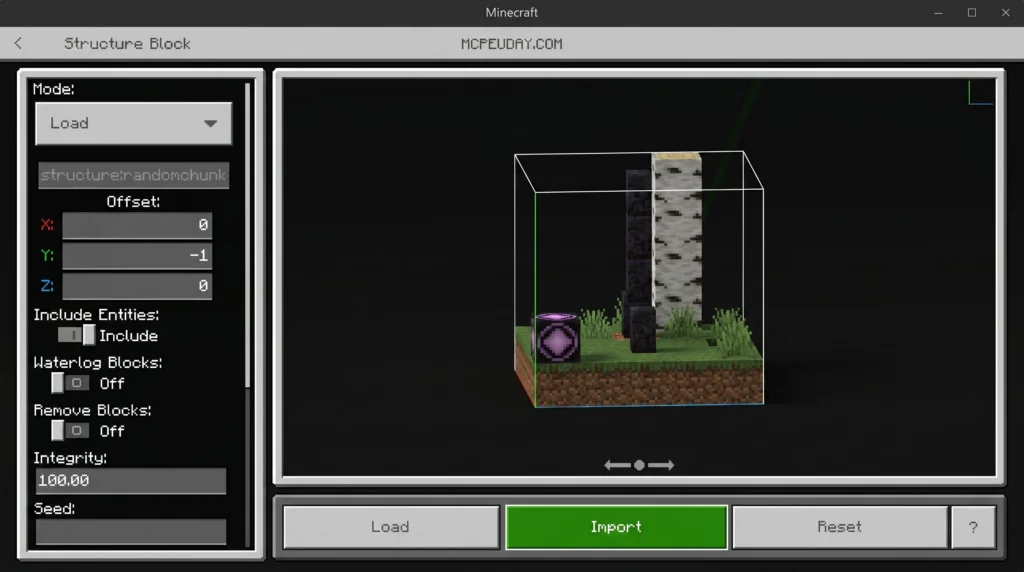
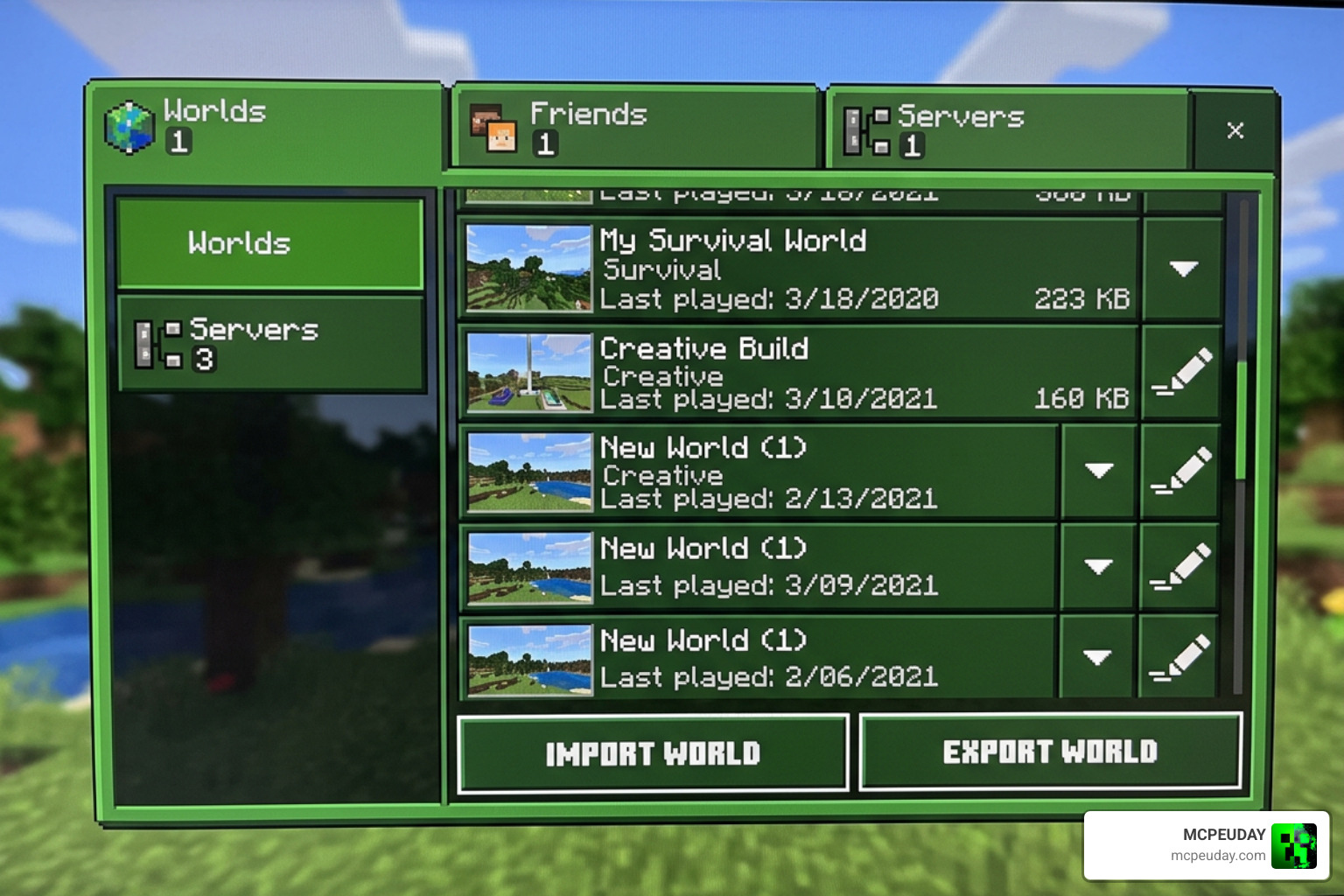
The Import/Export Button Unhider Resource Pack is a lightweight texture pack for Minecraft Bedrock Edition that restores hidden world and structure import/export buttons — here’s how to get it in 3 steps:
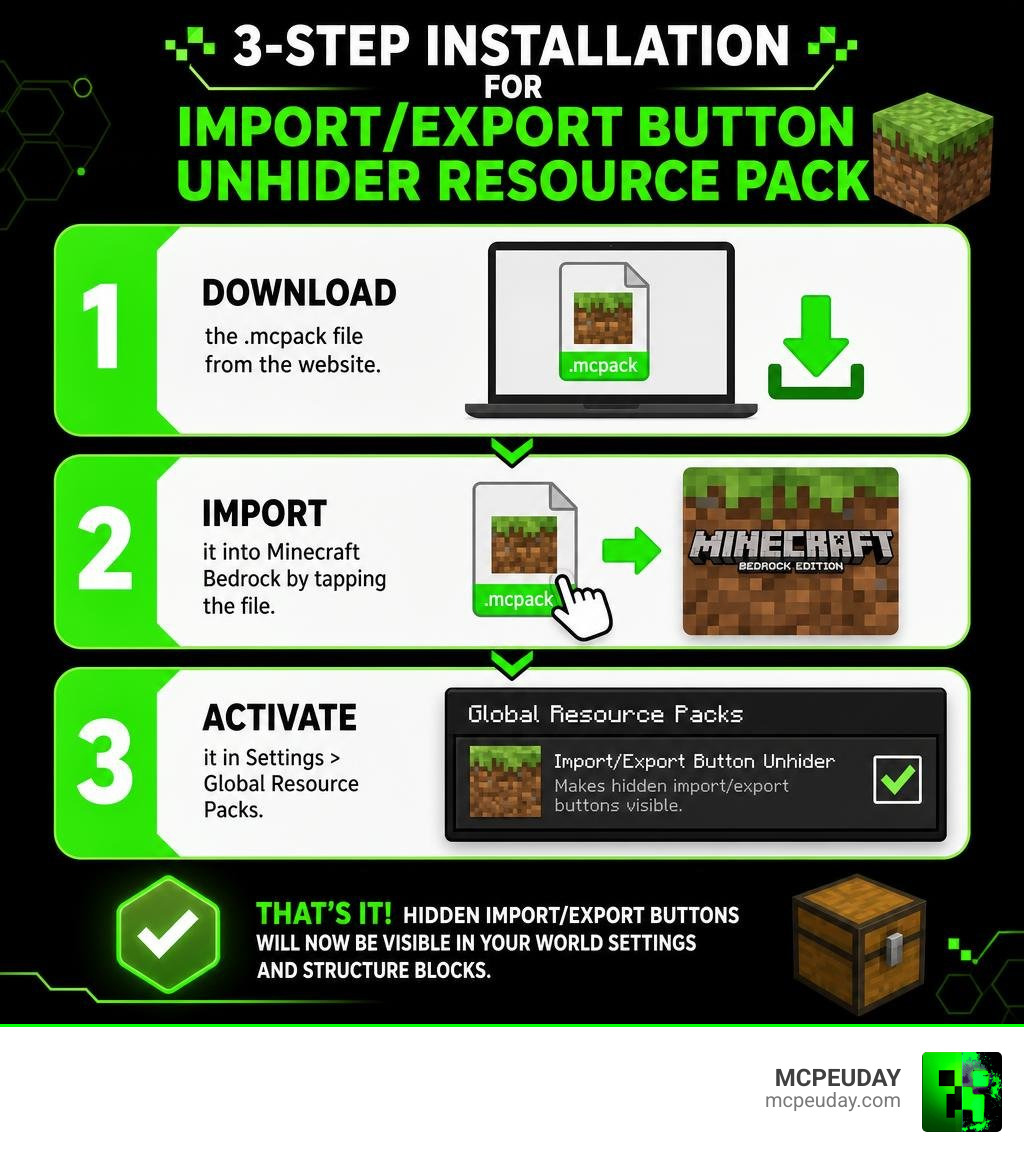
- Download the
.mcpackfile from CurseForge - Import it into Minecraft Bedrock by tapping the file
- Activate it in Settings > Global Resource Packs
That’s it. Once active, you’ll see the hidden import/export buttons in your world settings and structure blocks.
If you’ve ever dug through your Minecraft Bedrock world settings looking for a way to back up or share a world — and found nothing — you’re not alone. On many mobile devices, the import and export buttons are completely hidden by default.
This pack has been downloaded over 590,000 times, which tells you how many players hit this exact wall.
It works on versions up to 1.21.30, but has known limitations on 1.21.40 and above due to Mojang’s new OreUI interface. We’ll cover that too.
Understanding the Import/Export Button Unhider Resource Pack for Bedrock
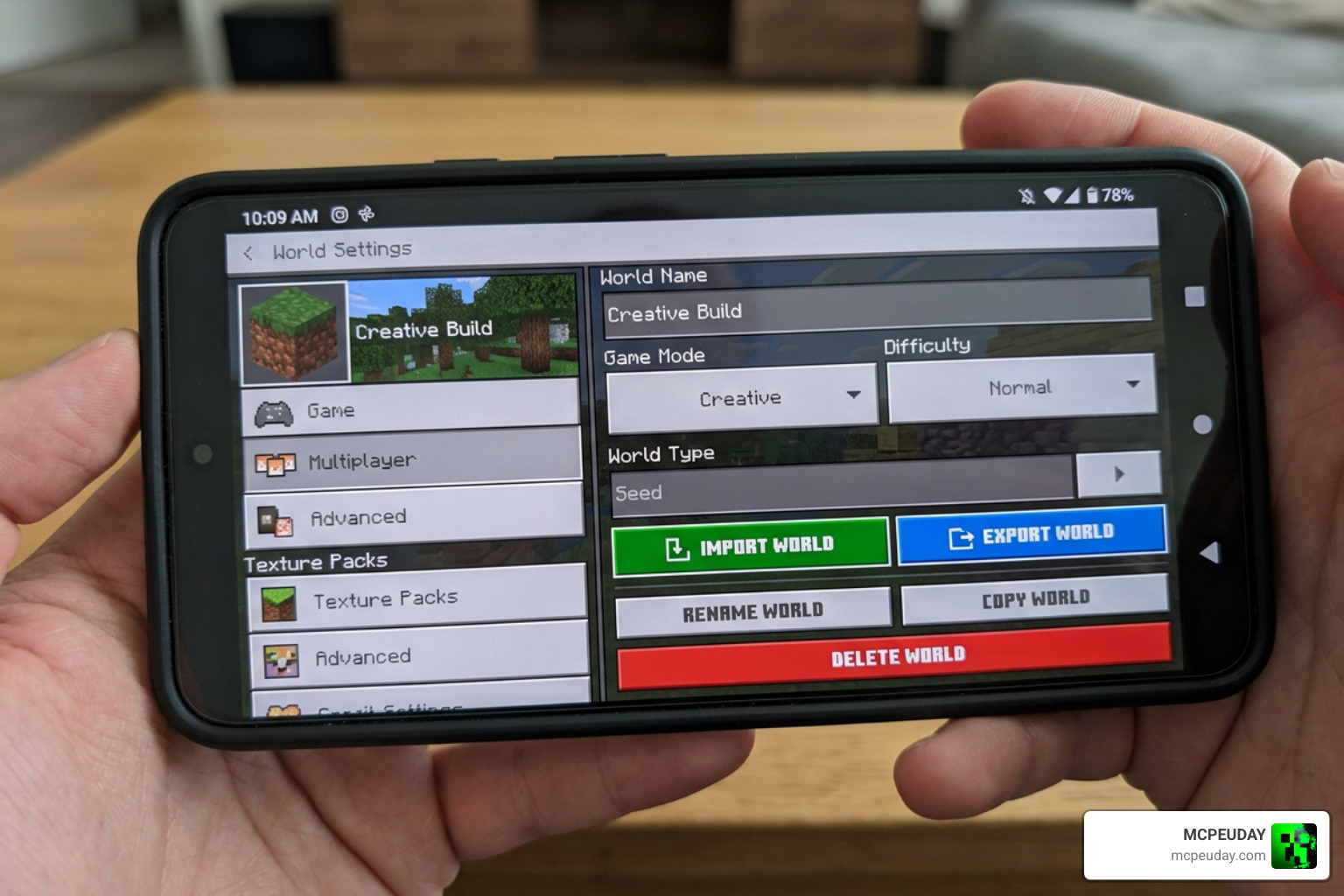
At its core, this resource pack is a clever UI modification. It does not add new code, scripts, or experimental features to your game. Instead, it alters the layout files of the Minecraft Bedrock user interface to make pre-existing, hidden buttons visible again.
When you play Minecraft Bedrock on mobile devices or certain consoles, Mojang disables these buttons in the interface. The buttons are still there in the game’s code, but they are set to be invisible. The Import/Export Button Unhider Resource Pack overrides these visibility settings, giving you direct access to native world management tools.
Why Minecraft Bedrock Hides the Import/Export Buttons
The main reason these buttons are hidden comes down to how different operating systems handle file systems and application storage.
On mobile devices running Android or iOS, Minecraft can store world data in two distinct locations:
- Application Storage: This keeps your world files locked inside the private directory of the Minecraft app. While this prevents accidental deletion, it makes it incredibly difficult to access your saves for manual backups.
- External Storage: This stores your worlds in a public folder on your device’s storage, making them easy to copy, move, and share.
Because many modern devices restrict direct directory access to protect system security, Mojang hides the import and export buttons by default to prevent players from experiencing file-saving errors. However, this also blocks players from easily transferring their hard-earned progress to a new device or sharing custom builds with friends.
Key Features of the Import/Export Button Unhider Resource Pack
Once active, this pack unlocks several game-changing features:
- World Export Button: Generates a neat
.mcworldfile of your saved game. You can save this file directly to your device, upload it to cloud storage, or send it to a friend. - World Import Button: Allows you to easily load
.mcworldfiles downloaded from the internet or received from friends straight into your game. - Structure Export Button: Found within Structure Blocks, this lets you save specific builds as
.mcstructurefiles. - Structure Import Button: Allows you to load external
.mcstructurefiles into your active game, making it easy to copy large builds between different worlds.
Pros and Cons of the Unhider Pack
Like any community-made tool, this resource pack has its strengths and limitations. Here is a quick look at what to expect:
| Feature / Metric | Details & Performance |
|---|---|
| File Size | Extremely lightweight (4 KB to 220 KB depending on version) |
| Ease of Use | Very simple; works automatically once activated globally |
| Community Rating | Solid 3.8 to 4.0 out of 5 stars across major download platforms |
| Pros | No performance impact; restores native backup options; extremely safe |
| Cons | Broken on newer versions (1.21.40+) due to Mojang’s OreUI updates |
How to Get the Import/Export Button Unhider Resource Pack in 3 Steps
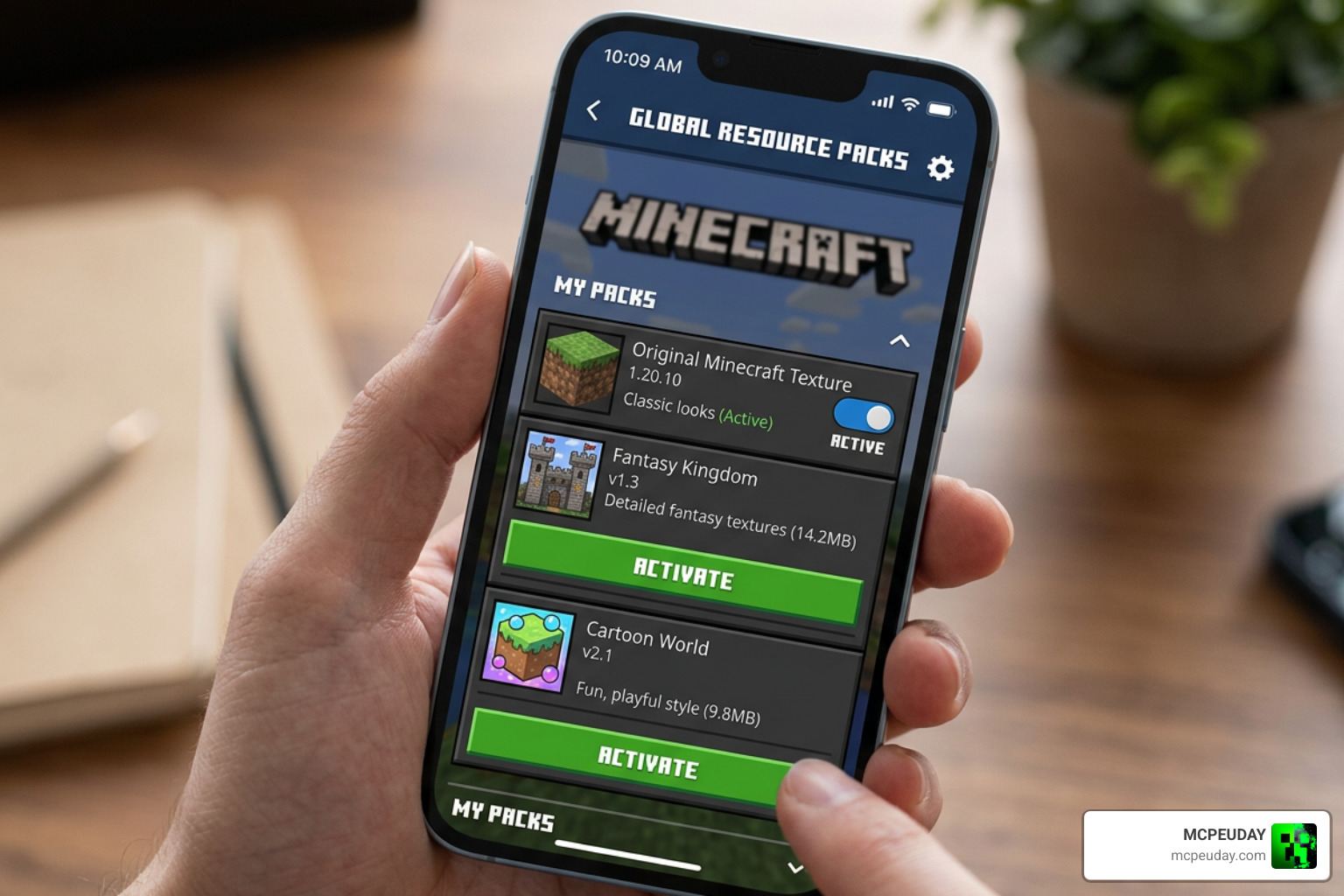
Getting this pack up and running is incredibly straightforward. Follow our simple three-step guide to unlock your hidden settings.
Step 1: Download the Import/Export Button Unhider Resource Pack
First, we need to grab the official file. Because this pack is so popular, there are many outdated or modified versions floating around. We highly recommend downloading the official, safe version directly from the creator’s page.
You can safely get the latest version here: Import/Export Button Unhider v2 for MCPE – CurseForge.
Save the downloaded .mcpack file to your device’s download folder.
Step 2: Import the Pack into Minecraft Bedrock
Once the download is complete, you need to let Minecraft know the pack exists.
- Open your device’s file manager app.
- Locate the downloaded file (it should end in
.mcpack). - Tap on the file. Most mobile devices will automatically ask which app you want to use to open it. Select Minecraft.
- Minecraft will launch, and you will see a notification at the top of the screen saying “Import started” followed by “Successfully imported”.
Note for advanced users: If your device does not offer to open the file with Minecraft, you can manually move the file into your game directory. Navigate to your device’s storage, locate the com.mojang folder, open resource_packs, and paste the file there.
Step 3: Activate the Pack as a Global Resource
For UI-altering resource packs to work correctly, they must be activated globally rather than on individual worlds.
- From the main menu of Minecraft Bedrock, tap Settings.
- Scroll down the left-hand menu and select Global Resources.
- Tap on My Packs to expand the list.
- Select the Import/Export Button Unhider and tap the Activate button.
- Exit the settings menu. The game will show a brief loading screen as it writes the new UI layout.
Once the UI refreshes, head over to your world settings list. If you are running a compatible version of the game, you will now see the previously hidden export options!
Compatibility, OreUI Changes, and Alternative Workarounds
While this pack is an absolute lifesaver for older versions of Bedrock, we must address the elephant in the room: Mojang’s technical updates.
The Impact of OreUI on Minecraft 1.21.40+ and 1.21.51+
In late 2024, Mojang began aggressively rolling out a new user interface framework called OreUI. This framework completely redesigned the world settings screen and the edit menus.
Because OreUI is built differently than the old JSON-based UI system, resource packs can no longer easily modify or override these screens. As a result:
- World Export stopped functioning on version 1.21.40+.
- World Import stopped functioning on version 1.21.51+.
Because Mojang does not currently provide a native way for creators to customize the new OreUI screens, the resource pack cannot force the buttons to appear on these newer versions. Technical changes, like those documented in community resource updates such as the Add files via upload · 030b474 · crocskat/CrocsKat-Improved-vanilla-Resources commit, show how difficult it has become to modify modern Bedrock UI elements without breaking game stability.
Alternative Workarounds for World Transfers
If you are playing on a newer version of Bedrock and the buttons are gone, don’t panic! You can still back up and transfer your worlds manually.
- Manual Filesystem Backups: You can use a file explorer app to navigate directly to your device’s internal storage. Go to
Android/data/com.mojang.minecraftpe/files/games/com.mojang/minecraftWorlds/(or the equivalent directory on iOS) and manually copy your world folders to a safe location. - Using World Porter: There are dedicated community tools designed to help bridge this gap. For example, you can check out the vytdev/world-porter project on GitHub, which aims to help mobile players manage and transfer their worlds even when the game’s native buttons are completely disabled.
Frequently Asked Questions
We have gathered some of the most common questions from players trying to get their import/export options back.
Why can’t I see the export button even after activating the pack?
If you have activated the pack globally but still do not see the buttons, try opening the world first. On some mid-range mobile devices, you must load into the world, pause the game, and then access the settings menu for the UI elements to refresh and display the export options. If that fails, double-check your Minecraft version to ensure you aren’t on 1.21.40 or newer.
Is this resource pack safe to use on mobile devices?
Yes, it is entirely safe. Because it is a pure resource pack (containing only basic configuration files to adjust UI layout), it cannot contain malicious scripts or executable code. As long as you download it from a verified source like CurseForge, your device and your save files are perfectly safe.
Does this pack work on Minecraft Bedrock version 1.21.51 and above?
Unfortunately, no. Due to the transition to the OreUI engine, the buttons are hard-coded to be hidden on version 1.21.51 and above. To back up your worlds on these versions, you will need to rely on manual file transfers or third-party tools.
Conclusion
The Import/Export Button Unhider Resource Pack remains one of the most useful utility packs ever created for Minecraft Bedrock Edition. It bypasses frustrating device limitations to give players full control over their worlds and creative builds. While Mojang’s transition to OreUI has limited its effectiveness on the latest versions, it is still an invaluable tool for anyone running older versions or managing structure templates.
Looking to customize your game even further? We’ve got you covered. Explore more Minecraft Texture Packs on MCPEUDAY to find the perfect look for your next blocky adventure!