Why a 3D Items Texture Pack Makes Minecraft Look So Much Better
A 3D items texture pack replaces the flat, 2D sprites that Minecraft uses for tools, weapons, and other items with fully modeled 3D objects that have real depth and volume. If you’re tired of your sword and pickaxe looking like paper cutouts, these packs are exactly what you need.
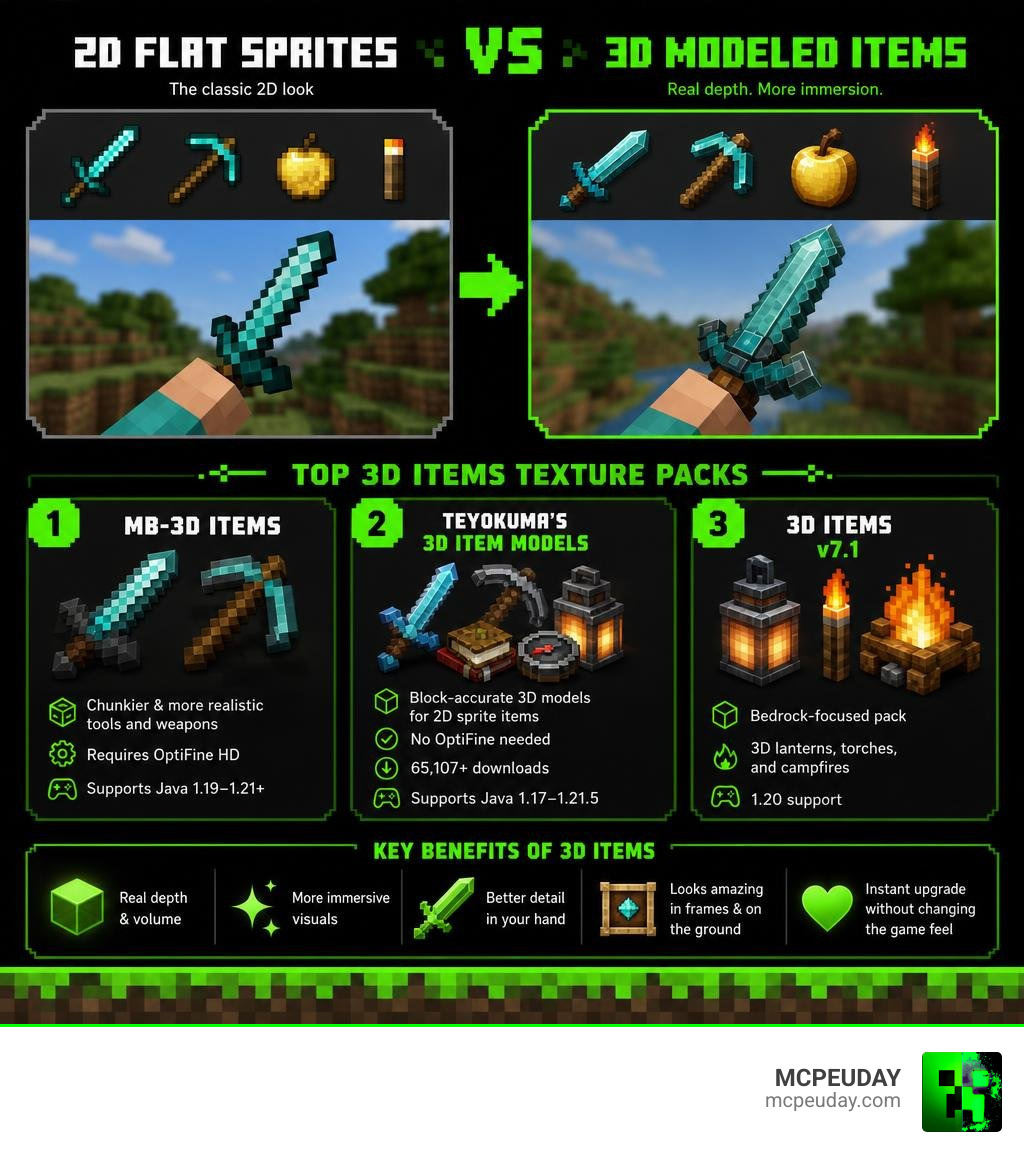
Here are the top 3D Items Texture Packs for Minecraft in July 2026:
- MB-3D Items Resource Pack — Makes tools and weapons look chunkier and more realistic; requires OptiFine HD; supports Java 1.19–1.21+
- teyokuma’s 3D Item Models — Block-accurate 3D models for 2D sprite items; no OptiFine needed; supports Java 1.17–1.21.5; 65,107+ downloads
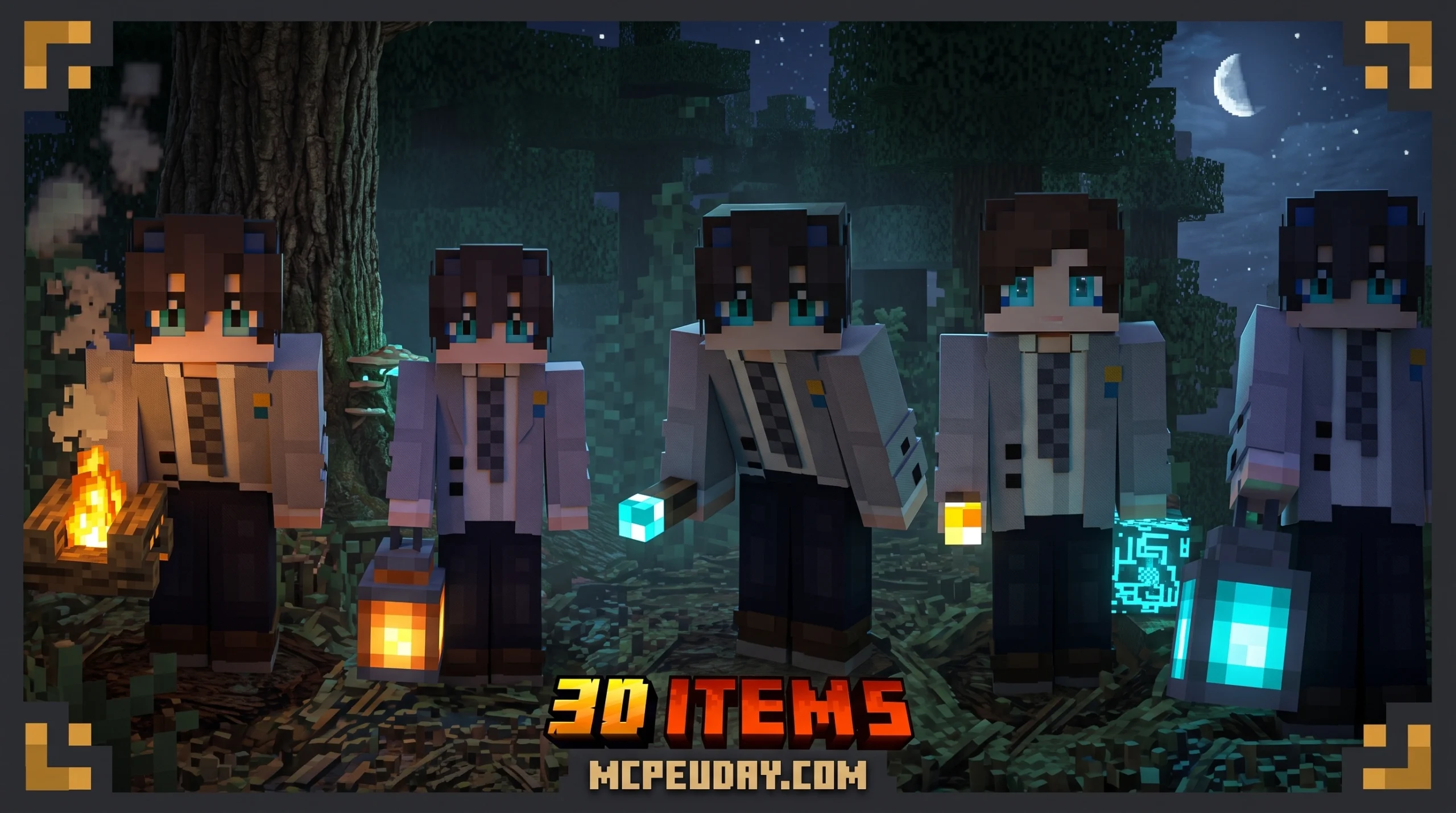
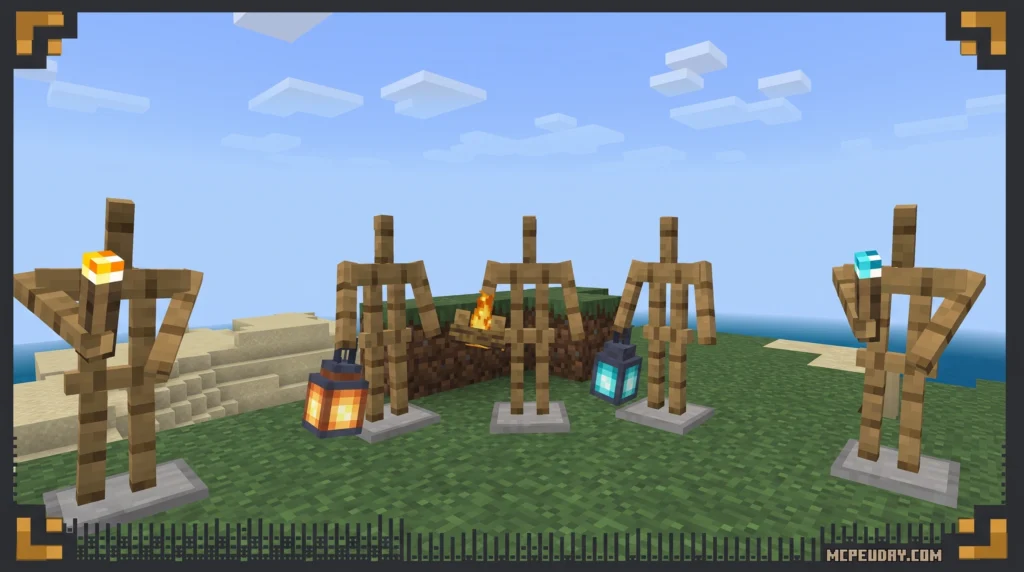
- 3D Items v7.1 — Bedrock-focused pack featuring 3D lanterns, torches, and campfires; 1.20 support
By default, Minecraft renders held items as flat images. They work fine, but they break immersion. Once you see your pickaxe as an actual 3D object, going back feels wrong.
These packs have grown massively popular — teyokuma’s pack alone has crossed 65,000 downloads — because the visual upgrade is instant and dramatic without overhauling the entire game’s look.
Below, we break down the best options, how they compare, and exactly how to install them on both Java and Bedrock.
What is a 3D Items Texture Pack?
At its core, a 3D Items Texture Pack uses Minecraft’s custom model engine to change how items look when they are in your hand, on the ground, or inside an item frame. Instead of relying on a simple flat texture, these packs use block-accurate 3D modeling to add actual geometry to the item.
In standard Minecraft, items are rendered as flat, two-dimensional sprites. While this retro look has its charm, it lacks depth. A 3D items pack replaces these flat sprites with complex polygonal models. When you hold a sword, you will see a defined hilt, a thick blade, and a sharp guard. When you place a lantern or torch on the ground or hold it in your hand, it actually looks like a physical, three-dimensional light source with realistic depth and shadows.
These packs achieve this by utilizing custom JSON files that define the coordinates of each face of the item model. If you want to dive deeper into how 3D elements can completely revolutionize your game’s visual style, check out our comprehensive guide on the Minecraft 3D Texture Pack.
To get a better idea of how creators build these models, you can watch tutorials like How to get CUSTOM 3D Item and weapon textures in Minecraft to see how simple voxel grids are converted into stunning in-game assets. Understanding this process helps you appreciate the sheer amount of work that goes into designing every single tool, weapon, and block model.
Top 3D Items Texture Packs for Minecraft
Choosing the right pack depends on your version of Minecraft, whether you use mods, and what kind of look you want. Some packs focus on keeping the vanilla feel as accurate as possible, while others aim to make items look as chunky and realistic as they can.
Here is a quick comparison of the top three packs available right now:
| Pack Name | Supported Versions | OptiFine Required? | Key Highlight |
|---|---|---|---|
| MB-3D Items | Java 1.19 – 1.21+ | Yes (OptiFine HD) | Chunky, highly detailed tool and weapon models |
| teyokuma’s 3D Models | Java 1.17 – 1.21.5 | No | Extreme mod compatibility, block-accurate |
| 3D Items v7.1 | Bedrock & Java | No | Best for 3D torches, lanterns, and campfires |
MB-3D Items Texture Pack Overview
The MB-3D Items Resource Pack is highly regarded for its ability to make standard vanilla items feel heavy and powerful. Boasting over 1,345 ratings and reviews, this pack specializes in giving tools and weapons a “chunkier” aesthetic.
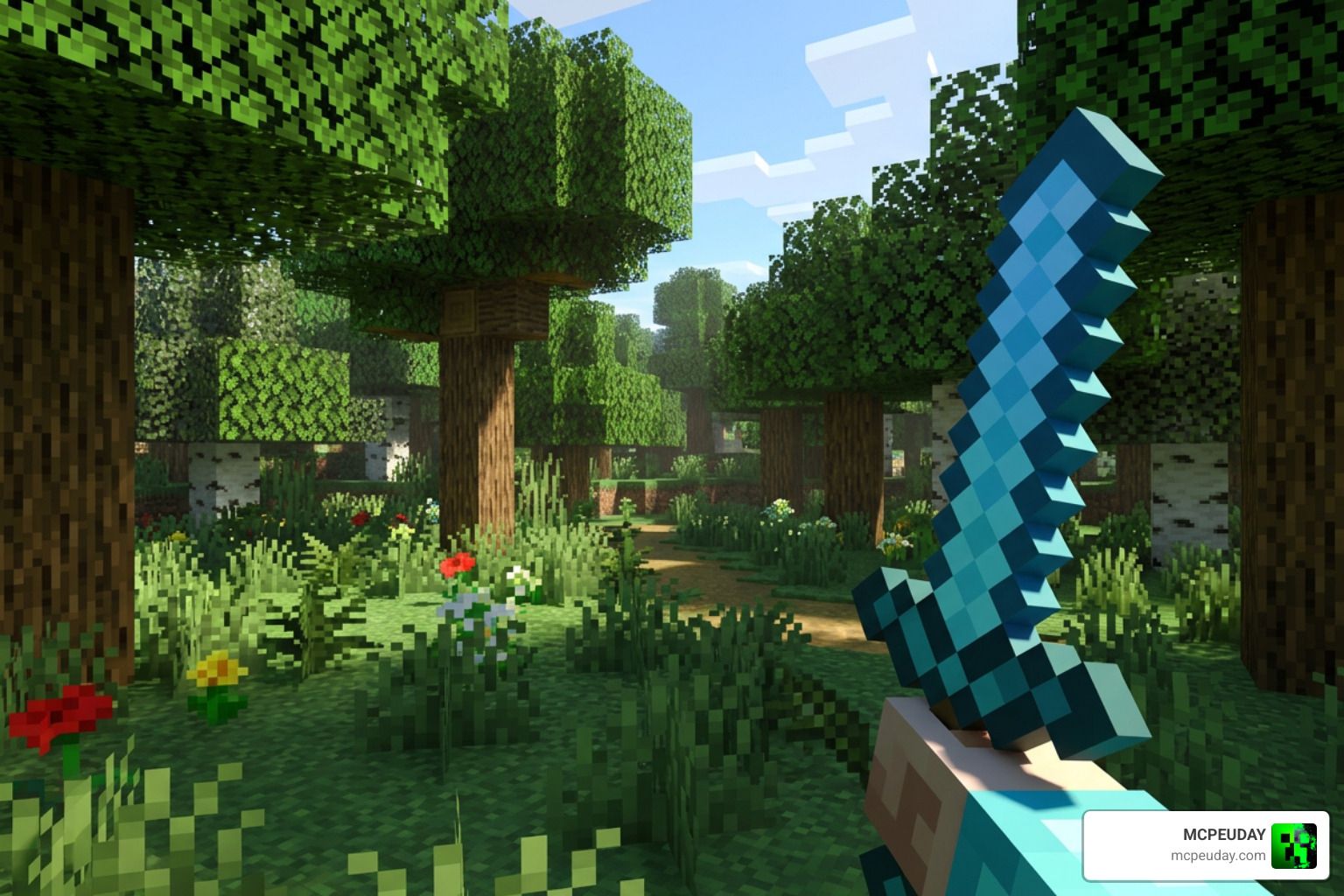
When you download the 1.10.0 – MB-3D Items Pack, you will immediately notice that items like diamond swords, netherite axes, and even simple wooden shovels have realistic depth. The file sizes are incredibly lightweight (ranging from 1 MB to 2 MB), making it an easy addition to any setup. The only catch is that you will need OptiFine HD to get the full benefit of its custom item textures and models.
teyokuma’s 3D Items Texture Pack and Mod Compatibility
If you prefer playing with a massive modpack, then teyokuma’s 3D Item Models is the absolute gold standard. This pack has amassed over 65,107 total downloads and is constantly updated. In fact, there are over 86 contributions by teyokuma to the teyokuma/3D-Item-Models GitHub repository, ensuring it stays compatible with the latest Minecraft snapshots.
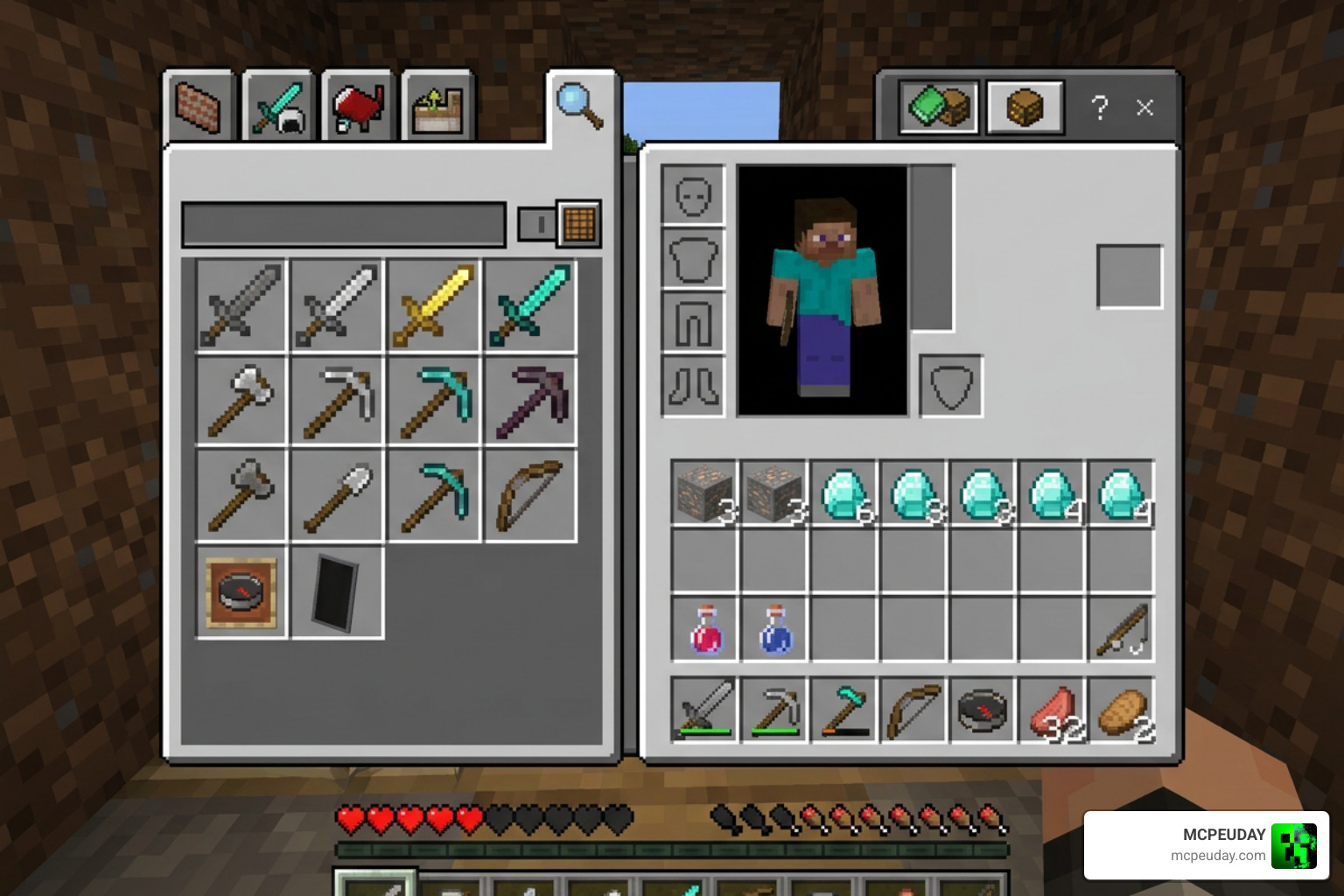
What makes this pack so special is that it does not require OptiFine or CIT mods. It works completely out of the box in vanilla Minecraft. Furthermore, it offers built-in 3D model support for popular mods such as:
- Create & Create Crafts & Additions
- Farmer’s Delight
- Quark
- Ad Astra
- Biomes O’ Plenty
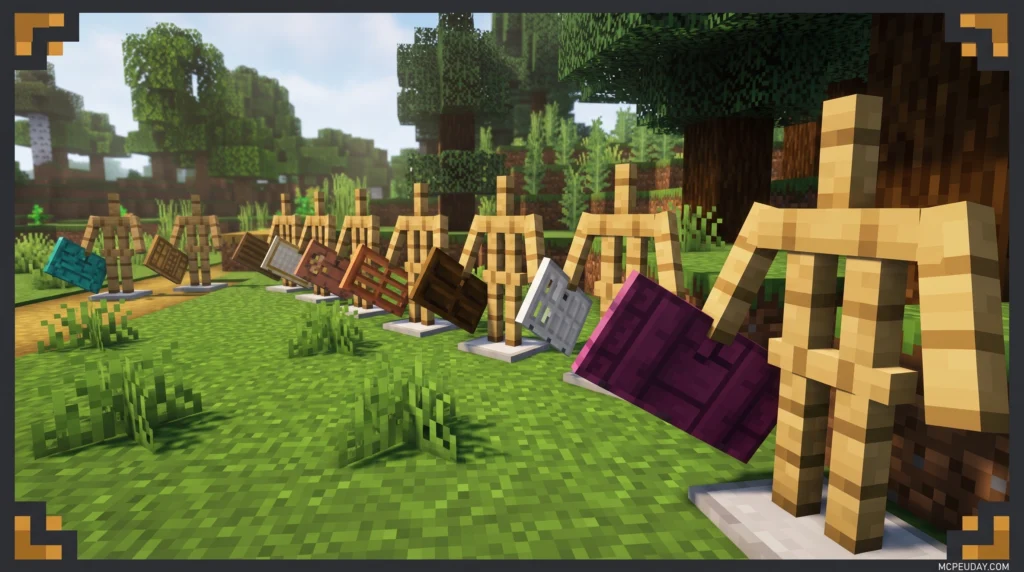
It even adds custom 3D models to smaller decorative items like paintings, armor trims, and unique bucket designs without altering the base game textures.
3D Items v7.1 Pack for Bedrock and Java
For players on Bedrock Edition (MCPE) who want to experience the beauty of 3D items, the 3D Items v7.1 pack is an excellent choice. With 2,344 downloads, this pack specializes in transforming functional, everyday placeable items.
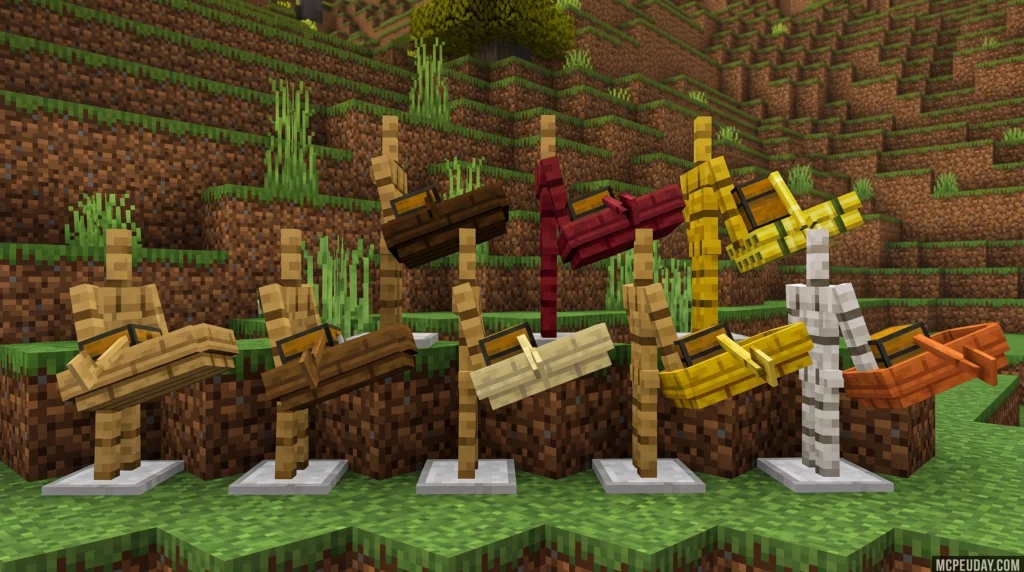
Instead of flat sprites, items like lanterns, torches, and campfires are rendered as actual 3D models when held in your hand. It also includes full support for newer block types like cherry, mangrove, and bamboo items. If you want to combine 3D items with a complete fantasy overhaul, you might also want to look into the Xnova Model Texture Pack for an entirely different style.
If you are looking for alternative utility models, Weskerson’s 3D Items is another fantastic project that focuses on clean, block-accurate tools.
How to Install a 3D Items Resource Pack
Installing a 3D Items Texture Pack is simple, but the exact steps depend on whether the pack requires OptiFine and whether you are playing on Java Edition or Bedrock Edition (MCPE).

Follow these easy steps to get your pack up and running:
Installation Guide for Java Edition
- Download the Pack: Choose your favorite pack from our list and download the
.zipfile. - Install OptiFine (If Required): If you are using a pack like MB-3D Items, make sure you have OptiFine HD installed for your version of Minecraft. Alternatively, you can use modern optimization mods like Sodium paired with Indium to load custom models.
- Open the Resource Packs Folder:
- Open Minecraft, go to Options > Resource Packs.
- Click Open Pack Folder.
- Drag and drop your downloaded
.zipfile into this folder.
- Activate the Pack: Back in the game, hover over the pack in the left-hand column and click the arrow to move it to the active list on the right. Hit Done and let the game reload!
Installation Guide for Bedrock Edition (MCPE)
- Download the Bedrock Pack: Download the
.mcpackfile designed for Bedrock Edition. - Import to Minecraft: Double-click or tap on the downloaded
.mcpackfile. Your device will automatically launch Minecraft and import the pack. - Activate Globally or per World: Go to Settings > Global Resources to activate it across all your worlds, or go to an individual world’s settings, scroll down to Resource Packs, and activate it there.
Tip: If you want to combine your new 3D items with a clean, simplified world texture, try pairing them with the Bare Bones Texture Pack or the cozy, rustic Mizunos 16 Craft Texture Pack for a beautiful, cohesive look.
Frequently Asked Questions About 3D Items Texture Packs
Do I need OptiFine to use a 3D Items Texture Pack?
It depends entirely on the pack. Packs like MB-3D Items require OptiFine HD to correctly load the custom 3D models. However, packs like teyokuma’s 3D Item Models do not require OptiFine or any CIT mods at all—they run perfectly on vanilla Minecraft.
Are 3D item models compatible with other resource packs?
Yes! Most 3D item packs only change the models (the shape) of the items, not the actual textures (the colors). This means if you load a 3D model pack on top of a 16×16 or 32×32 texture pack, the 3D models will inherit the textures of your custom pack, giving you custom-colored 3D tools! Just make sure the 3D model pack is placed above your texture pack in the active resource packs list.
Do 3D texture packs affect game performance?
Because items are relatively small compared to entire terrain blocks, the impact on your FPS is minimal. You might experience a tiny performance drop if you drop hundreds of 3D items on the ground at once, but during normal gameplay, your frames will remain smooth. If you are playing on a low-end device, choosing a lightweight pack like teyokuma’s is highly recommended.
Can I use these packs on multiplayer servers?
Absolutely! Since resource packs are client-side, you can use them on any multiplayer server, including public survival servers, minigame networks, and private Realms. Other players won’t see your 3D items unless they also have the same pack installed, but it will look fantastic on your screen.
Conclusion
Upgrading to a 3D Items Texture Pack is one of the easiest ways to breathe new life into your Minecraft world. Whether you want the chunky, realistic weapons of MB-3D, the incredible mod compatibility of teyokuma’s pack, or the Bedrock-friendly 3D torches of the v7.1 pack, there is an option here for everyone.
We are constantly updating our library with the latest and greatest resources. To find even more ways to customize your game, head over to the MCPEUDAY Texture Packs Category and download your next favorite pack today!
1 thought on “3D Items Texture Pack (26.x, 1.21) – MCPE/Bedrock Texture Pack”