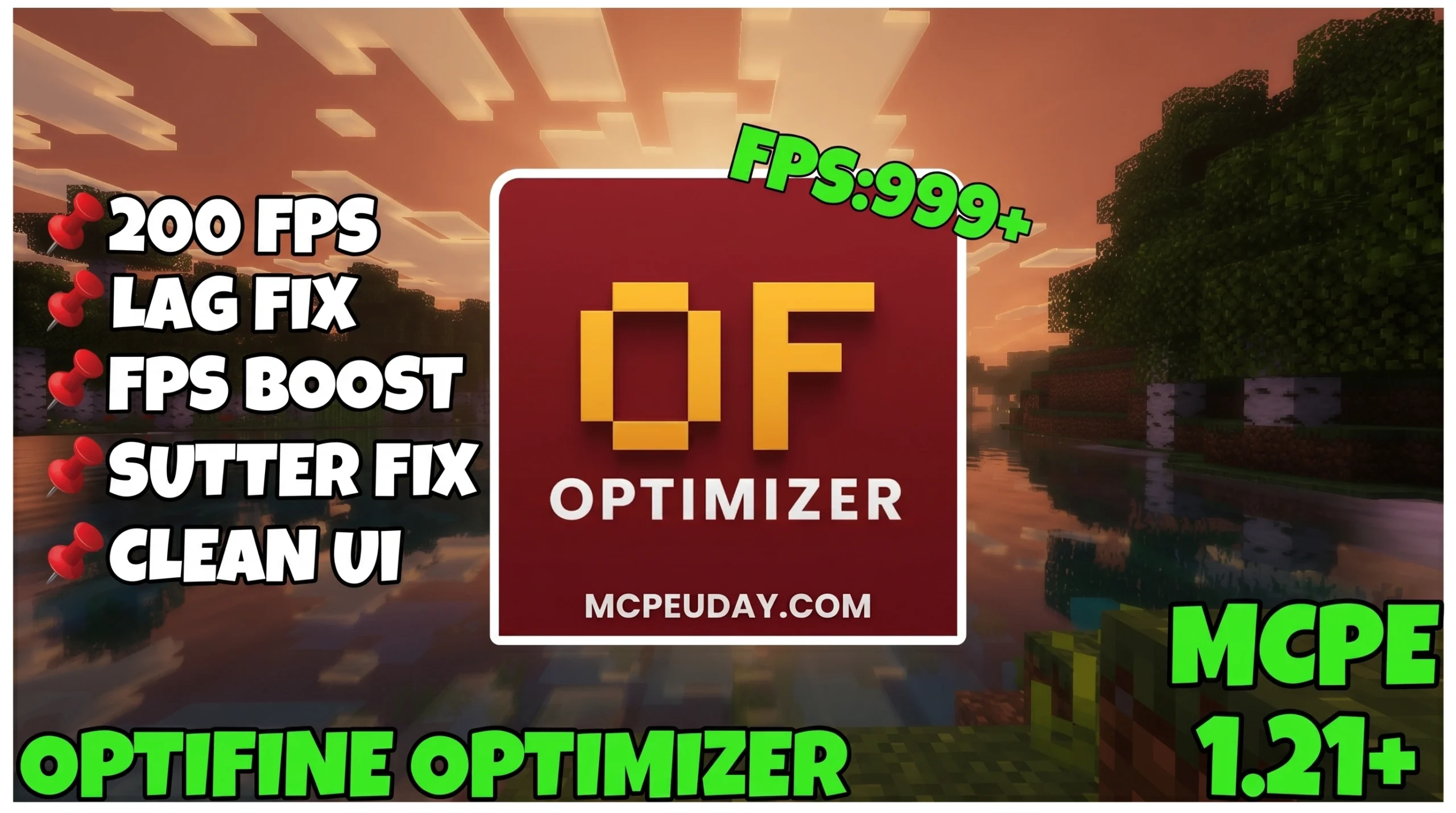
What Is an FPS Optimizer and Why Does It Matter for Gaming?
An FPS Optimizer is a tool, pack, or system tweak designed to squeeze more frames per second out of your hardware — so your games run smoother, faster, and with less lag.
Quick answer: What does an FPS Optimizer do?
- Removes background processes that steal CPU and RAM from your game
- Adjusts power settings so your hardware runs at full speed
- Cleans up visual effects, textures, and animations that slow things down
- Reduces input lag and network ping for competitive play
- Works on PC (Windows) and mobile (Minecraft Bedrock) platforms
If you play Minecraft on a budget phone or a mid-range PC, you’ve probably hit that wall — choppy movement, freezing frames, and input that feels delayed. It’s frustrating, especially when you know your device should be able to handle it better.
The good news? Most of that lost performance isn’t gone. It’s just being wasted.
Background apps, wrong power plans, unoptimized textures, and default system settings all quietly drain your FPS. An FPS optimizer finds those leaks and plugs them — without you needing to be a tech expert.
Results vary depending on your hardware, but users report anywhere from 20% to 60% FPS gains across different tools and platforms. For Minecraft Bedrock specifically, lightweight texture-based optimizers have racked up hundreds of thousands of downloads from players on low-end and mid-range devices.
How Software Tools Boost Gaming Performance
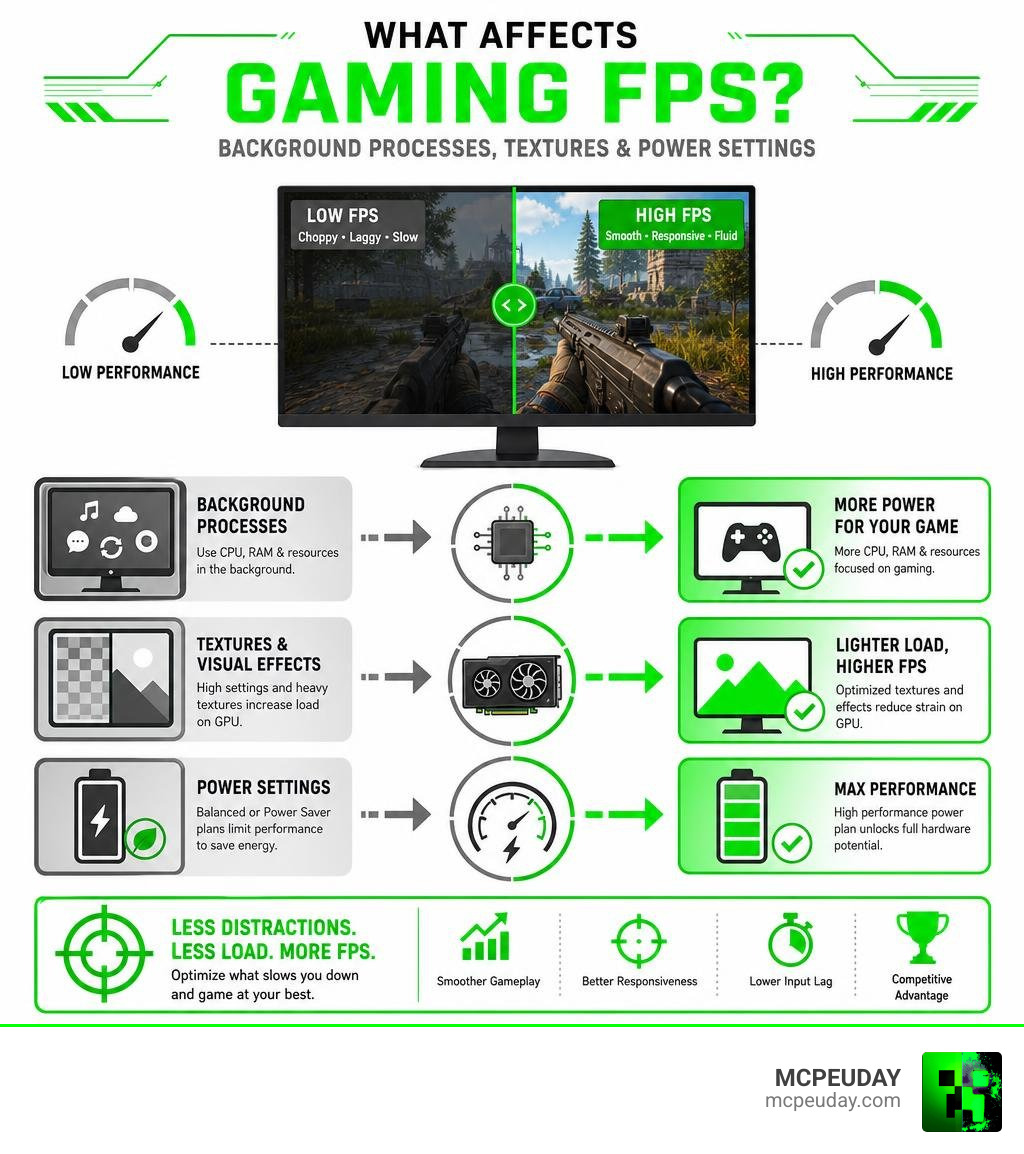
Every operating system is built to multi-task. Out of the box, Windows or your phone’s OS allocates resources to dozens of background processes you don’t actually need while gaming. These background tasks create hardware bottlenecks, robbing your CPU, GPU, and RAM of the power they need to render your game smoothly.
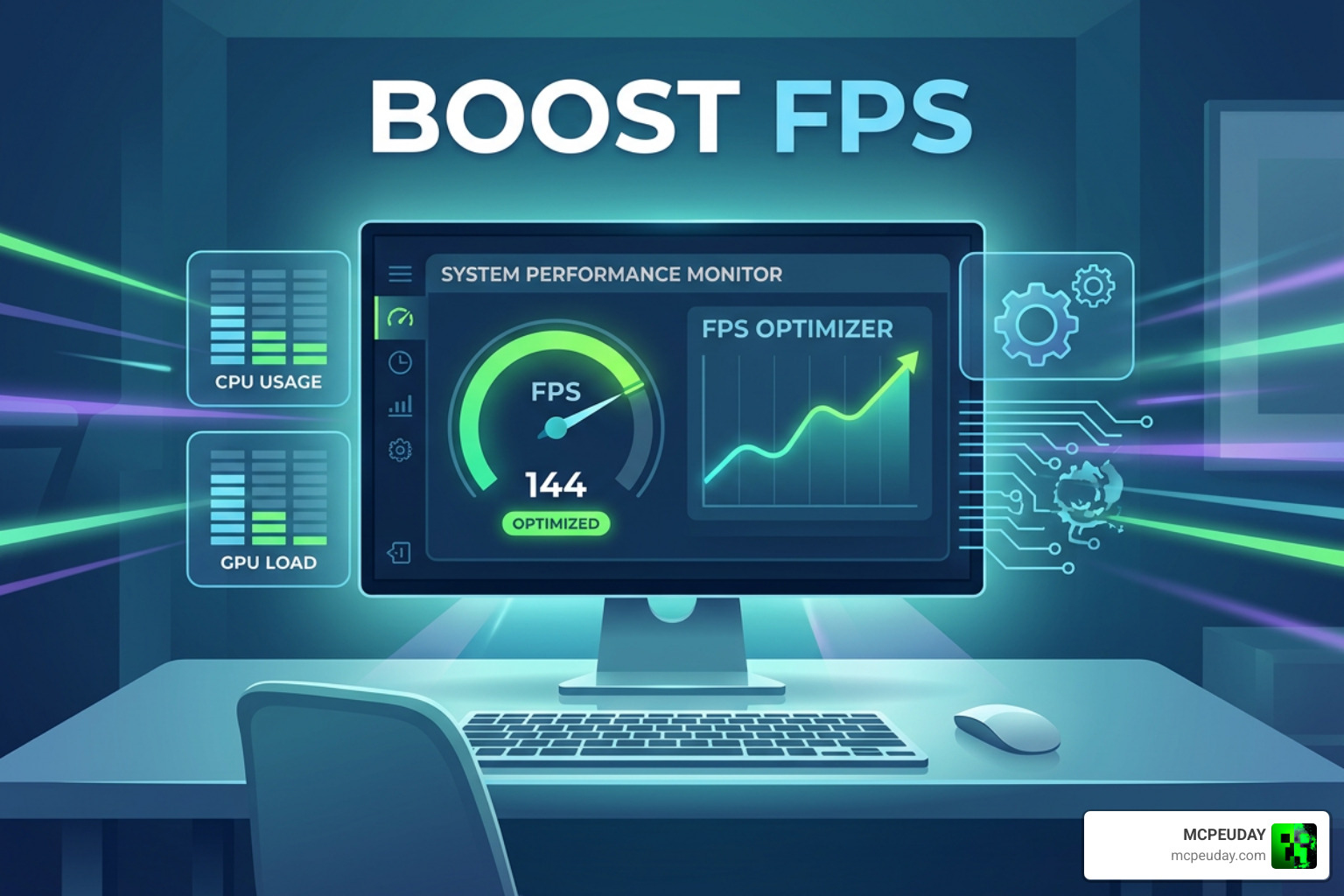
When your hardware is bottlenecked, your frame rates drop, and you experience stutters (micro-freezes). This is where a software-based FPS Optimizer steps in to clean house.
How an FPS Optimizer Works Under the Hood
Under the hood, these tools automate complex system tweaks that would otherwise take hours to configure manually.
First, they perform process management. When you launch a game, the optimizer suspends non-essential background applications (like web browsers, cloud sync services, and update helpers) to ensure your CPU can focus entirely on the game.
Second, they handle RAM cleaning. By flushing the system cache and freeing up standby memory, they make sure your game has direct, fast access to your system’s physical memory.
Third, they adjust your system’s power plans. Standard power configurations are designed to save energy, which often limits your CPU’s clock speeds. An optimizer forces your system into a high-performance power state, unlocking your hardware’s true speed.
For players who prefer web-based solutions over installing local apps, tools like BetterFPS — AI Game Settings Optimizer analyze your exact GPU and monitor setup to generate custom playbooks. Instead of downloading a heavy program, it diagnoses bottlenecks in seconds and ranks settings adjustments by their actual impact on your performance.
System Memory and CPU Priority Management
For competitive gaming, managing system memory and CPU priority is critical to reducing input lag. When your system is bogged down, the time between you clicking your mouse and the action appearing on screen increases.
Advanced tools, such as the open-source Artem45464 FPS Booster, optimize these resources by adjusting CPU affinity (ensuring your game runs on your processor’s fastest physical cores) and clearing out clogged standby memory.
By default, Windows uses a timer resolution of around 15.6 milliseconds. Dedicated optimizers can force this timer down to 0.5 milliseconds. This surgical tweak reduces input latency by up to 50%, making your mouse movements and keyboard inputs feel incredibly snappy and responsive.
Choosing the Right FPS Optimizer for Your Rig
With so many optimization tools floating around the web, choosing the right one for your setup can feel a bit overwhelming. Some tools are fully automated, while others let you tweak every single setting manually.
To help you decide which path to take, we have broken down how automatic software optimizers stack up against manual Windows tweaks:
| Feature | Automatic FPS Optimizer | Manual Windows Tweaks |
|---|---|---|
| Setup Time | Under 1 minute (One-click) | 30+ minutes of registry editing |
| Technical Skill | None required | Medium to high (Risk of system errors) |
| System Safety | High (Includes automatic backups) | Low (No safety net if you delete the wrong file) |
| Reversibility | One-click restore | Manual tracking of changes required |
| Personalization | AI-driven profiles for your exact rig | Trial-and-error adjustments |
Key Features to Look For
If you decide to use software, make sure the FPS Optimizer you choose includes these essential features:
- One-Click Optimization: A simple, user-friendly interface that lets you boost your system with a single click.
- Backup and Restore: The tool must create a system restore point or configuration backup before making changes, allowing you to easily revert if something goes wrong.
- Cloud Profiles: The ability to save your custom settings to the cloud so you can easily apply them again if you reinstall your operating system.
For hardware-specific recommendations, GameOptimizer is an excellent free tool that supports over 75 games and 90 GPUs. It identifies hardware bottlenecks and recommends exact, personalized settings for your specific CPU and graphics card.
Free vs. Paid Optimization Tools
You do not need to spend a dime to get excellent performance. The open-source community provides some of the most powerful utilities available.
For instance, the FPS & Internet Optimizer GitHub project offers a free, high-speed utility engineered for surgical frame rate boosting and network latency reduction. It executes deep-level TCP/IP tuning and process management for zero-delay input response.
While some paid tools offer flashy interfaces or automated driver updaters, free and open-source tools often give you more transparent control over exactly what is changing on your system.
Minecraft Performance Optimization: Shaders and Resource Packs
While PC-wide software tools are great, games like Minecraft Bedrock require a more tailored approach. Minecraft Bedrock runs on the Render Dragon engine, which handles graphics differently than the older Java engine.
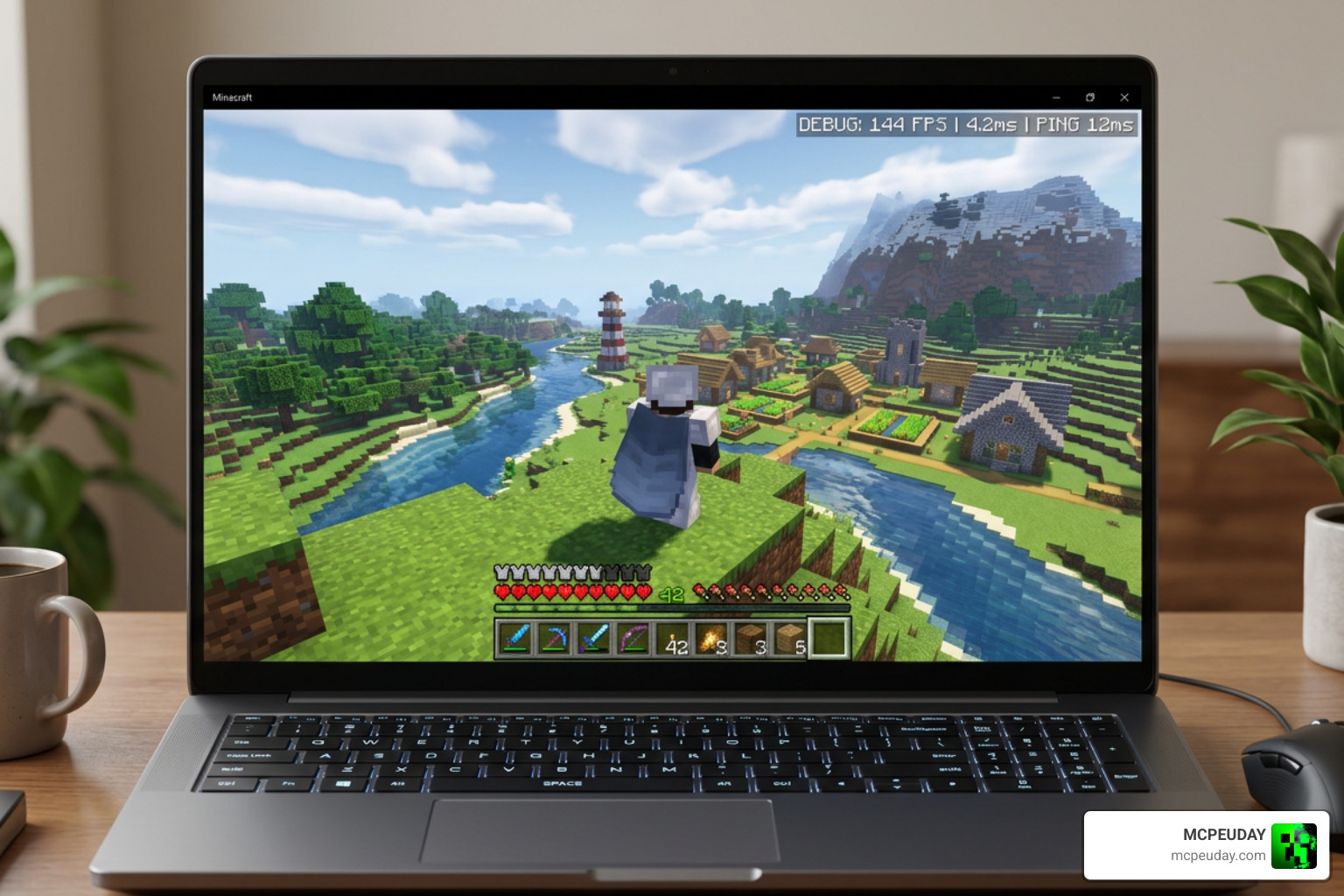
To get the best frame rates in Minecraft, we need to combine system-level optimizations with game-specific resource packs and lightweight shaders.
Minecraft Bedrock FPS Optimizer Packs
If you are playing on a mobile phone or a budget laptop, heavy textures and particle effects will quickly tank your frame rate. Installing an FPS Optimizer resource pack is the fastest way to fix this.
Popular packs like Vanilla x Optimizer combine the best performance features into a single, ultra-lightweight pack. These optimization packs improve your game’s performance by:
- Removing Heavy Effects: Disabling thick render-distance fog and heavy particles (like smoke, rain, and explosions).
- Cleaning Up Textures: Simplifying block textures to 16×16 resolution without losing the classic Minecraft style.
- Trimming Animations: Disabling unnecessary background animations for items and blocks to free up CPU cycles.
To take your visual performance even further without sacrificing your frame rate, check out our Newb X Super Vanilla Shader Guide, which shows you how to keep that classic look while enjoying smooth, optimized gameplay.
Lightweight Shaders for Low-End Devices
Many players believe that shaders are only for high-end gaming rigs. Fortunately, that is no longer true! With the right lightweight shader, you can enjoy realistic lighting, moving water, and beautiful skies on budget hardware.
If you are using a low-end phone or tablet, we highly recommend reading our Newb X Lowres Renewed Shader Guide. This shader is specifically designed to deliver gorgeous, realistic graphics while keeping your device cool and your frame rate high.
Another fantastic option is detailed in our Newb X Amethyst Shader Guide, which balances beautiful, warm lighting with incredible performance optimizations for everyday survival gameplay.
Frequently Asked Questions About Game Performance
Are performance boosters safe to use?
Yes, reputable performance boosters are completely safe to use. However, you should always make sure the tool you are using has a built-in backup and system restore feature.
Additionally, high-quality optimizers do not modify game files or inject code into your games, meaning they are 100% safe and compatible with anti-cheat systems like Easy Anti-Cheat, BattlEye, and Vanguard.
Can software reduce network ping and latency?
Yes! Many advanced optimizers include network tools that perform TCP/IP tuning.
By disabling Nagle’s Algorithm, optimizing your MTU settings, and switching your system to fast, public DNS servers (like Cloudflare or Google), these tools can reduce packet loss and lower your in-game ping by 10 to 30 milliseconds.
Do I need to upgrade my hardware for better frame rates?
Not necessarily. Before spending money on new hardware, you should check for system bottlenecks.
If your GPU’s VRAM is maxed out or your CPU is hitting 100% usage due to background tasks, an FPS Optimizer can free up enough resources to make your games playable. However, if your hardware is several generations old, a physical upgrade (like adding more RAM or switching to an SSD) will offer the most noticeable long-term difference.
Conclusion
Improving your gaming performance doesn’t have to be a headache. Whether you are using a system-wide FPS Optimizer to clean up background processes on your PC, or installing lightweight resource packs to boost your frame rates on mobile, a few simple tweaks can completely transform your gaming experience.
At MCPEUDAY, we are dedicated to helping you get the absolute most out of your hardware. If you are ready to make your Minecraft world look beautiful without sacrificing your hard-earned frames, dive into our curated collection of performance-friendly visual upgrades over at the MCPEUDAY Shaders Category. Happy gaming!
2 thoughts on “FPS Optimizer | FPS Boost for Minecraft (26.x, 1.21) – MCPE/Bedrock ”