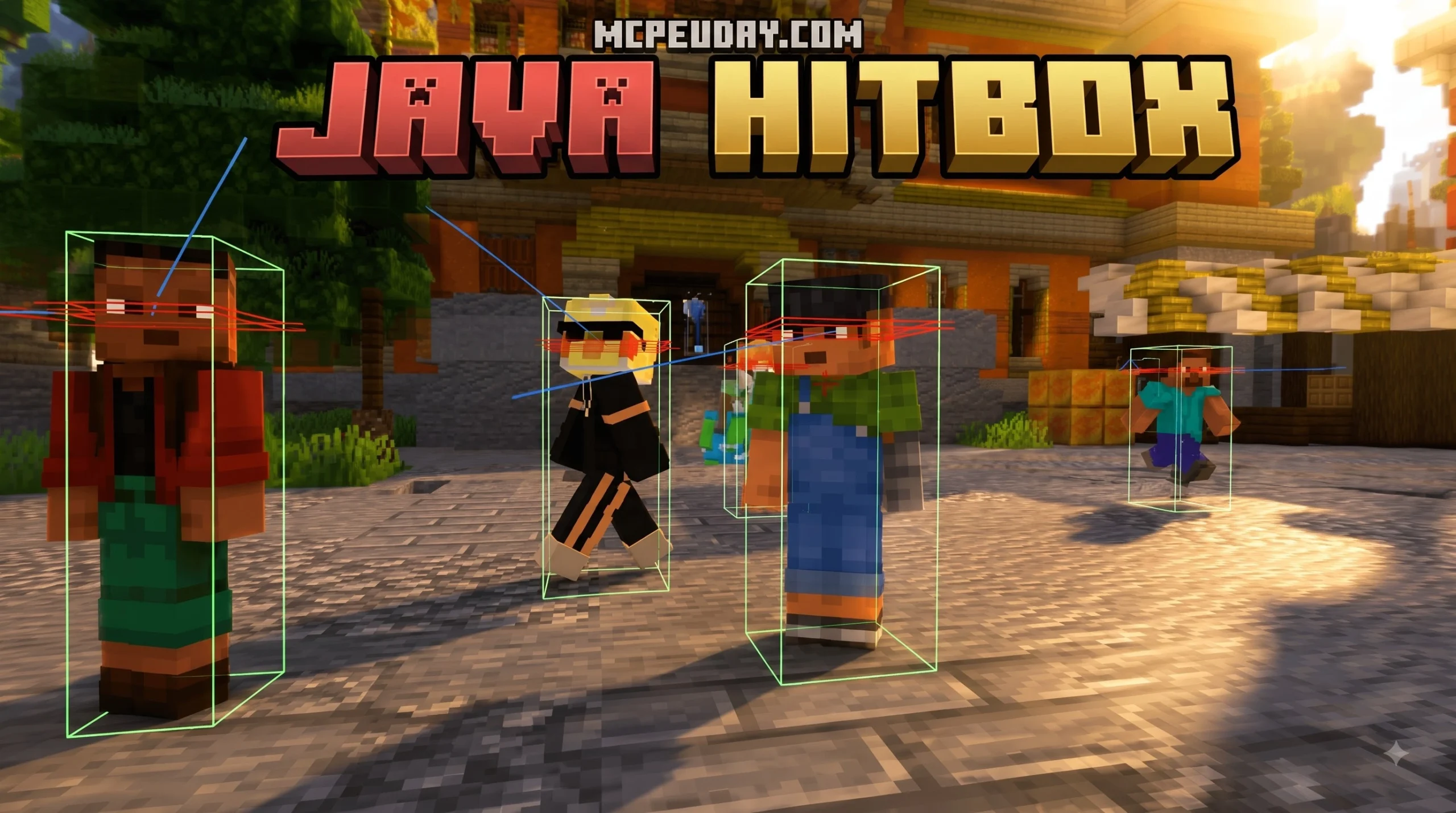
Why a Java Hitbox Addon Changes Everything About Minecraft Precision
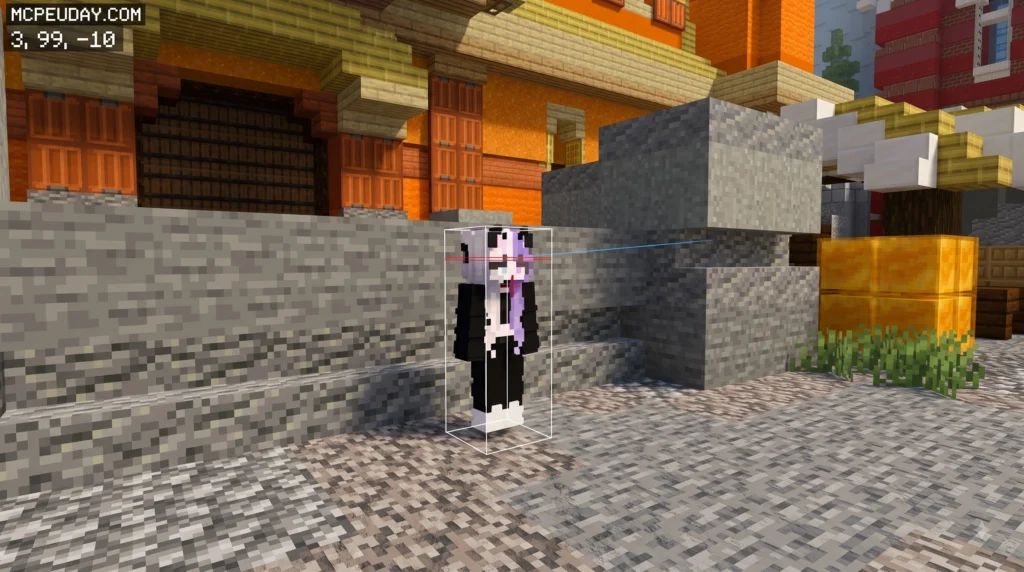
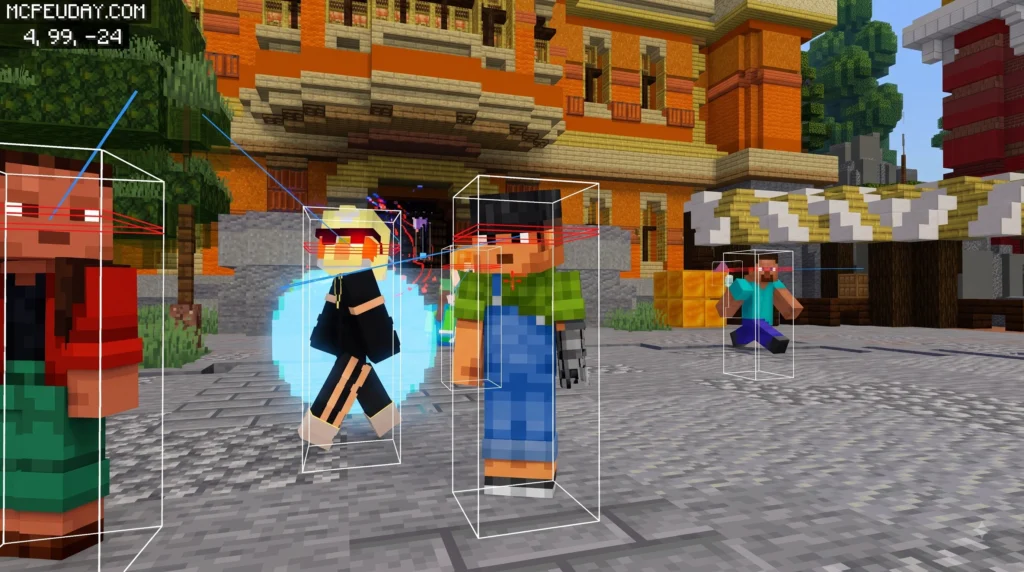
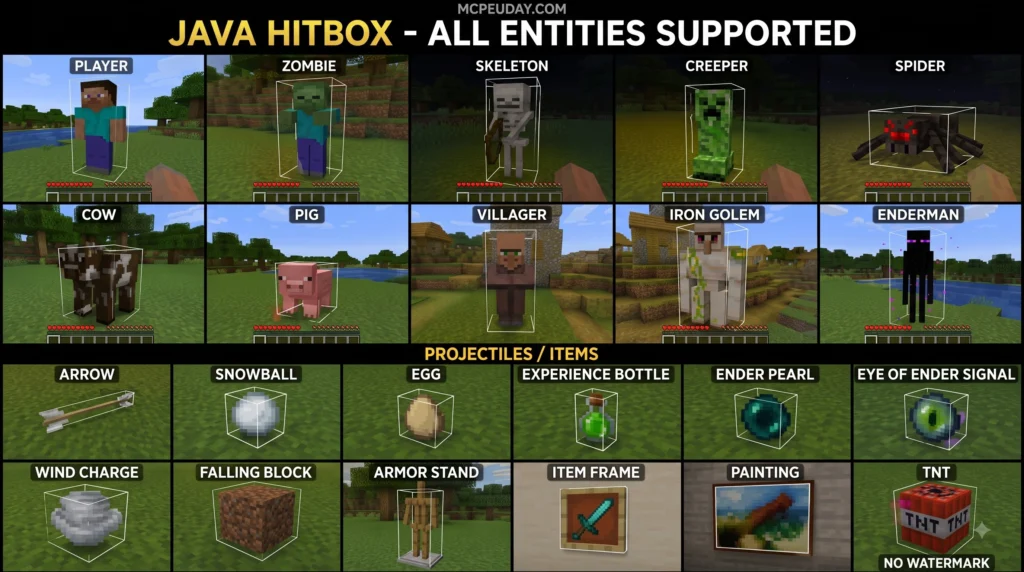
A Java hitbox addon gives you the power to see, customize, and control the invisible collision boxes that govern every single interaction in Minecraft — from whether an arrow hits a Ghast to whether a mob escapes your farm.
Quick Answer: What does a Java hitbox addon do?
- Visualizes invisible bounding boxes around entities and blocks
- Replicates Java Edition hitbox precision in Bedrock/MCPE worlds
- Enables custom collision shapes for player-made models and NPCs
- Improves PVP accuracy, mob farm efficiency, and line-of-sight mechanics
- Unlocks developer tools like interactive bones, mount systems, and damage detection
Most players never think about hitboxes — until something goes wrong. An arrow flies straight through a mob. A villager escapes a pen with no obvious gap. A skeleton shoots you through a wall. These all come down to invisible geometry that Minecraft uses behind the scenes.
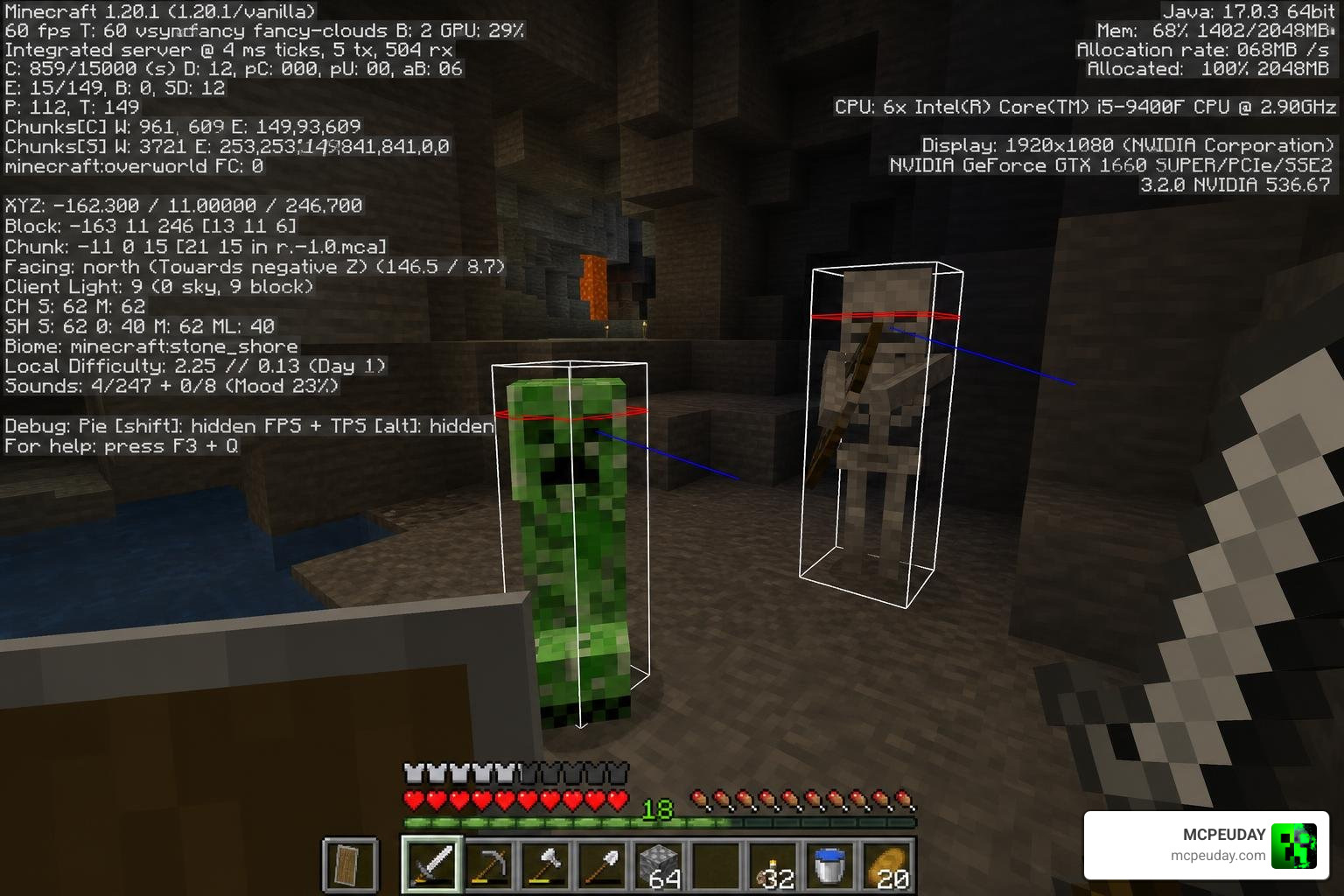
In Java Edition, you can press F3 + B to reveal these boxes instantly. You’ll see white outlines around every entity, red rectangles showing eye height, and blue lines showing which direction a mob is facing. But on Bedrock and MCPE, that shortcut simply doesn’t exist without an addon.
That gap is exactly why the Java hitbox addon concept matters so much to the Minecraft community right now.
I’m UDAY GAMER, and in this guide I’ll walk you through everything you need to know — from the core mechanics to a step-by-step setup — so you can bring Java-level hitbox precision to any version of Minecraft.
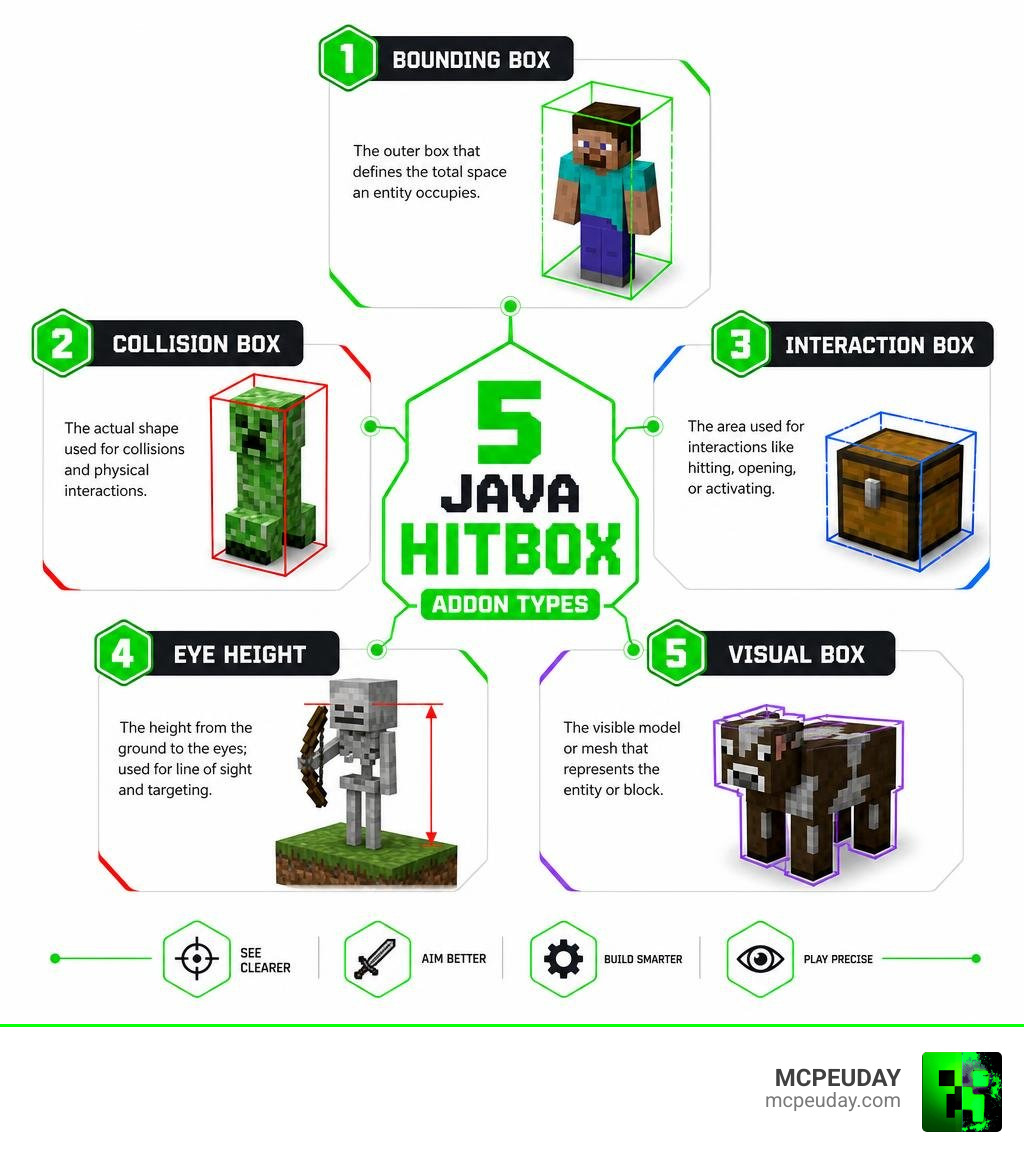
Understanding Minecraft Hitbox Mechanics and Types
To master collision precision, we must first understand the hidden shapes that guide our blocks and entities. Hitboxes are not just simple squares; they are divided into several specialized functional zones.
- Bounding Box: The outermost boundary of an entity. This is the white box you see when debugging. It dictates where the entity exists in the world space.
- Eye Height: Marked by a red line or box, this determines where the entity’s point of view originates. It controls line-of-sight checks and where projectiles are fired.
- Passenger Attachment Point: A specific coordinate offset within an entity’s bounding box that determines exactly where a riding passenger (like a player on a horse) sits.
- Collision Box: The physical boundary that blocks movement. It prevents you from walking through walls or solid entities.
- Interaction Box: The boundary used for targeting. When you look at a block or entity to attack, open, or mine it, your crosshair highlights this box.
- Auxiliary Interaction Box: Used for complex blocks like hoppers, cauldrons, and composters. It alters the direction of block interaction without changing its physical position.
- Visual Box: Determines if a block blocks line of sight. For example, transparent blocks like glass have empty visual boxes to ignore line-of-sight checks, while leaves and barrier blocks have full visual boxes.
- Particle Collision Box: Governs how external forces like smoke or splash potions interact with the block. For instance, roughly 71.9% of campfire smoke particles will pass through a solid block placed directly above it due to specialized particle boundaries.
Understanding these boundaries is crucial, especially when evaluating Minecraft Java vs Bedrock mechanics, as both versions calculate these zones with slight differences.
What is a Hitbox and How Does It Differ From Models?
It is common to confuse a visual model with its physical hitbox. An entity model is the 3D texture and shape you see on your screen, made of polygons and pixels. A hitbox, however, is a purely mathematical boundary used by the game engine to calculate physics, attacks, and positioning.
While a visual model can have complex animations, flowing capes, or waving arms, the server only processes the rigid, invisible mathematical boxes. If a custom boss sweeps its giant physical sword visual model across your screen, you won’t take damage unless its underlying collision box actually intersects with your player bounding box.
Block and Entity Hitbox Variations by State
Hitboxes are dynamic. Many blocks and entities change their collision sizes based on their current state or age:
- Pufferfish: A fully puffed pufferfish expands its bounding box drastically compared to its unpuffed state.
- Player States: A normal player has a height of 1.8 blocks and a width of 0.6 blocks. When sneaking, the height drops to 1.5 blocks. When crawling or swimming, it shrinks further. If a player is sleeping, the hitbox becomes a tiny 0.2 by 0.2 block square, making them nearly impossible to target.
- Slimes and Magma Cubes: Bounding boxes scale proportionally to their size attribute.
Here is a quick comparison of how some common blocks differ in their physical collision versus their targeting interaction limits:
| Block Type | Collision Box Dimensions | Interaction Box Dimensions |
|---|---|---|
| Fence | 1.5 blocks high (prevents jumping) | 1.0 block high |
| Slab (Single) | 0.5 blocks high | 0.5 blocks high |
| Daylight Sensor | 0.375 blocks high | 0.375 blocks high |
| Campfire | 0.5 blocks high | 0.5 blocks high |
Java Edition vs Bedrock Edition Hitbox Differences
Achieving true crossplay parity in 2026 is a major goal for many server owners. However, the default differences between Java and Bedrock engine physics can make gameplay feel inconsistent.
For example, a simple chicken has a height hitbox of 0.7 blocks in Java Edition, but measures 0.8 blocks tall in Bedrock Edition. This minor 0.1-block difference can break automatic chicken farms designed on Java when built on a Bedrock server.
Furthermore, Bedrock lacks the native F3 + B debug shortcut. If you want to know Is Mobile Minecraft Java or Bedrock for your device, mobile platforms run Bedrock, which means you cannot view hitboxes natively.
To bridge this gap, players often rely on external guides like How To Get A Java Hitbox Client on MCPE! (1.17+) – Minecraft Bedrock … to load custom resource packs and visualizers.
How to Install and Configure a Java hitbox Addon
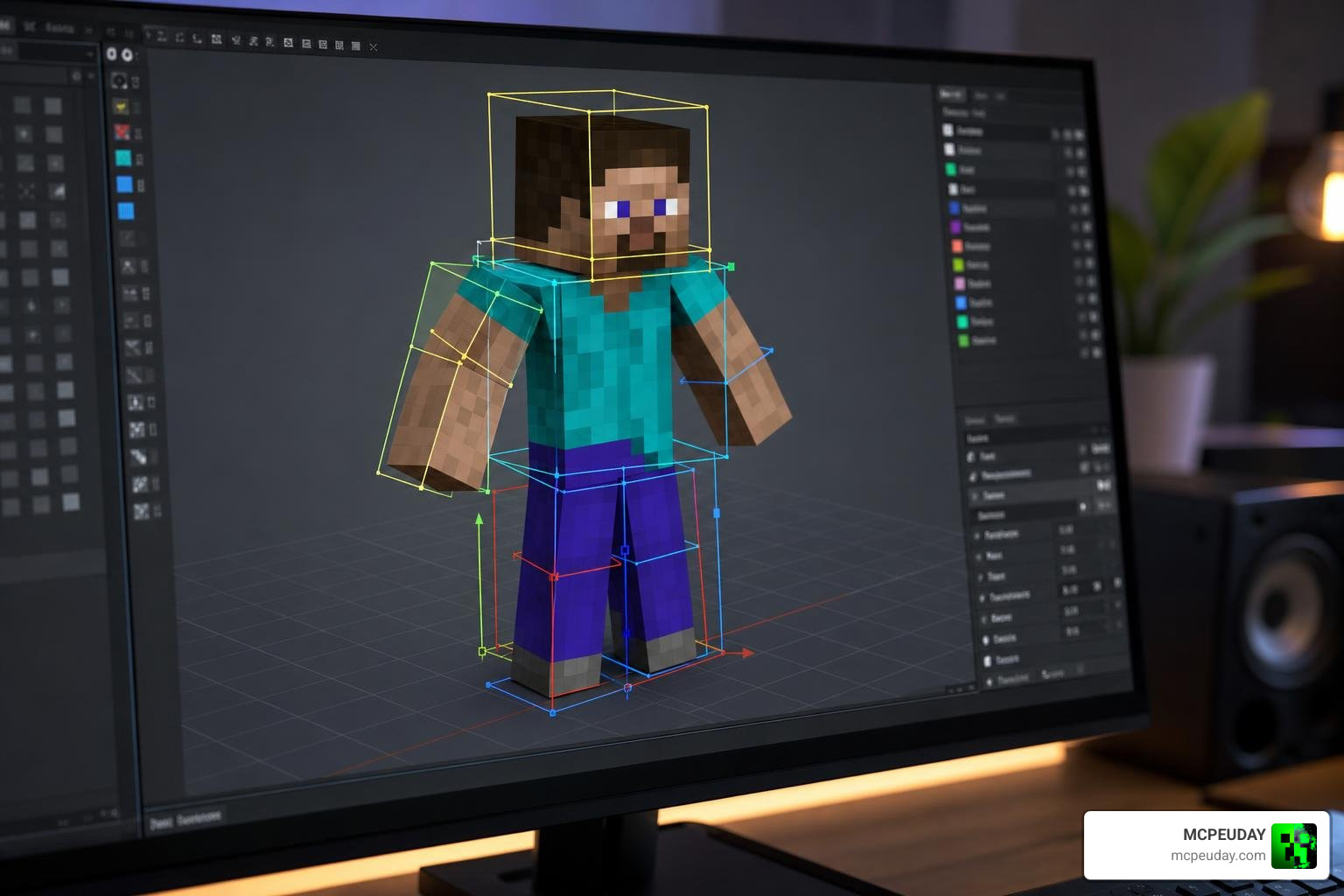
Whether you want to improve your PVP accuracy or develop custom models for your server, installing a Java hitbox addon is the best way to gain precise control. If you are playing on Bedrock, you can combine this with tools like the Java Combat Addon 26.x for MCPE Best PVP Combat Mod to get a highly responsive combat system.
Here is our step-by-step developer guide to configuring custom hitboxes.
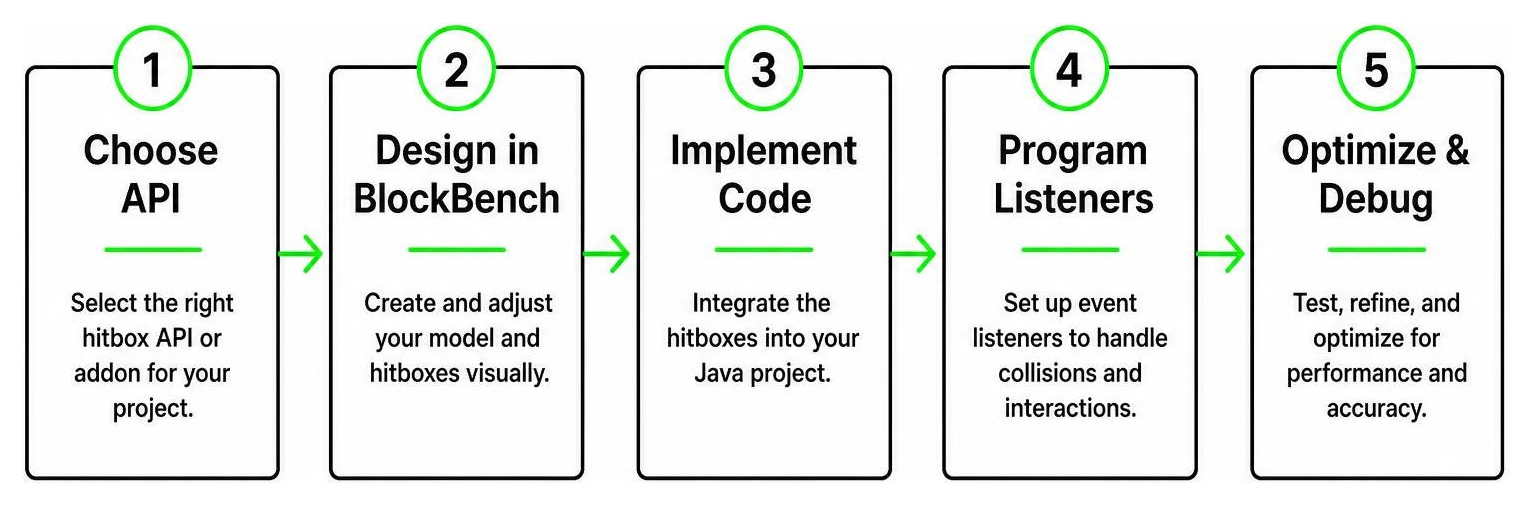
Step 1: Choose Your Java hitbox Addon or API
For Java Edition developers, the standard Axis-Aligned Bounding Box (AABB) can feel limiting. If you want advanced shapes, we recommend using the AnECanSaiTin/HitboxAPI for NeoForge. This API supports:
- Oriented Bounding Box (OBB)
- Sphere Colliders
- Capsule and Rotated Capsule Colliders
- Ray and Compound (Nested) Colliders
In terms of performance, standard AABB collision detection runs at an astonishing 3,561,837,865 operations per second (ops/s), while Sphere collisions run at 119,556,589 ops/s, and complex Oriented Bounding Boxes run at 5,528,493 ops/s. Choose the simplest shape that fits your needs to keep server performance smooth.
Step 2: Design Custom Hitboxes in BlockBench
Instead of guessing 3D coordinates in code, we can visually design them. The BlockBench plugin misieur/hitbox-utils is an incredible tool for this. It allows you to define three hitbox types:
- Entity-based: Uses invisible Shulkers riding Item Displays (highly recommended for Minecraft 1.21.2+ as Shulkers scale and render completely invisible) or Happy Ghasts.
- Block-based: Uses physical Barrier blocks for static structures.
- Interaction-based: Uses lightweight Interaction entities with custom width and height.
Once designed, the plugin exports a clean JSON file containing the relative coordinates and sizes, which you can easily parse using the Bukkit API.
Step 3: Implement the Java hitbox Addon Code
When using the BetterModel API, you can easily attach interactive boundaries to your model’s bones. To learn more about the setup, check out the official guide on Custom Hitboxes – BetterModel.
You can create hitboxes in two ways:
- Automatic Creation: Tag your model bones in BlockBench with the word “hitbox” or name the bone “hitbox”. The system will automatically generate an Interaction entity following that bone.
- Manual Creation: Use a BonePredicate in your Java plugin code to target specific bones (such as “head” or “chest”) and programmatically assign a hitbox with custom dimensions.
Step 4: Program Hitbox Listeners and Mount Controllers
Once your hitboxes are attached to your model bones, you need to make them do something! By implementing a HitBoxListener – BetterModel, you can listen for various player events:
- Interact Events: Detect when a player right-clicks a specific bone (like clicking a handle to open a chest).
- Damage Events: Track when a player attacks a bone (like headshot multipliers).
- Mount Events: Let players ride your custom model by binding a mount controller directly to a “seat” bone. The passenger can even control the model’s WASD movement, jump strength, and speed.
Step 5: Optimize Performance and Debug in Real-Time
Running dozens of custom entities as hitboxes can impact network traffic and server TPS. Follow these best practices to keep your game running smoothly:
- Visibility Control: Use the HitBox – BetterModel system to show or hide hitbox packets on a per-player basis. If a player is too far away to interact, hide the hitbox entity to save bandwidth.
- Caching: Cache your hitbox calculations using data attachments instead of recalculating positions every single tick.
- Visual Debugging: Always test your custom hitboxes in-game by pressing F3 + B to make sure the invisible Interaction entities align perfectly with your animations.
Advanced Game Mechanics Using Custom Hitboxes
Mastering hitboxes unlocks incredible gameplay possibilities:
- Damage Detection: The Ender Dragon is a classic example of complex geometry; it consists of nine distinct hitboxes flying in formation. An arrow hitting its wings or tail deals different damage than hitting its main body.
- Suffocation Tricks: Mobs suffocate if their head hitbox intersects with a solid block. You can design automated farms that exploit this by placing solid blocks at specific heights.
- Highly Efficient Farms: By using daylight sensors or slabs, you can block the line of sight of hostile mobs while keeping them visible to your collection systems. This is perfect for separating adult chickens from baby chickens due to their height differences.
- PVP and Combat Animations: If you want to make combat feel incredibly fluid and accurate, try pairing your custom hitboxes with the Better Combat Mod 1.21 Best Combat Animation Mod for Minecraft Java.
Frequently Asked Questions about Minecraft Hitboxes
How do you show hitboxes in Minecraft Java Edition?
You can easily toggle hitboxes on and off in Java Edition by pressing the F3 + B keys simultaneously. This will render a white box around all entities, a blue line showing their facing direction, and a red box indicating eye height.
Can you change hitbox sizes without mods?
Yes! In modern versions of Minecraft, you can scale entity bounding boxes using the minecraft:scale attribute command. Additionally, for specialized entities like Interaction entities, you can modify their width and height values directly using entity data commands.
Why does shooting a Ghast’s tentacles do no damage?
A Ghast’s visual model includes its long, dangling tentacles, but its actual physical bounding box does not extend down to cover them. Because the tentacles are excluded from the hitbox, arrows passing through them do not register as hits.
Conclusion
Mastering the invisible world of hitboxes is the ultimate way to bring professional precision to your Minecraft worlds. Whether you are optimizing a technical mob farm, configuring custom interactive furniture, or looking to improve your PVP accuracy, a Java hitbox addon bridges the gap and gives you complete control over your game’s physics.
If you want to take your gameplay even further, we highly recommend checking out our other popular gameplay addons:
- Improve your combat mechanics with the Raiyons Java Combat Addon
- Add dual-wielding capabilities with the Doublehands Functional Offhand Like Java Addon
- Match Java’s health mechanics with the Java Saturation Regeneration Addon
- Clean up your menus using the Java Desktop UI Pack
Looking to add some thrills to your next world? Explore our curated list of the Best Minecraft Horror Mods for Java & Bedrock 2026 Guide and download them today on MCPEUDAY!