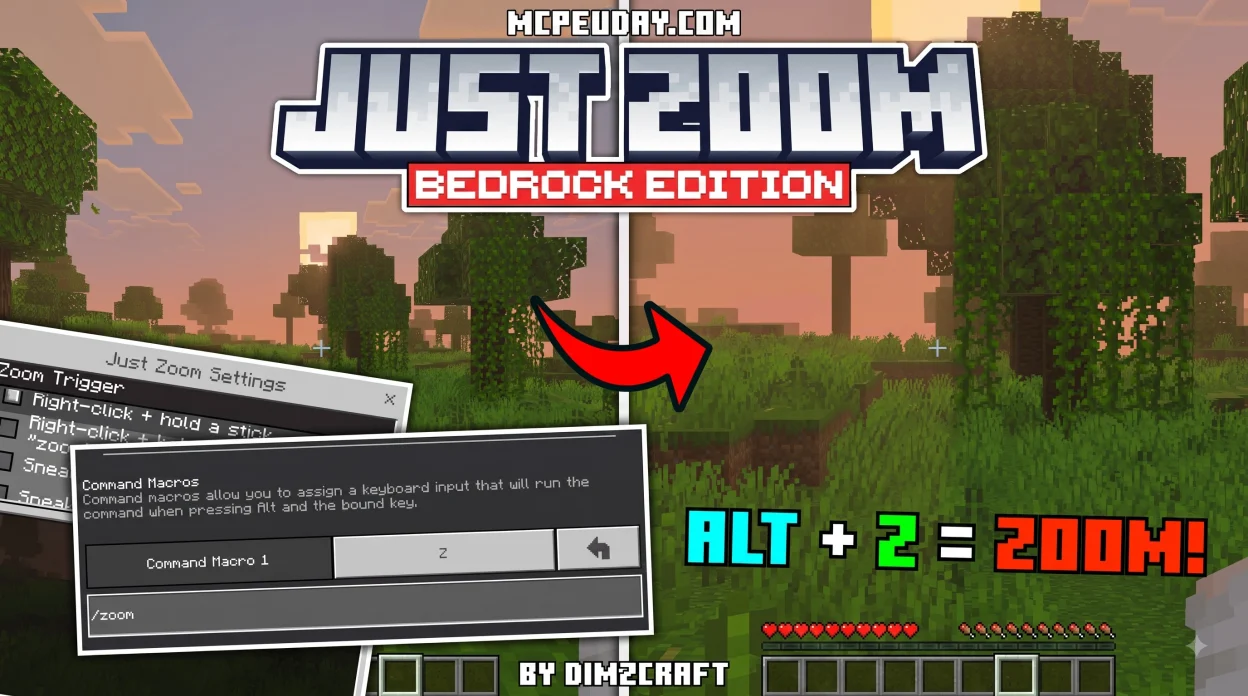
To get the Just Zoom Addon for Minecraft PE/Bedrock, download the official .mcaddon installation package to your mobile device, console, or PC, open or tap the downloaded file to automatically import it into Minecraft, and activate the addon under both the Resource Packs and Behavior Packs menus in your world settings.
What Is the Just Zoom Addon for Minecraft PE/Bedrock?
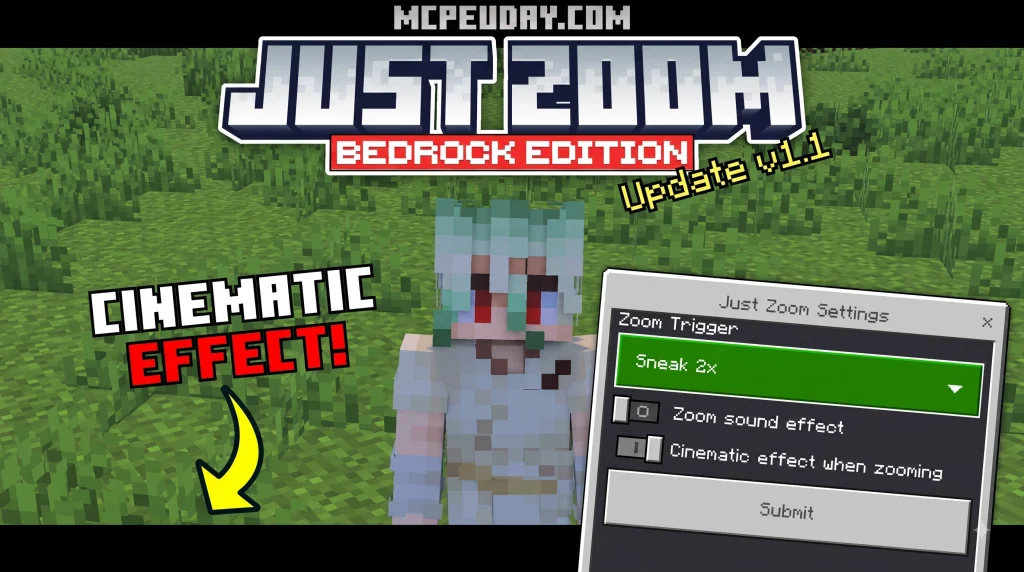
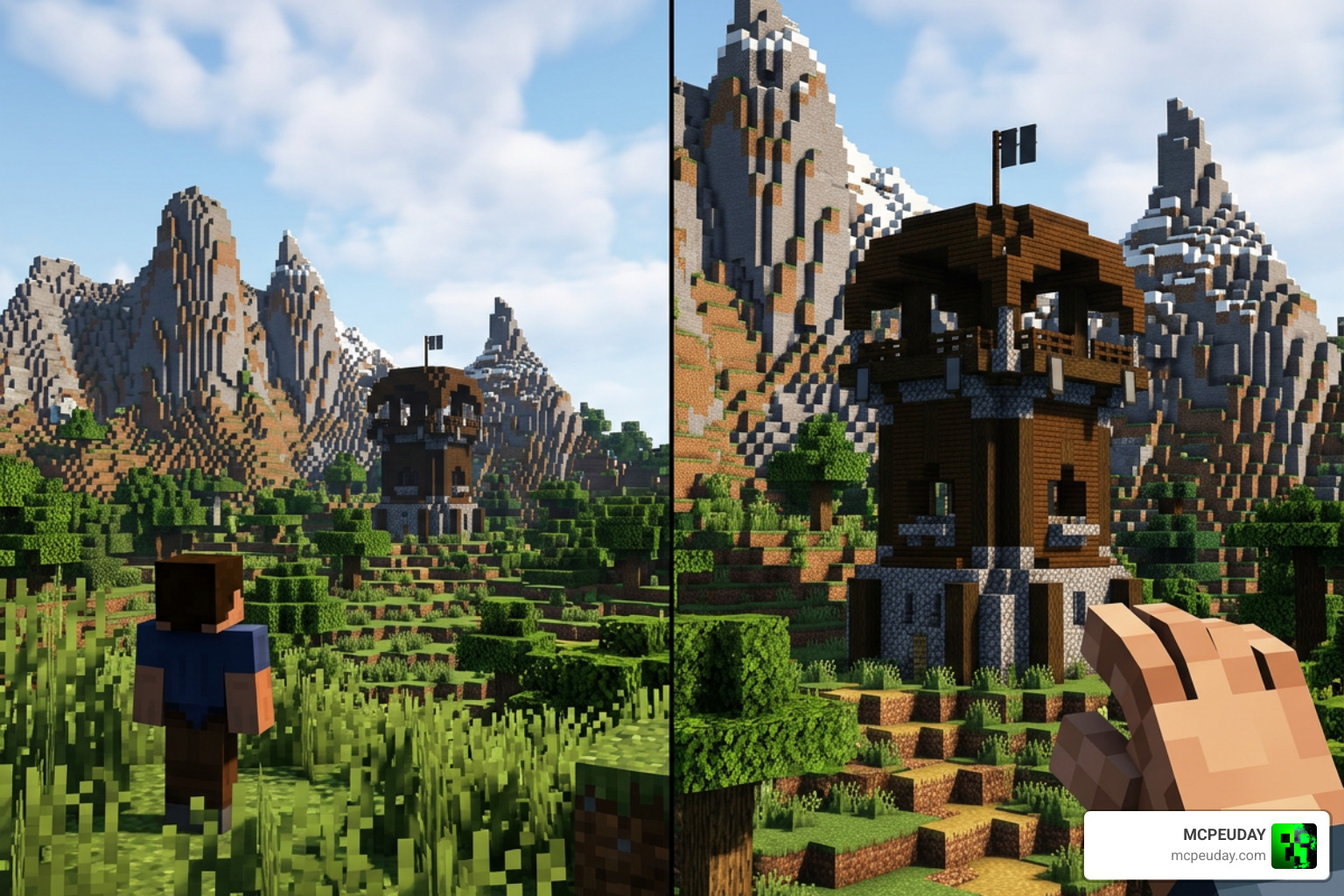
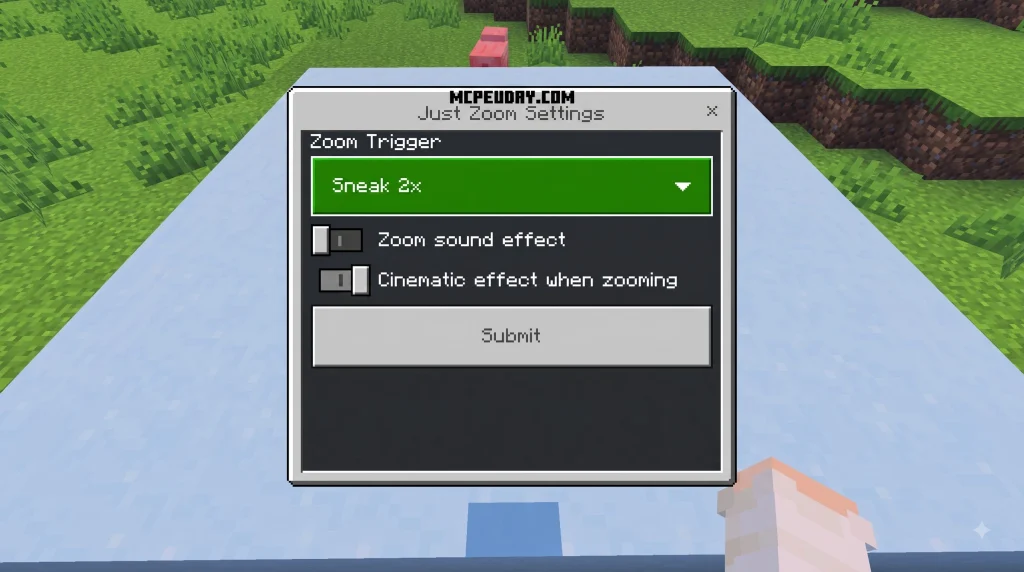
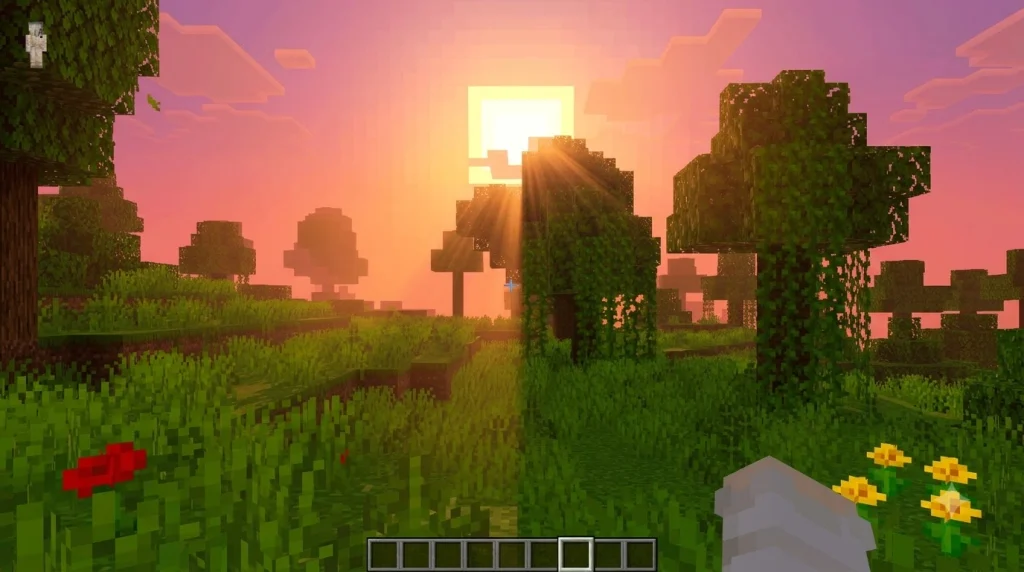
The core appeal of this tool is pure simplicity: it delivers seamless, spyglass-free magnification right into your field of view (FOV). In standard Minecraft Bedrock Edition, checking a distant mountain peak or scouting for hostile mobs requires you to locate copper ingots and an amethyst shard, craft a spyglass on a crafting table, and dedicate an active hotbar slot to it whenever you travel. This takes up valuable inventory space and slows down high-speed exploration across survival landscapes.
This utility changes that dynamic entirely. Because it operates purely as a gameplay enhancement, it introduces no unnecessary blocks, clutter items, or heavy entity models to your world. Your hotbar stays free for essential tools, food, armor, and weapons. Whether you are scouting a treacherous Nether fortress across vast lava oceans, spotting distant pillager outposts, or evaluating architectural silhouettes during massive survival builds, the tool shifts your FOV instantly so you can focus on the details that matter.
Key Features of the Just Zoom Addon for Minecraft PE/Bedrock
- Dynamic FOV Scaling: Transition your perspective smoothly to scout terrain or observe mob behavior from a safe distance without sudden screen snapping.
- Pure Quality of Life Utility: Enjoy instant magnification without sacrificing inventory slots for craftable viewing items or decorative equipment.
- Lightweight Script Architecture: Built using optimized Bedrock scripts that produce zero noticeable lag or frame drops, even on low-end mobile devices and budget smartphones.
- Client-Friendly World Integration: Integrates into individual worlds or dedicated Realm setups cleanly without breaking vanilla survival mechanics or achievements unnecessarily.
- Versatile Input Support: Designed specifically to handle touch controls, physical gamepads, and physical keyboards seamlessly across all supported Bedrock platforms.
- Customizable Magnification Levels: Adjust your viewing depth to accommodate fine precision building, scouting, or wide-angle tactical surveying during combat encounters.
Bedrock vs Java Edition Versions
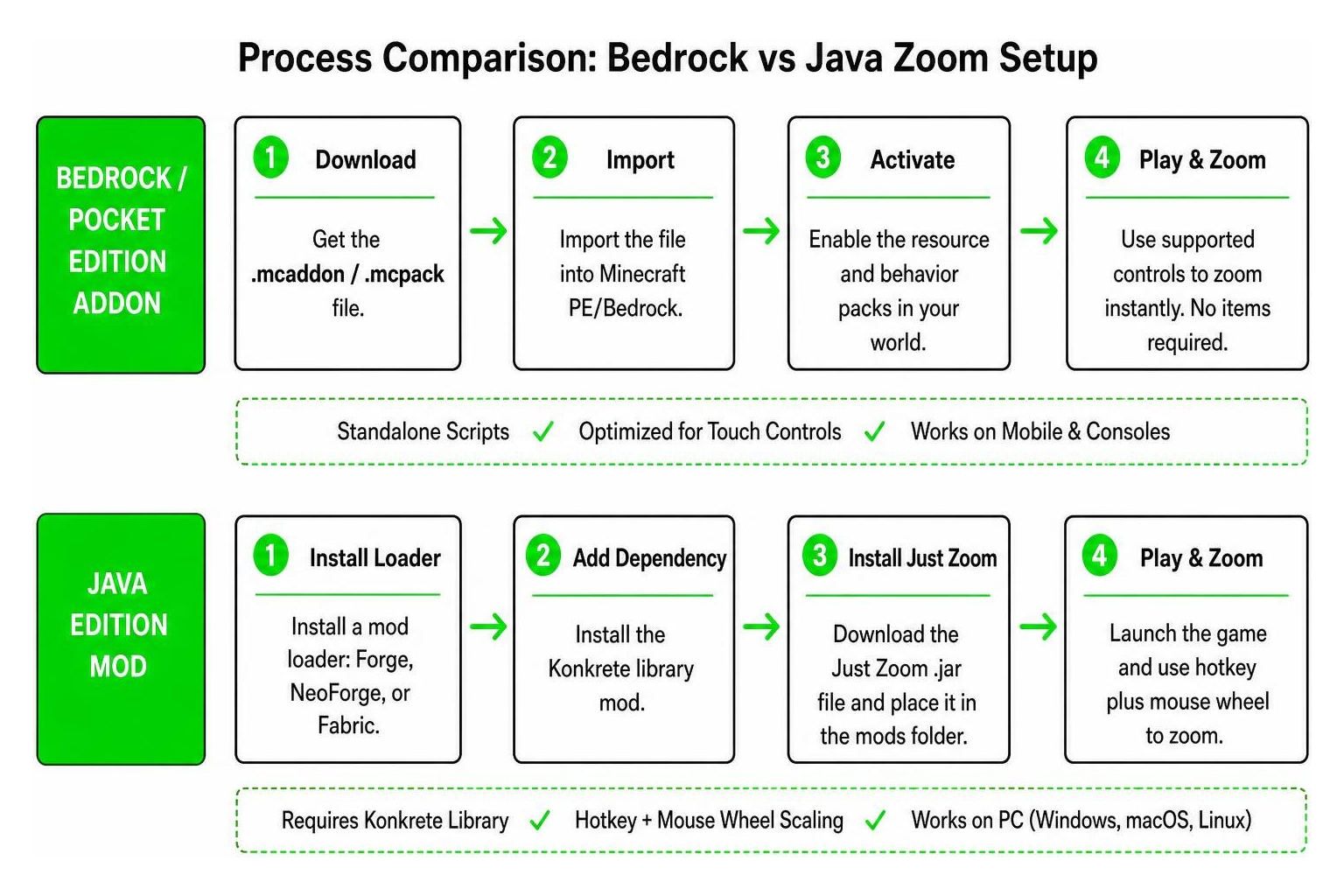
While both editions share the goal of giving players a smooth zoom tool, their technical backends differ significantly. On the Java side, the modification runs through mod loaders like Forge, NeoForge, or Fabric and typically relies on external companion libraries such as Konkrete to handle mouse-wheel scaling and complex rendering hooks.
By contrast, the Bedrock and Pocket Edition version uses lightweight .mcaddon or .mcpack files containing resource and behavior scripts tailored for touchscreens and mobile architecture. You do not need Java runtime environments, external mod loaders, or secondary library dependencies to run it.
| Feature / Aspect | Bedrock / Pocket Edition Addon | Java Edition Mod |
|---|---|---|
| File Format | .mcaddon / .mcpack | .jar |
| Required Dependencies | None (standalone scripts) | Konkrete library mod |
| Primary Controls | Double sneak, joystick hold, chat commands | Hotkey + mouse wheel scaling |
| Platform Target | Android, iOS, Windows, Consoles | Windows, macOS, Linux |
| Inventory Requirement | Zero items required | Zero items required |
| Installation Complexity | One-tap direct import | Mod loader directory management |
How to Download and Install the Just Zoom Addon
Setting up the addon in your game is straightforward and takes less than two minutes across all supported devices.
- Download the latest
.mcaddonfile to your mobile device, tablet, or Windows PC. - Tap or double-click the downloaded file to launch Minecraft automatically and begin the import process.
- Wait for the in-game notification confirming that the pack import was successful.
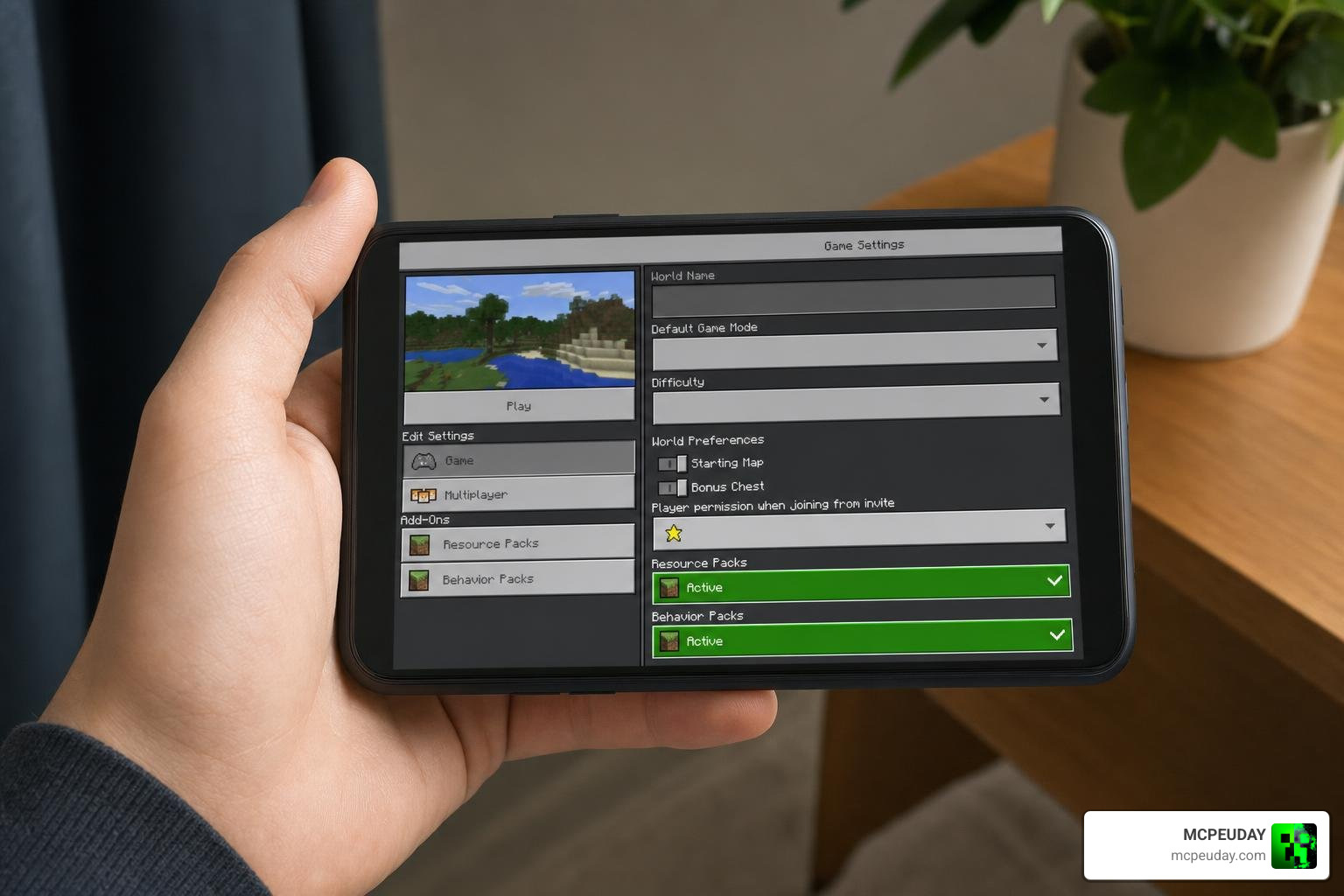
- Open Minecraft, head into your World Settings (or create a new world), and scroll down to the Resource Packs and Behavior Packs sections on the left menu.
- Select the addon under Available Packs and click Activate in both sections.
- Close and restart your Minecraft client completely to ensure scripts and UI resources initialize cleanly.
Before importing any addon, make sure the file extension remains .mcaddon or .mcpack. If your browser renames the download into a compressed archive, do not extract or rearrange the internal folders unless the pack instructions specifically tell you to do so. Bedrock reads the manifest files during import, and changing folder names can prevent Minecraft from recognizing the behavior or resource components. It is also a good habit to back up an important survival world before activating new scripts, especially if you are testing multiple addons in the same world.
If the import fails, check that Minecraft is fully updated, your device has enough free storage, and file permissions are enabled for Minecraft and your file manager. On Windows, double-clicking the package should open the Minecraft app directly; if it does not, right-click the file and choose Minecraft from the open-with menu. After activation, enter the world once, exit to the main menu, and reload it if the first session does not show the zoom behavior immediately.
Installing the Just Zoom Addon for Minecraft PE/Bedrock on Mobile
On mobile platforms, mobile file managers make importing seamless across both major operating systems. On iOS, open the Files app, locate the .mcaddon file in your downloads folder, and tap it; iOS will offer to open it directly with Minecraft. On Android, open your preferred file browser or downloads manager, tap the file, and select Minecraft as the default application to launch the package.
Targeting modern Pocket Edition updates, such as Minecraft Pocket Edition 26.x and higher, this one-click import ensures all scripts bind correctly to your mobile world. If the zoom behaves inconsistently on your initial launch or gestures fail to register, a quick client cache refresh via the in-game storage settings resolves it immediately. Always verify that your active world allows custom behavior scripts to run without permission restrictions.
How to Activate and Configure Zoom Controls on Mobile and PC
Because Bedrock spans mobile phones, tablets, consoles, and computers, input flexibility is crucial for a comfortable gameplay experience.
Mobile Touch Controls: Double Sneaking and Joystick Hold
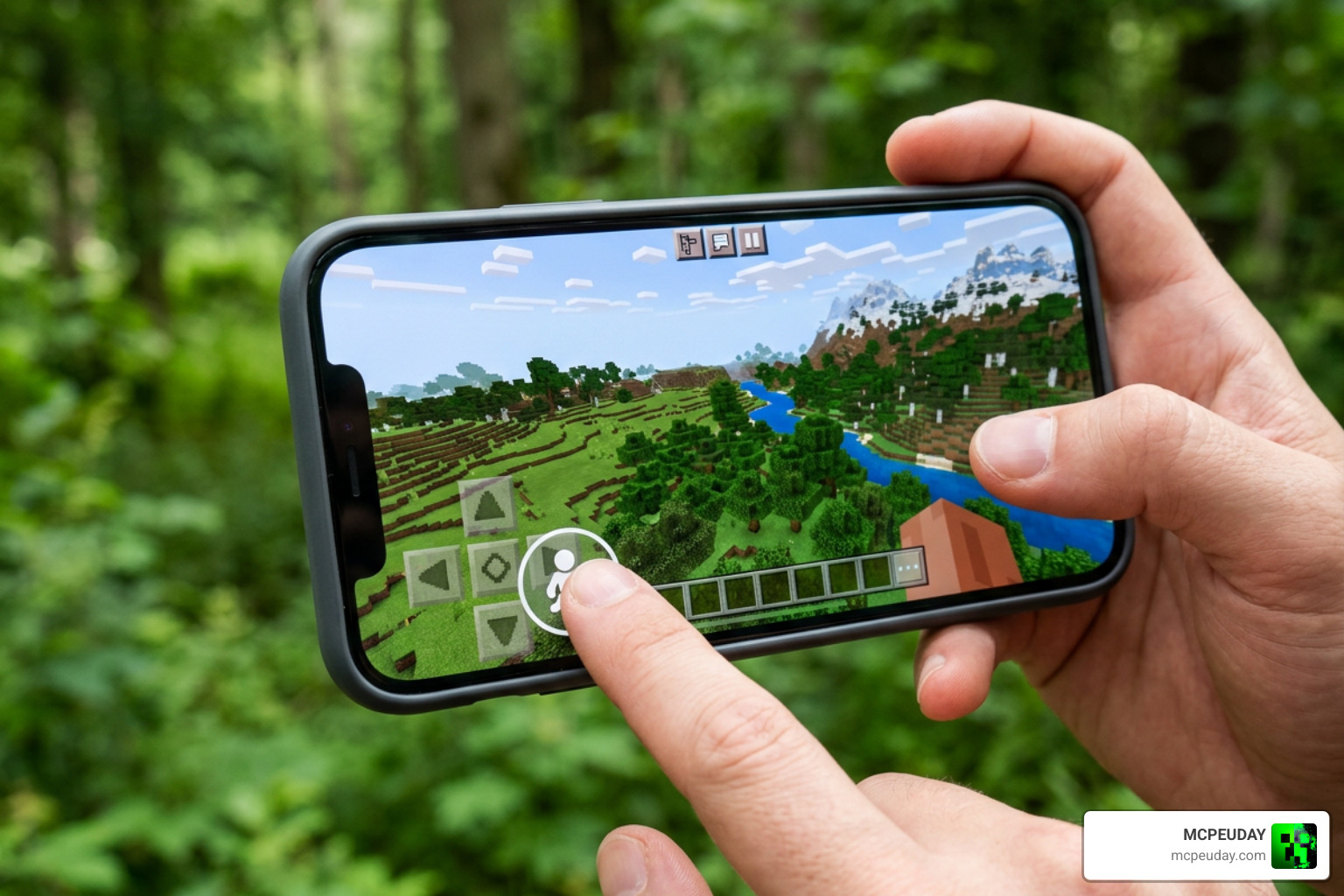
Mobile touchscreens lack physical hotkeys, so the addon utilizes intuitive touch gestures that integrate cleanly with standard on-screen layouts:
- Double Sneaking: Rapidly tapping the sneak (crouch) button toggles your zoom focal length, letting you lock onto distant views while standing in place or inspecting specific construction angles.
- Joystick Hold: Holding the virtual movement joystick in an extended position triggers zoom magnification, making it easy to survey the landscape as you move across plains and hills without breaking stride.
- Touch Panning: While zoomed in, standard screen drag controls maintain their precision, allowing you to pan across structures or track distant entities smoothly.
These gestures ensure your HUD stays clean without cluttering your screen with extra floating buttons that obscure your view.
Keyboard, Controller, and Chat Command Settings
If you connect a gamepad controller or play on a keyboard-equipped device like a PC or tablet with peripheral support, you can bind custom keys and macros directly. Furthermore, the addon features built-in chat commands for rapid configuration:
- Type configuration commands into the in-game chat bar to adjust zoom sensitivity, focal strength, and magnification speed.
- Toggle between snap-zoom and smooth dynamic transitions depending on your visual preference and hardware capabilities.
- Reset zoom multipliers instantly if you need a wider field of view for combat situations, mob raids, or close-quarters cave exploration.
- Configure controller triggers or secondary button layouts through the Bedrock controller remapping menu for single-button activation.
Frequently Asked Questions
Does the Just Zoom addon require experimental gameplay settings?
Most modern versions of the addon run on standard script APIs. However, if your specific world uses custom script features or beta APIs, toggling on Beta APIs in your world’s Experimental Settings guarantees stable execution and prevents gesture input lag.
Can you use Just Zoom on multiplayer servers and Realms?
Yes. When installed into a Realm or local multiplayer world by the host, connected players can take advantage of the zoom functionality without triggering anti-cheat flags, as it alters camera FOV rather than player movement physics or speed attributes.
How do you adjust the zoom level sensitivity on mobile?
You can tweak zoom sensitivity directly using the addon’s chat command parameters. This allows you to set custom FOV multipliers to make the magnification subtle for building alignment or deep for distant scouting across massive biomes.
Will the addon cause performance drops or battery drain on mobile?
No. Because the addon relies on lightweight camera manipulation scripts rather than continuous entity rendering or heavy particle effects, it consumes minimal system memory and will not cause thermal throttling or accelerated battery drain on mobile phones.
Conclusion
The Just Zoom utility eliminates the hassle of crafting and carrying a spyglass, giving mobile and console players the fluid camera controls PC players have enjoyed for years. Its lightweight design ensures zero lag and maximum convenience across survival worlds, creative projects, and multiplayer sessions.
For more helpful utilities, visual upgrades, and survival tools, explore our extensive Minecraft mods and addons collection to upgrade your Bedrock experience.