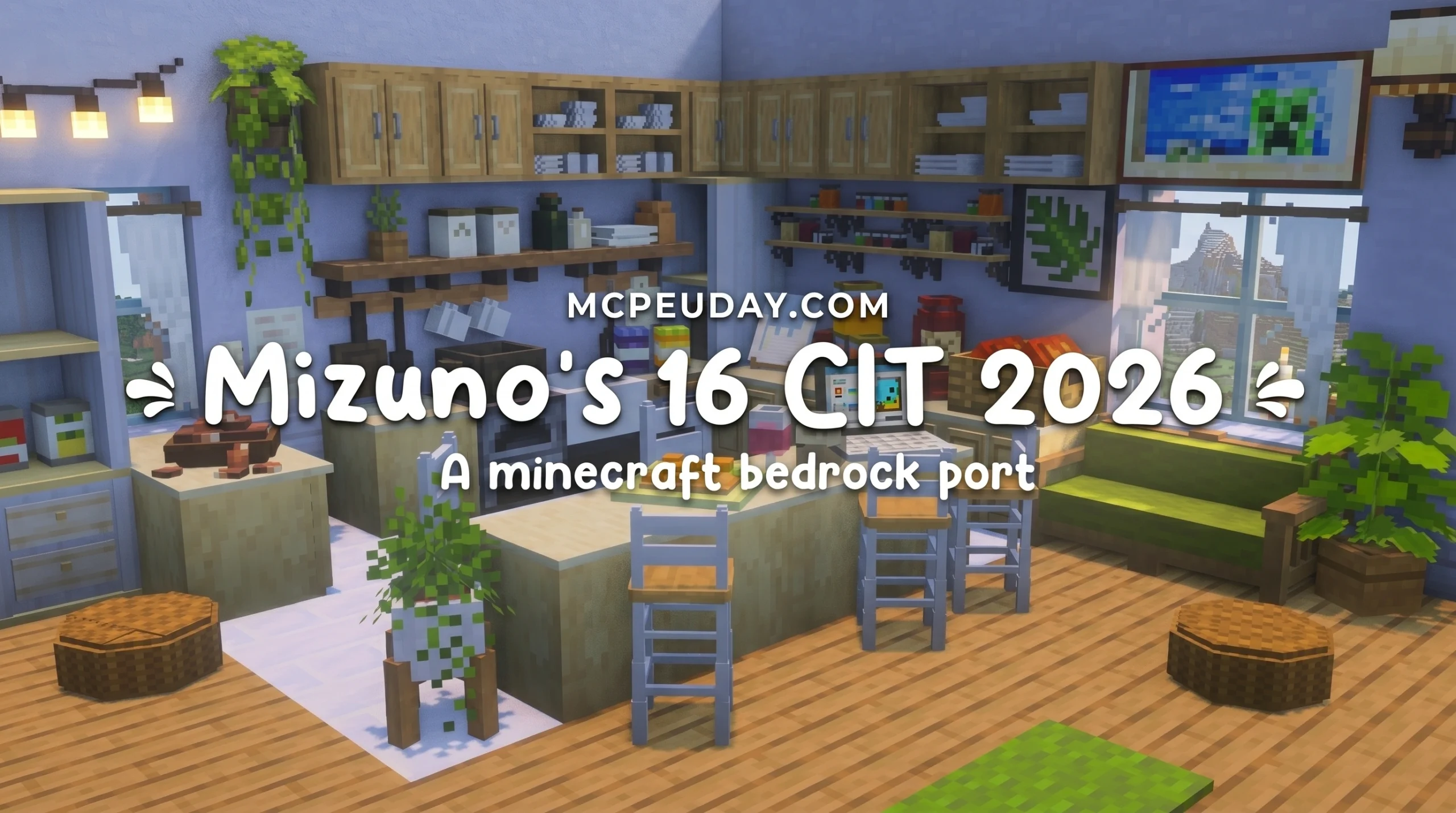
What the Mizuno’s 16 CIT Addon Does and Why Players Love It
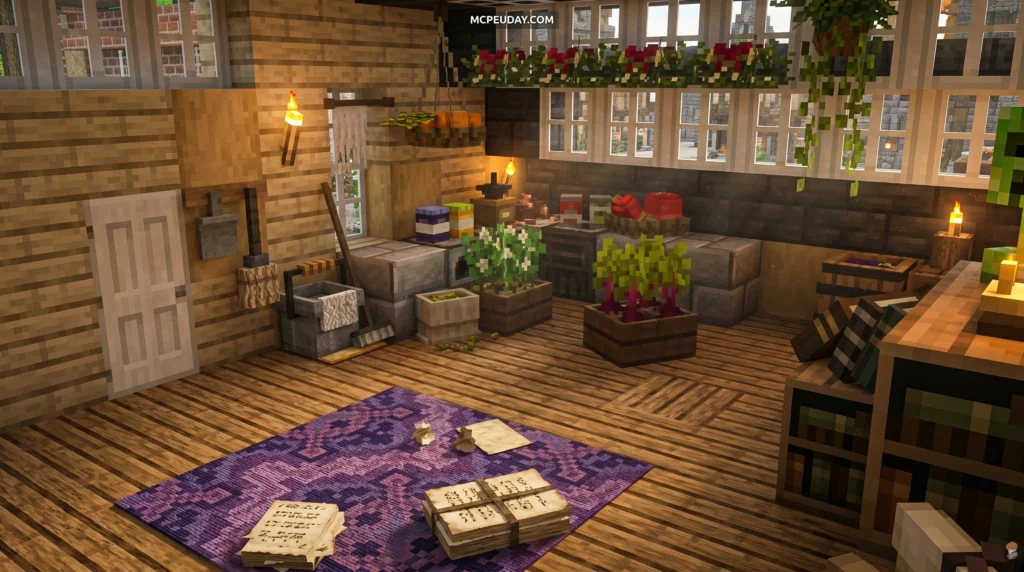
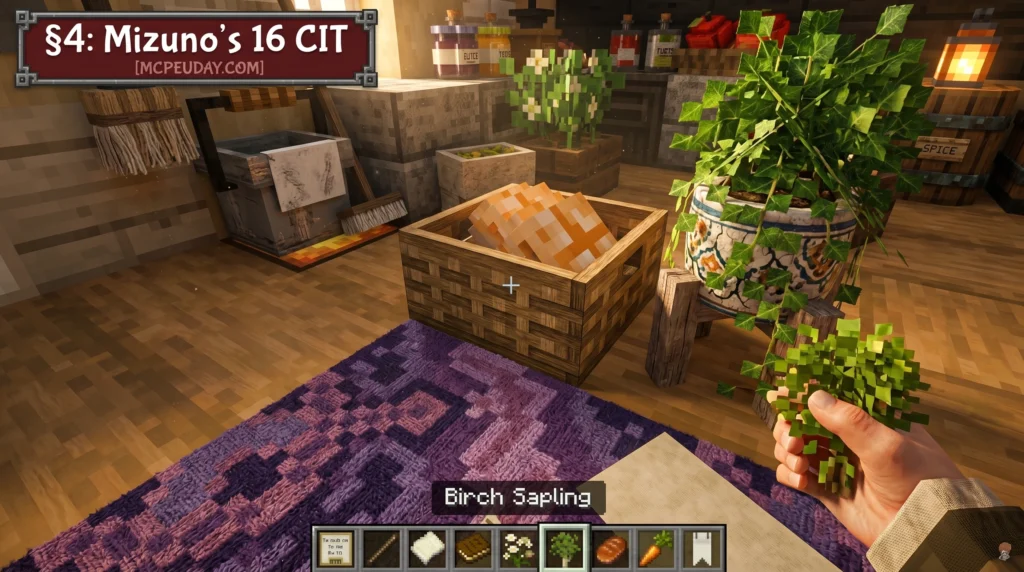

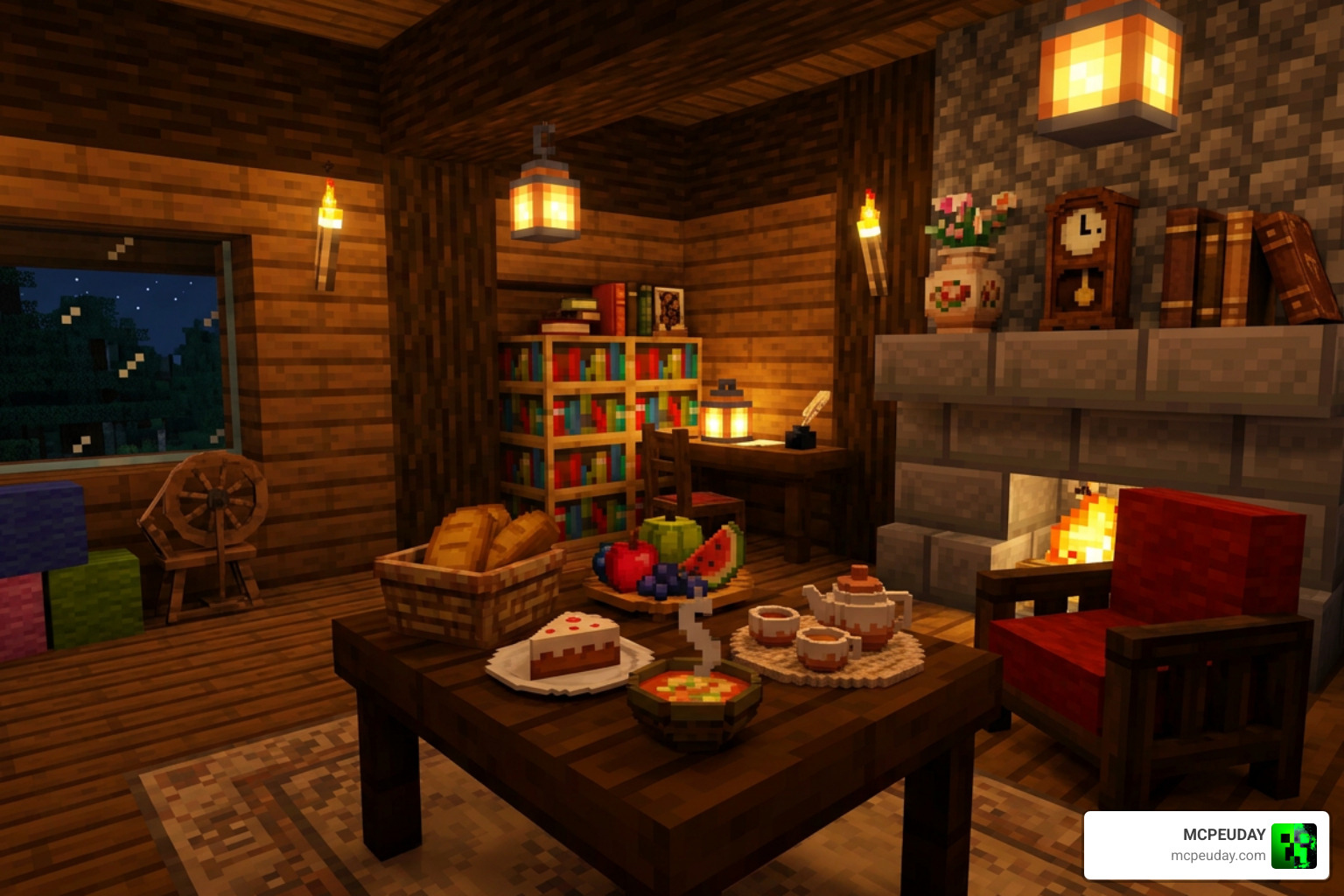
The Mizuno’s 16 CIT Addon is an add-on pack for the popular Mizuno’s 16 Craft resource pack that lets you turn ordinary Minecraft items into decorative 3D models — furniture, food displays, plants, paintings, and more — simply by renaming them and placing them in item frames.
Quick answer:
- What it is: A Custom Item Texture (CIT) pack that adds hundreds of decorative models to Minecraft Java Edition (and a Bedrock port exists too)
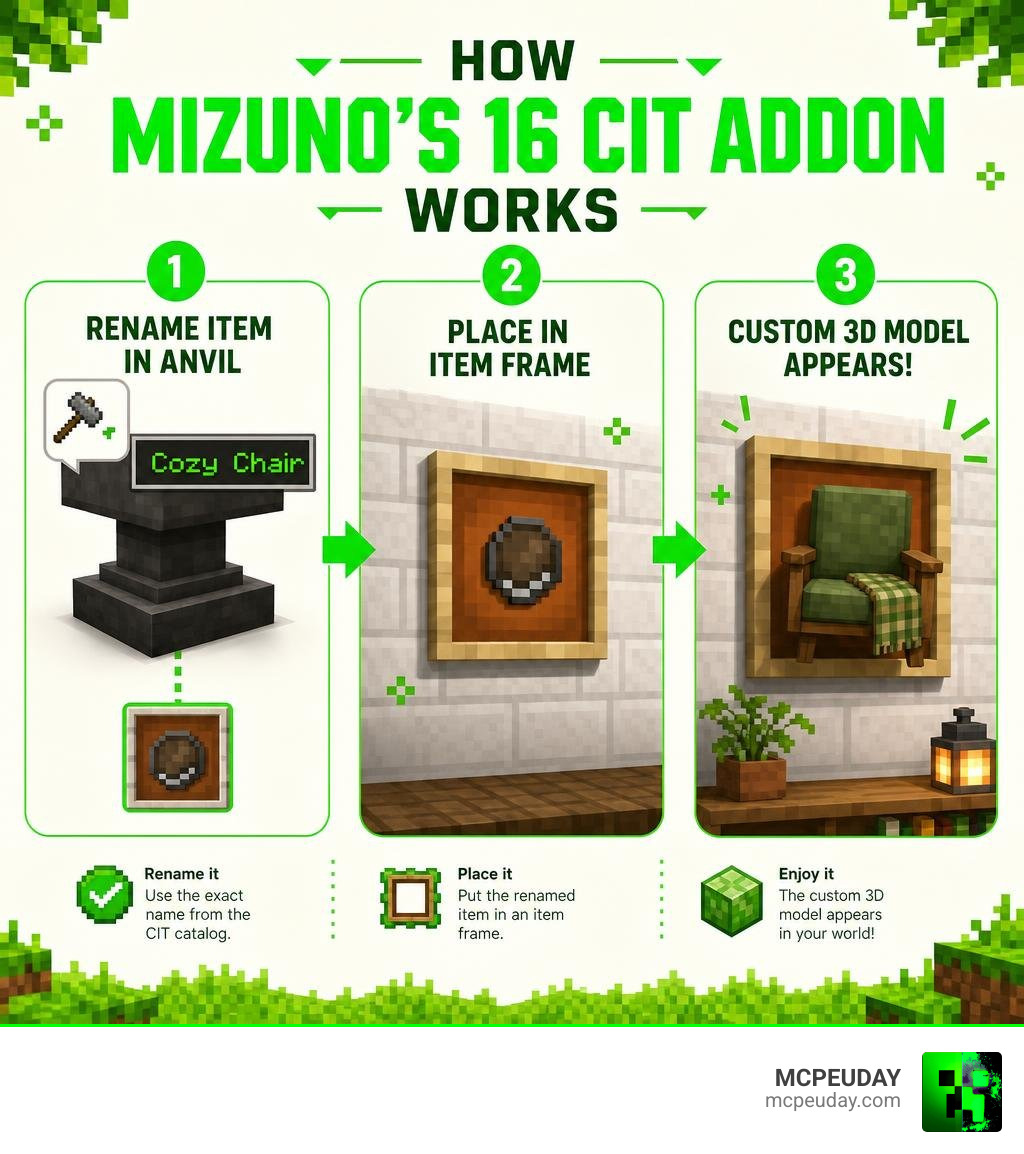
- How it works: Rename an item in an anvil using a specific name from the CIT catalog, then place it in an item frame to display the custom model
- What you need: Minecraft Java Edition, Optifine (with Custom Items set to ON), the Mizuno’s 16 Craft base pack, the CIT pack, and the Invisible Item Frame pack
- What it adds: Furniture, food props, torches, signs, plants, paintings, tools, and much more — all in Mizuno’s cozy cottagecore style
- Bedrock support: A separate Bedrock/MCPE port exists using custom entities instead of CIT
No mods required. It runs entirely through resource packs and Optifine.
Minecraft players who love interior decorating and cozy builds have made this pack a go-to tool. With over 7 million views on the base Mizuno’s 16 Craft pack alone, the community around it is massive — and the CIT addon takes that aesthetic even further by turning plain inventory items into beautiful decorative pieces.
This guide covers everything: what the addon includes, how to install it, how to use it in-game, and how to fix common problems.
What is the Mizunos 16 CIT Addon?
To understand the Mizunos 16 CIT Addon, we first have to look at the legendary base pack: Mizuno’s 16 Craft. Created with incredible care, this 16×16 resolution resource pack is famous for its cozy, cottagecore, and warm visual style. Unlike many other low-resolution packs that suffer from messy visual noise, the base pack delivers incredibly clean, noiseless textures that make Minecraft feel like a rustic fairy tale.
While the base pack completely changes the blocks, mobs, and items you see in your inventory, it is limited by Minecraft’s default block structures. That is where the CIT (Custom Item Texture) addon comes in.
By utilizing Optifine’s CIT features, the Mizuno’s 16 Craft Resource Pack addon overrides standard item textures. When you rename an item in an anvil to a specific keyword, the game replaces the standard flat sprite with a custom 3D model when it is placed inside an item frame.
Core Features of the Mizunos 16 CIT Addon
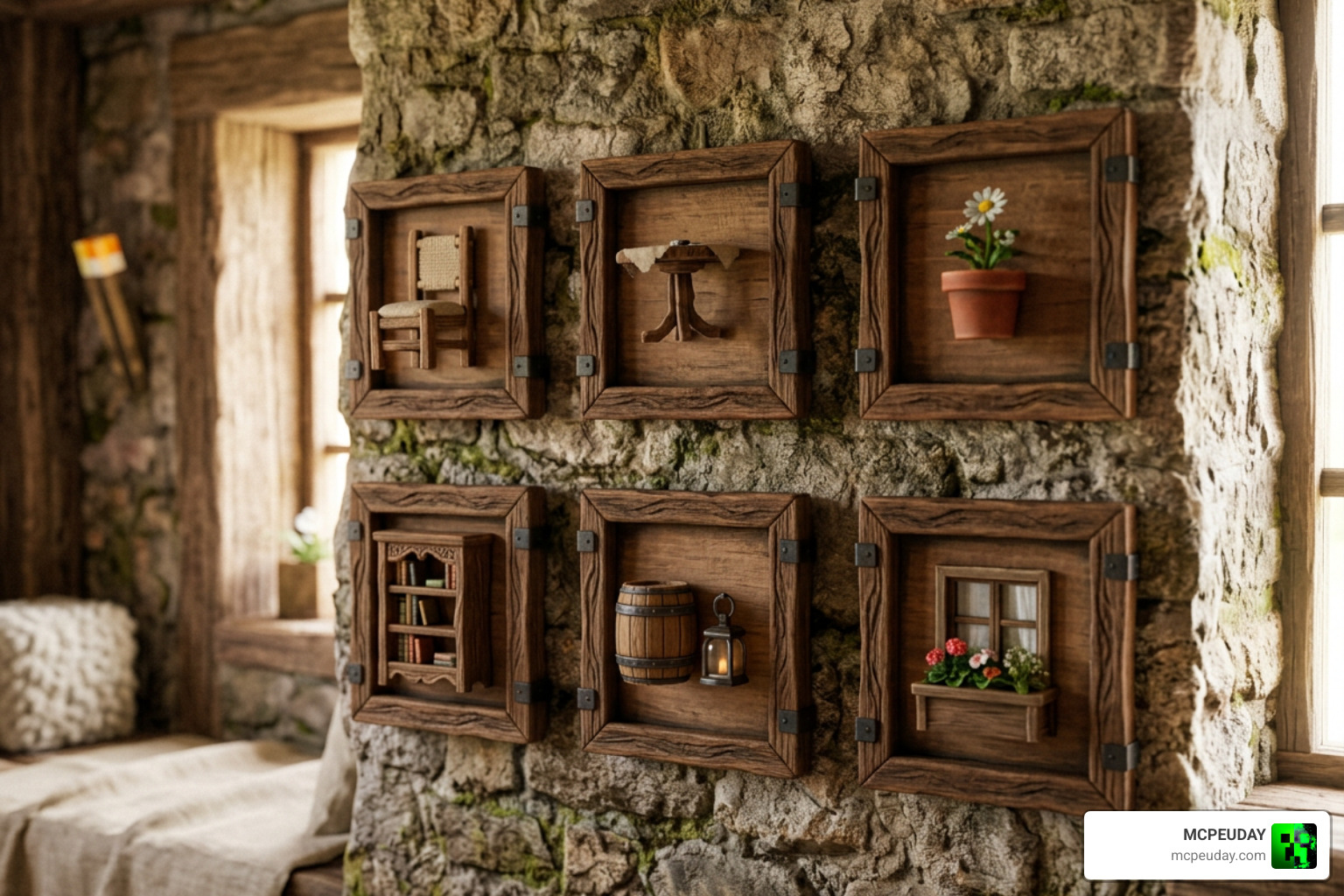
The heart of this addon lies in its cozy, detailed 3D models. It brings a level of Japanese craftsmanship to Minecraft building that is hard to find anywhere else. Instead of blocky, oversized vanilla furniture mods, we get delicate, scaled props that fit perfectly into small builds.
Key features include:
- True 3D Furniture: Beautifully modeled chairs, tables, desks, and cupboards.
- Cozy Props: Cutting boards with food, teapots, open books, and detailed flower pots.
- Noise-Free Aesthetic: Everything matches the soft, warm color palette of the base resource pack.
- Zero Mod Dependency: It runs entirely as a texture pack combination, making it highly compatible with vanilla servers that allow resource packs.
Supported Items and the Official CIT Catalog
The sheer variety of custom models in the CIT pack is astounding. The official catalog features hundreds of variations across multiple categories:
- Building & Decoration Blocks: Custom wooden logs, stone variants, chests, crafting tables, beds, and decorative barrels.
- Torches & Lighting: Wall-mounted lanterns, ceiling torches, and table candles.
- Foodstuffs: Apples on cutting boards, bread baskets, meat platters, cakes, and honey bottles.
- Plants & Foliage: Detailed flower pots, hanging vines, custom saplings, and grass variants.
- Paintings & Signs: Profession-specific signs (like bakery or blacksmith signs) and unique wall-mounted frames.
- Tools & Weapons: Axes, fishing rods, clocks, and custom sword displays.
Since the Minecraft 1.20.1 update, the naming rules for these items became much more flexible. Item names can now include underscores and numbers (such as Apple_3 or Beetroot Seeds_0). Even Japanese characters are supported, provided the required number suffix is added to the very end of the name.
How to Install and Set Up the CIT Pack
Setting up the Mizunos 16 CIT Addon requires a few specific steps to ensure everything loads correctly. Because CIT relies on custom engine features, you cannot simply load the pack in vanilla Minecraft without a modded client or Optifine.
First, you must ensure you are running Optifine (or a Fabric equivalent like CIT Resewn) and that the Custom Items setting is enabled under Video Settings > Quality > Custom Items: ON.
To get the full collection of textures, check out Mizuno’s 16x Resource Packs – Collection – Modrinth .
Step-by-Step Installation for Java Edition
- Download the base Mizuno’s 16 Craft resource pack.
- Download the Mizunos 16 CIT Addon zip file.
- Download an Invisible Item Frame resource pack (highly recommended so the wooden borders of the item frames do not ruin your decorations).
- Open Minecraft and navigate to Options > Resource Packs > Open Pack Folder.
- Drag and drop all three downloaded zip files into this folder.
- In your Minecraft client, move the packs to the active right-hand column. The load order is critical! Arrange them exactly like this:
| Priority | Pack Name | Purpose |
|---|---|---|
| 1 (Top) | Invisible Item Frame Pack | Hides the frames holding your custom models |
| 2 (Middle) | Mizuno’s 16 Craft CIT Pack | Adds the custom 3D models and naming system |
| 3 (Bottom) | Mizuno’s 16 Craft Base Pack | Provides the core textures for the rest of the world |
Setting Up the Mizunos 16 CIT Addon on Bedrock Edition (MCPE)
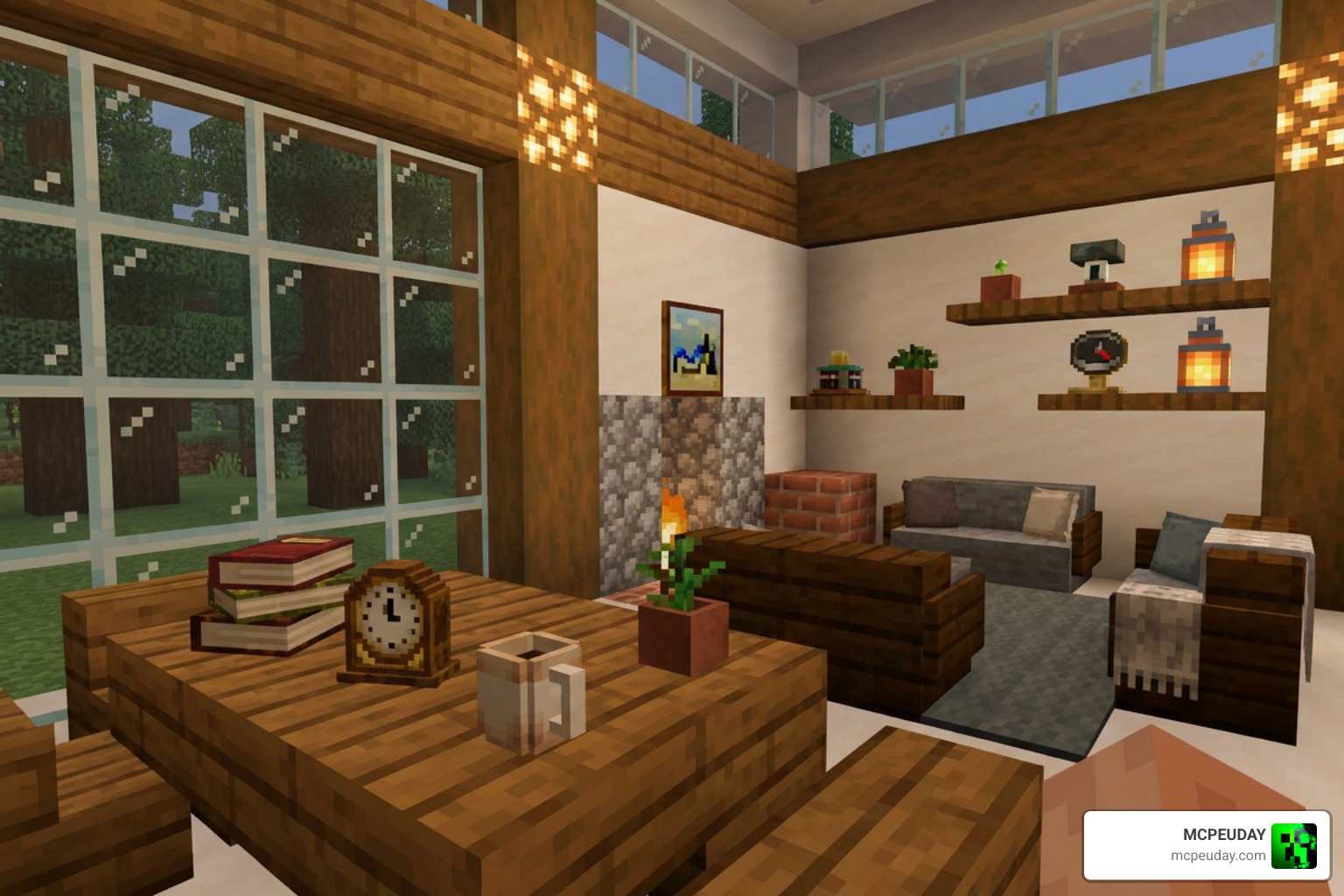
For players on mobile, console, or Windows 10/11 Bedrock edition, traditional CIT packs do not work because Bedrock does not support Optifine. However, a fantastic community-made Bedrock port exists!
The Bedrock port converts approximately 90% of the original Java CIT items into custom entities. Instead of renaming items and putting them in item frames, you spawn a single “base entity” which you can then transform.
To use it on Minecraft PE:
- Download the Bedrock port of the CIT Addon.
- In survival mode, wear only a leather helmet and throw a spawn egg to summon the base entity (which replaces the chicken model).
- Interact (right-click or tap) with the base entity using specific items to transform it into furniture or decorations.
- Sneak and interact with the entity to rotate it in 30-degree increments to line it up with your walls.
How to Use Mizuno’s CIT Pack In-Game
Once you have your resource packs active, using the CIT pack is incredibly fun and simple.
For a complete guide on server-side setups and community builds, you can read the Welcoming Mizunos Add-Ons! – @chillaxy-server on Tumblr post.
Renaming Items with the Anvil
To create a custom model, you need an anvil and the base item.
- Place your anvil down and open it.
- Put the item you want to change into the left slot (for example, a standard red apple).
- In the text bar, rename the item to match the official catalog name exactly (e.g.,
Apple_3to create an apple sitting on a cutting board). - Crucial Rule: Ensure there are no trailing spaces at the end of the text. The underscore and number must follow the word directly.
- Remove your newly named item. You will see its inventory sprite change if you did it correctly!
Placing and Rotating Custom Models
To place your new 3D models into your home:
- Place an item frame on a wall, floor, or ceiling.
- Put your renamed item into the frame.
- With the invisible item frame pack active, the frame itself will disappear, leaving only your beautiful 3D model resting on the block.
- Right-click the frame to rotate the item to the desired angle.
- On the Bedrock Edition port, you can also use a feather on your custom entities to toggle whether they float in mid-air or fall down due to gravity.
Compatibility, Troubleshooting, and Known Issues
The addon works wonderfully, but players sometimes run into technical issues. If you are playing on modern versions of the game, such as Minecraft 1.21, you might notice missing textures for newer blocks.
To fix this, players use community updates like the “Modern Mizuno’s” addon, which has over 180,000 downloads. This addon adds support for newer features like the Pale Garden blocks, Pale Oak, Creaking Hearts, and Eyeblossoms, keeping the cottagecore vibe alive in 1.21+.
If you are looking for safety tips on running patched clients for these versions, check out our Minecraft PE Patched 1-21 Download Features Risks Safe Guide.
Known Issues & Conflicts:
- Forge + Optifine Conflict: Since Minecraft 1.14, running Forge and Optifine together breaks CIT functionality. If your items are not transforming, run Optifine as a standalone profile, or switch to Fabric with the CIT Resewn mod.
- Version Warnings: If Minecraft displays a “Made for an older version” warning when activating the pack, you can safely ignore it and click “Yes.” The pack will still work perfectly fine.
Frequently Asked Questions About Mizuno’s CIT
Why are my CIT items not showing up in-game?
This is almost always due to Optifine settings. Go to your Video Settings > Quality and make sure Custom Items is set to ON. Also, check your resource pack list to ensure the CIT pack is placed above the base Mizuno’s 16 Craft pack.
Can I use Mizuno’s CIT pack with Forge or Fabric?
Yes, but do not combine Forge and Optifine on newer versions. If you are playing on Fabric, you can use the CIT Resewn mod alongside the resource packs to get full CIT functionality without needing Optifine at all. For more details on custom animations and setups, you can check out the discussion on the Mizuno’s 16 Craft (CIT PACK) – Rigs – Mine-imator forums .
Does the CIT pack work on Minecraft Bedrock Edition?
Yes, but not through standard item frames. You must download the dedicated Bedrock Port addon, which translates the 3D models into custom entities that you spawn and transform using in-game items.
Conclusion
The Mizunos 16 CIT Addon is a must-have for any cozy builder looking to elevate their Minecraft world. By turning simple inventory items into gorgeous, rustic 3D decorations, it gives you the creative freedom of a massive furniture mod without ever leaving the comfort of vanilla gameplay.
Ready to start decorating your dream cottage? Explore more Minecraft Mod Addons on our site to find the perfect shaders, world seeds, and gameplay tweaks to accompany your new aesthetic builds!
1 thought on “Mizuno’s 16 CIT Addon (26.x, 1.21) – MCPE/Bedrock Mod”