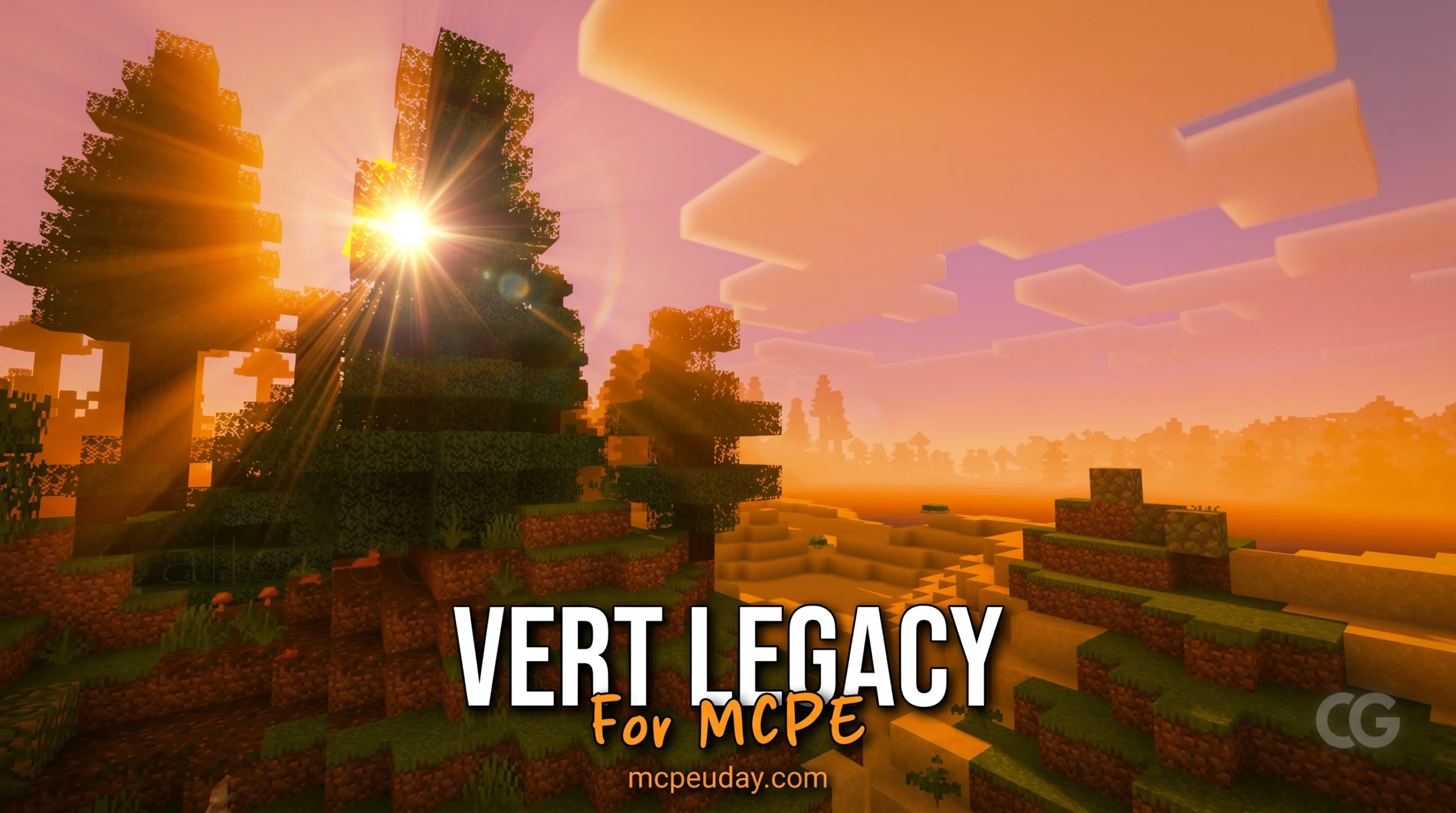
CFind Vert Legacy Shader for MCPE/Bedrock in 5 Simple Steps
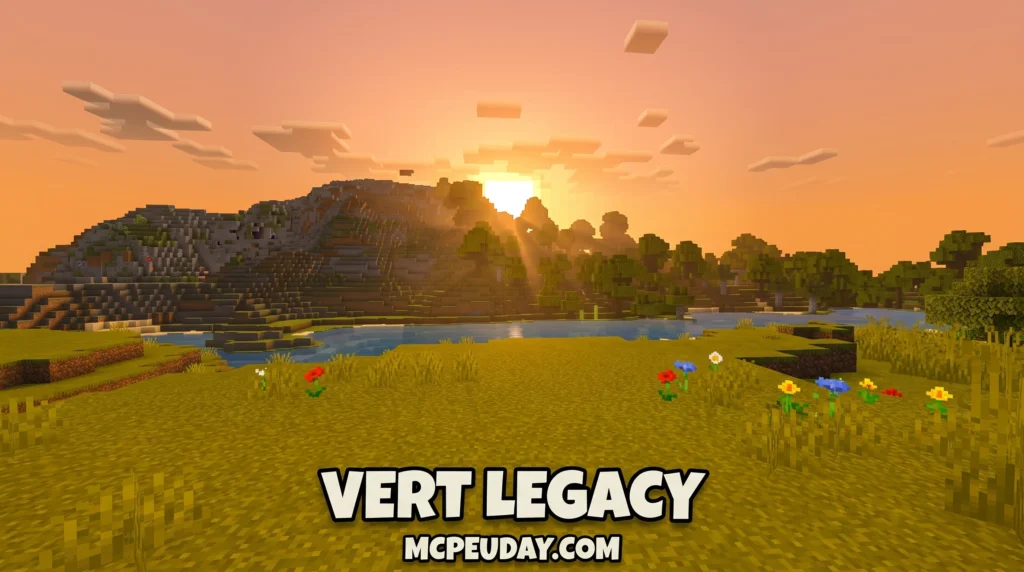
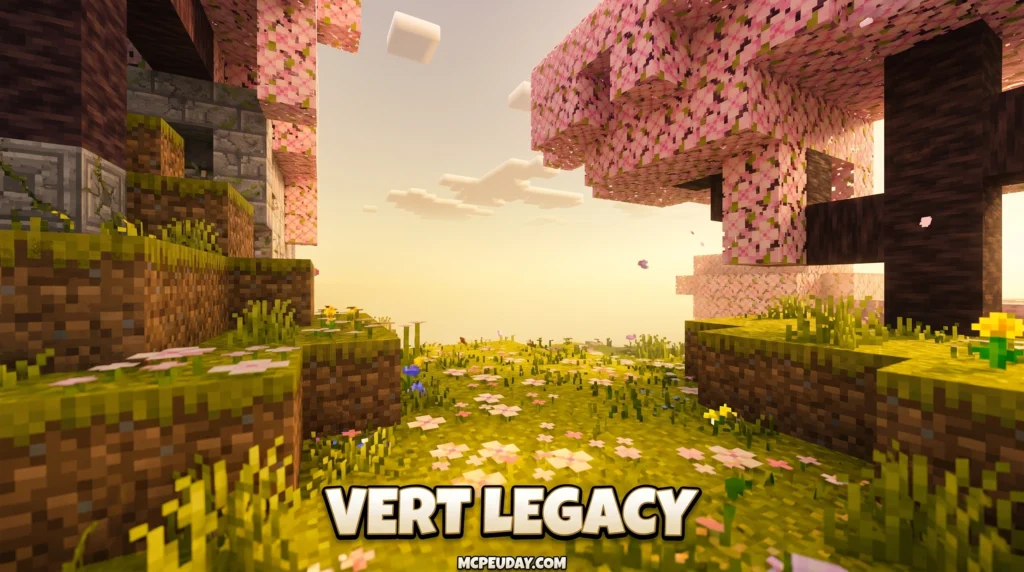
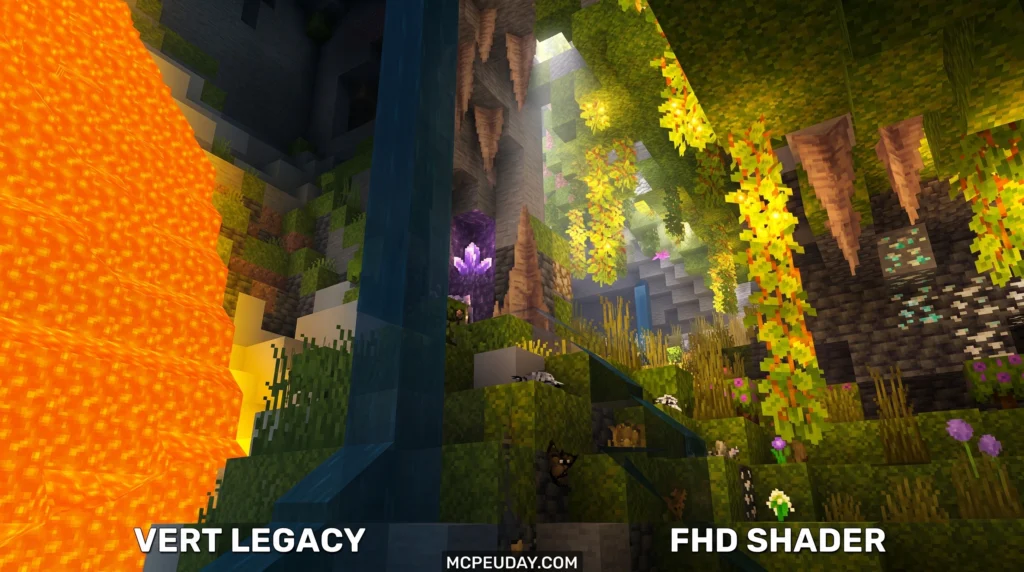
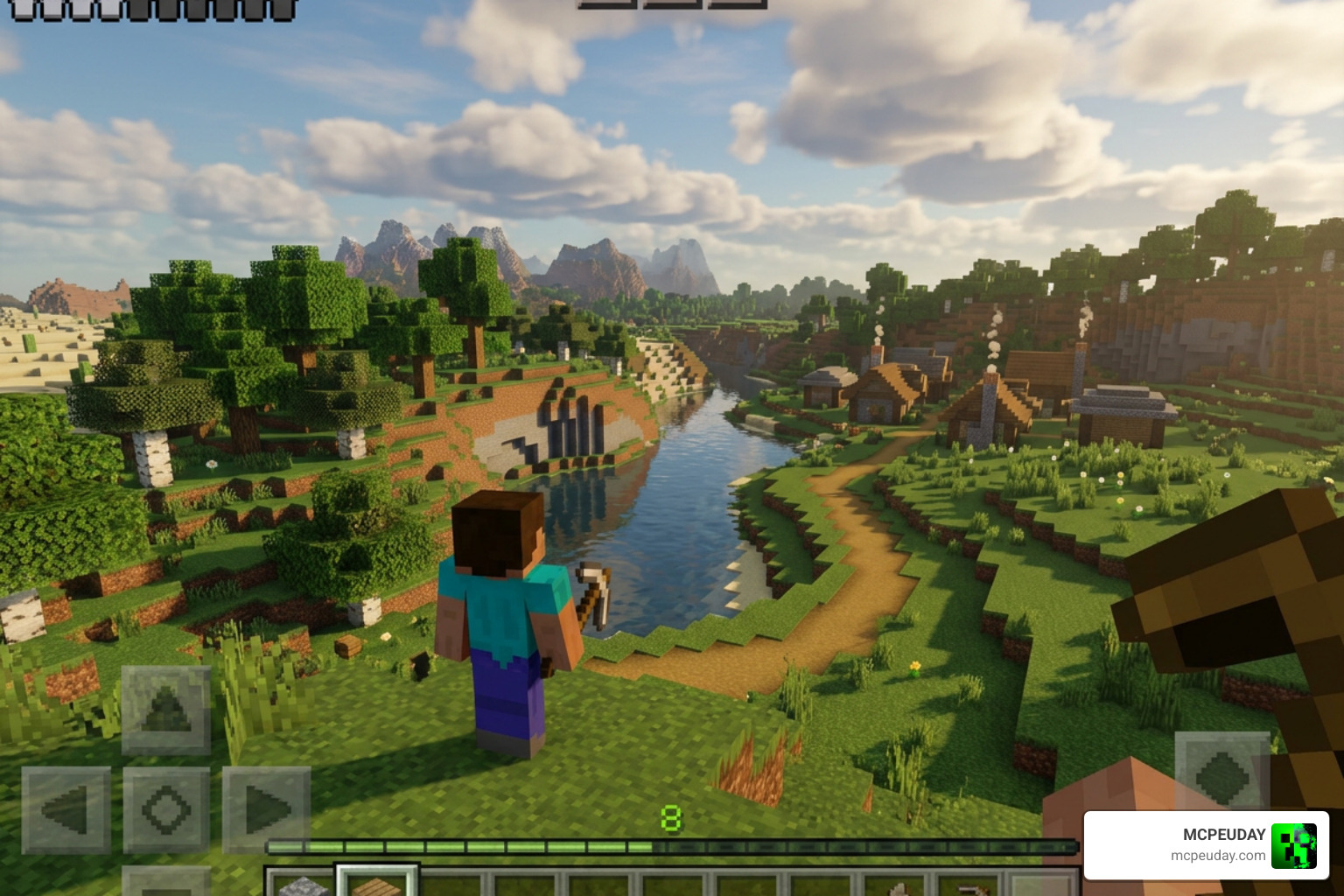
Vert Legacy Shader is a free, lightweight shader pack for Minecraft Bedrock Edition that adds warm lighting, soft shadows, reflective water, 3D clouds, and biome-based fog — all without killing your FPS.
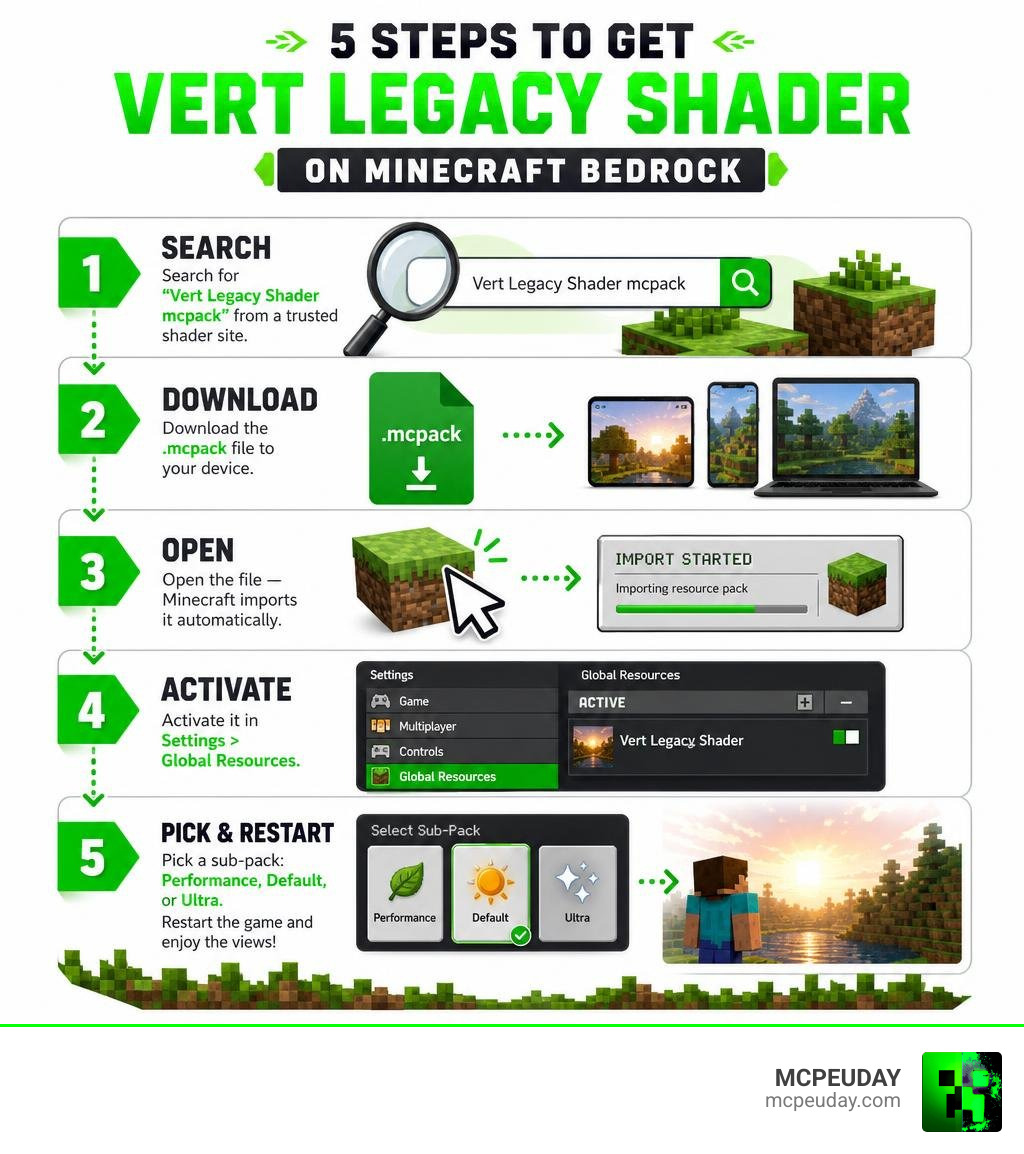
Here’s how to find and get it running fast:
- Search for “Vert Legacy Shader mcpack” from a trusted Minecraft Bedrock shader site
- Download the
.mcpackfile to your Android, iOS, or Windows device - Open the file — Minecraft imports it automatically
- Activate it in Settings > Global Resources
- Pick a sub-pack (Performance, Default, or Ultra) and restart the game
It works on devices with as little as 1 GB of RAM and supports Minecraft Bedrock 1.18 through 1.21+.
So you want better-looking Minecraft without your phone overheating or your FPS dropping to single digits. That’s exactly what draws players to this shader.
Unlike heavier shader packs that demand a high-end GPU, Vert Legacy is built around one idea: look great, run smooth. It uses trimmed-down GLSL code to deliver cinematic visuals — think golden sunsets, glowing torchlight, and rippling water — on the same device you already play on.
Whether you’re on Android, Windows, or iOS, this guide walks you through finding and installing it in five clear steps.
What is the Vert Legacy Shader and What Does It Do?
If you have spent any time building in Minecraft, you know how flat the vanilla game can look. Light sources feel static, water lacks depth, and shadows are virtually non-existent. That is where the Vert Legacy Shader steps in.
This pack is an independent, lightweight project designed specifically to bring a warm, cinematic atmosphere to your worlds. It does not try to turn your mobile phone into an RTX-powered supercomputer. Instead, it makes artistic compromises that look incredible and run flawlessly. Here is what you get:
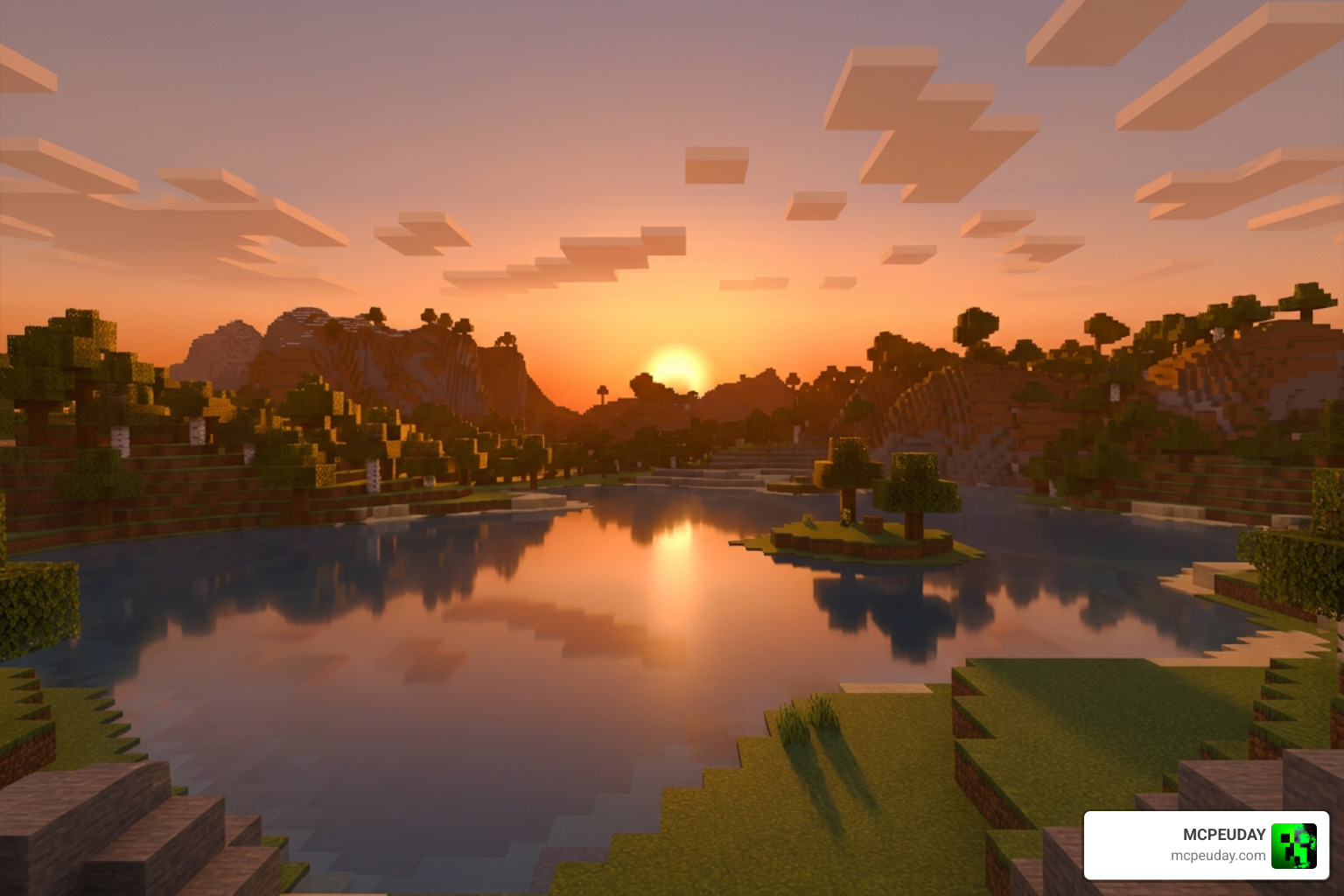
- Warm Color Grading: Sunrises and sunsets wrap your world in a cozy, golden glow. This warm color palette makes wooden cottagecore builds, medieval villages, and cozy interiors look deeply atmospheric.
- Soft, Geometric Shadows: Instead of harsh, blocky shadows that clutter your screen, you get smooth, directional shadows that simulate actual sunlight angles.
- Dynamic 3D Clouds: The skybox gets a major upgrade with animated, layered clouds that drift naturally across the sky.
- Reflective Fresnel Water: Water transitions from a flat blue sheet to a shimmering surface with realistic movement and light reflections.
- Biome-Based Fog: Swamps feel creepy and damp, deserts look hazy and hot, and mountain peaks are shrouded in cool mist.
Because it is a resource-based pack, it does not alter core game files. It simply enhances how your device renders light and atmosphere. If you want to dive deeper into why this is considered one of the top lightweight visual upgrades, check out our full review of the Vert Legacy Shader For Minecraft Pe Bedrock Best Lightweight Shader With Realistic Graphics.
How to Find and Install the Pack in 5 Steps
Finding a safe download and getting it onto your device is straightforward when you know where to look. Follow these five simple steps to locate and install the official pack:
Step 1: Find a Trusted Source
Begin by searching for the shader on a reputable platform. We always recommend downloading directly from us at MCPEUDAY to ensure you are getting a clean, verified, and malware-free .mcpack file. Avoid sketchy third-party sites that bury the download button under ten layers of pop-up ads.
Step 2: Download the Correct File
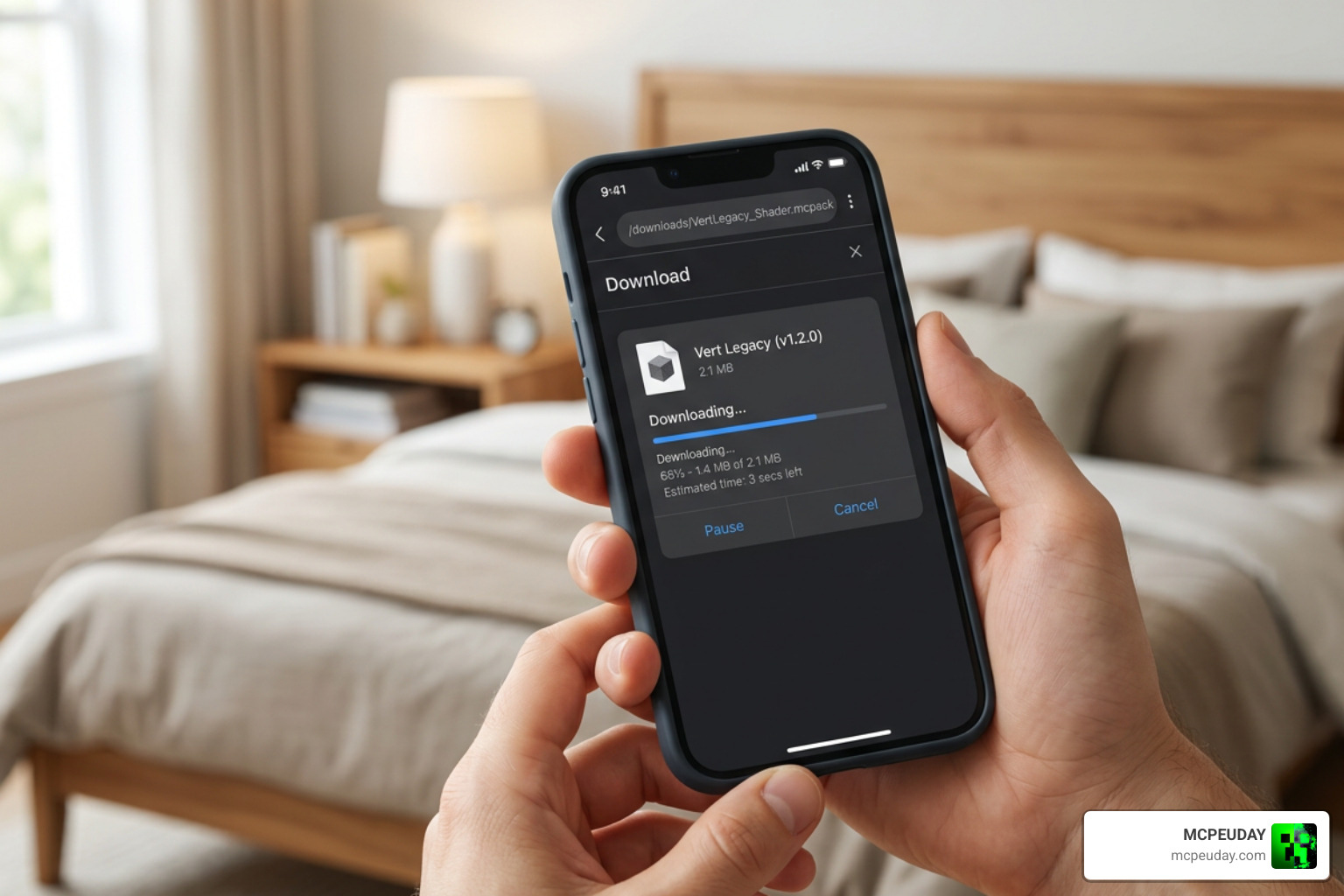
Click the download link to grab the .mcpack file. This format is universally supported across Android, iOS, and Windows. The file size is incredibly small — usually under 1 MB — meaning it will download in a matter of seconds.
Step 3: Open and Import into Minecraft
Once the download finishes, locate the file on your device:
- On Android: Tap the completed download notification or use a file manager to tap the
.mcpackfile. Select “Open with Minecraft.” - On Windows: Double-click the downloaded file, and Windows will automatically launch Minecraft and begin the import process.
- On iOS: Use the native Files app to locate the download, tap it, and share/open it with Minecraft.
You should see a message at the top of your Minecraft screen saying “Import started,” followed by “Successfully imported Vert Legacy.”
Step 4: Activate in Global Resources
Go to the main menu of Minecraft, click Settings, scroll down on the left sidebar to Global Resources, and click on My Packs. Find the shader in the list, click it, and hit Activate.
Step 5: Choose Your Sub-Pack and Restart
Before you jump into a world, click on the active shader and tap the gear icon (Settings). Here you can choose your sub-pack:
- Performance: Strips away heavy water waves and complex fog to maximize FPS on low-end phones.
- Default: The balanced sweet spot for most mid-range devices.
- Ultra: Maxes out the shadow resolution, cloud layers, and water reflections.
After selecting your sub-pack, back out of the settings menu to let the game load the new resource files. For the best results, we recommend restarting Minecraft entirely before loading your world.
Performance, Compatibility, and Troubleshooting
Because Bedrock Edition uses the RenderDragon engine, traditional shaders no longer work the way they used to back in the old pocket edition days. Vert Legacy is specifically built to bypass these engine hurdles, rendering beautiful lighting and reflections without needing a high-end graphics card.
To help you decide which setting is best for your hardware, here is how the pack performs across different device tiers:
| Device Tier | RAM Requirements | Recommended Sub-Pack | Expected Performance (FPS) |
|---|---|---|---|
| Low-End (Budget Android, older iPhones) | 1 GB – 2 GB | Performance | Stable 30 – 45 FPS |
| Mid-Range (Modern mid-tier phones, tablets) | 3 GB – 4 GB | Default | Smooth 60 FPS |
| High-End (Flagship phones, Windows PCs) | 6 GB or more | Ultra | 60+ FPS (Uncapped) |
While the shader is highly optimized, you might occasionally run into minor issues. For example, some older Android devices running specific RenderDragon versions may require a patched APK to display custom shadow maps correctly.
If you experience a black screen or severe lag, check the shader’s internal rendering logic. Much like the public GLSL shader code used in open-source game engines, mobile shaders rely on clean, optimized code paths. If your game crashes, it usually means your device’s graphics driver is struggling with the custom fog or cloud layers. Lowering your game’s internal render distance usually fixes this instantly.
Optimizing Vert Legacy Shader for Low-End Devices
If you are playing on a device with only 1 GB or 2 GB of RAM, you do not have to settle for flat, ugly graphics. You can still enjoy the beautiful warm lighting of Vert Legacy by making a few quick adjustments:
- Lock your FPS at 30: This prevents thermal throttling and keeps your gameplay feeling consistent rather than stuttering between 20 and 50 FPS.
- Reduce Render Distance: Set your in-game render distance to 8 or 10 chunks. This frees up massive amounts of system memory.
- Close Background Apps: Before launching Minecraft, clear your device’s active RAM by closing social media and video streaming apps.
If you love lightweight packs but want to see how other options compare, you should also take a look at our guides on the Newb X Amethyst Shader Best Lightweight Shader For Minecraft Pe MCPE and the Newb X Lowres Shaders For Minecraft Pe Mcpe Complete Beginners Guide Installation Settings Fps Tips.
Comparing Vert Legacy Shader with Other MCPE Shaders
How does Vert Legacy stack up against other giants in the Bedrock community? Let us look at two popular alternatives:
- Newb X Legacy Shader: Known for its highly customizable preset options and stunning water reflections. It is slightly more resource-heavy than Vert but offers incredible visual fidelity.
- Dream Legacy Shader: If you prefer to keep the vanilla art style intact while only boosting colors and skies, the Dream Legacy Shader is a fantastic alternative that focuses heavily on color saturation.
For players who want a balance of realism and performance, we also recommend checking out our breakdown of the Newb X Unwind Shader For Minecraft Pe Mcpe Best Realistic Shader For Low End Devices.
Frequently Asked Questions
Is this pack safe to download?
Yes, the shader is entirely safe to download and use, provided you get it from a reputable source like MCPEUDAY. Because it is packaged as a standard .mcpack resource pack, it does not modify your game’s core binary files, meaning there is zero risk of catching malware or getting banned from multiplayer servers.
Does it work on Minecraft 1.21?
Yes! The pack is fully updated to support Minecraft Bedrock 1.21. The developers regularly optimize the code to ensure compatibility with RenderDragon engine updates.
Can I use it on iOS?
Absolutely. You can import the .mcpack file using the iOS Files app. Once imported, it will show up under your Global Resources menu just like it does on Android or Windows.
Conclusion
Finding and installing the Vert Legacy Shader is one of the easiest ways to breathe new life into your Minecraft Bedrock worlds. With its cozy warm tones, soft shadows, and optimized performance, it proves that you do not need a high-end gaming PC to enjoy beautiful, realistic graphics in 2026.
Ready to explore more incredible graphics packs for your device? Head over to our curated list of the Best Shaders For Mcpe 1 21 2026 Top 3 Realistic Minecraft Pe Shaders and find the perfect look for your next survival adventure!