What Ray Tracing Does in Minecraft Bedrock (And How to Get It Fast)
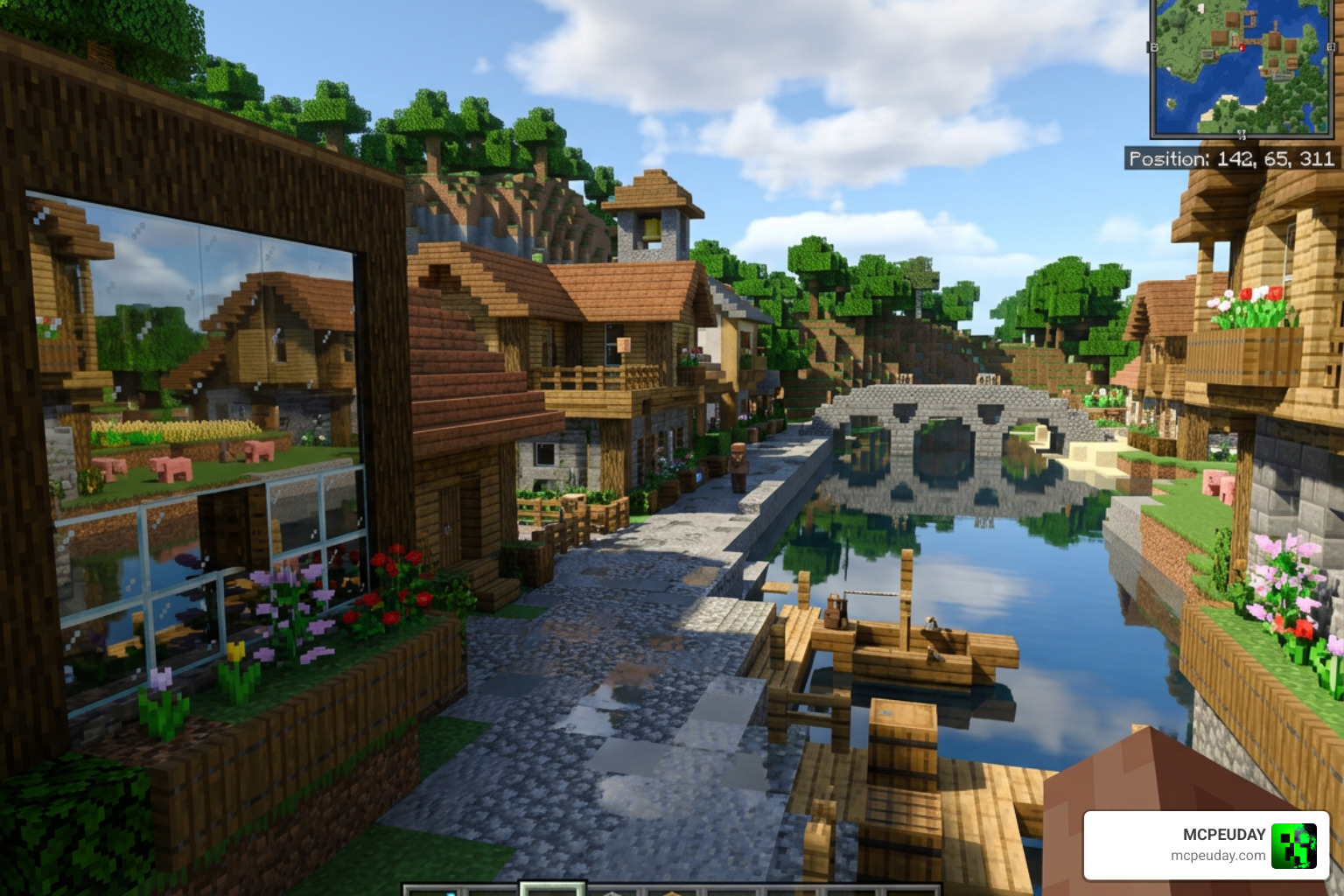
Learning how to get ray tracing in Minecraft Bedrock comes down to five things: the right hardware, the right Windows version, a compatible resource pack, a ray-tracing-ready world, and flipping the toggle in Video settings.
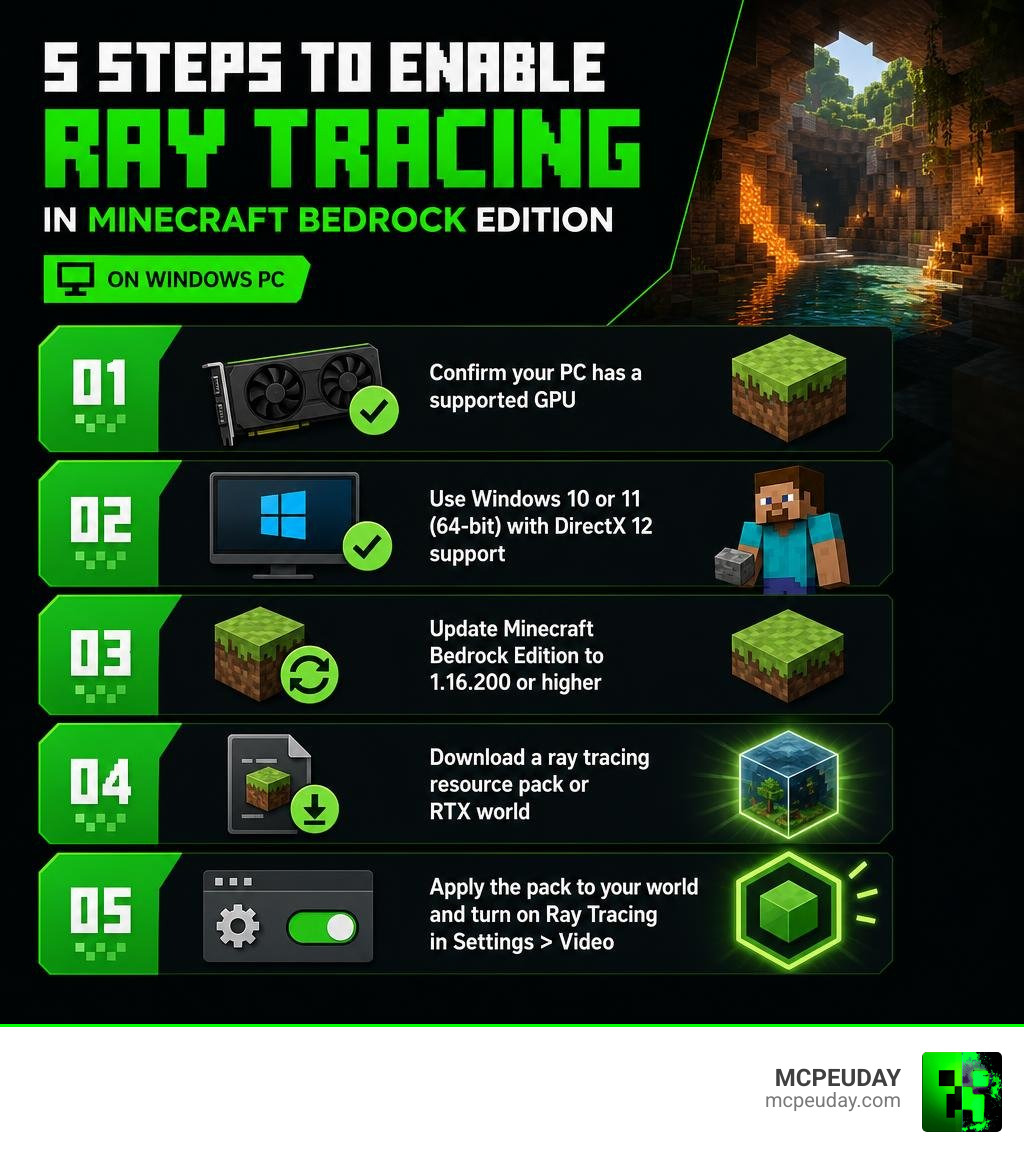
Quick answer — here’s how to enable ray tracing in Minecraft Bedrock:
- Confirm you have an NVIDIA RTX 20-series or newer GPU (or AMD RX 6000-series or newer)
- Make sure you’re on Windows 10 or 11 (64-bit) with DirectX 12 support
- Update Minecraft Bedrock Edition to version 1.16.200 or higher
- Download a ray-tracing-compatible resource pack (like Vanilla RTX) or grab an RTX world from the Marketplace
- Apply the resource pack to your world and toggle Ray Tracing to On under Settings > Video
That’s the short version. The full picture is a bit more detailed — especially if your ray tracing option is greyed out, you want to use it in an existing world, or you’re trying to squeeze better performance out of it.
Ray tracing in Bedrock isn’t just a graphics setting you flip on. It’s a completely different rendering system powered by Minecraft’s Render Dragon engine. Instead of faking light with tricks, it simulates how light actually bounces, reflects, and scatters through your world in real time. The result? Realistic shadows, glowing lava that actually lights up a cave, water that reflects the sky, and glass that bends light like real glass.
It looks incredible — but it does require specific hardware and setup steps that aren’t obvious at first.
Hardware and Software Requirements for Minecraft RTX
Before we try to turn everything on, we need to make sure our PC can actually handle the heat. Minecraft Bedrock’s ray tracing system relies heavily on hardware-accelerated ray tracing. This means your graphics card must have physical, dedicated cores designed to calculate light paths.
If you are running older hardware, the option inside Minecraft will simply remain greyed out. Let’s look at what we need to run this feature smoothly in June 2026:
| Requirement | Minimum Specification | Recommended Specification |
|---|---|---|
| Operating System | Windows 10 64-bit (Version 1903 or newer) | Windows 11 64-bit |
| Graphics Card (NVIDIA) | NVIDIA GeForce RTX 20 Series or higher | NVIDIA GeForce RTX 30/40 Series or higher |
| Graphics Card (AMD) | AMD Radeon RX 6000 Series or higher | AMD Radeon RX 7000 Series or higher |
| Graphics Card (Intel) | Intel Arc A380 or better | Intel Arc B580 or higher |
| Processor (CPU) | Intel Core i5 or AMD equivalent | Intel Core i7 / AMD Ryzen 7 or equivalent |
| System Memory (RAM) | 8 GB RAM | 16 GB RAM or more |
| Video Memory (VRAM) | 8 GB VRAM | 12 GB VRAM or more |
| DirectX Version | DirectX 12 with DXR support | DirectX 12 Ultimate |
Virtual reality (VR) and mixed reality (MR) headsets are not supported with ray tracing enabled. If you have a supported GPU and are ready to proceed, let’s explore how the engine utilizes this technology.
How to Get Ray Tracing in Minecraft Bedrock
To understand how to get ray tracing in Minecraft Bedrock, we have to look under the hood of the Render Dragon engine. This engine handles all the heavy lifting, utilizing DirectX 12 Ultimate API features to calculate path-traced lighting.
To keep your frame rate playable, we rely on upscaling technologies like NVIDIA DLSS (Deep Learning Super Sampling). DLSS renders the game at a lower resolution and uses AI upscaling to display a crisp image, targeting a smooth 60 FPS experience.
Before diving into the game settings, we must make sure our graphics drivers are completely updated. Outdated drivers are the number one reason the ray tracing engine fails to initialize. You can learn more about configuring your graphics pipeline in our Enable Minecraft RTX On — Quick Guide.
Step-by-Step Guide on How to Get Ray Tracing in Minecraft Bedrock
Once your system is verified and your drivers are up to date, follow these steps to turn RTX on:
- Launch Minecraft Bedrock Edition on your PC.
- Go to the Marketplace and search for “RTX” using the search bar. You will find several free showcase worlds (like Crystal Palace RTX). Download one of these templates.
- Create a new world using the downloaded RTX template.
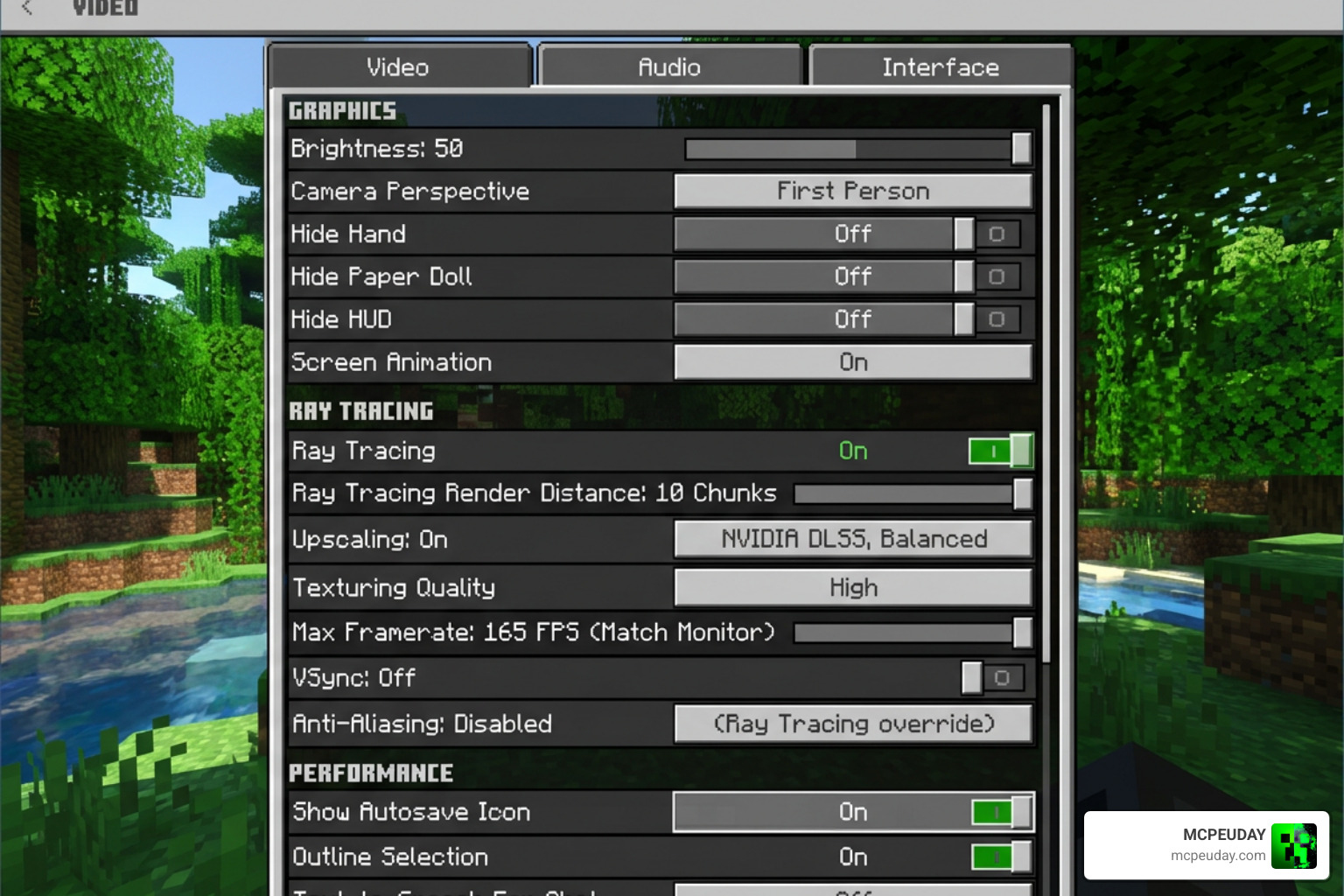
- Once loaded into the world, press Escape and go to Settings > Video.
- Scroll down until you find the Ray Tracing toggle. Flip it to On.
- Turn on Upscaling (DLSS) to stabilize your frame rate.
For a visual walkthrough of this process, you can watch this video on How to Use RTX RAY TRACING in Minecraft BEDROCK Edition.
How to Get Ray Tracing in Minecraft Bedrock for Existing Worlds
You aren’t limited to playing only in pre-made Marketplace templates! You can enable ray tracing in your personal, long-term survival worlds. To do this, you must sideload a compatible Physically Based Rendering (PBR) resource pack.
Because standard Minecraft textures are flat, they don’t have the data required to tell light how to bounce. A PBR resource pack tells the engine which blocks are rough, metallic, smooth, or glowing.
To apply this to an existing world:
- Download a compatible RTX resource pack (such as Vanilla RTX) in
.mcpackformat. - Double-click the file to automatically import it into Minecraft Bedrock.
- In Minecraft, go to your existing world’s settings (click the edit pencil icon next to the world name).
- Scroll down to Resource Packs under the Add-Ons section.
- Click on My Packs, find your imported RTX pack, and click Activate.
- Load into your world, open your Video settings, and toggle Ray Tracing on.
For a detailed breakdown of world conversion, check out our guide on How to Enable Ray Tracing on Any Minecraft Bedrock World.
Understanding RTX Resource Packs and PBR Textures
As we mentioned, standard texture packs will not activate ray tracing. We need Physically Based Rendering (PBR) materials. PBR textures use multiple layers (or “maps”) to define a block’s physical properties:
- Heightmaps / Normal Maps: Define the physical depth, bumps, and crevices of a block (making brick walls look 3D).
- Mer Maps (Metallic, Emissive, Roughness): Define how shiny a block is, whether it glows in the dark (like redstone or copper bulbs), and how light scatters across its surface.
To dive deeper into the technical creation of these textures, read the official documentation on Getting Started with Ray Tracing | Microsoft Learn.
How to Download and Apply Vanilla RTX
The most popular resource pack for this is Vanilla RTX, which has over 1.0 million total downloads. It brings full ray-tracing support to every single vanilla block, including secret blocks and decorative objects. It comes in three variants:
- Vanilla RTX: Uses 16x heightmaps.
- Vanilla RTX Normals: Uses 16x normal maps directly for a different lighting style.
- Vanilla RTX Opus: A combined high-detail pack.
We highly recommend using the Vanilla RTX App to launch your game if you experience resource loading issues.
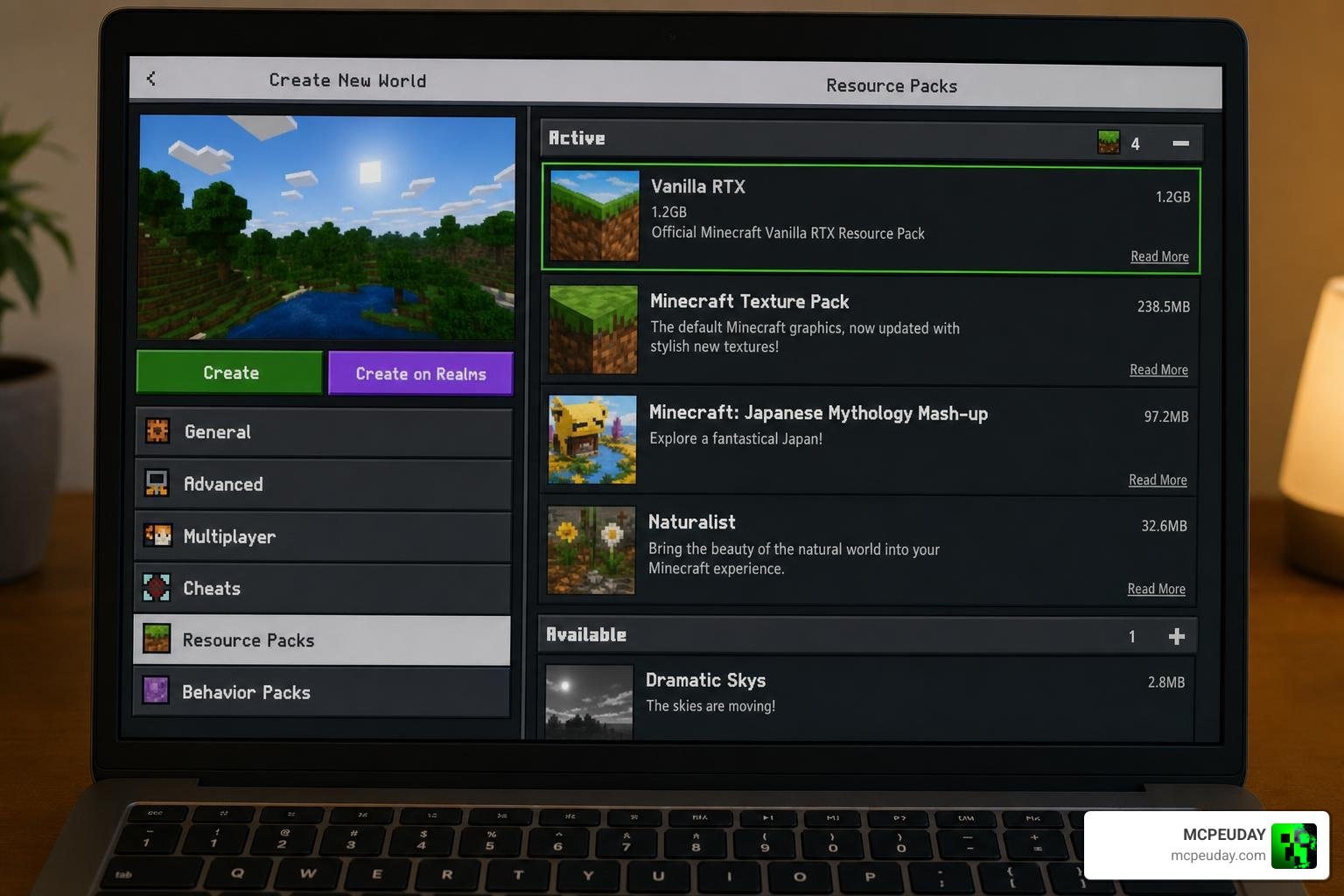
To apply it, simply activate the pack in your global resources or world-specific resource settings, ensuring it sits at the very top of your active pack list.
Ray Tracing vs. Vibrant Visuals and Render Dragon Shaders
A common point of confusion is the difference between true hardware ray tracing and Vibrant Visuals (also known as deferred rendering).
While ray tracing tracks individual light rays in real time, deferred rendering uses a clever approximation method. It simulates atmospheric fog, color grading, and dynamic shadows without requiring dedicated hardware RT cores.
If you want to compare your options, we have tested these systems extensively. Check out our Best Render Dragon Shaders for MCPE 1.21 Tested on Real Devices 2026 Guide and our review of the 3 Best Shaders for Minecraft 1.21 Ultra Realistic Smooth FPS Stunning Graphics.
Which Graphics Option Should You Choose in 2026?
Because ray tracing is highly demanding and restricted to Windows PCs, players on mobile devices (MCPE) or consoles cannot use it. For those platforms, Render Dragon shaders are the perfect alternative. They offer beautiful water reflections and warm lighting without melting your device.
If you are playing on a phone, tablet, or console, check out our curated list of the Top 5 Best Realistic Shaders for MCPE.
Optimizing Performance and Troubleshooting Common RTX Issues
Ray tracing is gorgeous, but it can turn your PC into a space heater if you aren’t careful. Here is how we optimize our settings for the best balance of visuals and frame rate:
- Disable VSync: Minecraft’s built-in VSync is notorious for causing stuttering with RTX. Disable VSync in the game files or use your GPU’s control panel to manage it.
- Adjust Render Distance: Keep your render distance between 8 and 12 chunks. Ray tracing forces a heavy performance tax for every chunk rendered.
- Enable Resizable BAR: If you are using an Intel Arc GPU (like the B580) or modern AMD/NVIDIA cards, make sure Resizable BAR is enabled in your system BIOS to prevent GPU utilization drops.
Troubleshooting Greyed Out Ray Tracing Options
If your toggle is greyed out, walk through this quick checklist to resolve the issue:
- Verify Your GPU: Ensure your graphics card supports hardware-level DXR (DirectX Raytracing).
- Update Windows: Make sure you are on Windows 10 (version 1903+) or Windows 11.
- Turn on Experimental Features: Some custom worlds require “Experimental Features” to be toggled on in the world settings.
- Use a PBR Pack: The toggle will remain locked if you are in a vanilla world without an active RTX resource pack.
For more troubleshooting help, read our guide on How to Enable Ray Tracing in Minecraft.
Multiplayer, Realms, and Cross-Play Limitations
Can you show off your shiny RTX world to your friends? Yes! Ray tracing is entirely client-side. This means you can play on a multiplayer server, a Realm, or cross-play with console players while keeping your ray tracing enabled.
Your friends on mobile or console will see the standard vanilla blocks, while you enjoy fully ray-traced global illumination. The only requirement is that the host must have the RTX resource pack active on the world or server so that your client can download and read the PBR texture data.
Frequently Asked Questions about Minecraft Bedrock RTX
Can you run ray tracing on Xbox Series X or PS5?
No. While these consoles have hardware capable of ray tracing, Mojang has not officially enabled ray tracing for consoles in Minecraft Bedrock. Consoles must use standard Render Dragon shaders instead.
Why is the ray tracing option greyed out?
This usually happens because you do not have an active PBR resource pack loaded, your graphics drivers are outdated, or your GPU does not support hardware-accelerated DirectX Raytracing (DXR).
Does ray tracing work on mobile devices?
No, ray tracing is not supported on Android or iOS. However, you can get incredible visual upgrades using our recommended mobile shaders found in our guide to the Best Shaders for MCPE 1.21 2026 Top 3 Realistic Minecraft PE Shaders.
Conclusion
Getting ray tracing to work in Minecraft Bedrock takes a little bit of preparation, but the visual payoff is absolutely worth it. By matching the right hardware with a stellar PBR resource pack like Vanilla RTX, you can transform your blocky adventures into a cinematic masterpiece.
We at MCPEUDAY are dedicated to bringing you the absolute best files, guides, and resources to customize your game. Ready to take your graphics to the next level? Explore MCPE Bedrock Resources on our site to find the latest shaders, addons, and texture packs!