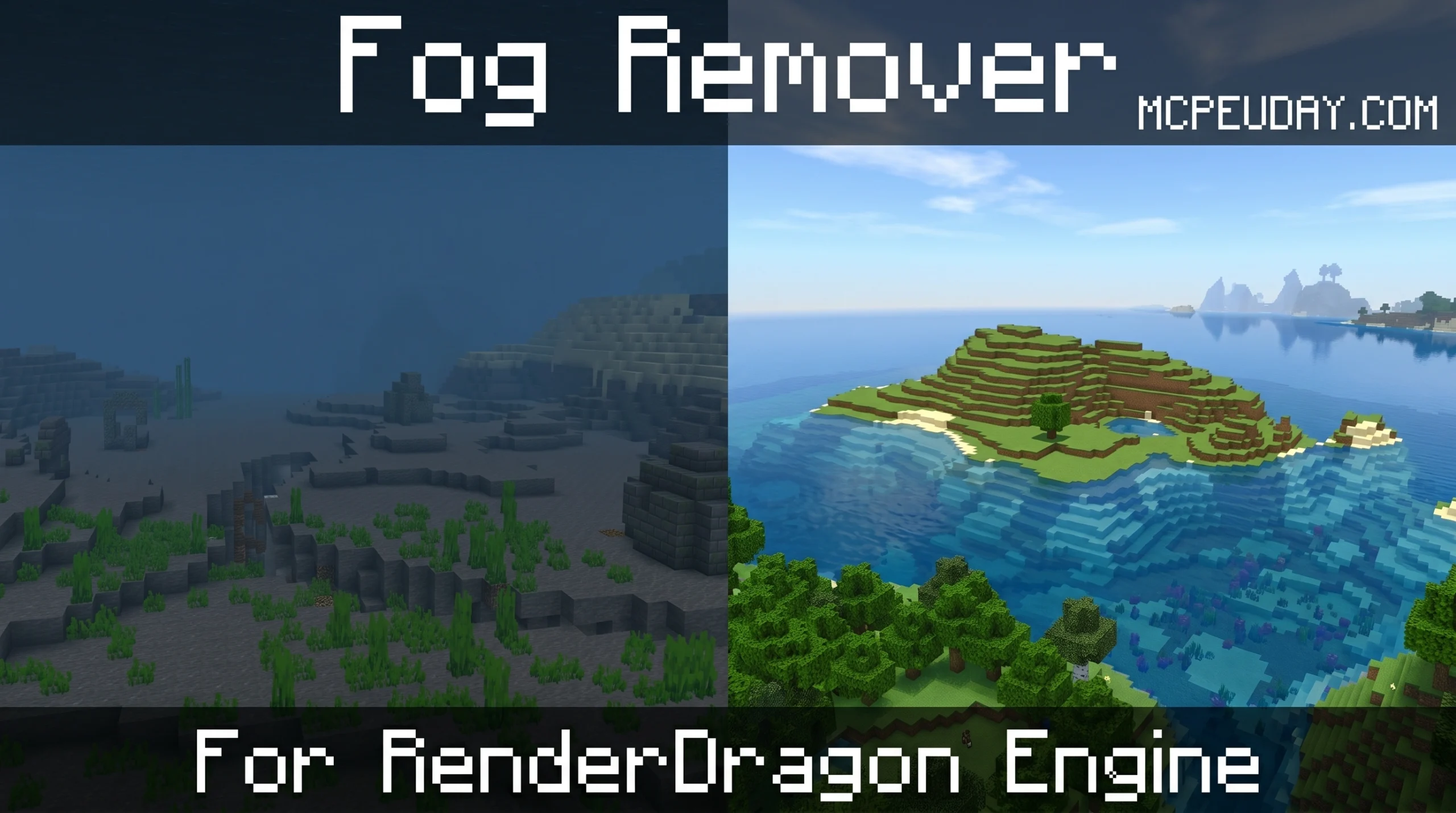
Why Every Minecraft Player Needs a Fog Remover Shader
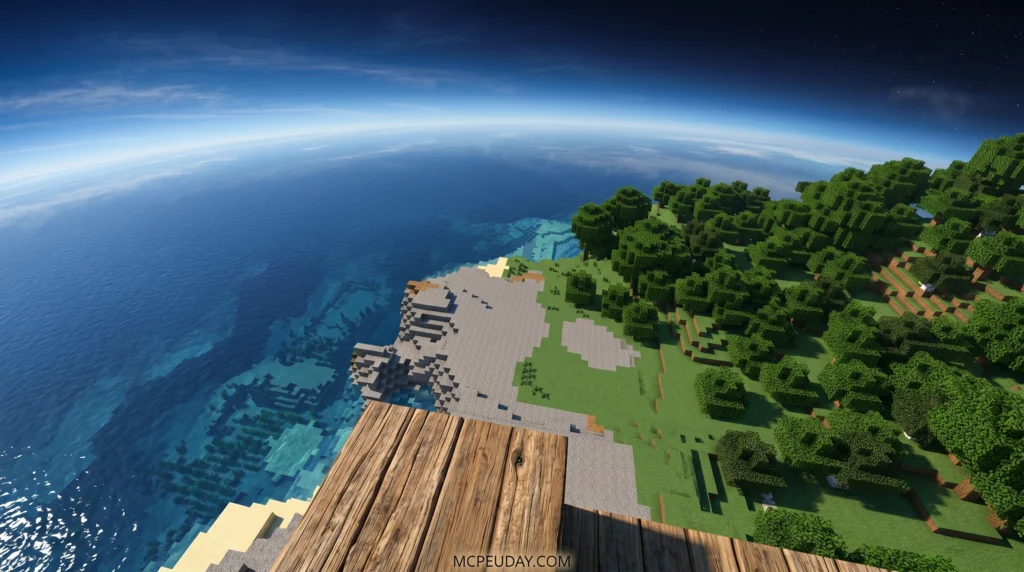
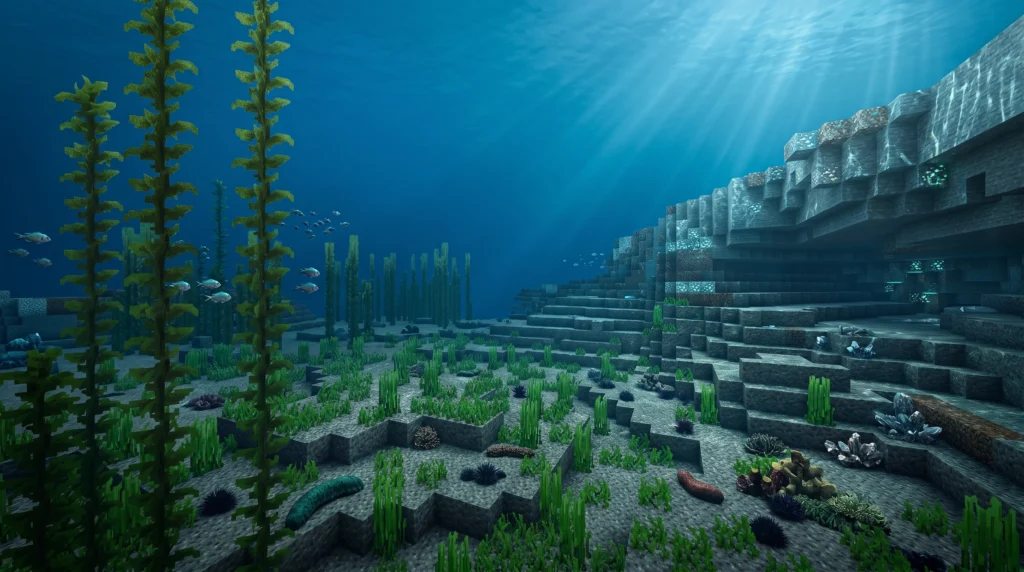
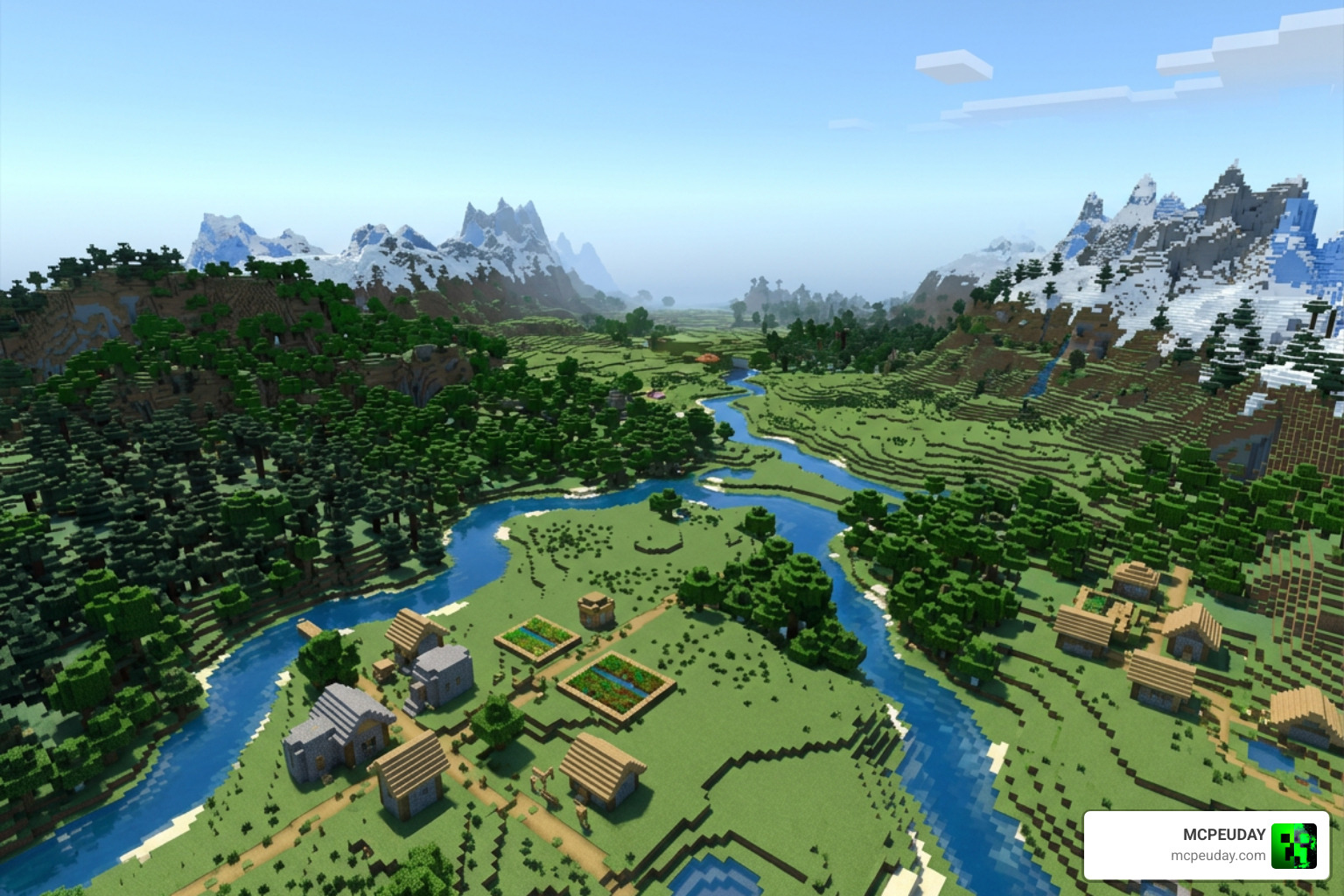
A Fog Remover Shader is a lightweight graphics mod that strips away the fog effects in Minecraft — giving you a completely clear view of your world with no haze cutting off the horizon.
Quick answer: Here’s what you need to know at a glance:
| What you want | What to use |
|---|---|
| Remove fog on Bedrock/PE | RenderDragon Fog Remover (.mcpack) |
| Remove fog on Java Edition | “Remove Fog” resource pack on CurseForge or Modrinth |
| Platforms supported | Windows, Android, iOS, console (Bedrock) |
| Minecraft versions | 1.19.60 and up, including 1.21 |
| Performance impact | None — purely visual |
Fog in Minecraft isn’t just an annoyance. It blocks your view when building, exploring, or recording footage. It hides terrain in the Nether, makes underwater navigation frustrating, and even kicks in during the Blindness and Darkness status effects.
The good news? A Fog Remover Shader fixes all of that in minutes.
With over 329,000 downloads on CurseForge and 43,400+ on Modrinth, fog removal is one of the most popular visual tweaks in the Minecraft community — and for good reason.
In this guide, you’ll learn exactly how it works, how to install it on any platform, and how to get the most out of it.
What is a Fog Remover Shader and How Does It Work?
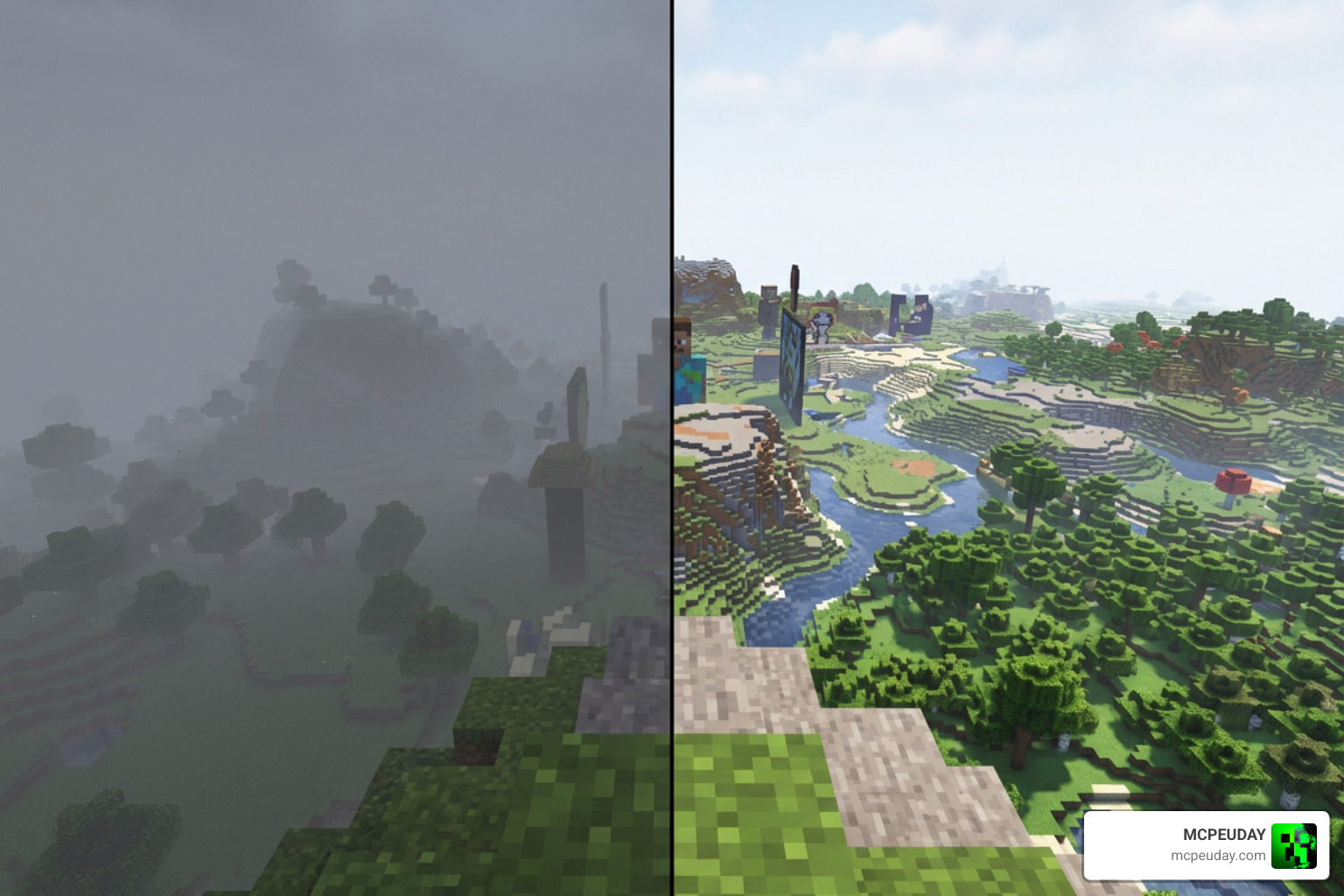
In Minecraft, fog is an atmospheric rendering technique used to hide chunk loading boundaries and create a sense of depth. However, it often ends up looking like a thick, muddy wall of gray.
A Fog Remover Shader works by modifying the game’s core rendering files to tell the graphics engine not to draw these fog layers.
In Minecraft Bedrock Edition, graphics are handled by the RenderDragon engine. Unlike the older graphics engine, RenderDragon compiles its shaders into closed binary formats. This means traditional shaders no longer work. Instead, a modern Fog Remover Shader must directly hook into or modify the pre-compiled RenderDragon materials.
If you want to see how this compares to other visual upgrades, check out our guide on the Best Shaders for MCPE 1.21 (2026) – Top 3 Realistic Minecraft PE Shaders.
Understanding the Fog Remover Shader Mechanics
To understand how a Fog Remover Shader works under the hood, we have to look at how games calculate visibility. In 3D rendering, the game engine uses a depth buffer to determine how far objects are from the camera.
In general game development, shaders use advanced calculations to blend fog. For example, systems like Better Fog: Height Fog, Light Scattering & More | VFX Shaders | Unity Asset Store or the volumetric raymarching scripts found in Assets/Resources/Shaders/VolumetricFog.shader at main · ssell/UnityURPVolumetricFog calculate atmospheric scattering based on distance and light angles. Some systems, like the FogSamplerShader | Foundry Virtual Tabletop – API Documentation – Version 14 , even convert specific color channels into transparency masks to handle fog of war.
Even in injector tools like ReShade, developers utilize a Fog Removal Shader to isolate depth buffers and strip away volumetric haze to let external ray tracing (RTGI) shine through, as discussed in communities like [Coding] Fog removal shader – UnKnoWnCheaTs .
In Minecraft Bedrock, developers use tools like the MaterialBinTool to unpack RenderDragon’s binary files, strip the mathematical formulas that calculate fog density based on the depth buffer, and repackage them. The result? The game still loads your chunks normally, but the visual “shroud” is completely gone.
You can explore more modifications like this in our Minecraft PE Shaders Category.
Types of Fog Removed: From Nether to Blindness
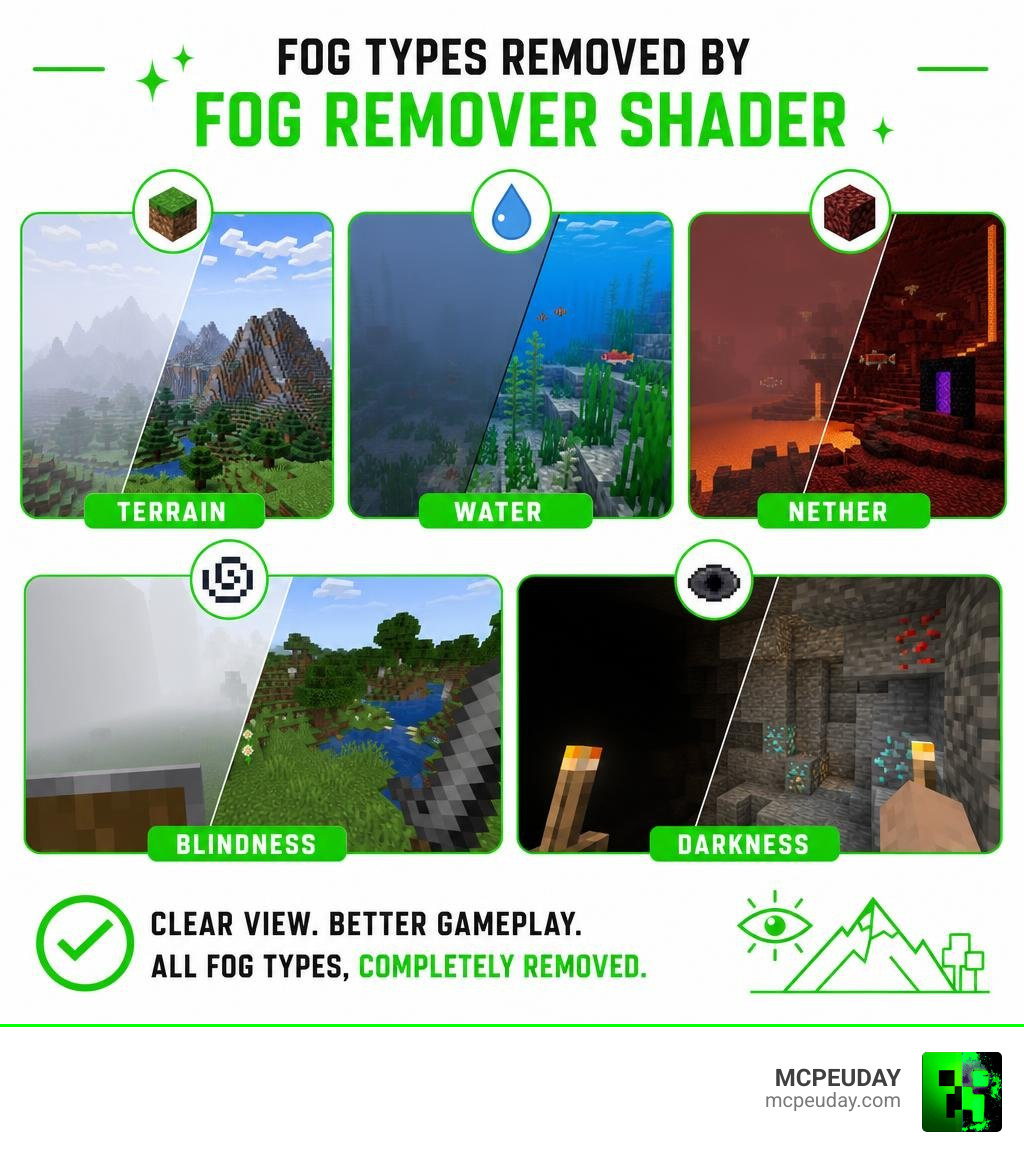
An effective Fog Remover Shader doesn’t just clear up the horizon on a sunny day. It targets and eliminates multiple types of fog across all dimensions:
- Terrain Fog: Removes the soft, gray horizon line in the Overworld, letting you see your builds from miles away.
- Water Fog: Strips the murky green or blue overlay when diving, giving you perfect underwater clarity.
- Nether Fog: Removes the thick, red atmospheric haze of the Nether, making ancient debris hunting significantly easier.
- Lava Visibility: Decreases the opaque orange overlay when submerged in lava (especially useful when combined with Fire Resistance).
- Blindness & Darkness Effects: Neutralizes the artificial fog bubble forced on your camera during status effects, allowing you to navigate dark caves or Warden encounters with ease.
Step-by-Step Guide: How to Install and Activate the Shader
Ready to clear up your game? Follow this simple installation guide to get your Fog Remover Shader up and running. For more options tested on real mobile devices, check out our list of the Best Render Dragon Shaders for MCPE 1.21 – Tested on Real Devices (2026 Guide).
Installing the Fog Remover Shader on iOS, Android, and Windows
Because Bedrock Edition runs on the RenderDragon engine across all mobile and PC platforms, the installation process is highly standardized:
- Download the Pack: Get the
.mcpackfile directly from a trusted source like MCPEUDAY. - Open the File:
- On Windows 10/11: Simply double-click the
.mcpackfile. Minecraft will launch automatically and import the pack. - On Android: Use a file manager app to tap the file and select “Open with Minecraft.”
- On iOS: Tap the downloaded file in your Files app and share/open it with Minecraft.
- On Windows 10/11: Simply double-click the
- Activate the Pack:
- Open Minecraft and navigate to Settings.
- Scroll down to Global Resources.
- Under My Packs, locate the Fog Remover Shader and click Activate.
- Ensure it is placed at the top of your active pack list to override other graphics settings.
To pair this with other stunning visual upgrades, check out the Top 5 Best Realistic Shaders for MCPE.
Avoiding Common Installation Pitfalls
While installing is usually a breeze, keep these common pitfalls in mind:
- Active World Packs vs. Global Resources: If you activate the pack inside a world’s specific settings, it will only work in that world. For a seamless experience across servers and single-player worlds, always activate it in your Global Resources in the main menu.
- Version Mismatches: RenderDragon updates frequently. If you notice fog returning after an official Minecraft patch, you may need to download an updated version of the shader that supports your current game build.
- File Path Errors on Android: Android’s scoped storage can sometimes block direct imports. If you get an import error, try manually copying the
.mcpackfile to yourcom.mojangresource packs folder.
Comparing Bedrock RenderDragon Fog Solutions
When looking for a way to clear your view on Bedrock, you will generally run into two types of solutions: custom RenderDragon shaders and standard resource packs.
| Feature | RenderDragon Fog Shader | Standard Resource Pack (e.g., Remove Fog – Minecraft Resource Packs – CurseForge ) |
|---|---|---|
| Primary Method | Binary material modification | Core shader override files |
| Water & Nether Fog | Completely removed | Partially removed (dependent on version) |
| Blindness/Darkness | Fully bypassed | Bypassed on supported versions |
| Performance Impact | Zero (purely visual) | Zero |
| Mod Conflicts | Low | High (cannot run with other core shader mods) |
RenderDragon Fog Remover vs. Standard Resource Packs
While standard resource packs like the popular CurseForge pack by MistyOrchid work brilliantly for Java Edition by overriding core shader folders, Bedrock’s RenderDragon requires a more specialized touch.
Standard Bedrock resource packs often try to remove fog by editing client-side environment JSON files. While this works for basic terrain fog, it frequently fails to remove underwater fog, nether haze, or status effect blindness. A true RenderDragon Fog Remover Shader modifies the compiled material binaries, ensuring all fog types are cleanly bypassed without leaving behind weird graphical artifacts.
Bedrock Alternatives: In-Game Settings and Add-ons
If you prefer not to use external files, you can tweak your Bedrock client settings for slightly better visibility:
- Maximize Render Distance: Pushing your render distance higher pushes the vanilla fog envelope further back, though this requires a powerful device.
- Brightness Calibration: Setting your in-game brightness to maximum helps clear up some dark cave fog.
- Client Add-ons: Some custom Bedrock utility clients have built-in toggles to disable fog, though these can sometimes conflict with official multiplayer server rules.
For a complete overhaul of your game’s graphics, take a look at the 3 Best Shaders for Minecraft 1.21 – Ultra Realistic, Smooth FPS & Stunning Graphics.
Best Practices for Crystal-Clear Visibility
To get the absolute most out of your newly cleared horizon, try these expert tips:
- Combine with Night Vision: Removing water or cave fog is great, but pairing it with a Night Vision potion turns the dark depths into a perfectly bright, crystal-clear paradise. This is incredibly useful for finding ocean monuments or mapping out massive cave networks.
- Optimize Your Render Distance: Since the fog is no longer hiding chunk loading, low render distances might look a bit jarring as chunks pop into existence. Find a sweet spot where your device can load chunks smoothly without lagging.
- Adjust Shader Order: If you are running other cosmetic packs, always place the Fog Remover Shader at the very top of your active list in the Minecraft PE Shaders Category to ensure its core code overrides everything else.
Frequently Asked Questions About Fog Shaders
Does removing fog improve game performance?
Yes and no. Removing fog is primarily a visual enhancement. On most modern devices, it has zero performance impact. However, on low-end mobile devices, disabling fog can actually provide a minor FPS boost because the GPU no longer has to render the complex alpha blending layers associated with thick fog and volumetric particles.
Is the shader compatible with other resource packs?
Generally, yes! Because it only targets the fog rendering code, you can safely run it alongside your favorite texture packs. However, it may conflict with other major shader packs that attempt to introduce custom atmospheric lighting or custom fog effects.
Where can I safely download the shader?
You should always download your Minecraft modifications from trusted, verified sources like MCPEUDAY. Avoid shady ad-fly links or unverified third-party sites that bundle downloads with malicious software. Our team manually tests and verifies every pack to ensure a safe, virus-free installation.
Conclusion
A Fog Remover Shader is one of the simplest yet most impactful upgrades you can install for Minecraft Bedrock and Java. Whether you are a massive builder planning out your next mega-base, an explorer diving into the deepest oceans, or just tired of the thick red haze of the Nether, this simple tweak completely changes how you experience the game.
Ready to see your world in a whole new light? Head over to our homepage at MCPEUDAY to download the latest safe, tested version of the Fog Remover Shader, and don’t forget to check out our ultimate guide on the Best Shaders for MCPE 1.21 (2026) – Top 3 Realistic Minecraft PE Shaders to elevate your graphics even further!