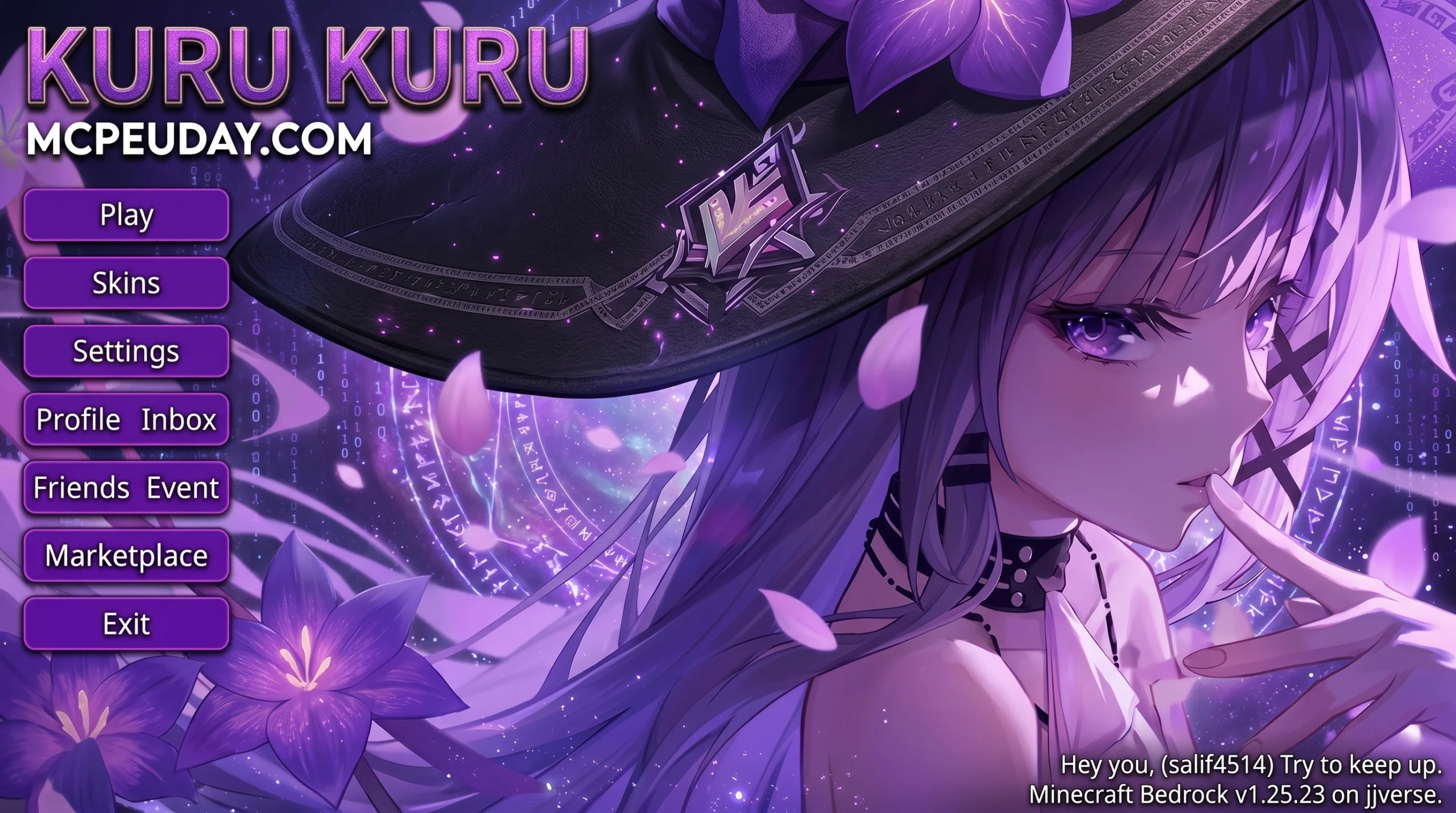
Why Animated Herta UI Is Taking the Modding World by Storm
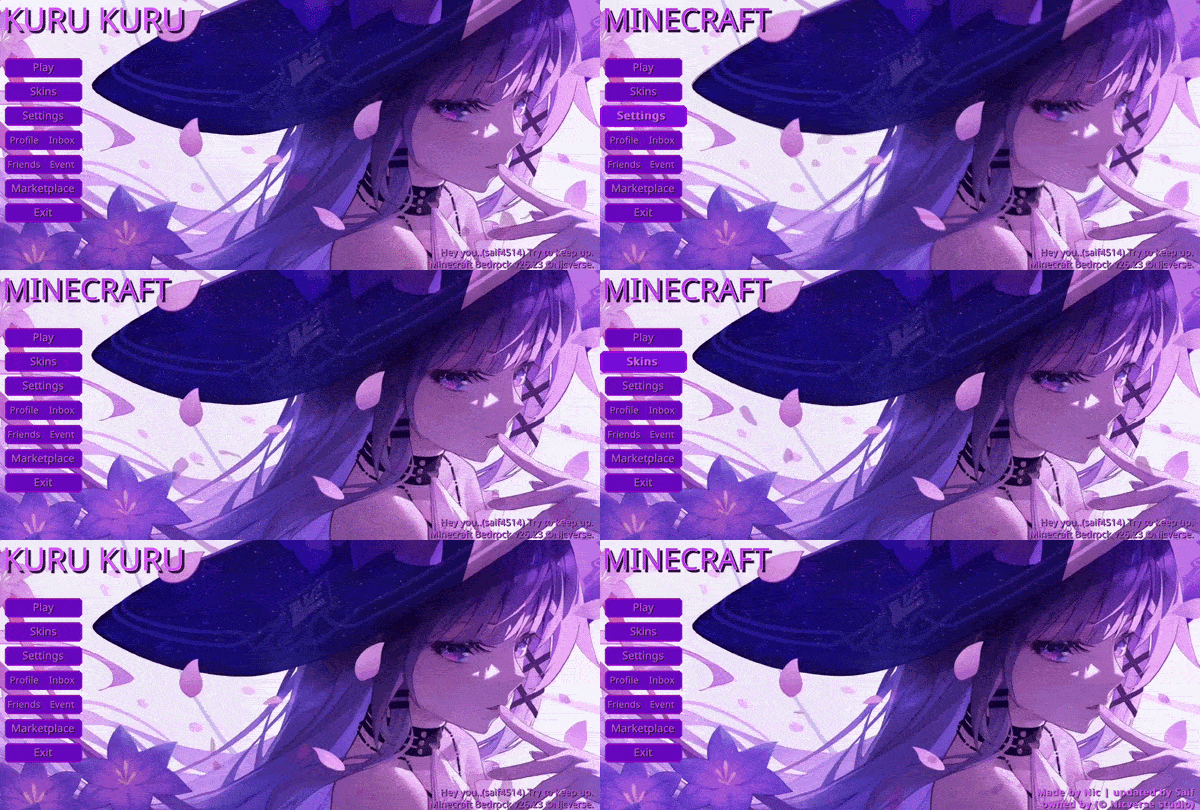
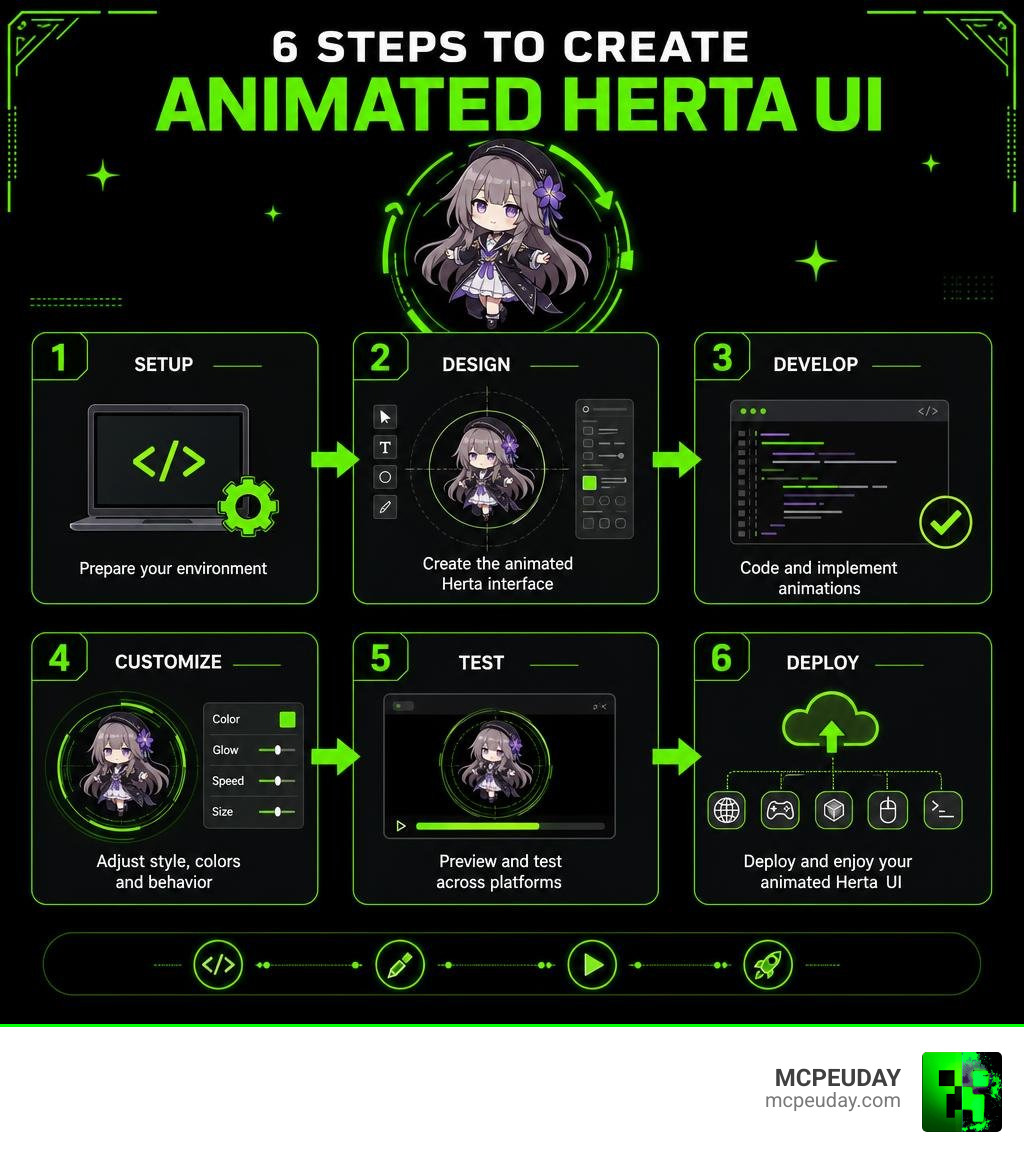
An Animated Herta UI is a fan-made interface design built around Herta, the spinning puppet genius from Honkai: Star Rail — and in just 6 steps, you can build or install one yourself.
Quick answer — what you can do with an Animated Herta UI:
- Add it to your browser — install a Herta-themed Firefox extension
- Use it as a loading screen mod — drop the Kuru Kuru icon into Super Smash Bros. Ultimate via GameBanana
- Build a web version — clone the duiqt/herta_kuru GitHub repo (769 stars, 167 forks)
- Customize your Windows cursor — download the animated Herta cursor pack (5.8K downloads on VSThemes)
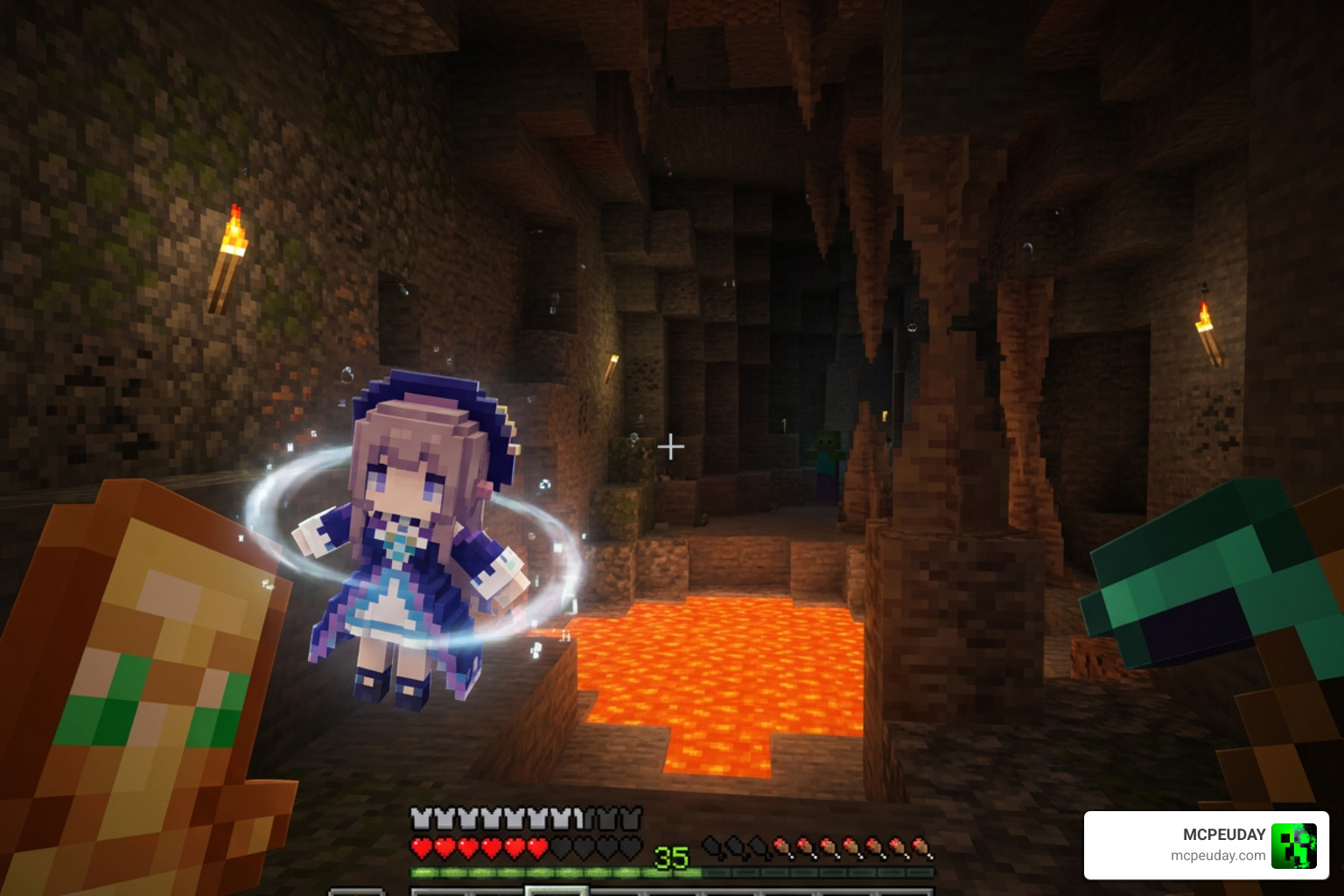
- Port it to Minecraft — use the Herta Animated Totem resource pack
- Run it in your terminal — explore the Herm TUI dashboard
It started with a simple looping animation of Herta spinning in place — her “Kuru Kuru” moment. Fans loved it. Then it escaped the game and showed up everywhere: mods, websites, cursor packs, Minecraft resource packs, and open-source GitHub projects.
The community-built duiqt/herta_kuru project — launched in May 2023 and built with 78.5% JavaScript, 12.8% CSS, and 8.8% HTML — became the technical backbone for many of these creations.
This guide walks you through all 6 steps to build, customize, and deploy your own Animated Herta UI, whether you’re modding a game or building a web project.
Understanding the Cultural Phenomenon of the Kuru Kuru Meme
To understand why developers are spending their weekends crafting custom Animated Herta UI setups, we have to look at the character behind the spin. In Honkai: Star Rail, Madam Herta is Member #83 of the prestigious Genius Society. She is a world-renowned polymath who solved the mystery of imaginary energy, reversed her own aging process, and runs the Herta Space Station. Because she finds daily human interactions incredibly boring, she interacts with the world through over 200 remote-controlled puppets modeled after her younger self.
Despite her elite status and detached, bossy personality, her combat mechanics introduced a delightful quirk. When an enemy’s HP falls below 50%, her puppet triggers a follow-up attack, spinning across the screen while cheerfully saying “Kuru kuru~” (meaning “spinning” in Japanese) or “Kuru rin~”.
This quick, repetitive animation exploded into a massive internet meme. The community quickly transformed this cute, rhythmic sequence into a symbol of pure visual delight. From fan-made musical remixes to interactive web buttons, the “Kuru Kuru” craze showed how a tiny, well-designed character animation can capture the internet’s imagination. Fans have even built interactive conversational tools, such as the AI Chat with Herta – Honkai: Star Rail | Shapes AI , which lets users chat with a virtual version of the bossy genius herself (boasting over 1.3K messages from enthusiastic users).
Bringing this meme into user interfaces is a natural evolution. By replacing standard, boring loading indicators with a spinning Herta puppet, developers inject instant personality and joy into everyday digital environments.
Step-by-Step Guide to Building an Animated Herta UI
Creating a delightful user experience is all about adding unexpected moments of fun. As modern UI designers often emphasize, adding micro-interactions and smooth transitions can completely transform how users feel about an interface. For a deeper look into these concepts, you can check out Mastering UI Animation: Adding Delight to Your User Interface | TikTok .
Below, we break down how to build and customize your own Herta-themed animated UI from the ground up.
Step 1: Setting Up the duiqt/herta_kuru Repository
If you want to build a web-based Animated Herta UI, the best starting point is the open-source repository created by developer duiqt. The duiqt/herta_kuru project is a highly popular, community-driven tribute site that displays a spinning Herta puppet every time you click the screen, complete with multilingual voice lines.
To set up the repository locally on your machine:
- Open your terminal or command prompt.
- Clone the repository using Git:
git clone https://github.com/duiqt/herta_kuru.git - Navigate into the project folder:
cd herta_kuru - Since the project is built using lightweight, frontend-focused files, you do not need a heavy backend framework. You can run it locally using a simple local server extension (like Live Server in VS Code) or by running a quick Python server command:
python -m http.server 8000 - Open your web browser and navigate to
http://localhost:8000to see the interface in action.
Step 2: Coding the Animated Herta UI with HTML, CSS, and JavaScript
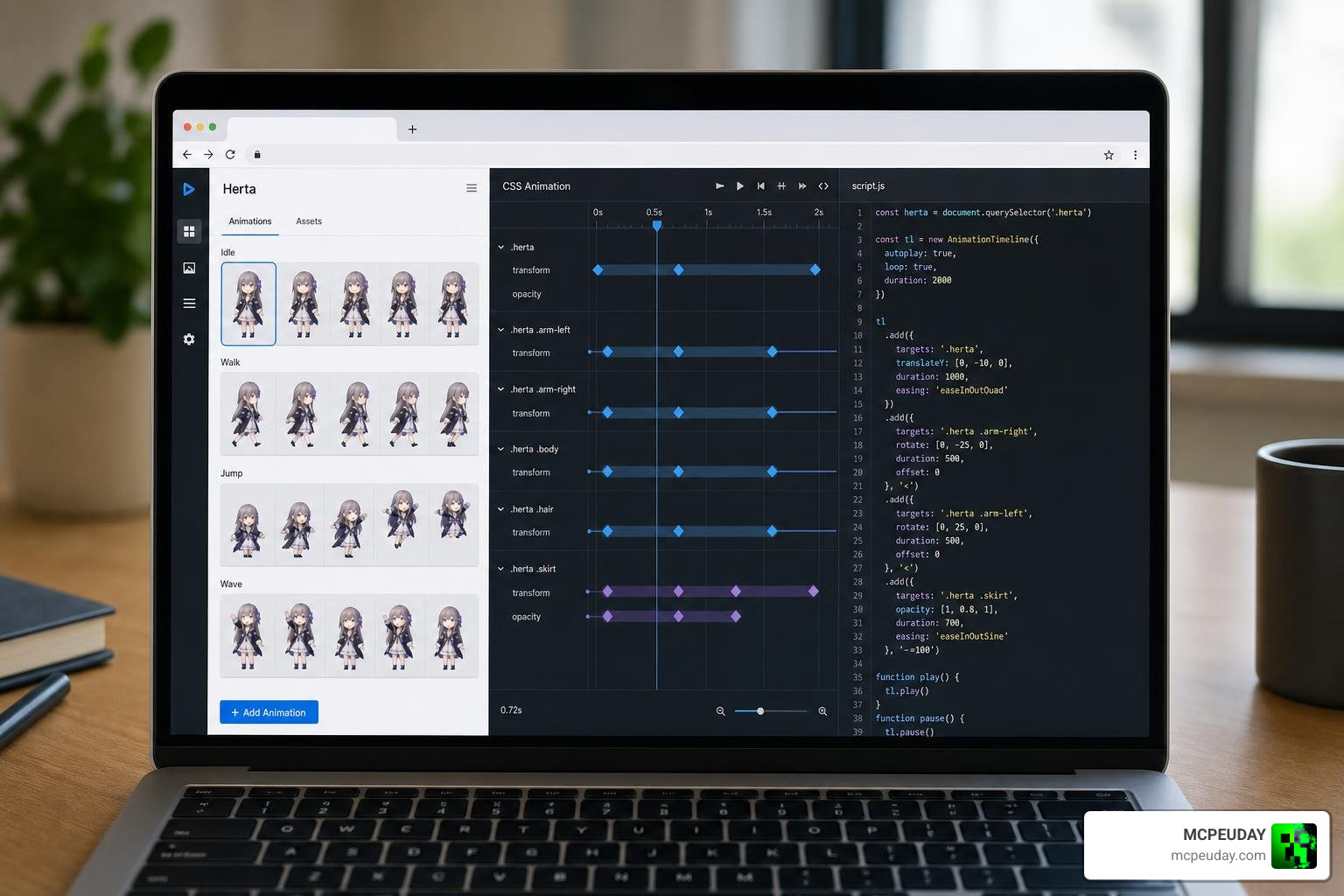
At its core, the spinning animation in the web version relies on clean, lightweight frontend code. Let’s look at how the main components interact to produce the effect.
The HTML Structure
The HTML structure is minimal, keeping the DOM light so the animation runs smoothly even on lower-end devices:
<div id="herta-container">
</div>
<button id="spin-trigger">Click to Kuru Kuru!</button>
The CSS Keyframes
To make Herta spin smoothly, we use CSS keyframes. This offloads the rendering workload to the GPU, ensuring a buttery-smooth 60 frames per second:
@keyframes hertaSpin {
  0% {
 transform: rotate(0deg);
  }
  100% {
 transform: rotate(360deg);
  }
}

.spinning {
  animation: hertaSpin 0.8s linear infinite;
  transform-origin: center;
}
The JavaScript Logic
JavaScript is used to handle user interactions, trigger the audio clips dynamically, and track how many times Herta has spun:
const puppet = document.getElementById('herta-puppet');
const trigger = document.getElementById('spin-trigger');
const audioFiles = [
  'assets/audio/kuru_kuru.mp3',
  'assets/audio/kuru_rin.mp3'
];

trigger.addEventListener('click', () => {
  // Trigger CSS class for animation
  puppet.classList.add('spinning');

  // Play random voice line
  const randomAudio = new Audio(audioFiles[Math.floor(Math.random() * audioFiles.length)]);
  randomAudio.play();

  // Remove class after animation completes to allow re-triggering
  setTimeout(() => {
 puppet.classList.remove('spinning');
  }, 800);
});
Step 3: Customizing the Interface with Community Assets and LoRA Models
To make your Animated Herta UI unique, you can swap out the default artwork with custom graphics. If you want to generate high-quality, stylized images of Herta that match specific UI themes, you can leverage community-trained AI models.
Using the resources in README.md · Shenrui-Ma/LoRA-TheHerta-HonkaiStarRail at main , you can utilize specialized Low-Rank Adaptation (LoRA) models trained on roughly 300 hand-cropped images of Herta. These models are compatible with popular base generators like Animagine XL 3.1, Illustrious XL, and Pony Diffusion V6 XL.
When generating custom Herta UI assets, keep these prompt engineering tips in mind to ensure high accuracy:
- For accurate clothing details: Include specific trigger words like
key necklace,keyhole on chest,leg ring, andnail polishin your prompt. - For character-accurate expressions: Avoid generic prompts like
smile, which can result in out-of-character facial expressions. Instead, uselight smileorlight smile, closed mouthto preserve Herta’s signature detached and cool demeanor.
Once generated, crop your custom images into transparent PNGs to prepare them for your custom UI elements.
Step 4: Integrating Herta Cursors and Loading States on Windows
Why limit your Animated Herta UI to web browsers? You can bring the spinning puppet directly to your Windows desktop operating system by installing custom animated cursors. A highly popular cursor set created by designer EbiEbiBeam is available on VSThemes, featuring both purple and golden accent variants.
To install these cursors on your system, follow the steps below:
- Download the cursor pack from Cursors Herta – Honkai Star Rail on Windows download on VSThemes.org .
- Extract the downloaded
.ziparchive to a folder on your computer (for example,C:\Windows\Cursors\Herta). - Look for an
.inffile (usually namedinstall.inf) inside the extracted folder. - Right-click the
.inffile and select Install from the context menu. This automatically registers the cursor scheme with Windows. - Open your Windows search bar, type Mouse Settings, and click on Additional Mouse Options to open the classic Mouse Properties window.
- Navigate to the Pointers tab, select the newly installed Herta cursor scheme from the dropdown menu, click Apply, and save your new scheme.
Note: If no .inf file is present in your download, you can manually assign the cursors by clicking on individual states (such as “Normal Select” or “Working in Background”), clicking Browse, and selecting the corresponding .cur or animated .ani files.
Step 5: Porting the Animated Herta UI to Gaming Mods and Dashboards
The community’s love for the Kuru Kuru spin has spilled over into popular video games and developer tools. We can find Herta-themed UI elements integrated across several platforms:
Super Smash Bros. Ultimate (SSBU)
Modders have created an animated loading icon mod for SSBU on GameBanana. This mod replaces the game’s standard bottom-right loading indicator with a spinning Herta puppet, adding a layer of humor to loading screens.
Minecraft Resource Packs
For Minecraft players, you can download custom resource packs that replace the default Totem of Undying with an animated, spinning Herta puppet. When the totem triggers, Herta spins across your screen to save your life. You can grab these versions via Download all versions Animated Totem (Herta) for Minecraft .
Terminal Dashboards (TUI)
If you spend your day working in a terminal, you can still enjoy custom dashboard interfaces. Developers have created projects like liftaris/herm (Herm), a mouse-aware terminal user interface (TUI) built with OpenTUI and Bun. It features tabbed sessions, customizable themes, and terminal-friendly layouts that show how game-inspired UI designs can influence developer environments.
Step 6: Deploying, Managing Traffic, and Respecting Copyrights
If you decide to host your own interactive Herta web app online, you must prepare for two major challenges: infrastructure scaling and copyright compliance.
Managing Traffic Spikes
Because memes can go viral overnight, open-source projects like herta_kuru have historically faced massive traffic spikes that can quickly exhaust server bandwidth. To prevent your site from crashing:
- Use a Content Delivery Network (CDN): Cache static assets like image files, CSS, and audio clips using services like Cloudflare.
- Optimize asset sizes: Compress your audio files to mono-channel
.mp3format and run your transparent PNG files through compression tools to keep page sizes minimal.
Licensing and Copyright Considerations
All character designs, lore, and audio assets for Herta belong to miHoYo/HoYoverse. When creating fan-made mods or tools:
- Keep it non-commercial: Do not charge money for your mods, cursor packs, or websites. HoYoverse generally tolerates fan projects as long as they are free to access and do not generate direct profit.
- Provide clear attribution: Give credit to the original game developers and any community designers whose modified assets you are using.
Comparing Herta UI Implementations Across Platforms
Depending on where you want to see Herta spin, different platform implementations offer varying levels of complexity and performance. Here is a quick breakdown of how these mods compare:
| Platform | Project Type | Performance Impact | Setup Difficulty | Key Customization Options |
|---|---|---|---|---|
| Web Browser | Firefox Theme / Web App | Extremely Low | Easy | Custom background colors, custom audio toggles via The Herta: Honkai Star Rail – Get this Theme for Firefox (en-US) |
| Windows OS | Desktop Cursor Pack | None | Easy | Purple vs. Gold accents, custom cursor scaling |
| Minecraft | Java/Bedrock Resource Pack | Low | Easy | Custom scale size, custom sound effects |
| SSBU Mod | Console Loading Icon Mod | Low | Medium | Custom loading placement (requires modded console) |
| Terminal (TUI) | Developer Dashboard | Very Low | Advanced | Theme selectors, custom key rebinding |
Frequently Asked Questions about Animated Herta UI
How do I install the Herta Kuru Kuru loading icon in Super Smash Bros. Ultimate?
To install the loading icon mod, you will need a modded Nintendo Switch console running custom firmware (such as Atmosphere). Download the mod files from GameBanana, locate your console’s SD card, and place the mod folder into the ultimate/mods/ directory. Once installed, launch the game using the Arcropolis mod manager to enjoy your new custom loading screens.
What technical stack powers the duiqt/herta_kuru spinning animation?
The web project is built using a lightweight, vanilla frontend stack consisting of 78.5% JavaScript, 12.8% CSS, and 8.8% HTML. It avoids heavy frameworks like React or Vue to keep loading times fast and performance high, utilizing CSS keyframe animations for hardware-accelerated rendering.
Are there copyright risks when using HoYoverse assets for custom UIs?
Yes, but they are minimal if you follow HoYoverse’s official fan-made content guidelines. Ensure your project is entirely free to use, contains no monetization or paywalls, and clearly credits Honkai: Star Rail as the source of the assets.
Conclusion
Creating or installing an Animated Herta UI is a fantastic way to bring community creativity and fun to your digital workspaces. Whether you are building a custom web application, changing up your Windows cursors, or diving into Minecraft with a custom resource pack, the “Kuru Kuru” meme is a prime example of how gaming culture can inspire delightful user interface designs.
At MCPEUDAY, we love exploring how custom graphics, mods, and shaders can breathe new life into your favorite games. If you want to take your gaming visuals even further, check out our guides to Enhance your Minecraft experience with custom shaders and explore our vast collection of community-driven resources!
5 thoughts on “Animated Herta UI (26.x, 1.21) – MCPE/Bedrock UI PACK”