Scroll down to D0vvnl0ad
Install a Chunk Visualizer in Minecraft PE/Bedrock
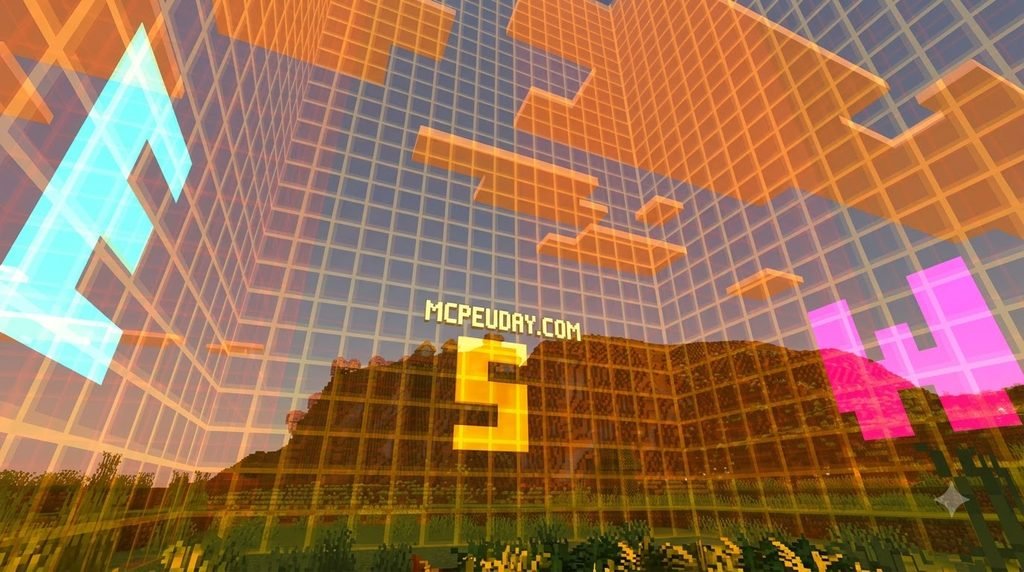
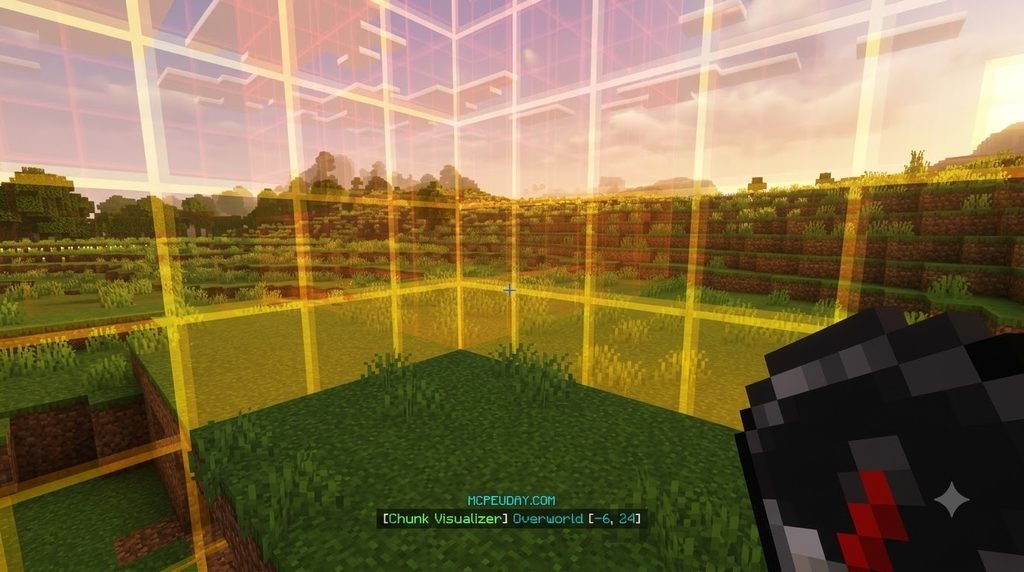
To see chunk borders in Minecraft PE/Bedrock, download a visualizer made for your game version, open its .mcpack or .mcaddon file to import it, then activate it in the world’s Resource Packs or Behavior Packs settings. If the add-on asks for experimental features, enable only those it requires.
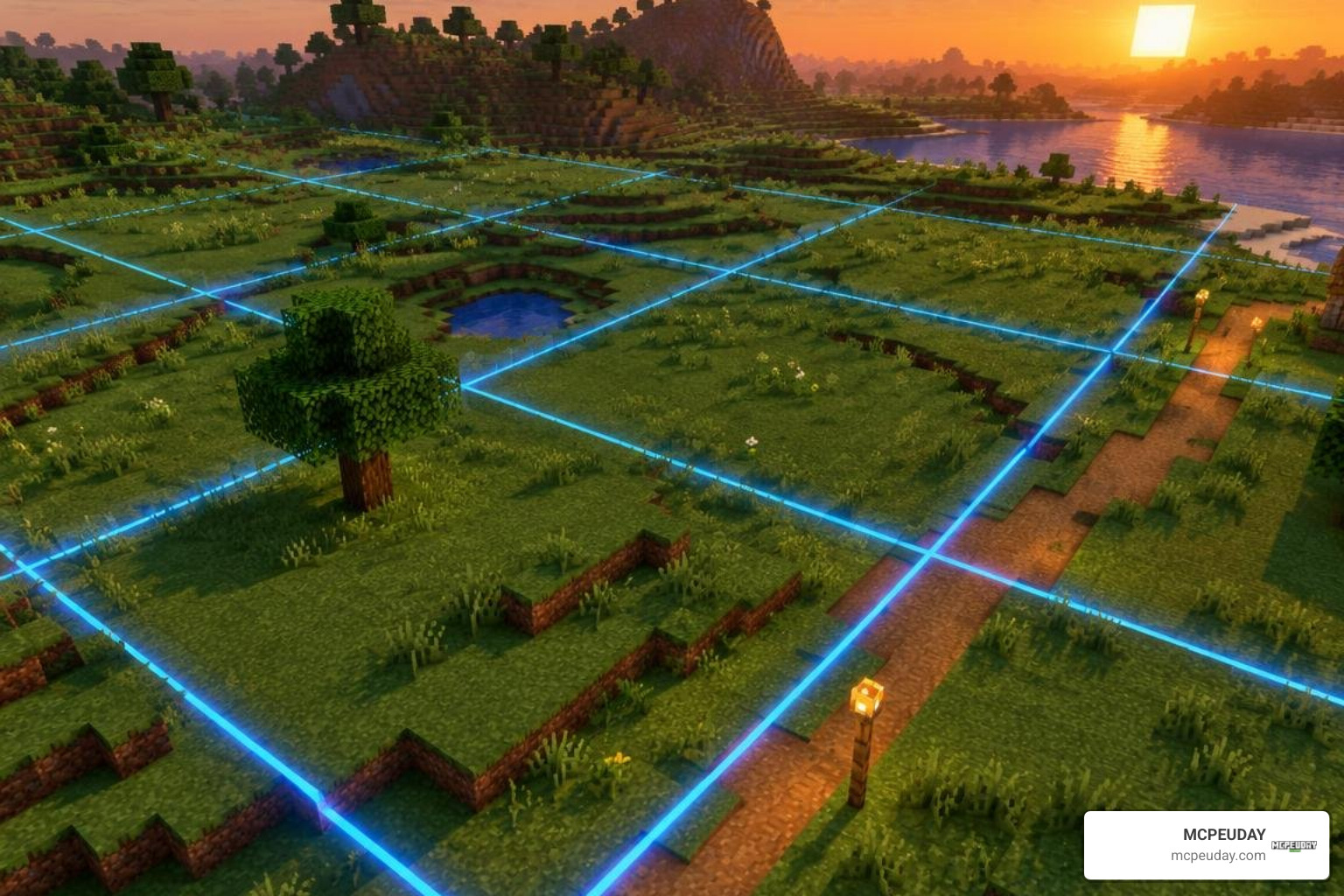
A chunk is a 16-by-16-block area of the world. Seeing that grid helps you line up builds, mark farm boundaries, and check which chunk you are standing in. The steps below cover both texture-pack visualizers and add-ons, since they may need different settings. For more background on how Bedrock handles these 16×16 areas, the Minecraft Wiki chunk article explains chunk loading and simulation distance in detail.
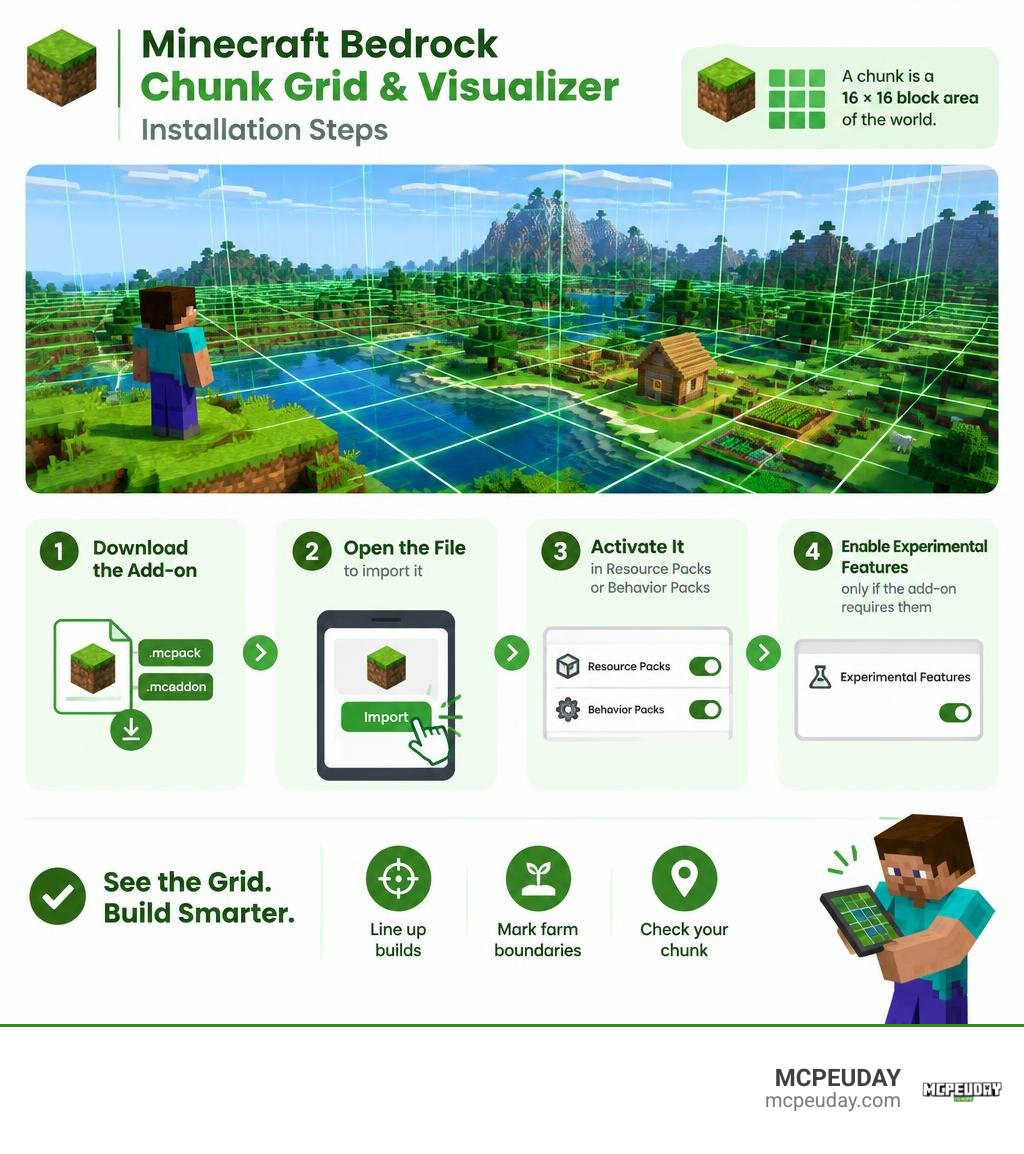
Understanding Chunk Boundaries and Why Visualizers Matter
Every Minecraft world is divided into an invisible grid of 16×16-block columns that extend from the lowest bedrock floor to the top of the sky. In Java Edition, viewing these lines takes a quick tap of the F3 key, but Bedrock Edition lacks that built-in debug screen. Because of this missing feature, we often end up guessing where boundaries lie, which can lead to misaligned builds or broken redstone mechanisms.
In Bedrock, managing chunks is essential because of how the game’s simulation distance works. When you move through your world, the game loads and processes tick calculations only within active chunks. If a redstone circuit crosses an active border into an unloaded chunk, signal transmission can freeze halfway through. This interruption can jam flying machines, desync piston doors, or break hopper clocks. Installing a dedicated Chunk Visualizer Addon gives you the clear boundary visibility needed to keep your redstone circuits and modular builds contained within safe zones.
Farm efficiency also relies heavily on these boundaries. Automated mob farms, iron farms, and villager trading halls depend on clean line placement to avoid entity-capping issues across borders. By displaying the invisible ruler your world runs on, a visualizer takes the guesswork out of structural alignment.
Texture Pack vs Chunk Visualizer Addon for Minecraft PE/Bedrock
Choosing between a resource pack overlay and a full behavior-based add-on comes down to how you play and whether you want to preserve survival achievements.
- Resource Pack (Texture-Based Visualizers): These packs modify the game’s user interface, mapping custom HUD elements or particle indicators over your screen. Because they only modify visual UI elements and client-side textures, they do not require cheats and keep Xbox achievements active in survival worlds.
- Behavior Pack / Add-On Visualizers: Tools like the Bedrock Chunk Visualizer Mod (distributed as a compact file around 376 KB) use custom entity models or scripting elements to draw visible line boundaries directly onto the terrain. While these add-ons offer precise, in-world physical boundaries, they often require toggling experimental gameplay or behavior settings.
| Feature | Texture Pack Visualizers | Behavior Pack Add-Ons |
|---|---|---|
| Primary Method | UI overlay & HUD map | In-world entity/particle grid |
| Achievement Friendly | Yes (Keeps achievements on) | No (Disables achievements if experimental/behavior) |
| World Edit Needed | Can run via Global Resources | Must be activated per world |
| File Formats | .mcpack | .mcaddon / .mcpack |
| Performance Load | Minimal UI draw call | Low to moderate entity rendering |
Key Features of the Chunk Visualizer Addon for Minecraft PE/Bedrock
When you equip a modern Chunk Visualizer Addon for Minecraft PE/Bedrock, it adds several navigational overlays to your screen:
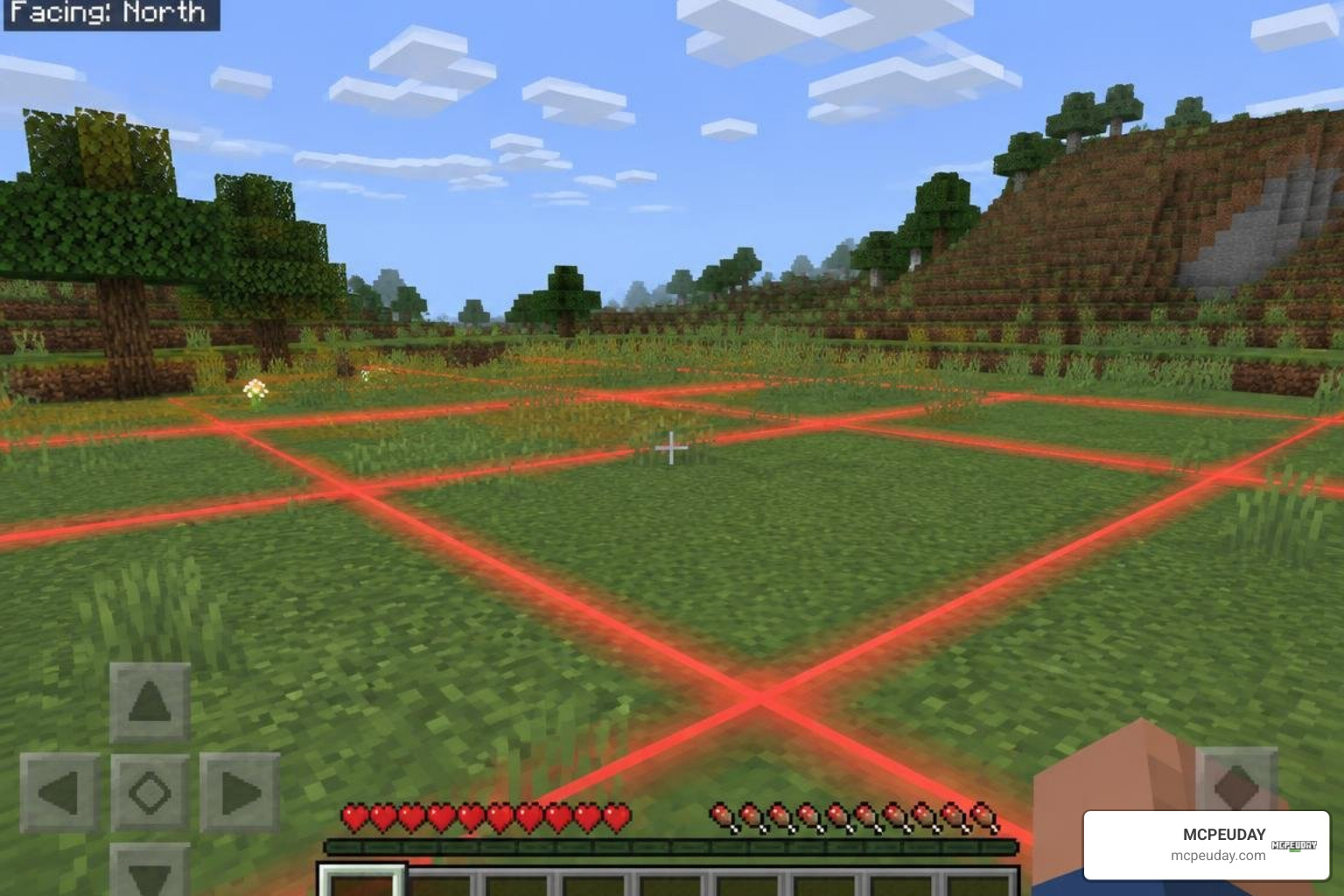
- Real-Time Chunk Coordinates: Instead of calculating block positions manually, the HUD displays your exact position within the active 16×16 grid space (indexing from 0 to 15 along both axes).
- Sub-Chunk Height Markers: Chunks are sliced vertically into 16-block-tall sub-chunks. Visualizers track your current vertical slice, which helps when building stacked mob farms.
- Compass & Rotation Indicators: The mini-map overlay or compass widget tracks which direction your character faces (North, South, East, West) so you can plan directional redstone layouts accurately.
- Boundary Outlines: High-contrast edge markers outline the perimeter of your current chunk, showing you where your blocks stand in relation to the world grid.
Display Modes and Resolution Settings
Many texture-based visualizer packs let you customize their appearance directly from the Resource Pack settings menu. When you select the pack, tap the Gear Icon (Subpack Settings) to choose your preferred display mode:
- 16x Resolution: The lightweight default option, designed for smooth performance on entry-level mobile devices.
- 32x & 64x Resolutions: Balanced options that provide crisp, high-resolution HUD mini-maps without cluttering your view.
- 128x HD Mode: Detailed graphics designed for high-end tablets and Windows 10/11 PCs, featuring sharp coordinate text and detailed compass markers.
How to Install and Activate the Visualizer on PE and Bedrock
Installing add-ons on Minecraft Bedrock is simple across mobile and desktop platforms thanks to packaged archive formats.
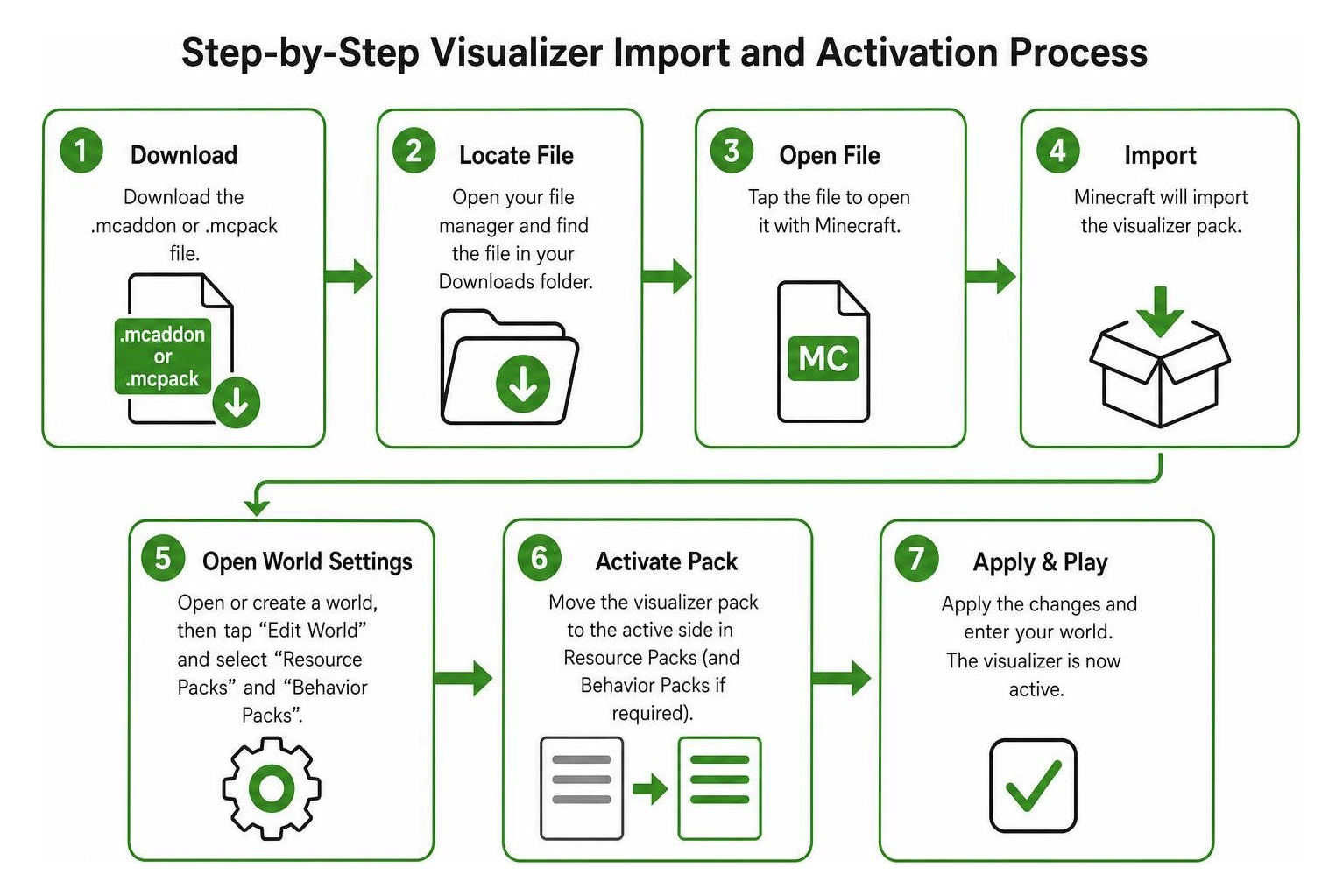
Step-by-Step Installation for the Chunk Visualizer Addon for Minecraft PE/Bedrock
Android
- Download the
.mcaddonor.mcpackfile through your mobile browser. - Open your device file manager and locate the downloaded file in your Downloads folder.
- Tap the file and select Open with Minecraft. The game will launch automatically and display an “Import Started” banner, followed by “Import Successful.”
iOS (iPhone & iPad)
- Download the file via Safari.
- Open the Files app and navigate to your download location.
- Tap the
.mcpackor.mcaddonfile. iOS will automatically pass the package to Minecraft Bedrock for installation.
Windows 10 / 11
- Double-click the downloaded
.mcaddonfile. - Minecraft will open and import the pack into your global storage automatically.
Activating in Your World
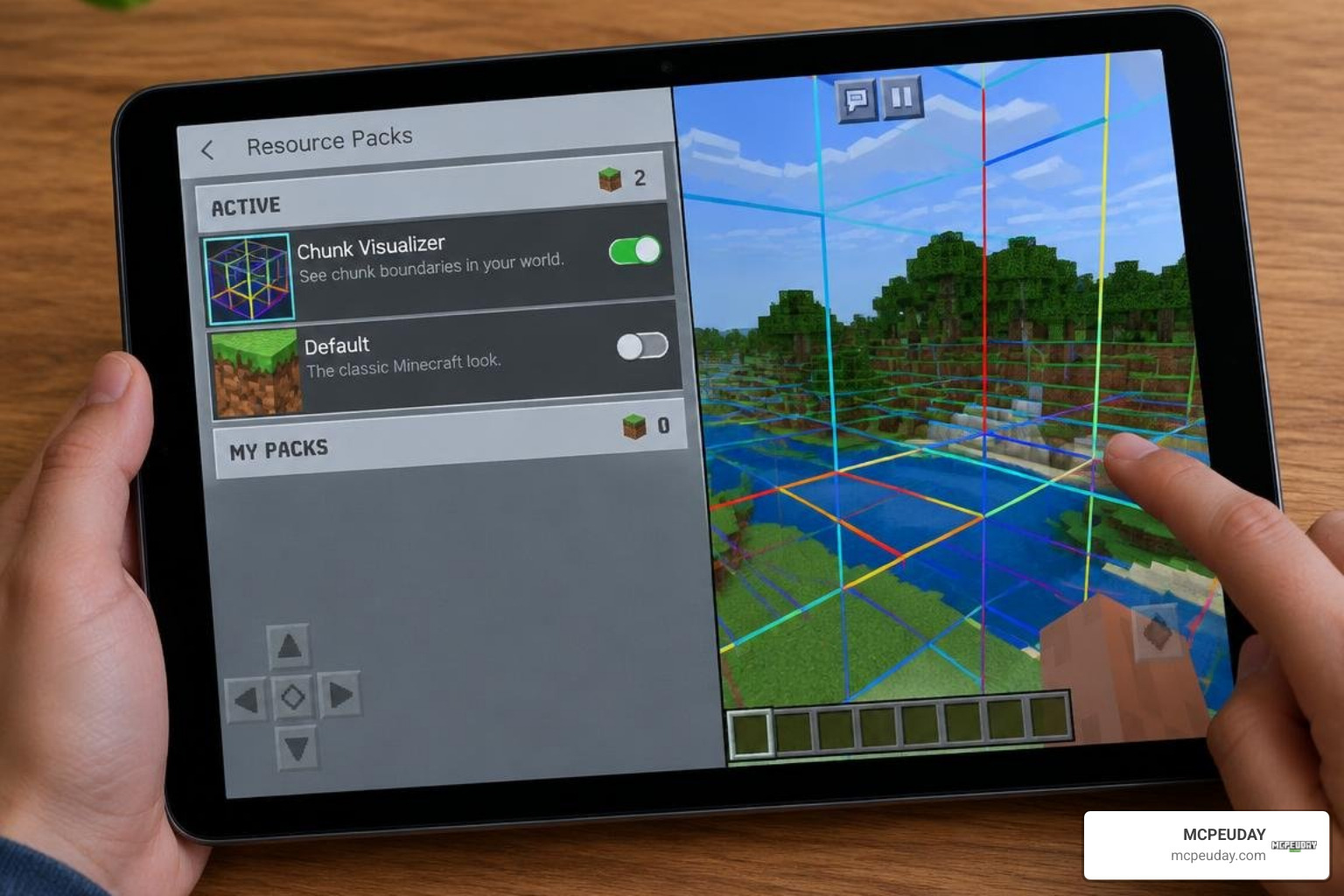
- Global Activation (For Texture Packs): Go to Settings > Global Resources > My Packs, select your visualizer, and click Activate. This enables the HUD across all single-player worlds and external servers.
- World-Specific Activation (For Add-Ons): Go to your world settings, click Resource Packs (and Behavior Packs if applicable), find the visualizer under Available, and hit Activate. If the pack uses behavior scripts, scroll down to the Experiments tab and turn on any requested features.
Troubleshooting UI Glitches and Hand-Held Item Overlaps
- Hand-Held Item Obstruction: Because some visualizer maps sit in the lower-right or lower-left corner of the screen, holding bulky items (like maps, shields, or enchanted tools) can block the HUD. To clear your view, switch to an empty hotbar slot, lower your Main Hand FOV, or select a subpack mode with a higher HUD placement.
- Coordinate Indexing (0 to 15 vs 16): Minecraft measures a 16-block chunk starting at index
0and ending at index15. If your visualizer reads block15, you are standing on the final edge block of that chunk. The next block over will reset your counter back to0inside a new chunk. - Visual Conflicts with Custom Graphics: If you run custom lighting or graphic packs alongside your HUD, ensure the visualizer sits at the top of your load order. You can also review our guide on how to turn on shaders in Minecraft to prevent interface clipping issues when pairing visualizers with graphical enhancements.
Advanced Building and Technical Farm Strategies
Once you can see your chunk boundaries clearly, you can use that grid layout to optimize your builds and farms:
- Slime Farm Isolation: Slime chunks spawn slimes regardless of light levels below Y=40. Using a visualizer alongside seed finders lets you dig out the exact 16×16 perimeter without mining unnecessary stone.
- Modular City Planning: Aligning city blocks, roads, and walls to chunk borders creates clean, symmetrical layouts across long distances. This approach prevents visual drift and ensures your structures match up evenly.
- Redstone Circuit Protection: Keeping complex redstone contraptions contained within a single chunk prevents the signal breakage that occurs when builds cross simulation boundaries.
- Performance Management: Spreading high-density entity farms across separate chunks helps maintain stable frame rates. If you build large bases, pairing your setup with the Voxy render distance mod allows you to view distant projects while monitoring active chunks. For clean visual clarity, you can also pair your UI setup with tested Render Dragon shaders.
Frequently Asked Questions about Bedrock Chunk Visualization
Does the visualizer addon disable Xbox achievements in survival worlds?
If you use a texture-pack visualizer activated via Resource Packs or Global Resources, achievements remain enabled. These packs only modify HUD elements and do not use gameplay scripts. However, if you install a behavior pack add-on that requires experimental gameplay toggles, survival achievements will be disabled for that world.
Can I reposition the chunk map overlay on mobile screens?
Most chunk visualizers anchor their HUD map to a fixed corner of your screen (usually the top-left or bottom-right). While you cannot freely drag the map across the touch screen, you can often change its position or compact the interface by clicking the Gear Icon in the pack settings and selecting a different subpack layout.
How do I verify chunk alignment on multiplayer Bedrock servers?
To view chunk borders on third-party Bedrock servers, activate a texture-based visualizer under your Global Resources menu before joining. Because resource packs run on your local client, the HUD overlay will display real-time chunk coordinates and boundaries on any server without requiring server-side add-on installation.
Conclusion
Chunk visualizers are simple, practical tools that take the guesswork out of building in Minecraft Bedrock. Whether you are laying out a city grid, building an automated slime farm, or keeping redstone builds contained within safe boundaries, seeing chunk borders helps ensure your projects work smoothly.
To find more tools, utility packs, and performance mods for your world, explore our complete Minecraft Bedrock add-ons and tools collection.