Scroll down to D0vvnl0ad
Get a Free Camera View in Minecraft Bedrock
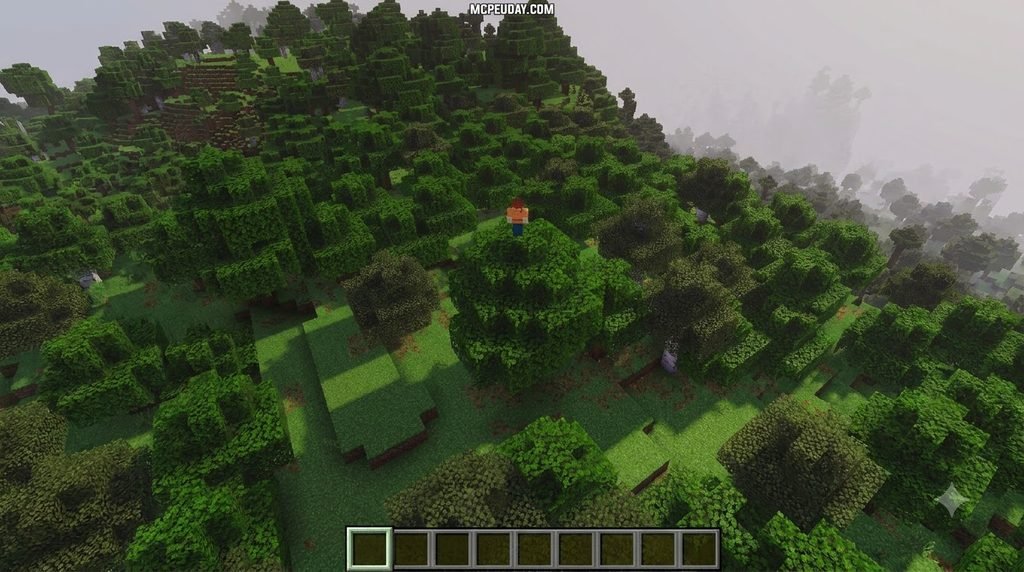
The FreeCam Addon for Minecraft PE/Bedrock lets you move your view around a world while your character stays completely stationary in place. To try FreecamBE, get a file that matches your Bedrock version, import it into Minecraft, add its packs to your world, and enable Beta APIs in the world settings. Then use the FreecamBE item in-game to open its camera menu and take full control of your perspective.
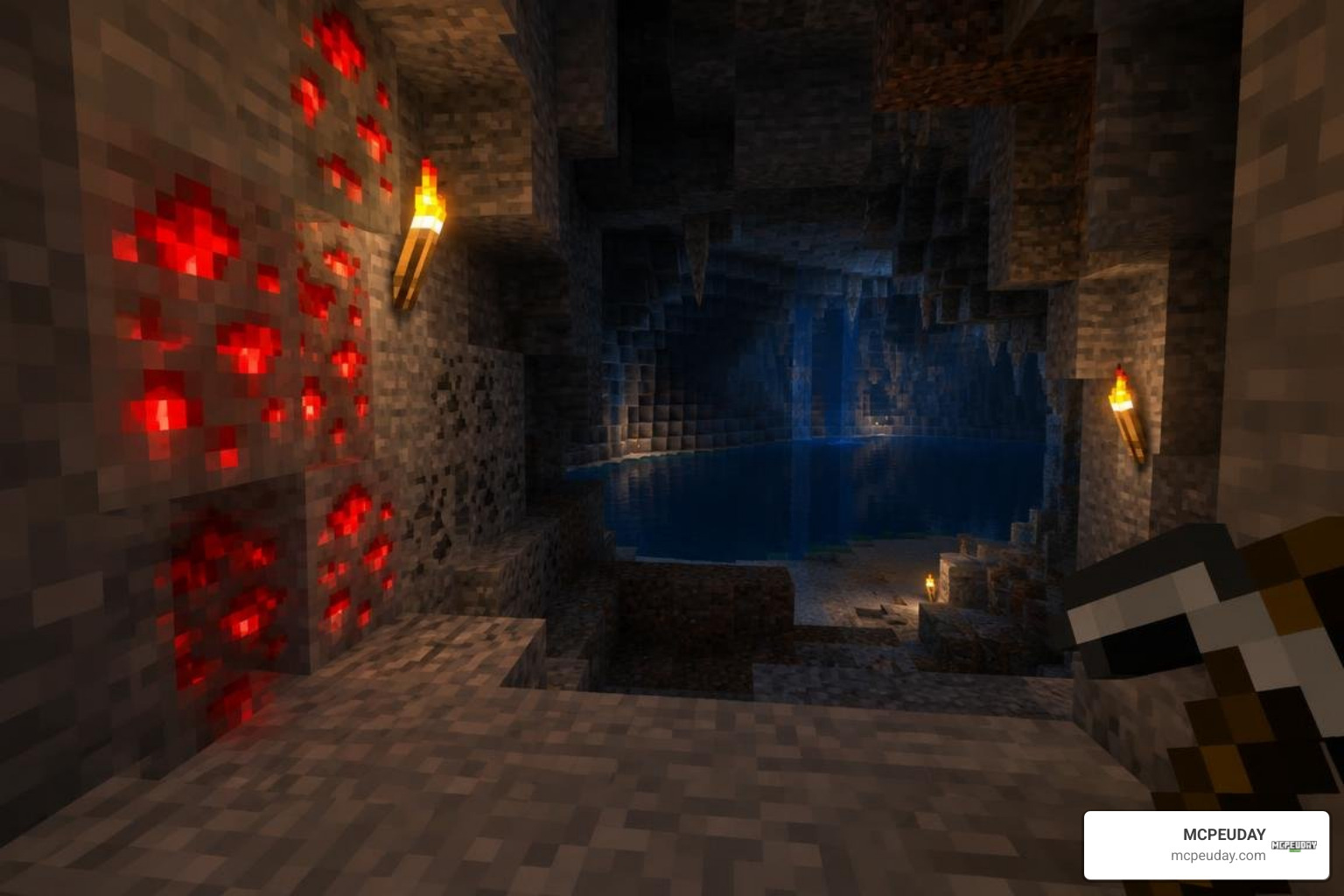
It is exceptionally useful for checking a build from every angle, inspecting automated redstone contraptions, or looking around a dark cave system without moving your physical character into danger. Always start in a test world: the add-on is experimental, and its full collision-ignore option needs Creative mode or operator permissions enabled to function smoothly.
What Is FreecamBE and How Does the FreeCam Addon for Minecraft PE/Bedrock Work?
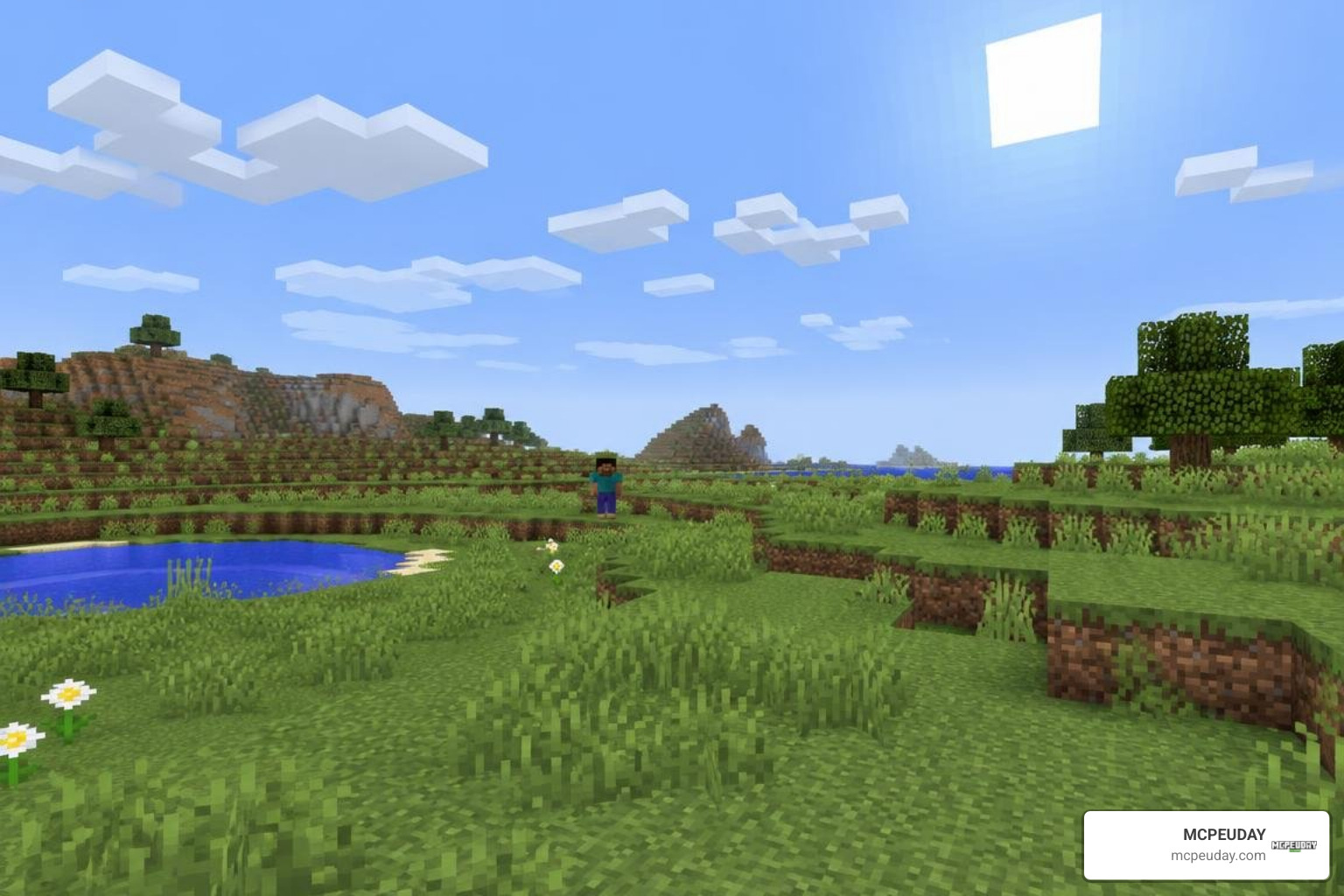
When we play Bedrock Edition, our camera is locked directly to our player character’s head position. FreecamBE completely transforms this dynamic by detaching your viewpoint from your avatar. This lightweight utility allows you to float freely through your environment, inspect complex redstone systems, survey massive mega-builds, and scout dark ravines without risking your character’s safety or having to build temporary scaffolding.
While your camera is roaming hundreds of blocks away, your character remains completely stationary at the starting point. This means you can keep mob farms actively spawning, continue cooking items in smelting arrays, or maintain essential chunk loading while you check distant areas across your landscape.
Core Mechanics of the FreeCam Addon for Minecraft PE/Bedrock
At its technical core, FreecamBE uses Bedrock’s modern scripting engine and camera APIs to project a virtual viewpoint away from your actual player entity. While standard camera tweaks like a dynamic first-person view addon alter how your body animates in first person, FreecamBE creates an independent spectator state without converting your entire player entity into spectator mode.
Because the addon operates primarily on the client rendering layer within the Bedrock engine, world blocks and entities continue to render within your active simulation and render distance. If you travel beyond your active simulation area, chunks will stop updating until your physical character moves closer, preserving critical system memory on mobile and console hardware.
Key Features and Camera Controls
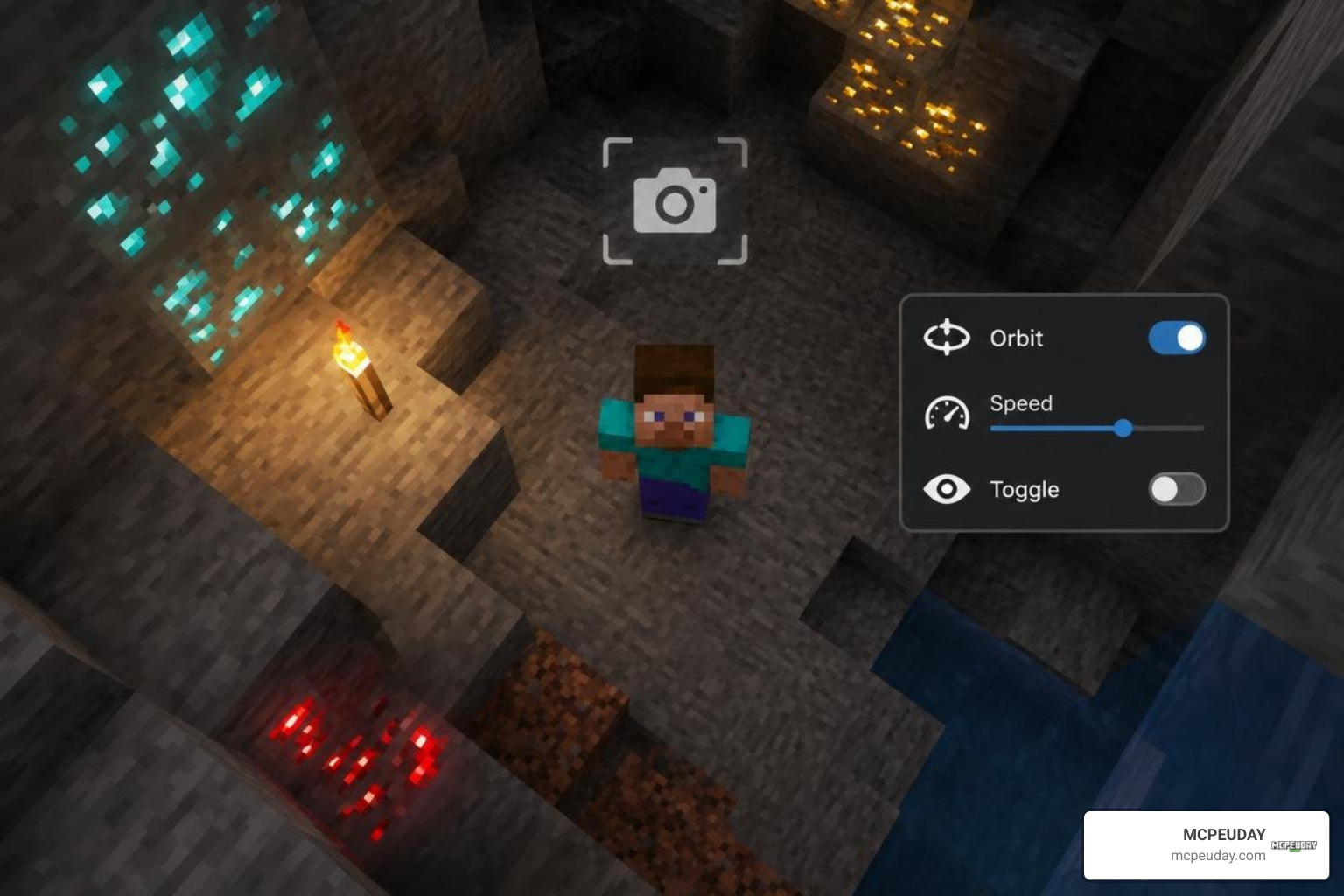
FreecamBE is packed with smart controls designed for touchscreens, controllers, and keyboards alike. Instead of requiring complex chat commands for basic viewing, it introduces an in-game item that opens an interactive menu screen.
Key capabilities include:
- Seamless toggle between your stationary body and the detached flying camera.
- Smooth orbital panning that pairs naturally with a free look perspective for content creation and cinematic video production.
- A dedicated camera lock toggle to freeze your viewing angle while repositioning.
- An eye lock mode that keeps your viewpoint centered on specific targets or coordinates.
- Intuitive hotbar item activation for fast switching during building projects and exploration runs.
Step-by-Step Installation and Setup Guide
Installing the add-on takes only a couple of minutes across compatible devices. Because Bedrock addons use packaged formats, setting up the pack is straightforward across modern platforms. If you are new to custom content, following the standard Getting Started with Minecraft Add-Ons guide from Microsoft Learn gives a great foundational overview of how behavior and resource packs interact.
- Download the latest
.mcaddonor.mcpackfiles for FreecamBE from a verified community release. - Open or execute the downloaded file to automatically launch Minecraft and begin the import process.
- Open your world settings, navigate to Resource Packs, and activate FreecamBE.
- Go to Behavior Packs in the same world settings menu and ensure the FreecamBE behavior module is active.
Enabling Beta APIs and World Settings
Because FreecamBE relies on advanced camera manipulation scripts, you must enable experimental features in your world settings before loading into the world.
- Scroll down to the Experiments tab inside your world configuration screen.
- Toggle Beta APIs to the active position. Minecraft will prompt you to create a world backup.
- If you plan to use full noclip block-passing, ensure cheats or operator permissions are enabled.
- Load your world on your compatible Bedrock mobile release or your Windows PC Bedrock installer setup.
Customizing Speed, Collision, and Languages in the FreeCam Addon for Minecraft PE/Bedrock
Once loaded, holding and using the FreecamBE trigger item brings up a configuration screen where you can fine-tune every part of your camera experience:
- Flight Speed Adjustments: Set custom camera velocities from slow cinematic panning to high-speed map travel across vast biomes.
- Collision Ignore (Noclip): Pass cleanly through solid blocks, mountain ranges, and water barriers (requires Creative mode or Operator status).
- Auto-Exit on Damage: Automatically snaps your view back to your body if your physical character takes damage from mobs, drowning, suffocation, or lava.
- Multilingual Support: Choose from over 20 built-in languages, including English, Spanish, French, German, Japanese, Korean, Portuguese, Russian, and Chinese.
Bedrock FreecamBE and Other Camera Mechanics
Understanding how FreecamBE fits alongside native spectator modes and modded camera systems helps you pick the right tool for your project.
| Feature | FreecamBE Addon | Vanilla Bedrock Spectator | Java Freecam Mods |
|---|---|---|---|
| Platform | Bedrock / PE / Win10 | Bedrock Native | Java Edition (Fabric/Forge) |
| Character State | Remains physical in world | Becomes invisible/intangible | Remains physical in world |
| Experimental Requirements | Requires Beta APIs | Built into vanilla engine | Requires Mod Loader |
| Collision Options | Configurable toggle | Always passes through blocks | Configurable (Tripod/Noclip) |
| Survival Friendly | Yes (view roams safely) | Requires cheats/mode change | Yes (client-side) |
| UI Configuration | Interactive in-game menu | Command/game mode based | Keybind GUI menus |
For players looking for external reference implementations, several community-made freecam mods offer similar detached perspectives on modded Java platforms, giving players comparable utility across different editions of the game.
Multiplayer Safety, Anti-Cheat Rules, and Troubleshooting
Operating a free-roaming camera is fantastic for solo creative building, but using it in multiplayer environments requires care, caution, and adherence to server rules.
Server Anti-Cheat Policies and Risks
Because FreecamBE allows your viewpoint to travel through solid walls and scout unseen territory, many competitive multiplayer servers classify freecam tools as an unfair advantage.
- On private Realms with friends, FreecamBE works smoothly as long as the host enables Beta APIs in world configuration.
- On public competitive minigame servers, automated anti-cheat software may flag unusual camera packets or perspective offsets.
- Always check server rules before joining public lobbies with camera or scouting utilities enabled to avoid potential bans or automated kicks.
Resolving Common FreeCam Glitches and Performance Drops
If you experience visual hiccups or lag spikes while panning at high speeds, here are practical solutions:
- Unloaded Chunks: If distant terrain turns into a void, lower your flight speed slider to give the Bedrock chunk renderer sufficient time to catch up.
- Framerate Optimization: Boost your visual stability and frame rates by pairing your setup with an optimizing FPS performance addon.
- Dark Cave Visibility: If underground scouting is too dark to see clearly, combining your freecam runs with caving with X-Ray packs or night vision tweaks will brightly illuminate subterranean tunnels.
- Camera Sticking: If the camera fails to respond after a respawn, open chat and run
/reloadto reset active scripting listeners.
Frequently Asked Questions about FreeCam in Bedrock
How do you activate and exit FreecamBE in-game?
Hold the FreecamBE activation item in your main hand and interact (right-click on PC, tap and hold on mobile, or press your controller’s use button). This opens the configuration window where you can launch the detached camera. To return instantly to your player, tap the crouch button or configure the damage exit trigger in the settings menu.
Can you use FreeCam without enabling Beta APIs or cheats?
No. FreecamBE depends fundamentally on Bedrock’s scripting architecture, which requires the Beta APIs experimental toggle in your world settings. Enabling experimental features will automatically disable Xbox achievements for that specific world save, so keep a clean survival world separate if you care about earning trophies.
Is FreecamBE safe and legal to modify or redistribute?
FreecamBE is released under the Creative Commons Attribution-NonCommercial-NoDerivatives 4.0 International (CC BY-NC-ND 4.0) license. You are free to download and share the original files with proper creator attribution, but you cannot sell the addon, monetize its download links, or redistribute modified code without explicit permission from the original developers.
Conclusion
The FreeCam Addon for Minecraft PE/Bedrock gives builders, content creators, and redstone engineers the freedom to inspect worlds without limitations. Whether you are framing the perfect cinematic shot, planning a massive castle layout, or scouting local caves, FreecamBE provides smooth, reliable spectator control directly inside Bedrock Edition. Explore our comprehensive library of curated Bedrock addons on MCPEUDAY to find complementary tools, textures, and optimizations for your next world build and creative project!