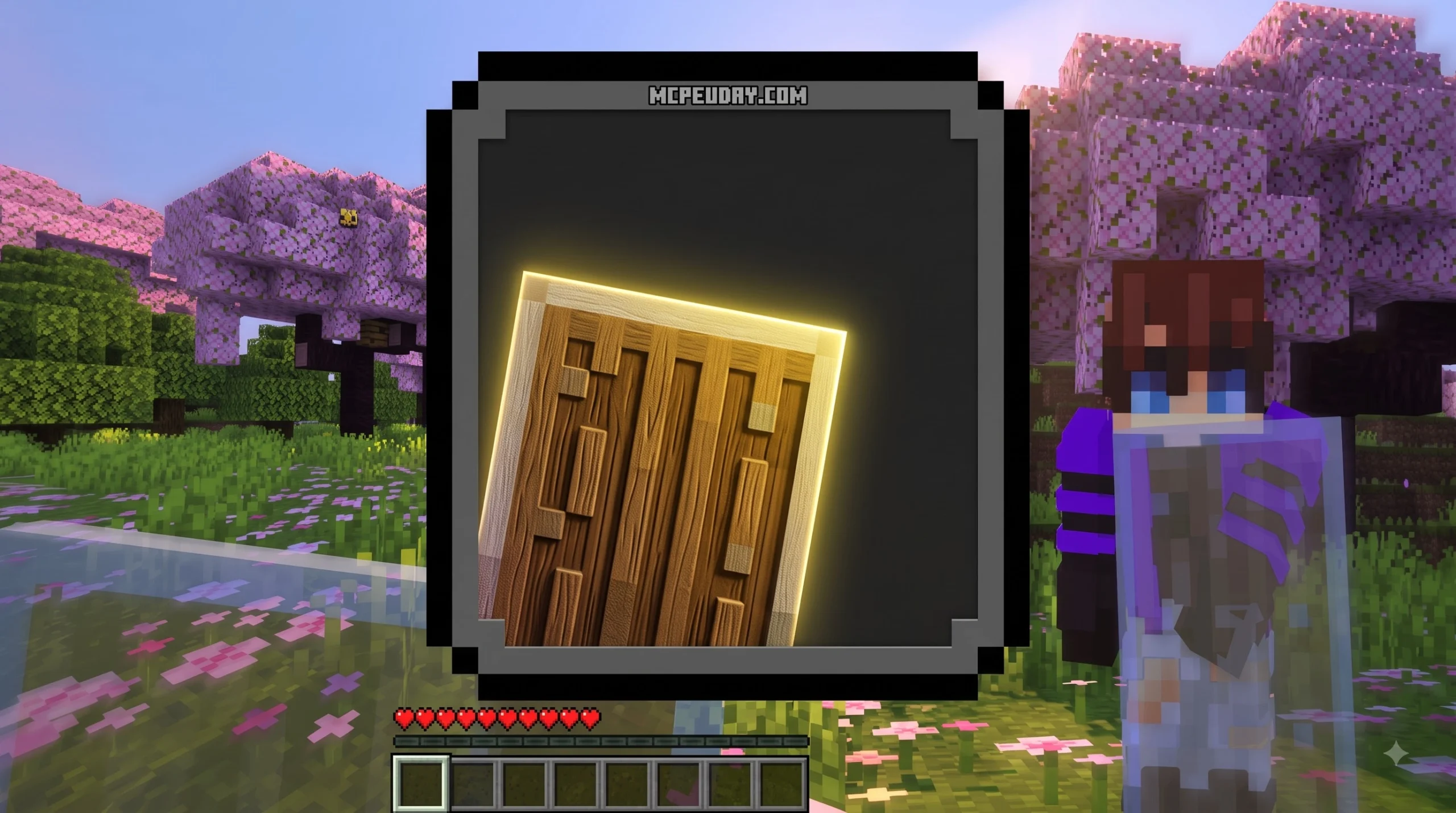
Why the Transparent Shield Texture Pack Is a Game-Changer for Minecraft Players
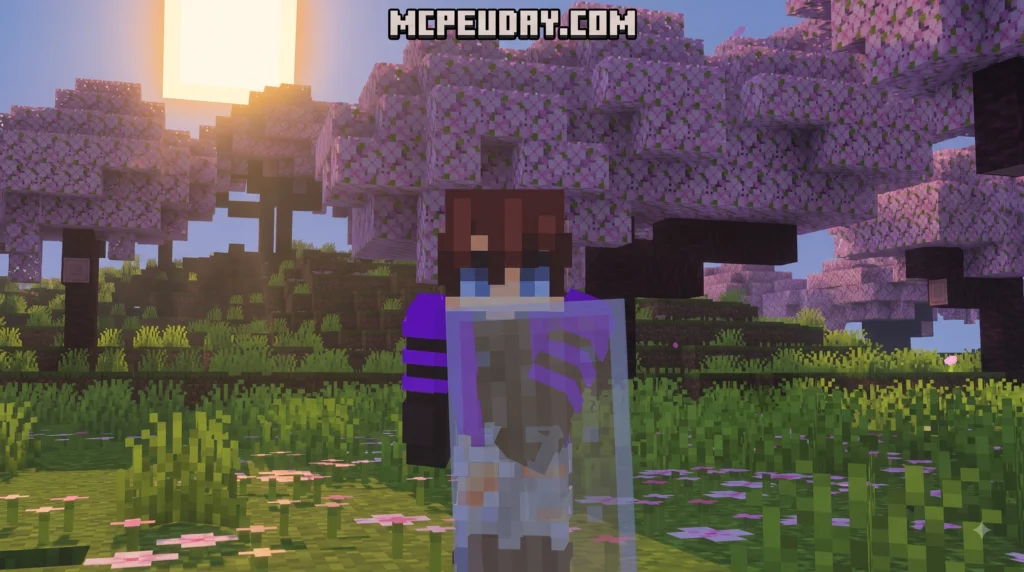
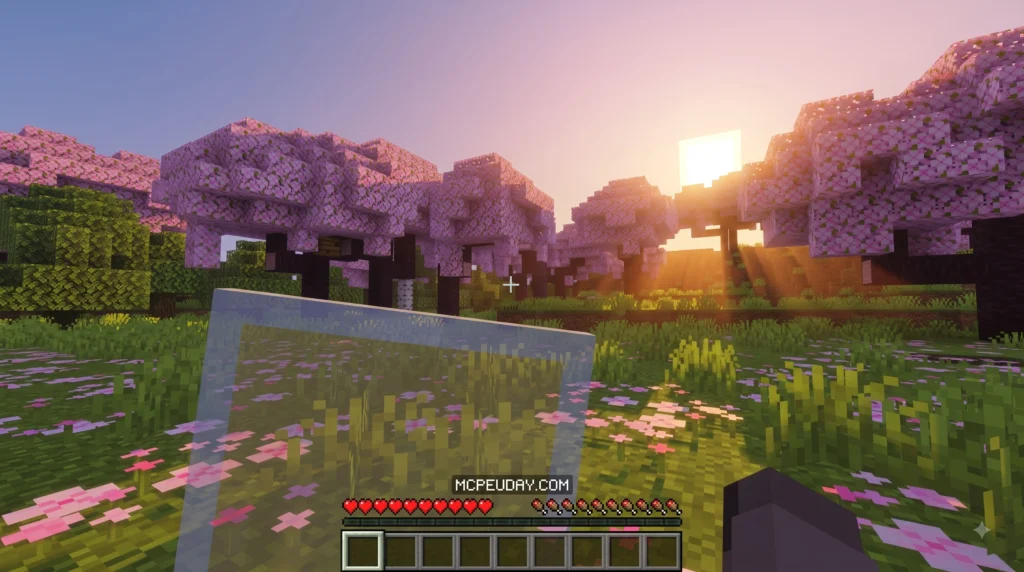
The Transparent Shield texture pack is a Minecraft resource pack that makes your shield invisible — or semi-transparent — when held in your hand, so it stops blocking your screen during combat and exploration.
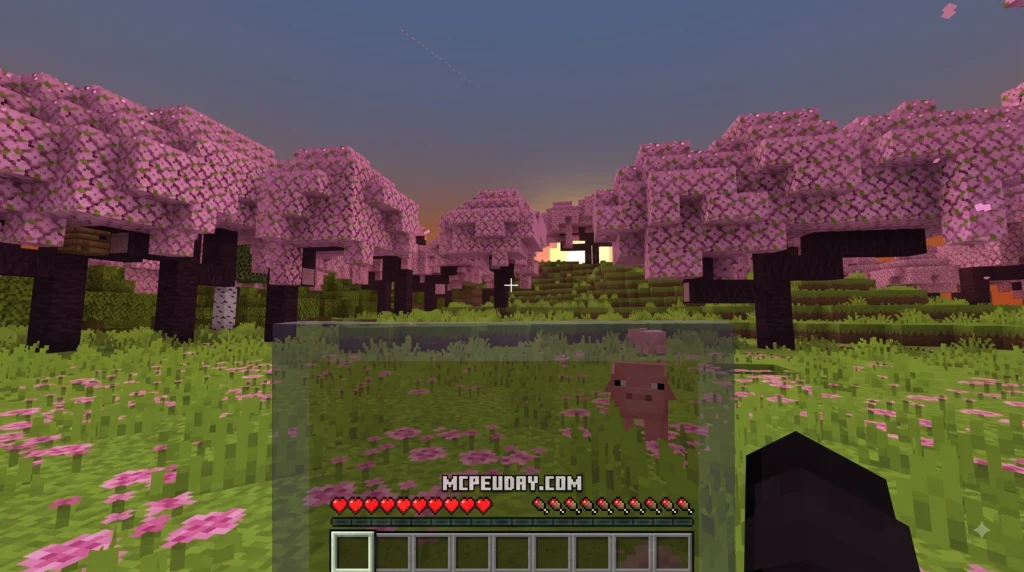
Quick answer:
- It removes the large shield model from your first-person view
- Your shield stays visible in your hotbar and inventory so you can still track durability
- It works on both Java Edition and Bedrock/MCPE
- Installation takes under 2 minutes — just drop the file into your resource packs folder and enable it in-game
If you’ve ever crouched to block an attack and suddenly lost half your screen to a giant wooden plank, you’re not alone. One player put it perfectly in a community forum: “I find the massive amount of view obstruction from a shield quite annoying.” That frustration is exactly what this pack fixes.
The reason this problem exists at all is actually a technical one. Minecraft’s rendering engine forces shield textures to render as fully opaque — so you can’t just delete pixels from the texture file and expect transparency. The game will fill those areas with solid black instead. The fix requires a smarter approach, which is exactly what this pack delivers.
I’m UDAY GAMER from MCPEUDAY, and in this guide I’ll walk you through everything you need to know — from how the pack works to step-by-step installation on both Java and Bedrock.
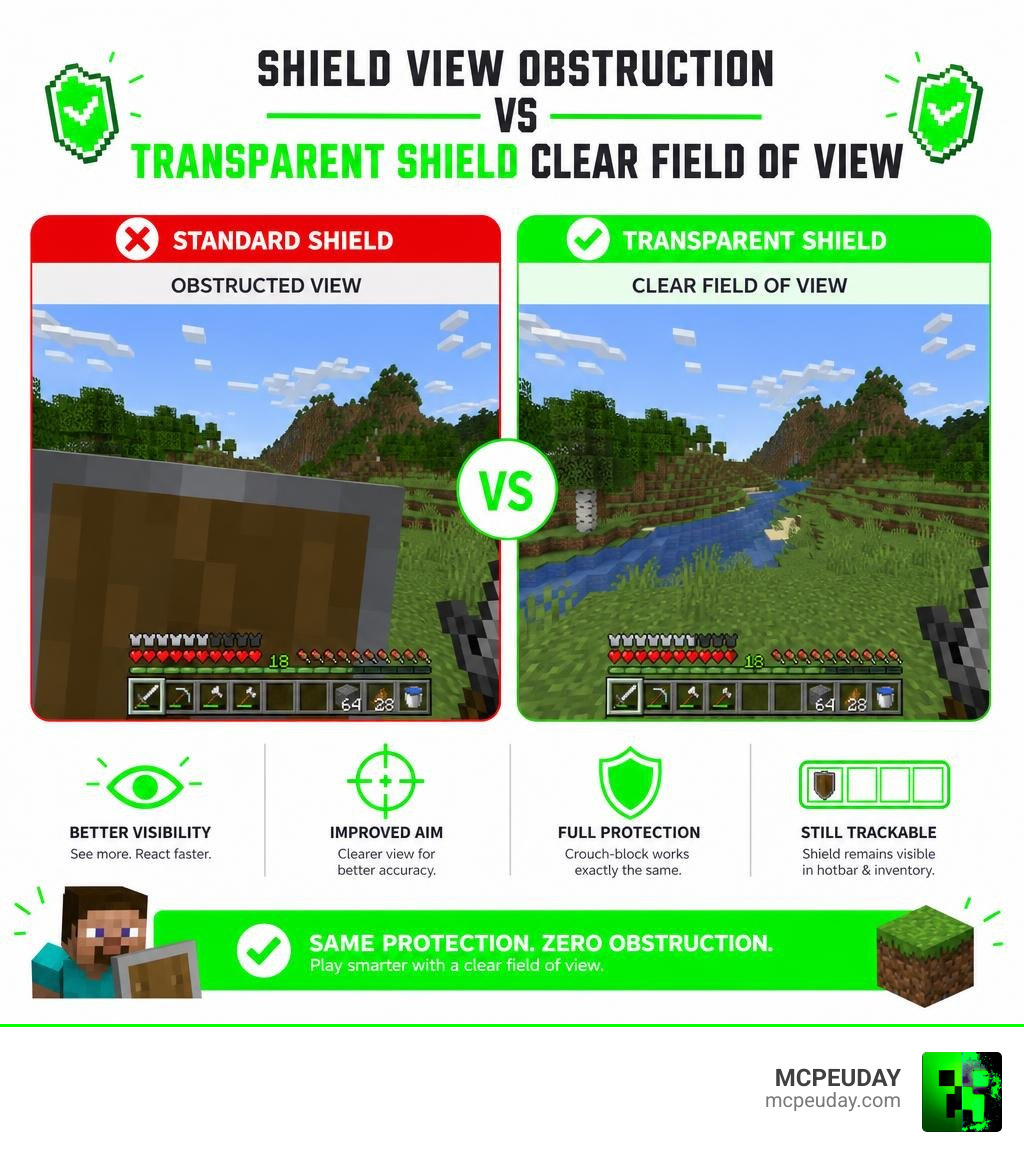
What Is the Transparent Shield Texture Pack and How Does It Work?
The Transparent Shield texture pack is designed to eliminate screen clutter caused by off-hand gear. In standard Minecraft, equipping a shield covers nearly a quarter of your screen on the lower-left side. When you crouch to block incoming arrows or sword strikes, the model raises even higher, blinding your vision right when reaction time matters most.
Instead of removing the item entirely from gameplay, the pack adjusts how the game displays shields in first-person view. You get all the mechanical benefits of crouch-blocking without the giant visual obstruction.
How the Transparent Shield Texture Pack Solves First-Person Screen Obstruction
When you hold a shield in vanilla Minecraft, the standard 16x resolution 3D entity model sits directly in your field of view. The Transparent Shield texture pack solves this by altering the first-person display configuration.
By tweaking model scale parameters or rendering properties, the pack forces the in-hand shield to render either as a see-through semi-transparent overlay or as completely invisible in your hand. This ensures that whether you are fighting hostiles, navigating dangerous caves, or competing in high-stakes PvP, your field of view remains 100% open.
Why Vanilla Minecraft Makes Shield Alpha Textures Turn Black
Many creators who attempt to build custom resource packs try deleting pixels from the shield’s PNG texture file to create transparency. However, this always fails in unmodified vanilla Minecraft.
The reason lies deep within standard game engine architecture:
- Snapshot 19w45a Engine Changes: During the 1.14 development cycle (specifically snapshot 19w45a), engine rendering for entity models was changed. Older packs like the classic Transparent GUI and HUD resource pack could easily include transparent shields on versions 1.8.8 through 1.14.X, but newer vanilla engines reject alpha transparency on shield entities.
- Forced Opaque Rendering: Minecraft’s entity rendering pipeline ignores alpha channel transparency on shields. Any pixels marked as transparent are automatically filled in with solid black.
- The True Fix: Because texture alpha channels are ignored, modern transparent and invisible shield packs achieve their magic by modifying the item’s JSON model positioning files or using specialized client rendering tricks. Setting the display scale to zero or offsetting the coordinates moves the visual model off-screen while leaving the functionality intact.
Key Features and Customization Options
Beyond simply clearing up your sightlines, modern shield packs come loaded with smart customization options tailored for both casual players and competitive survivalists.
Features and Customization Options in the Transparent Shield Texture Pack
On Bedrock Edition, popular transparent shield packs have earned top 5/5 star community ratings by offering built-in subpack sliders.
When configuring the pack in your settings menu, you can often select between several custom modes:
- Semi-Transparent Shield: Keeps a light, glass-like outline of the shield in hand so you still get visual feedback when blocking.
- Low Shield Subpack: Repositions the shield model down into the lower corner of the screen rather than hiding it entirely. This is ideal if you want to remember you have a shield equipped while keeping central vision clear.
- Smoother Animations Subpack: Refines the transition animation when raising and lowering your guard during combat encounters.
Inventory Visibility vs In-Hand Invisibility
A common fear among players considering invisible shield packs is losing track of equipment durability. Fortunately, smart resource packs only alter the first-person in-hand model.
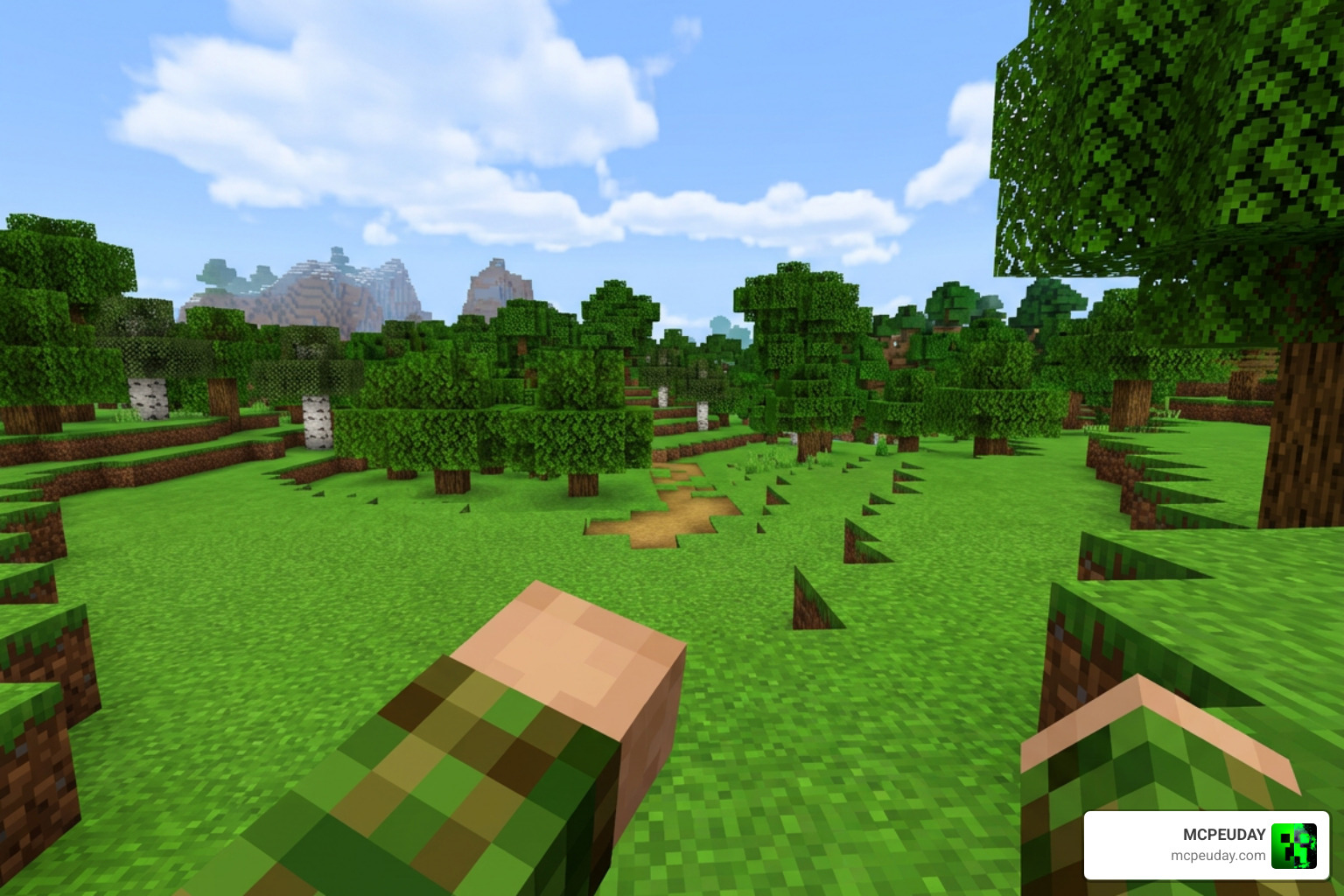
Key visibility benefits include:
- Full Hotbar Tracking: The 2D item icon in your hotbar and off-hand slot remains completely normal, allowing you to monitor durability loss in real time.
- Inventory Durability Bar: You can easily inspect repair levels, enchantments, and broken status inside your inventory chest screens.
- Clean First-Person Screen: In-hand visuals disappear or turn semi-transparent so your crosshair and surroundings stay completely unobstructed.
Differences Between Transparent Shields, Invisible Shields, and Model Tweaks
Depending on your preference, there are three primary ways players fix shield screen obstruction. Understanding these differences helps you choose the right pack for your playstyle.
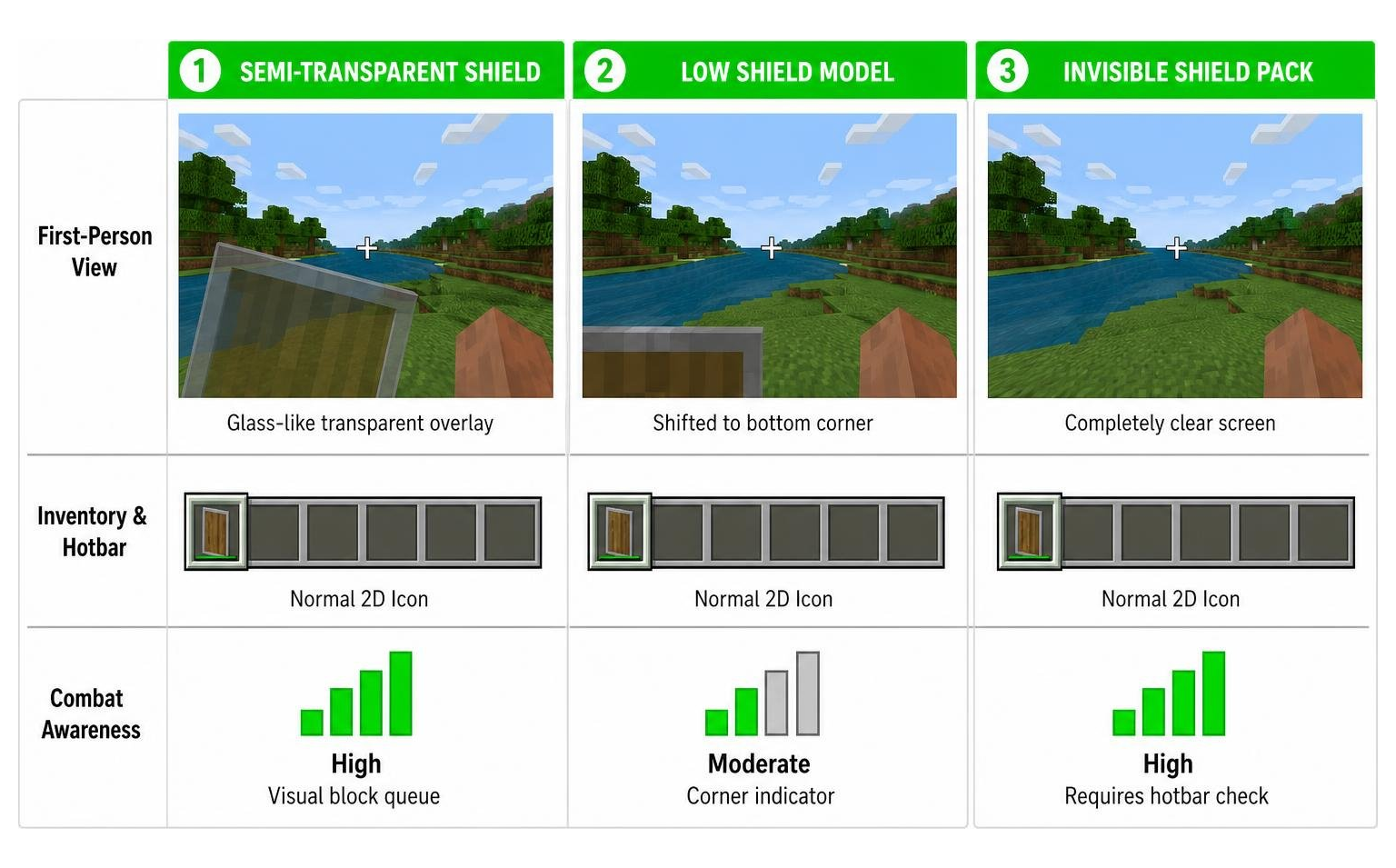
| Feature / Method | Semi-Transparent Shield | Low Shield Model | Invisible Shield Pack |
|---|---|---|---|
| First-Person View | Glass-like transparent overlay | Shifted to bottom corner | Completely clear screen |
| Inventory & Hotbar | Normal 2D Icon | Normal 2D Icon | Normal 2D Icon |
| Combat Awareness | High (Visual block queue) | Moderate (Corner indicator) | High (Requires hotbar check) |
| Technical Method | Subpack shader / entity tweak | JSON display translation | JSON scale set to ‘0, 0, 0’ |
| Popular Platforms | Bedrock / MCPE | Java & Bedrock | Java Edition & Bedrock |
While fully invisible shield packs (which have amassed nearly 20,000 downloads on Java Edition platforms) make your hand look completely empty, low-shield tweaks and semi-transparent packs strike a balance by providing a subtle visual cue when blocking.
Step-by-Step Guide: How to Download and Install the Shield Pack
Installing the Transparent Shield texture pack takes less than two minutes. Follow these simple steps for your platform.
How to Install on Minecraft Java Edition
- Download the ZIP file for your specific game version (e.g., 1.20.X through 1.21.X).
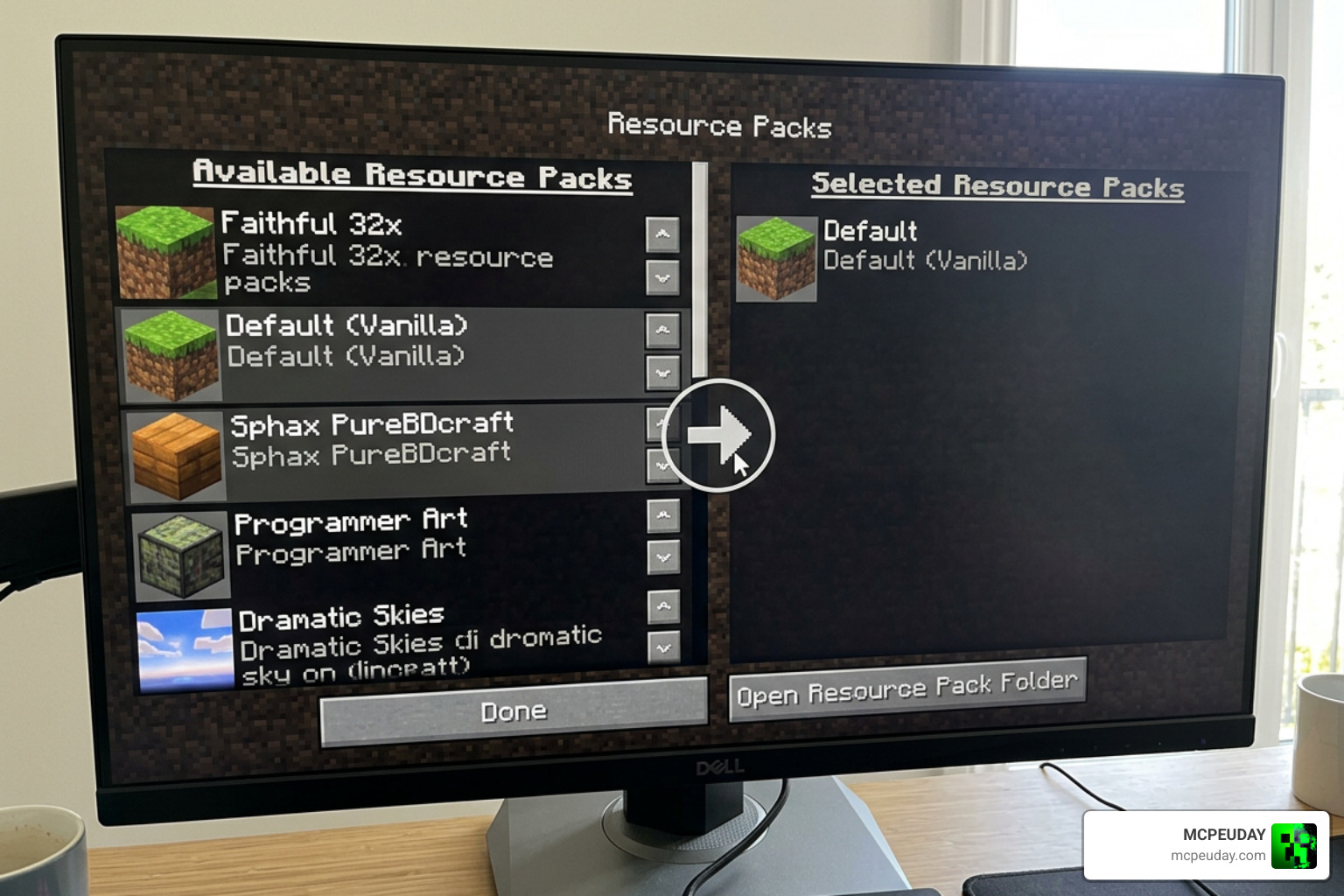
- Open Minecraft, go to Options > Resource Packs, and click Open Pack Folder.
- Move the downloaded ZIP file into the opened
resourcepacksdirectory. - Back in Minecraft, hover over the pack in the left list and click the arrow to move it to the right-hand Selected list.
- Click Done to reload game textures.
How to Install on Minecraft Bedrock and MCPE
- Download the
.mcpackfile to your mobile device, PC, or console storage. - Double-click or tap the
.mcpackfile to automatically launch Minecraft and import the pack. - Go to Settings > Global Resources > My Packs.
- Activate the Transparent Shield texture pack.
- Click the gear icon on the pack to open Subpack Settings and select your preferred style (e.g., Low Shield or Semi-Transparent).
- Ensure the pack is placed above other graphics packs in your active list so its settings take priority.
Frequently Asked Questions About Transparent Shields
Does the pack work alongside other client mods?
Yes! The pack works seamlessly with popular client mods and visual tweaks. To prevent conflicts, simply open your Resource Packs stack and load the transparent shield pack higher up in the active priority list than full UI or graphics overhauls.
Why does my shield turn solid black when editing the texture PNG?
As noted earlier, Minecraft’s rendering pipeline forces entity shield textures to be 100% opaque. If you edit the PNG alpha layer directly, the engine replaces transparent pixels with solid black. To fix screen obstruction yourself, you must modify the JSON model file positioning coordinates or use a dedicated model pack.
Can you still track shield durability in the hotbar?
Yes. The Transparent Shield texture pack specifically target first-person hand rendering. Your hotbar icons, off-hand slot graphics, and green/red durability progress bars remain completely unaltered.
Conclusion
At MCPEUDAY, we know how much small visual improvements can elevate your entire Minecraft experience. Equipping a Transparent Shield texture pack or invisible shield pack is one of the quickest, most effective ways to clear up your screen, improve combat reaction times, and eliminate frustrating blind spots during survival battles.
Ready to upgrade your visual setup and customize your game further? Explore our complete library and Browse Minecraft texture packs to find the latest performance, UI, and graphics enhancements for both Bedrock and Java Edition today!