Why Every Minecraft Player Needs a Health Bars Addon
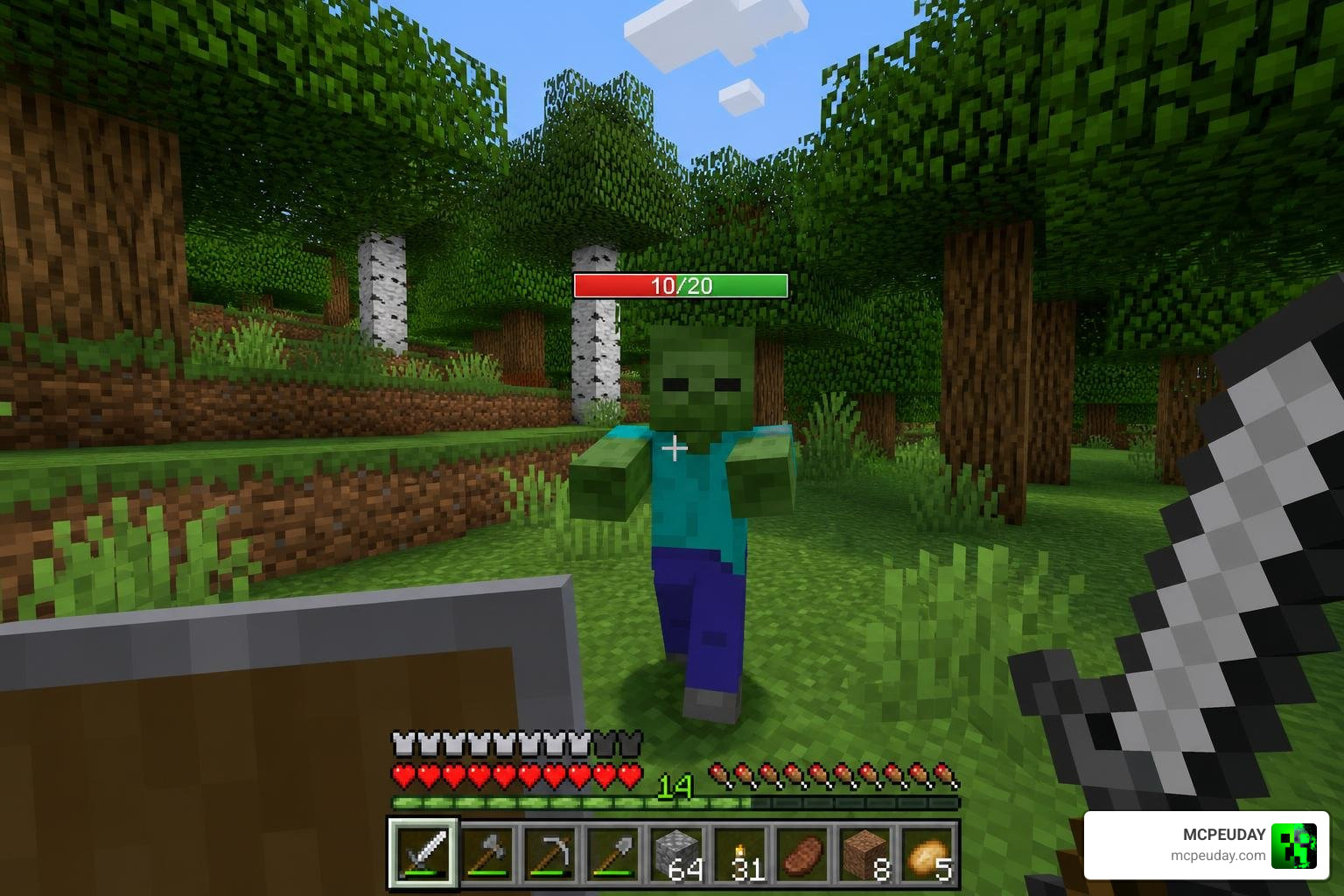
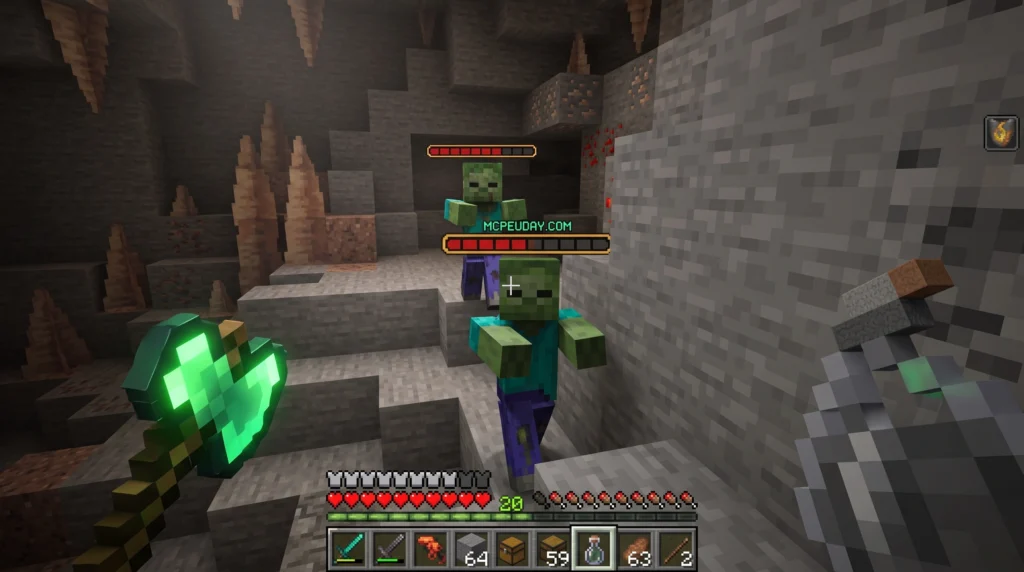
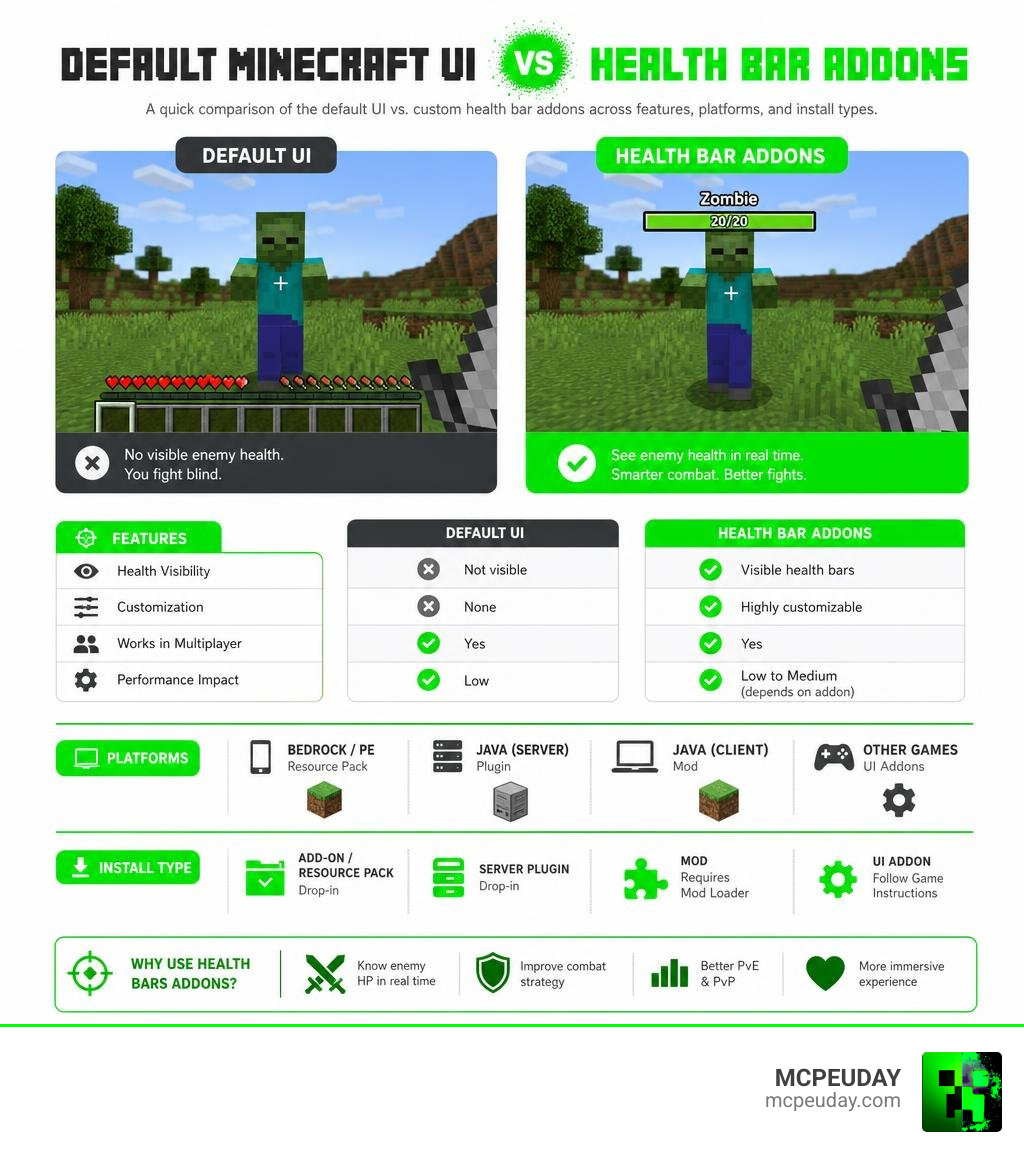
A Health Bars Addon is a mod, plugin, or UI tool that shows a mob’s or player’s health directly on your screen during combat — either as a floating bar above enemies or as part of your HUD. Here’s a quick look at your main options:
- Minecraft Bedrock/PE — Resource pack addons that add visible health bars using client-side rendering
- Minecraft Java (Server) — Plugins like HealthBar for Paper/Purpur that use the bossbar system, no client mod needed
- Minecraft Java (Client) — Fabric or Forge mods that add nameplate health bars above mobs
- Other games (WoW, Godot, etc.) — Dedicated UI addons like HealthBarColor or HealthBarX for deep customization
Without a health bar addon, you’re fighting blind. You deal damage, but you have no idea how close a mob is to dying. That makes combat feel slow and frustrating — especially on harder difficulty or in PvP.
The good news? Installing a health bar addon takes less than an hour, even if you’ve never modded Minecraft before. Whether you’re on Bedrock, Java, or running your own server, there’s an option that works for you.
I’m UDAY GAMER from MCPEUDAY, and I’ve tested dozens of health bar setups across both Bedrock and Java — so let me walk you through exactly what works.
Comparing the Best Health Bar Addons and Plugins
When choosing a Health Bars Addon, the right choice depends heavily on your platform and playstyle. Minecraft Bedrock players rely on client-side resource packs that render floating nameplates, while Java server administrators can run server-side plugins that display health indicators without forcing players to download any local files.
For players who want an all-in-one combat setup, pairing a health bar with a Damage Indicator Addon provides the ultimate real-time combat feedback.
Let us look at how the top health bar options stack up across different platforms:
| Platform / Engine | Recommended Addon / Plugin | Main Feature | Download Source |
|---|---|---|---|
| Minecraft Bedrock | Client-Side Resource Packs | Floating 3D nameplates over mobs | MCPEUDAY Addon Library |
| Minecraft Java (Server) | HealthBar Plugin | Server-side bossbar tracking (No client mods) | HealthBar – Minecraft Plugin |
| World of Warcraft | HealthBarColor | Customizes default unit frames modularly | HealthBarColor – Health Bar Color – World of Warcraft Addons – CurseForge |
| World of Warcraft (Classic) | ExtraResourceBars | Minimalist command-line health & power bars | Fiurs-Hearth/ExtraResourceBars |
| Godot Engine 4.5+ | HealthBarX | Shape-based rendering for 2D game developers | godot-x/health-bar-x |
Server-Side vs Client-Side Minecraft Health Bars
If you run a multiplayer server, you must decide between a server-side plugin and client-side mods.
The server-side HealthBar – Minecraft Plugin has over 3,434 downloads on Modrinth and supports Minecraft Java Edition versions 1.18.x up to 1.21.x. It works by utilizing the server’s native bossbar system. When a player attacks a mob, a temporary bossbar appears at the top of their screen displaying the mob’s name, remaining health, and damage taken.
Because this uses vanilla bossbar packets, players do not need to install anything locally. It is compatible with high-performance server platforms like Paper, Purpur, and Folia. Best of all, players who prefer a clean screen can easily turn it off using the in-game command: /healthbar toggle.
On the other hand, client-side addons render health indicators directly above the mob’s head in the game world. This provides a more immersive, RPG-like feel but requires every player to have the resource pack active.
RPG-Style Unit Frames and Nameplates
For games outside of Minecraft, health bar addons are critical for managing complex UI setups. In World of Warcraft, players often find default unit frames too small or rigid.
The modular HealthBarColor – Health Bar Color – World of Warcraft Addons – CurseForge addon has over 2,282,190 total downloads on CurseForge and has been updated for WoW versions up to 12.0.1. It allows players to customize hostile and friendly unit frames, color-code bars by character class, and add colorblind overrides.
For retro or vanilla WoW fans, the lightweight Fiurs-Hearth/ExtraResourceBars addon (which features 7 stars and 1 fork on GitHub) lets players customize minimalist health and power bars using simple chat commands. It even supports dynamic power tracking that automatically adjusts as druids shift shapes between mana, energy, and rage.
Technical Implementation of Health Bars
For game developers, creating a health bar from scratch can be time-consuming. Tools like HealthBar – ForConstruct.com provide ready-to-use horizontal gauges inspired by MOBA games, which use dynamic segment divisors to visually represent varying health pools without scaling the bar’s actual screen dimensions.
If you are working in Godot 4.5+, the godot-x/health-bar-x addon (featuring 1 star and 8 contributions on GitHub) offers a textureless, shape-based rendering method. By using the engine’s internal 2D drawing functions, it renders smooth, animated health bars dynamically without loading external progress bar textures, saving valuable memory on low-end devices.
Step-by-Step Guide: How to Install a Health Bars Addon
Installing your health bar addon should not take more than a few minutes. Depending on your version of Minecraft, the installation process will vary slightly.
Let us break down the exact steps to get your health bars up and running.
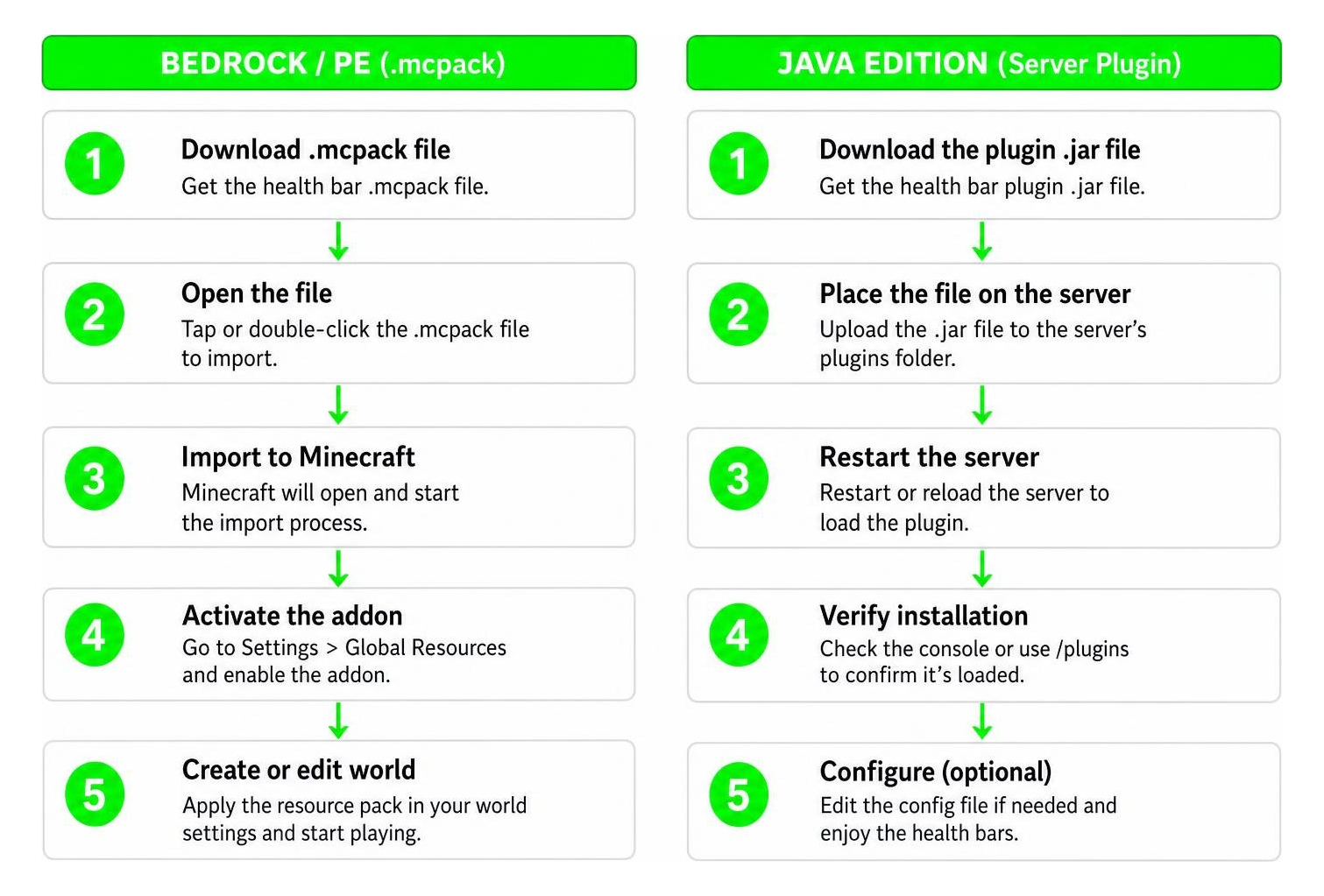
Installing Addons on Minecraft Bedrock and PE
If you are playing on Bedrock Edition (iOS, Android, Windows 10/11, or Xbox), you will be using .mcpack files. You can easily pair your health bars with other useful UI mods like the Durability Viewer Addon or the Durability Armor Viewer Addon to keep perfect track of your gear.
- Download the health bar
.mcpackfile from MCPEUDAY. - Double-click or tap the downloaded file. Minecraft will launch automatically and import the pack.
- Create a new world or click the edit icon next to an existing world.
- Scroll down to the Active Packs section on the left menu.
- Under Resource Packs, find your health bar addon and click Activate.
- Ensure that any required Behavior Packs are also activated, then launch your world!
Installing Plugins on Minecraft Java Servers
If you are running a server using Paper, Purpur, or Folia, follow these steps to install the server-side plugin:
- Download the HealthBar
.jarfile from Modrinth. - Open your server’s root directory and locate the plugins folder.
- Drop the downloaded
.jarfile directly into the plugins folder. - Restart your server to generate the configuration files.
- Open plugins/HealthBar/config.yml to customize the bossbar titles, colors, and entity blacklists (such as hiding the bar for armor stands).
- Save the file and restart the server or run the reload command to apply your changes.
Installing Client-Side UI Mods on Java
For single-player Java players using Fabric or Forge:
- Download your preferred client-side health bar mod
.jarfile. - Press Win + R, type %appdata%/.minecraft, and press Enter to open your game directory.
- Locate the mods folder (create one if it does not exist).
- Drag and drop the mod
.jarfile into the folder. - Launch Minecraft using your Fabric or Forge profile.
Customizing Your Health Bar: Colors, Textures, and Layouts
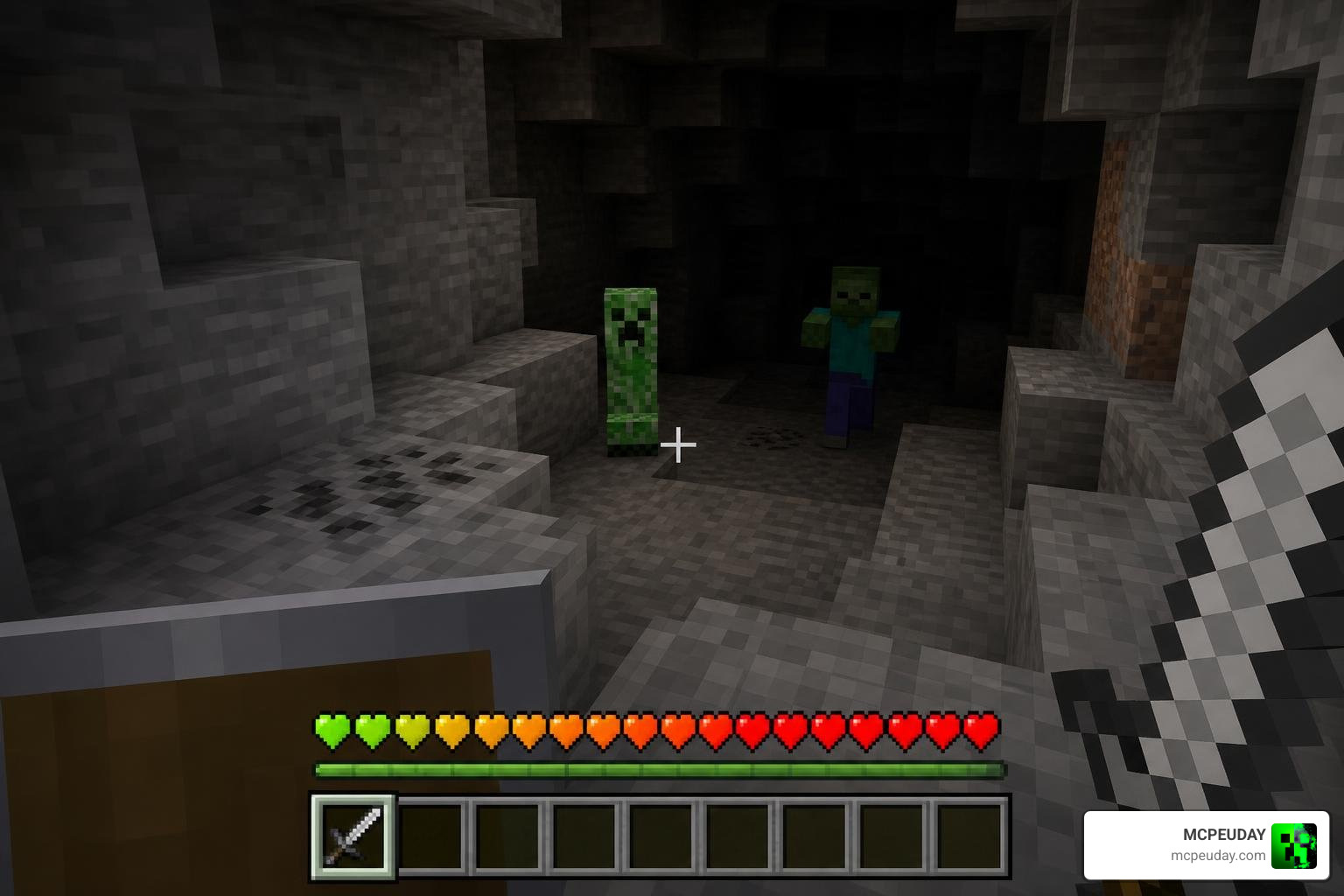
Once installed, a great Health Bars Addon should be customized to fit your visual preferences. Proper customization ensures you do not clutter your screen, allowing you to focus on the action. For an even more immersive atmosphere, try pairing your custom UI with the Better Dynamic Light Addon to illuminate dark caves while tracking enemy health.
Adjusting Colors, Gradients, and Thresholds
Visual feedback is most effective when it changes dynamically. Many advanced health bars allow you to set color thresholds. For example, the bar can transition from green (healthy) to orange (medium health) and finally to flashing red (low health).
In World of Warcraft, addons like HealthBarColor let you toggle class-colored bars so you can instantly recognize whether an ally is a Mage, Warrior, or Priest just by looking at their frame.
Displaying Advanced Information: Shields, Regen, and Debuffs
A simple green bar only tells half the story. High-end health bar addons display extra resource layers:
- Absorb Shields — Overlaid as a semi-transparent yellow bar on top of the health bar to show temporary shields.
- Incoming Healing — Displays a preview of incoming regeneration or healing over time so you do not waste recovery items.
- Active Debuffs — Color-codes the border of the health bar (e.g., purple for poison, red for burning) so you know when to cleanse.
If you enjoy highly stylized visual additions to your world, you can also check out the Mob Girls Addon to see how custom health bars look over uniquely designed entities.
UI-Based HUD vs World-Space Overlays
There are two primary ways health bars are rendered in games:
- UI-Based HUD — Static elements anchored to your screen corners. These are perfect for tracking your own health, your target’s health, or party members. You can pair these with a Glowing Armor Addon to keep your character easily visible on your screen.
- World-Space Overlays — Floating 3D nameplates that hover directly above mobs in the game world. They dynamically follow the target’s movement and scale down in size as the entity moves further away from your camera.
Performance Considerations and Optimization Tips
Because health bar addons constantly read and update entity data, poorly optimized scripts can cause severe frame rate drops, especially in crowded areas.
When writing or configuring custom UI scripts, event-driven programming is significantly more efficient than continuous rendering loops. Running a continuous frame update (OnUpdate) wastes CPU cycles. Instead, register specific events (like UNIT_HEALTH) so the UI only redraws when an entity actually takes damage or heals.
Throttling custom script update intervals to 0.05 seconds instead of updating on every single frame reduces CPU usage by 4x while maintaining fluid visual animations.
If you notice performance issues while using heavy graphic mods like the Block Armor Addon, try disabling unnecessary health bar modules (like shadow blur passes or background textures) to keep your game running smoothly at a high FPS.
Frequently Asked Questions About Health Bar Customization
What is the best Health Bars Addon for Minecraft Bedrock?
The best options for Bedrock Edition are lightweight resource packs that render floating nameplates above mobs without requiring experimental gameplay settings. These packs are fully compatible with other popular gameplay mods, such as the More Armour Addon, allowing you to enjoy custom gear sets while maintaining a clean, informative combat interface.
How do I fix a Health Bars Addon that isn’t displaying correctly?
If your health bars are not moving, showing incorrect values, or displaying missing pink-and-black textures, try these troubleshooting steps:
- Ensure your addon is updated to match your current game version.
- Check for mod conflicts by temporarily disabling other interface mods, such as the Shadow Armor Tanks Addon.
- In MMOs like WoW, type
/console reloaduiin the chat to refresh the user interface and reload missing textures. - Verify that you have installed any required dependency packs (like SharedMedia for custom fonts).
Does using a health bar mod impact game performance or FPS?
Yes, if you render dozens of health bars simultaneously, you may experience minor FPS drops. To prevent rendering lag:
- Limit the maximum distance at which health bars are rendered.
- Turn off complex animations, shadow blurs, or detailed floating text.
- Avoid using poorly optimized client mods in high-intensity areas. Pairing optimized UI mods with lightweight armor packs like the Nautilus Armor in Minecraft will ensure your game remains responsive during intense combat.
Conclusion
Adding a Health Bars Addon to your game is one of the quickest and most impactful ways to elevate your combat experience. By choosing the right setup, you gain crucial visual feedback that makes every battle feel responsive, tactical, and incredibly satisfying.
Ready to take your gameplay to the next level? Explore more Minecraft mods and addons on MCPEUDAY today to build your perfect custom interface!