Storage Transfer Addon for Minecraft PE/Bedrock: Features and Mechanics
To install and enable the Storage Transfer Addon for Minecraft PE/Bedrock, download the official .mcaddon file to your mobile device, open it to trigger the automatic Minecraft Bedrock import, and activate both the Resource and Behavior Packs under your World Settings while enabling Holiday Creator Features and Beta APIs in the Experiments menu. Once loaded into your world, simply interact with any chest or barrel while holding the transfer tool to link storage wirelessly.
Managing your inventory during intensive mining trips or mob farming sessions can quickly turn into a headache. In standard survival gameplay, building intricate sorting machines requires stacks of iron ingots, wood for chests, and dozens of hoppers that can clutter your base and slow down game performance. As your survival base expands, traditional hopper funnels consume massive amounts of vertical space and introduce significant tick lag on mobile hardware.
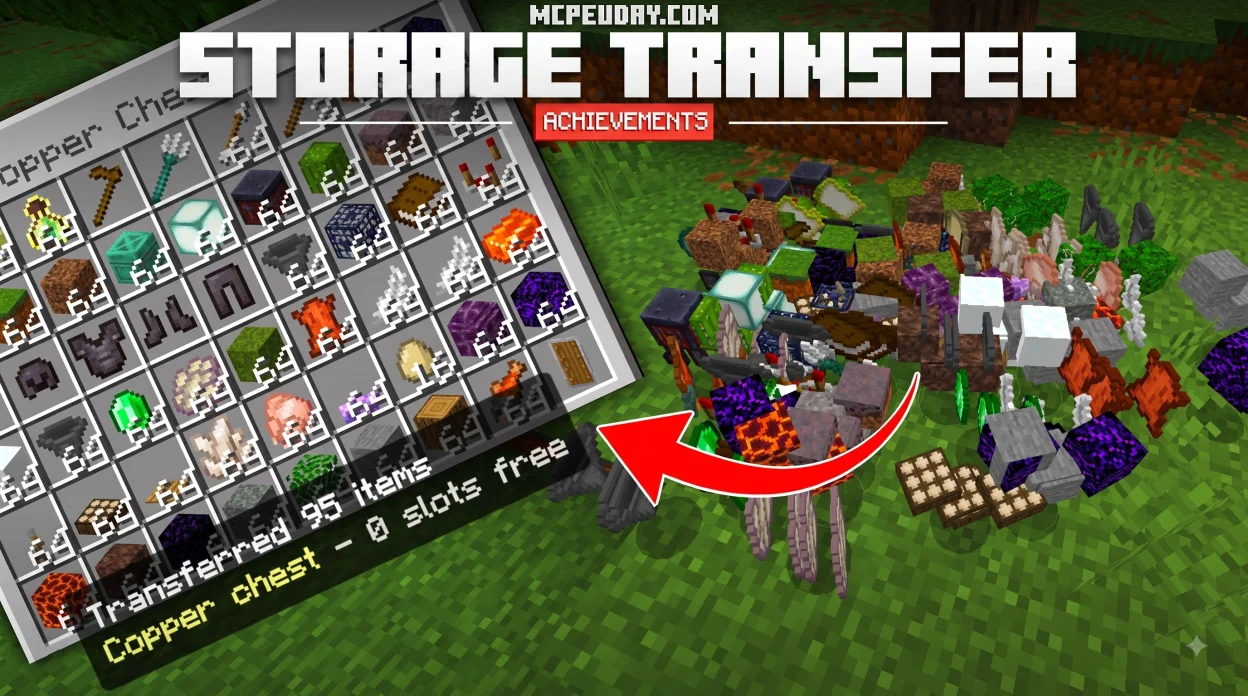
The Storage Transfer Addon for Minecraft PE/Bedrock replaces these bulky networks with a streamlined, wireless approach. Built around a lightweight behavior script of under 50 KB, this utility tool links directly to your base containers. Once linked, you can vacuum up loose ground items across a 6-block radius and teleport them directly into your designated storage block without placing a single piece of redstone dust.
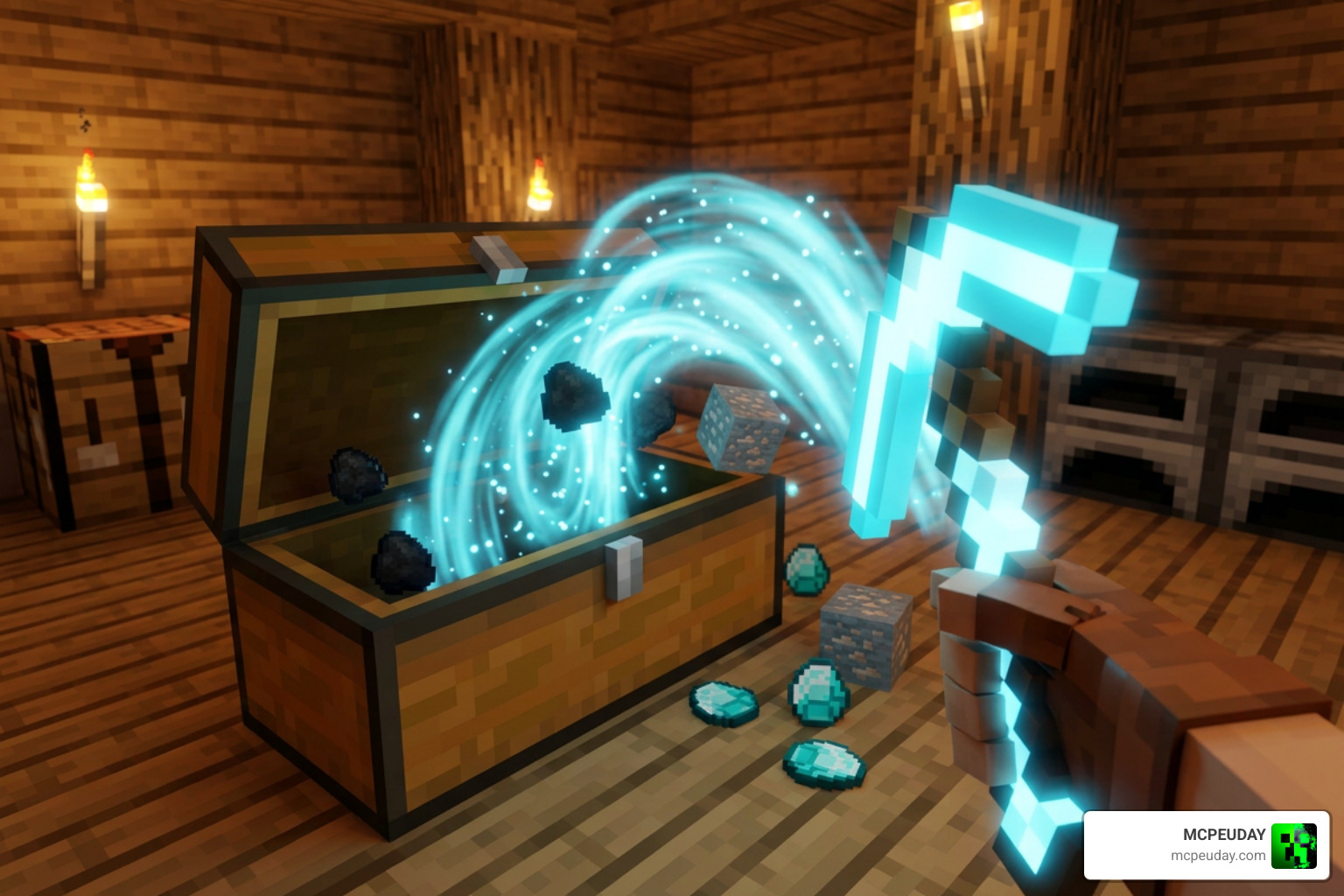
Core Capabilities of the Storage Transfer Addon for Minecraft PE/Bedrock
The addon is designed to handle common survival item-collection chores without complex redstone circuitry. Whether you are clearing debris from a quarry, harvesting automated crop fields, or gathering mob drops from an XP grinder, it gathers nearby loose entities and directs them straight into storage instantaneously.
| Feature | Vanilla Hopper Networks | Storage Transfer Addon |
|---|---|---|
| Material Cost | High (5 Iron + 1 Chest per hopper) | Minimal (Single transfer utility tool) |
| Base Footprint | Large vertical & horizontal footprint | Zero footprint; wireless connection |
| Pickup Range | 1 block directly above hopper | 6-block spherical radius around player |
| Double Chest Support | Requires multiple hopper inputs | Full 54-slot synchronization natively |
| Performance Impact | Can cause tile-entity lag in bulk | Extremely lightweight script execution |
Because vanilla hoppers continuously check for dropped items above them every single tick, large sorting systems inevitably bog down Bedrock simulation loops. In contrast, the wireless transfer script only runs on demand when the player triggers the tool, ensuring zero background lag during regular world exploration.
Container Compatibility and Multiplayer Realm Support
The addon works out of the box with standard wooden chests, double chests, and barrels. When you pair your transfer tool to a double chest, it automatically recognizes both halves to provide all 54 storage slots seamlessly.
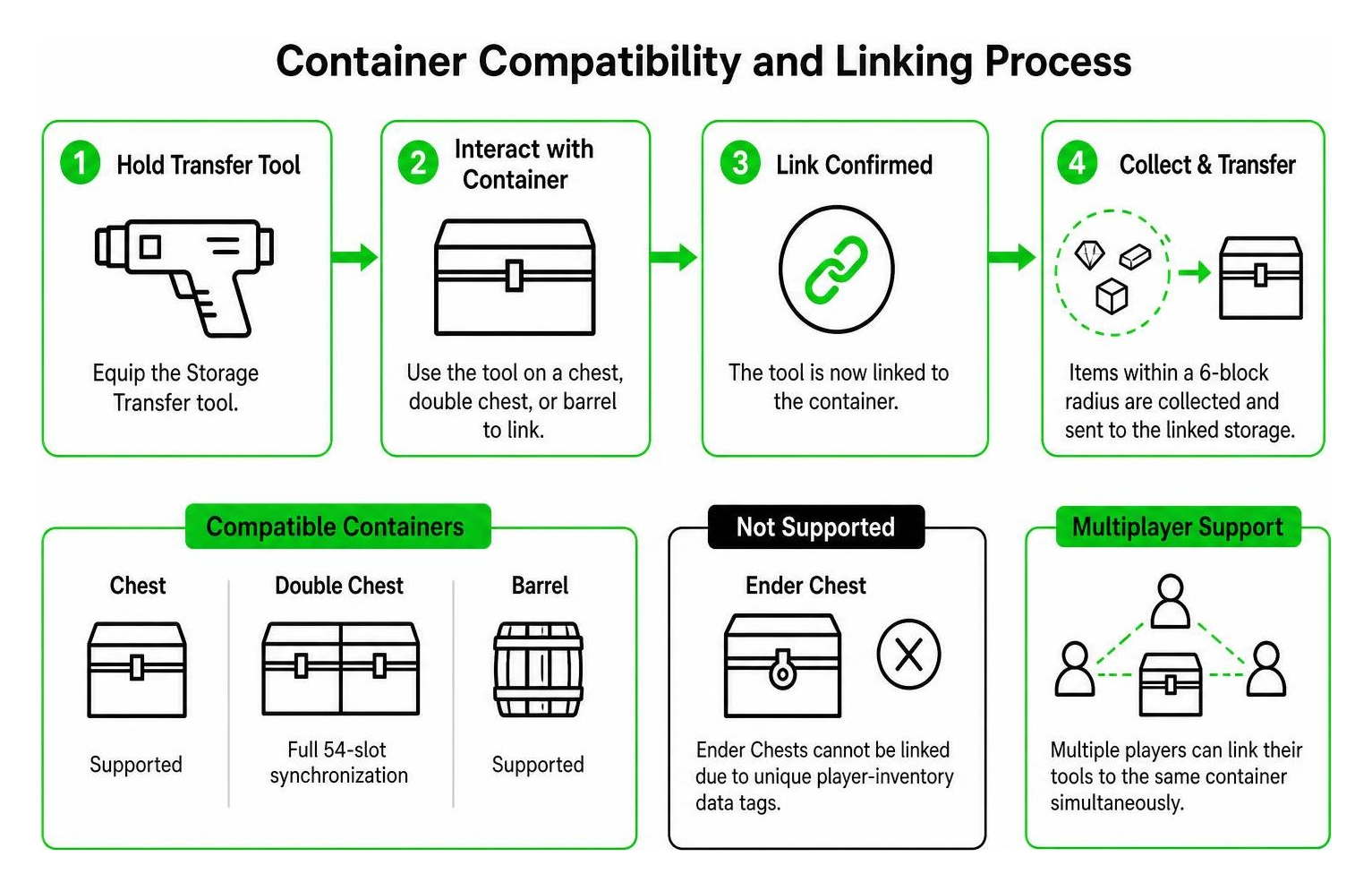
However, container support has one hard boundary: Ender Chests cannot be linked. Because Ender Chests rely on unique player-inventory data tags rather than fixed world coordinates, the addon scripts cannot bind to them. Standard physical storage blocks with permanent block entity identifiers remain fully supported.
For multiplayer enthusiasts, the addon runs smoothly on dedicated servers and Bedrock Realms. Multiple squad members can link their individual tools to the exact same central chest or barrel simultaneously, allowing teams to pool resources instantly without script errors or item duplication conflicts. Whether you are collaborating on a massive construction project or running cooperative resource raids, the script synchronizes inventory slots accurately across all connected players.
How to Install and Enable the Addon on Android and iOS

Installing custom Bedrock packages on mobile devices is straightforward once you know how your operating system handles .mcaddon archives. For a complete visual walkthrough, you can reference our video on How to Import Packs, Addons, and Worlds in MCPE (Full Guide).
Installing .mcaddon Files on Android and iOS
To set up the pack on mobile platforms, follow these steps:
- Download the Package: Obtain the
.mcaddonfile directly on your mobile device or transfer it over using a USB cable or cloud storage service like Google Drive or Dropbox. - Open on Android: Use a file manager app such as Files by Google or ZArchiver to locate the downloaded
.mcaddonfile. Tap the file and select Minecraft PE as the launch application. If prompted, set Minecraft as the default handler to trigger the automatic package import process. - Open on iOS/iPhone: Locate the downloaded file in the stock Files app under your Downloads folder. Tap and hold the file, select the share icon, and choose Minecraft from the app list. iOS will immediately hand off the archive to Minecraft Bedrock, which displays an “Import Started” banner followed by “Successfully Imported”.
If you download the addon as a .zip file instead of .mcaddon, simply rename the file extension from .zip to .mcaddon using your file manager before tapping to open it.
Required Experimental Gameplay Settings
Because custom behavior packs use underlying Bedrock scripting APIs and custom entity definitions, you must enable specific experimental toggles in your world settings before loading your save:
- Holiday Creator Features: Enables custom items, blocks, and core script events.
- Creation of Custom Biomes: Ensures world generation hooks remain compatible with custom entity properties.
- Additional Modding Capabilities: Grants permission for custom scripting hooks to access inventory entity data.
- Enable GameTest Framework / Beta APIs: Allows the JavaScript behavior engine to manage container coordinate caching and spatial loot collection.
After enabling these toggles in your world creation or world edit screen, navigate to the Resource Packs tab to activate the storage transfer textures, then open the Behavior Packs tab to activate the underlying logic scripts. Finally, launch your world to start using the wireless storage mechanics.
In-Game Setup: Linking Chests, Vacuuming Loot, and Base Relocation
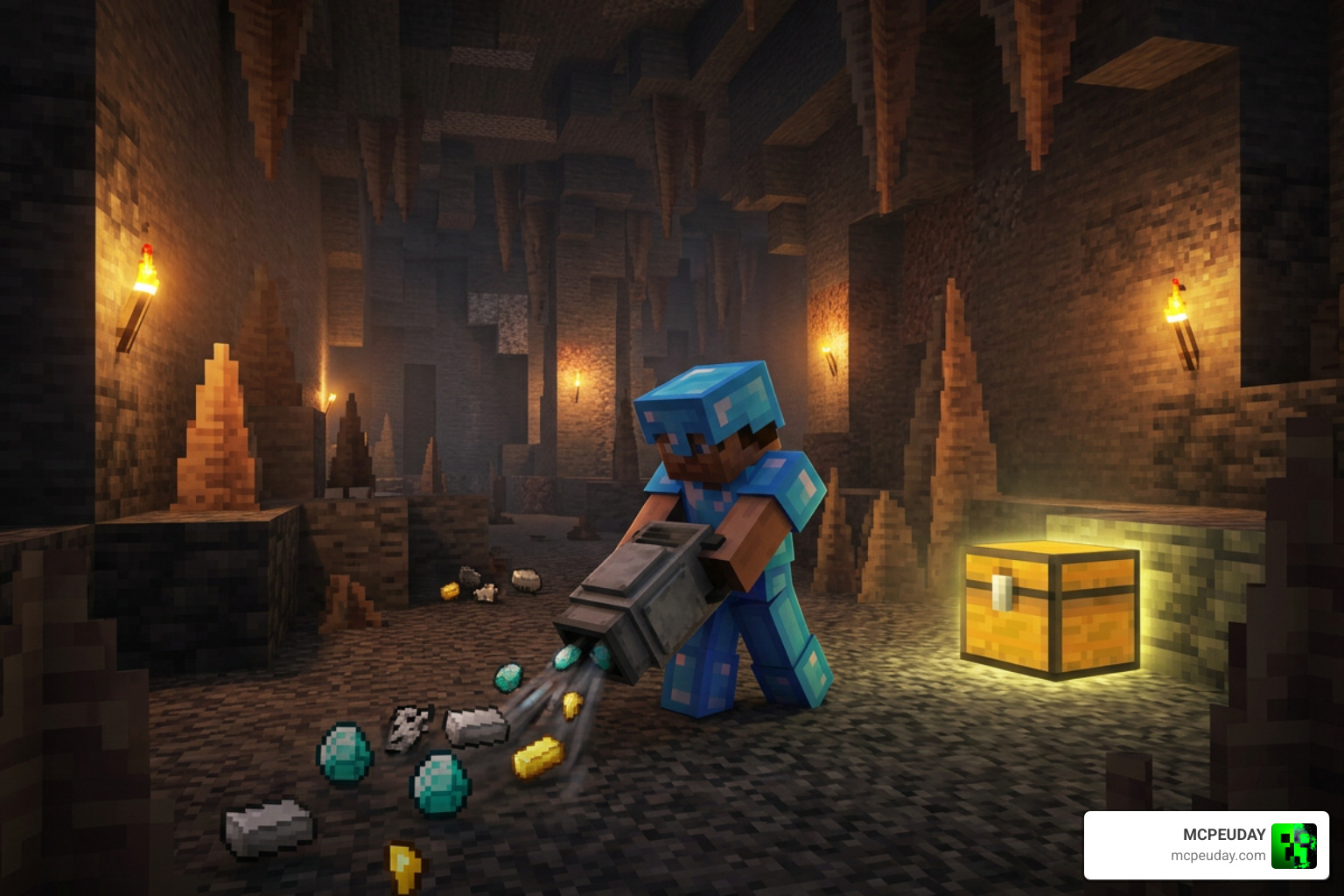
Once your world loads with the addon active, setting up your wireless item routing takes only a few seconds. The system operates on a coordinate-binding framework that pairs your handheld tool with target tile entities.
Advanced Automation with the Storage Transfer Addon for Minecraft PE/Bedrock
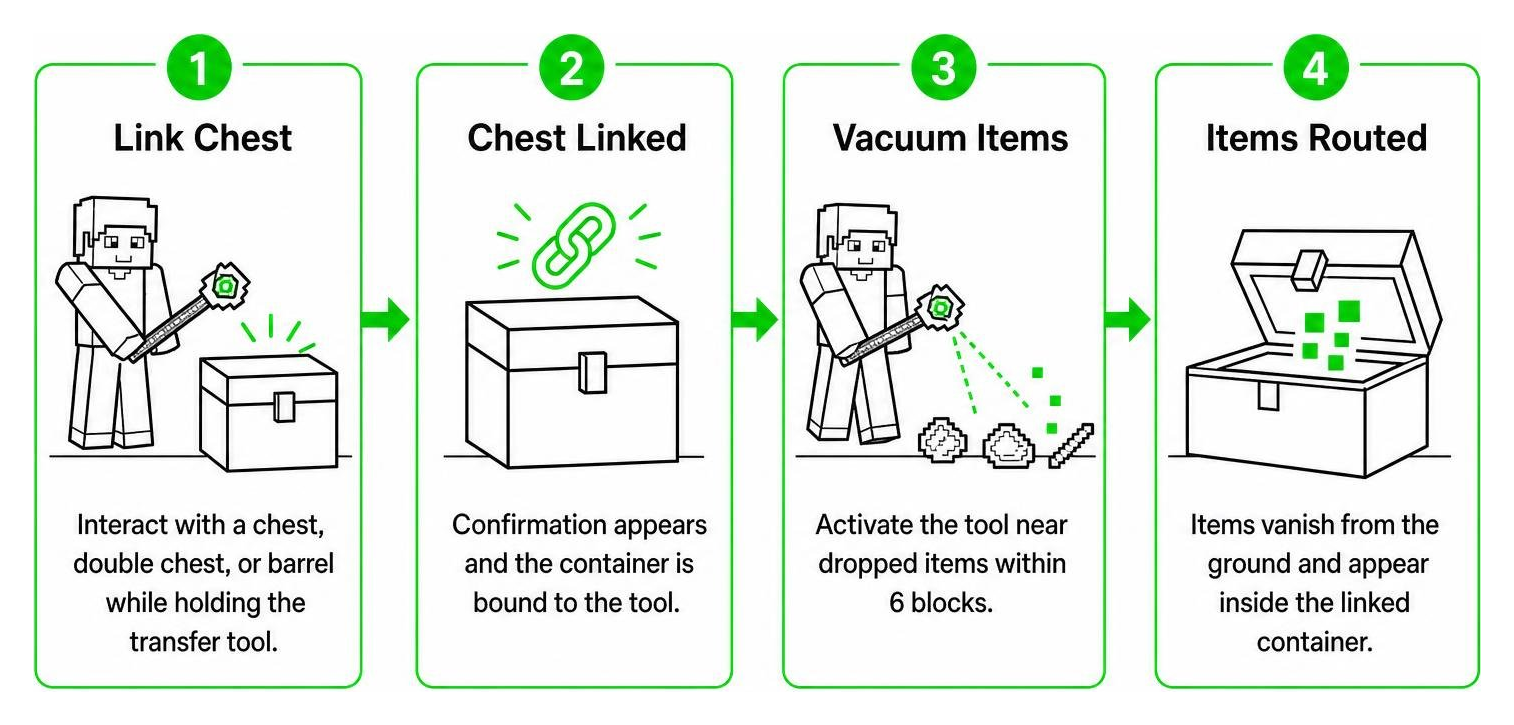
To link your storage and begin clearing dropped items:
- Craft or acquire the custom transfer tool and place it into your main hand.
- Walk up to any standard single chest, double chest, or wooden barrel and interact with it (right-click on Windows 10/11 or tap the screen interaction button on touch controls).
- A confirmation action-bar message will notify you that the container coordinates have been saved and bound to your tool.
- Walk near dropped items—such as mined deepslate ores, mob loot, wood logs, or farm crops—and use or activate the tool. Any item entity within a 6-block radius will vanish instantly from the ground and appear inside your linked container.
This workflow dramatically accelerates several core survival activities:
- Strip Mining Expeditions: Collect cobblestone, raw iron, diamonds, and redstone directly into your base storage without returning to the surface or filling your inventory pockets.
- Mob Spawner Grinders: Stand near the killing chamber of a skeleton or zombie farm and clear hundreds of drops in seconds without building hopper pyramids beneath the drop chute.
- Crop Harvesting: Break large wheat, potato, or carrot fields and vacuum the harvest straight into processing barrels instantly.
Disconnecting, Resetting, and Relocating Storage Connections
When you want to expand your base layout or move your main storage room to a different location, updating your connection is seamless:
- Wiping the Connection: Sneak (crouch) and interact with the currently linked container while holding the transfer tool. This clears the saved coordinate cache and unbinds the tool.
- Relinking to a New Container: Simply walk over to your new chest or barrel and interact with it while standing upright to assign the new coordinate drop point.
- Handling Full Containers: If your linked container fills up completely, any leftover items that cannot fit will remain safely on the ground rather than disappearing, preventing accidental item loss.
Frequently Asked Questions About Bedrock Storage Management
Can the Storage Transfer Addon link to Ender Chests?
No. Ender Chests in Minecraft Bedrock Edition utilize individual player NBT data tables rather than fixed world coordinates. Because every player sees their own distinct inventory when opening an Ender Chest, the addon’s coordinate-based routing script cannot direct items into an Ender Chest block entity. To route your items remotely, use standard wooden chests, double chests, or barrels placed in loaded chunks.
How do I move worlds between Application and External storage on Android?
Minecraft Bedrock lets you manage storage locations via Settings > Profile > File Storage Location. However, modern operating system updates enforce strict scoped storage rules that restrict direct browsing inside the app sandbox. If you need to back up worlds saved under Application storage, community discussions on Moving Resources from Application to External Storage (bedrock)(mobile … offer workarounds for accessing the private data directory.
On newer Android versions, switching your storage setting to External before creating new worlds ensures that world saves and behavior packs reside in accessible directories, making manual backups and file transfers much simpler.
Does this item transfer mod work on shared Bedrock Realms?
Yes. When the Realm host activates the Behavior and Resource Packs in the Realm world settings, all joining players automatically download the required files upon connecting. Multiplayer squad members can each craft their own transfer tools and bind them to shared community chests or individual private lockers across the Realm without triggering script conflicts.
Conclusion
The Storage Transfer Addon offers a clean, iron-free alternative to messy hopper chains on Minecraft PE and Bedrock Edition. By setting up a wireless 6-block vacuum link, you can keep your inventory clear during mining expeditions, automate mob farm collections with minimal setup, and protect your world from tile-entity performance drops.
Explore our extensive library of the latest Minecraft PE and Bedrock mods at MCPEUDAY to discover more utility addons, custom shaders, and gameplay upgrades for your worlds.