Scroll down to D0vvnl0ad
What Is the Colourful Ore UI Addon for Minecraft PE/Bedrock?
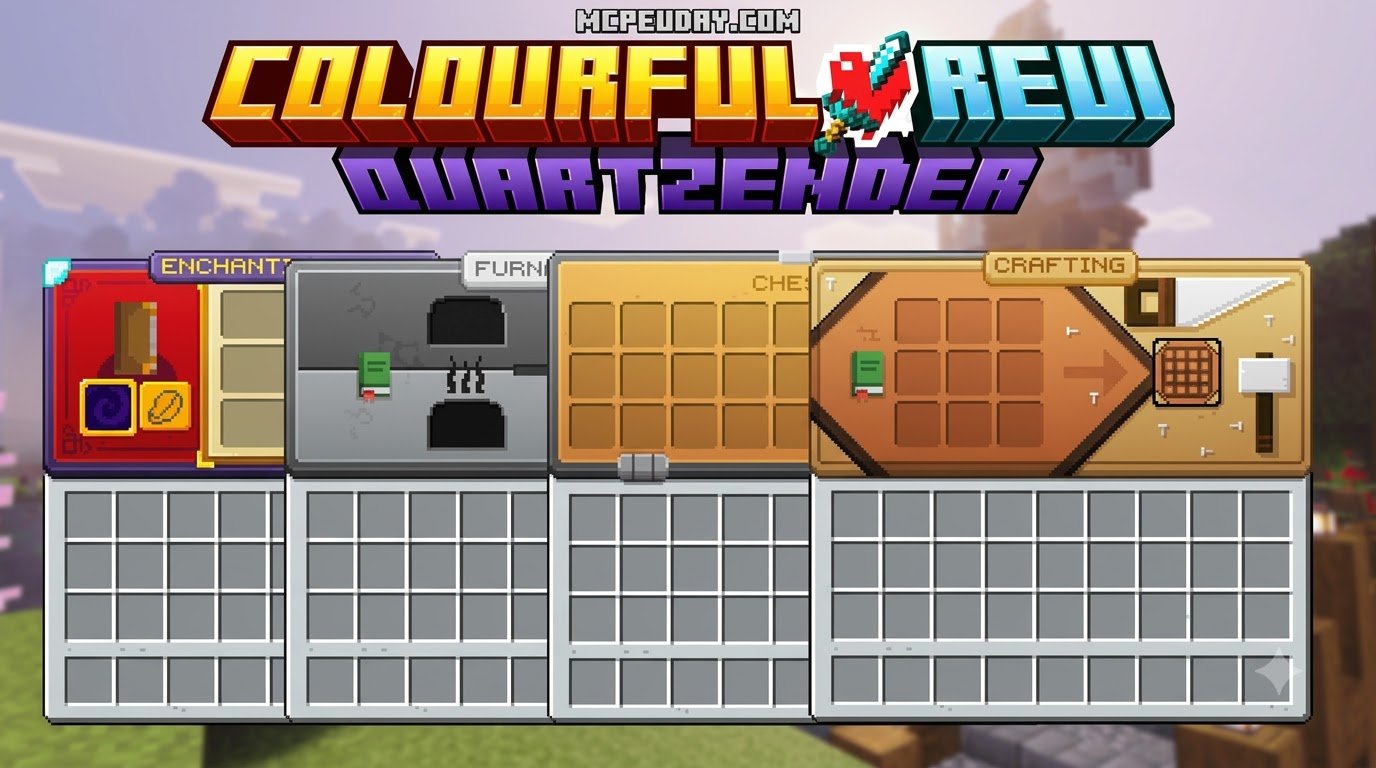
Minecraft Bedrock Edition still relies heavily on standard grey, tiled user interfaces that have changed very little over the years. The Colourful Ore UI Textures — Minecraft Bedrock pack completely reimagines these flat screens by introducing vibrant, polished gradients and silky-smooth transition animations. By overhauling classic container backdrops, inventory windows, and in-game meters, this pack bridges the gap between retro console layouts and sleek modern mobile app design.
We find that this addon transforms the visual tone of your entire playthrough, turning dull inventory management into a sleek, modern experience. Sitting at a download size of just 1.3 MB (verified working as of September 2026), it delivers a substantial aesthetic overhaul without placing extra strain on your system. It ranks comfortably among the best MCPE texture packs for survival because it emphasizes clarity, immersion, and daily usability across all touchscreens and monitors. Whether you are managing vast underground storage rooms or quickly swapping weapons during intense boss encounters, the visual readability provided by the Colourful Ore UI Addon for Minecraft PE/Bedrock ensures you never lose track of essential items.
Core Features of Colourful Ore UI Addon for Minecraft PE/Bedrock
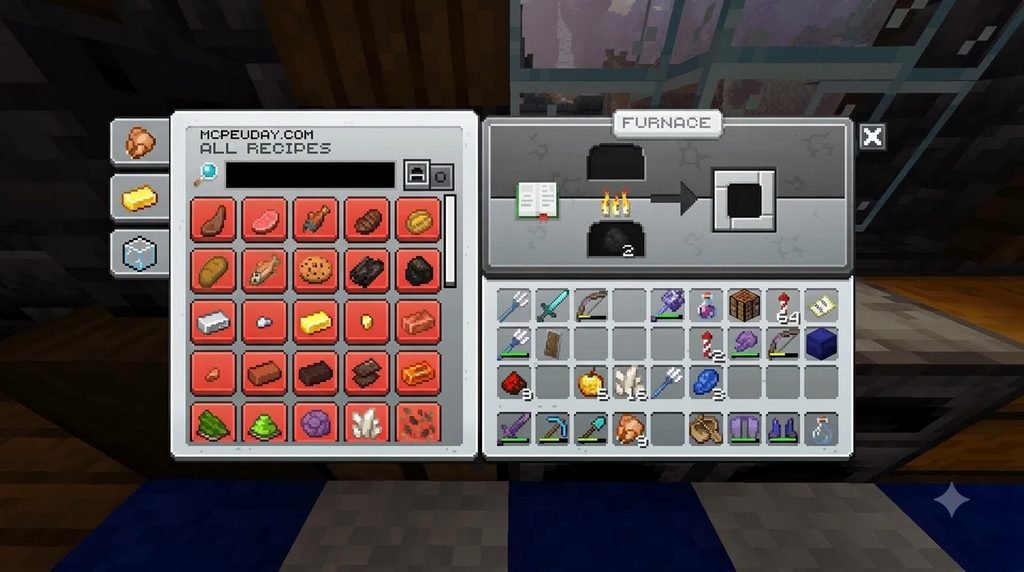
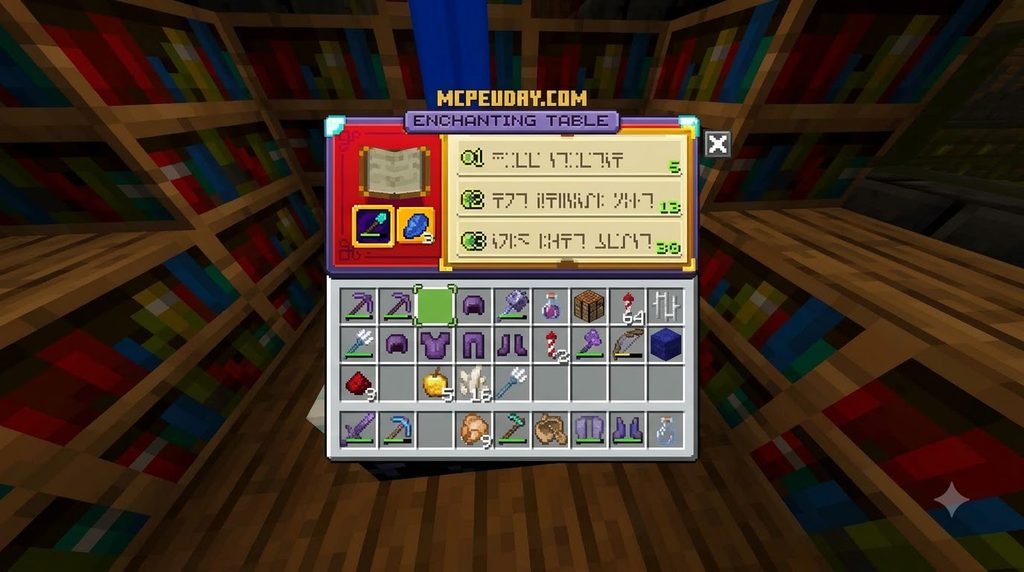
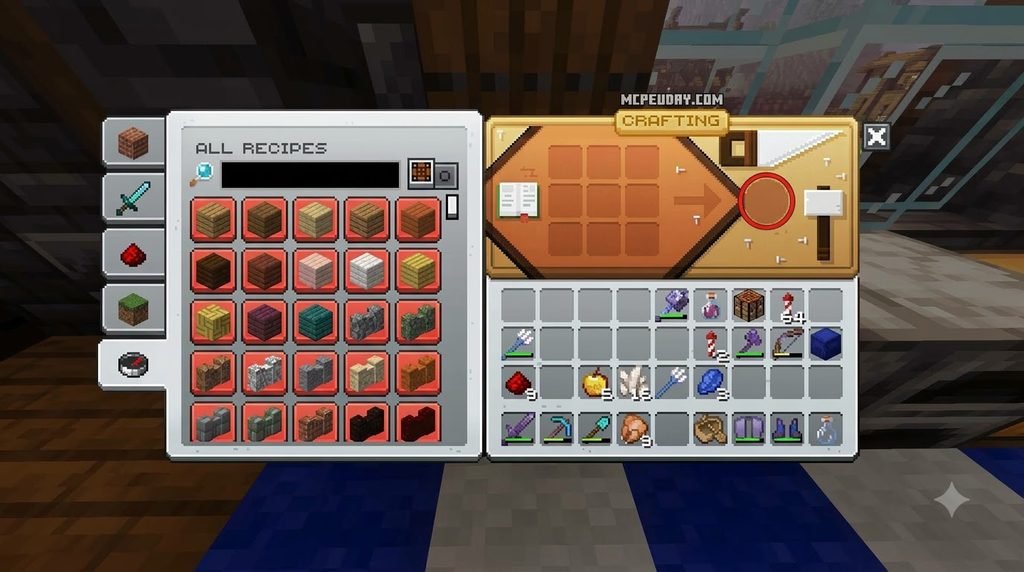
The addon upgrades almost every element of your screen. Instead of the traditional muted grey boxes, menus feature rich gradient container panels with high visual contrast that make item sprites pop clearly.
Here is what you can expect once the pack is active in your game:
- Redesigned Boss Health Bars: Custom gradient meters make epic battles against the Wither and Ender Dragon feel modern, responsive, and visually distinct.
- Panoramic Background Textures: Main menus and sub-menus display updated, panoramic backgrounds tailored to recent game versions, enhancing visual immersion.
- Dynamic Interface Animations: Container slots, buttons, and panels transition smoothly whenever you open or close inventories, eliminating jarring pop-in.
- Clean HUD Scaling: On-screen elements scale proportionally across mobile phones, tablets, and desktop displays to ensure clean touch controls and unhindered sightlines.
- Refined Crafting Grids: Crafting tables, furnaces, and brewing stands receive high-visibility outlines that make complex recipes faster to organize during survival sessions.
Shulker Box Prefix Customization System
One standout feature of this pack is the ability to manually dye your inventory screens using Minecraft’s built-in formatting codes. Rather than forcing you to look at a uniform menu regardless of what you carry, the pack allows you to personalize individual Shulker box screens via anvil renaming.
To change the background tint of a Shulker box menu, place the box inside an anvil and add a section sign prefix (§) followed by the corresponding color code before the container’s name:
§c— Vibrant Red§a— Bright Lime Green§9— Royal Blue§e— Sunny Yellow§d— Light Purple / Magenta§b— Cyan / Aqua§6— Gold / Orange§f— Clean White
Once renamed, opening that specific container displays a matching dyed menu background, making item sorting and storage management far more intuitive. This level of personalization is rare among Bedrock interface packs, and it gives survival players a practical way to organize large storage rooms without relying on external mods or behavior packs.
Comparing Bedrock UI Styles: Colourful Ore UI and Colourful Containers
Choosing the right user interface addon depends on whether you want an all-in-one overhaul or a container-specific redesign. Players seeking an expressive, colorful palette will appreciate the bold styling of Colourful Ore UI, which modernizes menus, health bars, and container screens all at once.
| Feature / Metric | Colourful Ore UI | Colourful Containers GUI |
|---|---|---|
| Primary Focus | Full UI modernization with gradient panels & boss bars | Themed container menus matching block textures |
| File Size | 1.3 MB | ~16×16 lightweight |
| Customization | Anvil-based Shulker box color prefixes | Dark Mode, OLED, and HUD remake variants |
| Download Milestone | Verified September 2026 release | 8+ million combined downloads |
| Platform Scope | Bedrock / MCPE Exclusive | Bedrock (.mcpack) and Java (OptiGUI/Animatica) |
If you want your storage blocks to mirror their real-world materials, pairing your setup with the Colourful Containers GUI resource pack provides another great visual route for dedicated builders.
Fine-Tuning Your Interface with Complementary Tweaks
Beyond a full overhaul, small ergonomic touches like refined hotbar spacing and crisp button feedback can round out your experience. The Colourful Ore UI pack already provides a richer palette out of the box, making it the better choice for players who want a truly vibrant interface that transforms every aspect of gameplay menus while remaining lightweight and easy to install.
Visual Synergy with Mining and Resource Addons
A bright, high-contrast interface pairs naturally with visual mining packs. When you are deep underground, clear visual feedback saves time and resources, allowing you to spot essential minerals without straining your eyes.
Combining this interface with a glowing ores texture pack or a clean visible ores texture pack ensures that subterranean exploration is effortless. If you rely on advanced detection packs like the X-ray glow addon, the clean gradient panels in your inventory keep your screen readable even when complex block outlines surround you in low-light cave biomes.
Step-by-Step Installation Guide for Bedrock and MCPE
Installing resource packs on Bedrock Edition is straightforward thanks to the integrated package installer built directly into the game engine.
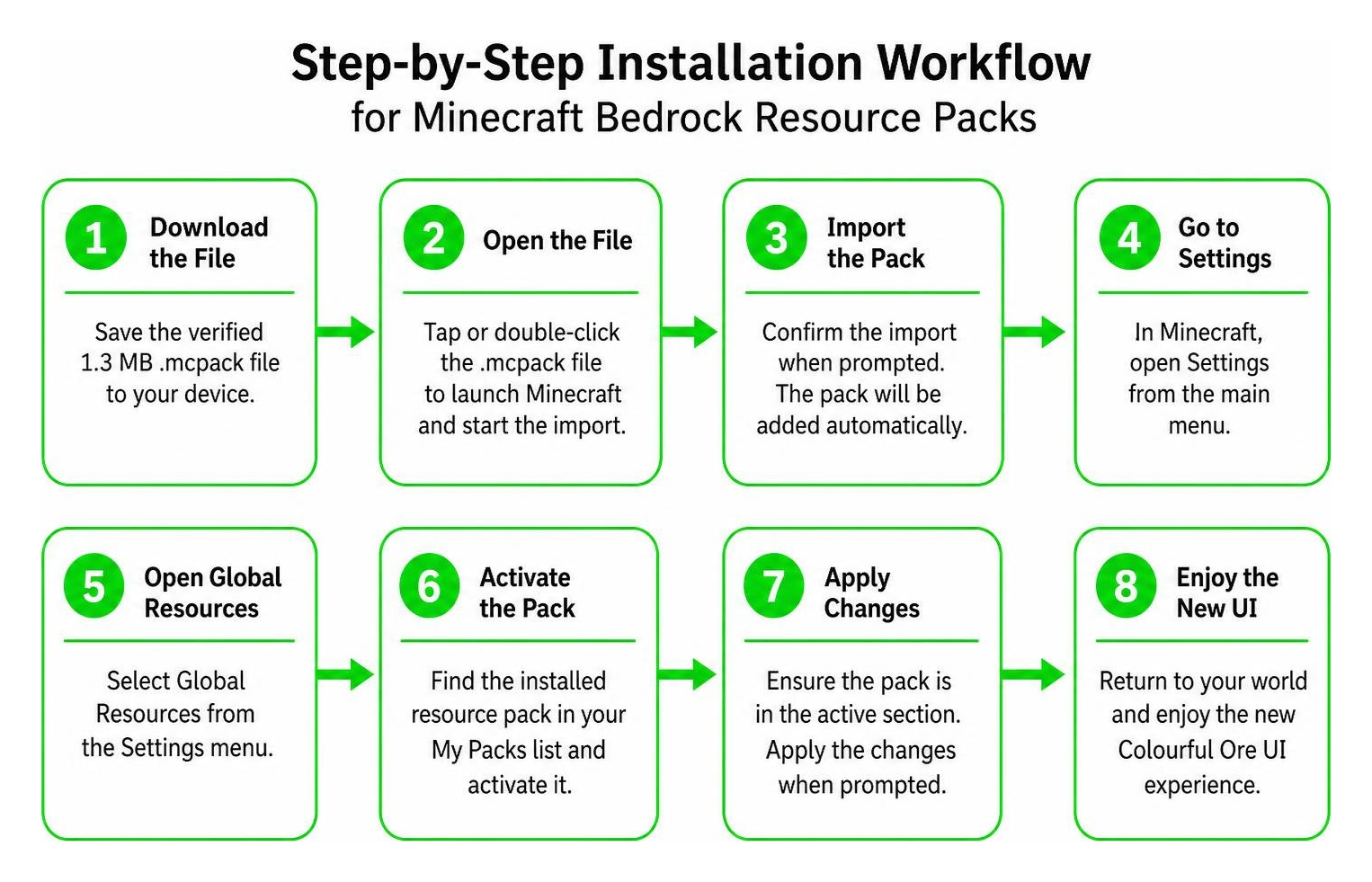
Installing the Colourful Ore UI Addon for Minecraft PE/Bedrock
Follow these steps to install the pack on Android, iOS, or Windows:
- Download the File: Save the verified 1.3 MB
.mcpackfile to your device storage. - Launch into Minecraft: Tap or double-click the downloaded
.mcpackfile. Minecraft will launch automatically and display an “Import Started” notification at the top of the screen. - Activate the Pack:
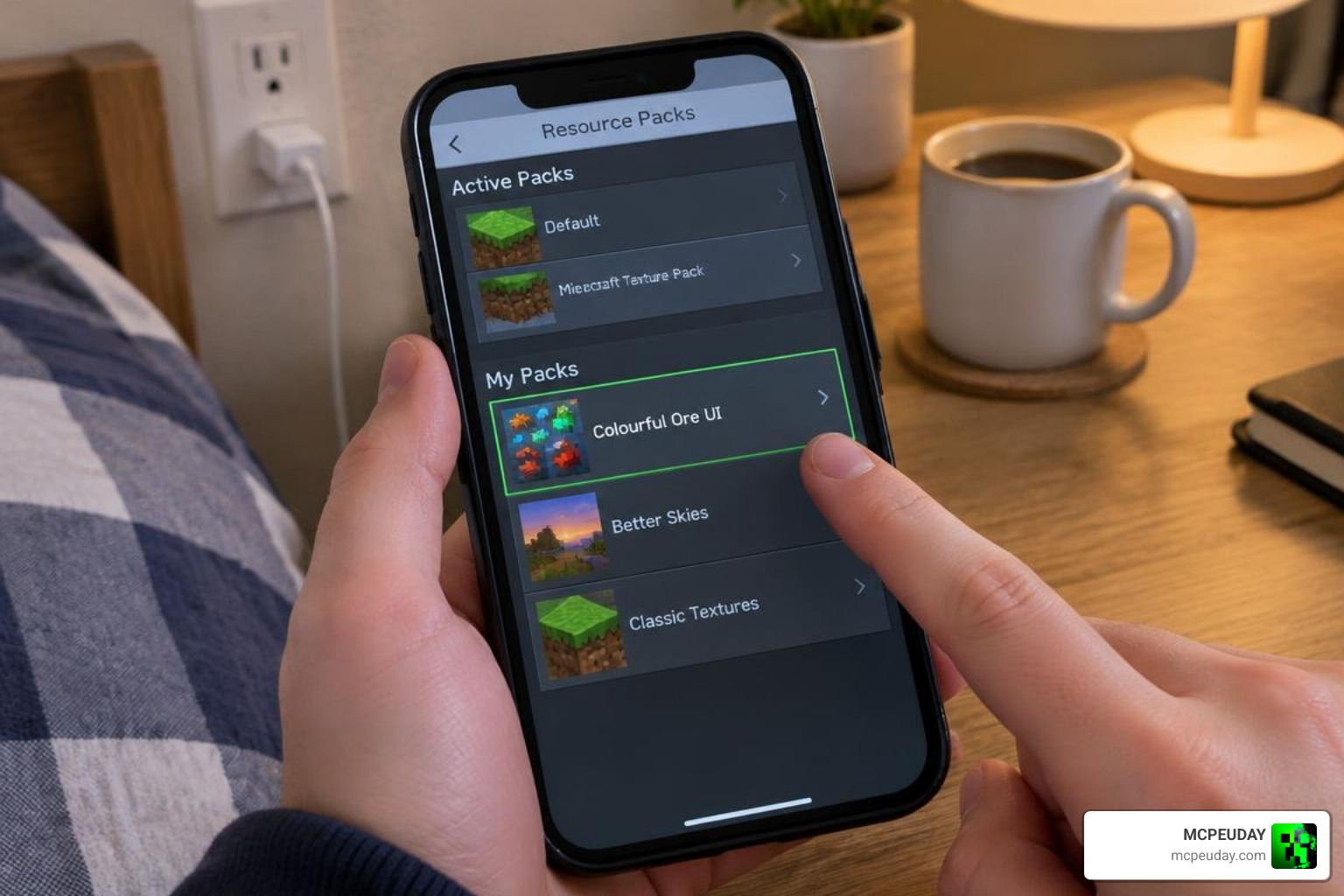
- For all worlds: Go to Settings > Global Resources > My Packs, locate Colourful Ore UI, and click Activate.
- For a single world: Open your world settings, scroll down to Resource Packs, and activate it under the world-specific tab.
- Set Priority: If you run other visual addons, ensure Colourful Ore UI is placed high enough in your load order so its custom JSON UI elements override default menus properly.
Troubleshooting Compatibility and Texture Glitches
If menu borders appear misaligned or textures fail to load, check the following solutions:
- Pack Hierarchy: Bedrock loads interface elements strictly by priority. If another UI pack is loaded above Colourful Ore UI, move this pack to the top of the active list.
- Cache Refresh: If visual artifacts persist, navigate to Settings > Storage and clear your cached data before restarting the game.
- Device Restarts: On mobile devices with limited RAM, restart the app completely after enabling the pack to allow all panoramic backgrounds and UI animations to buffer properly.
- Subpack Settings: Check if your global settings require toggling UI safe zones to prevent HUD components from clipping beneath device notches or rounded screen bezels.
For additional help with resource pack installation or load order conflicts, you can browse the MCPE Bedrock addons and texture packs collection for guides and compatible downloads.
Frequently Asked Questions About Bedrock UI Overhauls
Is the Colourful Ore UI pack available for Minecraft Java Edition?
No, this specific pack is built exclusively for Bedrock Edition’s JSON UI engine. Java Edition utilizes a different UI framework that relies on OptiGUI or resource pack container overrides. If you play on Java Edition, you will need to look for a separate interface pack designed specifically for that platform.
How do you change Shulker box menu colors using anvil prefixes?
Place your Shulker box in an anvil and add a color symbol before the name, such as §a for lime green or §9 for blue. When opened, the container will render in the assigned color. This works because the pack reads the formatting code from the container’s display name and applies the matching gradient background to the inventory screen dynamically during gameplay.
Does this UI addon impact performance or FPS on mobile devices?
No. Because the textures are lightweight (1.3 MB) and optimized for standard UI rendering pipelines, the pack causes zero frame drops on mobile devices, consoles, or lower-end PCs. The gradient panels and animations are rendered through Bedrock’s native JSON UI system, which is designed to handle interface elements efficiently without taxing your device’s GPU or draining extra battery.
Can I use this pack alongside other texture packs?
Yes, the Colourful Ore UI addon is designed to work alongside most visual texture packs. However, if you are using another UI-specific pack, you may need to adjust the load order in your resource pack settings to ensure the Colourful Ore UI elements take priority. Non-UI texture packs, such as those that change block or item textures, will not conflict with this addon.
Conclusion
The Colourful Ore UI addon delivers an appealing blend of style, animation, and functional container customization for Minecraft Bedrock. By stepping away from dated grey windows and introducing customizable Shulker menus, it revitalizes your everyday survival and creative routines.
At MCPEUDAY, we are committed to testing and sharing the best additions for your worlds. We encourage you to explore more Bedrock addons and texture packs to upgrade your game today!