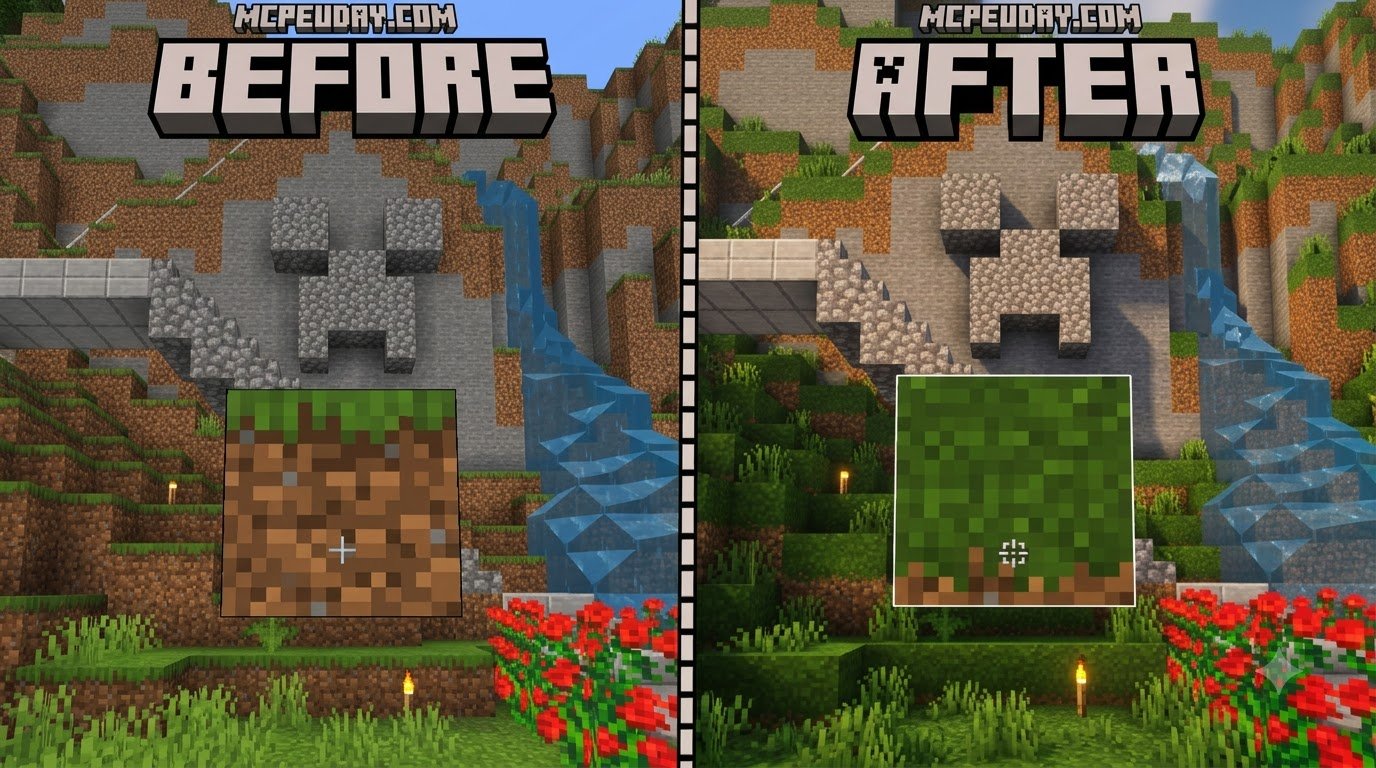
Scroll down to D0vvnl0ad
Get a Clearer Block Outline in Minecraft PE
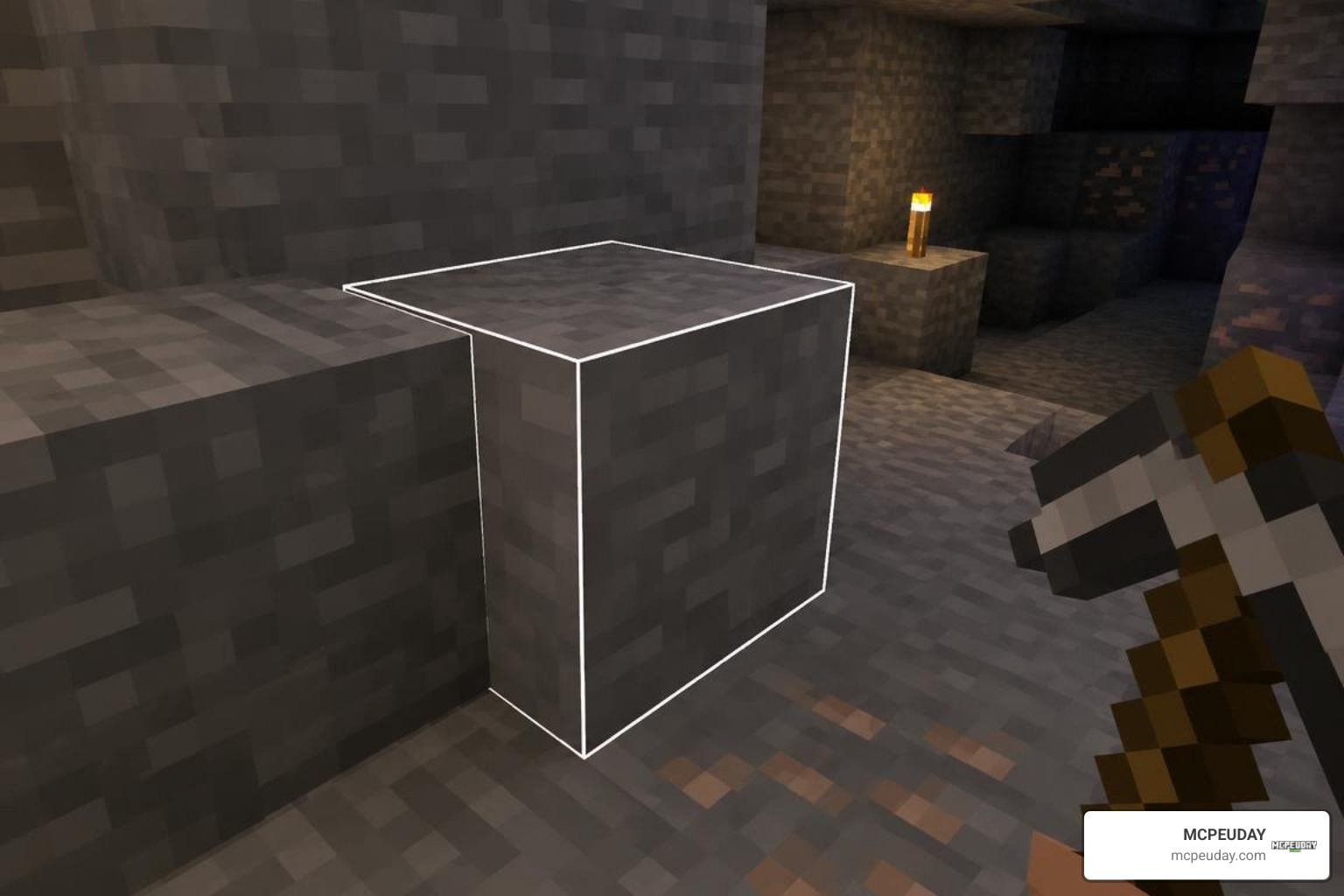
To try White Outline Selection+, download a Bedrock-compatible pack file from a source you trust, open the .mcpack file with Minecraft, then activate the pack under Resource Packs in your world settings. Aim at a block to check whether its selection border appears white.
The goal is simple: make the block you are targeting easier to see while building or mining. Before downloading, check the pack’s listed Minecraft version and any setup notes. An outline pack may not work the same way on every Bedrock device or update.
What Is the White Outline Selection+ Addon for Minecraft PE/Bedrock?
Minecraft Bedrock Edition has always utilized a faint, dark gray wireframe box around blocks when you hover over them. In well-lit environments, this standard wireframe is usable, but the moment you step into a dimly lit ravine, a pitch-black cave, or build against dark blocks like deepslate, obsidian, or basalt, that border disappears entirely.
The White Outline Selection+ Addon for Minecraft PE/Bedrock replaces the default dark targeting outline with a high-contrast, luminous white border. Instead of altering block textures or changing mob behaviors, this modification taps directly into the rendering pipeline of the Bedrock visual interface. It redraws the boundary lines of your active crosshair target, providing immediate visual feedback.
When your crosshair sweeps across blocks, the white outline highlights the precise 3D hitbox boundaries of standard full cubes, partial slabs, stairs, and decorative items. By clarifying the exact targeted block face, this pack eliminates misclicks, misplaced blocks, and accidental tool breaks on delicate materials.
Key Features of White Outline Selection+ Addon for Minecraft PE/Bedrock
Upgrading your selection wireframe brings substantial gameplay benefits:
- High-Contrast Targeting: The clean white border stands out against every terrain type in the Overworld, Nether, and End.
- Precise Block Alignment: Perfect for speed-bridging, redstone construction, and mega-build projects where mistargeting a block can ruin hours of work.
- Cave & Deepslate Visibility: Mining in low-light environments becomes effortless because you can clearly see targeted blocks without placing a torch first.
- Non-Intrusive Design: The outline is razor-sharp and thin, leaving the block face itself visible without obstructive overlays.
- Zero Frame Drops: Because it only adjusts line rendering definitions rather than heavy animation shaders, performance remains butter-smooth.
| Feature | Default Bedrock Border | White Outline Selection+ |
|---|---|---|
| Border Color | Faint dark gray / black | Crisp luminous white |
| Visibility on Dark Blocks | Extremely poor (blends with textures) | Crystal clear contrast |
| Cave & Nether Mining | Hard to see without direct light | Always distinct and readable |
| Customization Options | None (fixed vanilla width) | Configurable border thickness |
| Hitbox Accuracy | Standard single-line box | Full multi-face precision |
| FPS Impact | None | Zero impact |
Compatibility and System Requirements in 2026
Modern Minecraft Bedrock builds run on the Render Dragon graphics engine, which manages how materials, lines, and lighting interact across all supported hardware. The White Outline Selection+ pack is fully tailored for modern Bedrock versions, including 1.21 and later.
Because this modification operates as a lightweight client-side resource pack, its technical footprint is virtually nonexistent:
- Supported Operating Systems: Android (all major builds), iOS / iPadOS, Windows 10 & Windows 11, ChromeOS, Fire OS, Xbox, PlayStation, and Nintendo Switch.
- Hardware Specs: Compatible with any device capable of launching Minecraft Bedrock Edition at playable frame rates.
- RAM Overhead: Consumes less than 1 MB of temporary memory cache during active rendering.
- Storage Footprint: The
.mcpackinstallation archive typically requires less than 200 KB of local storage space.
Step-by-Step Guide to Installing the Addon on Minecraft Bedrock
Installing custom interface tweaks on Bedrock Edition is fast and simple on mobile and desktop platforms.
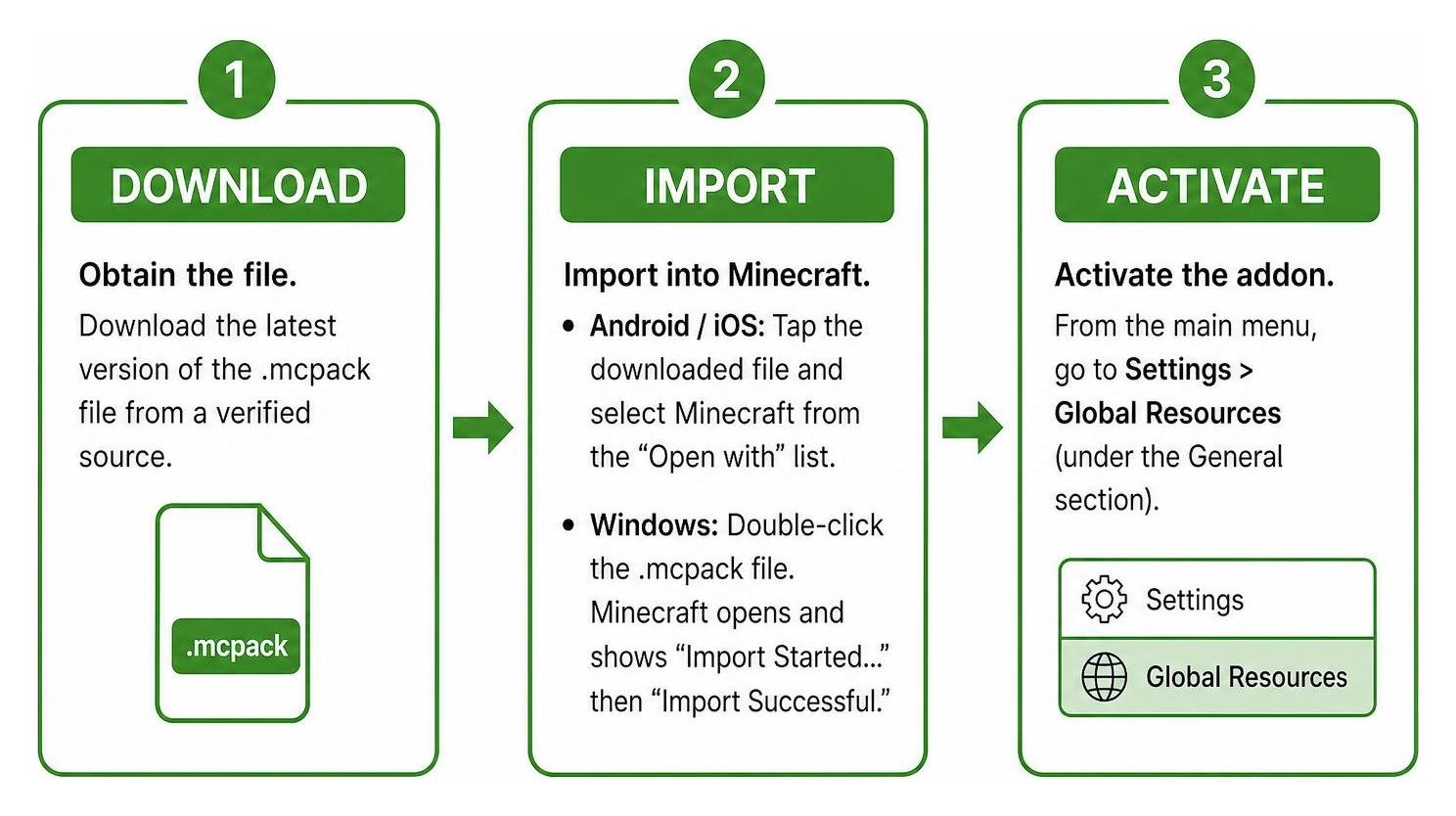
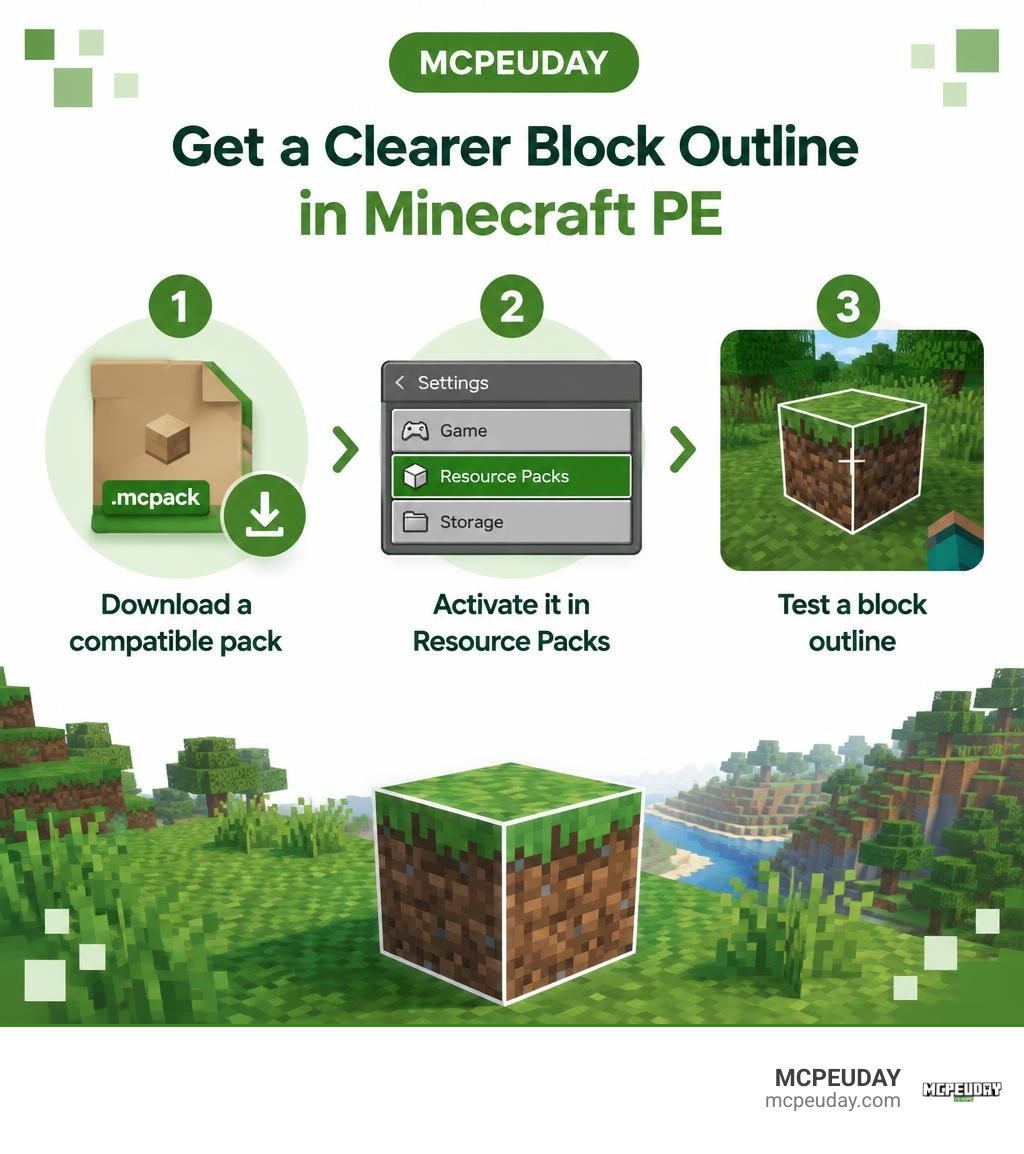
- Obtain the File: Download the latest version of the
.mcpackfile from a verified source. - Import into Minecraft:
- Android / iOS: Tap the downloaded file in your browser or file manager and select Minecraft from the “Open with” app list.
- Windows: Double-click the
.mcpackfile. Minecraft Bedrock will open automatically and display an “Import Started…” banner followed by “Import Successful.”
- Open Global Settings: From the Minecraft main menu, go to Settings > Global Resources (under the General section).
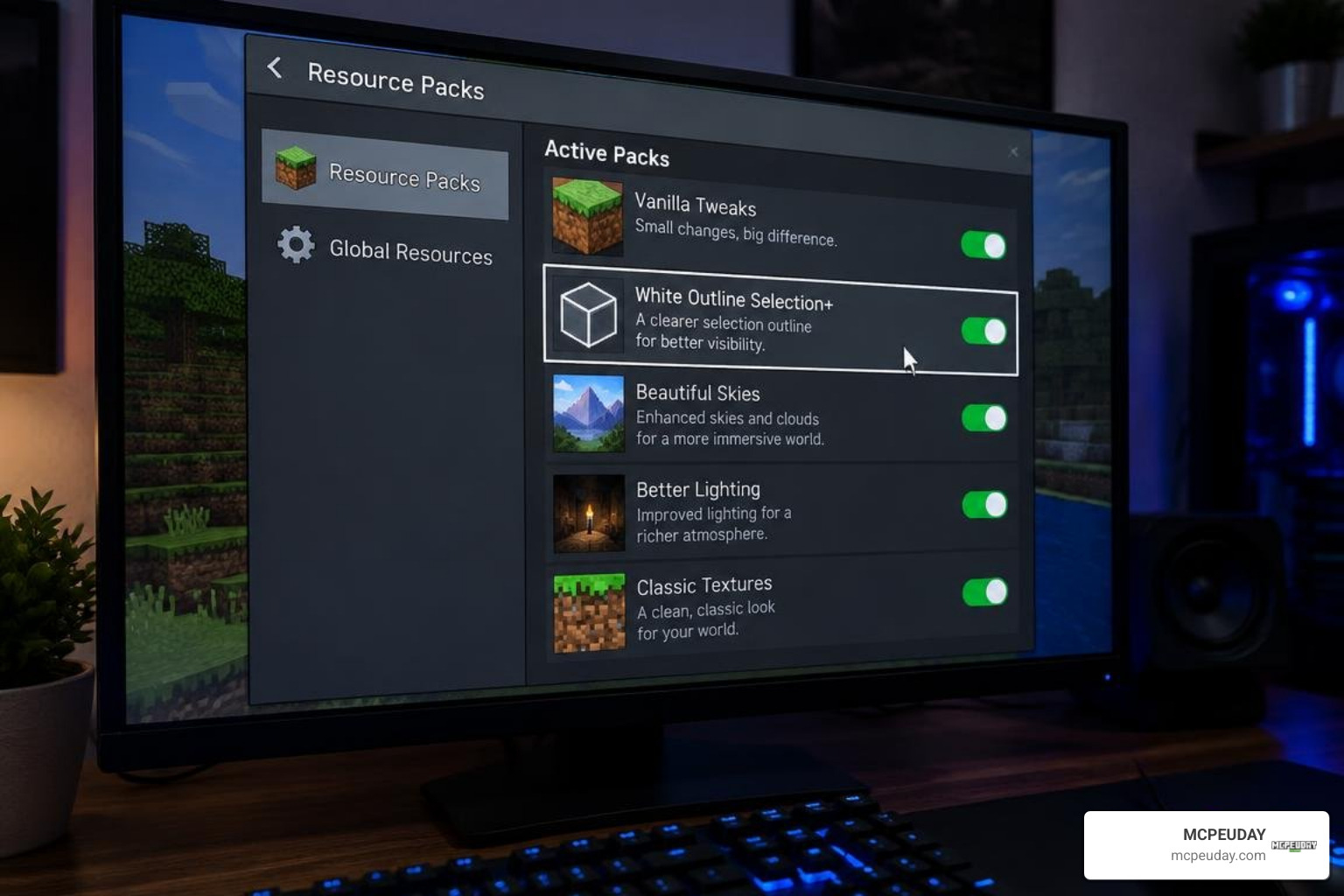
- Activate the Pack: Click on My Packs, locate White Outline Selection+, and click Activate.
- Verify Placement: Check your Active list to confirm the pack is loaded, then enter any world to verify your clean white block outlines.
How to Configure the White Outline Selection+ Addon for Minecraft PE/Bedrock
Many releases of White Outline Selection+ include a subpack configuration slider, allowing you to fine-tune outline thickness and opacity to match your screen size and personal taste.
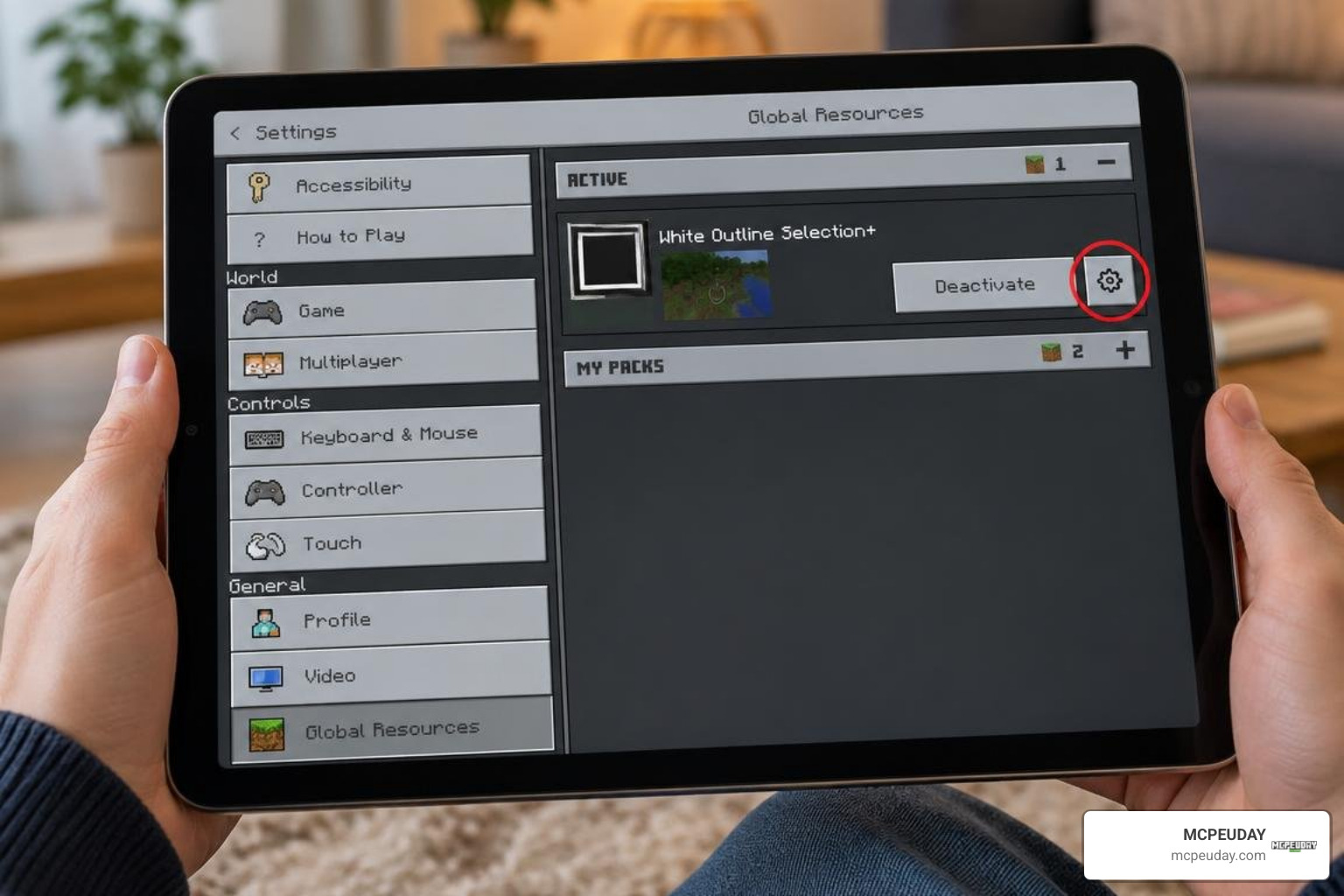
Follow these steps to access the customization gear:
- Open Settings > Global Resources (or your specific World Settings > Resource Packs).
- Click on the activated White Outline Selection+ pack.
- Tap the Gear Icon (Settings) next to the deactivate button.
- Drag the Resolution / Thickness Slider to switch between preset options:
- Thin (1x): A sharp, minimalist border ideal for desktop monitors and tablets.
- Medium (2x): The balanced standard setting, recommended for all-around gameplay.
- Thick (4x / Bold): A high-visibility border designed for small smartphone screens and touch controls.
- Semi-Transparent Glow: Softens border edges to reduce visual distraction during fast building.
- Exit the menu to save your configuration and let the game reload its UI assets.
Enabling the Pack on Realms and Multiplayer Servers
Because this pack modifies how your crosshair outline is rendered on your personal screen, it is a 100% client-side resource pack.
- Realms & Realms Plus: When enabled under Global Resources, the white outline displays seamlessly on any Realm you join, without requiring server host permissions.
- Bedrock Dedicated Servers & Featured Networks: The pack works across major multiplayer minigame servers, survival networks, and private SMPs.
- Anti-Cheat Safe: It does not modify game mechanics, grant illegal player vision, or bypass hitboxes, keeping your account completely safe from automated anti-cheat flags.
Comparing Selection Outlines and Alternative Visual Addons
Selecting the right visual enhancement depends on whether you want a clean building helper, highlighted mining assistance, or a full graphical overhaul. If you want a complete interface theme, the outline texture pack for 1.21 provides matching block edges alongside full UI restructuring. For a broader look at how Bedrock handles block targeting and rendering, the Minecraft Wiki’s resource pack guide explains the underlying file structure and visual layering used by packs like this one.
For underground exploration, combining outline styling with visibility tweaks can transform mining efficiency:
- Players focused strictly on underground mineral prospecting often pair their crosshair tweaks with an outline X-ray addon mod or a standalone visible ores texture pack.
- If you want minerals to stand out in unlit shafts without altering entire block surfaces, consider adding a dedicated glowing ores addon.
- For atmospheric enhancements and distinct world depth, you can stack your setup with a custom outline visuals shader designed for current Bedrock graphic pipelines.
Troubleshooting Known Issues and Performance Limits
If your outline is not displaying correctly, work through these common checks:
- Outline Selection Video Toggle: Navigate to Settings > Video and make sure the Outline Selection toggle is turned ON. If set to the classic selection box style, the game will ignore custom outline definitions.
- Resource Pack Load Hierarchy: When multiple texture packs are active, packs placed higher on the list take priority. Open your Active Resource Packs menu and move White Outline Selection+ to the top of the stack.
- Touch Control Conflicts: On mobile devices, ensure your control mode is set to Crosshair or Split Controls. With standard tap-to-mine touch input, the game only renders outlines at the moment your finger touches a block.
- Stale Resource Cache: If an update causes visual artifacts, deactivate the pack, restart your Minecraft app, and reactivate it in your Global Resources menu.
Frequently Asked Questions About White Outline Selection+
Does this addon disable achievements in Minecraft Bedrock?
No. Because White Outline Selection+ is a client-side resource pack that does not require “Holiday Creator Features” or experimental gameplay flags, achievements remain fully enabled in vanilla survival worlds.
Can you use this pack alongside custom shaders?
Yes, provided your shader does not lock or override line selection materials inside the engine’s core bin files. In most cases, placing White Outline Selection+ higher in your pack hierarchy ensures the white border renders cleanly over custom shaders.
Why is the outline box not showing on targeted blocks?
Verify that Outline Selection is switched on in Settings > Video. If that setting is enabled, ensure another active UI pack is not overriding your selection line files, and confirm your pack is positioned at the top of your active list.
Conclusion
The White Outline Selection+ pack is a lightweight visual upgrade that fixes one of Bedrock Edition’s longest-standing annoyances: hard-to-see block targeting. Whether you are assembling detailed redstone contraptions, building massive structures, or navigating dark caves, a high-contrast white border gives you the precision you need.
At MCPEUDAY, we make customizing your Bedrock experience effortless with verified packs, clear installation guides, and up-to-date downloads. Ready to elevate your gameplay further? Jump into our catalog to browse the latest Bedrock mod addons and discover new tools, textures, and visual upgrades today.