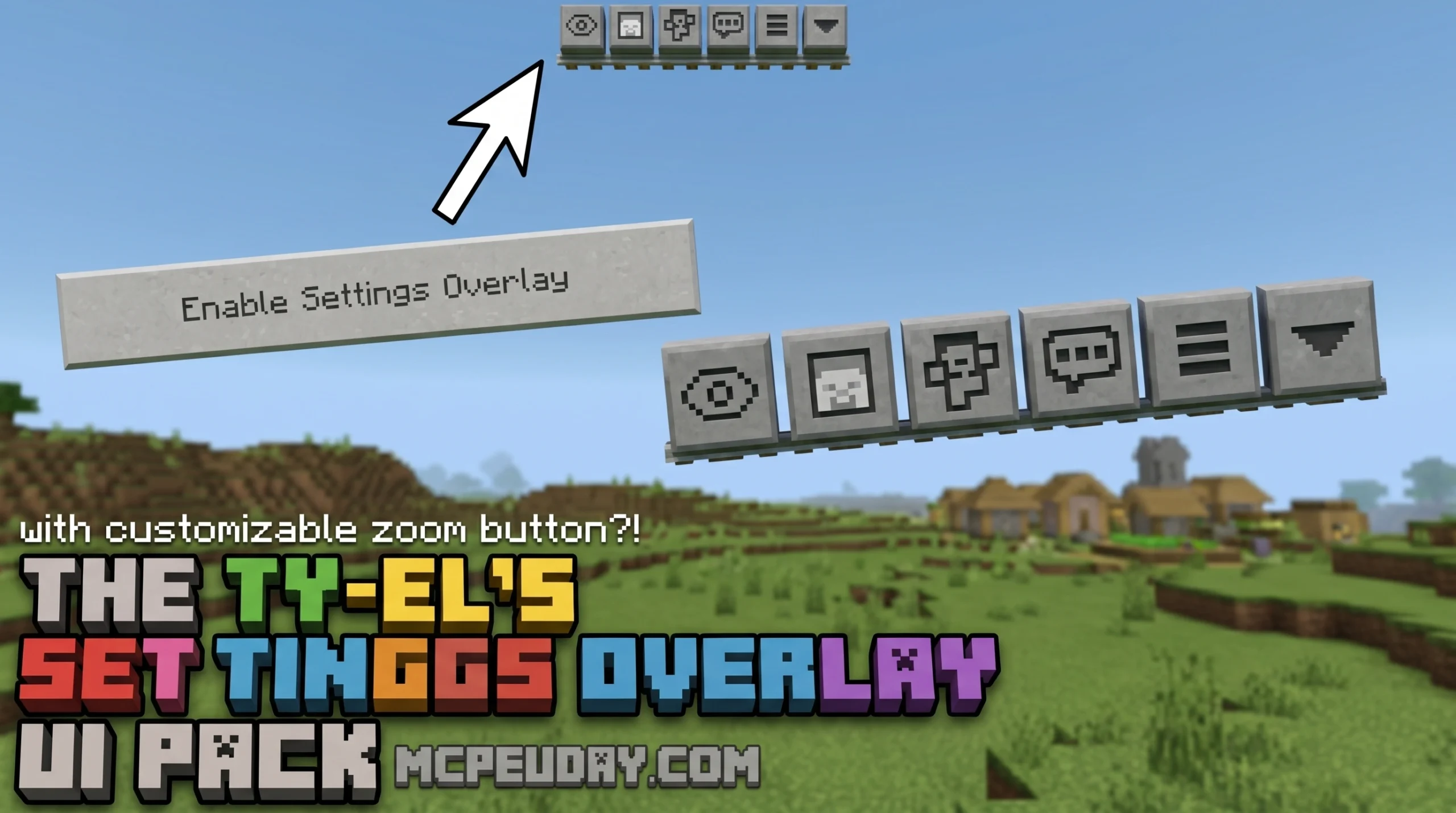
What You Need to Know About The Ty-el’s Settings Overlay UI Pack
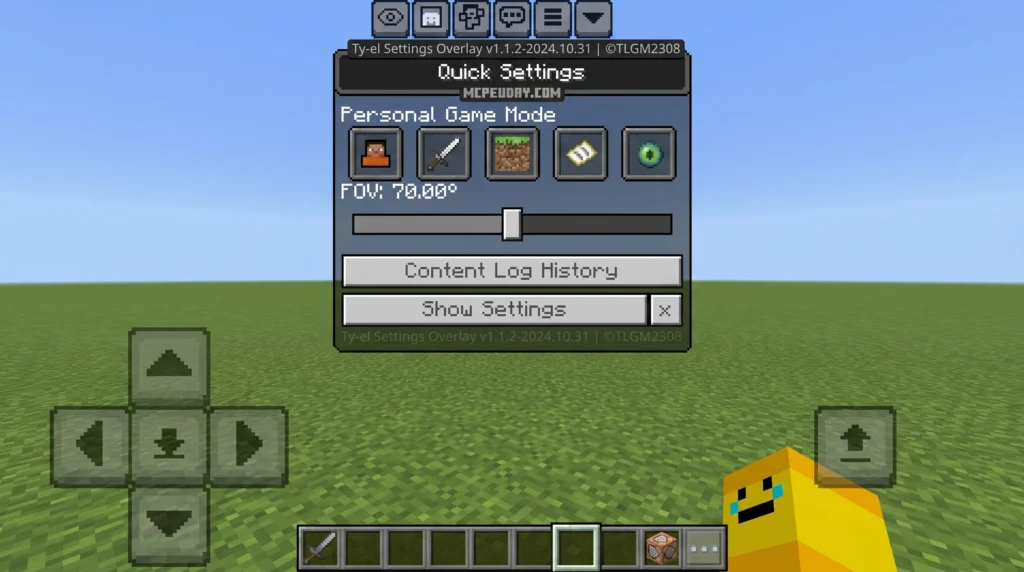
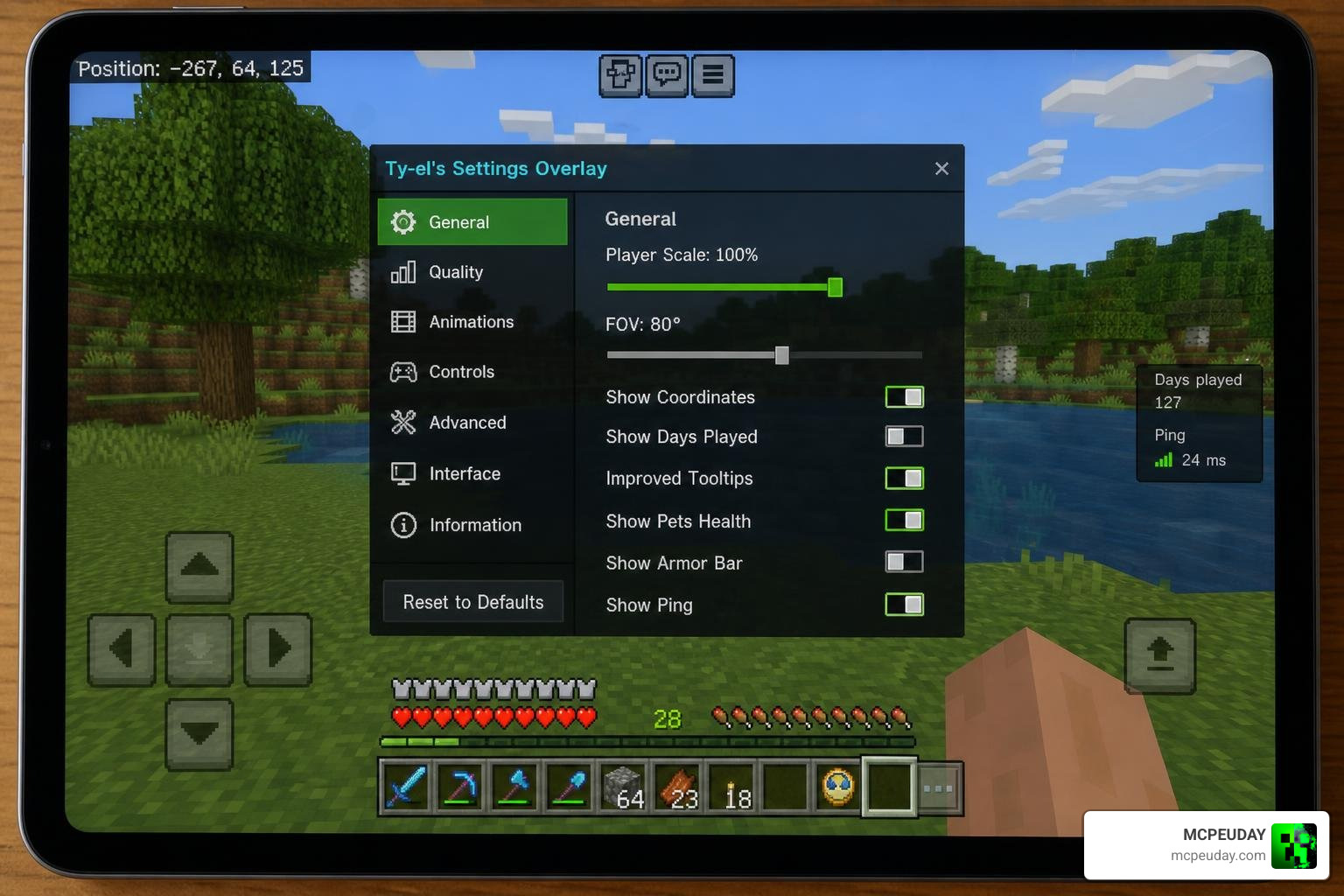
The Ty-el’s Settings Overlay UI Pack is a lightweight UI resource pack for Minecraft Bedrock Edition that adds a live settings overlay directly to your HUD — no need to leave your game to change your camera view or FOV.
Here’s a quick summary of what it does:
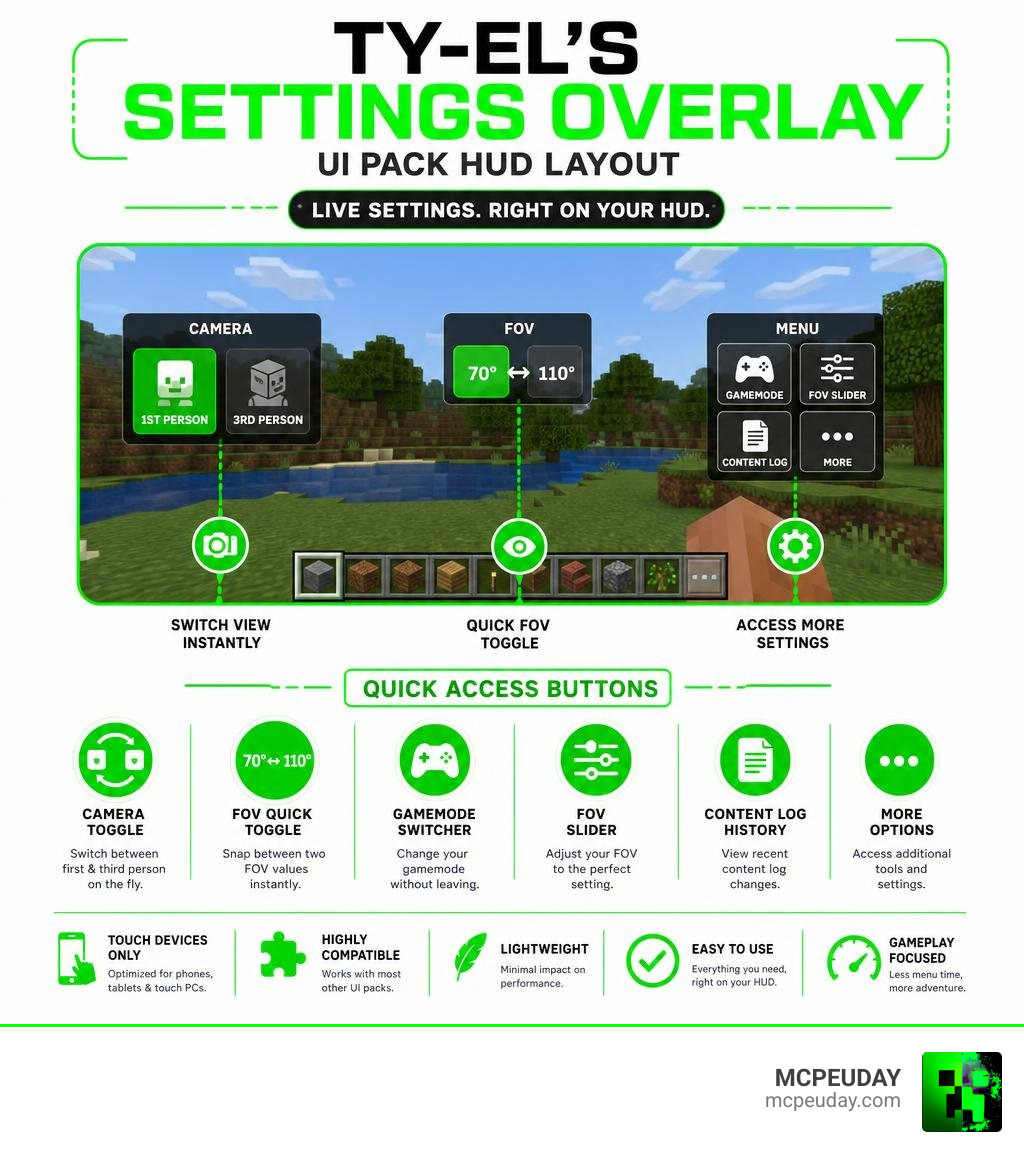
- Camera Perspective Toggle — switch between first and third person on the fly (like pressing F5 on Java Edition)
- FOV Quick Toggle — snap between two FOV values instantly (experimental feature)
- Quick Settings Menu — access Gamemode Switcher, FOV slider, Content Log History, and more from the HUD
- Touch devices only — works on phones, tablets, and touch-enabled PCs running Minecraft v1.20.40 or higher
- Highly compatible — works with almost every other texture pack when placed below them in the load order
- File size — just 62.31 KB, very lightweight
- Downloads — over 2.7 million total downloads across platforms
It’s especially useful if you play on mobile and hate digging through menus mid-game.
The pack has racked up nearly 3 million downloads and holds a 4.1 average rating, making it one of the more popular UI tweaks in the Minecraft Bedrock community. The current version is v1.1.2, released October 31, 2024.
What is The Ty-el’s Settings Overlay UI Pack?
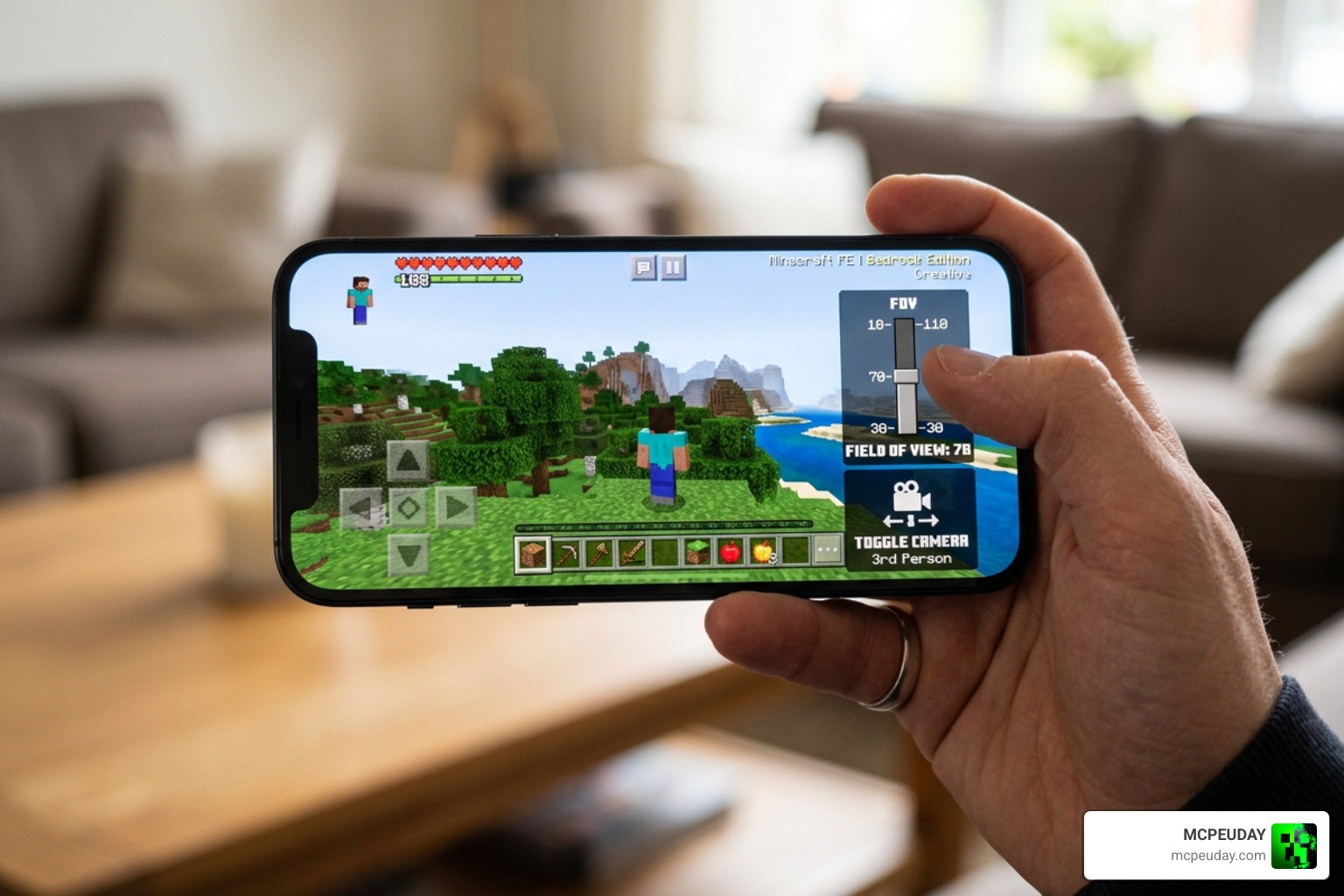
If you have ever played Minecraft Bedrock Edition on a mobile device, you know how tedious it is to change your camera angle. You have to pause the game, open the settings menu, scroll down to the video settings, select the perspective dropdown, choose your view, and then resume the game. By the time you return, a Creeper has likely snuck up behind you.
The Ty-el’s Settings Overlay UI Pack completely solves this issue. It is a specialized resource pack designed to streamline menu navigation. Instead of forcing you to navigate away from your active world, it seamlessly renders key settings options directly on your gameplay heads-up display (HUD).
Core Concept of The Ty-el’s Settings Overlay UI Pack
Developed by the talented UI creator real_tlgm, this pack utilizes clever screen properties to overlay parts of the vanilla settings menu right onto your screen. It is designed specifically for touch-capable devices. By utilizing this pack, players can enjoy quick settings tweaks without the immersion-breaking pause screens of the standard Bedrock interface.
Supported Minecraft Versions and Devices
We have tested this pack extensively across various platforms. To experience the full features of this overlay, your game must run on Minecraft Bedrock v1.20.40 or higher, with full support extending all the way through version v1.21.41 and beyond in 2026.
The pack is compatible with touch-enabled clients, including:
- Android and iOS mobile phones and tablets
- Touch-enabled Windows 10/11 laptops and PCs
- Fire OS devices
To download the correct version and get started, visit The Ty-el’s Settings Overlay UI Pack on MCPEUDAY.
Key Features of the Settings Overlay
This overlay pack does not just move buttons around; it completely redefines how you interact with the Bedrock settings system. Below is a detailed comparison of how this pack improves upon the standard vanilla settings flow:
| Feature | Standard Vanilla Settings | Ty-el’s Settings Overlay UI Pack |
|---|---|---|
| Camera Switching | Pause -> Settings -> Video -> Perspective (4 taps) | Single tap directly on the HUD |
| FOV Adjustment | Pause -> Settings -> Video -> FOV Slider (4 taps) | Adjustable slider directly on the gameplay overlay |
| Gamemode Switcher | Open Chat -> Type command OR Pause -> Settings | Quick-access toggles on the overlay menu |
| Content Log History | Dig through profile and developer settings | Dedicated HUD button for quick debugging |
Camera Perspective Toggle and Quick Settings
The star of the show is undoubtedly the Camera Perspective Toggle. Operating as the touch-screen equivalent of the Java Edition F5 key, this HUD button lets you cycle through first-person, third-person back, and third-person front views instantly.
Additionally, the Quick Settings Menu features a gear icon on your screen. Tapping this gear opens a compact settings panel containing:
- A live FOV slider
- A Gamemode Switcher (requires cheats enabled)
- A Content Log History button (excellent for addon developers)
- A close button (marked with an “X”) to instantly dismiss the overlay
Experimental FOV Quick Toggle in The Ty-el’s Settings Overlay UI Pack
For players who want an instant zoom function, the pack includes an experimental FOV Quick Toggle subpack. When enabled in the pack settings, this feature places a button on your screen that lets you snap instantly between two preset FOV values (by default, 30.0 degrees for a “zoom” effect and 70.0 degrees for standard gameplay).
Note: The creator has marked this subpack as experimental because it can occasionally cause rare game crashes due to the way Bedrock handles rapid FOV adjustments. Use it with caution!
How to Install and Customize the UI Pack
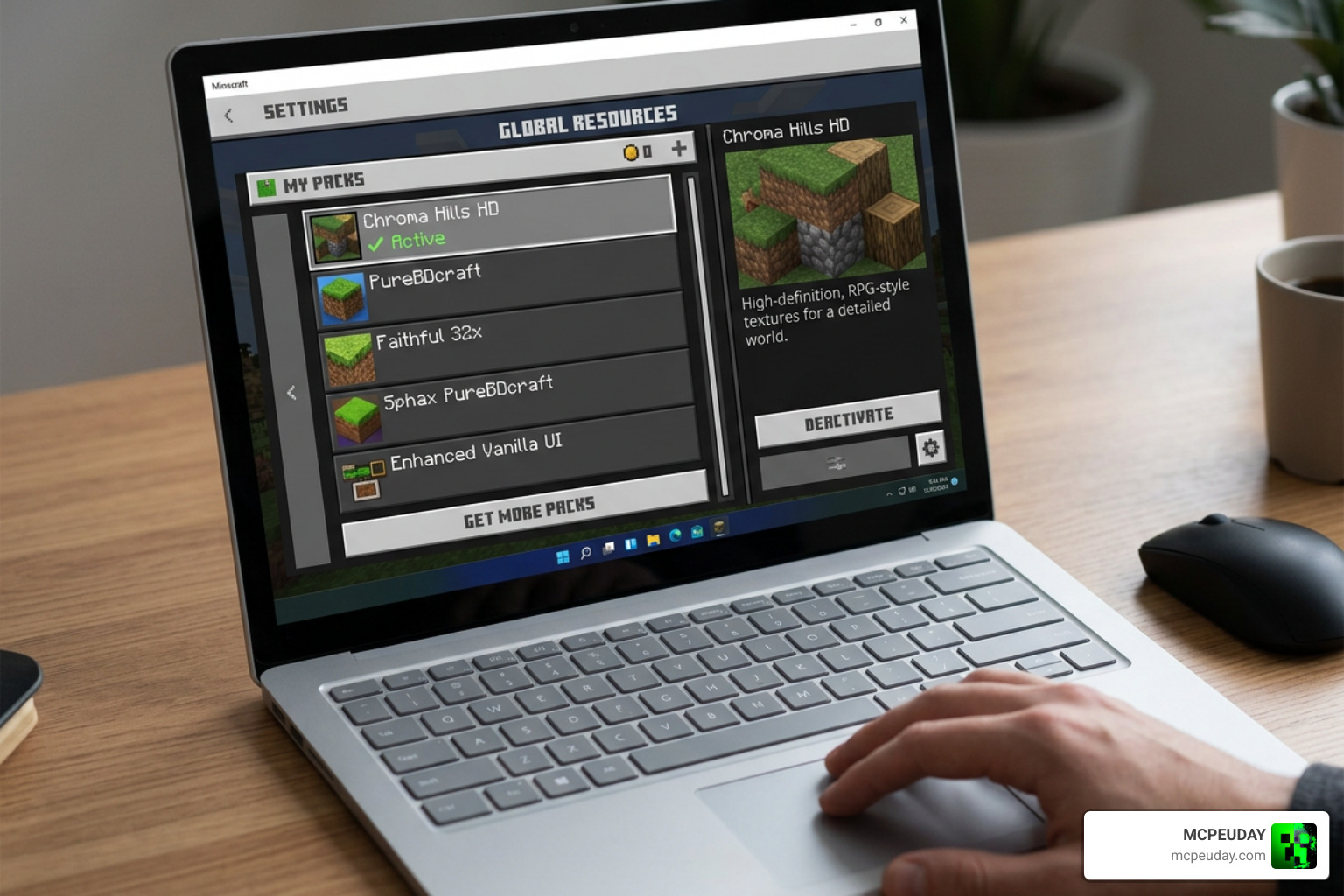
Getting this UI pack up and running on your device is incredibly simple. Because it is packaged as a lightweight .mcpack file, the import process takes only a few seconds.
Step-by-Step Installation Guide
- Download the official
.mcpackfile from The Ty-el’s Settings Overlay UI Pack Download. - Locate the downloaded file on your device and tap it. Your device should automatically open Minecraft and import the pack.
- Once imported, navigate to Settings > Global Resources from the main Minecraft menu.
- Select the pack under “My Packs” and tap Activate.
- Load into your world.
- Once in the world, press the Pause button at the top of your screen.
- You will see a new button labeled Enable Settings Overlay. Tap it, and wait for the confirmation toast message to appear on your screen. Your new HUD buttons are now ready to use!
Advanced JSON Customization
If you want to tweak the layout to better fit your screen resolution or personal preferences, the pack is fully customizable. By opening the pack files and navigating to the /ui/_global_variables.json file in a text editor, you can adjust:
- Button sizes and screen offsets
- Transparency and opacity levels
- Anchor origins (shifting buttons to the top-right, bottom-left, etc.)
For advanced UI developers, you can also customize interactable screen areas via the /ui/_tyel_settings_overlay__interactable_area_defs.json file. This prevents the overlay buttons from blocking standard touch controls like your movement D-pad or hotbar.
Compatibility, Load Order, and Known Limitations
To ensure that The Ty-el’s Settings Overlay UI Pack works harmoniously with your other active resource packs, you must pay attention to the load order.
We recommend placing this pack below your other custom texture packs in the active resources list. This ensures that your custom block textures or fonts load correctly while the settings overlay remains fully functional in the background.
There are a few known limitations and engine bugs you should keep in mind:
- Spectator Mode Limitation: Due to an unresolved Mojang bug where UI inputs do not register while in Spectator Mode, the overlay is temporarily disabled with a warning dialog when you enter this mode.
- Dimension Transitions: The overlay will automatically disappear when you enter portal transition screens (such as traveling to the Nether or the End). You will need to manually re-enable it via the pause menu once you arrive.
- Performance Impact: Rendering the settings screen on top of the live game HUD requires extra processing power. While the pack is optimized to only load content when visible, low-end mobile devices may experience minor frame rate drops if the overlay is left open for extended periods.
Frequently Asked Questions About the Settings Overlay
Why does the overlay stop working in Spectator Mode?
This is caused by a hardcoded game engine limitation in Minecraft Bedrock Edition. When a player enters Spectator Mode, the game stops registering HUD touch inputs. To prevent your screen from freezing or locking up, the pack automatically disables the overlay and displays a warning dialog until you return to Survival or Creative mode.
Can I use this pack on non-touch devices?
While the pack is designed specifically for touch devices, it can technically be used on PCs or consoles if you have a touch-enabled screen or are using a mouse to click the HUD elements. However, you must ensure your Touch Control Scheme Interaction Model is set to “Classic” in your game settings for the buttons to render properly.
How do I fix UI duplication or performance lag?
If you experience visual UI duplication or lagging menus, simply tap the “X” button on the overlay to close it. We also recommend closing the “Customize Touch Controls” screen and the pause menu sequentially to clear out cached UI screens.
Conclusion
For mobile and touch-screen Bedrock players, The Ty-el’s Settings Overlay UI Pack is an absolute game-changer. It eliminates the clunky, slow navigation of the default settings screens and replaces it with a streamlined, HUD-friendly control panel. Whether you want a quick camera toggle or an easy way to slide your FOV mid-fight, this pack delivers.
We love sharing lightweight, functional tools like this to make your gaming sessions smoother. If you are looking to upgrade your game even further, be sure to Explore more Minecraft Texture Packs on our site!
3 thoughts on “The Ty-el’s Settings Overlay UI Pack (26.x, 1.21) – MCPE/Bedrock Pack”