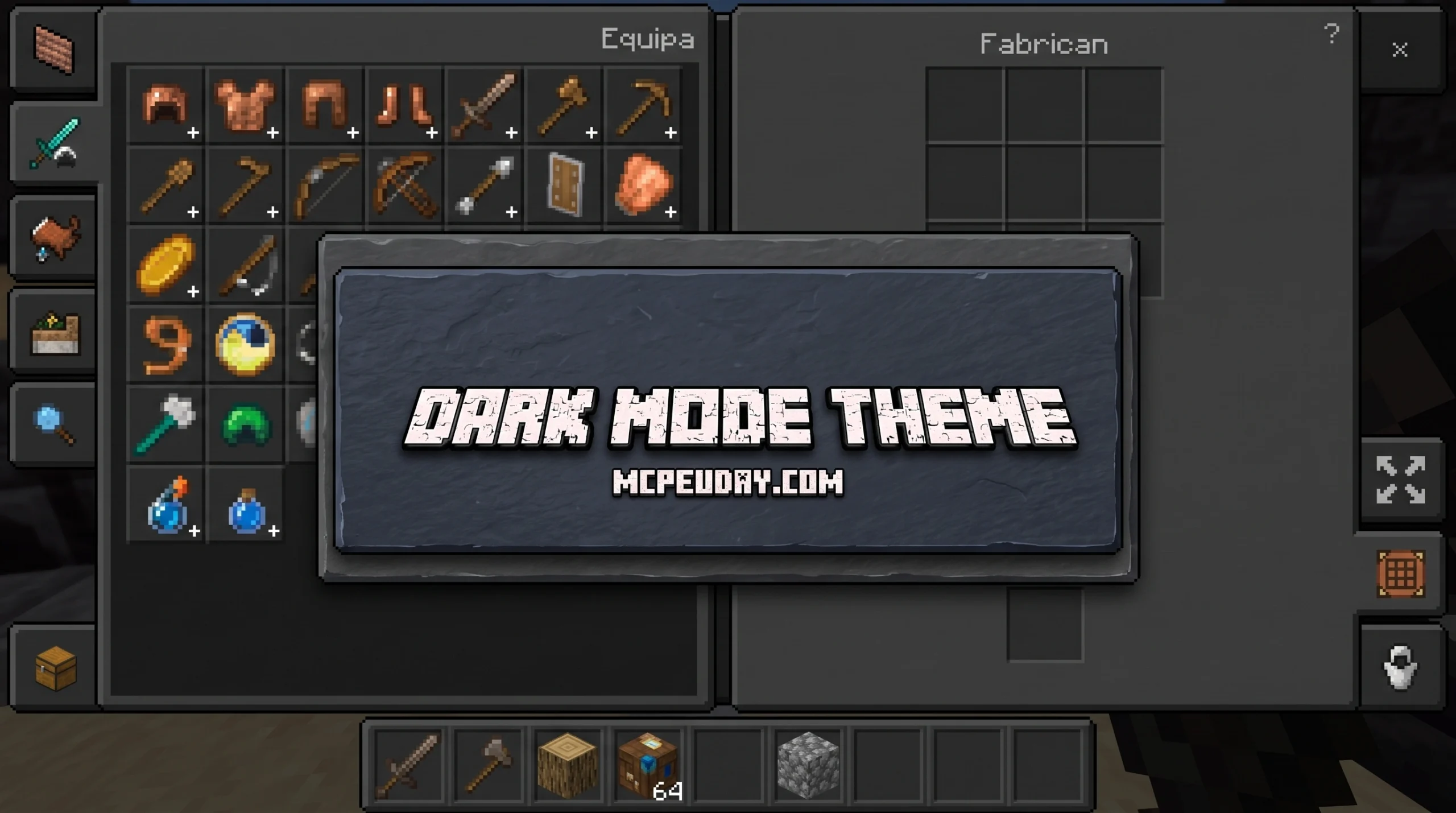
Why the Dark Mode Theme Texture Pack Is a Game-Changer for Minecraft Players

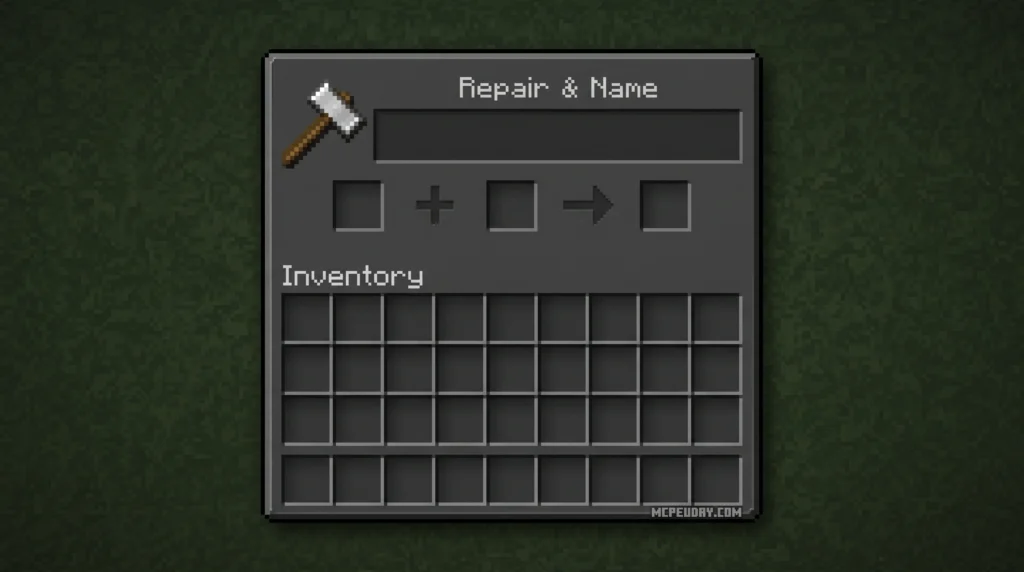
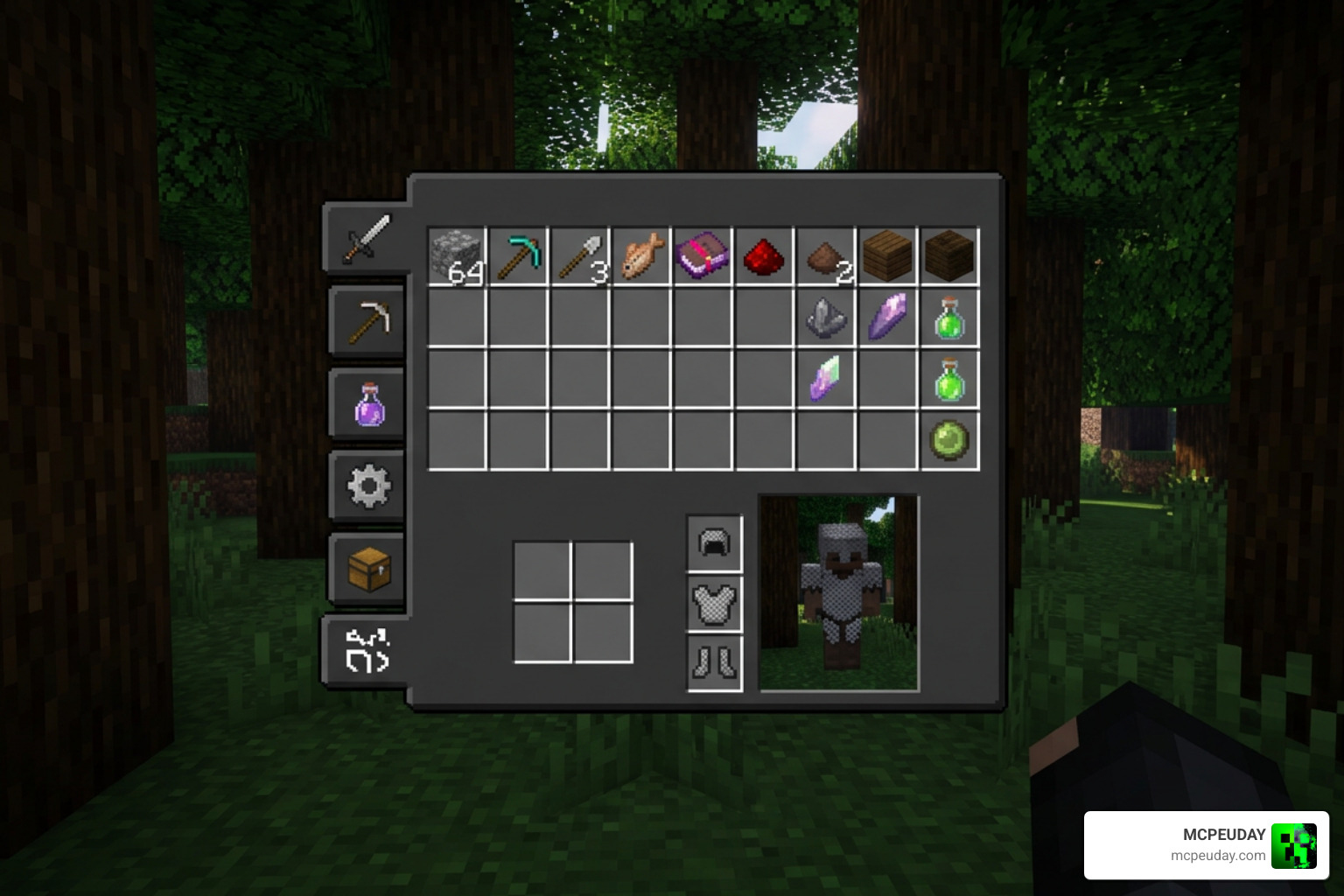
A Dark Mode Theme Texture Pack is a resource pack that replaces Minecraft’s default grey-white GUI with a sleek, dark-colored interface — covering menus, inventory screens, crafting tables, and more — without touching block textures or hurting performance.
Quick answer for what it does:
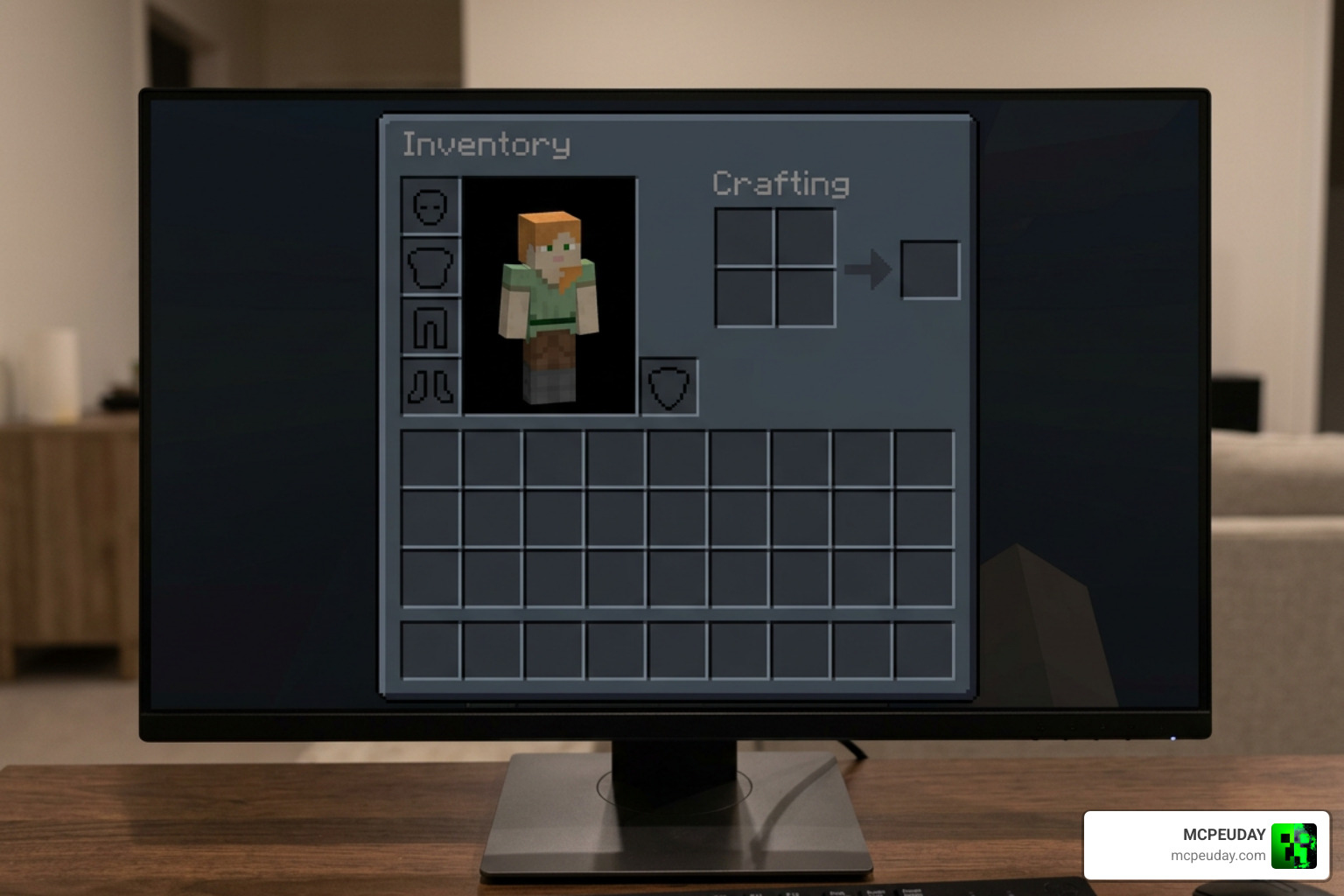
- Darkens all major GUI screens (inventory, crafting, settings, menus)
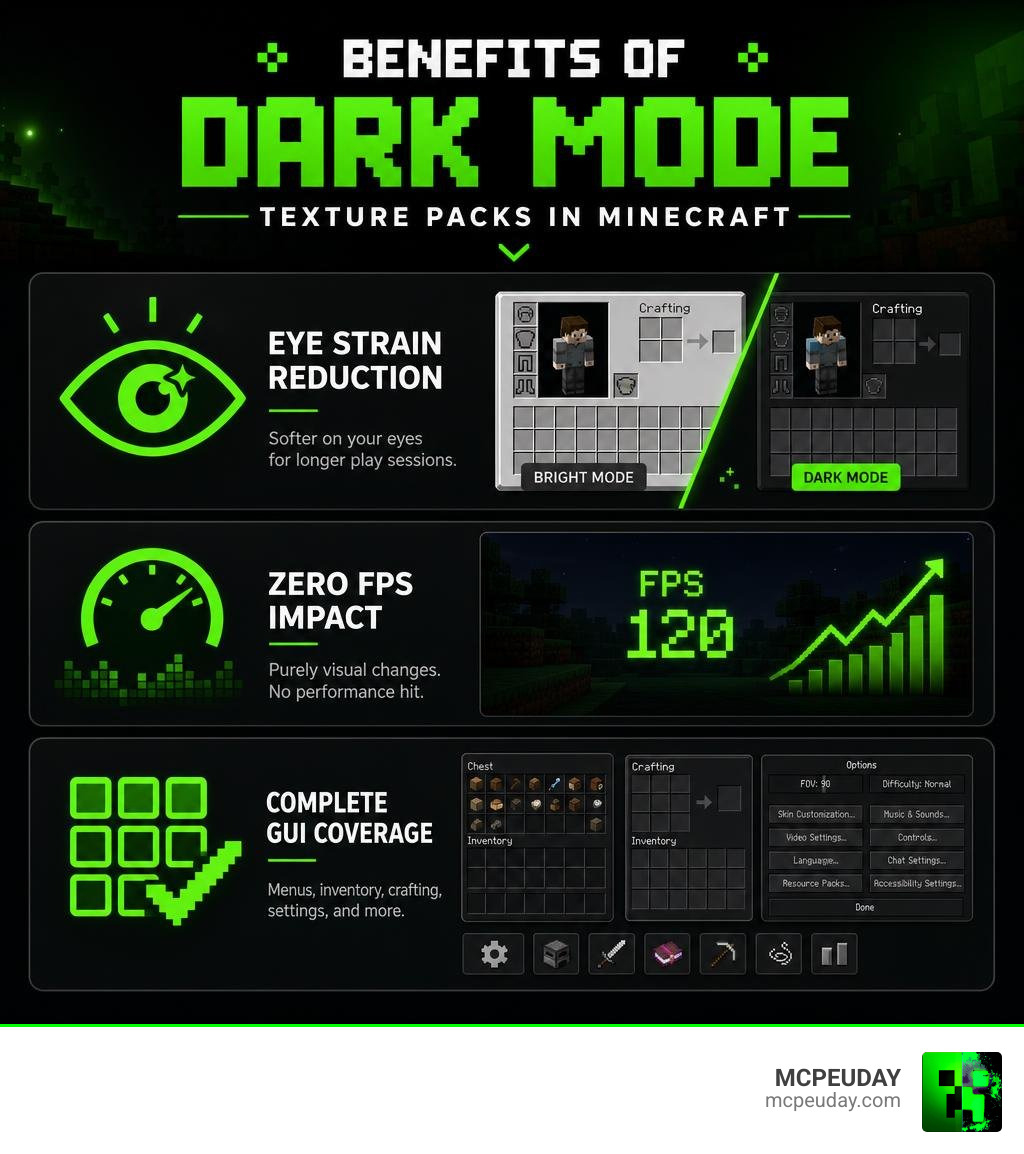
- Reduces eye strain and blue light exposure during long play sessions
- Works on both Java and Bedrock Edition
- Has zero FPS impact — it only recolors the interface
- Available free on CurseForge, Modrinth, and GitHub
If you’ve ever squinted at Minecraft’s bright white inventory screen during a late-night mining session, you already know the problem. The default Minecraft interface is aggressively bright — a relic of early design choices that hasn’t aged well for players who game in the dark.
That’s exactly why dark mode packs have exploded in popularity. The most downloaded version alone has racked up over 12 million downloads on CurseForge. Players aren’t just downloading these for looks — they’re downloading them because staring at a glowing white inventory screen for hours genuinely hurts.
The best part? Unlike most texture packs, dark mode packs are performance neutral. No extra RAM. No FPS drops. Just a cleaner, easier-on-the-eyes UI.
What is the Dark Mode Theme Texture Pack?
At its core, a Dark Mode Theme Texture Pack is a community-driven, open-source project designed to overhaul the Minecraft Graphical User Interface (GUI). Unlike traditional packs that swap out dirt blocks or turn creepers into neon nightmares, this pack focuses purely on the screens you interact with. It targets the main menu, option screens, inventory slots, and container boxes.
Because the project is open-source, developers and players collaborate directly on platforms like GitHub (such as the popular Offroaders123/Dark-Mode repository, which boasts dozens of community stars and forks). This open-source nature means the community constantly updates the files to keep pace with Mojang’s official releases. If you are looking for the absolute gold standard of clean, dark interfaces, the Default Dark Mode – Minecraft Resource Packs project is the go-to choice for millions of players worldwide.
Core Features of the Dark Mode Theme Texture Pack
When you load up the pack, you will immediately notice that the uniform, grey-scaled menu outlines are replaced with deep, charcoal-toned backdrops.
- Overhauled Inventory Screens: Every container, from your standard survival inventory to the chest, anvil, furnace, and enchanting table screens, receives a complete dark makeover.
- Sharpened Edges and Modern Contrast: The pack sharpens the borders of GUI elements. This gives them a modern, high-contrast look that makes item icons and text pop out beautifully.
- Vanilla Visual Preservation: Unlike stylized alternatives like the Bare Bones Texture Pack, which completely change the game’s art style, this pack keeps the core pixelated charm of vanilla Minecraft. It simply applies a dark coat of paint over the original assets.
Java vs. Bedrock Edition Compatibility
Whether you are playing on a high-end PC using Java Edition or on your phone using MCPE/Bedrock Edition, there is a dark mode version ready for you.
As of July 2026, these packs have been fully updated to support Minecraft version 1.21 and Bedrock version 26.x. On Bedrock and pocket editions, developers often package these as .mcpack files, which auto-install on mobile devices. If you want to pair a darker GUI with a gorgeous visual overhaul, you can easily stack it alongside options like the Better Graphics Texture Pack 26 x 1 21 Mcpe Bedrock Texture Pack to get the best of both worlds.
Comparing the Best Dark Mode Resource Packs
Not all dark mode packs are created equal. Depending on your platform and playstyle, you might prefer a basic recolor or a utility-heavy interface. Below is a breakdown of the three most popular options available today.
| Feature / Pack | Default Dark Mode | Unique Dark | Utility Dark |
|---|---|---|---|
| Primary Platform | Java & Bedrock | Java (with Bedrock ports) | Bedrock / MCPE |
| GUI Style | Pure Vanilla Recolor | Stylized / Refined Custom | Dark Mode + Utility Additions |
| Functional Blocks | Standard Recolor | Custom textures for every block | Highlighted interactive blocks |
| Special HUD Features | None | Requires OptiGUI for full features | Built-in working HUD compass & clock |
| Mod Support | Extensive (Over 100 mods) | Moderate (Over 40 mods) | Minimal (Focuses on Bedrock UI) |
| Pricing | 100% Free | Lite (Free) / Full (Patreon) | 100% Free |
Note: For the official Java release, check out the Default Dark Mode – Minecraft Resource Packs – CurseForge page.
Default Dark Mode
This is the legendary pack that started it all. If you want a simple, clean, and reliable dark theme, look no further. It uses only modified vanilla textures, meaning it looks exactly like Minecraft—just darker. It is incredibly stable, receives updates within days of new Minecraft releases, and boasts over 12 million downloads on CurseForge.
Unique Dark vs. Utility Dark
For players who want something a bit different, Unique Dark and Utility Dark offer unique spins on the dark UI concept.
- Unique Dark: This pack goes a step further by providing unique, customized textures for every single functional block in the game. It is split into a free “Lite” version and a paid “Full” version (accessible via Patreon). It looks incredibly polished but often requires companion mods like OptiGUI to work perfectly.
- Utility Dark: Designed primarily for Bedrock Edition, this pack is a dream for survival players. Along with a dark theme, it adds useful HUD elements like a working compass and clock directly to your screen. It also improves block visibility—making things like suspicious sand, amethyst growth, and trapped chests easier to spot. If you love utility tweaks, you can pair this with the Visible Ores Texture Pack 26 x 1 21 Mcpe Bedrock Pack for the ultimate survival setup.
Customizing with the Darkomizer Tool
If you want a truly personalized setup, you must try the Darkomizer. With over 143,000 downloads, this web-based customizer tool allows you to modify the Default Dark Mode pack before downloading it. You can change custom text colors, tweak individual menu backdrops, and select exactly which elements you want darkened. Once you are done, the tool packages everything into a custom zip file ready for your resourcepacks folder.
Mod Support and Advanced Compatibility
One of the biggest headaches with GUI resource packs is mod compatibility. If you install a massive modpack, opening a modded chest or machine often rewards you with a blinding white, un-textured screen. Thankfully, the dark mode community has solved this.
The official Default Dark Mode pack features built-in support for over 100 popular mods. If you encounter an unsupported mod, you can submit a support request on their GitHub page. For players looking to darken custom multiplayer experiences, the community-driven Rubyrak/Dark-skyblock-textures repository is an excellent example of specialized modded support.
Popular Mod Integrations
The pack seamlessly darkens the custom user interfaces of massive mods, including:
- Quark: Keeps all custom inventory buttons and sorting tabs cleanly integrated into the dark aesthetic.
- Farmer’s Delight: Darkens the cooking pot, cutting board, and organic pantry menus.
- The Twilight Forest: Ensures trophy pedestals and progression maps match your dark theme.
- OptiGUI: Allows the game to dynamically load custom dark textures based on block names or biomes.
Hypixel Skyblock Dark Mode Theme Texture Pack Customizations
For multiplayer enthusiasts, playing Hypixel SkyBlock for hours can be incredibly taxing on the eyes. Specialized Skyblock Dark Mode packs implement dark themes across various in-game zones like the End, the Mist, and the Glacite Tunnels.
Using companion mods like Firmament, Respackopts, or Catharsis, these packs can even toggle custom fire and lava textures (offering multiple color choices) and remove entity fire from blazes or flaming spiders to clean up your visual field. To make competitive play even cleaner, try layering these dark themes with the Outline Texture Pack 26 x 1 21 Mcpe Bedrock Texture Pack.
Installation and Configuration Checklist
Ready to make the switch? Follow this quick checklist to ensure a flawless setup.
Step-by-Step Installation Guide
- Download OptiFine or Sodium: While not strictly mandatory for the base pack, having OptiFine or a similar optimization mod installed is highly recommended to ensure the dark loading screen works perfectly.
- Download the Pack: Grab the version of the pack that matches your Minecraft version from official sources.
- Locate the Resource Packs Folder: Open Minecraft, go to Options > Resource Packs, and click “Open Pack Folder”.
- Move the ZIP File: Drop the downloaded
.zipfile directly into this folder. - Activate the Pack: In Minecraft, hover over the pack in the “Available” column and click the arrow to move it to “Selected”.
- Configure Subpacks (Bedrock Only): If you are on Bedrock Edition, click the active pack’s settings gear to use the configuration slider. You can choose between “Custom Screens Only” or “All Vanilla and Custom Menus” dark mode.
Performance and Accessibility Considerations
Because these packs only swap out flat GUI textures, they have zero impact on your FPS. You do not need a high-end graphics card to run them.
However, keep accessibility in mind. If you have a visual impairment that requires high contrast, a pure dark mode might make reading small item text slightly harder. Additionally, some younger players might find the dark, moody menus a bit unsettling compared to the bright, cheerful vanilla style. If you are setting up the game for competitive PvP, combining dark mode with the Ultimate PvP Texture Pack 26 x 1 21 Mcpe Bedrock Texture Pack can help you maintain high visual clarity during matches.
Frequently Asked Questions about Dark Mode Texture Packs
Does the Dark Mode texture pack lower in-game FPS?
No! Because it only recolors the 2D user interface elements rather than changing 3D block resolutions or adding heavy shaders, it is completely performance neutral. It runs perfectly on any system.
Do I need OptiFine to run a dark mode GUI pack?
You do not need it to darken your inventory, but you will need OptiFine (or a mod like OptiGUI / DashLoader) if you want the Mojang loading screen to be dark as well. Without it, you might still get a brief flash of white light when launching the game.
Can I combine dark mode with other resource packs?
Absolutely! Minecraft allows you to layer resource packs. Just make sure your dark mode pack is placed at the top of your active packs list. This ensures its dark GUI textures overwrite the menus of other packs, like the beautiful Patrix Texture Pack 26 x 1 21 Realistic Minecraft Graphics Pack.
Conclusion
Switching to a Dark Mode Theme Texture Pack is one of the simplest and most satisfying upgrades you can make to your Minecraft setup. It protects your eyes, modernizes the game’s menus, and won’t cost you a single frame of performance.
At MCPEUDAY, we love bringing you the absolute best resources to customize your gaming experience. If you are ready to explore more incredible UI tweaks, shaders, and graphical overhauls, check out our massive library and Explore more Minecraft resource packs today! Your eyes will thank you.