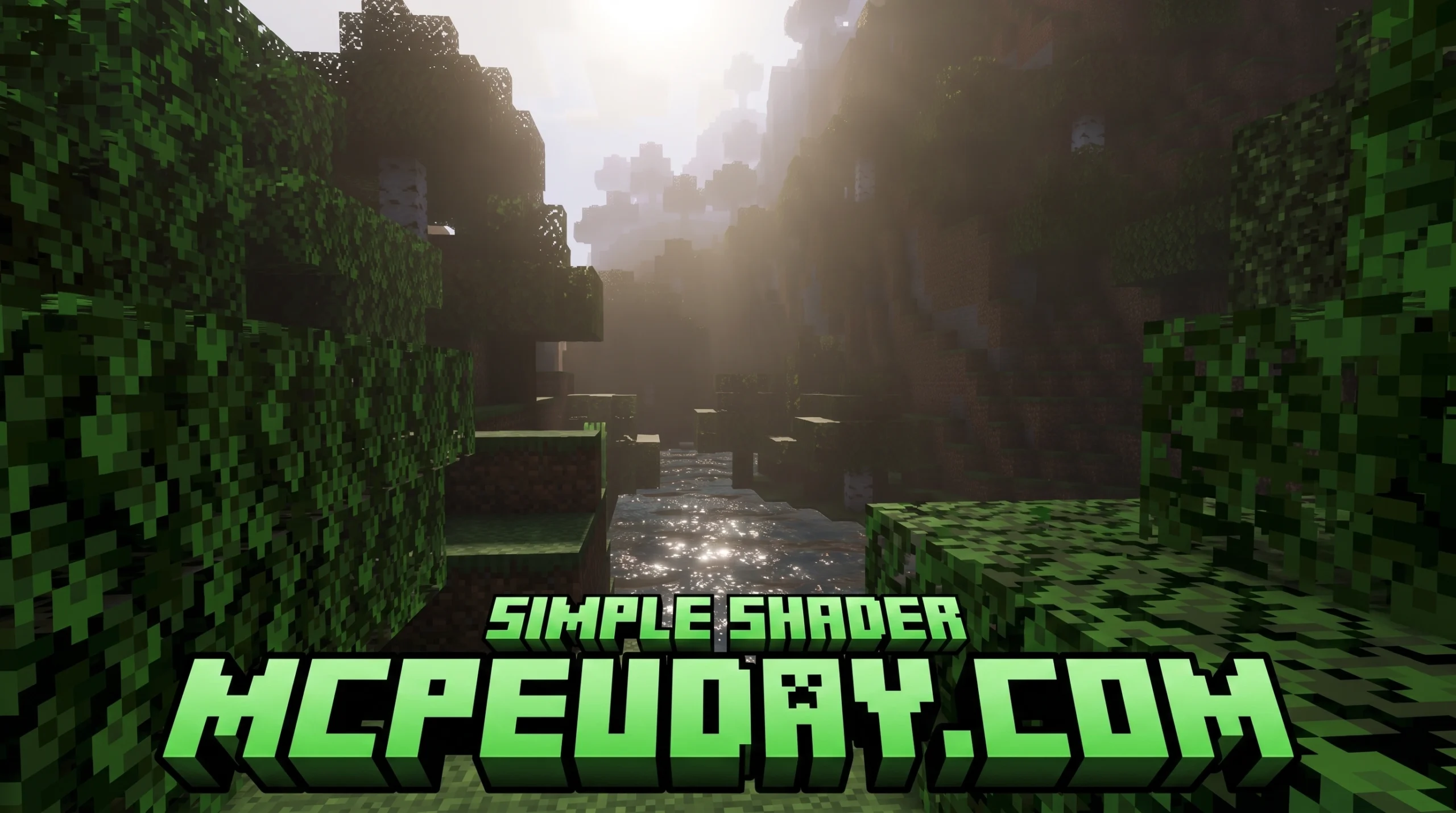
What Is a Simple Shader and Why Minecraft Players Love It
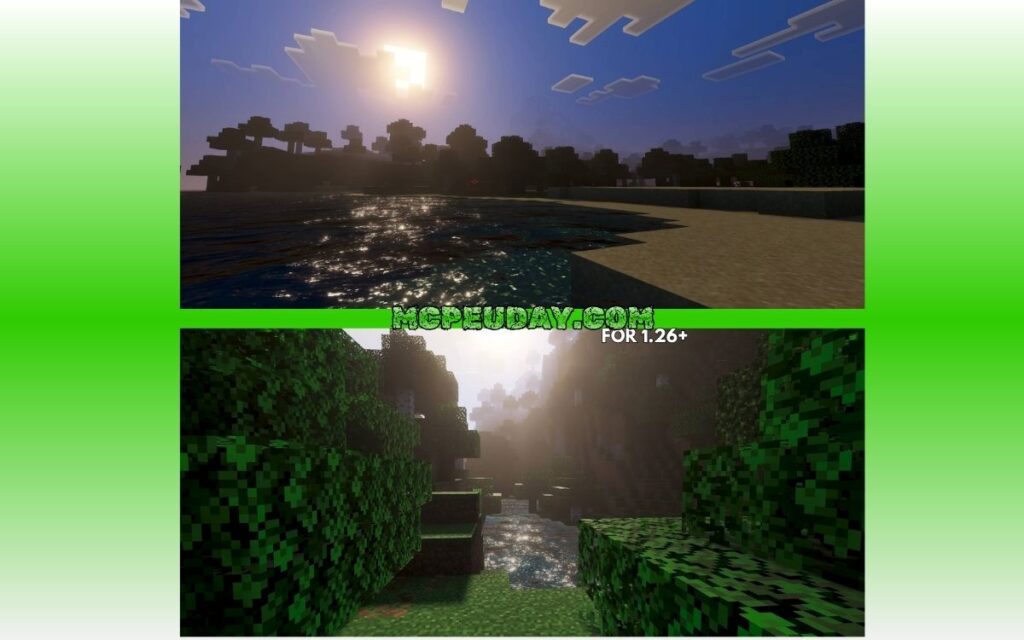
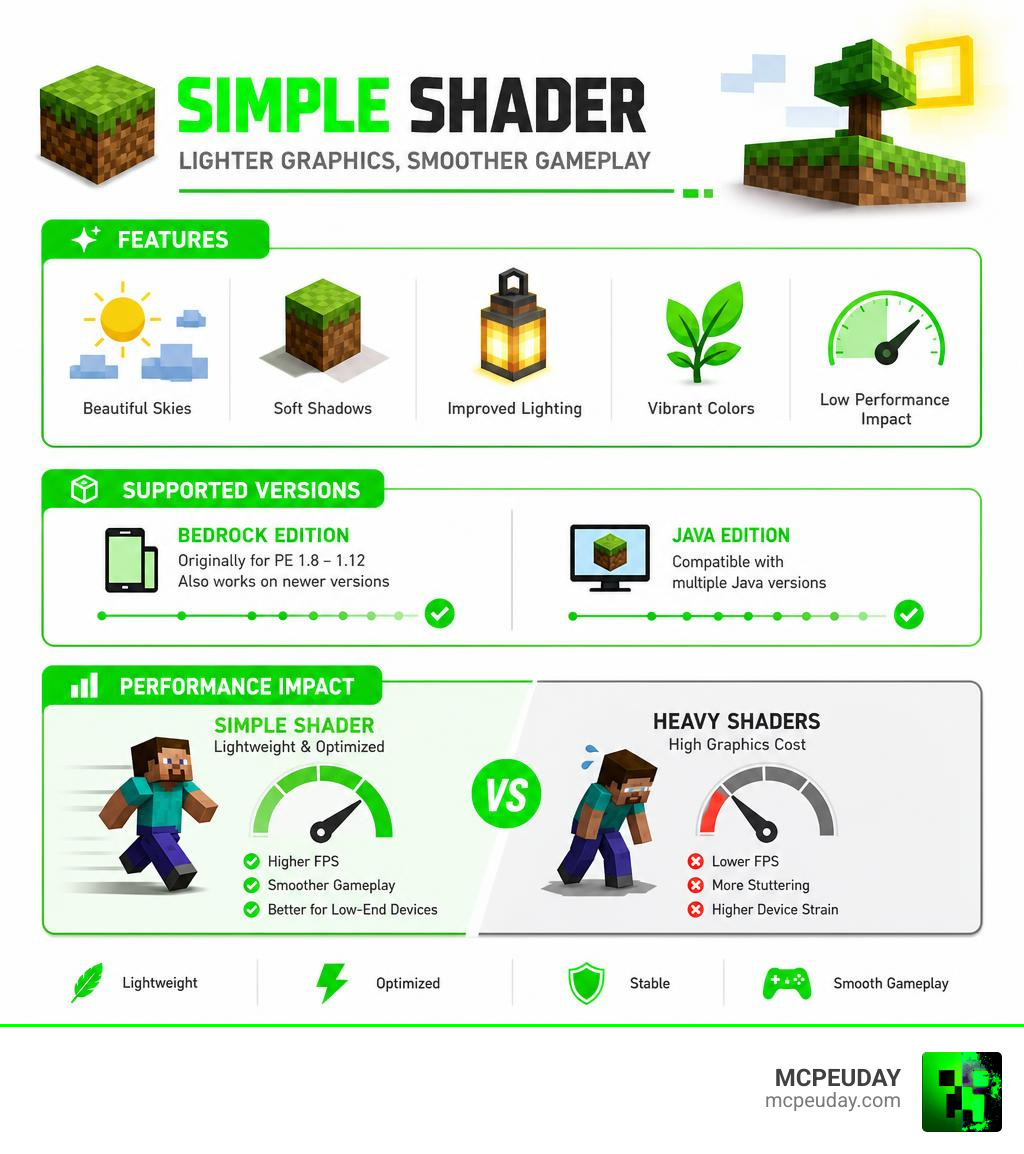
Simple Shader is a lightweight graphics pack for Minecraft that adds visual upgrades — like better skies, shadows, and lighting — without destroying your frame rate.
If you just want the quick answer:
- What it is: A shader pack designed for low-end devices that adds basic visual effects to Minecraft
- Who it’s for: Players who want better graphics but can’t run heavy shader packs
- Platform support: Minecraft Bedrock/PE (originally versions 1.8–1.12), with Java Edition options also available
- How to get it: Download the
.mcpackfile and install it through Minecraft’s resource pack settings - Top benefit: You get realistic skies and improved lighting without major performance loss
Most shader packs are built for high-end PCs. They look stunning, but they can drop your game to a slideshow on older phones or budget laptops.
That’s exactly the problem Simple Shader was created to solve.
Originally released as SSPEShader for Minecraft Pocket Edition, it was built from the ground up for players whose devices simply can’t handle the big, demanding packs. The goal was simple: make the game look better without breaking it.
And for millions of players on Android, iOS, and Windows 10, that tradeoff matters a lot.
Understanding the Simple Shader and Its Core Concepts
To understand how a Simple Shader works its magic, we have to look under the hood of how Minecraft renders its blocky world.
In standard vanilla Minecraft, the game uses a relatively straightforward rendering pipeline. It takes the 3D coordinates of blocks, projects them onto your 2D screen (vertex processing), determines which pixels those blocks cover (rasterization), and colors them in using basic textures. This process is highly efficient, but it lacks realistic lighting, atmospheric fog, and dynamic shadows.
When we introduce a shader, we are injecting custom code into the graphics card’s rendering pipeline. This code is written in a specialized programming language called GLSL (OpenGL Shading Language). Shaders generally operate in two main stages:
- Vertex Shaders: These handle the positioning of 3D shapes. For example, a vertex shader is what makes leaves and grass wave back and forth in the wind by dynamically shifting their coordinates.
- Fragment (or Pixel) Shaders: These calculate the final color of every single pixel on your screen. They determine how light bounces off a surface, how shadows are cast, and how colors blend together.
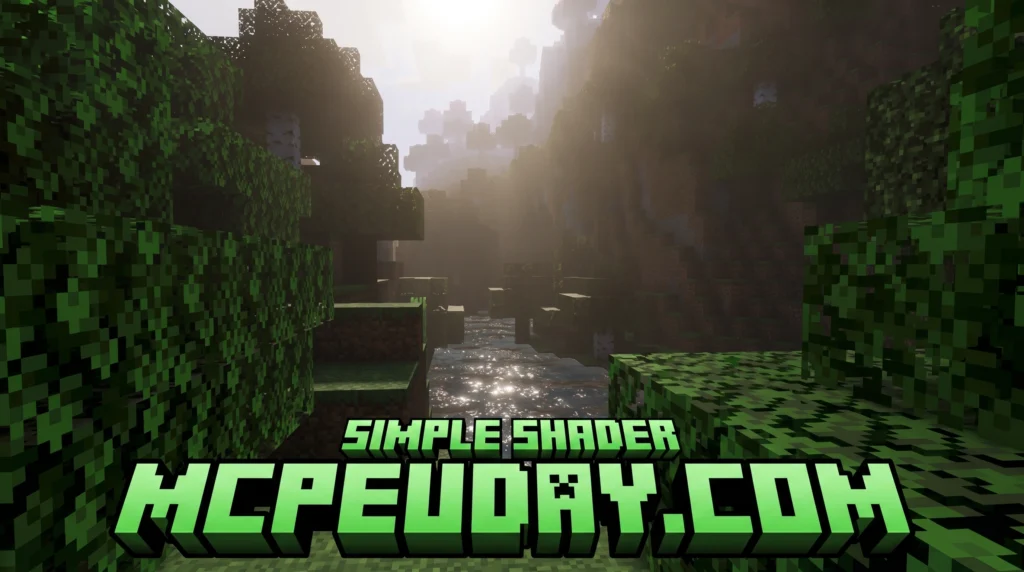
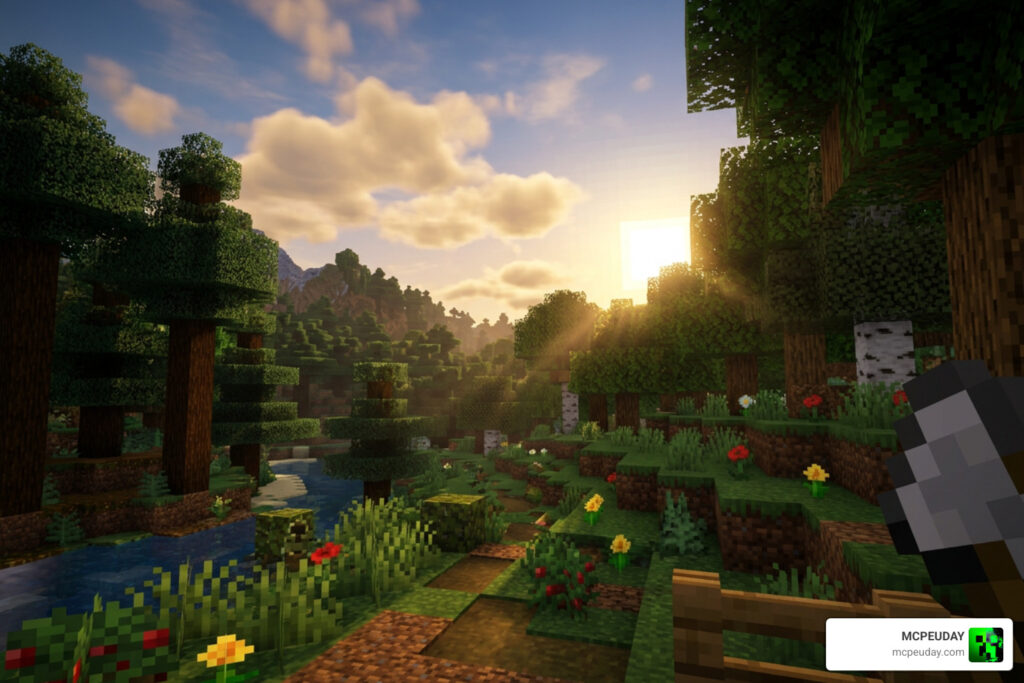
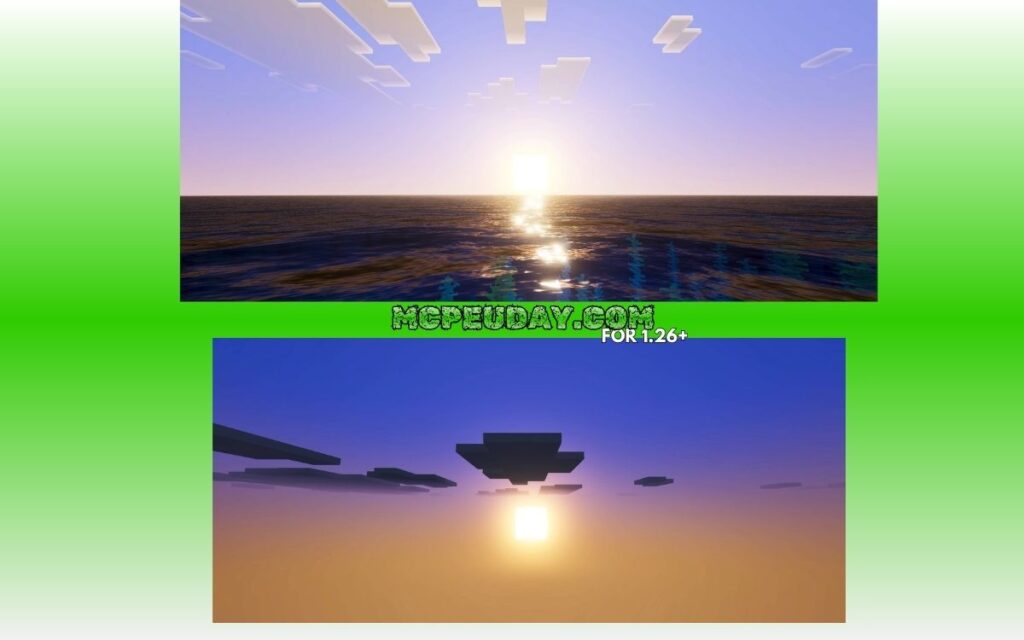
If you are curious about how these files are built, you can Learn more about writing basic shaders. In fact, the absolute simplest shader you can write is a basic screen inverter, which simply flips the RGB values of every pixel on your screen.
While complex shader packs run thousands of lines of heavy mathematical calculations to simulate physical light rays, a Simple Shader keeps things lightweight. It uses clever approximations instead of calculating physical correctness or energy conservation. This is very similar to how game engines handle low-spec rendering. For example, in Unity’s Universal Render Pipeline, developers often use the Simple Lit Shader | Universal RP | 13.1.9 or Simple Lit shader | Package Manager UI website to render scenes on mobile devices.
By avoiding complex math and using pre-calculated lighting approximations, lightweight shaders keep your GPU cool and your frame rates high.
The Evolution of the Simple Shader in Minecraft
The history of lightweight shading in Minecraft is deeply tied to the mobile gaming boom. In the early days of Minecraft Pocket Edition (MCPE), mobile hardware was incredibly limited. While PC players were enjoying heavy shaders like GLSL Shaders Mod, mobile players were left with flat, static lighting.
This gap led to the creation of SSPEShader (Super Shaders Pocket Edition), which was later rebranded and optimized as the Simple Shader. It was designed specifically for OpenGL ES, the mobile graphics API used by Android and iOS devices. SSPEShader focused entirely on the essentials: adding a beautiful, realistic sky, adjusting the color temperature of the sun, and making water look slightly more fluid.
Over the years, as Minecraft transitioned from the legacy Pocket Edition codebase to the modern Bedrock Engine, these lightweight concepts evolved. Today, packs like the Vibrant Legacy Simple Shader For Mcpe continue this tradition. They preserve the classic, nostalgic feel of early mobile shaders while ensuring compatibility with modern game updates, giving budget players a beautiful escape from the starkness of vanilla graphics.
Key Differences Between a Simple Shader and Complex Packs
When comparing a Simple Shader to heavy, realistic shader packs, the differences come down to performance overhead and visual philosophy:
- Physically-Based Rendering (PBR): Heavy shaders use PBR to make materials look realistic. Iron blocks reflect light like real metal, and wet blocks look glossy. A Simple Shader bypasses this entirely, using standard textures with basic color boosts to simulate depth.
- Dynamic Shadows: Complex packs calculate real-time shadow maps for every single block, entity, and leaf. This requires massive computational power. A lightweight shader often uses simplified, static shadow mapping or subtle ambient occlusion to darken corners without tracking real-time light rays.
- Lighting Calculations: Instead of calculating how light bounces off multiple surfaces (global illumination), lightweight packs use simple color gradients. Sunlight is given a warm yellow tint, while torchlight is given a soft orange glow.
Many players actually prefer this simplified look. In the community, user feedback on Vibrant Legacy often highlights that lightweight packs keep the game looking like “Minecraft” rather than trying to turn it into a hyper-realistic survival game. It strikes the perfect balance between visual enhancement and performance.
Main Features and Visual Effects of Lightweight Shaders
Even though a Simple Shader is designed to be gentle on your hardware, it still packs a massive visual punch. Here are the core features you can expect:
- Realistic Skies and Procedural Clouds: Instead of the flat, blocky vanilla clouds, these shaders introduce soft, multi-layered clouds and realistic sky gradients that change dynamically from dawn to dusk.
- Warm, Atmospheric Lighting: The harsh, uniform light of vanilla Minecraft is replaced with a soft, warm glow. Sunsets cast a beautiful orange hue across your world, while nighttimes feel dark, moody, and atmospheric.
- Subtle Water Improvements: While heavy shaders render fully transparent, reflective 3D waves, a simple shader improves water by adding a gentle waving animation, custom transparency, and a cleaner color palette.
- Foliage Waving: A gentle vertex animation is applied to leaves, grass, and tall plants, making the world feel alive and windy.
- Color Boosting and Tonemapping: By adjusting the contrast and saturation, colors look more vibrant without feeling washed out.
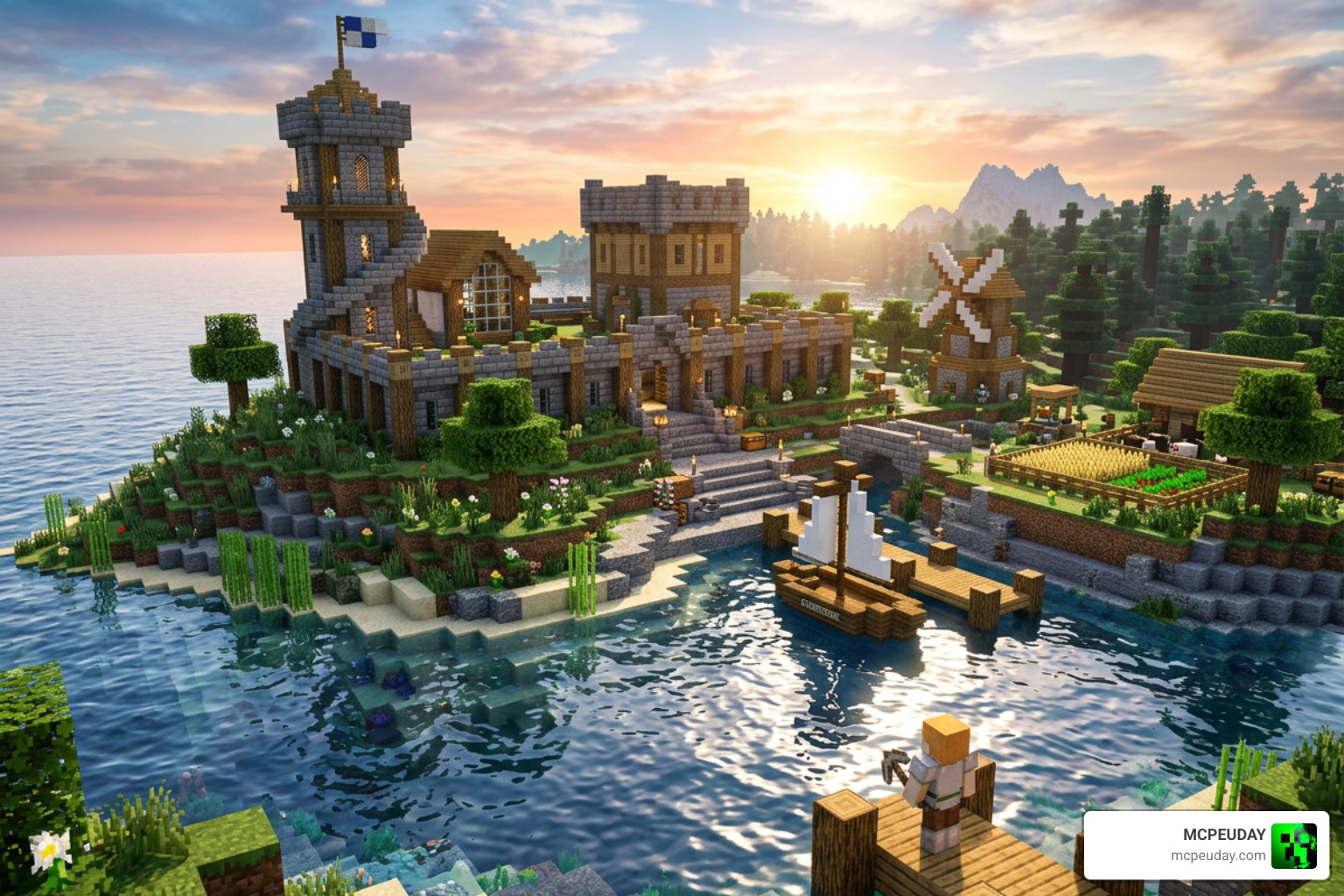
To achieve these effects efficiently, these shaders use techniques similar to the open-source code found in old-master/com.unity.render-pipelines.universal/Shaders/SimpleLit.shader at sg · Unity-Technologies/Graphics . By using single-pass forward rendering and avoiding heavy post-processing effects like depth of field or motion blur by default, they deliver a clean, beautiful aesthetic that runs smoothly on almost anything.
Performance Analysis on Low-End Devices
If you are playing Minecraft on a budget phone, an older laptop with integrated Intel graphics, or a standard tablet, thermal throttling and battery drain are your biggest enemies. Heavy shaders will cause your device to overheat, causing the game to stutter and your battery to drain within minutes.
A Simple Shader is optimized to run comfortably within these hardware limitations. By keeping vertex calculations to a minimum and using highly optimized fragment code, it ensures your GPU doesn’t get overwhelmed.
To give you a clearer picture of how lightweight shaders compare to heavier alternatives on low-end hardware, we compiled this performance breakdown:
| Visual Feature / Metric | Vanilla Minecraft | Simple Shader | Heavy Shader (e.g., Ray Tracing/PBR) |
|---|---|---|---|
| Average FPS (Low-End Mobile) | 60 FPS | 50–55 FPS | 5–15 FPS (Unplayable) |
| Battery Consumption | Low | Low to Medium | Extremely High |
| Device Temperature | Cool | Warm | Hot (Thermal Throttling) |
| Dynamic Shadows | None | Simplified / Soft | Real-time / Sharp |
| Waving Foliage | No | Yes (Optimized) | Yes (Heavy Physics) |
| Water Reflections | None | Basic Transparency | Real-time Ray-Traced |
As you can see, choosing a lightweight option allows you to keep your render distance high and your gameplay smooth, while still enjoying a significant visual upgrade.
How to Install Shaders on Java and Bedrock Editions
Installing shaders has become incredibly easy over the years. Depending on which edition of Minecraft you play, follow our step-by-step guides below.
For Minecraft Bedrock Edition (Android, iOS, Windows 10)
Because Bedrock Edition uses the .mcpack format, installation is practically a one-click process:
- Download the Pack: Download the
.mcpackfile for your chosen lightweight shader. - Import to Minecraft:
- On Mobile (Android/iOS): Tap the downloaded file. If prompted, select “Open with Minecraft.” You can also use helper apps like Shaders for MCPE – App Store – Apple to browse and import packs directly.
- On Windows 10/11: Double-click the
.mcpackfile. Minecraft will launch automatically and import the pack.
- Activate the Shader: Open Minecraft, go to Settings > Global Resources, find the shader pack under “My Packs,” and click Activate.
For Minecraft Java Edition (OptiFine or Iris/Sodium)
For Java Edition, you will need a mod loader to handle shader files:
Method A: Using Iris and Sodium (Recommended for Performance)
- Download and install the Iris Installer (this will install both Iris and Sodium for incredible performance).
- Launch Minecraft using the Iris profile in your launcher.
- Download your chosen shader
.zipfile. - In-game, go to Options > Video Settings > Shader Packs.
- Click Open Shader Pack Folder and drag your downloaded
.zipfile into this folder. - Select the shader from the in-game list and click Apply.
Method B: Using OptiFine
- Download and install the correct version of OptiFine for your game.
- Place your downloaded shader
.zipfile into theshaderpacksfolder located inside your.minecraftdirectory. - In-game, go to Options > Video Settings > Shaders, select your pack, and enjoy!
Frequently Asked Questions about Lightweight Shading
Which Minecraft versions are supported?
The original Simple Shader (SSPEShader) was designed for legacy Bedrock versions (1.8 through 1.12). However, the community has kept the project alive. Today, modern lightweight shaders support everything up to the latest releases. On the Java side, lightweight options like Sildur’s Basic Shaders support versions all the way from legacy 1.7.10 up to the modern 1.21 releases, ensuring that no matter what version you play, you can find a compatible pack.
Can I customize the shader settings?
Yes! Most lightweight shaders offer built-in presets that you can adjust in the shader options menu. These typically range from “Very Fast” (which disables waving foliage and extra reflections to save performance) to “Fancy” (which enables soft shadows and better water rendering). You can also manually toggle features like motion blur, render scale, and shadow resolution to fine-tune your frame rate.
Where can I find the latest updates and downloads?
We always recommend downloading shaders from trusted community platforms and official repositories to avoid malicious files. You can find up-to-date, safe downloads for the best mobile and PC graphics packs right here on MCPEUDAY.
Conclusion
You don’t need a high-end graphics card or an expensive gaming phone to enjoy a beautiful Minecraft world. By focusing on smart performance optimizations, warm atmospheric lighting, and clean visual upgrades, the Simple Shader proves that less is often more.
If you are ready to give your game a fresh, vibrant new look without sacrificing your smooth gameplay, Explore the best shaders for MCPE 1.21 in 2026 and find the perfect match for your device today!