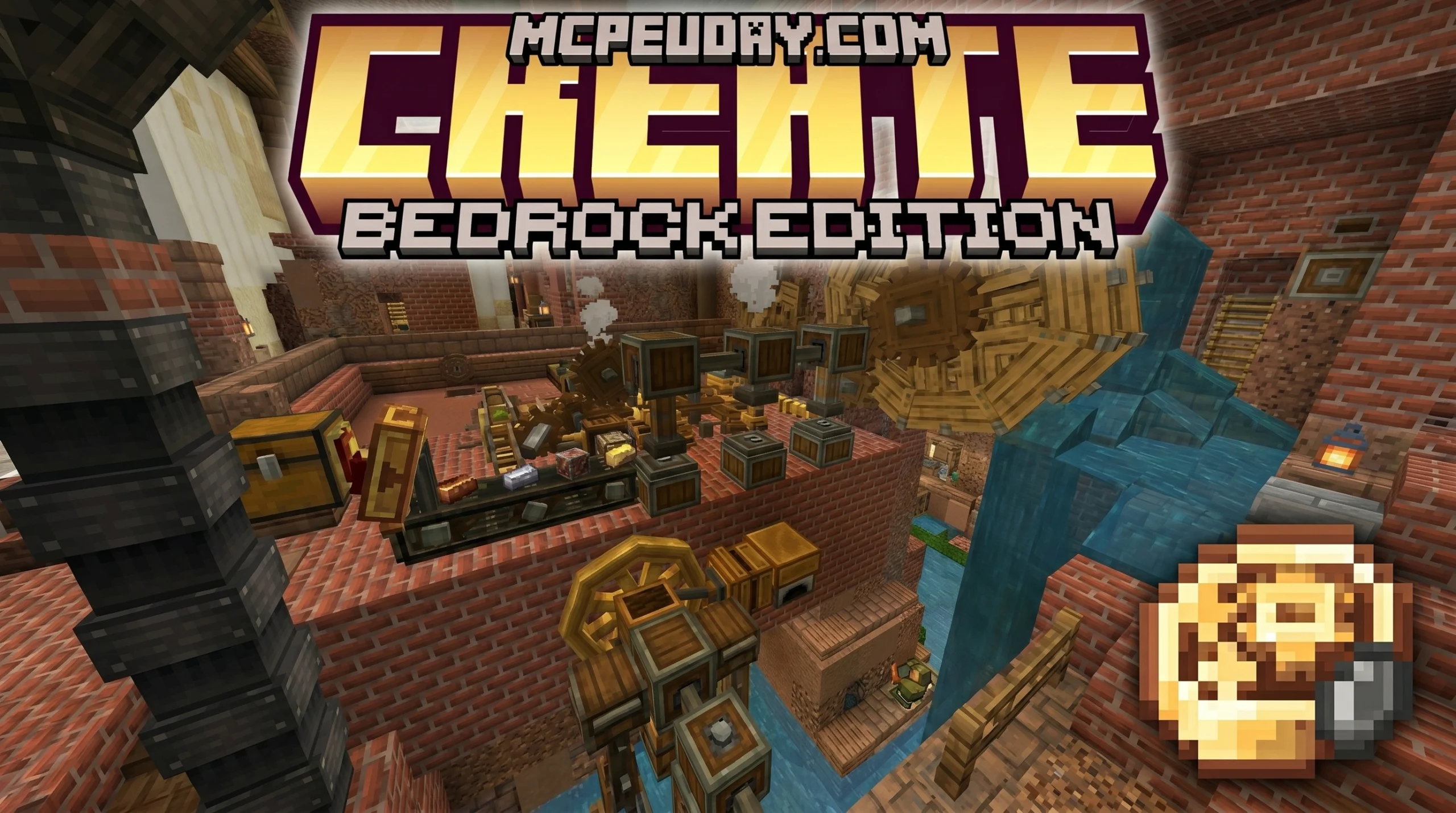
Create Bedrock Addon brings the famous Java mod’s automation and machinery to the Bedrock Edition of Minecraft. It lets you build huge, moving factories with water wheels, conveyor belts, and mechanical arms. You can design complex production lines to automatically craft items, process resources, and move things around your base. This addon gives you all the tools and blocks needed to create an advanced industrial world, from simple farms to massive, fully automated systems
Features:
- Build complex, automated factories to do tasks for you.
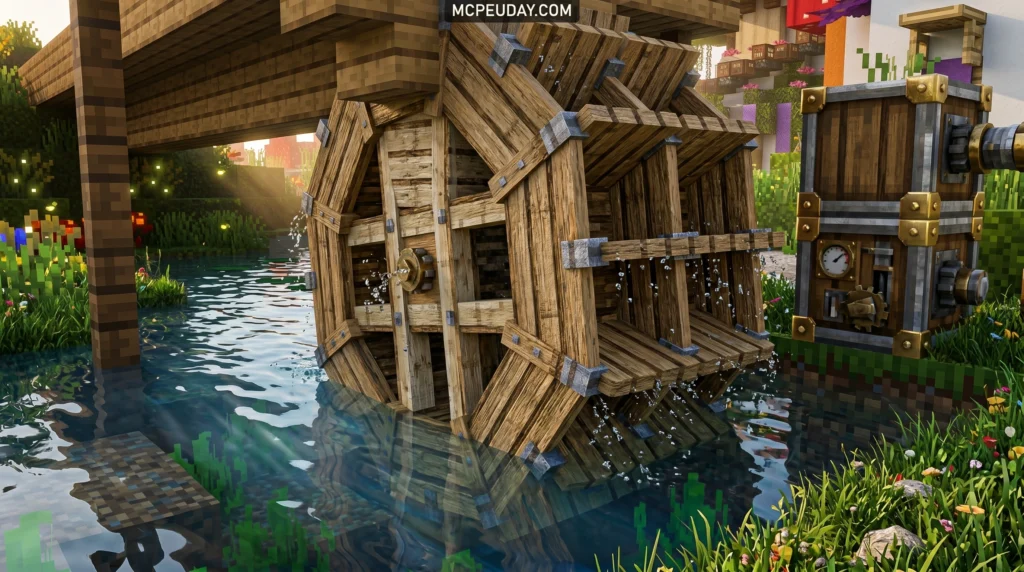
- Generate power with water wheels and creative motors to run your machines.
- Use tools like the Engineer’s Goggles to see information like rotation speed (RPM).
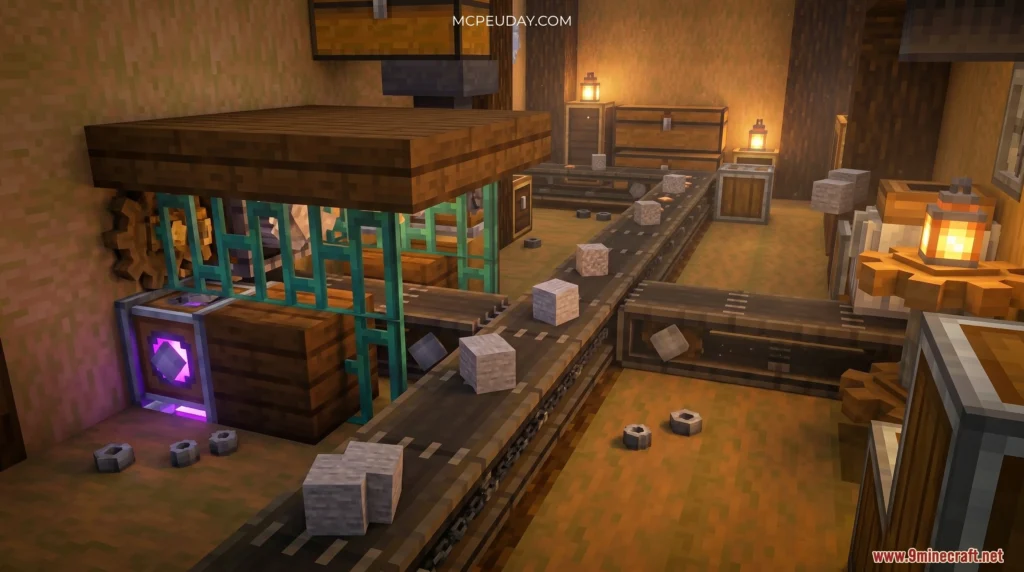
- Transport items automatically with conveyor belts and mechanical arms.
- Process resources with new machines like saws, drills, and crushing wheels.
- Mix ingredients in basins using a mechanical mixer.
- Crush cobblestone into gravel and other materials with powerful crushing wheels.
- Use advanced components like brass tunnels to sort and split items on your belts.
How to Use:
- Start by crafting a power source, like a Water Wheel, and place it in water.
- Use Shafts and Cogwheels to transfer the rotational power from the source to your machines.
- Craft machines like a Mechanical Saw or a Crushing Wheel and connect them to the power network.
- Set up Conveyor Belts to move items to and from your machines for full automation.
- Wear Engineer’s Goggles to see how much power your network is generating and usin
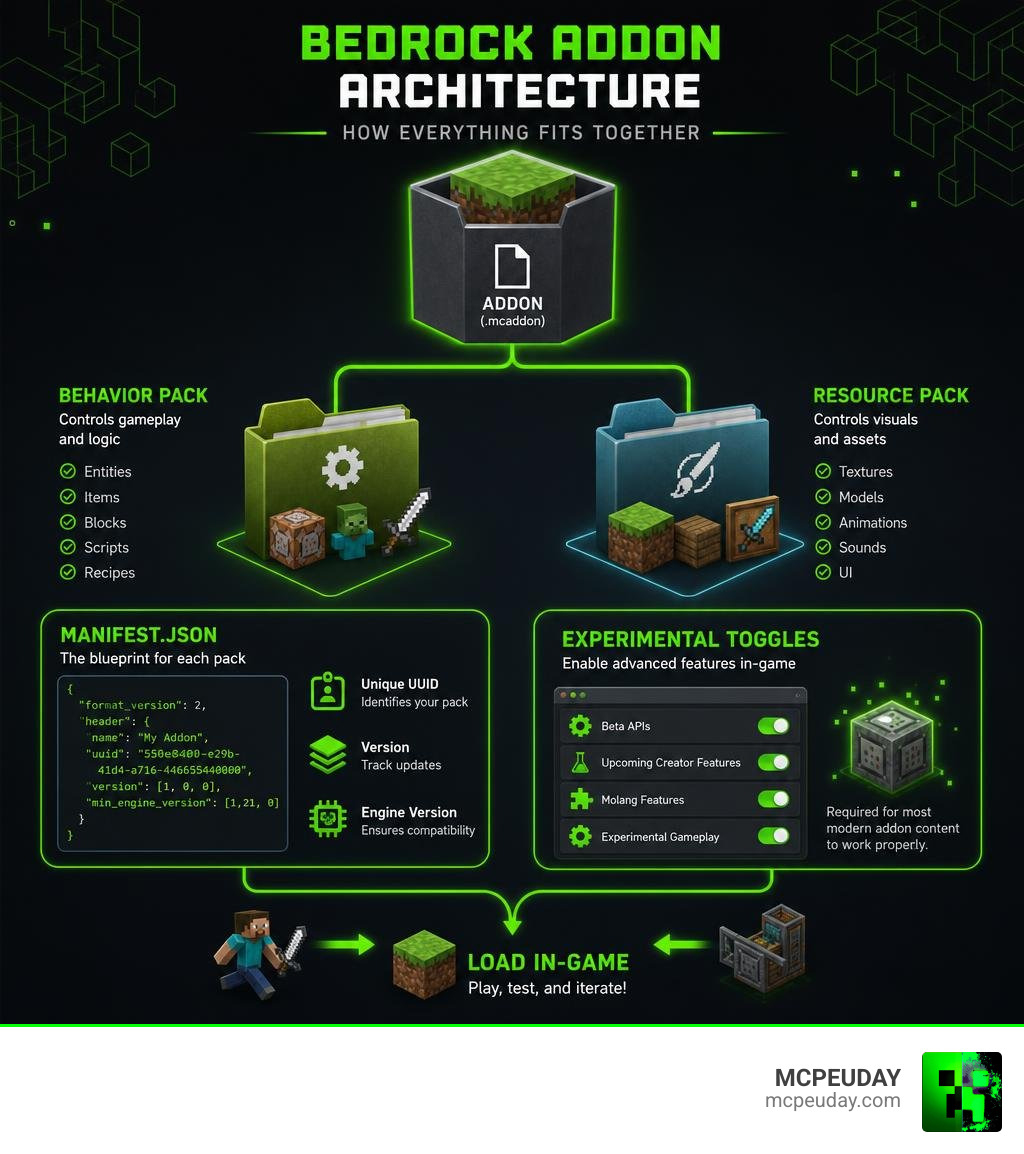
Creating a Bedrock addon means building a custom behavior pack or resource pack that changes how Minecraft Bedrock Edition works — adding new machines, items, mobs, or mechanics without touching the game’s core code.
Here’s the quick version of how to do it:
- Set up your tools — Install Visual Studio Code and Blockbench
- Create your folder structure — Build a behavior pack (BP) and resource pack (RP) folder
- Write your manifest.json files — Each pack needs a unique UUID and version number
- Add your content — JSON files define new blocks, items, entities, or machines
- Enable experimental features — Required for most modern addon content in Bedrock
- Test in-game — Load the packs into a world and use
/reloadto iterate fast
The Create Bedrock Addon specifically refers to an unofficial port of the hugely popular Java Edition Create mod — a mod famous for its mechanical power systems, conveyor belts, and factory automation — brought over to Minecraft Bedrock Edition for the first time.
If you play on mobile, Windows 10/11, Xbox, or PlayStation, you’ve never had access to the full Create experience. That changes with this addon.
The addon has racked up over 89,000 views and nearly 2,500 likes, with 260+ community comments — a clear sign players have been hungry for this kind of automation gameplay on Bedrock.
This guide covers everything: how the addon works, how to build your own Bedrock addons from scratch, how to install and troubleshoot them, and which tools make the whole process faster in 2026.
Understanding the Create Bedrock Addon and Its Mechanics
To truly understand how to make a Create Bedrock Addon, we first have to look at how this incredible port translates complex Java mechanics into the Bedrock ecosystem. The original Java mod is a masterpiece of engineering, introducing mechanical power, kinetic energy, and rotational force.
When developers set out to bring this to Bedrock, they had to rebuild these complex systems within the constraints of Bedrock’s Bedrock Engine. The port, which you can find on our Create Addon page, manages to translate these heavy calculations into lightweight Bedrock behavior scripts.
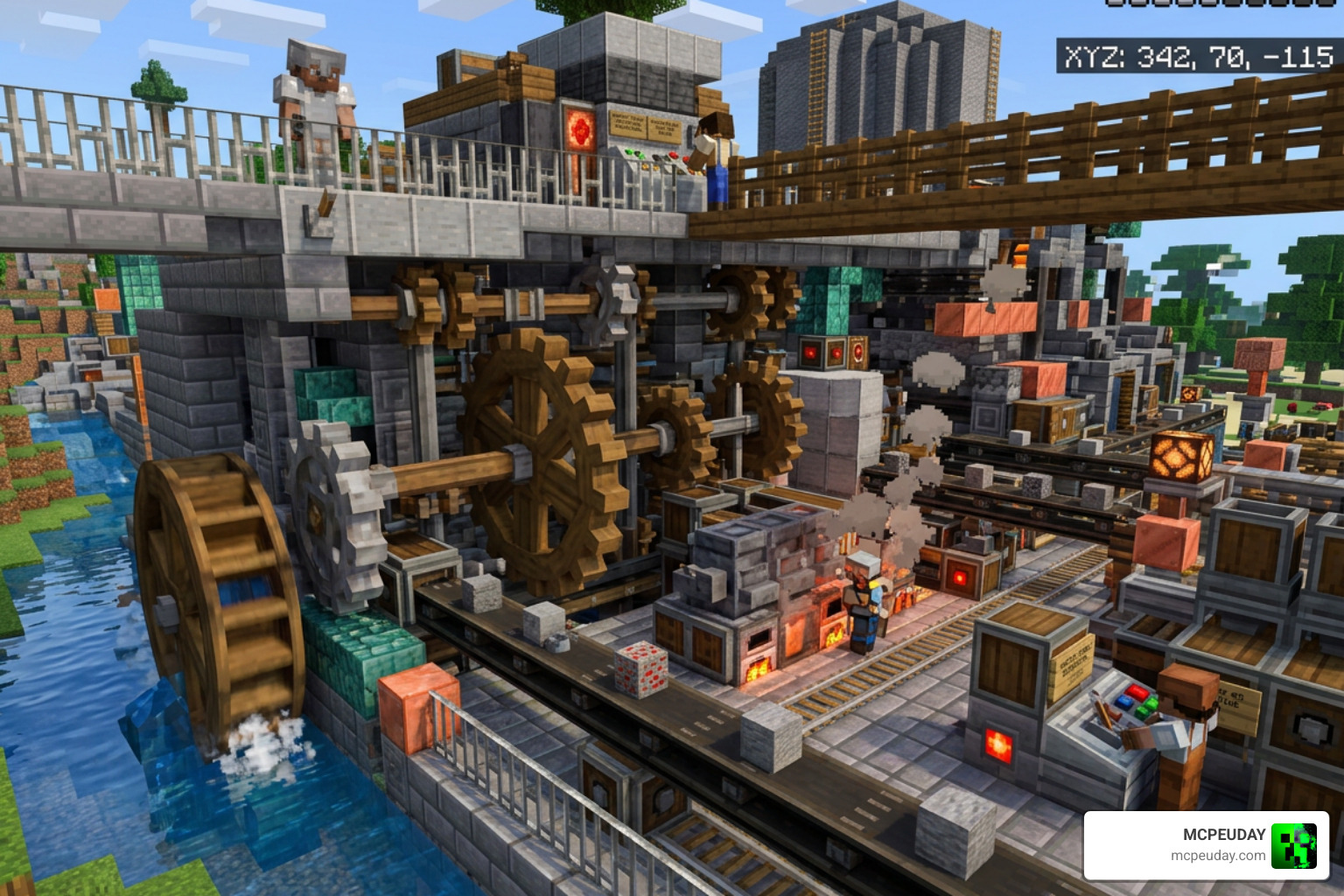
By utilizing kinetic energy, players can build massive automated factories and complex production lines. Instead of relying on magical redstone signals that simply toggle states, the mechanical power system requires physical torque. You connect shafts, spin cogwheels, and generate energy to drive your machines.
As highlighted in the community showcase Create Mod is FINALLY on Minecraft Bedrock, and ITS INSANE , seeing these mechanical blocks rotate and interact in real-time on a mobile device or console is nothing short of revolutionary.
Key Features of the Create Bedrock Addon
The heart of any Create-style addon lies in its mechanical blocks. Here are the core features currently driving the Bedrock version:
- Rotational Force: The foundational system where power is generated, transmitted, and consumed.
- Cogwheels and Shafts: Used to transfer rotational power horizontally, vertically, or to change the speed of rotation.
- Water Wheels: A classic early-game generator that produces kinetic energy when water flows over it.
- Mechanical Presses: Used to flatten ingots into sheets, automating a core step in advanced crafting recipes.
- Conveyor Belts: The ultimate item transportation system that moves items smoothly across your base.
To see how the Bedrock addon stacks up against its Java predecessor in 2026, let’s look at this comparison:
| Feature | Java Edition Create Mod | Bedrock Edition Create Addon |
|---|---|---|
| Engine Base | Java / Flywheel Rendering | C++ / Bedrock Behavior Packs |
| Physics Engine | Custom physics for moving contraptions | Simplified entity-based movement |
| Power Sources | Water wheels, Windmills, Steam engines | Water wheels and basic generators |
| Assembly Lines | Fully automated multi-step processing | Basic processing (Pressing, Mixing) |
| Performance | High CPU/GPU load (requires optimization) | Highly optimized for mobile and console play |
Current Limitations and Future Development
While we love what the creators have achieved, porting such a massive mod to Bedrock comes with technical hurdles. Because Bedrock relies heavily on JSON definitions and strict scripting APIs, some Java features cannot be perfectly replicated.
For instance, massive moving contraptions (like a giant flying drill machine) are incredibly difficult to render without causing lag on mobile devices.
Currently, the addon requires several experimental toggles to be active. Users have reported occasional rendering bugs where cogwheels appear static even when spinning, or conveyor belts occasionally dropping item entities.
The development community is actively working on performance optimization to make these mechanical networks run even smoother on low-end mobile devices.
Setting Up Your Development Environment
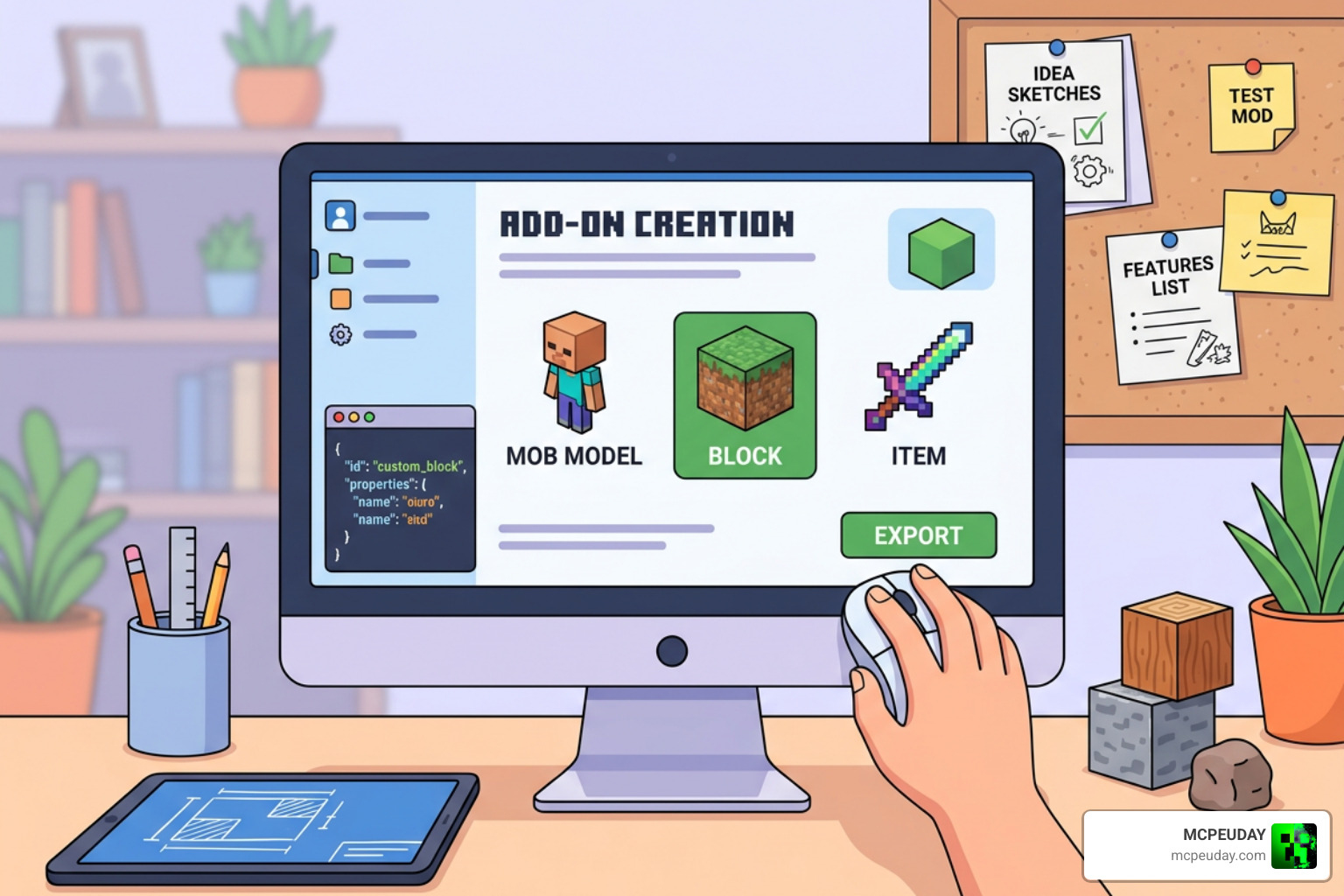
If you want to build your own Create Bedrock Addon or customize existing mechanical blocks, you need a proper setup. Unlike Java modding, which requires Java programming knowledge, Bedrock addon creation is highly accessible, relying mostly on JSON files, textures, and optional JavaScript/TypeScript.
To get started, we need to locate the development folders. Minecraft Bedrock reads active local projects from a specific folder called com.mojang.
On Windows, you can find this folder by navigating to your AppData directory, specifically under LocalPackages, finding the Microsoft.MinecraftUWP folder, and digging down into LocalState, games, and finally com.mojang.
Within this directory, you will find developmentbehaviorpacks and developmentresourcepacks. Working inside these folders is a lifesaver because it allows the game to load your changes instantly.
To make sure Minecraft recognizes your addon, you must set up a manifest.json file for both your behavior pack and resource pack.
The manifest acts as the addon’s ID card. It contains the pack version, description, and most importantly, universally unique identifiers (UUIDs).
You can read more about setting up these files in the excellent Project Setup | Bedrock Wiki .
Essential Tools to Create Bedrock Addon Projects
To make your development journey smooth and error-free, we highly recommend using these industry-standard tools:
- Visual Studio Code: The absolute best text editor for editing JSON and writing scripts. Be sure to install the Blockception’s Minecraft Bedrock Development extension for auto-completion.
- Blockbench: An incredible, free 3D modeling software designed specifically for Minecraft. You can design your custom cogwheels, machines, and items here, and export them directly as Bedrock models.
- Bedrock CLI Tools: To completely skip the boring part of writing manifests and generating UUIDs, you can use the interactive CLI tool Keyyard/create-mc-bedrock-cli . It sets up a clean project workspace in seconds with unique UUIDs.
- Python Helpers: If you prefer scripting your addon generation, projects like prootiex3/be-addon-creator use Python to automate block and item creation.
Step-by-Step Addon Development Workflow
Creating an addon is an iterative process. By following the official Add-On Development Workflow | Microsoft Learn , we can save ourselves hours of frustration.
- Plan Your Machine: Decide what your custom block will do. Will it generate power or consume it?
- Model in Blockbench: Draw your 3D model, apply textures, and export the geometry and texture files.
- Write the Behavior Pack (BP): Define the block’s properties, such as its custom components, ticking functions, and how it interacts with players.
- Write the Resource Pack (RP): Tell the game how to render your model, link the textures, and define the block’s in-game name.
- Use Hot Reloading: Instead of closing and reopening Minecraft every time you make a change, use the
/reloadcommand in-game to instantly update your scripts and behavior files.
Installing and Troubleshooting Bedrock Addons
Installing custom addons on Bedrock is usually a breeze, but complex technical creations like the Create Bedrock Addon require extra care to function properly.
The absolute most important step when installing these addons is enabling experimental toggles in your world settings. Because these addons introduce custom blocks with unique geometries and scripting mechanics, they rely on features that aren’t fully integrated into the base game yet.
You must turn on Holiday Creator Features, Beta APIs, and Custom Biomes (if applicable) before loading your world. For a complete look at how version compatibility works on the latest game releases, check out our Core Craft Addon Mcpe 1 21 Features Download Full Guide.
Platform-Specific Installation Guide
Depending on what device you use to play Minecraft, the installation process varies:
- Windows: The easiest platform. Simply double-click the downloaded .mcaddon file. Minecraft will open automatically and import both packs.
- Mobile (Android/iOS): You can use a file manager app to rename the downloaded file extension to .mcaddon and open it with Minecraft. On iOS, you may need to share the file directly to the Minecraft app.
- Consoles (Xbox, PlayStation, Switch): Consoles do not allow direct file downloads. To play custom addons on a console, you must upload the addon to a Minecraft Realm from a Windows or mobile device, and then join that Realm from your console.
Troubleshooting Common Import Errors
If you run into issues, don’t panic! Here are the most common errors and how we fix them:
- Duplicate UUIDs: If you copied a manifest file from another pack without generating new UUIDs, Minecraft will fail to import it. Always use a UUID generator to create unique IDs.
- Content Log Errors: If your custom block isn’t showing up, enable the Content Log in your Creator settings. This log acts as an in-game debugger, telling you exactly which line of JSON has a syntax error.
- Missing Textures: If your block is rendering as a black-and-purple checkerboard, double-check that your resource pack’s texture paths match your geometry definitions exactly.
Frequently Asked Questions about Bedrock Addons
Can I play the Create Bedrock Addon on consoles?
Yes, but with a workaround. Because consoles like Xbox, PlayStation, and Nintendo Switch do not support direct file imports, you must host the addon on a Minecraft Realm. Once the host uploads the world with the behavior and resource packs active, console players can join and experience the mechanical automation seamlessly.
Do I need coding knowledge to make a Bedrock addon?
No! While knowing JSON and JavaScript helps for advanced behaviors, modern tools have made it incredibly easy. You can create custom items, blocks, and simple behaviors using visual editors in Blockbench or automated command-line tools without writing a single line of traditional code.
What Minecraft versions are supported by modern addons in 2026?
In 2026, modern addons are designed for Minecraft 1.21 and higher. Using the latest stable engine versions ensures that your custom blocks, scripting APIs, and custom rendering features work smoothly without breaking during minor game updates.
Conclusion
Bringing the industrial revolution to Minecraft Bedrock is no longer a distant dream. Whether you are installing the incredible Create Bedrock Addon to automate your survival world or taking your first steps to create a Bedrock addon from scratch, the tools available in 2026 make the process more accessible than ever.
We encourage you to experiment, build complex factory lines, and share your creations with the world. For the latest and greatest mods, guides, and downloads, explore our extensive Category/Mod Addons library, or Explore more Bedrock content on MCPEUDAY to take your gameplay to the next level!
1 thought on “Create Bedrock Addon (26.x, 1.21) – MCPE/Bedrock Mod”