Why Minecraft Shaders for Android Are Worth Getting Right
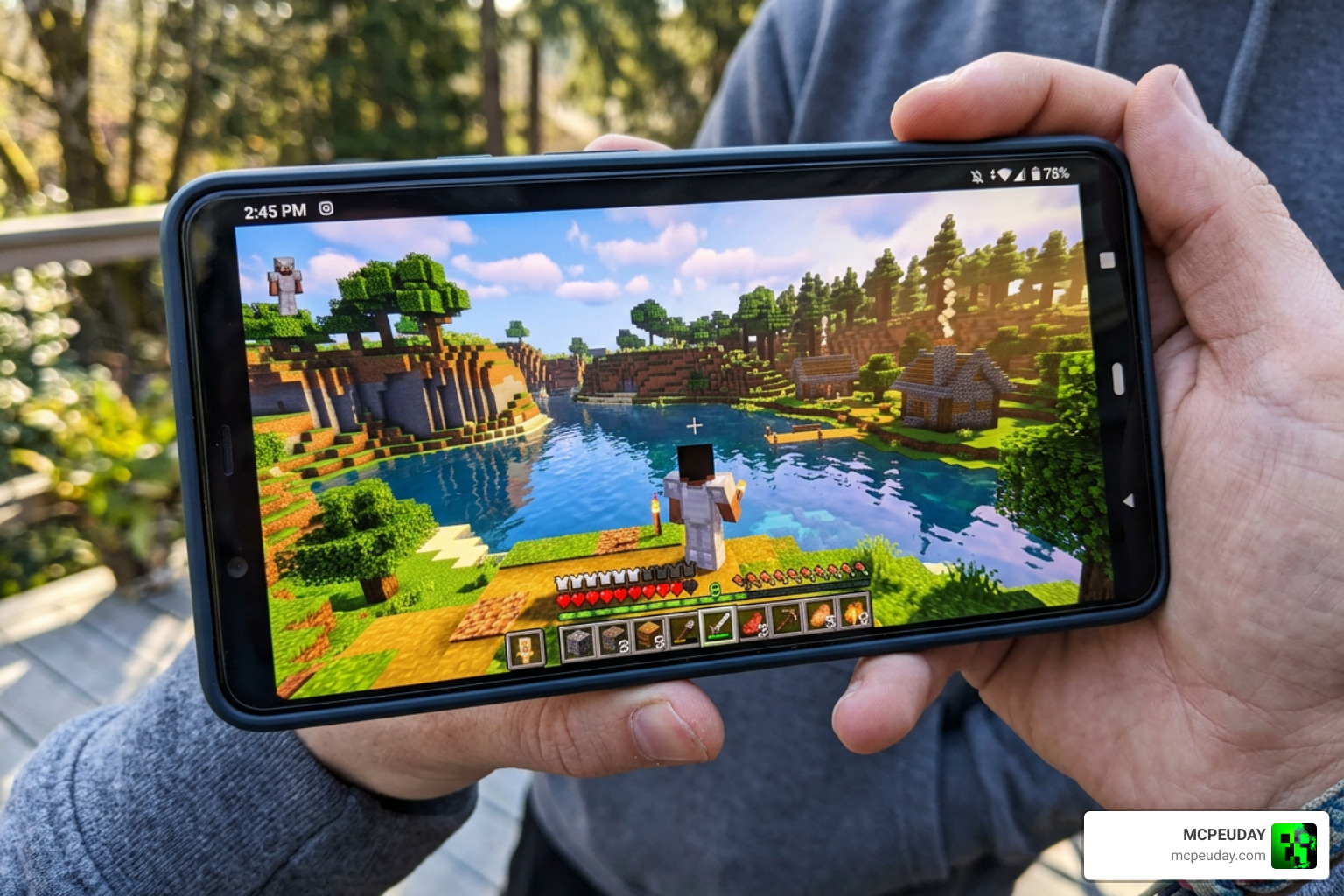
If you’ve been searching for a minecraft shaders download for android, here’s the quick answer:
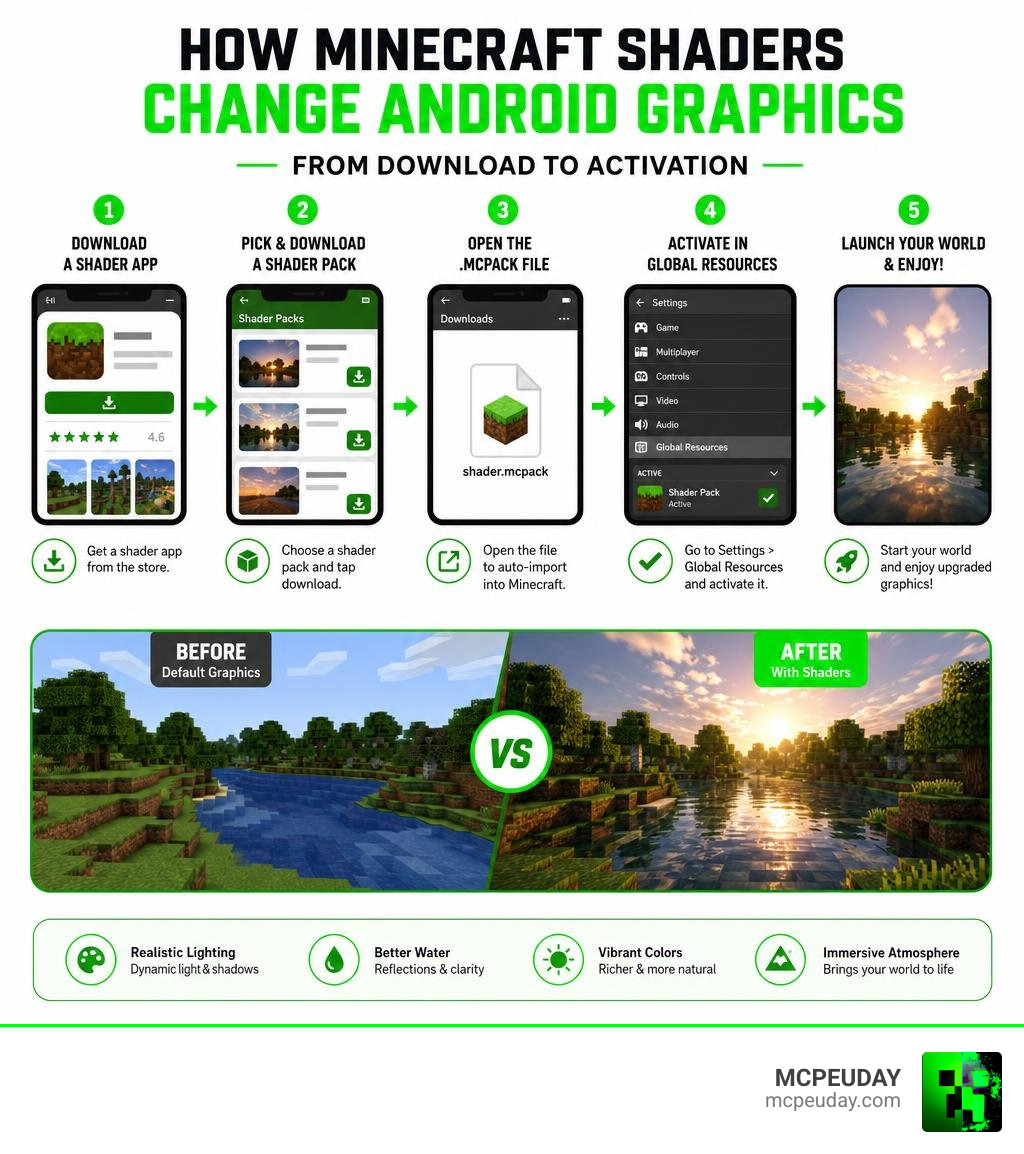
How to get Minecraft shaders on Android (fast summary):
- Download a shader app from Google Play (like Shaders Texture Packs for MCPE or Shaders for Minecraft)
- Pick a shader pack inside the app and tap download
- Open the .mcpack file — it will auto-import into Minecraft
- Go to Settings > Global Resources in Minecraft and activate the shader
- Launch your world and enjoy the upgraded visuals
Important: Shaders work best on Minecraft Bedrock Edition with a patched or BETA/Preview version. Standard Minecraft 1.20+ uses the Render Dragon engine, which limits traditional shader support.
Minecraft on Android looks great out of the box. But once you see it with shaders — realistic water, dynamic shadows, glowing sunsets — it’s hard to go back.
Shaders add visual effects like shadow maps, normal maps, and specular lighting that make your world feel alive. And with 10M+ downloads for shader apps on Google Play alone, it’s clear millions of players want that upgrade.
The catch? Not every shader app is safe. Not every shader works on your version of Minecraft. And some apps are packed with ads or worse.
This guide cuts through the noise so you can get great-looking shaders without the headaches.
What Are Minecraft Shaders and How Do They Work on Mobile?
To understand how to get these visuals onto your phone, we first need to look under the hood. In Minecraft, shaders are specialized graphics packages that override the game’s default rendering pipeline. Instead of the flat, blocky lighting that has defined the game for over a decade, shaders introduce advanced visual calculations directly to your phone’s GPU.
These calculations include:
- Dynamic Lighting & Shadows: The sun and moon act as actual light sources, casting real-time shadows behind blocks, trees, and players.
- Volumetric Fog & Atmosphere: Biomes feel distinct. Deserts get dusty, warm hazes, while mountain ranges are blanketed in thick, atmospheric fog.
- Water Reflections & Wave Physics: Instead of static blue blocks, water becomes translucent with realistic surface ripples, reflections, and underwater distortion.
- Waving Foliage: Leaves and grass sway gently in response to virtual wind, instantly making forests feel alive.
If you are new to this concept and want to understand the foundational steps, check out our guide on How to Get Shaders in Minecraft.
The Bedrock Engine vs. Java Edition Shaders
If you have ever watched a PC player run Java Edition with OptiFine or Iris, you have seen shaders like BSL, Sildur’s, or Complementary running at jaw-dropping quality. However, Android devices run Minecraft Bedrock Edition (historically known as Minecraft Pocket Edition or MCPE).
Because Bedrock is built on a completely different codebase (C++ instead of Java), you cannot use Java shader files (.zip or shaderpack folders) on your Android device. Android shaders must be packaged specifically for Bedrock, usually as .mcpack or .mcaddon files.
Furthermore, Mojang introduced the Render Dragon engine to Bedrock Edition. This graphics engine optimized performance across platforms but initially locked down the rendering pipeline, making traditional third-party shaders incompatible with standard retail versions of MCPE 1.20 and 1.21. To bypass this, modern mobile shaders utilize Bedrock’s new deferred rendering pipeline (available in Preview/Beta builds) or require patched versions of the game to run.
Step-by-Step Guide: Minecraft Shaders Download Android Process
Getting a minecraft shaders download for android is incredibly rewarding, but the installation process varies depending on where you source your files. Let’s walk through the safest and most efficient methods.
Finding Safe Sources for a Minecraft Shaders Download Android
The internet is filled with websites offering “free RTX shaders for Android.” We must warn you: mobile ray tracing (RTX) is hardware-locked to specific desktop graphics cards and high-end console chips. Any mobile app claiming to give your mid-range phone “RTX Graphics” is using aggressive marketing—or worse, trying to get you to download adware.
To keep your device secure, stick to verified and highly rated sources:
- Google Play Store: This is the safest starting point. Reputable apps like Shaders Texture Packs for MCPE – Apps on Google Play (which has over 5M+ downloads) and Shaders for Minecraft – Apps on Google Play provide curated databases of community packs that are automatically scanned for malware.
- Uptodown & Official Repositories: For standalone APKs or direct file downloads, trusted platforms like Uptodown host verified tools, such as the Shaders for Minecraft. Addons package, which has accrued over 21,000 downloads safely.
- MCPEUDAY: Here at MCPEUDAY, we test every shader pack we host on real Android devices to ensure they are free of malicious code, run smoothly, and won’t crash your game.
Avoid downloading files from unverified online forums, suspicious file-sharing links, or apps that demand excessive permissions (like access to your contacts or phone dialer).
How to Install Your Minecraft Shaders Download Android Files
Once you have chosen a safe source, you have two primary methods for installation:
Method 1: The One-Click App Installer (Easiest)
Many modern shader apps on Google Play streamline the process completely.
- Download a trusted app like Shaders for Minecraft Textures – Apps on Google Play .
- Open the app and browse the categories (e.g., Realistic, Lite, Cartoon).
- Select your desired shader and tap Download.
- Once downloaded, tap Install or Open with Minecraft.
- Your phone will automatically launch Minecraft and import the pack. You will see a notification at the top of your screen: “Successfully imported [Shader Name]”.
Method 2: Manual File Import (For Direct Downloads)
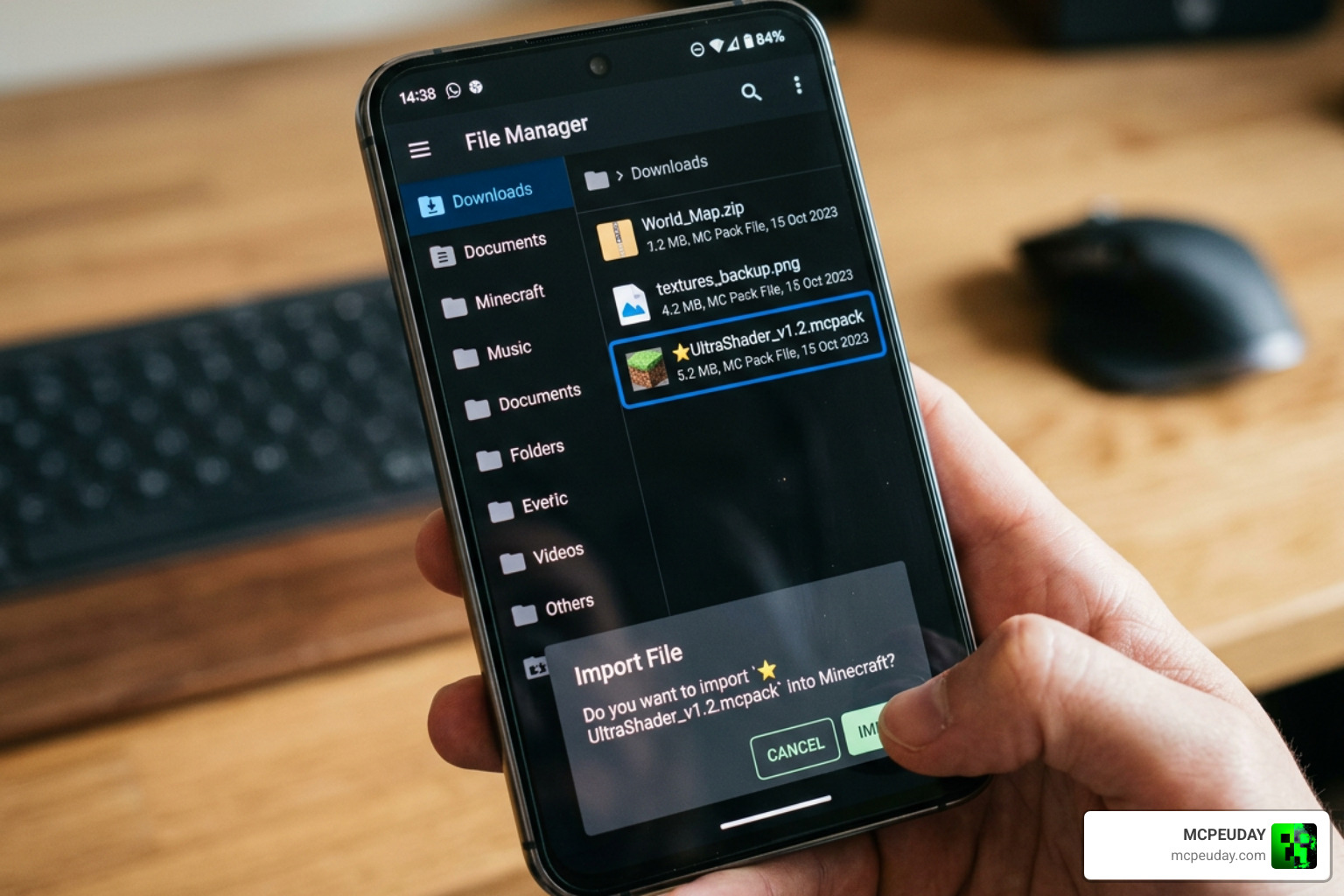
If you downloaded a .mcpack file directly from MCPEUDAY or another web browser:
- Open your Android File Manager (such as ZArchiver or your device’s default files app).
- Navigate to your Downloads folder and locate the downloaded file (e.g.,
shaderpack.mcpack). - Tap on the file. If prompted to choose an application, select Minecraft.
- If your file manager doesn’t offer to open it with Minecraft, rename the file to ensure it ends strictly in
.mcpack(remove any accidental.zipextension at the end). Then tap it again. - Minecraft will launch and automatically handle the import.
Activating the Shader In-Game
- From the Minecraft main menu, go to Settings.
- Scroll down on the left sidebar and select Global Resources.
- Tap My Packs to expand the list.
- Select your newly imported shader and tap Activate.
- Go back to the main menu (the game will load the resource pack), load your world, and enjoy the beautiful new views!
Best Minecraft Shaders for Android in 2026
The mobile shader scene has evolved rapidly. In 2026, creators have mastered the art of working alongside the Render Dragon engine, delivering breathtaking visuals that run beautifully on mobile chipsets.
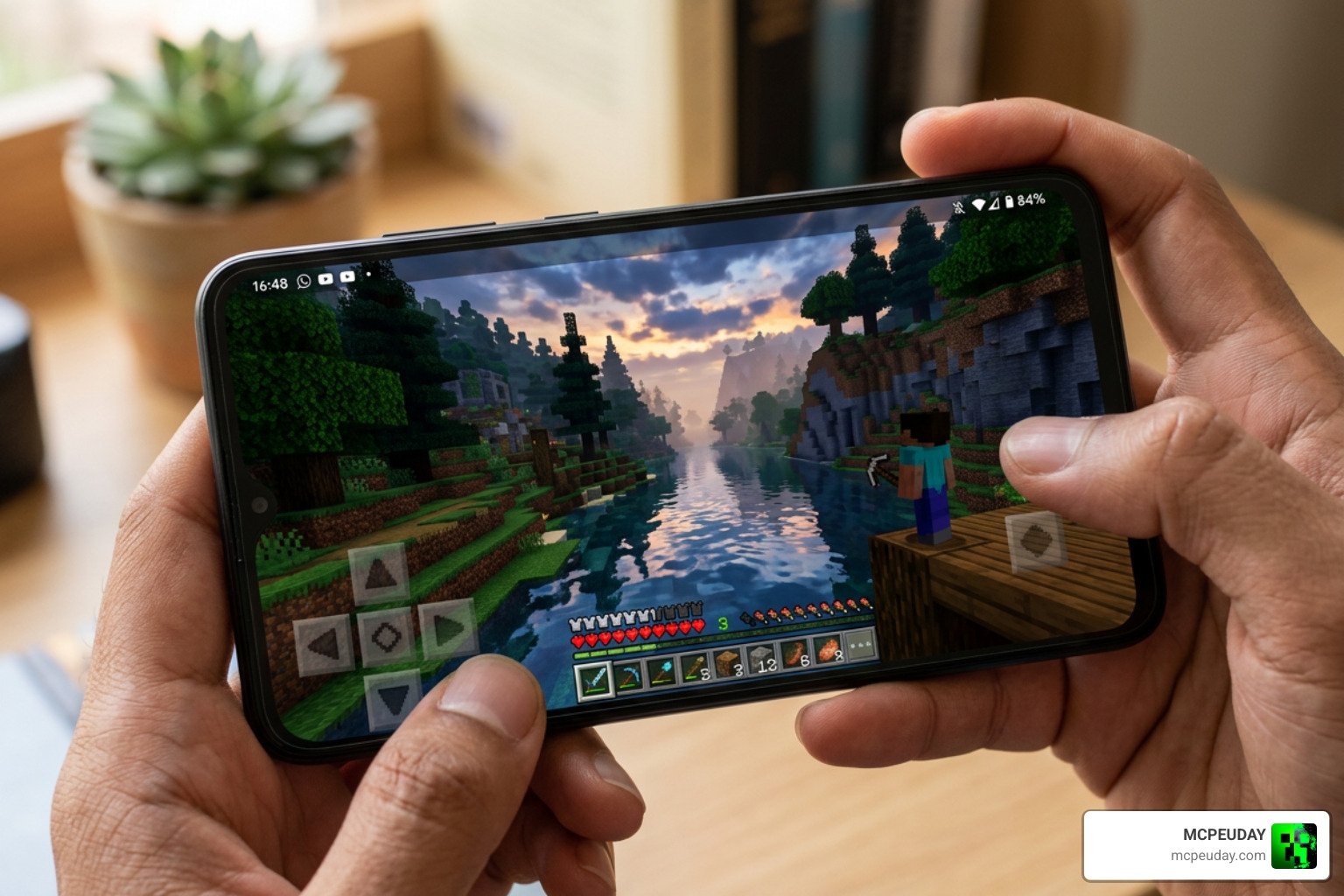
Here are the absolute best shaders you can download for Android right now:
1. The Newb X Series (The Gold Standard)
The Newb shader family is legendary in the MCPE community for its incredible optimization and gorgeous vanilla-plus styling. There is a version for every style of player:
- Newb X Future: Designed for players who want cutting-edge visual fidelity. It features lush volumetric fog, advanced water reflections, and gorgeous skybox gradients. Read more in our Newb X Future Shader for Minecraft Best Realistic Shader for Low End High End Devices review.
- Newb X Unwind: Focuses on rich, warm tones and highly stylized lighting that makes sunset building projects look spectacular. Check out the Newb X Unwind Shader for Minecraft Ultra Realistic Graphics Smooth FPS Stunning Visuals guide.
- Newb X Ambient: Perfect for players who want realistic lighting and soft shadows without tanking their frame rate. See our Newb X Ambient Shader for Minecraft Ultra Realistic Lighting Smooth FPS Boost 2026 Guide.
- Newb X Lowres: Specifically built to give budget and low-end Android devices a massive visual boost without causing lag. Learn more at Newb X Lowres Shaders for Minecraft PE MCPE Complete Beginners Guide Installation Settings FPS Tips.
- Newb X Amethyst & Newb X Solei: Incredibly lightweight options that focus on clean, vibrant colors and basic waving animations. Check out the Newb X Amethyst Shader Best Lightweight Shader for Minecraft PE MCPE and Newb X Solei Shader Best Lightweight MCPE Shader for Realistic Graphics guides.
- Newb X Super Vanilla: Preserves the core look of Mojang’s art style while polishing the lighting, clouds, and shadows. See our Newb X Super Vanilla Shader for Minecraft Best Vanilla Shader 2026 overview.
2. Photon Shader
Photon is a powerhouse shader that brings PC-like atmospheric effects to mobile Bedrock. It features dynamic weather coloring, stunning water waves, and highly adjustable settings. For installation and optimization tips, read our Photon Minecraft Shader How to Install 2026 Guide Best FPS Settings tutorial.
3. Prizma Shader
Prizma is a unique option that goes beyond simple lighting. It introduces stylized 3D depth to items in your hand and visual variations to mobs, making survival mode feel like a completely new game. It is well-optimized for mid-range Android tablets and phones.
To compare these options side-by-side, check out our comprehensive round-up of the Best Shaders for MCPE 1.21 2026 Top 3 Realistic Minecraft PE Shaders.
Performance, Battery Life, and Device Compatibility
Shaders are hardware-intensive. While a standard texture pack only changes static block images, a shader forces your phone to constantly recalculate light, shadows, and reflections in real time.
Before downloading, it helps to understand how your device will handle the extra load:
| Device Tier | Hardware Specs (Typical) | Recommended Shader Type | Expected FPS Impact | Battery & Heat |
|---|---|---|---|---|
| Low-End | 2-4GB RAM, Budget Processor | Newb X Lowres, Newb X Amethyst | Minimal (5-10% drop) | Cool temperature, normal battery drain |
| Mid-Range | 6-8GB RAM, Mid-tier Snapdragon/Dimensity | Newb X Ambient, Newb X Super Vanilla | Moderate (15-25% drop) | Warm to touch, moderate battery drain |
| High-End / Flagship | 12GB+ RAM, Snapdragon 8 Gen series | Photon, Newb X Future, Prizma | Heavy (30%+ drop, but stays above 60 FPS) | Warm/Hot, fast battery drain |
Tips to Optimize Performance & Save Battery:
- Lower your Render Distance: The single most effective way to claw back lost frames is to reduce your render distance in Minecraft’s video settings.
- Turn off “Fancy Graphics”: If you are running a heavy shader, turning off default features like “Fancy Bubbles” or “Beautiful Skies” can prevent your phone from lagging.
- Cap your Frame Rate: Keep your FPS capped at 60 (or your screen’s native refresh rate) to prevent your GPU from overworking and draining your battery unnecessarily.
Frequently Asked Questions about Mobile Shaders
Why don’t some shaders work on Minecraft Bedrock 1.20+?
With the rollout of the Render Dragon engine, Mojang changed how Bedrock processes graphics. Traditional shaders that relied on the old HALSL rendering system stopped working entirely. Today, to run advanced shaders on newer versions of Minecraft Bedrock (1.20 and 1.21+), you must use either:
- A patched version of the game client.
- The official Minecraft Beta/Preview builds, which feature experimental support for the new Deferred Lighting pipeline.
Are free shader apps on Google Play safe to use?
Generally, yes—especially those with millions of downloads and positive user reviews. However, always exercise caution. Some free apps contain intrusive full-screen ads, and others may request unnecessary device permissions. A shader app only needs basic storage permissions to import files into your Minecraft directory; it should never ask for your location, contacts, or phone call history.
Can I use shaders alongside texture packs and other mods?
Absolutely! Shaders change the lighting, while texture packs change the block designs. You can combine them to create a completely custom look. Just pay attention to your Load Order in the Global Resources settings:
- Shaders should generally be placed at the top of your Active Packs list.
- Texture Packs should sit below the shaders.
- Behavior Packs / Addons are managed separately in your individual world settings.
Conclusion
Upgrading your mobile Minecraft experience is incredibly easy once you know how to navigate the process safely. By choosing verified apps from Google Play or downloading tested, high-quality .mcpack files directly from us at MCPEUDAY, you can completely transform your blocky worlds into breathtaking, dynamic landscapes.
Remember to choose a shader pack that matches your device’s hardware capabilities, keep your render distance reasonable, and always double-check app permissions before installing.
Ready to begin your visual upgrade? Explore our curated, fully tested selection of mobile graphics packs in the MCPEUDAY Shaders Category and start building in a whole new light today!
P